Configure lead qualification
Turn on BANT, MEDDIC or MEDDICC, give teams their own framework, set the questions, deal breakers and recheck limits, and decide when a manager has to verify.
Updated 5 November 2026 · 9 min read
A lead can look like a perfect customer and still not be ready to buy. Maybe there's no budget this year, or the person you spoke to can't sign. Lead qualification is how your reps find that out. They answer a short set of questions on each lead, and Salesfresh turns the answers into a qualification score.
Say your team sells to both large companies and small shops. Small deals close after one call, so your SMB reps ask the four BANT questions. Big deals take months and many people, so your enterprise reps work through MEDDIC. Here you turn both on and tell Salesfresh which team uses which.
To see what reps do on a lead, see Qualify a lead.
Before you start
- Permission: View Lead Qualification to open the page. Edit Lead Qualification to change it, and to move a single lead to another framework. Verify Lead Qualification lets someone verify answers on any lead. Each role starts with the same view and edit access it has to lead scoring.
- Plan: Lead qualification needs a paid plan, the same as lead scoring. See Plans and limits.
- Set up first: Lead scoring, which gives each lead its fit score, and your teams if they qualify in different ways.
To open it, go to Settings → Lead Qualification. Nothing is turned on until you choose.
Choose your frameworks
On the Frameworks tab, turn on the frameworks your reps use.
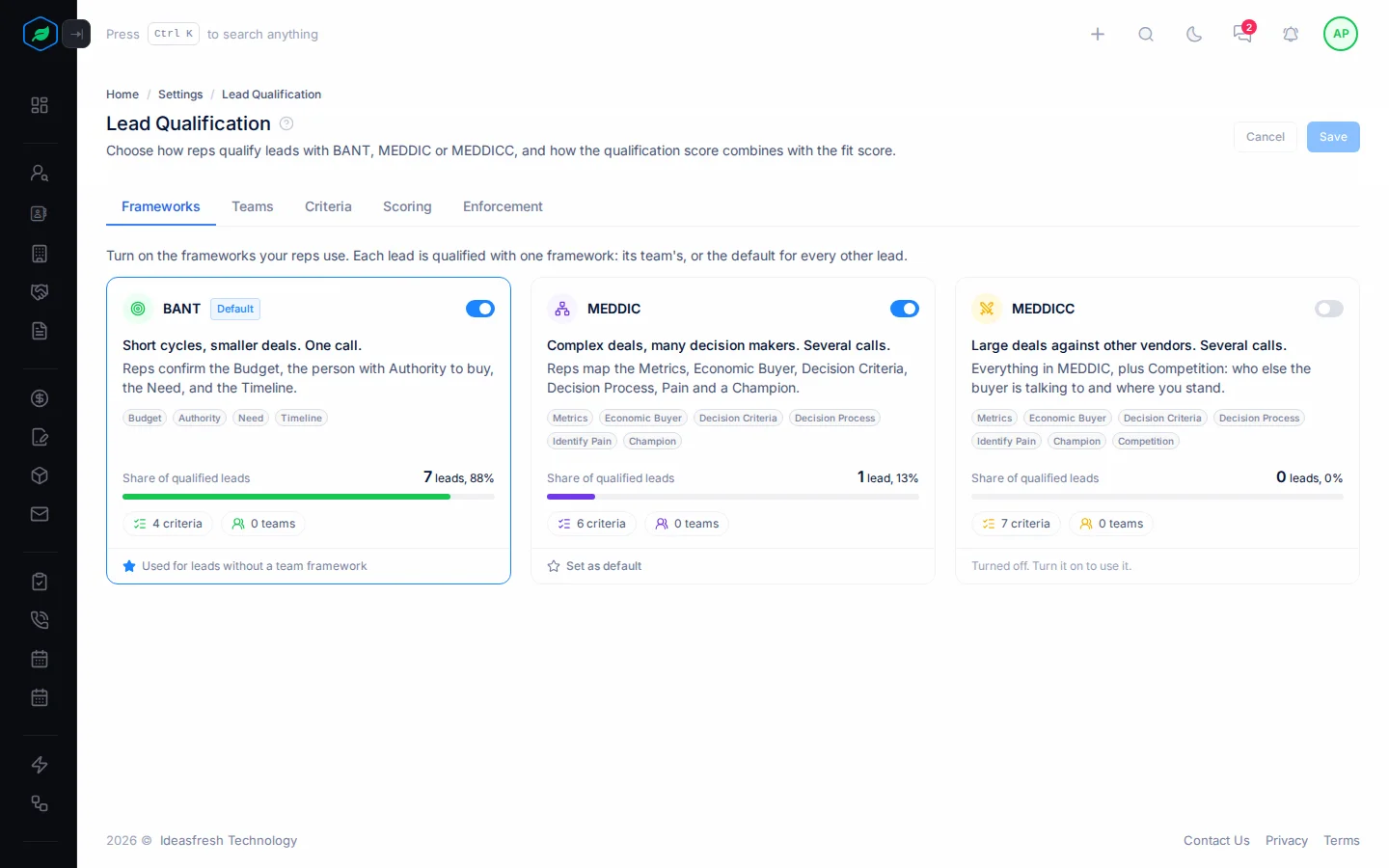
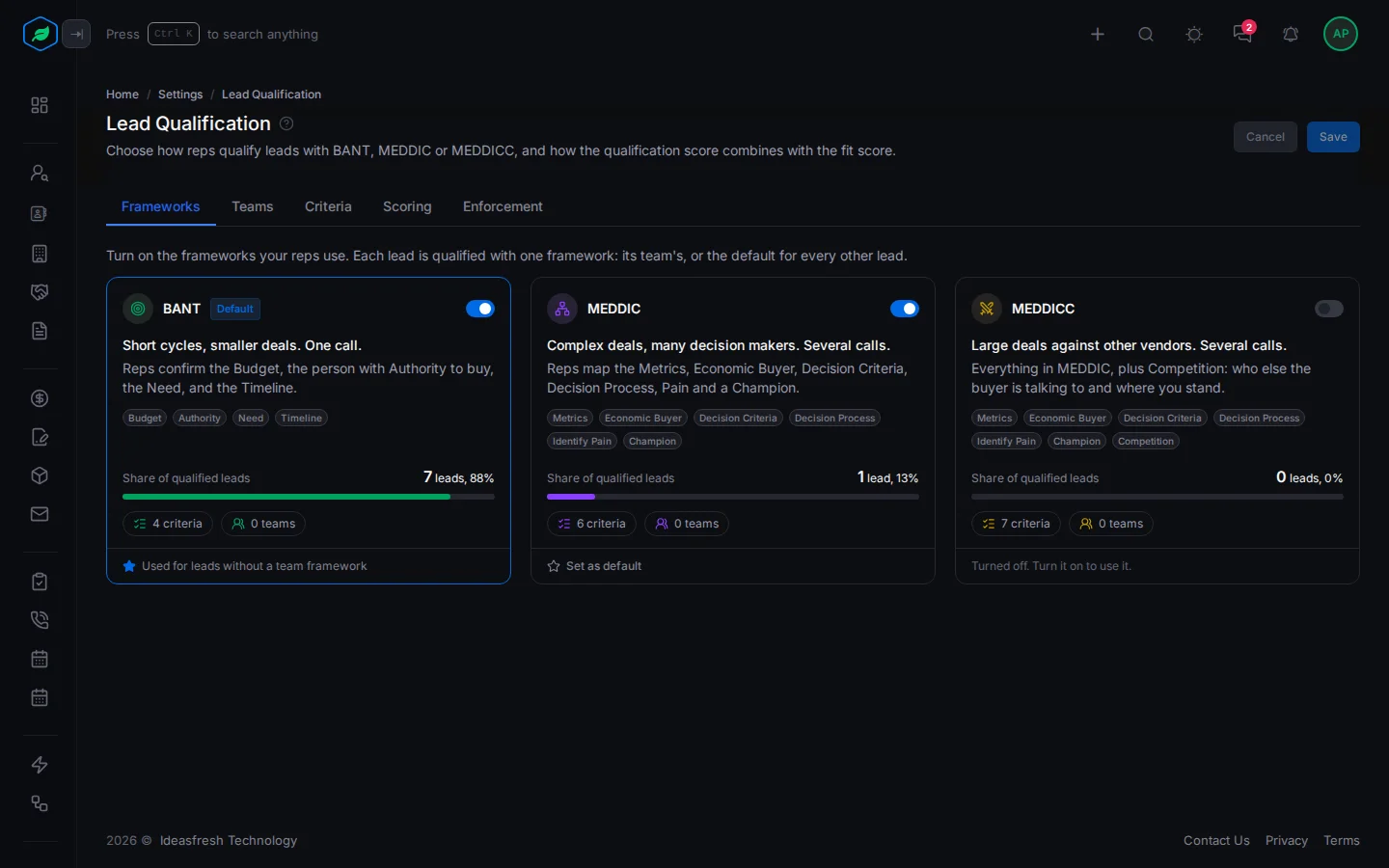
| Framework | What reps find out | Good for |
|---|---|---|
| BANT | Budget, Authority, Need and Timeline | Short sales and smaller deals. Four questions, often answered on the first call |
| MEDDIC | Metrics, Economic Buyer, Decision Criteria, Decision Process, Identify Pain and Champion | Complex deals with many people involved |
| MEDDICC | Everything in MEDDIC, plus Competition | Large deals where the buyer compares several vendors |
The first one you turn on becomes the default, with a Default tag. To change it, select Set as default on another framework. Every lead uses the default unless its team has its own.
Each framework also shows how many qualified leads use it, under Share of qualified leads.
A lead keeps its framework once a rep has answered a question on it. If you turn a framework off, Salesfresh tells you how many leads already use it. Those leads keep the framework, their answers and their score.
Give a team its own framework
On the Teams tab, pick a framework for any team that works differently. Leave a team on Default to use the default framework. Leads with no team use the default too.
The lead's team decides, not the rep's. So a rep in two teams answers MEDDIC on an enterprise lead and BANT on a small one.
Before you save a change that moves leads to another framework, Salesfresh tells you how many will switch, for example "12 leads will switch from BANT to MEDDIC." Only leads nobody has answered questions on can switch.
Set up the questions
On the Criteria tab, pick a framework at the top. Each question shows its answers, and each answer has a tier.
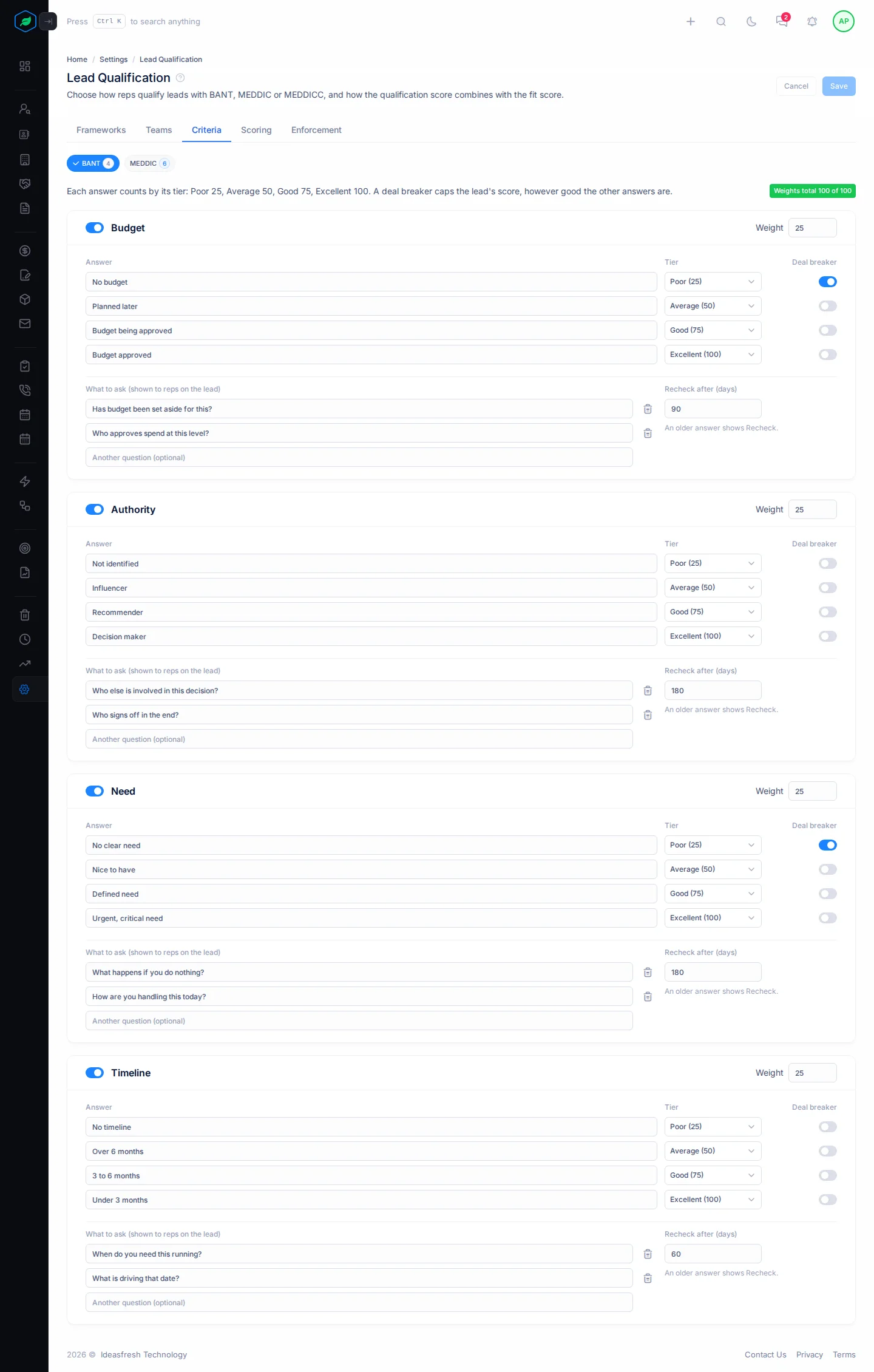
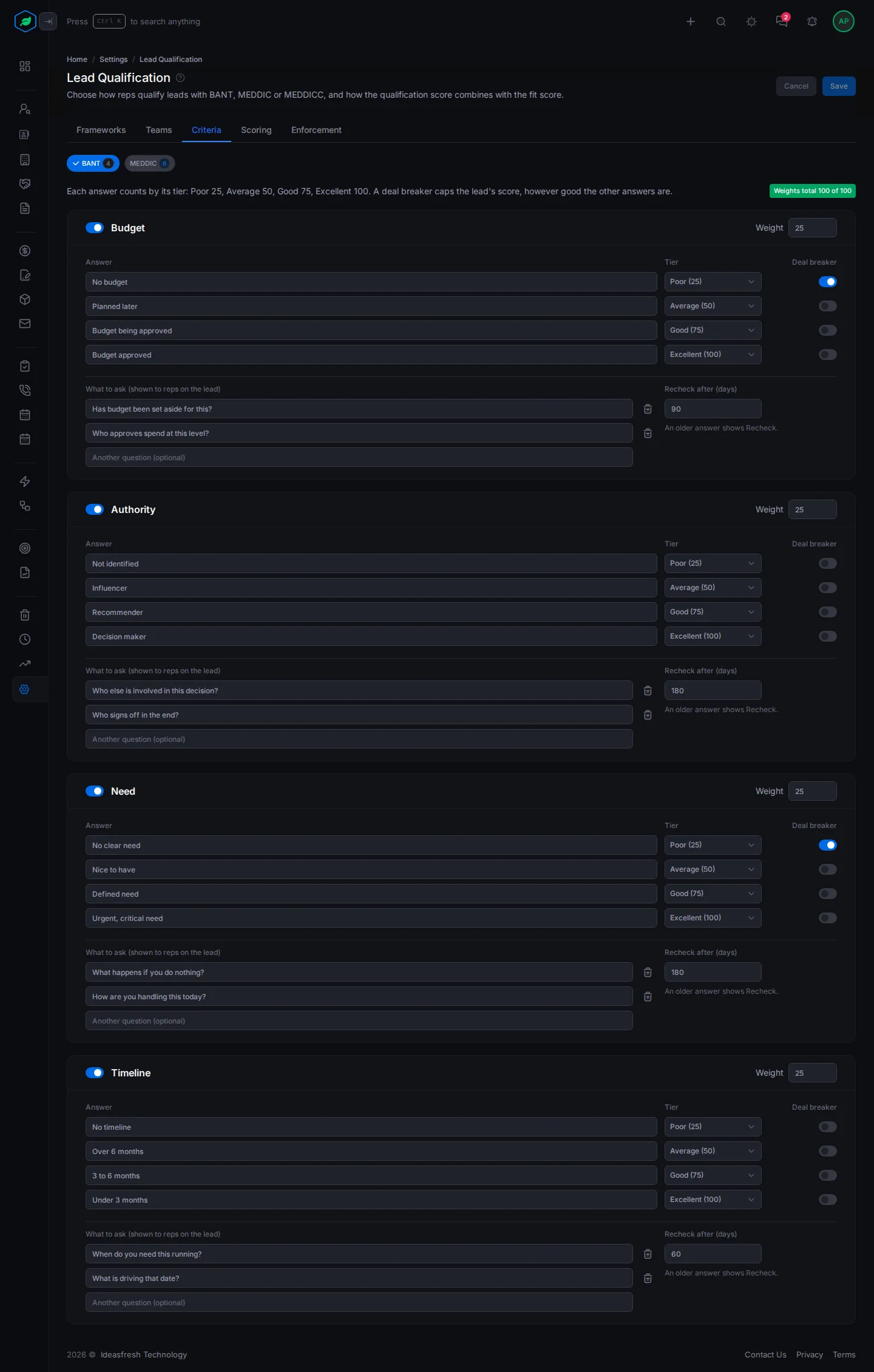
You can:
- turn a question off, if your team doesn't ask it,
- change how much a question counts, with its Weight,
- rename an answer to match how your team talks,
- change an answer's tier: Poor, Average, Good or Excellent,
- mark an answer as a deal breaker.
The weights of the questions that are on must add up to 100. The badge at the top shows the total as you type, for example "Weights total 100 of 100". You can't add new questions, so "BANT" means the same thing to everyone.
The tier decides how much of the question's weight a lead gets:
| Tier | Share of the question's weight |
|---|---|
| Excellent | All of it |
| Good | 75% |
| Average | 50% |
| Poor | 25% |
For example, Budget has a weight of 25. A lead whose answer is "Budget being approved", in the Good tier, gets 75% of 25, which is 18.75 points.
Deal breakers
Some answers mean a lead can't buy right now, however good the rest looks. "No budget" is the classic one. Mark such an answer as a deal breaker, and a lead with it can't score above the deal breaker cap, 20 to start with.
Out of the box, "No budget" and "No clear need" are deal breakers in BANT, and "None found" under Identify Pain in MEDDIC and MEDDICC.
Salesfresh never moves a lead to Disqualified on its own. Reps see the deal breaker and decide, because answers change. Budget can arrive next quarter.
What to ask
A new rep knows they need to find out about Budget, but not always how to bring it up. Under What to ask (shown to reps on the lead), write the questions that get the answer, such as "Has budget been set aside for this?". Reps see them on the lead when they select What to ask.
Each question can have up to 10. Every question comes with one or two to start with, and you can reword or remove them.
Recheck old answers
An answer that was true in spring may not be true by autumn. Under Recheck after (days), set how old an answer can get before reps are asked to check it again.
| Question | Recheck after, to start with |
|---|---|
| BANT Timeline | 60 days |
| BANT Budget | 90 days |
| Every other question | 180 days |
When an answer gets older than that, the lead shows Recheck next to it, and the lead's owner gets one notification about it. Set the days to 0 if answers to a question never need rechecking.
While an answer is waiting for a recheck, it doesn't count towards qualifying the lead. A rep has to confirm it or change it before the lead can move to a Qualified stage, if you require qualification below.
Decide how the scores combine
Every lead has three scores:
- Fit, from lead scoring: how closely the lead matches your ideal customer.
- Qualification, from the answers: how ready the lead is to buy.
- Overall, a blend of the two.
On the Scoring tab, set how much each counts. Fit 40 and Qualification 60 to start with. They always add up to 100, so changing one changes the other.
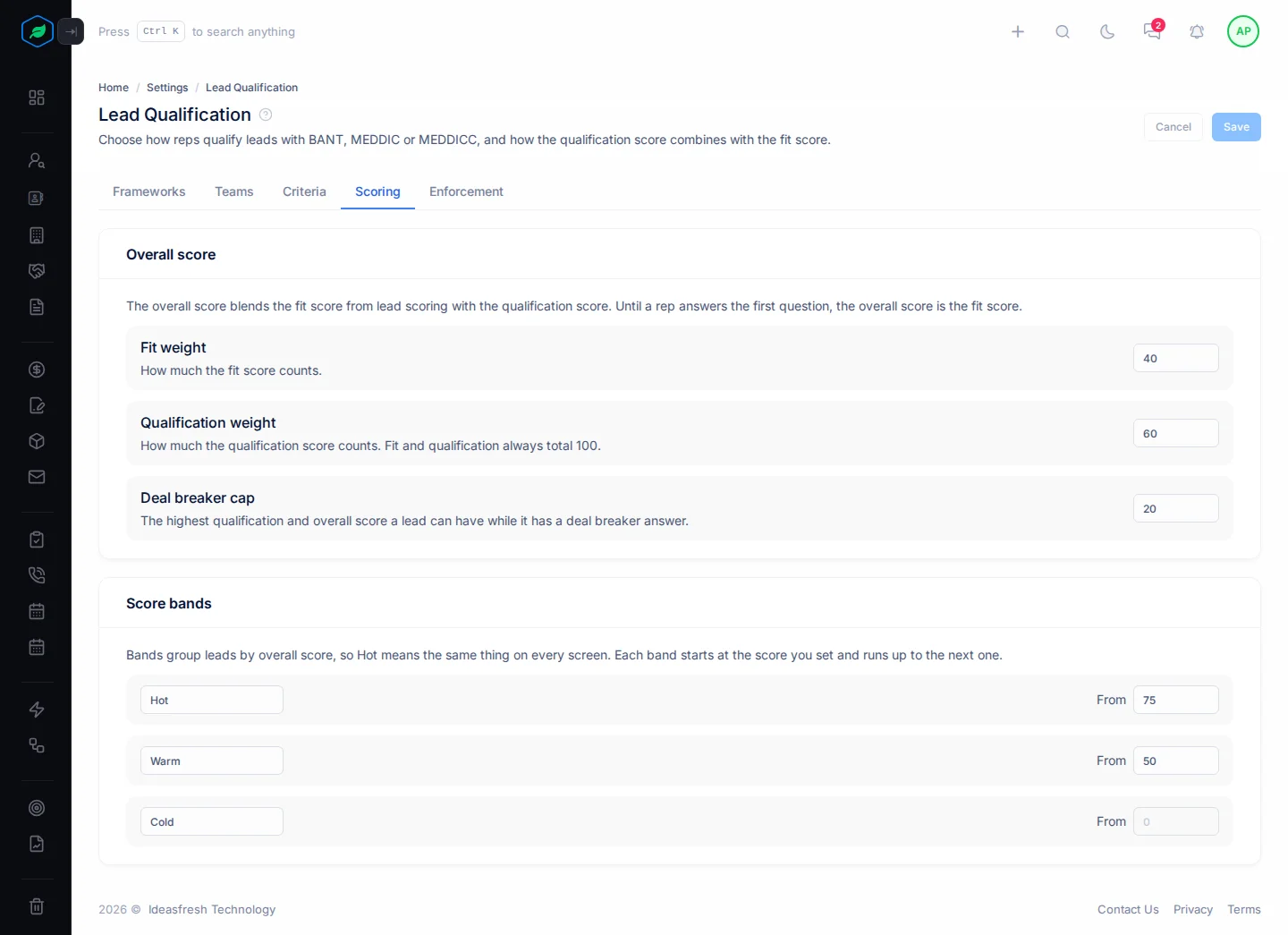
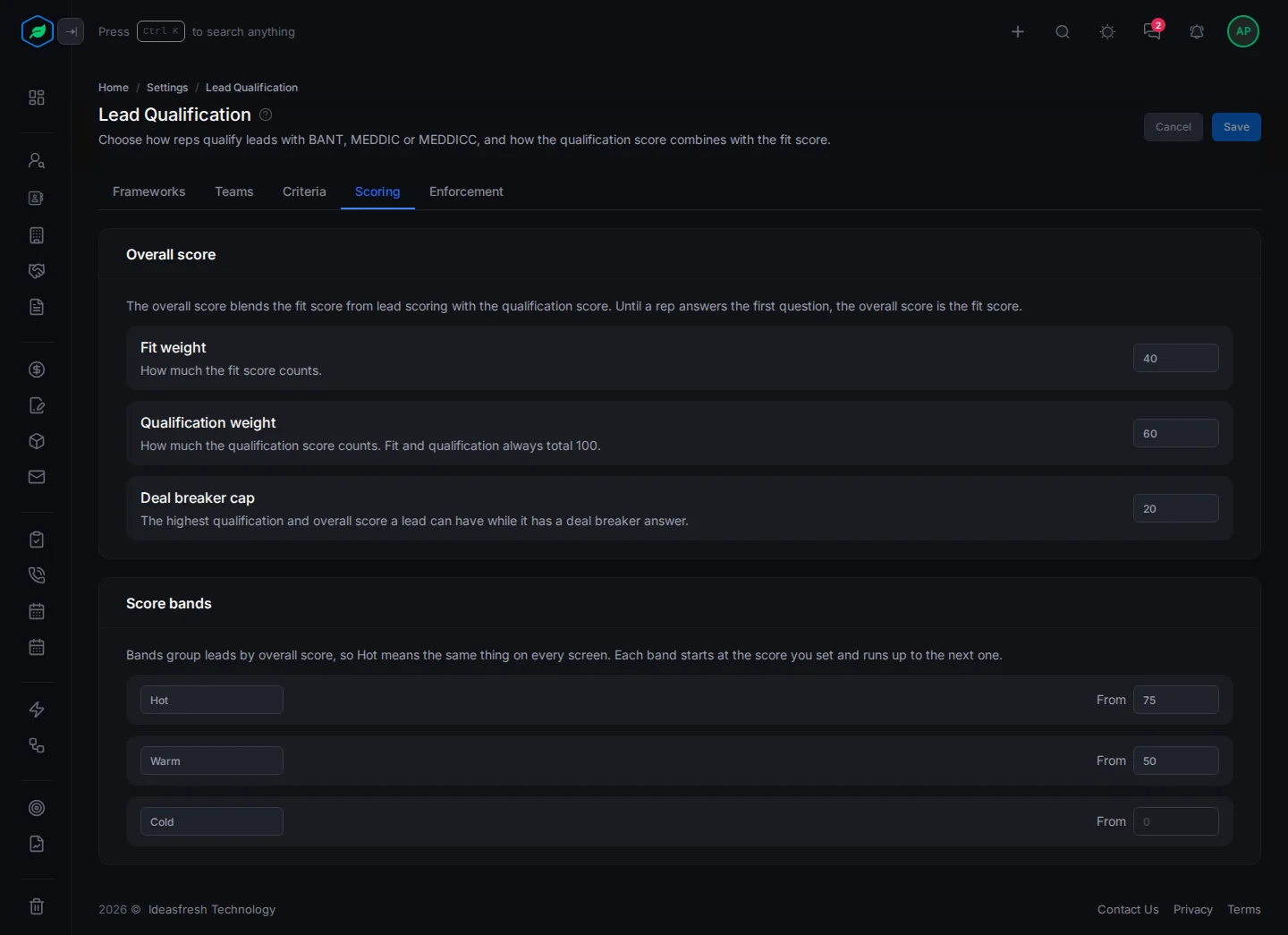
Until a rep answers the first question, a lead's overall score is just its fit score. A new lead isn't marked down for not having been called yet.
Also on this tab:
- Deal breaker cap: the highest qualification and overall score a lead with a deal breaker can have.
- Score bands: where Hot, Warm and Cold start. To start with, Hot is 75 and up, Warm 50 and up, and Cold below that. The bands use the overall score, and they appear in the leads list and its filters. You can rename them, and the new names show everywhere.
Score bands aren't the same as a lead's Rating. The rating is a rep's own view, set by hand. The band comes from the overall score. See Lead score and rating.
Require qualification before Qualified or Convert
On the Enforcement tab, turn on Require qualification before Qualified or Convert. From then on, a rep can't move a lead to a Qualified stage, or convert it, until:
- every question is answered, and none is waiting for a recheck,
- no answer is a deal breaker, and
- the qualification score reaches your Minimum qualification score, if you set one.
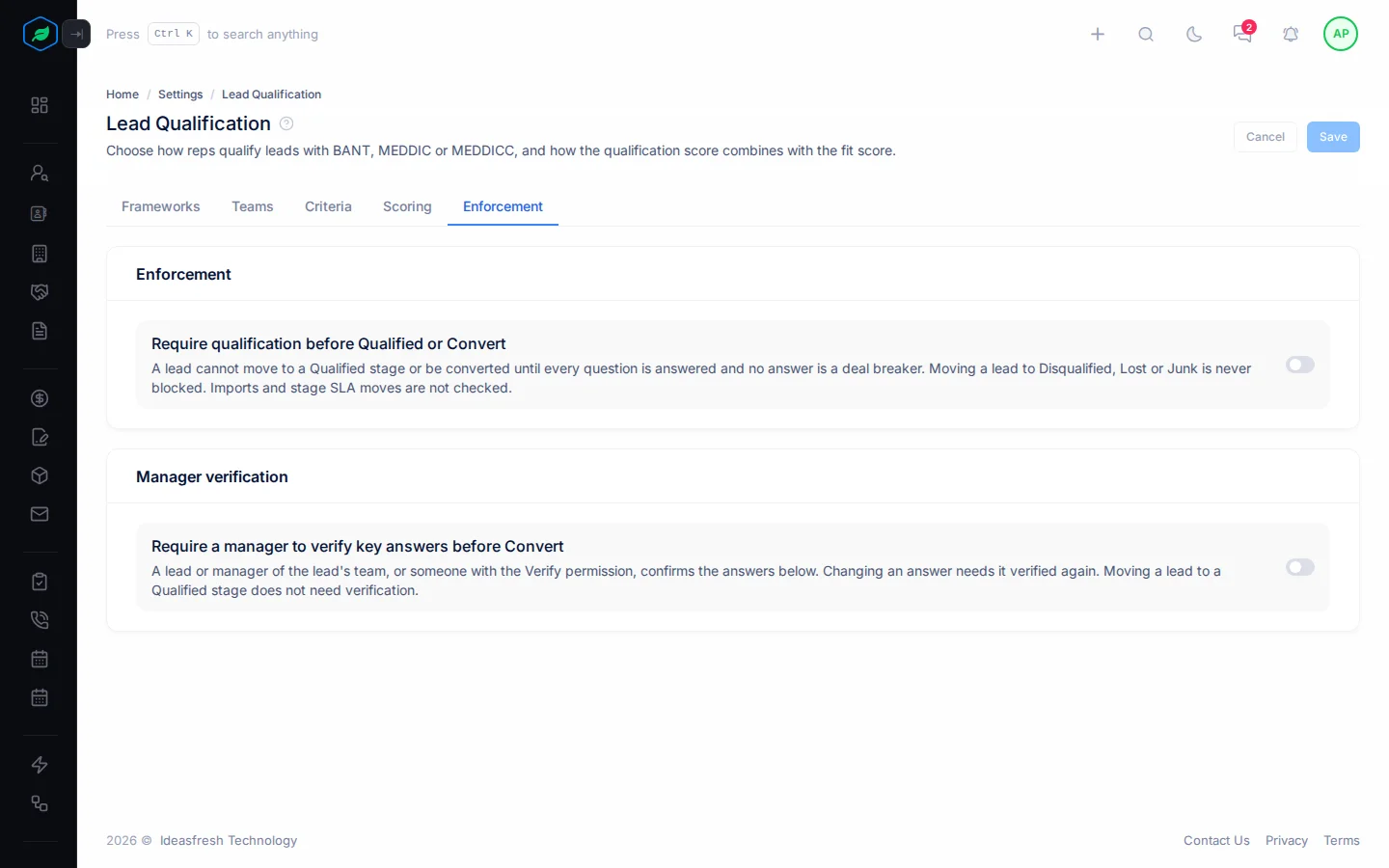
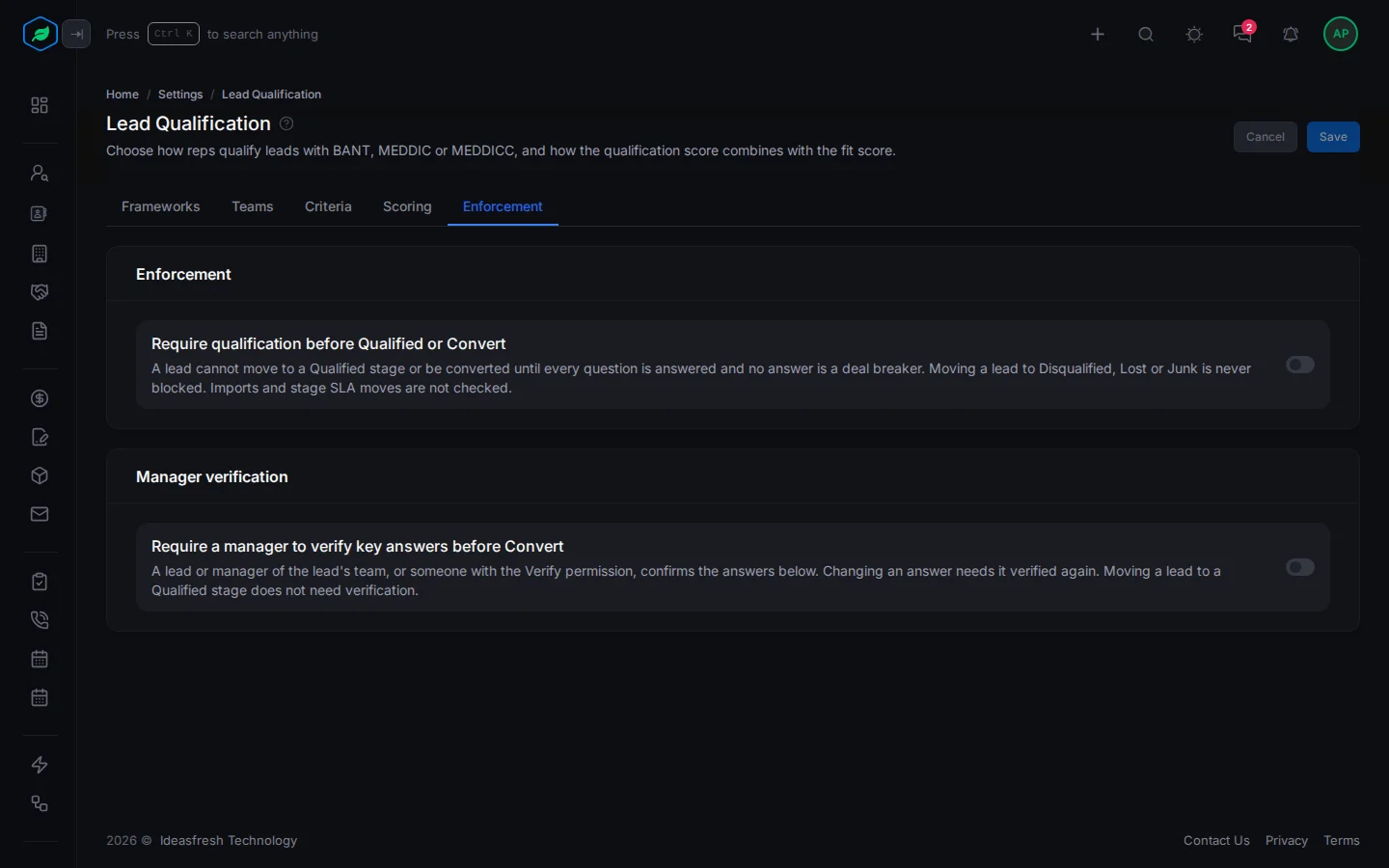
Moving a lead to New, Open, Disqualified, Lost or Junk is never blocked, so a rep can always drop a bad lead. Imports and stage SLA moves aren't checked either.
Ask a manager to verify key answers
Some answers matter too much to take on a rep's word alone. Say a rep marks Authority as "Decision maker" after one friendly call, and the deal later stalls because the real buyer was never involved. Verification puts a second pair of eyes on the answers that decide whether a deal is real.
On the Enforcement tab, turn on Require a manager to verify key answers before Convert. Then, for each framework, pick the answers to verify.
| Framework | Answers to verify, to start with |
|---|---|
| BANT | Budget and Authority |
| MEDDIC and MEDDICC | Economic Buyer and Champion |
From then on:
- a lead can't be converted until those answers are verified, even if you don't require qualification,
- moving a lead to a Qualified stage doesn't need verification,
- changing a verified answer needs it verified again.
Who can verify: a lead or manager of the lead's team, or anyone with the Verify Lead Qualification permission. To set someone's place in a team, see Teams.
Save your changes
Select Save at the top of the page. Until you do, you see Unsaved changes. Select Cancel to throw them away.
After a save, Salesfresh works out every lead's scores again in the background. On a large account this can take a minute or two.
Put qualification to work
Once reps are qualifying leads, you can use the answers elsewhere:
- Hand off qualified leads. An assignment rule can move a lead to another rep the moment it's fully qualified, for example from an SDR to an account executive. See Auto-assign leads.
- Start a flow at a score. A flow can start when a lead's score reaches a number you pick. See Build a flow.
- Ask on a web form. A form can ask a qualification question, so the answer is on the lead before anyone calls. See Design a web form.
- Find where leads stall. The qualification reports show progress, the weakest questions, and how each rep and team qualifies. See Reports overview.
- Keep it on the deal. When a lead converts, its answers move to the deal. See Deal detail page.
Related
Still stuck?
Tell us what you were trying to do and we will help.