Lead stages
What a lead's stage tells you, the seven stage categories, the default lead pipeline, how to move a lead between stages, and how admins set stages up.
Updated 27 October 2026 · 7 min read
Every lead sits on a stage. The stage tells you how far the lead has come, from the first form fill to a sale or a no. Say a visitor fills in your website form. The lead lands on New. You call them and it moves to Contacted. They book a demo, so it moves to Meeting Scheduled, and so on until you convert it or close it.
Your company picks its own stage names. What Salesfresh looks at is each stage's category.
Before you start
- Permission: Edit Leads to move a lead, and you must own it or have created it. Admins need the lead pipeline permissions to set up stages.
- Plan: Every plan can move leads. Changing the stages themselves needs a paid plan. See Plans and limits.
- Set up first: None. Every company starts with the pipeline below.
Leads used to have a separate status as well, such as Pre Qualified or Junk Lead. Stages have replaced it. Your old statuses were moved onto stages when your account was updated. For example, a lead marked Junk Lead now sits on your Junk stage.
Stage categories
Every stage belongs to one of seven categories. Two stages can share a category. Your pipeline might have Contacted, Engaged and Meeting Scheduled, all in the Open category.
| Category | It means | What the app does with it |
|---|---|---|
| New | Nobody has worked on the lead yet | New leads start here, including leads from forms, live chat and the browser extension. Imported leads too, unless the file has a Stage column |
| Open | Someone is working on the lead | Counts as an open lead |
| Qualified | The lead is a good fit and ready to convert | Counts as an open lead |
| Converted | The lead became a contact | Converting a lead moves it here |
| Disqualified | The lead isn't a fit | Counts as closed |
| Lost | The lead was a fit but didn't go ahead | Counts as closed |
| Junk | Spam, fake details or a test | Counts as closed. Automation flows stop for the lead |
The category drives your views, reports and dashboard. The Open Leads view shows leads in New, Open and Qualified stages. The Junk Leads view shows leads in Junk stages. So if you rename Junk to Spam, those leads still show up as junk everywhere.
The default pipeline
Every company starts with this pipeline. An admin can change it.
| Stage | Category | Can move to |
|---|---|---|
| New | New | Contacted, Disqualified, Junk |
| Contacted | Open | Engaged, Meeting Scheduled, Disqualified, Lost, Junk |
| Engaged | Open | Meeting Scheduled, Qualified, Disqualified, Lost, Junk |
| Meeting Scheduled | Open | Meeting Completed, Disqualified, Lost, Junk |
| Meeting Completed | Open | Qualified, Disqualified, Lost, Junk |
| Qualified | Qualified | Converted, Disqualified, Lost, Junk |
| Converted | Converted | |
| Disqualified | Disqualified | |
| Lost | Lost | |
| Junk | Junk |
When you move a lead to Disqualified or Lost, you pick a reason. Junk offers reasons too, but you can skip them.
| Disqualified | Lost | Junk |
|---|---|---|
| No Budget | Chose Competitor | Spam |
| Wrong Industry | No Response | Fake Details |
| Duplicate Lead | Project Cancelled | Test Entry |
| Invalid Contact Info | Timing Not Right | Other (type your own) |
| Not Decision Maker | Price Too High | |
| Other (type your own) | Other (type your own) |
To convert a lead, use the Convert button. Moving it to the Converted stage only changes its stage. It doesn't create a contact, account or deal. See Convert a lead.
Change a lead's stage
- Open the lead and select a stage on the stage bar. Or, on the leads list, select Kanban View → By Stage and drag the card to another column.
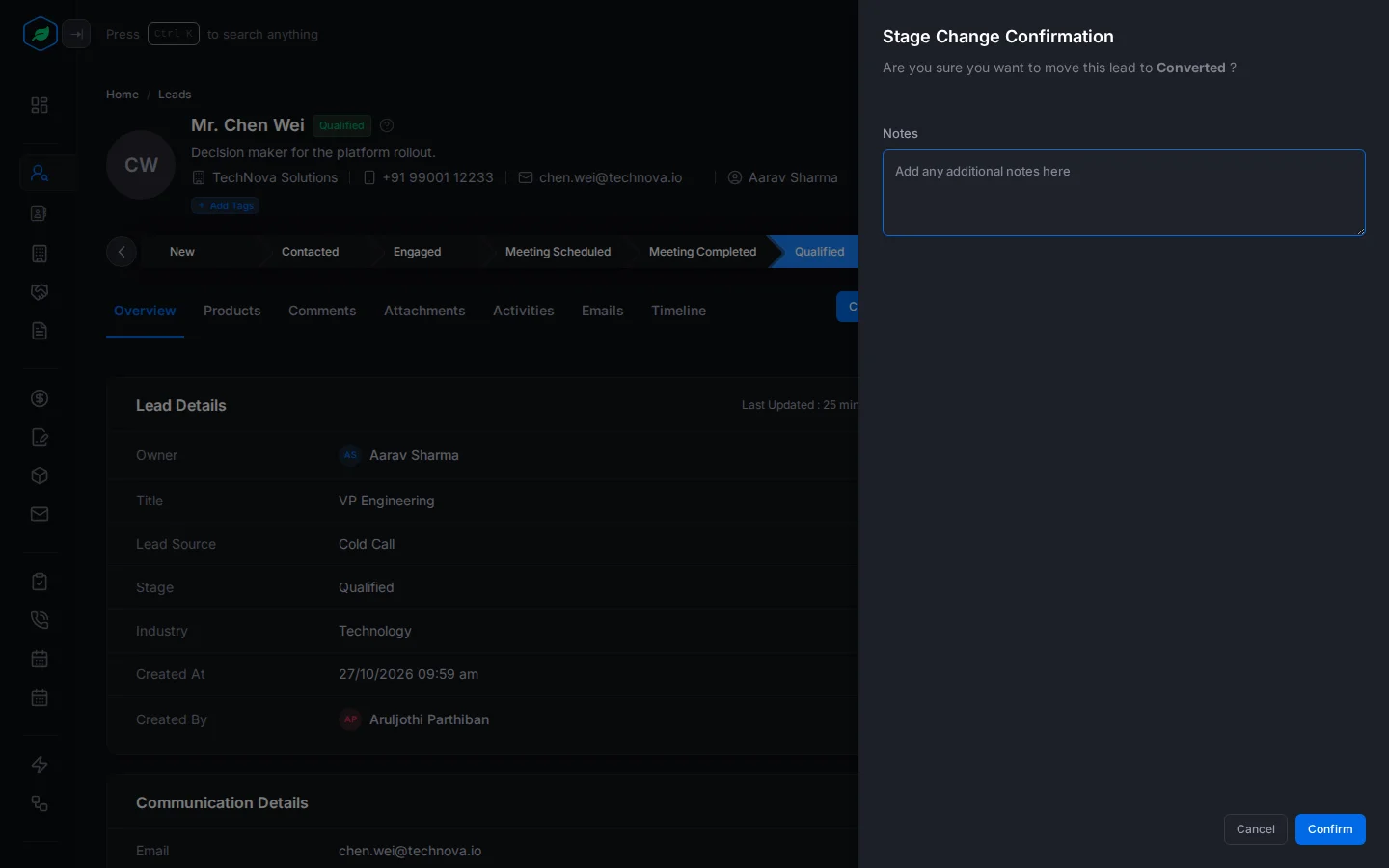
- The Stage Change Confirmation panel opens. Pick a reason if the stage asks for one, or choose Other and type your own.
- Add notes if you want, then select Confirm.
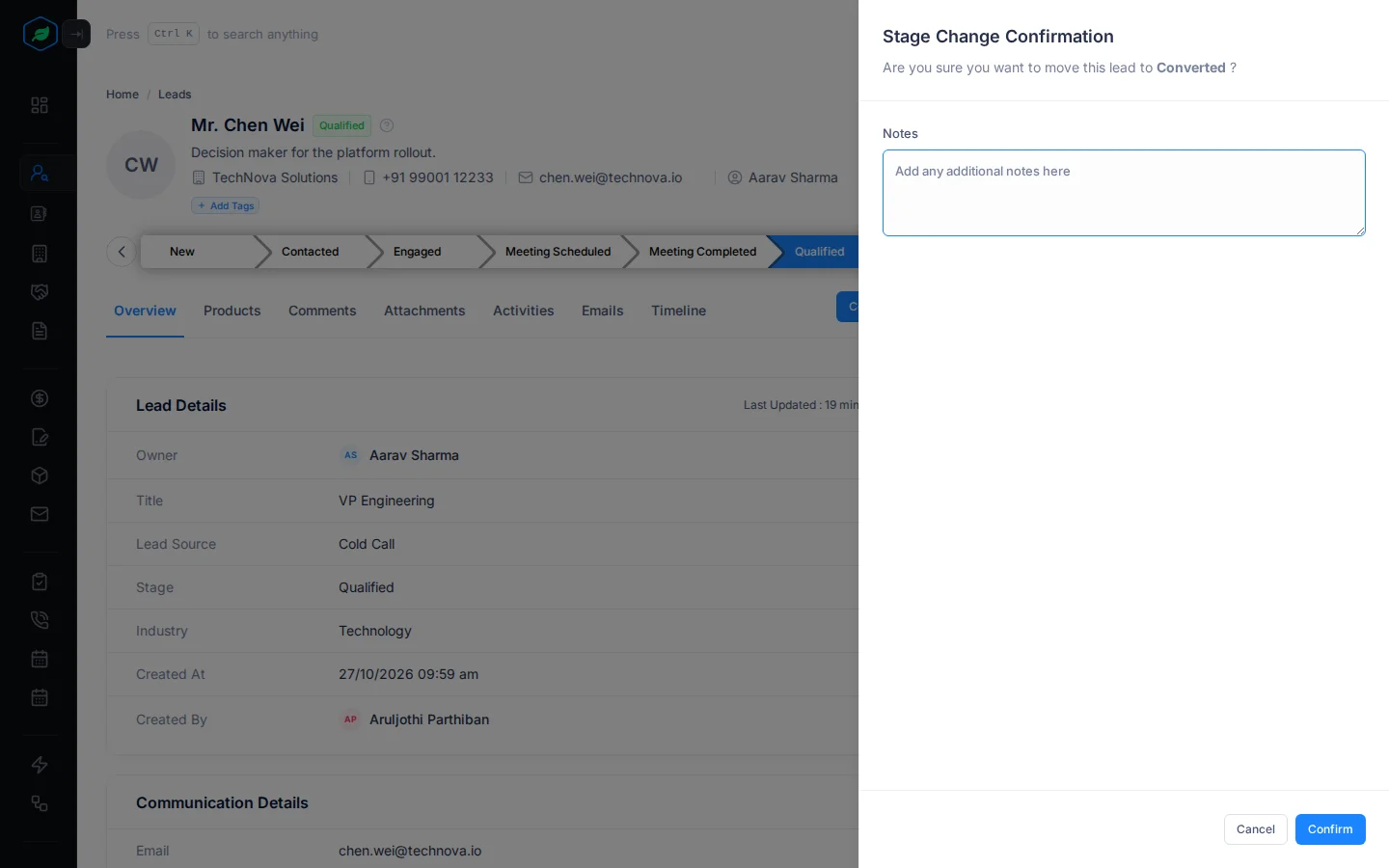
The move, the reason and your notes are saved on the lead's timeline.
You can't move a lead that is locked, converted or a draft.
What can happen automatically
Your admin may have set up some automation on stages:
- Stage automation rules: when a lead moves into a stage, this can create a task or a meeting, or send an email.
- Max duration: if a lead stays in a stage longer than the time set, its owner gets a high-priority task named "SLA Breached".
- Fallback: if a lead sits in a stage for too many days, it moves back to a set stage with the note "Automatically moved from X to Y after N days of inactivity."
Moving a lead to a Junk stage also takes it out of any automation flow it is in. See Build a flow.
Set up stages (admins)
Go to Settings → Pipelines → Lead Pipelines. Each stage has these settings:
| Setting | What it does |
|---|---|
| Stage | The name. Up to 50 characters, and no two stages can share it |
| Color | The colour of the stage's column on the Kanban board |
| Sequence | Where the stage sits in the pipeline, from 1 to 100 |
| Category | One of the seven categories above. A short hint under it says what the category does |
| Required Fields | Lead fields that must be filled in before a lead can move into this stage |
| Max Duration | How long a lead should stay in this stage, in hours, days or weeks |
| Allowed Transitions | The stages a lead can move to from here. Leave it empty to allow any stage |
| Transition Reasons | The reasons you can pick when moving a lead. Each has a title and a description |
| Fallback Stage, Fallback After Days, Fallback Reason | Where an idle lead goes, after how many days, and the reason saved with the move |
Your pipeline always needs at least one stage in New, Converted and Junk. The app needs somewhere to put new leads, converted leads and junk. Disqualified and Lost are up to you.
Renaming a stage is safe. Its leads, saved views and filters, reports, automation rules and lead scores all follow the new name.
Troubleshooting
| Message | Why | What to do |
|---|---|---|
| "X to Y transition is not permitted by your pipeline." | Your pipeline doesn't allow that move | Move the lead through a stage that is allowed, or ask an admin to allow the move |
| "Missing required fields for "Stage": …" | The new stage needs fields this lead doesn't have | Edit the lead, fill in the fields listed, and try again |
| "At least one stage must be in the X category. Add another X stage first." | You tried to delete or recategorise the last stage in New, Converted or Junk | Add another stage in that category first, then try again |
| "Pick a category" when you save a stage | The stage still has an old category from before stages replaced status | Pick one of the seven categories |
| "A stage named 'X' already exists." | Two stages can't have the same name | Pick another name |
| "A deleted stage named 'X' still holds this name. Edit that stage to bring it back." | A deleted stage has this name | Bring that stage back instead |
| "A stage cannot fall back to itself" | You picked the same stage as its fallback | Pick a different fallback stage |
Related
Still stuck?
Tell us what you were trying to do and we will help.