Track the products a lead or contact is interested in
Record which of your products a lead or contact wants, how keen they are and what they plan to spend, and start a quote from one.
Updated 9 October 2026 · 5 min read
The Products tab on a lead or contact lists the products that person wants. For each one you note how keen they are, how much they plan to spend and how they found you. Anyone who calls them next knows what to talk about.
For example, a visitor at a trade fair asks about your accounting software and your HR software. Back at the office, you open their lead and add both products. The accounting software is what they need first, so you give it High priority and mark them Interested, with a budget of 5,000. A week later a teammate calls them. The teammate opens the Products tab, sees what the visitor asked about and what they can spend, and talks about the accounting software first.
Other CRMs may call this "product interest" or "products of interest".
Before you start
- The products you can pick come from your product catalog. An admin adds them in Settings > Product Management. See Products and categories.
- To add products, you must be the record's owner or the person who created it, and the record must not be locked.
- Interested products use the Leads permissions, on contacts too: View Leads to see them, Create Leads to add and Delete Leads to remove. To add them on a contact, you also need Create Contacts.
The Products tab
Open a lead or contact and click Products. The number on the tab shows how many products are on the record. The tab shows up to 10.
Each product is a card with what you recorded: the Interest Level, the Priority, the Expected Budget and the Source. If someone added notes, point at Notes to read them.
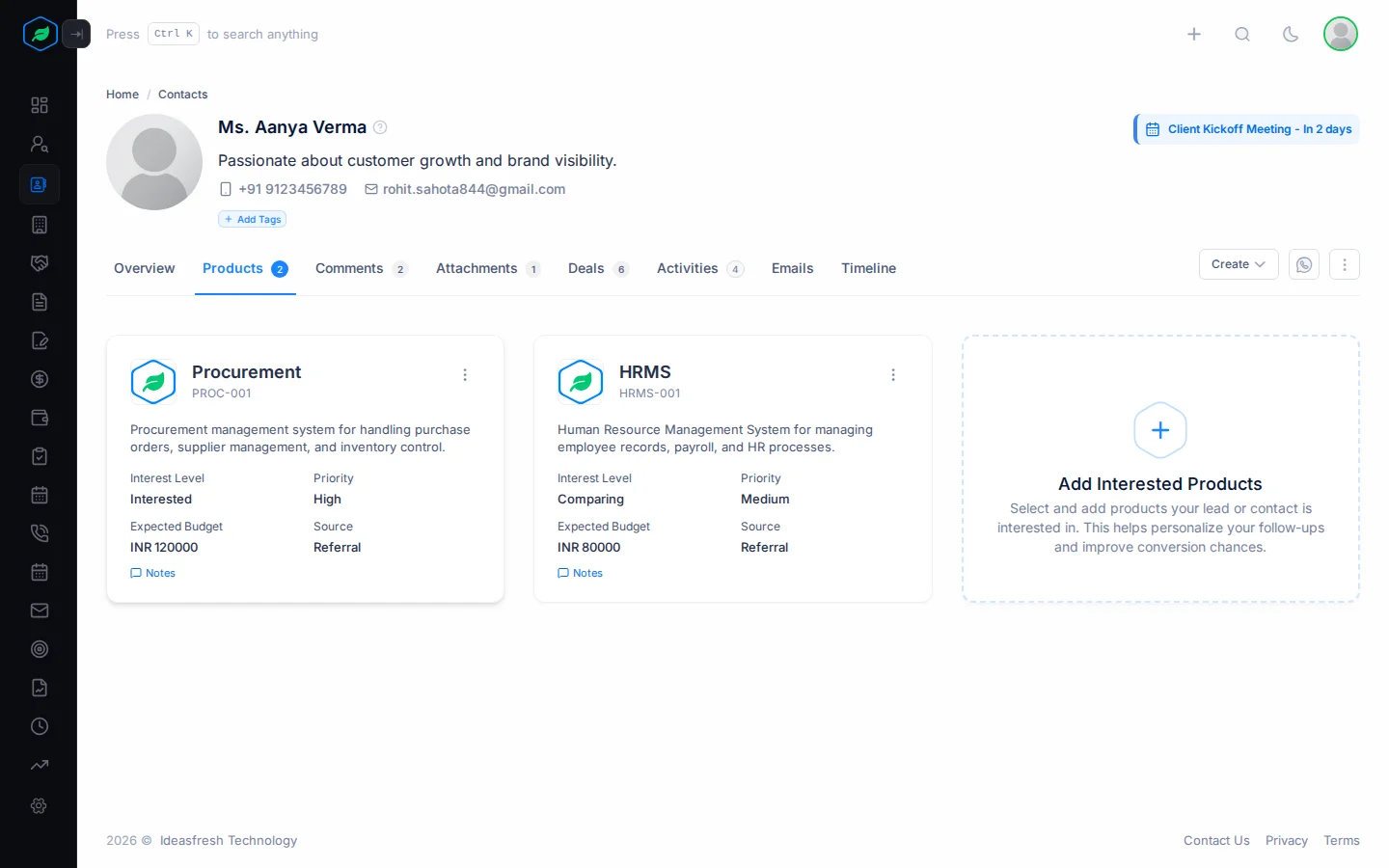
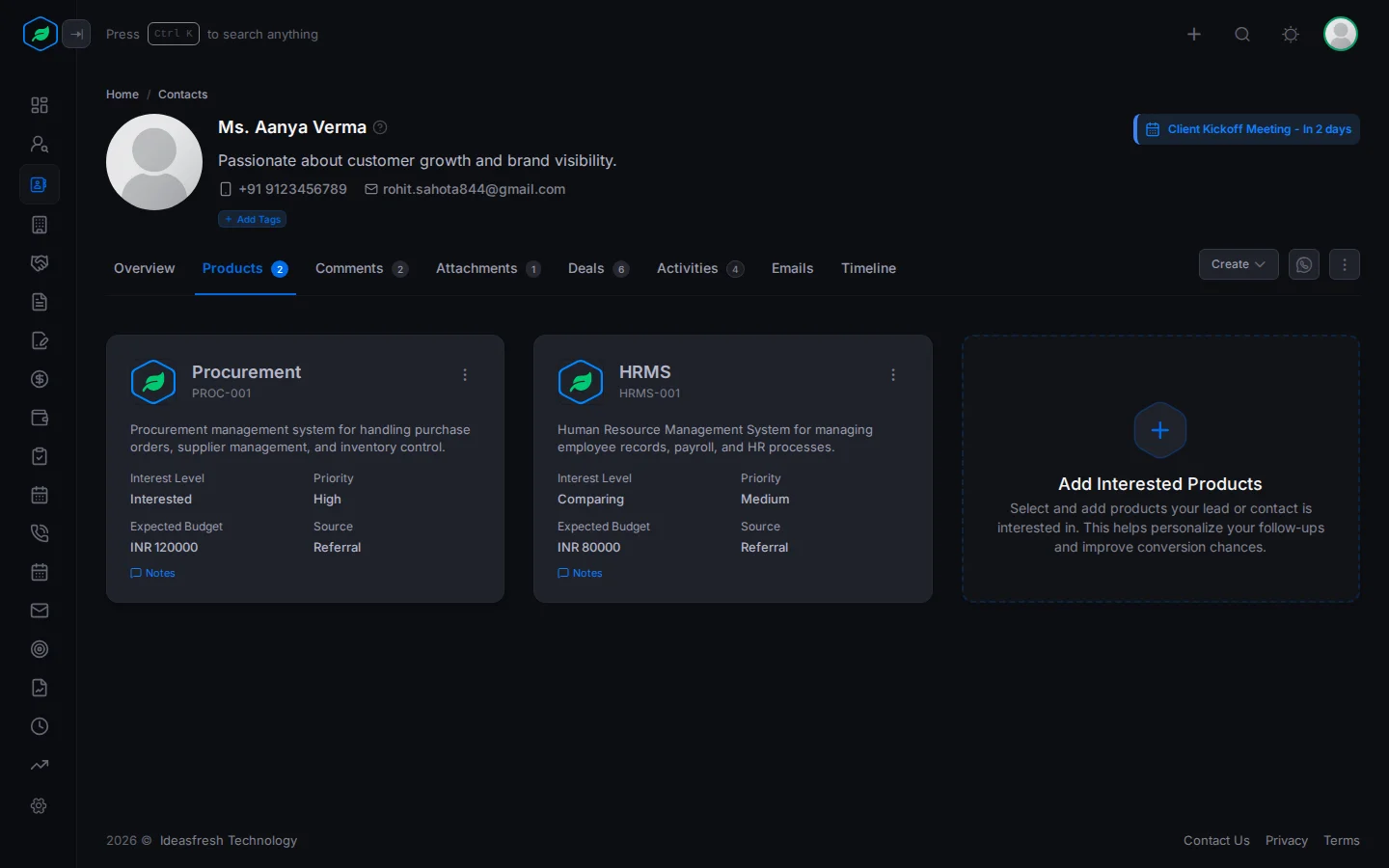
Only leads and contacts have this tab. Accounts and deals don't.
Add interested products
-
Open the lead or contact and click Products.
-
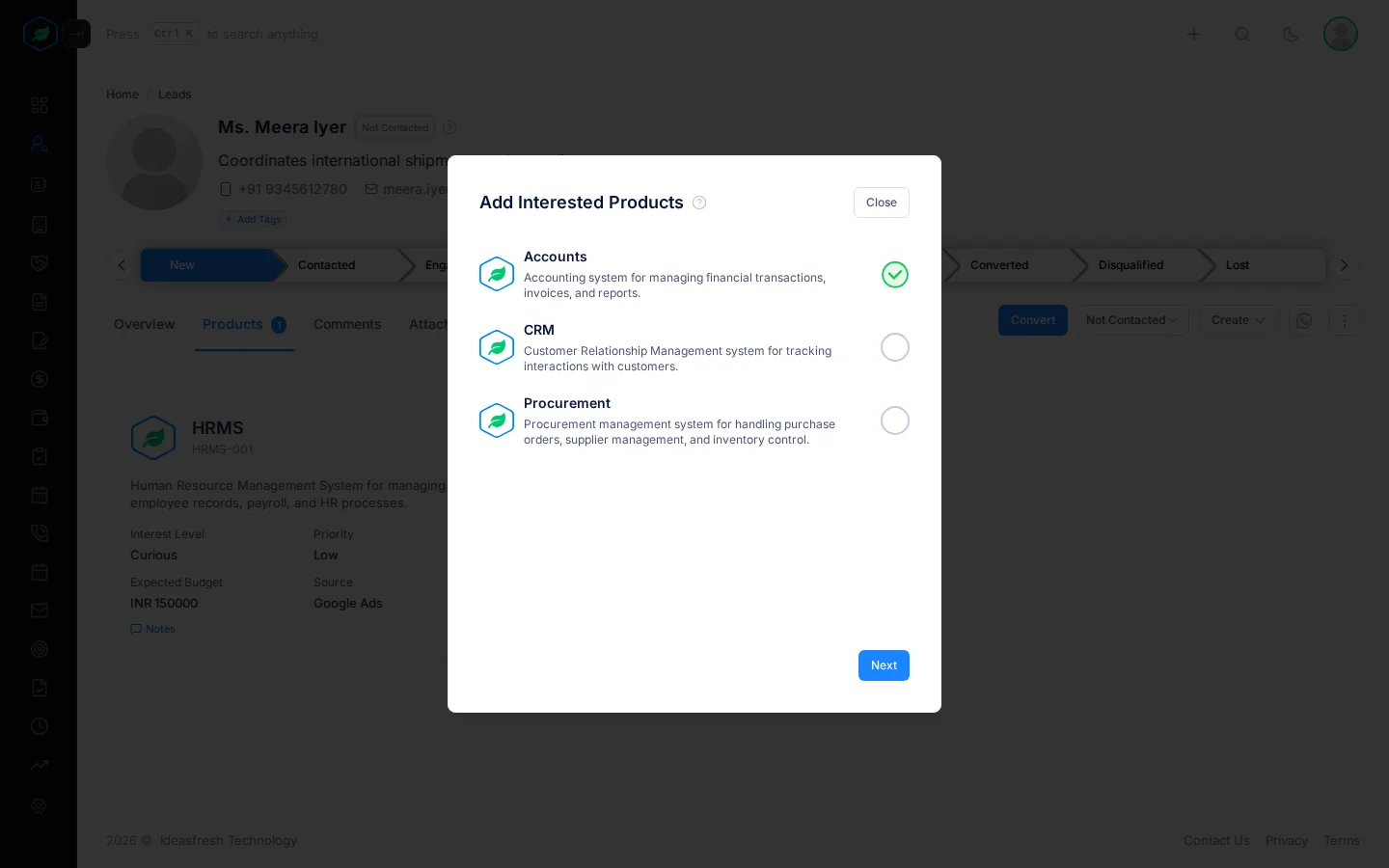
Click the Add Interested Products card. A window opens with your products. Products already on the record aren't listed.
-
Click each product the person wants. A green tick marks the ones you picked. Click Next.
-
Fill in the details, then click Submit.
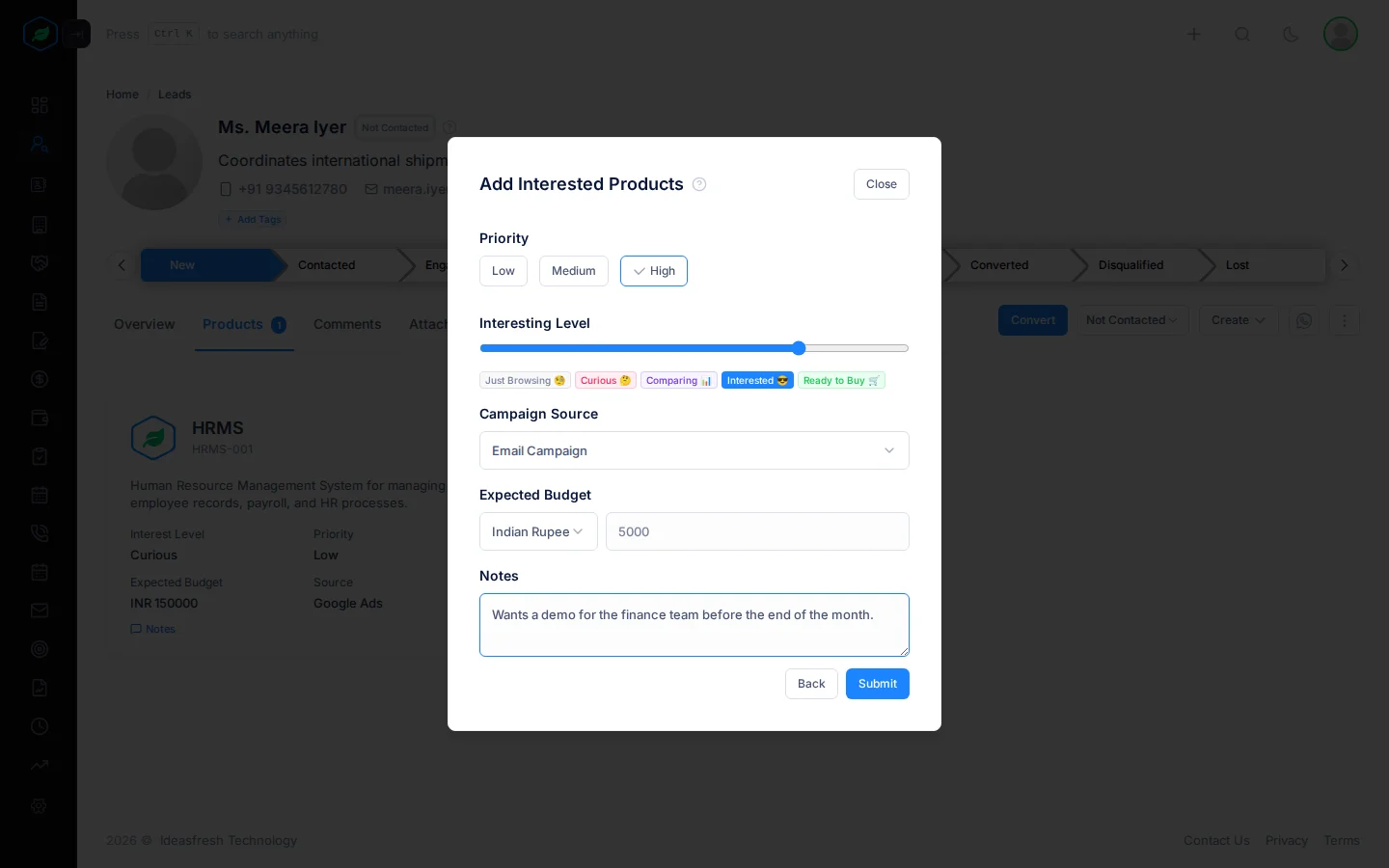
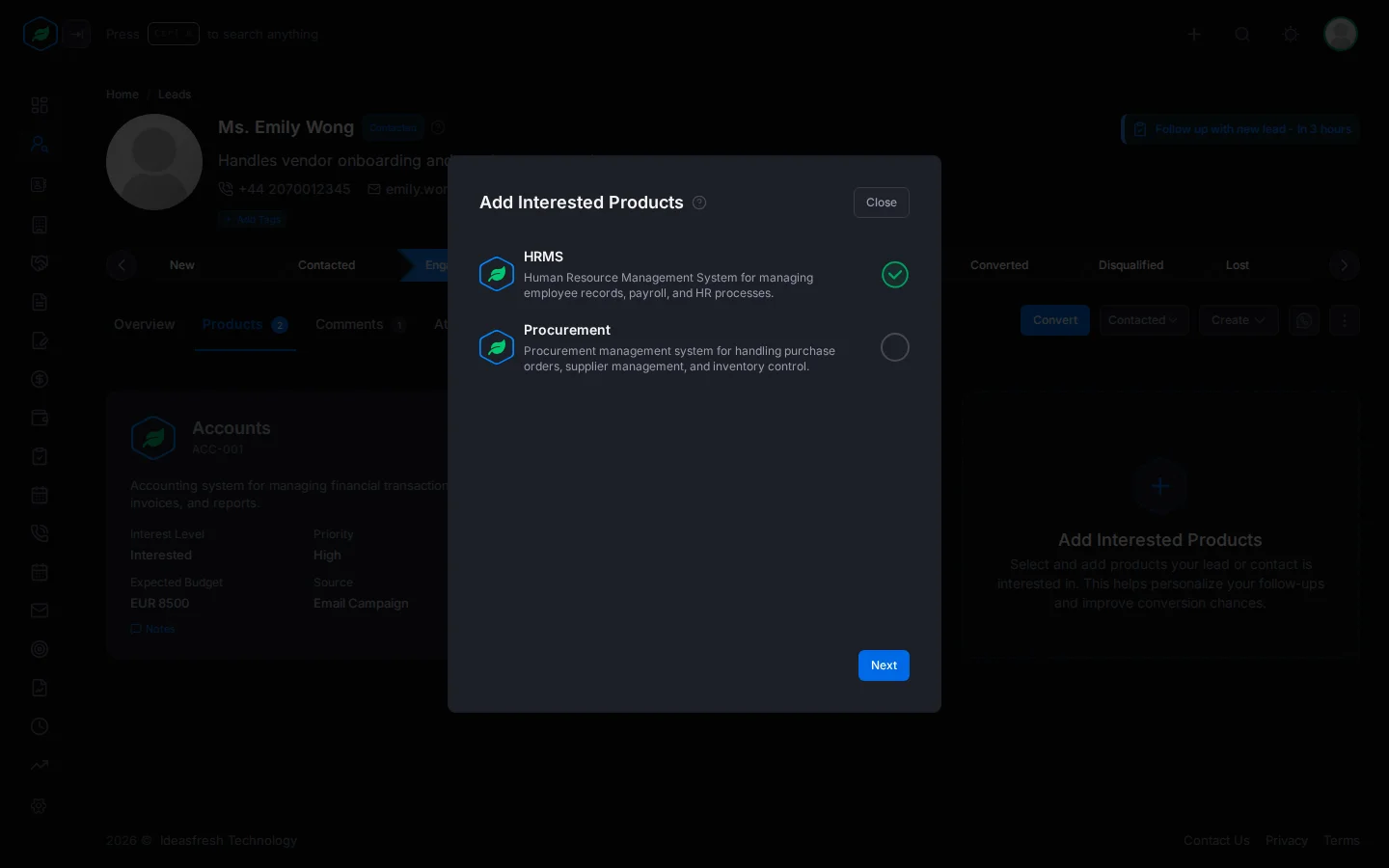
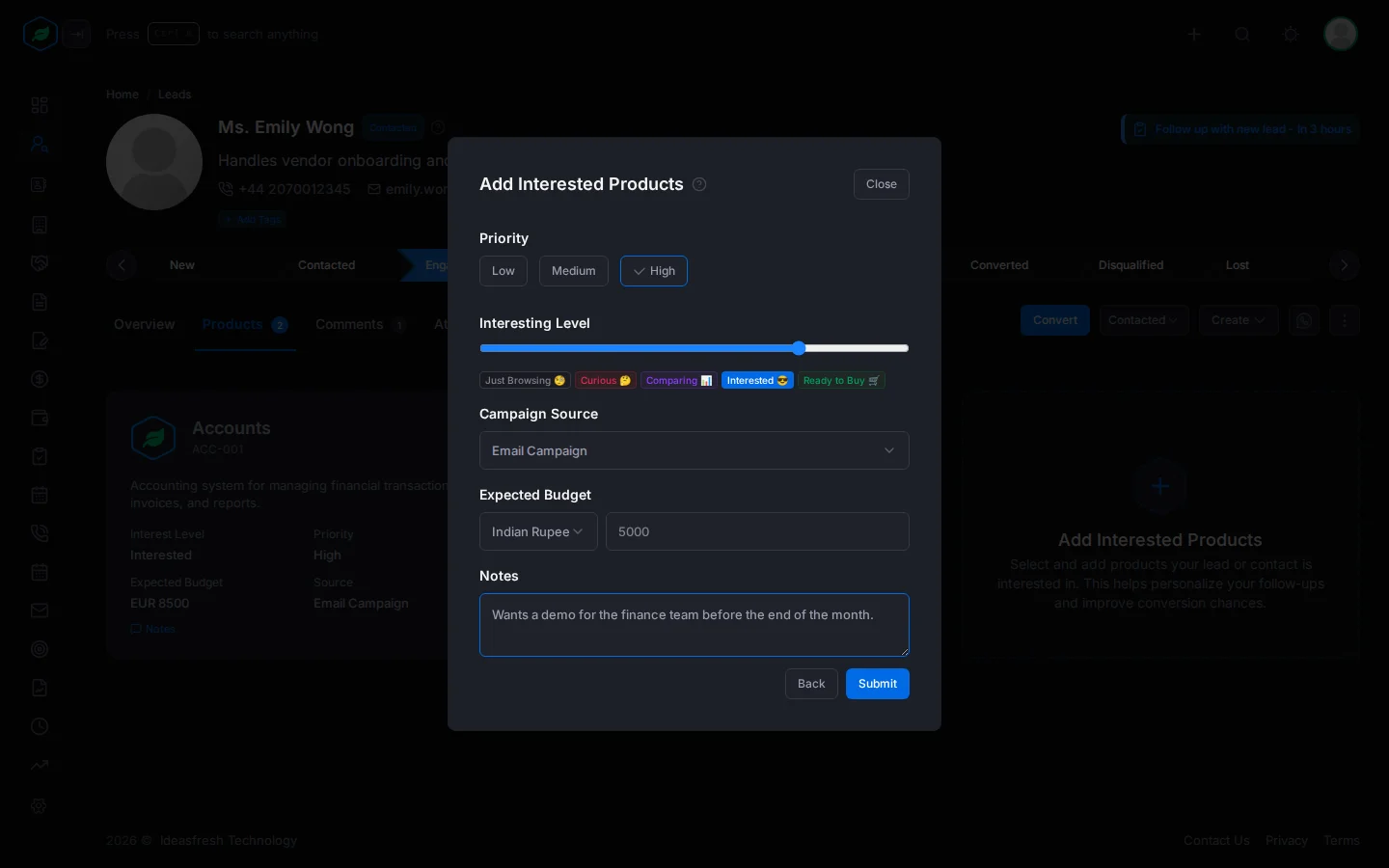
The details you enter apply to every product you picked in step 3. To give products different priorities or budgets, add them one at a time.
The details
Priority says which product to talk about first. It starts as Low.
Interesting Level says how close the person is to buying. Drag the slider, or click a label:
- Just Browsing
- Curious
- Comparing
- Interested
- Ready to Buy
For example, someone who has asked for a price and wants to start next month is Ready to Buy. Someone who picked up a brochure is Just Browsing. You must pick a level before you can submit.
Campaign Source is how the person heard about the product, such as an email campaign or a referral. You must pick one. Your admin sets up this list in Settings > Configurations > Campaign Sources.
Expected Budget is how much the person plans to spend, and in which currency. You must pick a currency.
Notes is for anything else your team should know, such as "Wants a demo for the finance team first".
Change or remove an interested product
You can't edit an interested product. To change one, remove it and add it again with the new details.
To remove one, click ⋮ on its card, click Delete and confirm. You can add the same product again later.
Start a quote from a contact's product
When a contact is ready for a price, click ⋮ on the product's card and click Create Quote. A new quote opens with the contact, their account and the product already filled in, at the product's catalog price. See Create and edit a quote.
This saves you looking the product up again, and makes sure the quote is for what the customer asked about.
The expected budget isn't copied to the quote. If you agreed a different price, change it on the quote. Create Quote is only on contacts. To quote a lead, convert it to a contact first. See Convert a lead.
Where interested products come from
You add most of them on the Products tab. Two other things add them for you:
- A web form that asks which products someone is interested in. The lead it creates gets those products with Medium priority, the Curious level and Contact Form as the source.
- Converting a lead. The lead's interested products are copied to the new contact.
Each product added or removed shows on the record's Timeline.
Troubleshooting
| You see | Why | What to do |
|---|---|---|
| The Add Interested Products card has a lock and doesn't open | The record is locked, or you don't own it and didn't create it, or your role can't create leads or contacts | Ask the record's owner or an admin |
| "No products have been configured yet." | Your catalog has no products | Ask an admin to add products |
| "All products have been added." | Every product is already on this record | Nothing to add |
| "Interest Level is required" | You haven't picked a level | Drag the slider or click a label |
| "Source is required" | You haven't picked a campaign source | Pick a source |
| "That product is already added to this record." | Someone added the same product while you had the window open | Close the window and check the tab |
| "This lead is deleted. Restore it before making any changes." | The lead is in the recycle bin | Restore it first |
| "Access denied" | Your role doesn't have the Leads permission, even on a contact | Ask an admin |
Related
Still stuck?
Tell us what you were trying to do and we will help.