The lead detail page
What is on a lead's page, from the stage bar and header actions to each tab, and what locking a lead does.
Updated 9 October 2026 · 10 min read
Click a lead's name anywhere in Salesfresh to open its page. You find everything about the lead here: its details, where it is in your pipeline, and every call, email, meeting, note and file linked to it.
When you open a lead, it counts as read. It then drops out of the Unread Leads view.
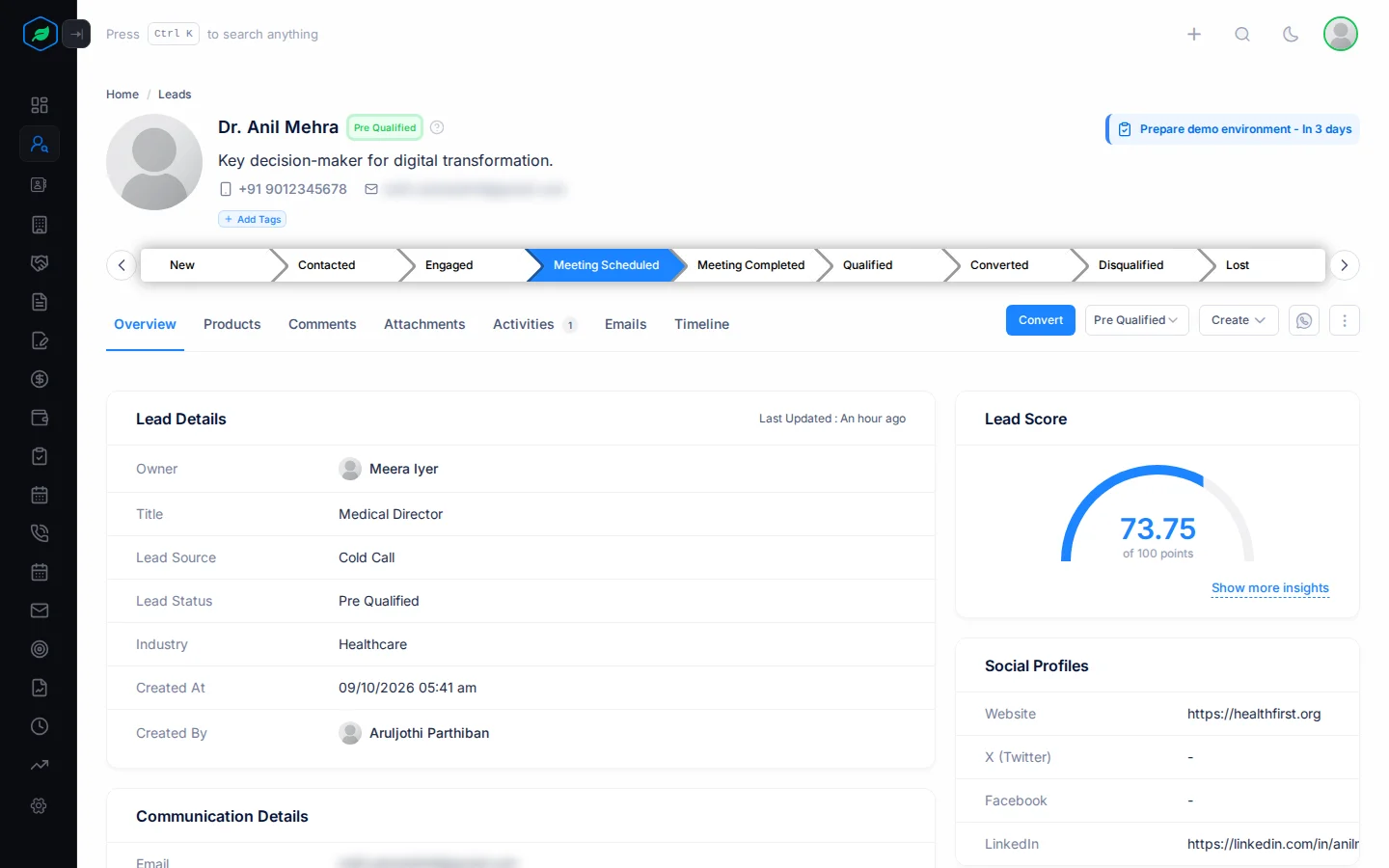
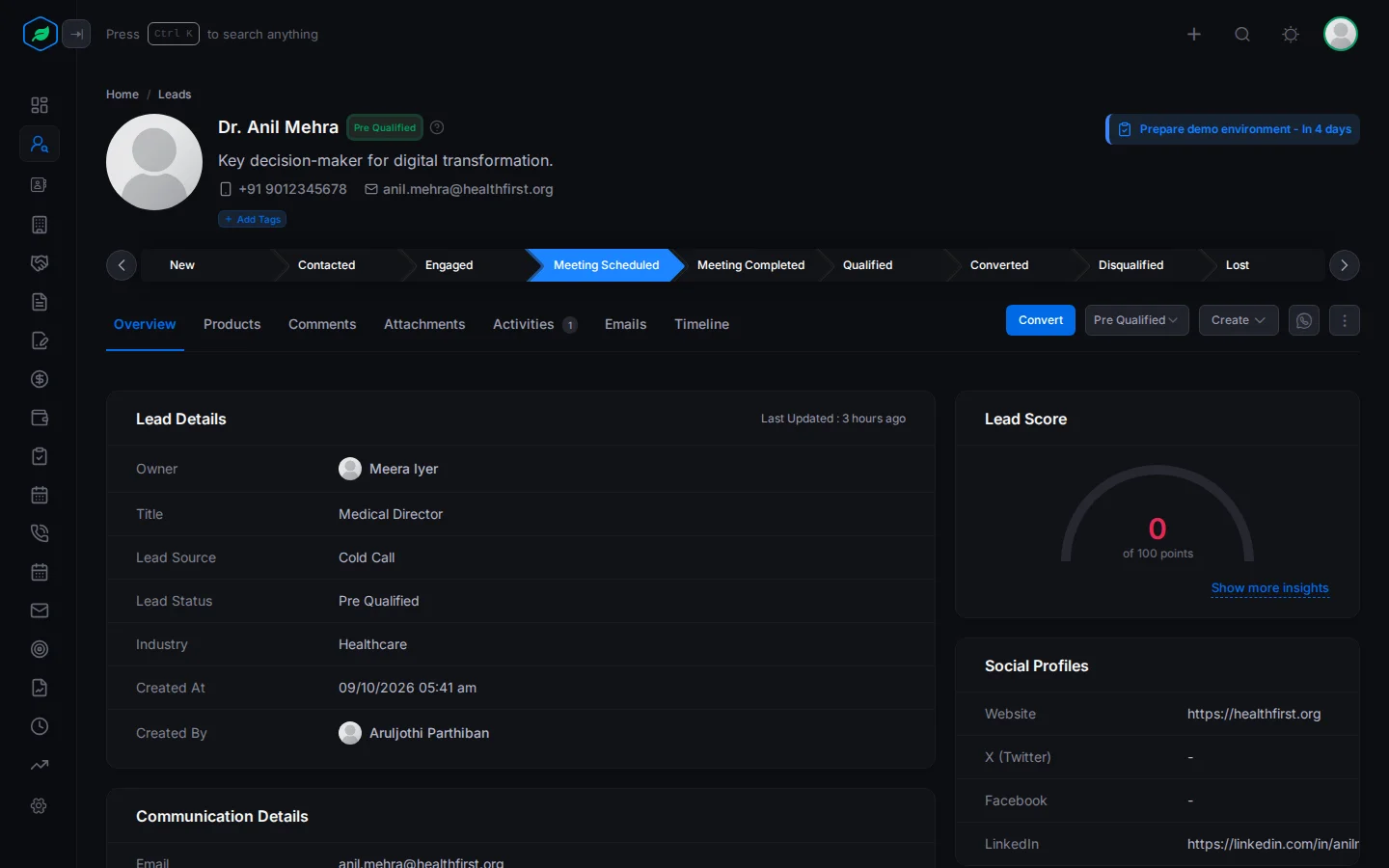
The header
- The lead's name, with a badge that shows its status.
- A lock icon if the lead is locked. Point at it to see who locked it.
- The lead's tags.
- The stage bar. It shows every stage in your lead pipeline, and the current one is highlighted. Click a stage to move the lead there. See Lead status and lead stages.
Tags
Tags are short labels you put on a lead, such as Hot Lead or High Priority. They help you spot important leads at a glance, and you can filter the leads list by them.
For example, a lead tells you they want to buy this month. Tag them Hot Lead. Anyone on your team who opens the lead sees the tag straight away and knows to treat it as urgent.
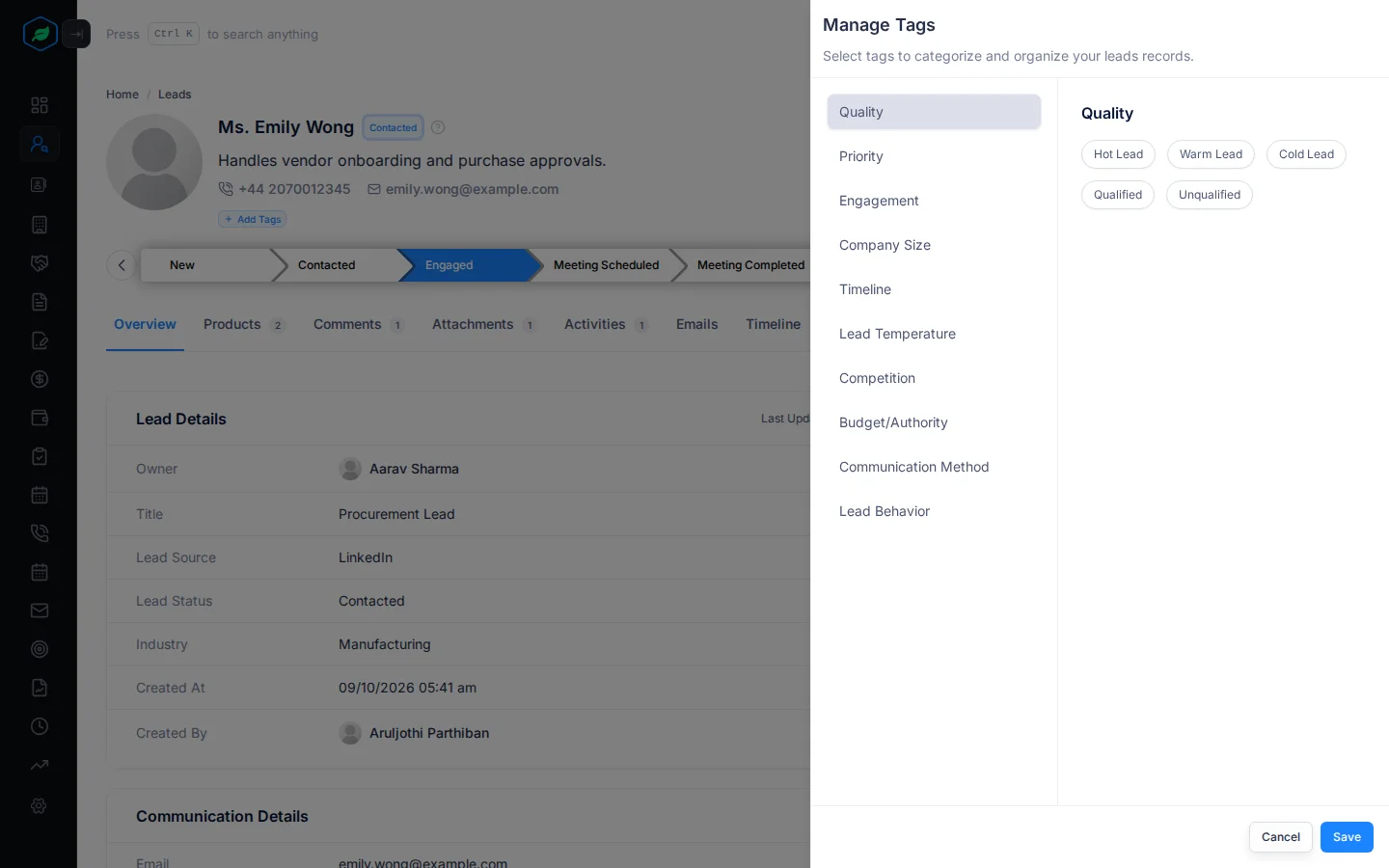
- Under the lead's name, click Add Tags. If the lead already has tags, click the + beside them.
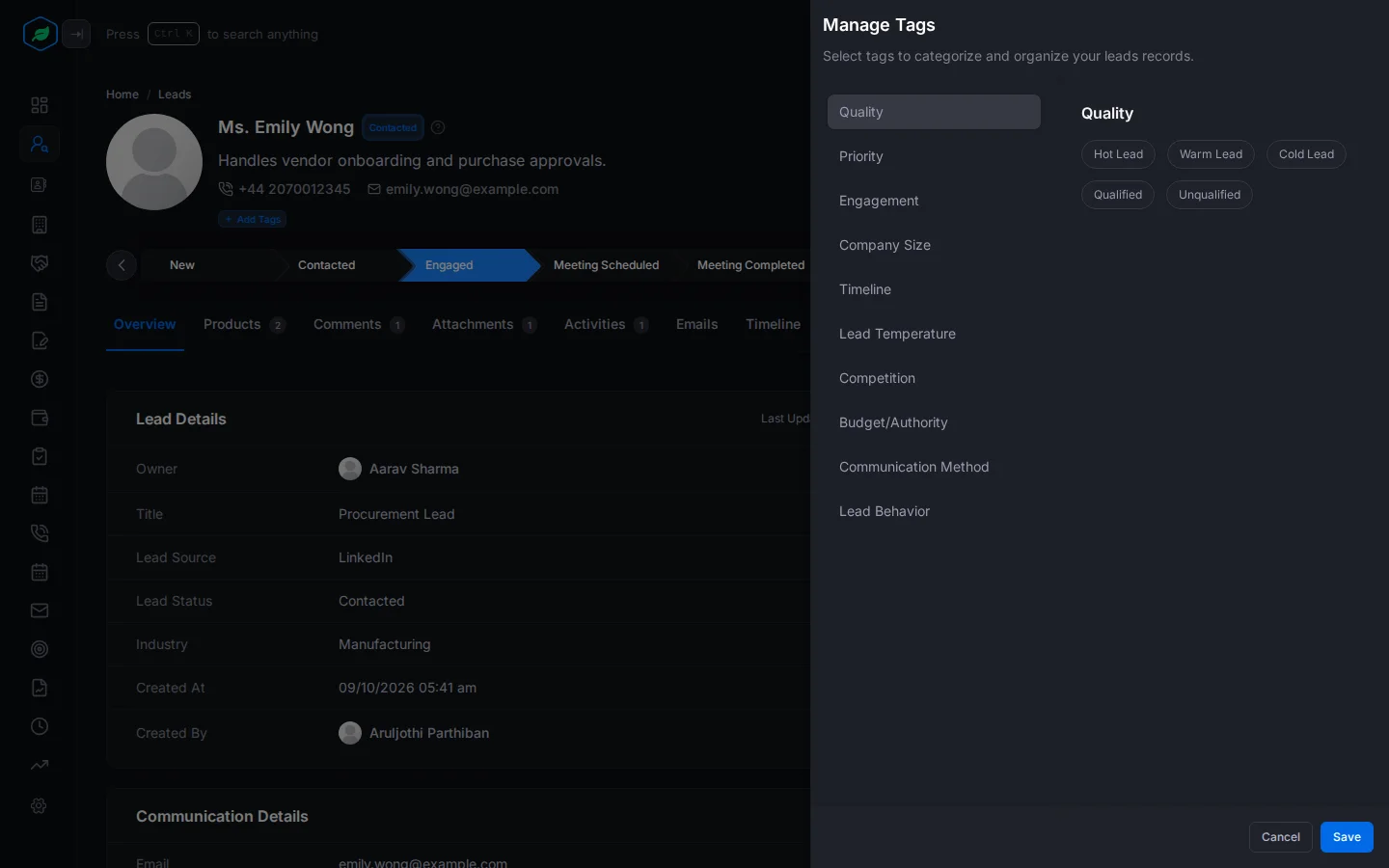
- Manage Tags opens. Tag groups, such as Quality and Priority, are on the left. Click a group, then click the tag you want on the right. You can pick one tag from each group. Click a tag again to remove it.
- Click Save.
Your admin sets up the tags your company can use. See Tags.
Header actions
| Action | What it does |
|---|---|
| Convert | Turns the lead into a contact and an account, and a deal if you want one. See Convert a lead |
| Status dropdown | Changes the lead's status |
| Activities | Schedules a Task, Meeting or Call for the lead |
| WhatsApp ("Let's connect") | Opens a WhatsApp chat. The lead needs a phone number of type WhatsApp or Mobile |
| ⋮ (More options) | Edit, Clone, Lock or Unlock, Subscribe or Unsubscribe, Delete |
Only the lead's owner and the person who created it can change its status or stage. They can't do it once the lead is locked or converted.
Tabs
Overview
- Lead score: a gauge out of 100. It shows how much each factor adds. See Lead score and rating.
- Lead Details: owner, team, title, source, status, industry and when the lead was created.
- Communication Details: emails and phone numbers.
- Account Details: company, total employees, annual revenue and rating.
- Notes.
- Enrollments: the automation flows the lead is in.
- Social Profiles: website, X, Facebook and LinkedIn.
- Address.
- Form Submission Details: if the lead came from a web form, every answer the person gave.
Products
The products the lead is interested in. This tells your team what to offer them, and what to put in a quote later.
For example, a lead tells you they want your accounting software, and might want the payroll add-on next year. Add both products here. Set the software's priority to High, and the add-on's to Low.
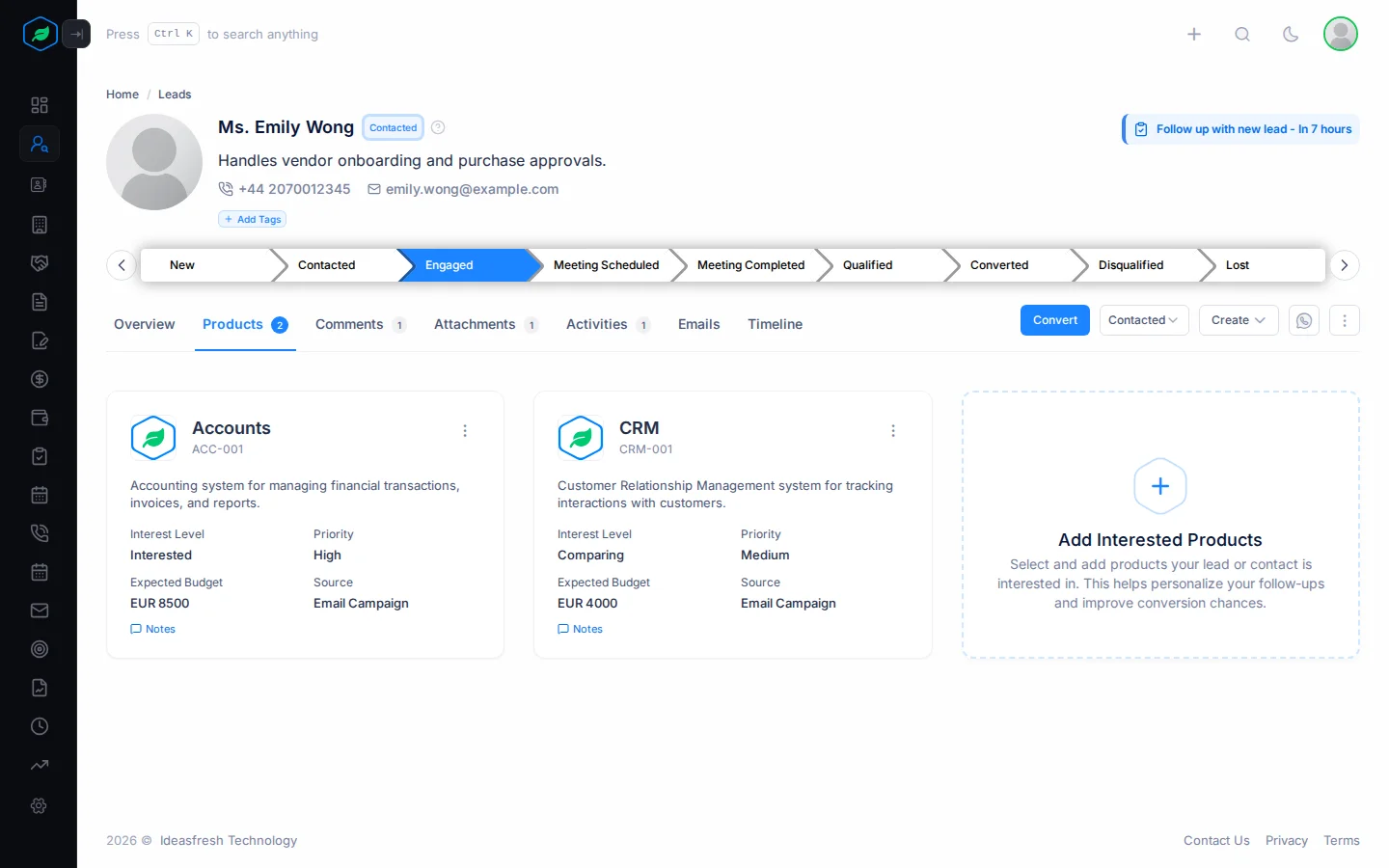
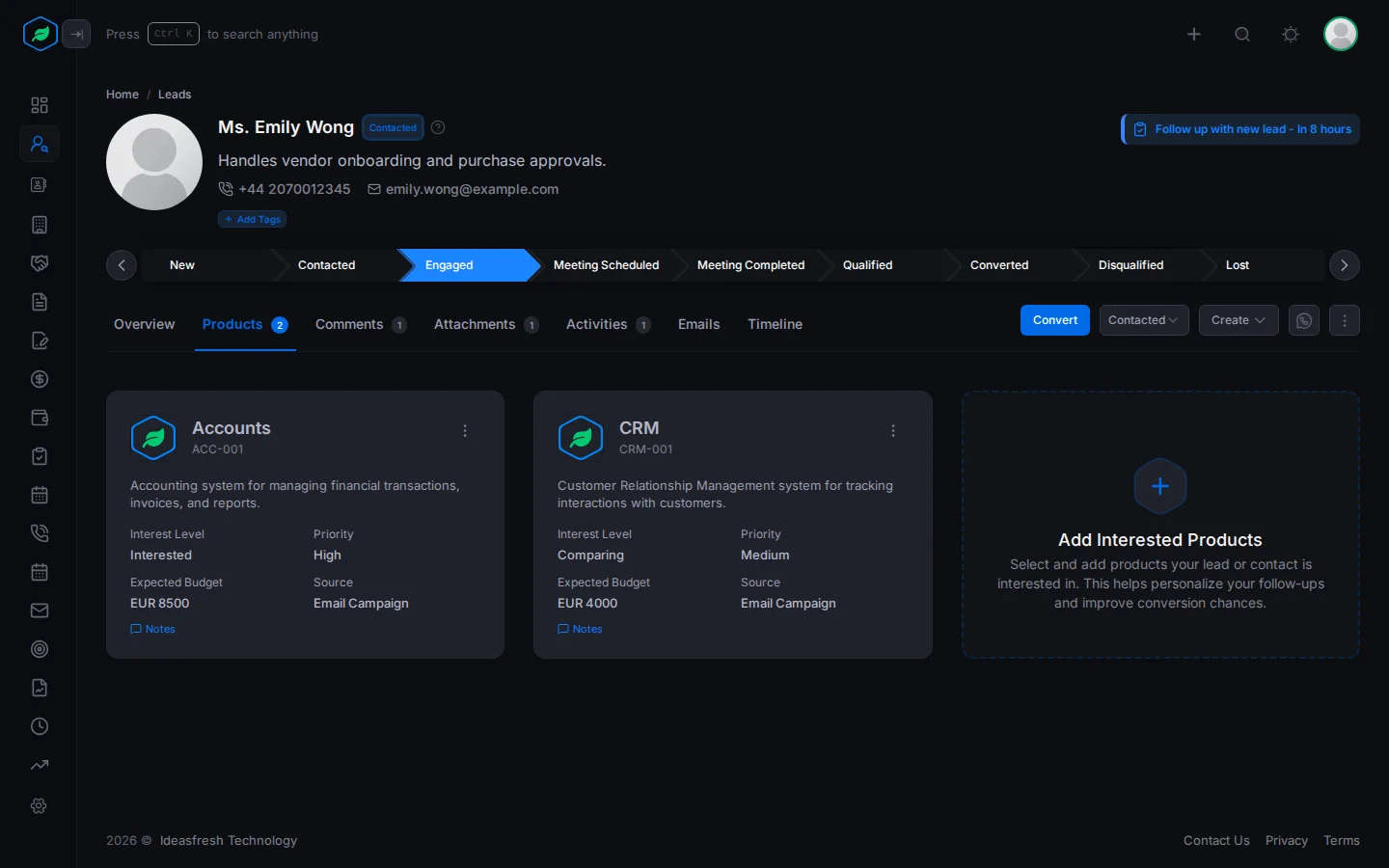
For each one you can add a priority (Low, Medium or High), an interest level from 1 to 5, the source, an expected budget with currency, and notes. When you convert the lead, these products are copied to the contact. See Interested products.
To add a product, you need the Create Leads permission. To remove one, you need Delete Leads. You can't edit a product. Remove it and add it again.
Comments
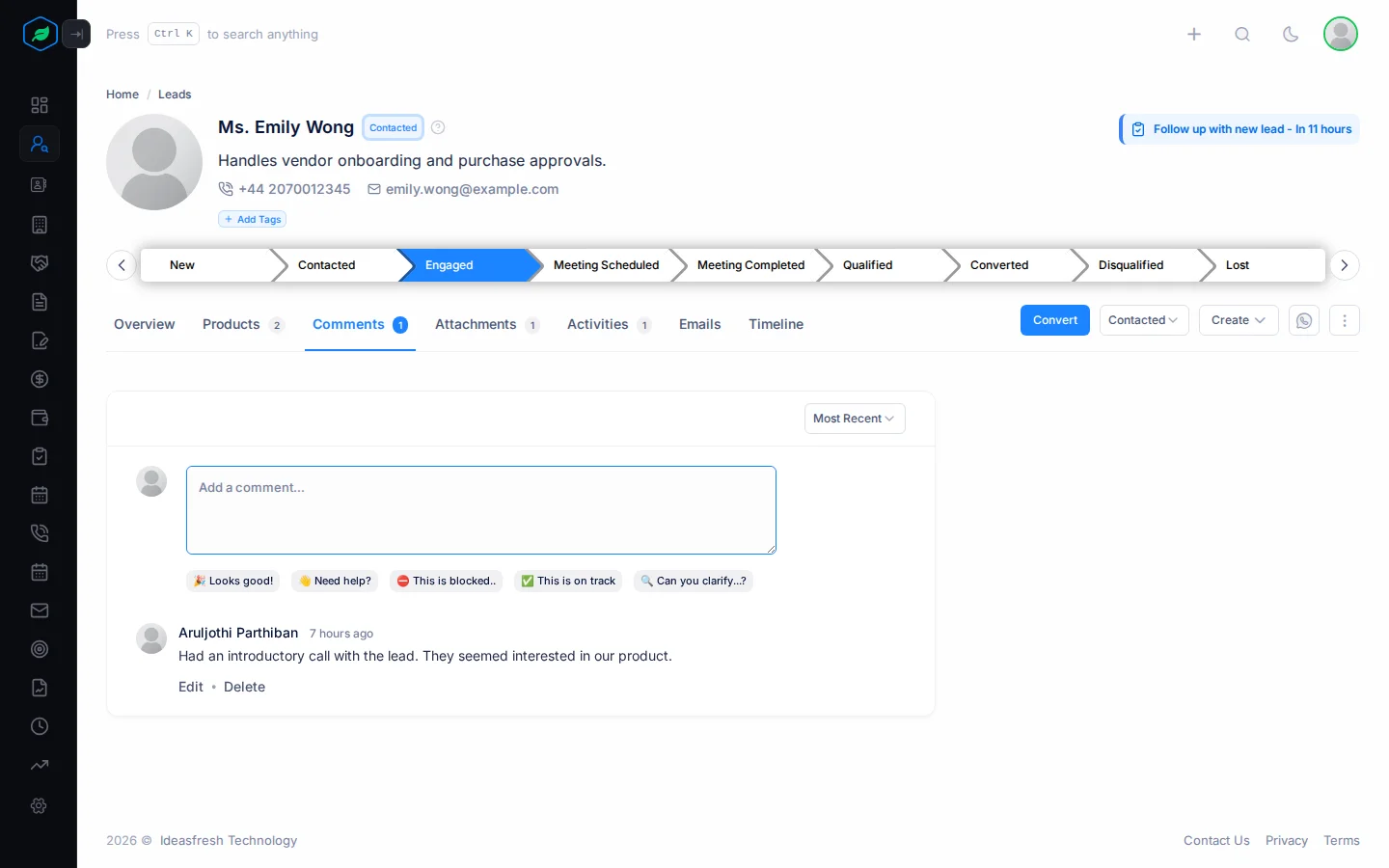
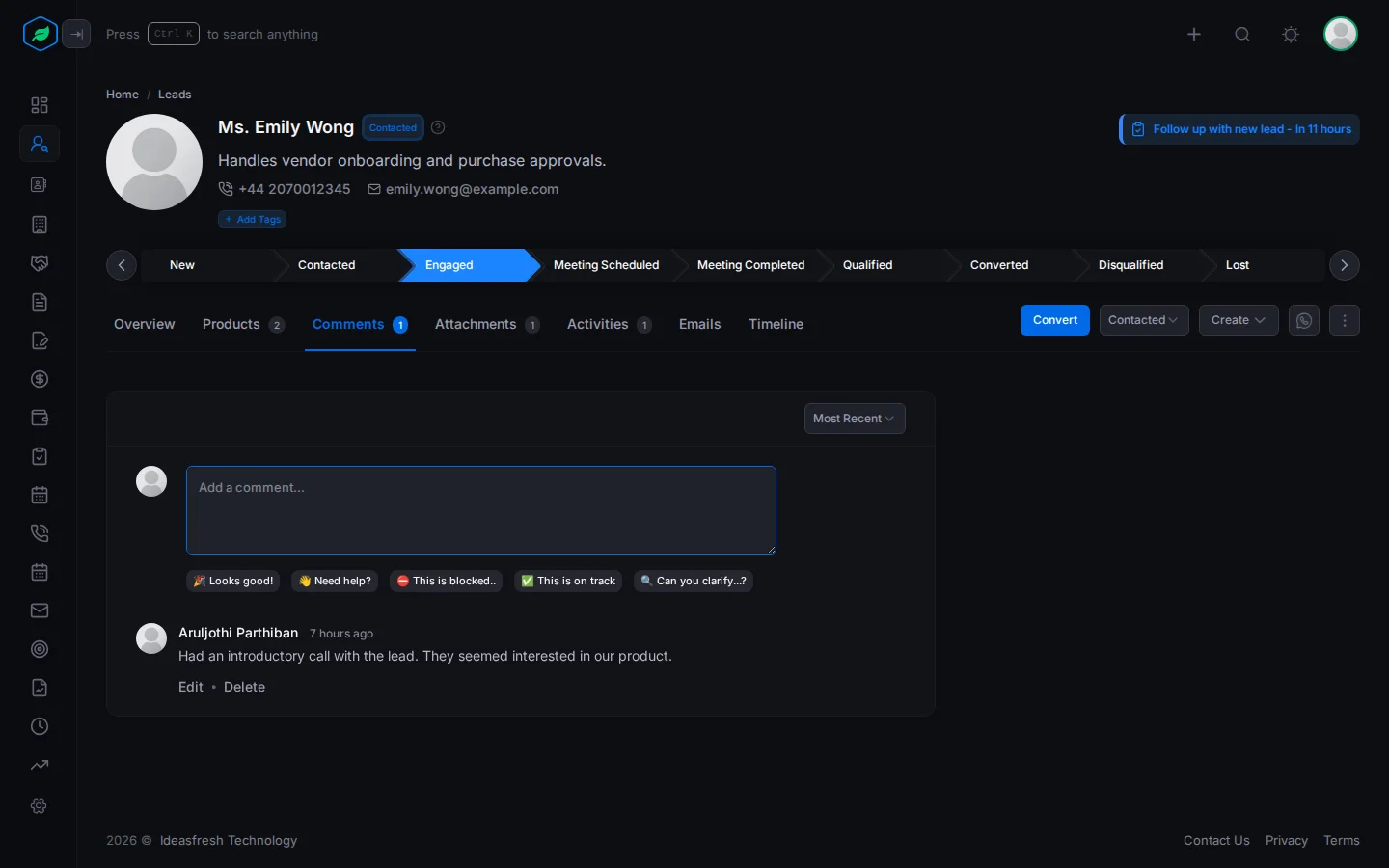
Comments are notes your team writes on the lead, so everyone knows what has happened and what comes next. The tab shows how many there are.
For example, after a call you might write: "Spoke to her today. She wants a quote for 20 users and will decide by Friday." Next week, a teammate who picks up the lead reads this and knows exactly where things stand, without calling you first.
Attachments
Attachments keep the files about a lead in one place, so nobody has to search their inbox for them. For example, you could attach:
- the brochure or price list you sent,
- a requirements document the lead shared with you,
- a visiting card or photo from a meeting.
Each file can be up to 10 MB. Files count towards your company's storage.
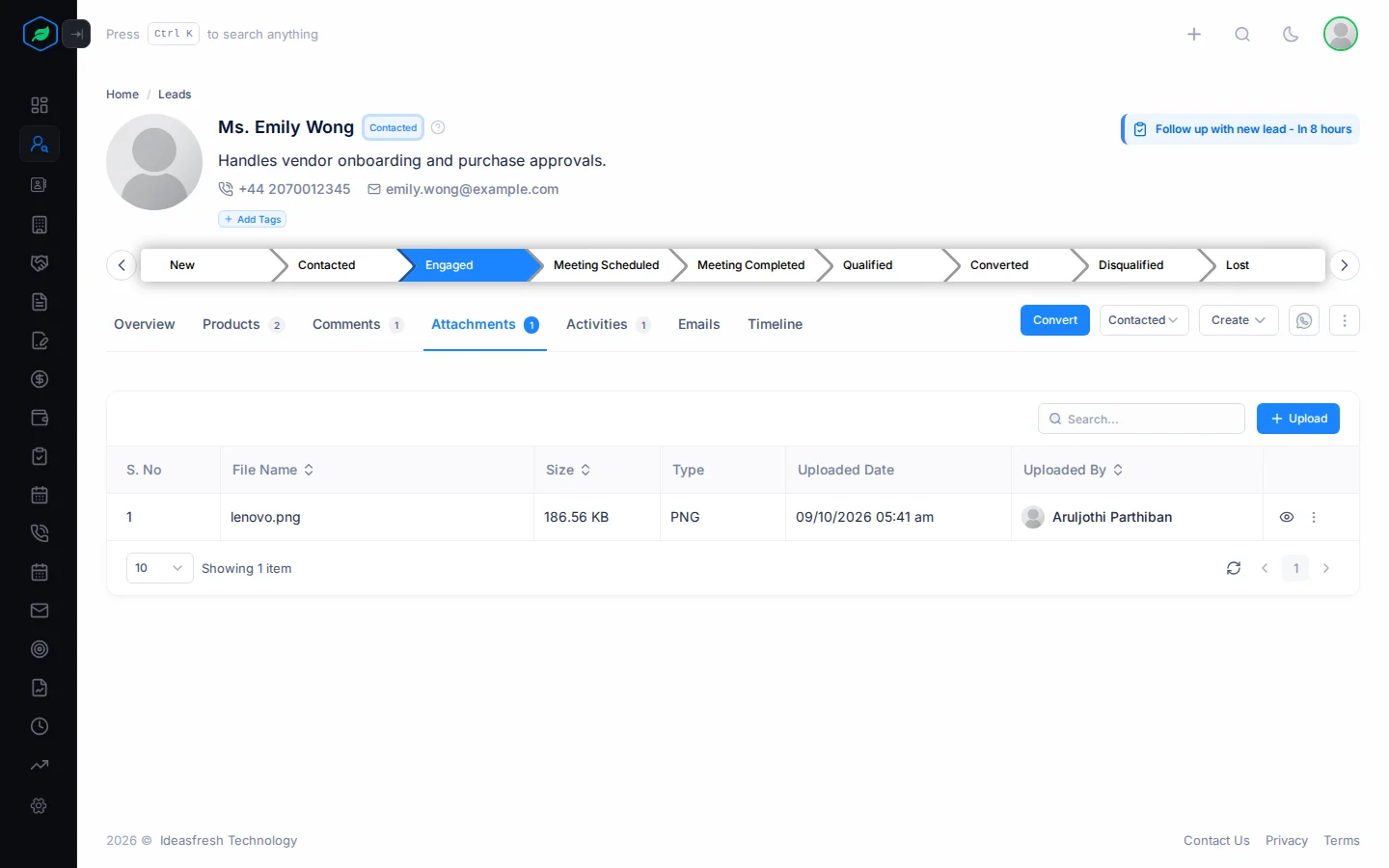
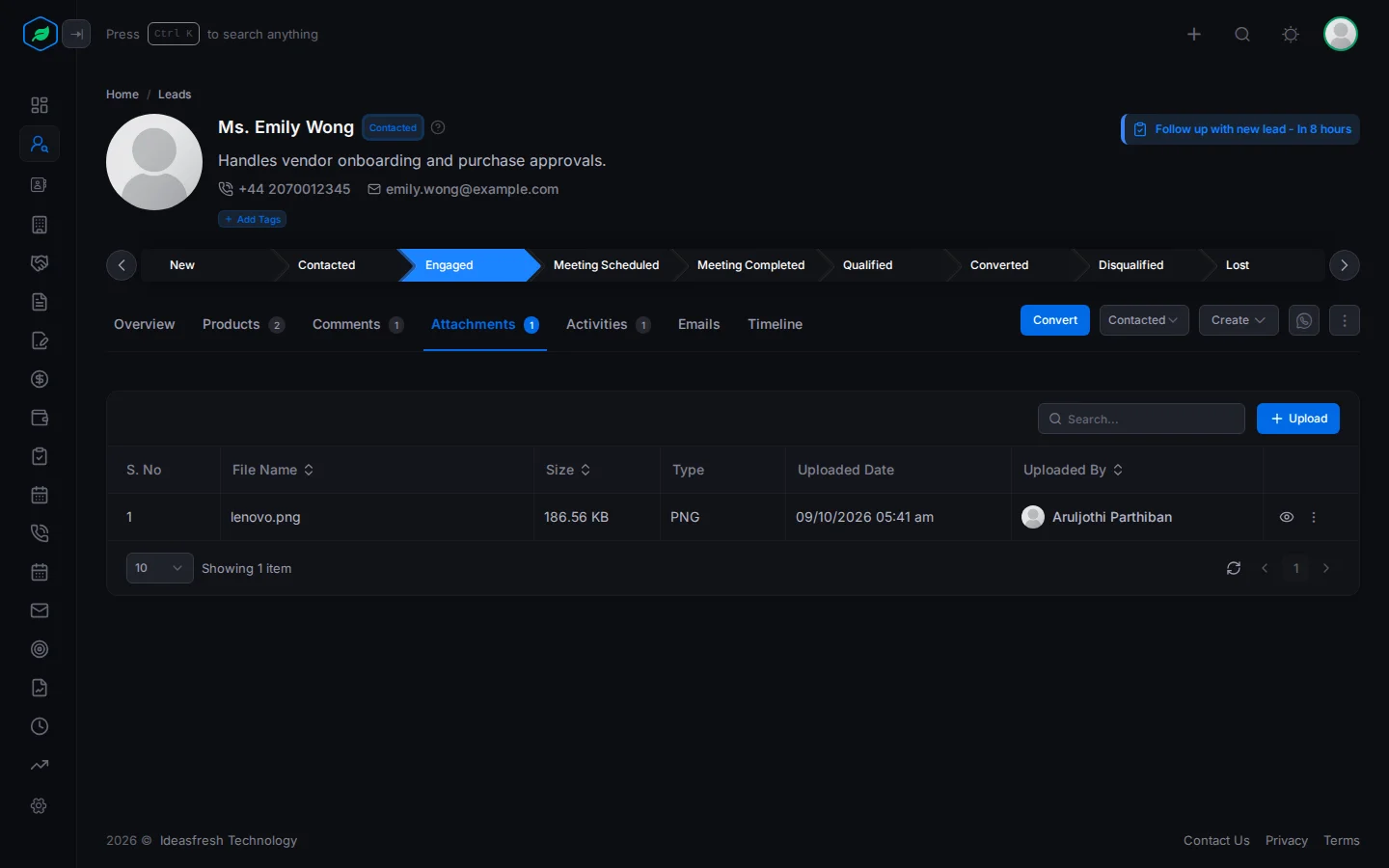
To learn more, see Attachments.
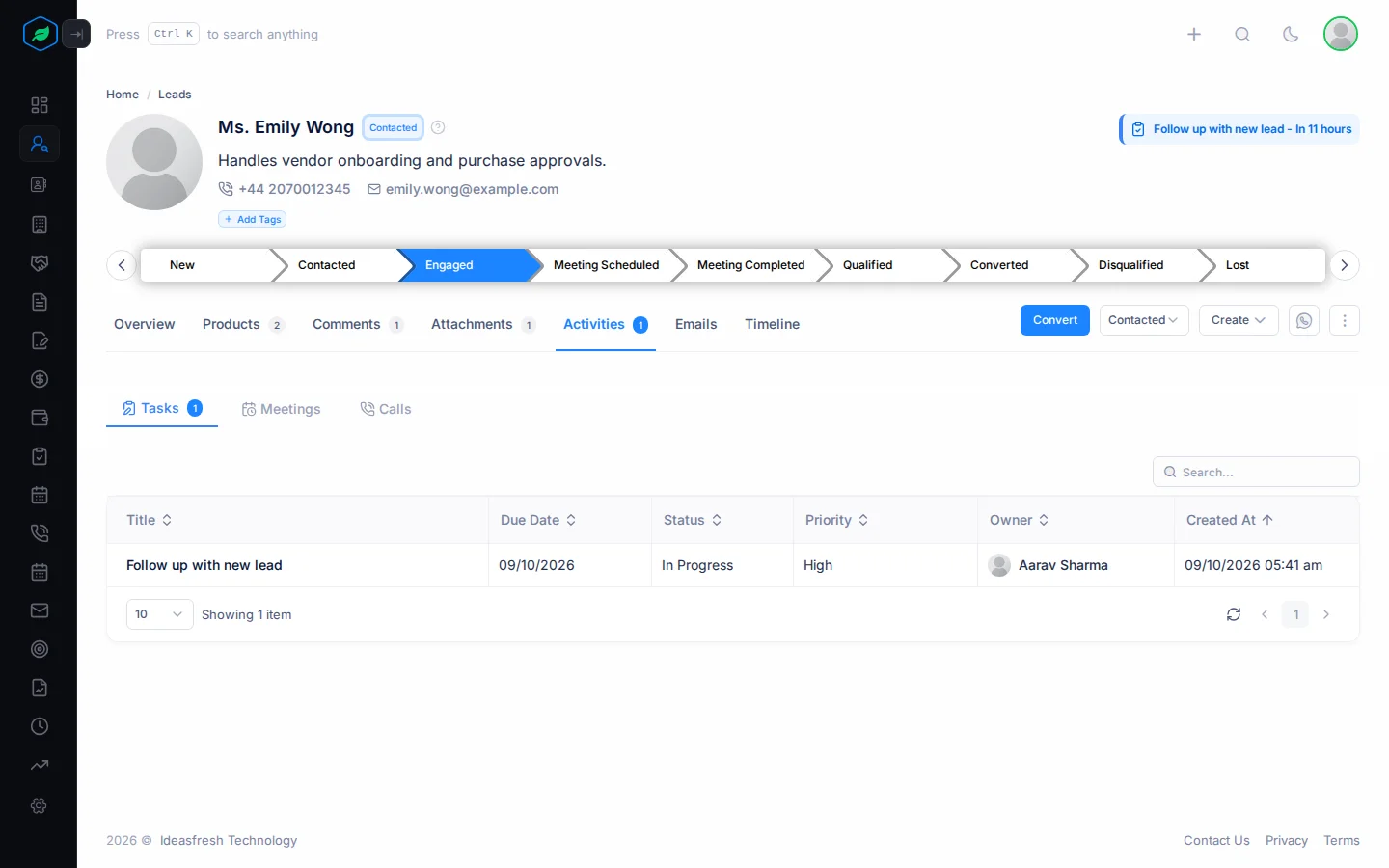
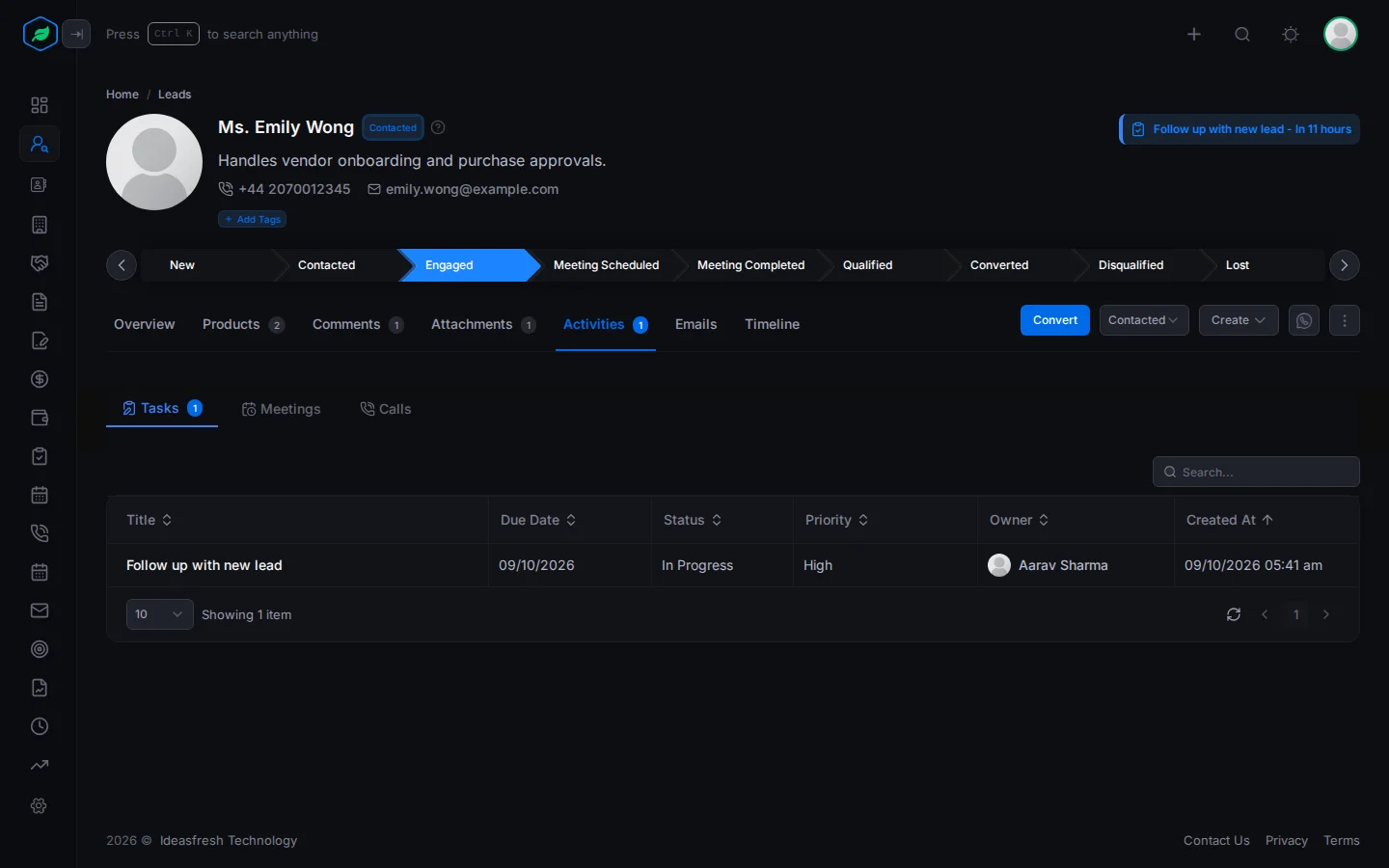
Activities
Activities are the tasks, meetings and calls linked to the lead. They show what your team has done with the lead, and what is planned next. This includes ones created by automation.
For example, you call a lead and they ask you to call back on Monday. Add a task for Monday on this tab. On Monday, the task reminds you, and anyone who opens the lead can see the call is planned.
Emails
The Emails tab shows every email between you and this lead, in one place. You don't have to search your inbox to remember what you said last time.
For example, before you call a lead back, open this tab. You can see the quote you emailed last week, and their reply asking for a discount. Now you know what to talk about.
To use it, connect your Gmail or Outlook mailbox first. See Connect Gmail or Outlook. Emails sent to or from the lead's email address then show here.
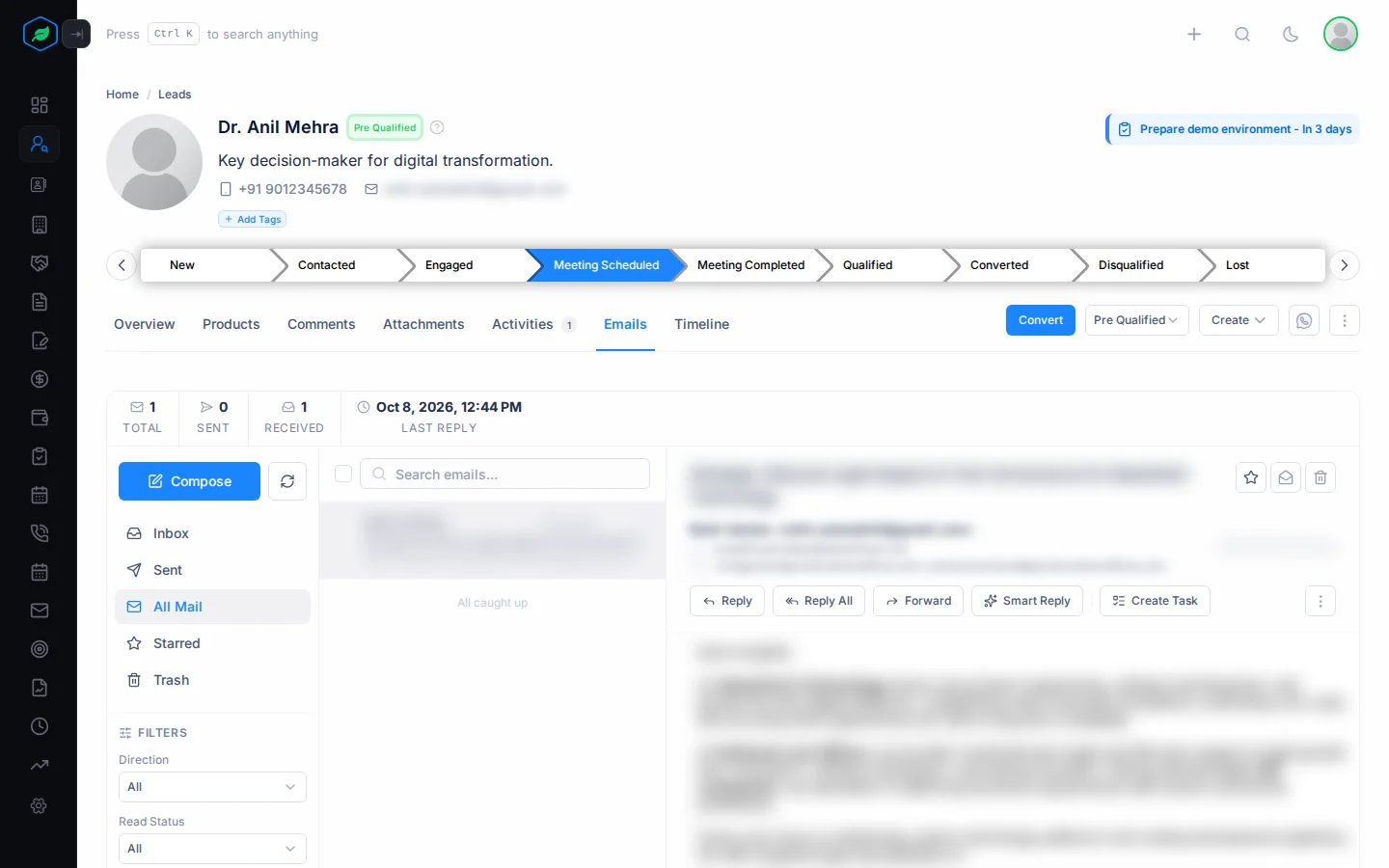
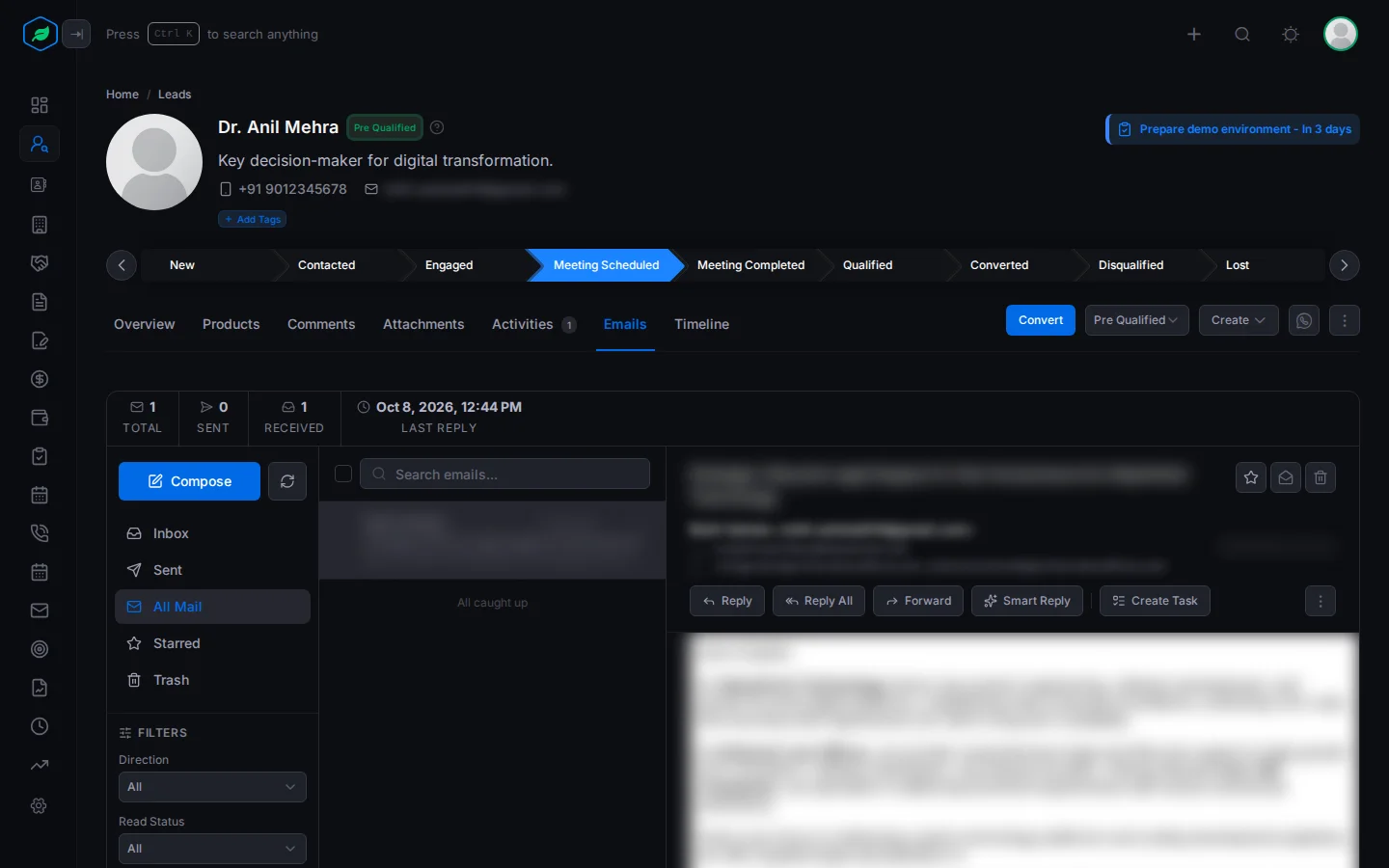
At the top you see a short summary:
| Item | What it tells you |
|---|---|
| Total, Sent, Received | How many emails you have exchanged with the lead |
| Open Rate | How often the lead opened the emails you sent |
| Last Reply | When the lead last wrote back |
| Avg Score | How positive and interested the lead sounds in their emails, on average. See Smart Reply and email sentiment |
Open Rate only shows after you have sent the lead emails from Salesfresh, and Avg Score only after their emails have been scored.
From this tab you can also:
- write a new email to the lead,
- mark emails as read or unread, or star them,
- turn an email into a task, so you remember to follow up.
The tab shows how many emails are unread.
You only see emails from your own mailbox. Emails your teammates exchanged with the lead show up in their Emails tab, not yours.
Timeline
The Timeline is the lead's history. It lists everything that has happened to the lead, newest first, with who did it and when. Nothing is left out, so you can always find out how the lead got to where it is now.
It shows:
- when the lead was created, and by whom,
- every change to its details, such as a new phone number, a new owner or a new status,
- emails, calls, meetings, tasks, comments and attachments added to the lead,
- who opened the lead, and when.
For example, a lead's status says Lost Lead, but you thought it was going well. Open the Timeline. You can see who changed the status, and when. Now you know who to ask.
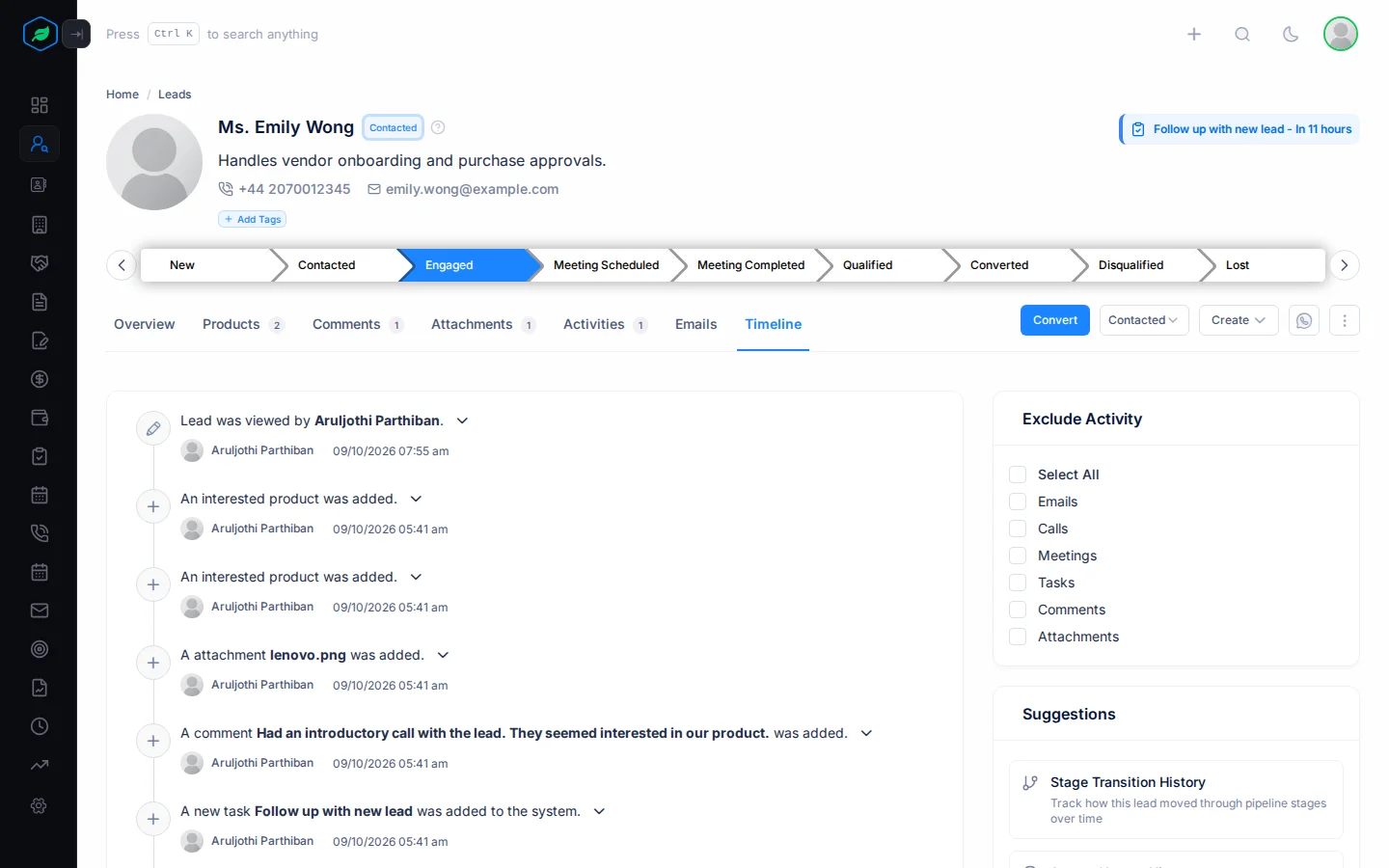
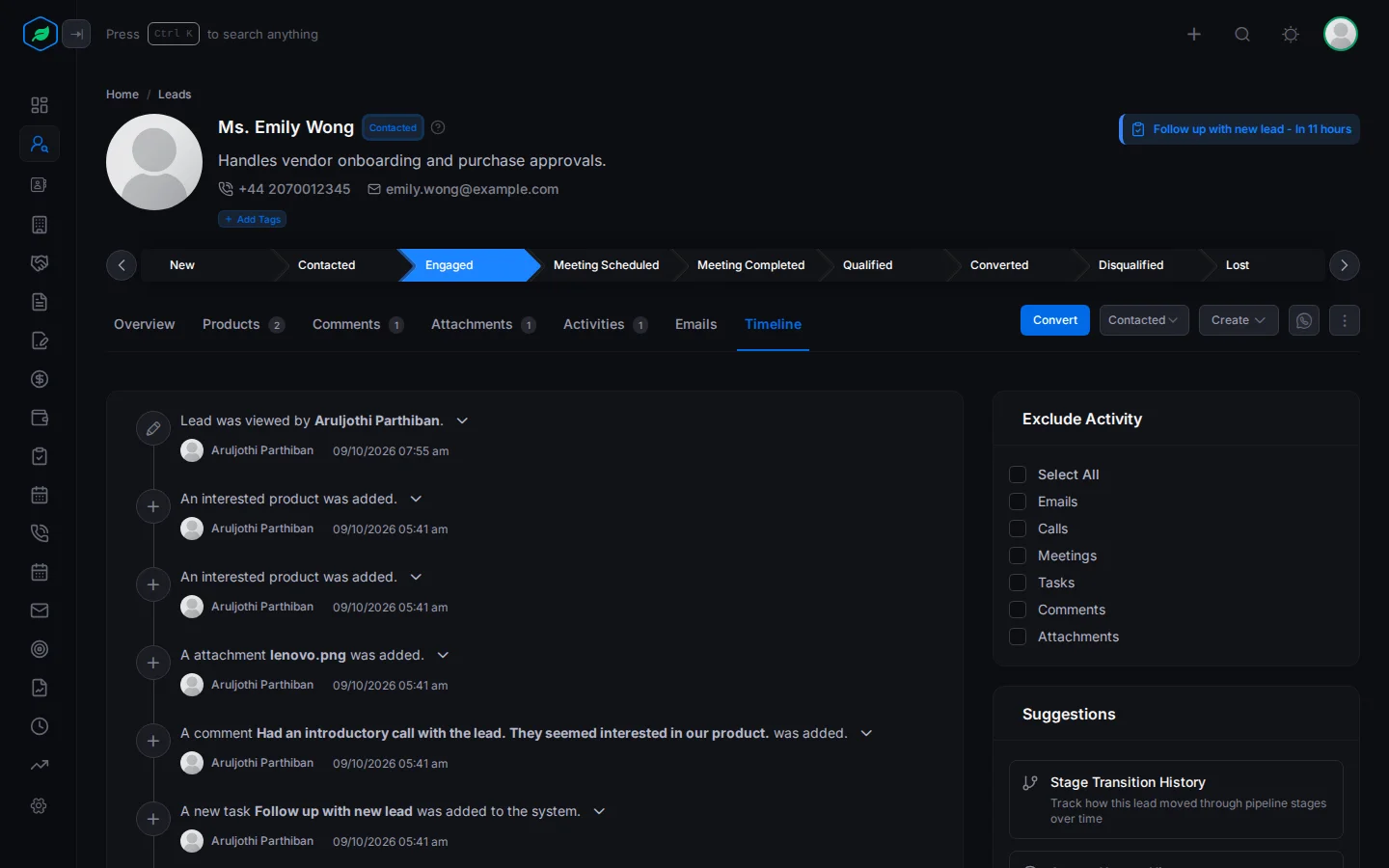
On the right are two panels that help you find things:
- Exclude Activity hides the kinds of entries you don't need. Tick a type to hide it. For example, tick Emails and Comments to see only the changes to the lead and its tasks, meetings, calls and attachments.
- Suggestions lists ready-made histories, such as Stage Transition History. Click one to see every change in it: what it was before, what it changed to, who changed it and when.
Lock a lead
Locking a lead freezes it. Nobody can change its details, move it to another status or stage, convert it or delete it until it is unlocked.
Why lock a lead?
- You are in the middle of a deal. You have agreed a price or terms, and you don't want a teammate to change the lead's details or status while you finish.
- Someone has checked the lead's details and confirmed they are correct. Locking keeps them that way.
- You want to make sure the lead isn't deleted by mistake. A locked lead can't be deleted.
- You are handing the lead to someone else, and you want it to stay exactly as it is until they pick it up.
Locking doesn't hide the lead. Your team can still see it, and the work around it carries on: anyone who can open it can still add comments, attach files and schedule tasks, meetings and calls.
Lock or unlock
- Open the ⋮ menu and click Lock.
- The lead shows a lock icon and this banner: "This lead is locked and cannot be edited further. However, you can still add comments, attach files, and schedule meetings or calls."
| While it is locked, nobody can | You can still |
|---|---|
| Edit the lead | Add comments |
| Change its status or stage | Attach files |
| Convert it | Schedule tasks, meetings and calls |
| Delete it |
The lead's owner or the person who created it can lock it. Only the person who locked it can unlock it.
You can find locked leads in the All Locked Leads view. To unlock a lead, open the ⋮ menu and click Unlock.
Deleted leads
You can still open a deleted lead's page. A banner shows when it was deleted and when it will be deleted for good, with a Restore Lead button. You can't edit, convert or clone the lead until you restore it.
Troubleshooting
| You see | Why | What to do |
|---|---|---|
| "This lead is currently locked. Please unlock it before proceeding with the conversion." | The lead is locked | Ask the person who locked it to unlock it |
| Convert is greyed out with "Update an owner and convert the lead" | The lead came from a web form and nobody owns it yet | Edit the lead and pick an owner |
| Nothing happens when you use the status dropdown or the stage bar | You don't own the lead and didn't create it, or it is locked or converted | Ask the owner |
Related
Still stuck?
Tell us what you were trying to do and we will help.