Convert a lead to a contact, account and deal
Turn a qualified lead into a contact and an account, and optionally a deal, in one step. What is created, what is copied and what happens to the lead.
Updated 9 October 2026 · 5 min read
Is your lead ready to buy? Then convert it. In one step, Salesfresh creates:
- a contact for the person,
- an account for their company, or links the one you already have,
- and, if you want one, a deal to track the sale.
A deal is a sale you are working on. Some other CRMs call it an opportunity. If you are used to opportunities, deals in Salesfresh are the same thing.
Before you start
- You must be the lead's owner or creator, and have the Edit Leads permission.
- The lead can't be locked or already converted.
- No contact can already have the lead's email address.
- The new contact, account and deal count towards your plan's limits.
Convert a lead
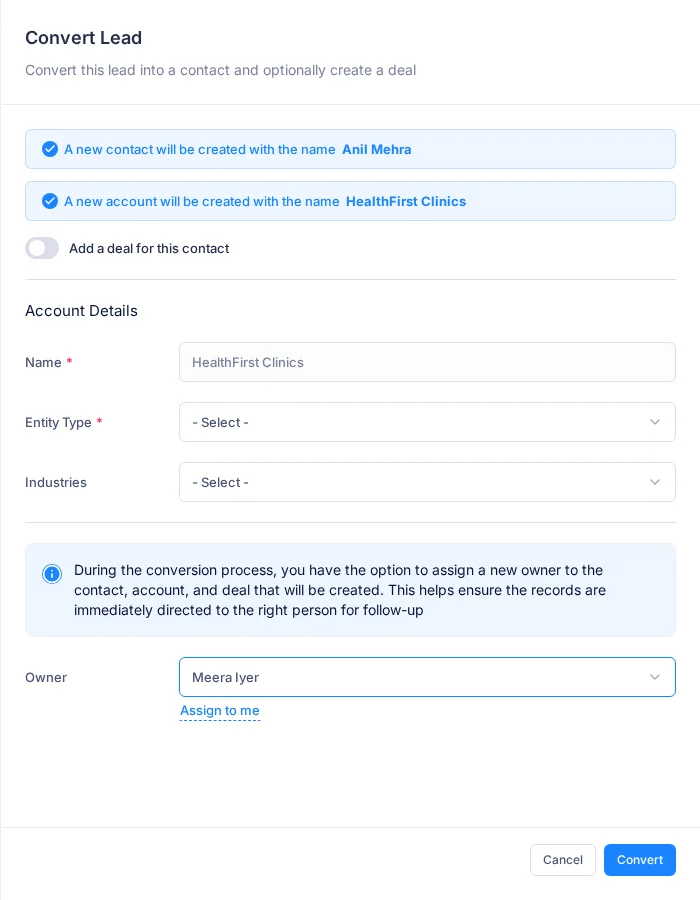
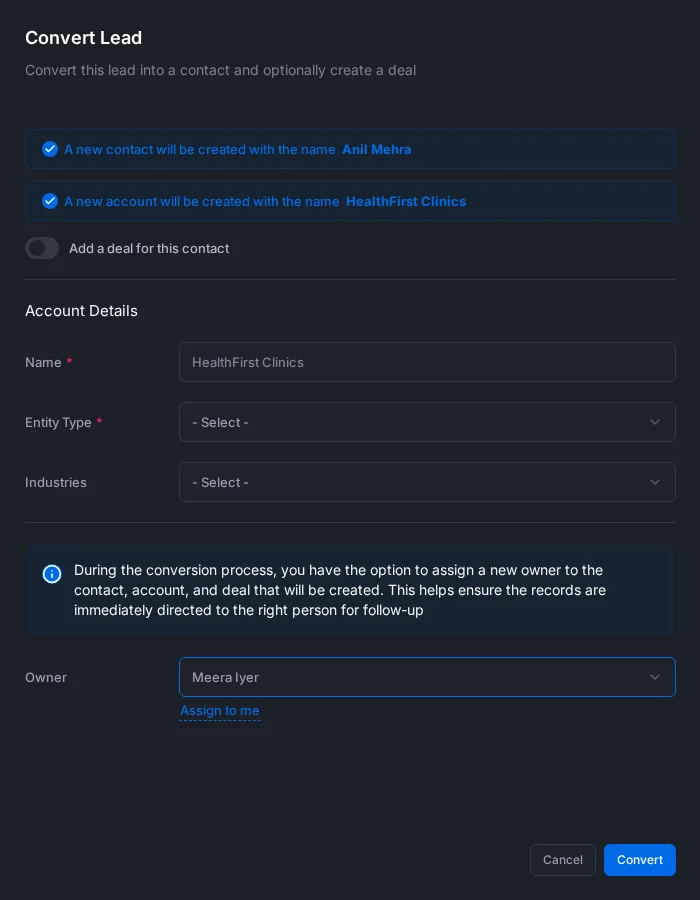
- Open the lead and click Convert. The Convert Lead panel opens. At the top, you see the name of the contact and the account it will create.
- Under Account Details, check these fields:
- Name: this comes from the lead's account name. If the lead has none, it uses the lead's own name.
- Entity Type (required): Individual, Company, or Government / Public Sector.
- Industries.
- Want a deal too? Tick Add a deal for this contact and fill in Deal Details:
- Name
- Type: New Business, Upsell, Cross-sell or Renewal
- Currency and Expected Revenue
- Closing Date: pick a date, or a quick option such as This Week, Next Month or Quarter End
- Stage: any open stage in your deal pipeline. The win probability is filled in from the stage
- Pick who the new records belong to:
- Owner: this starts as the lead's owner. Search for someone else, or click Assign to me. The contact, account and deal all go to this person.
- Team: you see this when the owner is in a team. Pick one of their teams. If your company shares records by team, this decides who can see the new records.
- Click Convert.
What gets created
Account
Salesfresh first checks whether you already have an account with the same company name. For example, "Acme Corp" and "acme corp" count as the same name.
- If the account already exists, no new account is made. The new contact and deal are added to that account.
- If it doesn't exist, Salesfresh creates a new account with:
- the name, entity type and industry from the panel, and the owner and team you picked,
- the lead's website, total employees, annual turnover and rating,
- the lead's address as its billing address.
Contact
The contact belongs to the owner and team you picked. These details are copied from the lead:
- salutation, name, photo and title,
- both emails, phone numbers, fax and social links,
- industry, address, description and notes,
- whether they want your emails or not.
The lead's source becomes the contact's lead source.
The lead's interested products are copied to the contact.
Deal
If you added a deal, it is created with the name, type, currency, expected revenue, closing date and stage you filled in. It is linked to both the contact and the account, and belongs to the owner and team you picked.
You can find the new deal in Deals, and on the contact's and account's pages. From here on, you work the sale on the deal. See Deals overview.
What happens to the lead
- It is marked converted, with the date and the name of who converted it. Its stage changes to Converted.
- It becomes read-only. You can't edit, delete or lock it, or change its status or stage.
- It no longer shows in your everyday views. You find it in Converted Leads and My Converted Leads.
- If someone else converted it, the lead's owner gets a "Lead Converted" email.
Comments, attachments, activities and emails stay on the lead. They don't move to the contact.
Troubleshooting
| You see | Why | What to do |
|---|---|---|
| "Contact with email "x" already exists. Please update or merge it instead." | A contact already has this email | Open that contact and update it instead |
| "This lead is currently locked. Please unlock it before proceeding with the conversion." | The lead is locked | Ask the person who locked it to unlock it |
| "The lead has already been converted." | Someone has converted it already | Look for it in the Converted Leads view |
| Convert is greyed out with "Update an owner and convert the lead" | The lead came from a web form and has no owner yet | Edit the lead and pick an owner |
| "The new owner must be an active member of this company." | The person you picked as Owner was deactivated or removed | Pick someone else |
| "The selected team is not one of the new owner's teams." | The person you picked as Owner isn't in that team | Pick one of their teams |
| A plan limit message for contacts, accounts or deals | You have used up your plan's limit for that record | Free up some records, or upgrade from My Subscription. See Plans and limits |
Related
- Lead status and lead stages
- Who owns and who can see a lead
- The lead detail page
- Contacts overview
- Accounts overview
- Deals overview
Still stuck?
Tell us what you were trying to do and we will help.