Create, edit and clone a lead
Every field on the lead form, which ones are required, and how cloning a lead works.
Updated 9 October 2026 · 5 min read
You use the lead form to add a lead by hand, for example after a phone call. A lead is a person who may become a customer. The same form is used to edit a lead and to finish a copy of one.
Before you start
- To create or clone a lead, you need the Create Leads permission. To edit one, you need Edit Leads, and you must be the lead's owner or the person who created it.
- You can't edit a lead that is locked or converted.
- Lead Sources and Industries come from lists your admin sets up in Settings > Configurations.
Create a lead
- Go to Leads and click Create Lead. You can also click the + button at the top of any page.
- Fill in the form. Fields marked * must be filled in.
- Click Save.
If you try to leave the page before you save, Salesfresh asks you to confirm first.
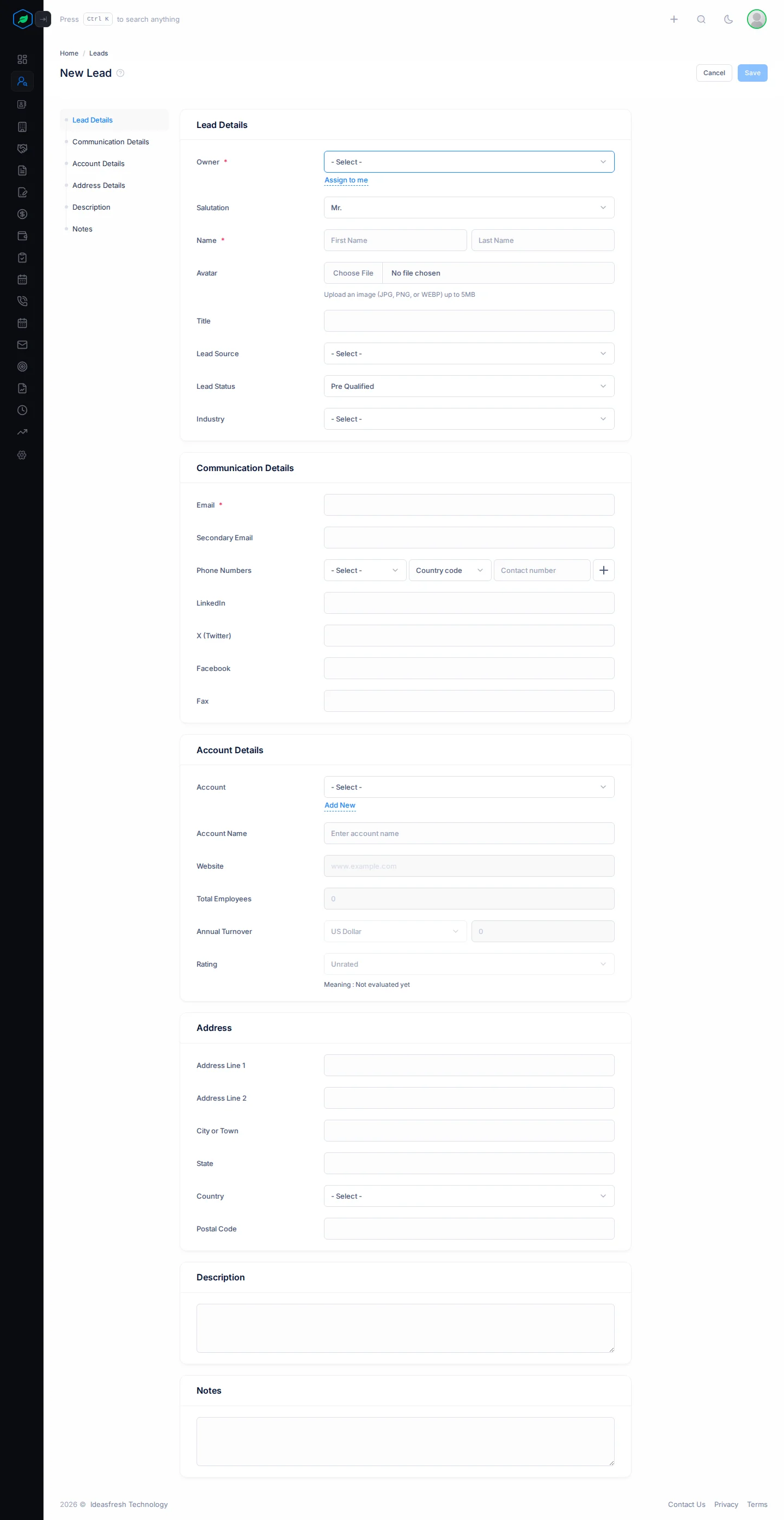
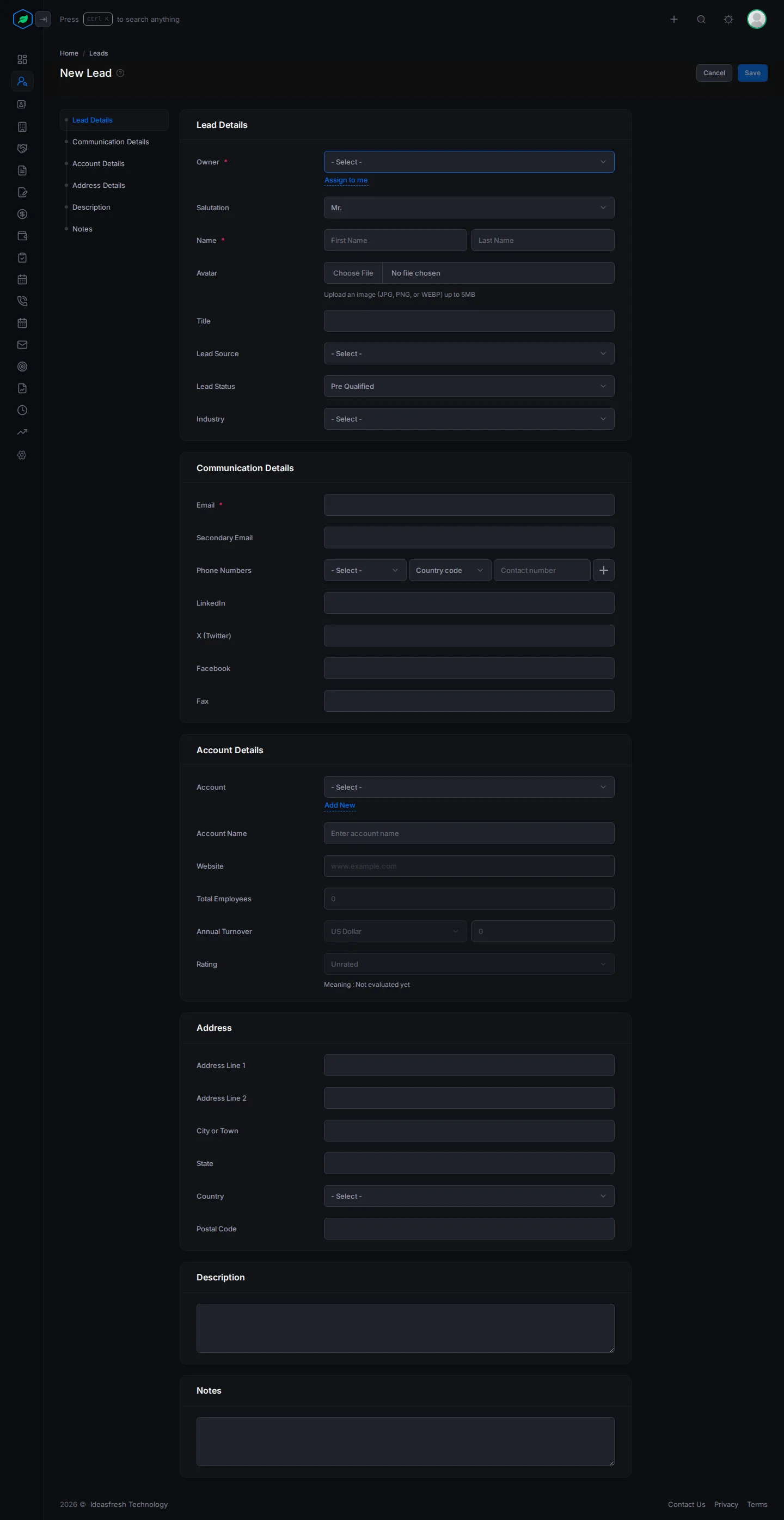
The form, section by section
Lead Details
| Field | What to enter |
|---|---|
| Owner * | The person in charge of the lead |
| Team | One of the owner's teams. If your sharing policy is based on teams, this decides who can see the lead |
| Salutation * | Mr., Mrs., Ms., Dr. or Prof. Set to Mr. at first |
| First Name * | The lead's first name. No emojis |
| Last Name | The lead's last name |
| Avatar | A photo of the lead. Upload it and crop it to fit |
| Title | Their job title. Lead scoring uses it to judge how senior they are |
| Lead Source | Pick from your company's list of lead sources |
| Lead Status | One of the 8 statuses. Set to Pre Qualified at first. See Lead status and lead stages |
| Industry | Pick from your company's list of industries |
Communication Details
| Field | What to enter |
|---|---|
| Email * | Must be a valid address. No other lead in your company can have it |
| Secondary Email | Can't be the same as Email |
| Phone Numbers | You can add more than one number. For each number, pick its type, such as Mobile or WhatsApp, then pick the country code and type the number. If you start a number, finish it, or leave it empty |
| LinkedIn, X (Twitter), Facebook | A link to their profile, for example https://www.linkedin.com/in/name |
| Fax | Their fax number |
Want to use the WhatsApp button on the lead's page? Give the lead a WhatsApp or Mobile number.
Account Details
This is the company the lead works for.
| Field | What to enter |
|---|---|
| Account | Pick an account you already have, or click Add New. If you pick one, the fields below are filled in from that account |
| Account Name | The company's name |
| Website | The company's website, for example https://www.example.com |
| Total Employees | How many people work there |
| Annual Turnover | The amount and the currency |
| Rating | How warm you think the lead is, from 0 Unrated to 5 Very Hot (see below) |
You set the Rating yourself. It is not the same as the lead score that Salesfresh works out.
| Rating | Meaning |
|---|---|
| 0 | Unrated: you haven't judged it yet |
| 1 | Very Cold |
| 2 | Cold |
| 3 | Warm |
| 4 | Hot |
| 5 | Very Hot: ready to convert |
Address
Address Line 1 and 2, City or Town, State, Country and Postal Code. When you convert the lead, this becomes the account's billing address and the contact's address.
Description and Notes
Type anything else your team should know.
Edit a lead
Open the lead and click Edit. Or pick Edit from the row menu on the list. The same form opens with the lead's details in it. Click Update to save.
Only want to change the status or stage? You don't need the form for that. See Lead status and lead stages.
Clone a lead
Cloning makes a copy of a lead. It helps when you need to add someone similar, like a second person from the same company.
- Open the menu at the start of the lead's row, or the ⋮ menu on its page. Click Clone and confirm.
- Salesfresh makes a Draft copy and opens it so you can edit it.
- Type the new person's email and phone numbers. These are left empty because two leads can't have the same email.
- Click Update. The Draft badge goes away.
The copy keeps the same owner as the original. Its status is Pre Qualified, and it is in the first stage of your lead pipeline. If you delete a draft, it is deleted for good. It doesn't go to the recycle bin.
Troubleshooting
| You see | Why | What to do |
|---|---|---|
| "A lead with this email already exists. Owner: …" | Another lead has this email | Open that lead instead, or ask its owner |
| "A lead with this email was deleted on … Do you want to restore it instead ?" | A deleted lead still has this email | Restore that lead, or use Delete Permanently on it in the recycle bin, then save again |
| "Please enter a valid website URL, e.g., https://www.ideasfresh.com" | The website doesn't start with https://, or it has a page path | Type only the address, starting with https:// |
| "Secondary email must be different from email" | The two email fields are the same | Clear or change the secondary email |
| "You have reached the maximum of N leads on your current plan. Please upgrade for more." | You have used up your plan's lead limit | Delete leads you don't need any more, or upgrade from My Subscription. See Plans and limits |
Related
Still stuck?
Tell us what you were trying to do and we will help.