Leads: overview, list and views
What a lead is, how leads reach the CRM, and how to find and work them from the list, the Kanban board and saved views.
Updated 9 October 2026 · 9 min read
A lead is someone who has shown interest in what you sell, but isn't a customer yet. You keep a lead in Leads while you get to know them. When they're ready to buy, you convert the lead into a contact and an account, and a deal if you want one.
Before you start
| You want to | You need |
|---|---|
| See leads | The View Leads permission |
| Create, clone or import leads | The Create Leads permission |
| Edit a lead, change its status or stage, lock it or convert it | The Edit Leads permission. You must also be the lead's owner, or the person who created it |
| Delete leads, or empty the recycle bin | The Delete Leads permission |
How many leads you can have depends on your plan. See Plans and limits.
How leads get into Salesfresh
There are four ways to add leads.
Add one yourself
Click Create Lead and fill in the form. You choose who owns the lead. See Create, edit and clone a lead.
Import a file
Have a list of leads in a CSV or Excel file? Import it with an import template.
Moving from another CRM? Export your leads from it as a CSV or Excel file, then import that file here. You don't need to type them in again. Want a complete migration, including deals and quotes? Contact us and we'll take care of the whole migration.
You own all the leads you import. If a row has an email that is already used by a lead, that row is skipped. See Import from CSV or Excel.
From a web form
Say you put a web form on your website. A visitor types their name and email into the form and clicks submit. They now show up in your Leads as a new lead. Nobody had to type them in.
At first, the new lead has no owner. If you have set up auto-assign rules, they pick someone from your team to look after it.
This only works for forms with the purpose Lead Generation. See Web forms overview.
With the browser extension
Say a customer emails you about your product, and you read it in Gmail or Outlook. You want them in your CRM as a lead, without typing their details in.
- Open their email.
- Open the Salesfresh browser extension. It reads the sender's details from the email and fills in a lead form for you.
- Check the details, and add anything that's missing.
- Click Create Lead. You see "Lead created successfully!"
The new lead is yours. If the sender is already a lead, you see View Lead in CRM instead, so you don't add them twice.
The first time you use it, the extension asks for permission to read your emails. For Outlook, your Outlook mailbox must also be connected to Salesfresh. See Connect Gmail or Outlook.
Each email address can belong to only one lead. Whichever way you add a lead, Salesfresh checks this first.
The leads list
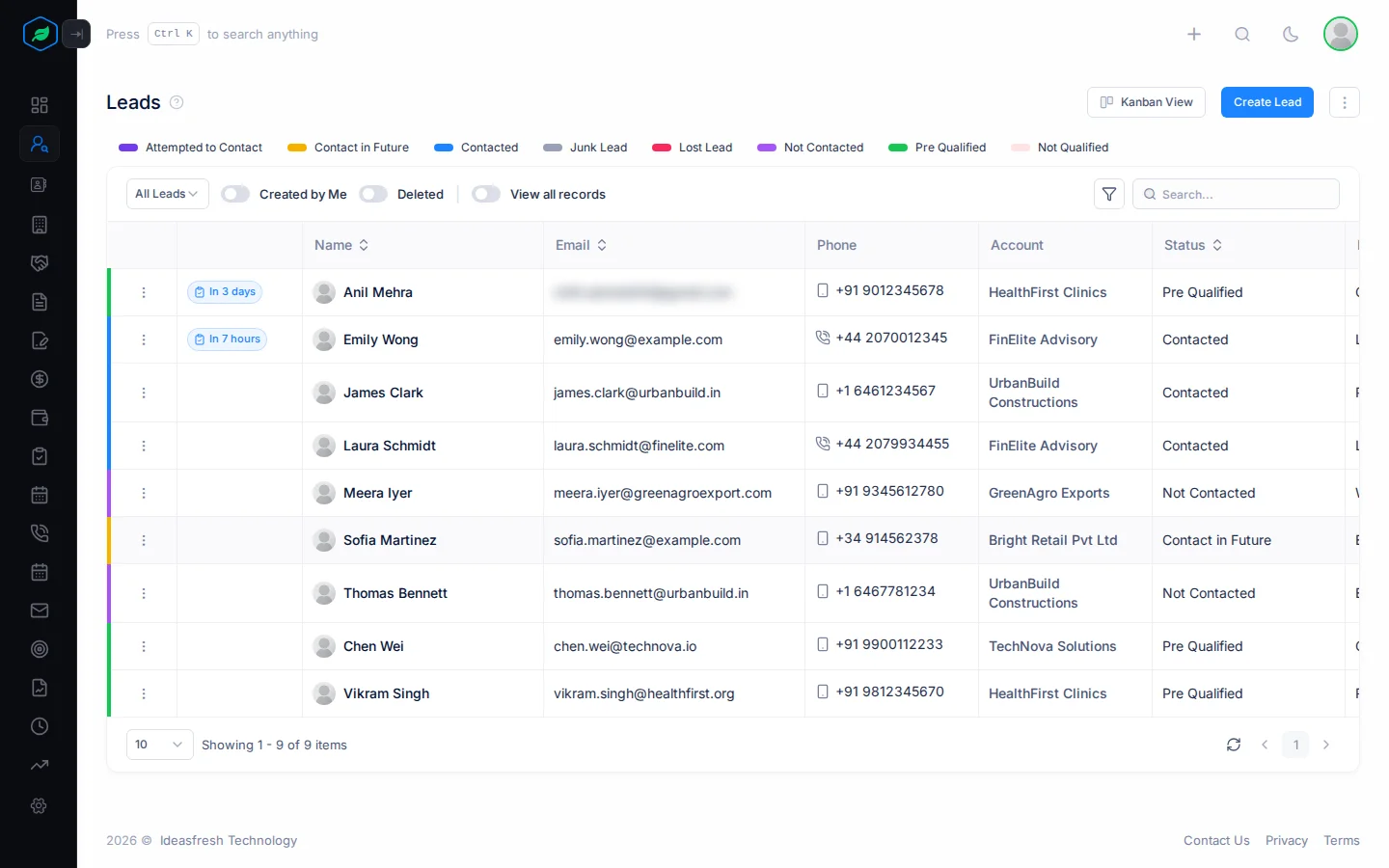
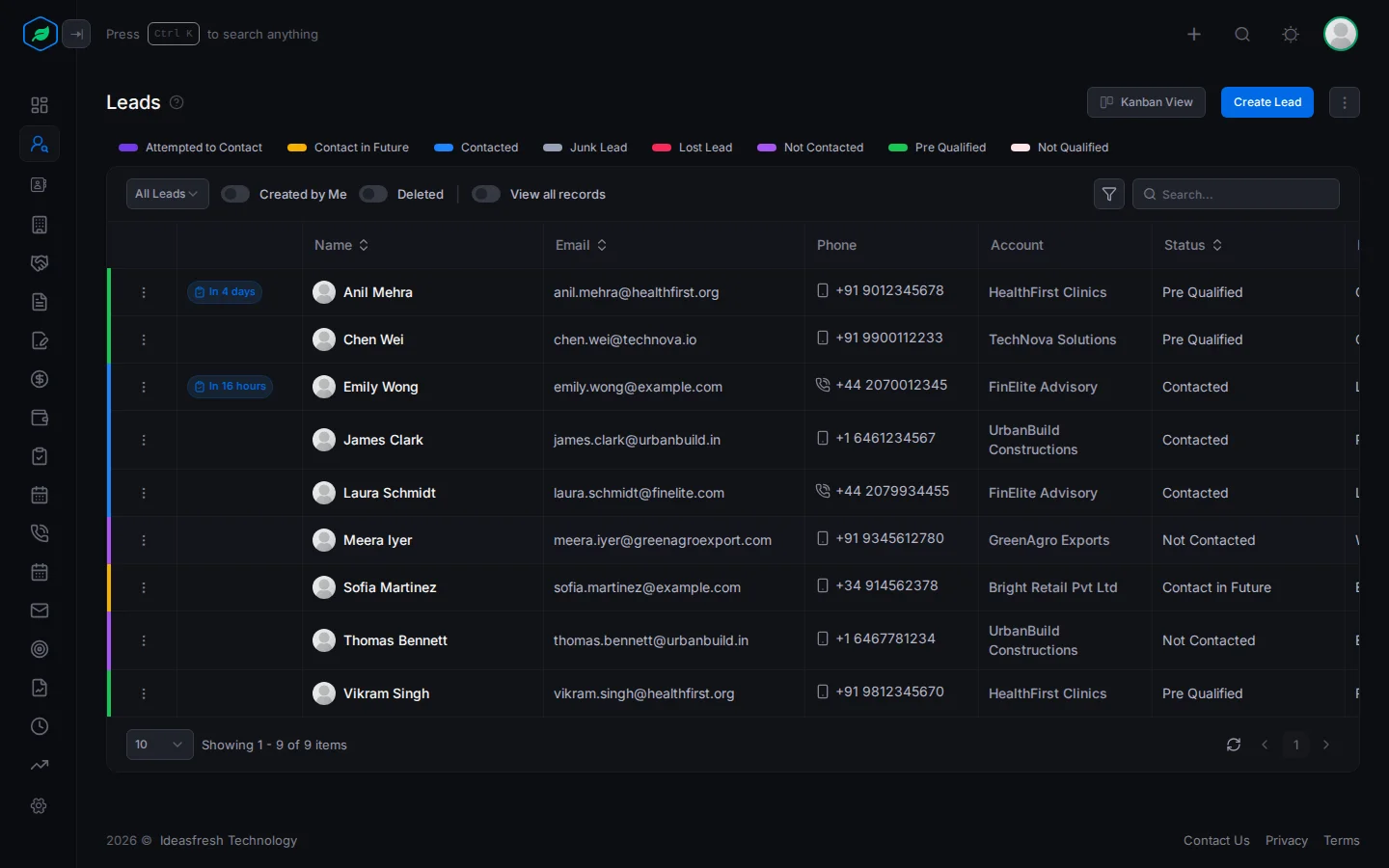
Click Leads in the sidebar. You can look at your leads in two ways. Switch between them at the top of the page.
- List View shows a table of leads.
- Kanban View shows leads as cards in columns. Pick By Status or By Stage.
Salesfresh remembers how you left the page, including the view, page size and sort order.
Columns
The table shows Name, Email, Phone, Account, Status, Lead Source, Updated At, Lead Owner, Industry and Created By. To sort, click Name, Email, Status, Lead Source, Updated At or Created By.
- Each row has a light colour that matches its status.
- An envelope icon next to the email means the lead doesn't want your emails. Point at it to see "This contact no longer wishes to receive our emails".
- A Draft badge means the lead is a copy that hasn't been saved yet.
Status chips
Above the table there is a chip for each status. Click a chip to see only the leads with that status. Click it again to see all leads.
Toolbar
| Control | What it does |
|---|---|
| View list | Switch to another saved view. See Views |
| Created by Me | Show only the leads you created. You won't see this on views that already show only your leads |
| Deleted | Open the recycle bin |
| View all records | Shows the leads of everyone in your company, not just the ones you are allowed to see by default. For example, a sales manager can use it to check all the team's leads. To see this switch, your role needs the View All Records permission. Ask your admin if you need it |
| Filter (funnel icon) | Show only the leads that match what you need. See Filter the list |
| Search | Searches name, email, status, account name, title, source, city, industry and stage |
Filter the list
Want to see only certain leads, for example leads from your website in the retail industry? Use the filter to find them.
- Click the funnel icon. The Advanced Filter panel opens.
- Click a saved filter at the top, such as one of your views. Its conditions are loaded below, and you can change them. Or start with an empty condition.
- Build your conditions. Pick a field, how to compare it, and a value. Click + Rule to add another condition, or + Group to add a set of conditions.
- Choose AND to show leads that match every condition, or OR to show leads that match any of them.
- Click Apply. The list now shows only the leads that match.
To see all leads again, click Clear Filter. The filter isn't saved, so if you want to use the same filter again later, ask your admin to add it as a view. You can't use the filter while View All Records is on.
Views
A view is a saved filter. Every company starts with these:
| View | Shows |
|---|---|
| All Leads | Every lead that hasn't been converted |
| Today's Leads | Leads created today |
| Open Leads | Leads with the status Pre Qualified, Not Contacted, Attempted to Contact or Contact in Future |
| Converted Leads | Leads that have been converted |
| All Locked Leads | Locked leads |
| Junk Leads | Leads with the status Junk Lead |
| Not Qualified Leads | Leads with the status Not Qualified |
| Unsubscribed Leads | Leads who don't want your emails |
| Unread Leads | Leads nobody has opened yet |
| Recently Created Leads | Leads created this week |
| Recently Modified Leads | Leads changed this week |
| My Leads | Leads you own |
| My Converted Leads | Converted leads you own |
You only see converted leads in the two "Converted" views. Admins can add more views in Settings > Data Management > Leads.
Kanban View
- By Status has a column for each status. To change a lead's status, drag its card to another column.
- By Stage has a column for each stage in your lead pipeline, in the stage's colour. When you drop a card in a new column, a panel opens so you can add a reason and notes. Leads whose stage was removed are in No Stage.
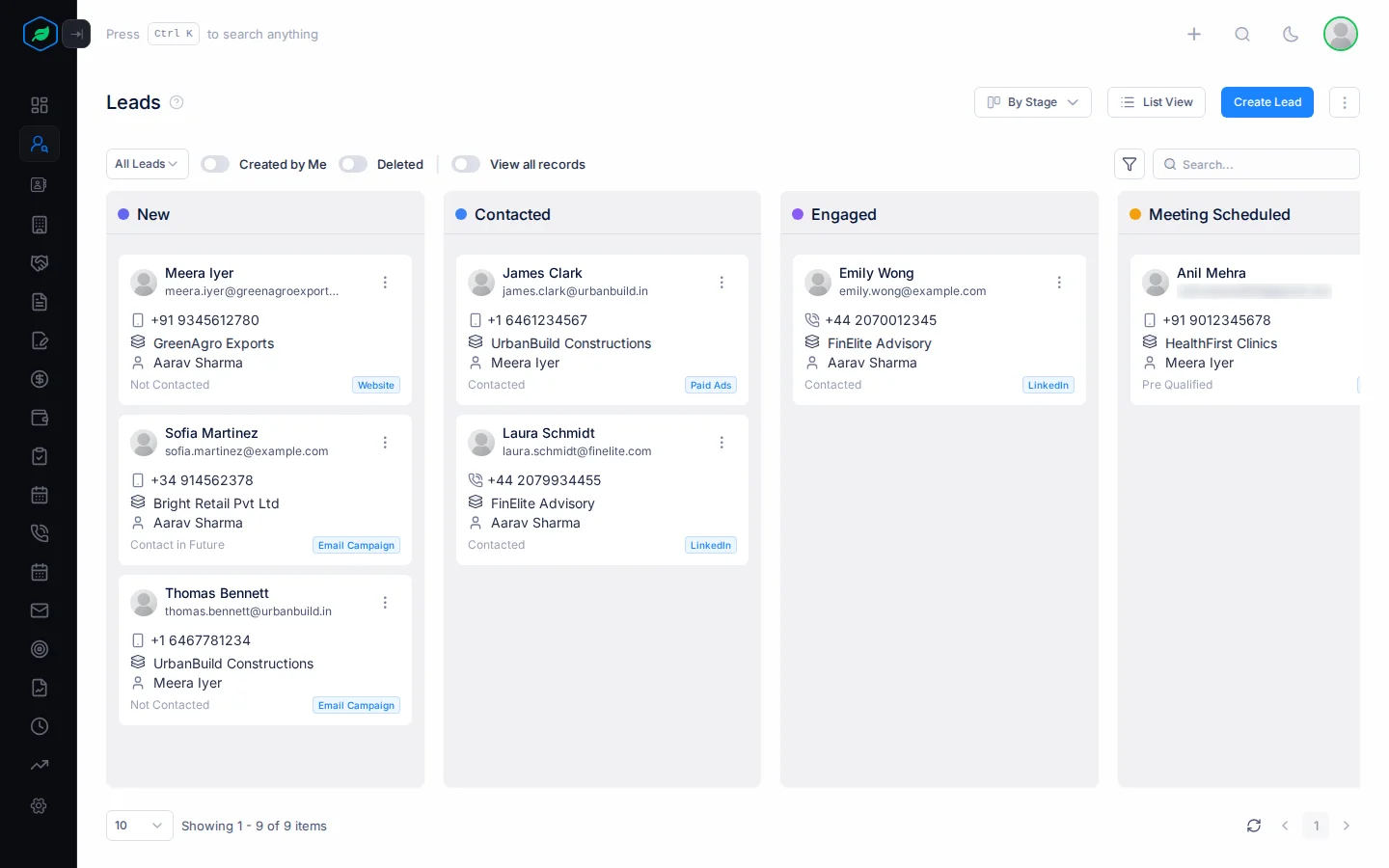
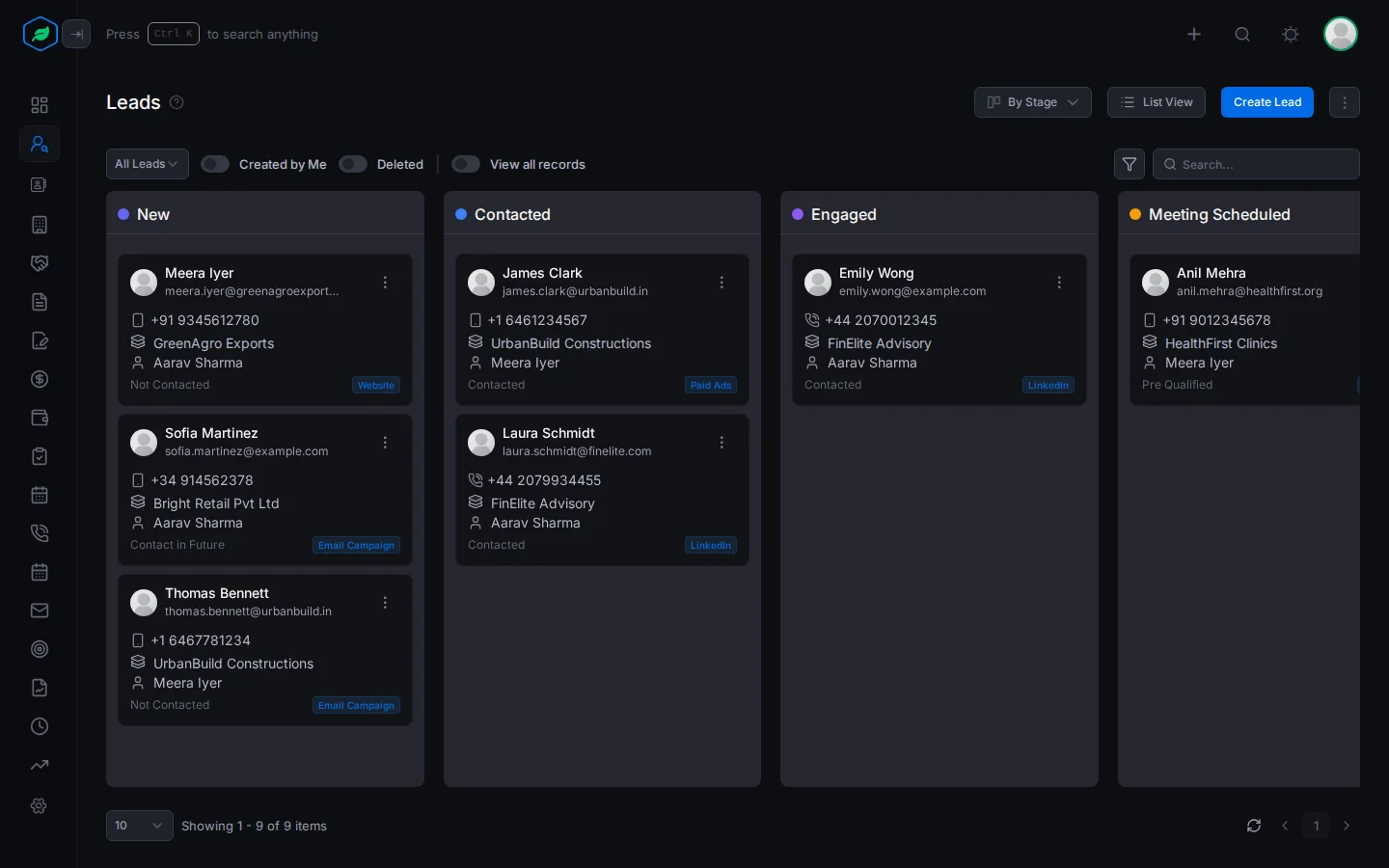
You can only drag leads you are allowed to edit. The board shows one page of leads at a time. Use the page controls to see the rest.
Row actions
Click the menu at the start of a row to see what you can do with that lead.
| Action | You see it when |
|---|---|
| Edit | You can edit leads, you own or created the lead, and it isn't locked or converted |
| Clone | You can create leads, and the lead isn't converted or a draft |
| Lock / Unlock | You own or created the lead. Locking stops anyone editing the lead. Only the person who locked it can unlock it. See Lock a lead |
| Convert | You own or created the lead, and it isn't locked or converted |
| Subscribe / Unsubscribe | You can edit leads. Unsubscribe when the lead doesn't want your emails. Subscribe to start emailing them again |
| Delete | You can delete leads, you own or created the lead, and it isn't locked or converted |
To give all of one person's leads to someone else, open the ⋮ menu at the top right of the page, next to Create Lead, and click Change Owner. See Who owns and who can see a lead.
Deleted leads and the recycle bin
When you delete a lead, it goes to the recycle bin. Turn on Deleted to see it.
- The Deleted At column shows how many days you have left to restore it.
- Restore brings the lead back with its comments, attachments and activities.
- When the days run out, the lead shows "No longer restorable" and is deleted for good.
Delete Permanently deletes the lead and everything linked to it straight away. You need the Delete Leads permission, and you can't undo it.
You can still open a deleted lead's page. A banner shows when it will be deleted for good, with a Restore Lead button.
Troubleshooting
| You see | Why | What to do |
|---|---|---|
| "Lead not found" | The sharing rules hide this lead from you, or it was deleted | Ask an admin, or look in the recycle bin |
| Edit is missing from the menu | You don't own the lead and didn't create it, or it is locked or converted | Ask the owner, or ask the person who locked it to unlock it |
| "This lead was deleted more than N days ago and can no longer be restored." | The time to restore it has run out | Create the lead again |
Related
Still stuck?
Tell us what you were trying to do and we will help.