Lead status and lead stages
The difference between a lead's status and its stage, the default lead pipeline, how to move a lead between stages, and how admins set stages up.
Updated 9 October 2026 · 6 min read
Every lead has a status and a stage. They tell you different things, and you change each one on its own.
| Status | Stage | |
|---|---|---|
| Tells you | Have you reached this person yet? | How close is this lead to buying? |
| Values | A fixed list of 8 | Your company's lead pipeline. An admin sets it up |
| Change it from | The status dropdown, By Status in Kanban, or the edit form | The stage bar on the lead page, or By Stage in Kanban |
| Rules | You can go from any status to any other | Only the moves your pipeline allows. Some ask for fields or a reason |
Statuses
| Status | Use it when |
|---|---|
| Pre Qualified | The lead is new and nobody has looked at it yet. Every new lead starts here |
| Not Contacted | Someone has looked at it, but nobody has reached out |
| Attempted to Contact | You tried to reach them and didn't get through |
| Contacted | You have spoken to them |
| Contact in Future | They asked you to come back later |
| Not Qualified | They aren't a fit right now |
| Junk Lead | The details are spam, fake or a test |
| Lost Lead | They decided not to go ahead |
The Open Leads view shows leads that are Pre Qualified, Not Contacted, Attempted to Contact or Contact in Future.
Stages
Each stage is in one of three categories: Open, Closed Won or Closed Lost. Every company starts with the pipeline below. An admin can change it.
| Stage | Category | Can move to |
|---|---|---|
| New | Open | Contacted, Disqualified |
| Contacted | Open | Engaged, Meeting Scheduled, Disqualified, Lost |
| Engaged | Open | Meeting Scheduled, Qualified, Disqualified, Lost |
| Meeting Scheduled | Open | Meeting Completed, Disqualified, Lost |
| Meeting Completed | Open | Qualified, Disqualified, Lost |
| Qualified | Open | Converted, Disqualified, Lost |
| Converted | Closed Won | |
| Disqualified | Closed Lost | |
| Lost | Closed Lost |
A new lead starts in the first Open stage. That's New, unless your admin has changed the order.
When you move a lead to Disqualified or Lost, you pick a reason:
| Disqualified | Lost |
|---|---|
| No Budget | Chose Competitor |
| Wrong Industry | No Response |
| Duplicate Lead | Project Cancelled |
| Invalid Contact Info | Timing Not Right |
| Not Decision Maker | Price Too High |
| Other (type your own) | Other (type your own) |
To convert a lead, use the Convert button. Moving it to the Converted stage only changes its stage. It doesn't create a contact, account or deal. See Convert a lead.
Change a lead's stage
- Open the lead and click a stage on the stage bar. Or, on the leads list, switch to Kanban View > By Stage and drag the card.
- In Stage Change Confirmation, pick a reason if the stage asks for one. You can also choose Other and type your own.
- Add notes if you want, then confirm.
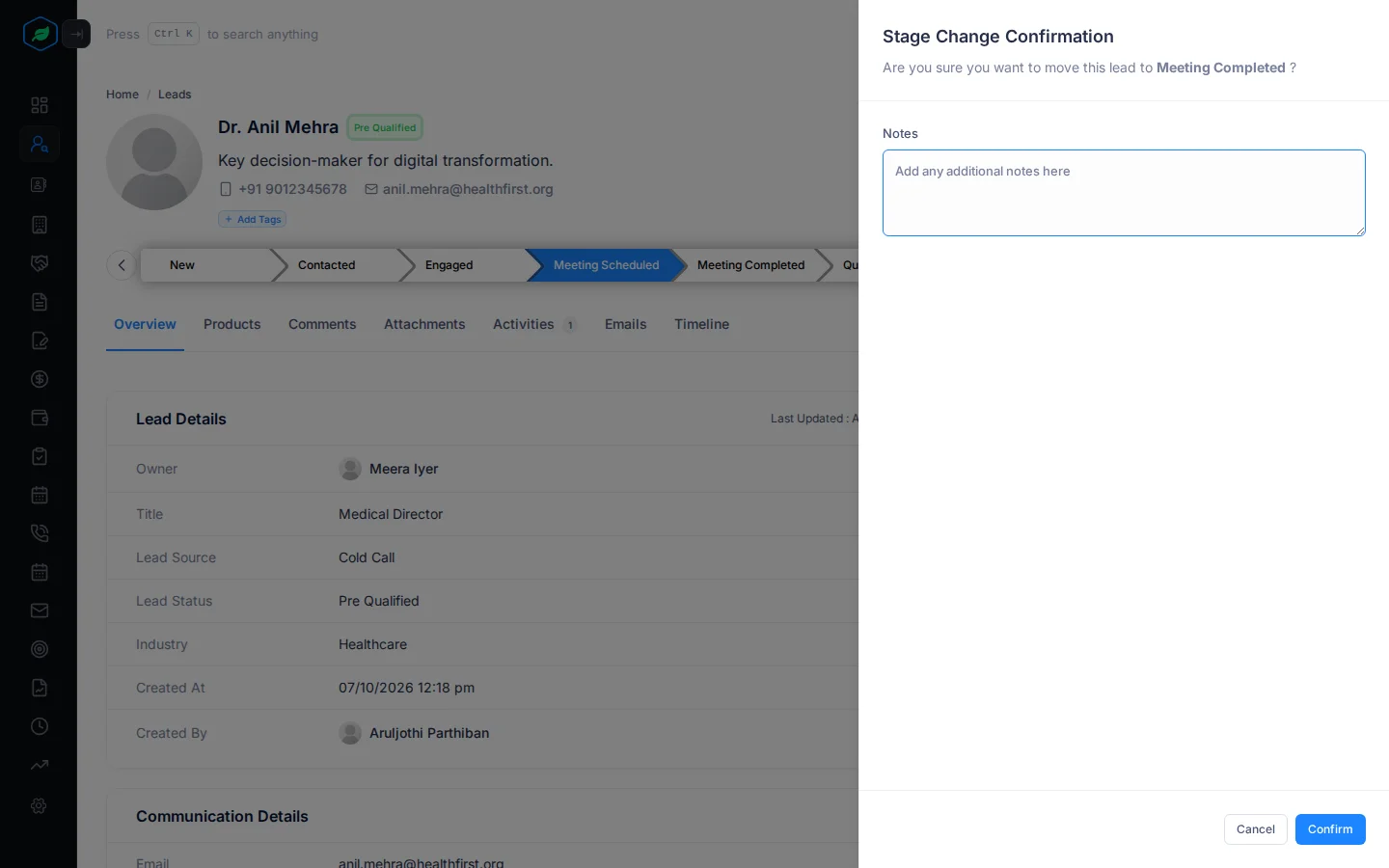
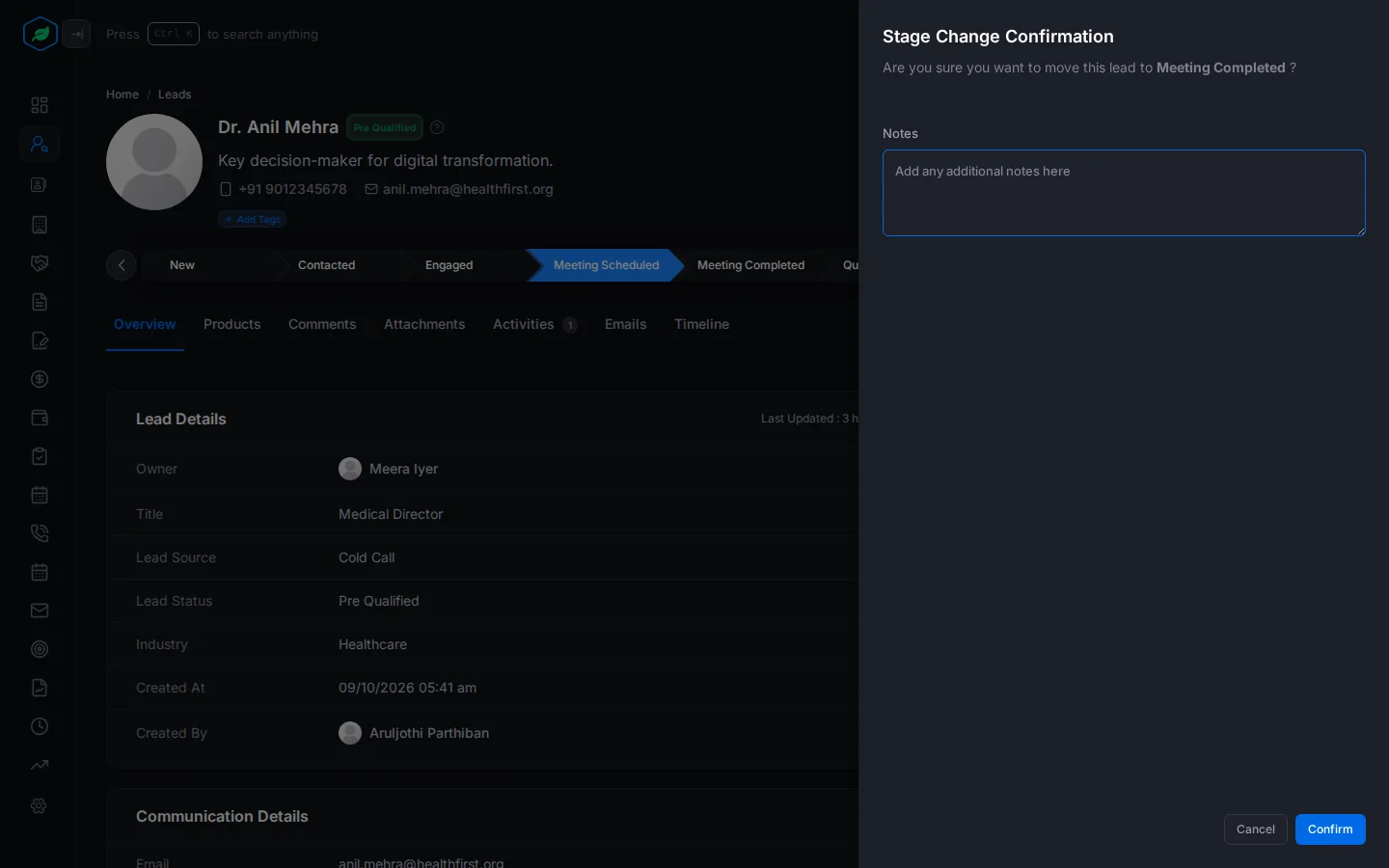
The move, the reason and your notes are saved on the lead's timeline.
You can change a lead's stage if you own it or created it, and it isn't locked, converted or a draft.
What can happen automatically
Your admin may have set up some automation on stages:
- Stage automation rules: when a lead moves into a stage, this can create a task or a meeting, or send an email.
- Max duration: if a lead stays in a stage longer than the time set, its owner gets a high-priority task named "SLA Breached".
- Fallback: if a lead sits in a stage for too many days, it moves back to a set stage with the note "Automatically moved from X to Y after N days of inactivity."
Set up stages (admins)
Go to Settings > Pipeline Settings > Lead Pipelines. You need the lead pipeline permissions. To add or edit stages, you also need a paid plan.
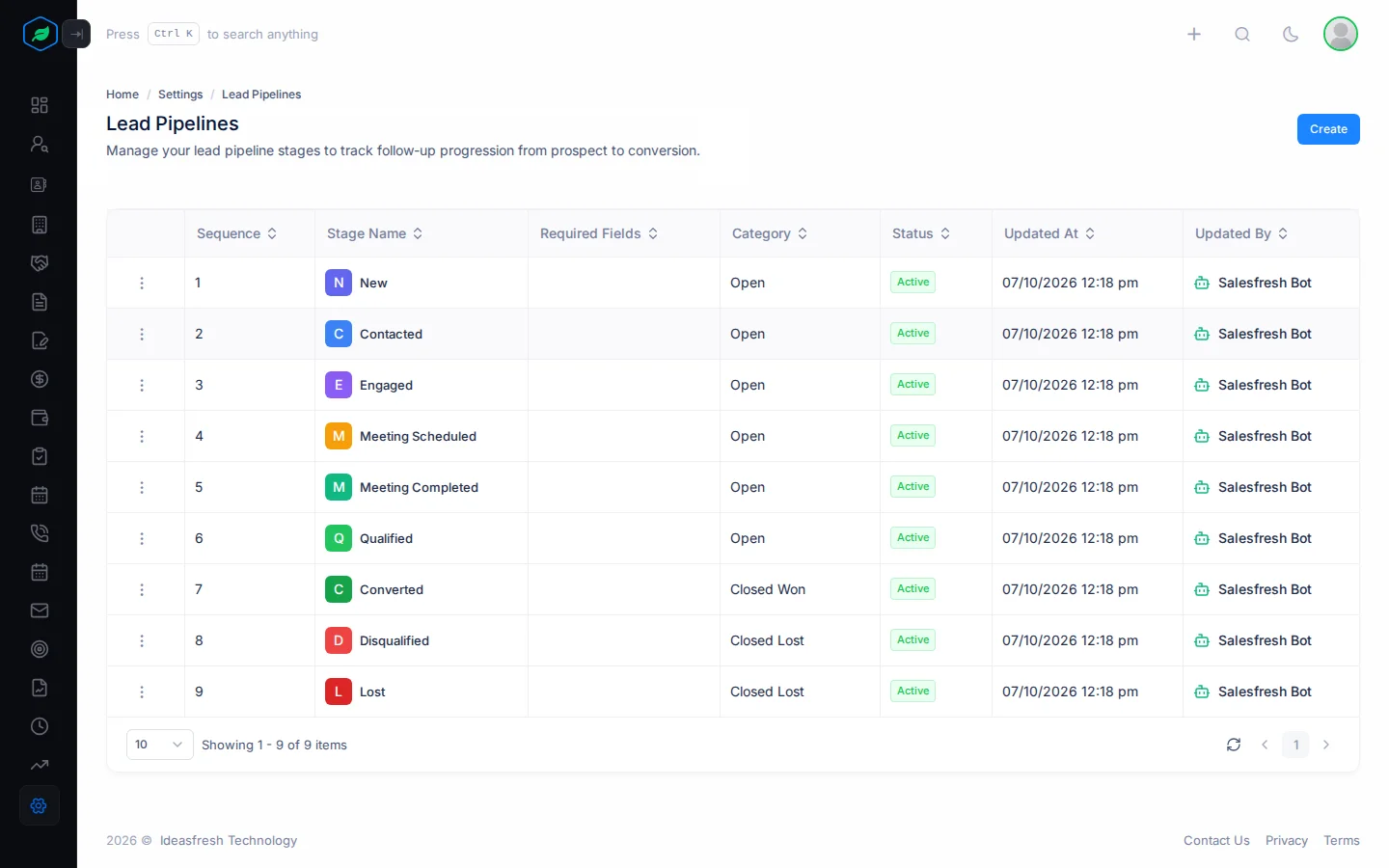
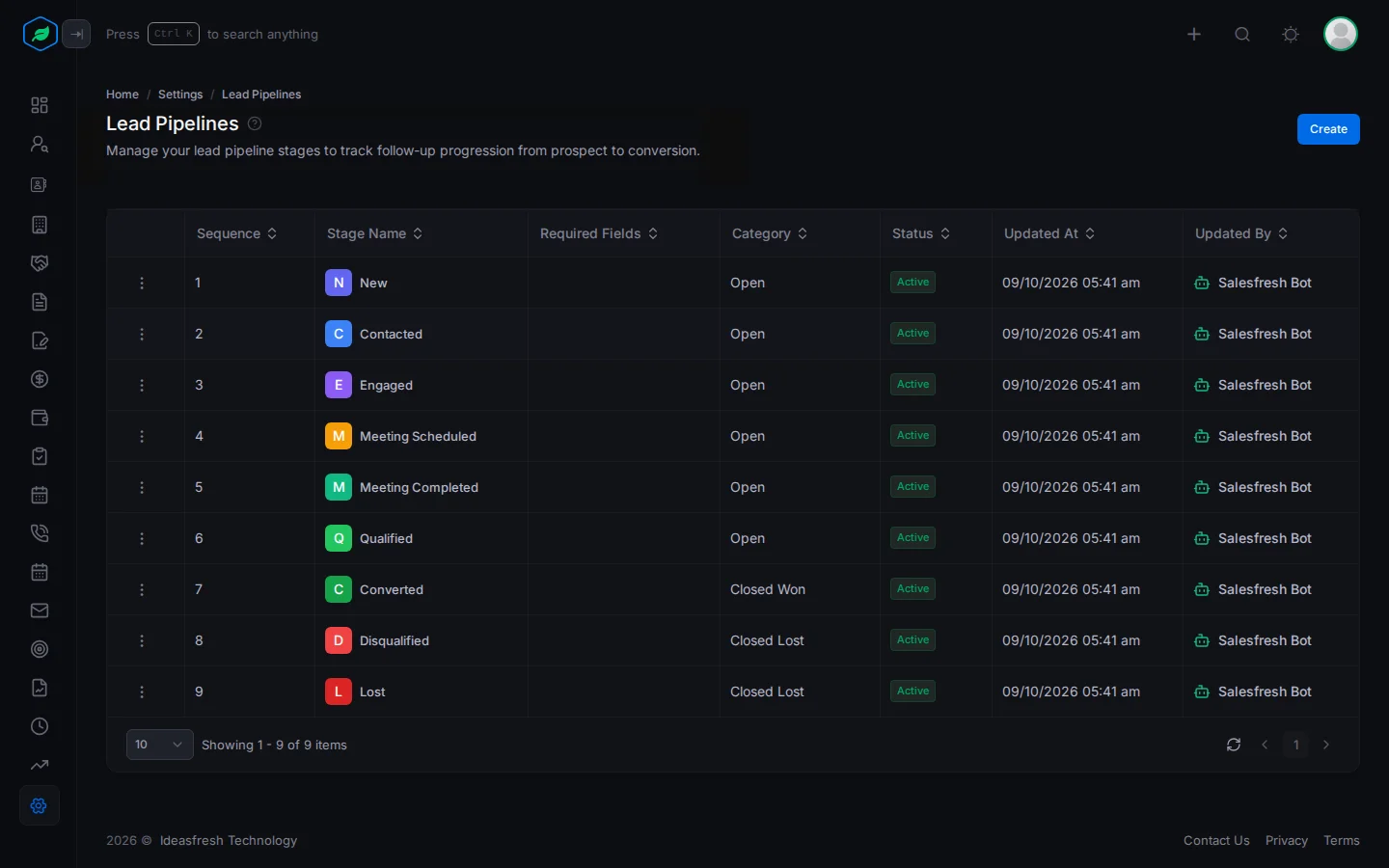
| Setting | What it does |
|---|---|
| Stage | The name. Up to 50 characters, and no two stages can share it |
| Color | The colour of the stage's column on the Kanban board |
| Sequence | Where the stage sits in the pipeline, from 1 to 100 |
| Category | Open, Closed Won or Closed Lost |
| Required Fields | Lead fields that must be filled in before a lead can move into this stage |
| Max Duration | How long a lead should stay in this stage, in hours, days or weeks |
| Allowed Transitions | The stages a lead can move to from here. Leave it empty to allow any stage |
| Transition Reasons | The reasons you can pick when moving a lead. Each has a title and a description |
| Fallback Stage, Fallback After Days, Fallback Reason | Where an idle lead goes, after how many days, and the reason saved with the move |
Troubleshooting
| You see | Why | What to do |
|---|---|---|
| "X to Y transition is not permitted by your pipeline." | Your pipeline doesn't allow that move | Move the lead through a stage that is allowed, or ask an admin to allow the move |
| "Missing required fields for "Stage": …" | The new stage needs fields this lead doesn't have | Edit the lead, fill in the fields listed, and try again |
| "A stage named 'X' already exists." | Two stages can't have the same name | Pick another name |
| "A deleted stage named 'X' still holds this name. Edit that stage to bring it back." | A deleted stage has this name | Bring that stage back instead |
| "A stage cannot fall back to itself" | You picked the same stage as its fallback | Pick a different fallback stage |
Related
Still stuck?
Tell us what you were trying to do and we will help.