Assign new leads to owners automatically
Give leads from your web forms an owner straight away, by a set person, in turn, or to whoever has the fewest open leads.
Updated 12 October 2026 · 4 min read
Leads that come in through your web forms have no owner. Auto-assign rules give each one an owner straight away, so no lead waits for someone to hand it out.
For example, you run a home cleaning service, and four salespeople share the leads from your website form. Without a rule, you hand out the new leads each morning, and on your day off they wait. Some customers book with another company. With a Round Robin rule for your sales team, each new lead goes to the next salesperson in turn. They get an email, and call the lead the same day.
Before you start
- To see rules, you need the View Automation permission. To add one, you need Create Automation. To change one, or switch it on or off, you need Edit Automation. To delete one, you need Delete Automation.
- Automation needs a paid plan. You can have 5 rules on Starter, 10 on Professional, and as many as you like on Enterprise. Switched-off rules count. See Plans and limits.
If you don't have a permission you need, ask your admin.
Which leads get an owner
Rules only give an owner to leads that don't have one. In practice, these are leads from your web forms. Leads you add, import or save with the browser extension already have an owner, so rules leave them alone.
Add a rule
- Go to Settings > Automation > Lead Automation > Auto Assign Leads.
- Click New Rule. The Lead Assignment Rule panel opens.
- Fill in the fields. Fields marked * must be filled in.
- Click Create.
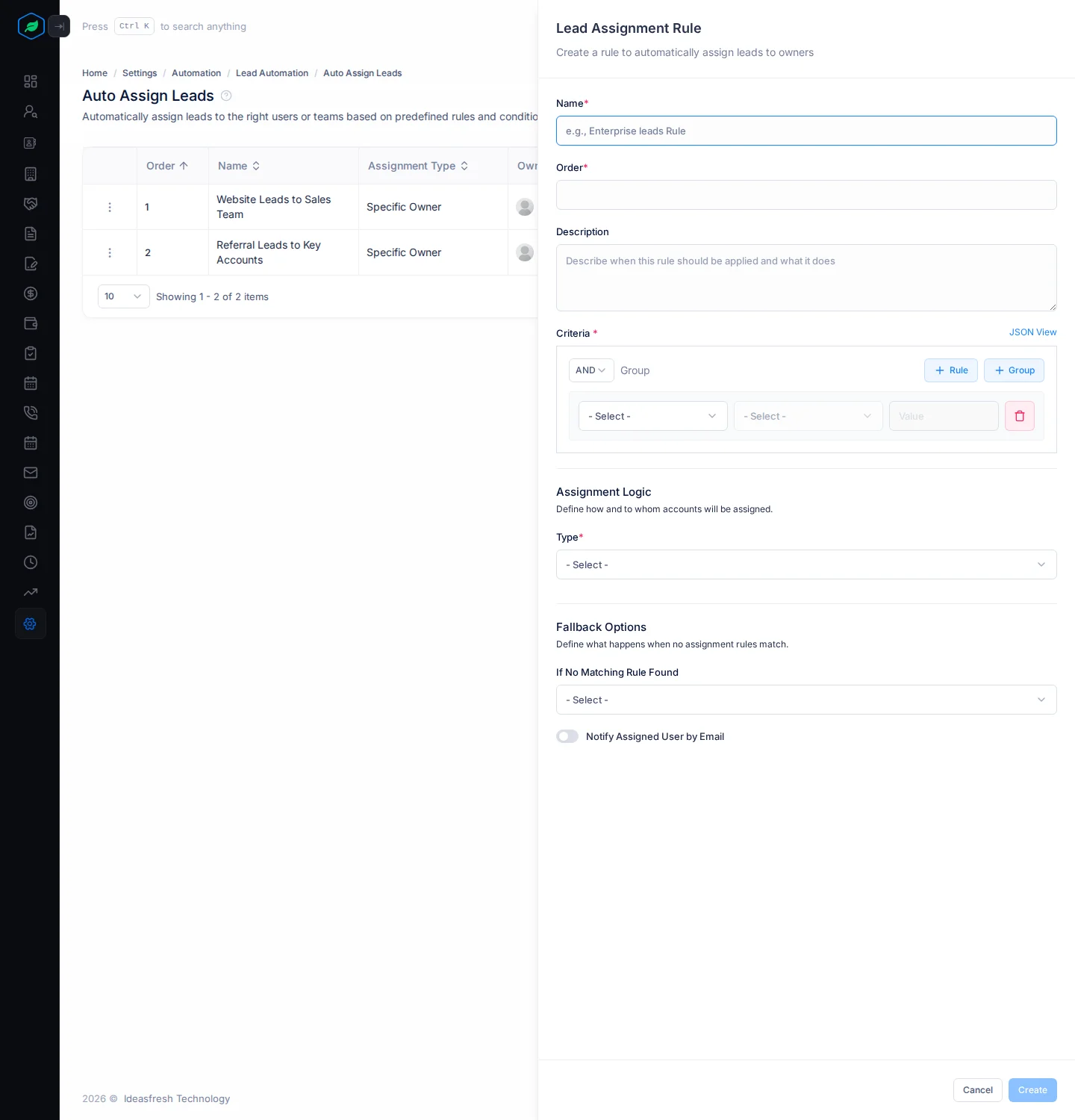
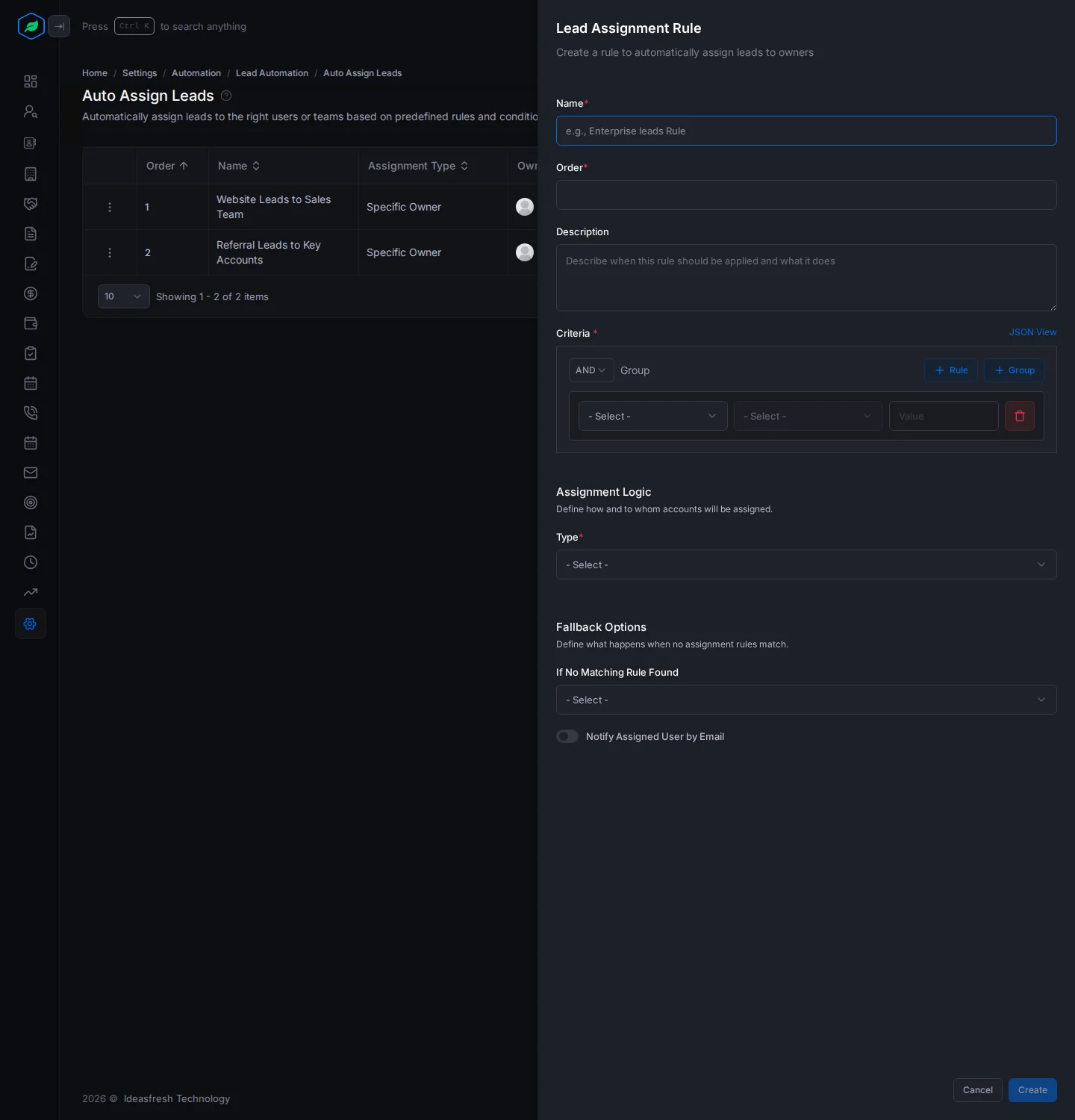
| Field | What to enter |
|---|---|
| Name * | What the rule is for, such as "Website leads" |
| Order * | Rules are checked from the lowest order up, such as 1 for the first |
| Description | When the rule applies |
| Criteria * | Which leads it covers, such as Country equals India |
| Type * | How to pick the owner. See Ways to pick an owner |
| Select Owner * or Select Team * | The person, for Specific Owner. Or the team, for Round Robin and Load Balanced |
| If No Matching Rule Found | What happens to leads no rule covers: Assign to Default Owner, Skip Assignment or Notify Admin |
| Default Owner * | The person who gets leads no rule covers. Only shown when you pick Assign to Default Owner |
| Notify Assigned User by Email | Turn on to email the new owner. Off at first |
Ways to pick an owner
| Type | Gives each lead to |
|---|---|
| Specific Owner | The person you pick, such as the person who looks after one country |
| Round Robin | The next person in the team, in turn, so everyone gets the same number |
| Load Balanced | The person in the team with the fewest open leads |
Only active users get leads.
Notify Admin emails each user with the Org Admin role, with how many leads are waiting.
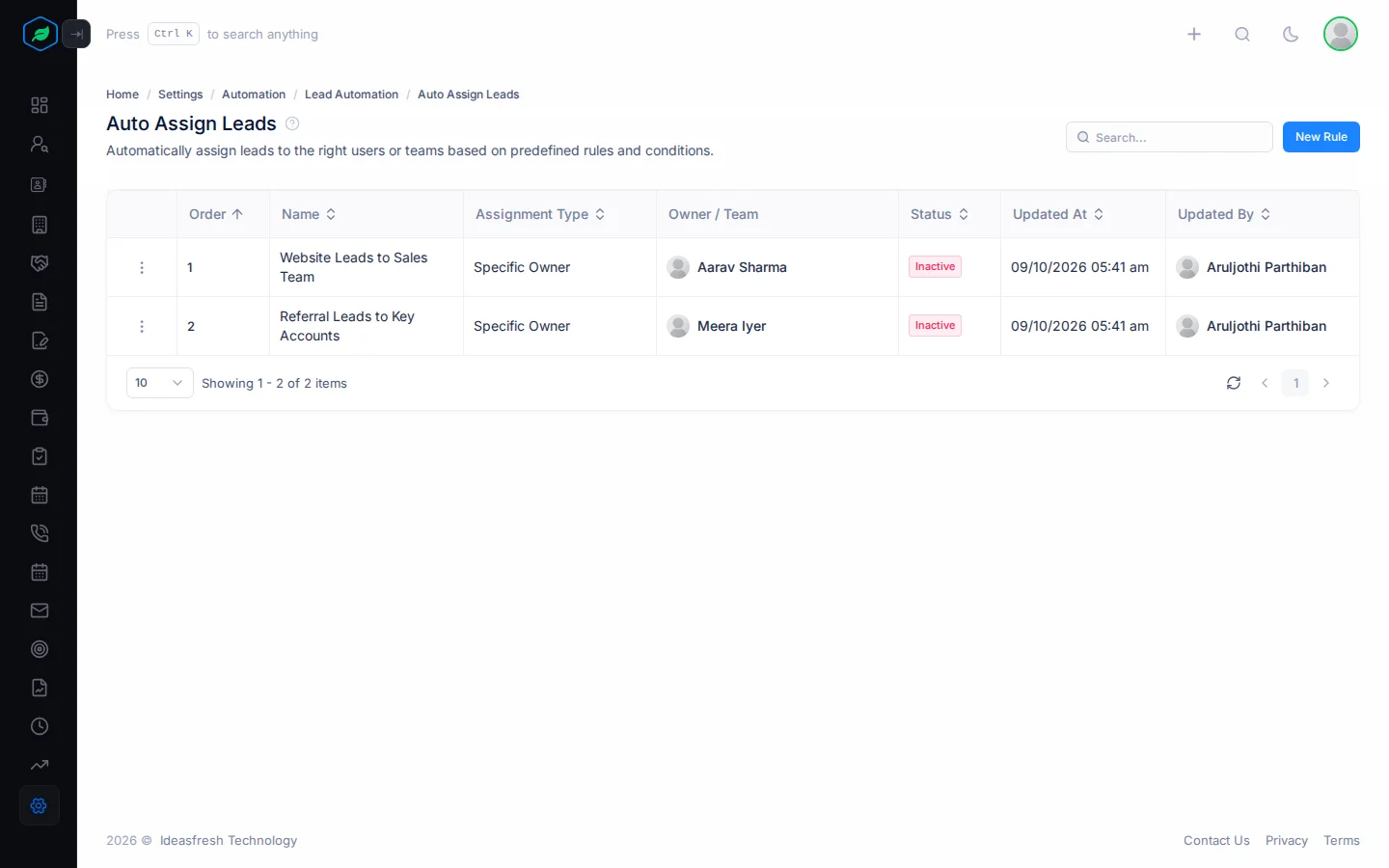
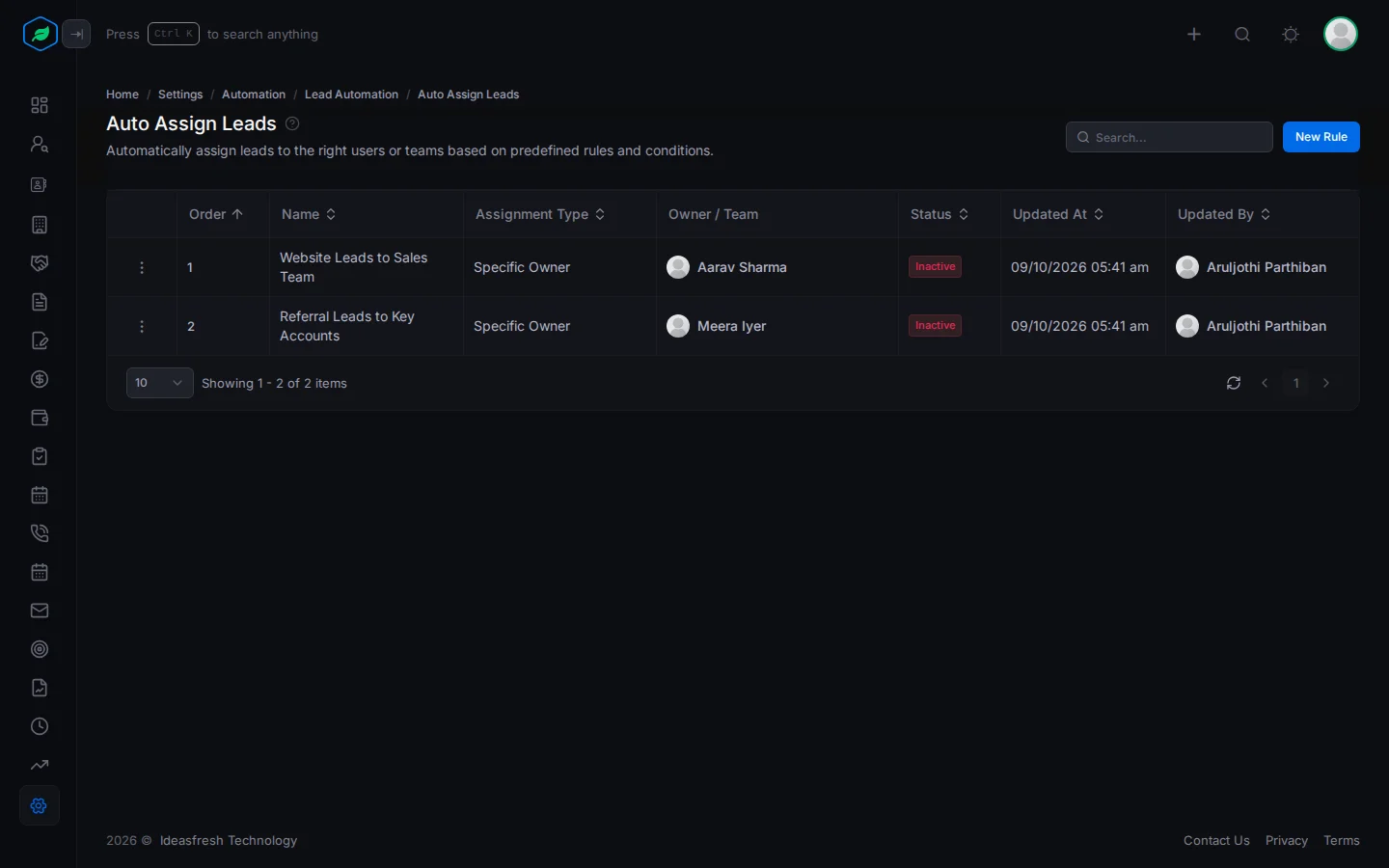
How rules are used
Each time a web form adds a lead, and each time someone edits a lead, Salesfresh looks at every lead without an owner. It checks the Active rules in order, lowest first. The first rule that covers a lead gives it an owner.
If no rule covers any lead, the If No Matching Rule Found choice is used. Only the choice on the Active rule with the highest order counts, so set it there.
Add a last rule with the highest order and wide criteria, so every lead gets an owner.
Change, switch off or remove a rule
Click ⋮ on a rule:
- Edit changes it.
- Inactivate stops it giving out leads. Activate starts it again.
- Delete removes it.
Troubleshooting
| You see | Why | What to do |
|---|---|---|
| "Lead assignment rule already exists" | Another rule has that name | Pick another name |
| "… is not an active member of this company" | The person you picked is inactive | Pick an active user |
| "You have reached the maximum of … rule(s) on your current plan. Please upgrade for more." | You have as many rules as your plan allows. Switched-off rules count | Delete a rule, or upgrade |
| A form lead has no owner | No rule covers it, and no default owner was set, or the team has no active members | Add a last rule with wide criteria, or pick Assign to Default Owner |
Related
Still stuck?
Tell us what you were trying to do and we will help.