Act automatically when a lead enters a stage
Create a task, book a meeting or send an email automatically the moment a lead moves into a stage.
Updated 12 October 2026 · 5 min read
A stage is a step in your sales process, such as "Contacted" or "Qualified". A stage automation rule does something the moment a lead moves into a stage: it adds a task, books a meeting or sends an email.
For example, you give home loan advice. When a lead moves to "Documents Pending", they need a list of documents, and someone must check back in two days. Salespeople sometimes forget, and the loan is delayed. With two rules for that stage, the lead gets an email with the list straight away, and the owner gets a task to check back in 2 days. Nobody has to remember the next step.
Before you start
- To see rules, you need the View Automation permission. To add one, you need Create Automation. To change one, or switch it on or off, you need Edit Automation. To delete one, you need Delete Automation.
- Automation needs a paid plan. You can have 5 rules on Starter, 10 on Professional, and as many as you like on Enterprise. Switched-off rules count. See Plans and limits.
- For an email action, write the email template first. See Email templates.
If you don't have a permission you need, ask your admin.
Add a rule
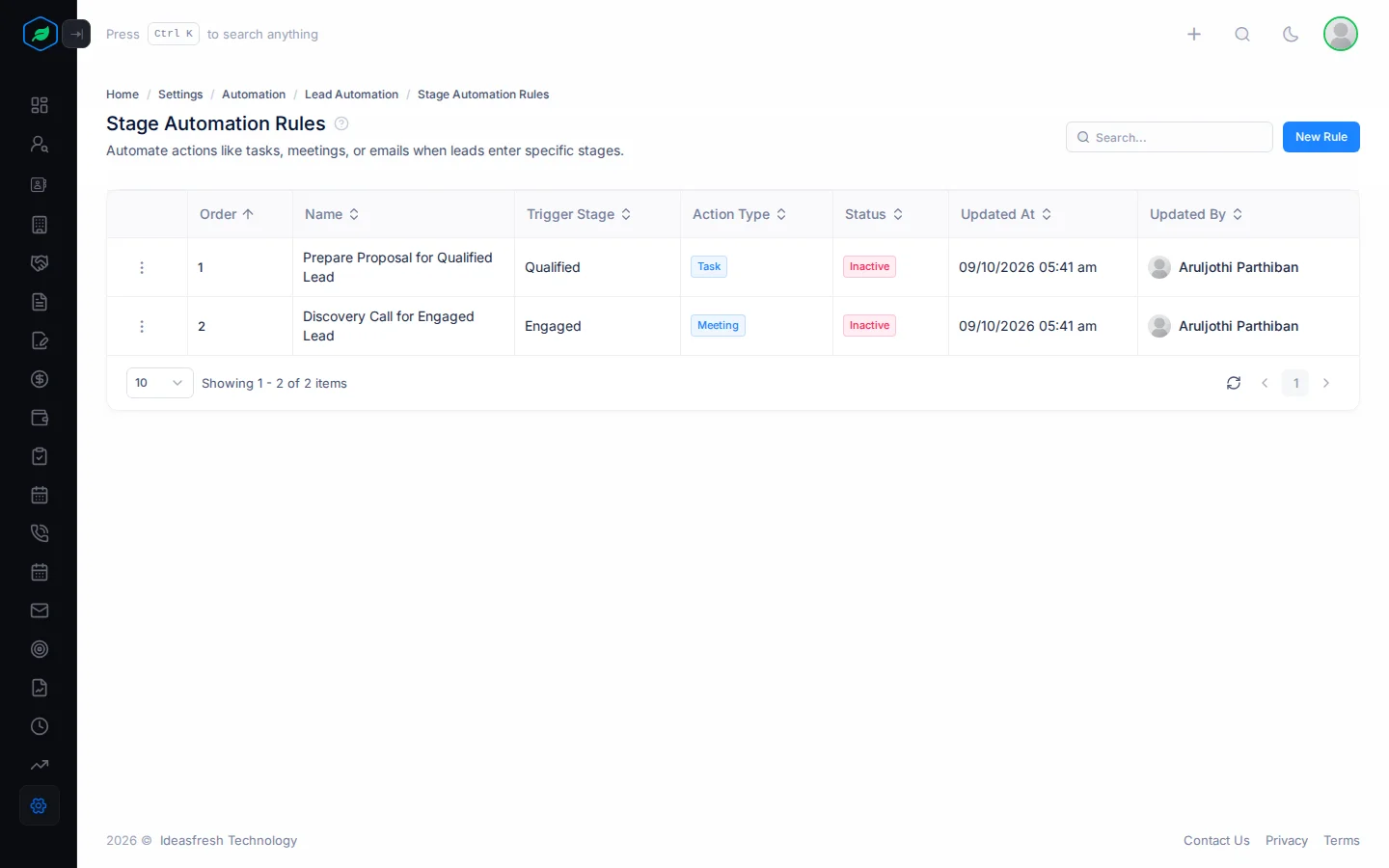
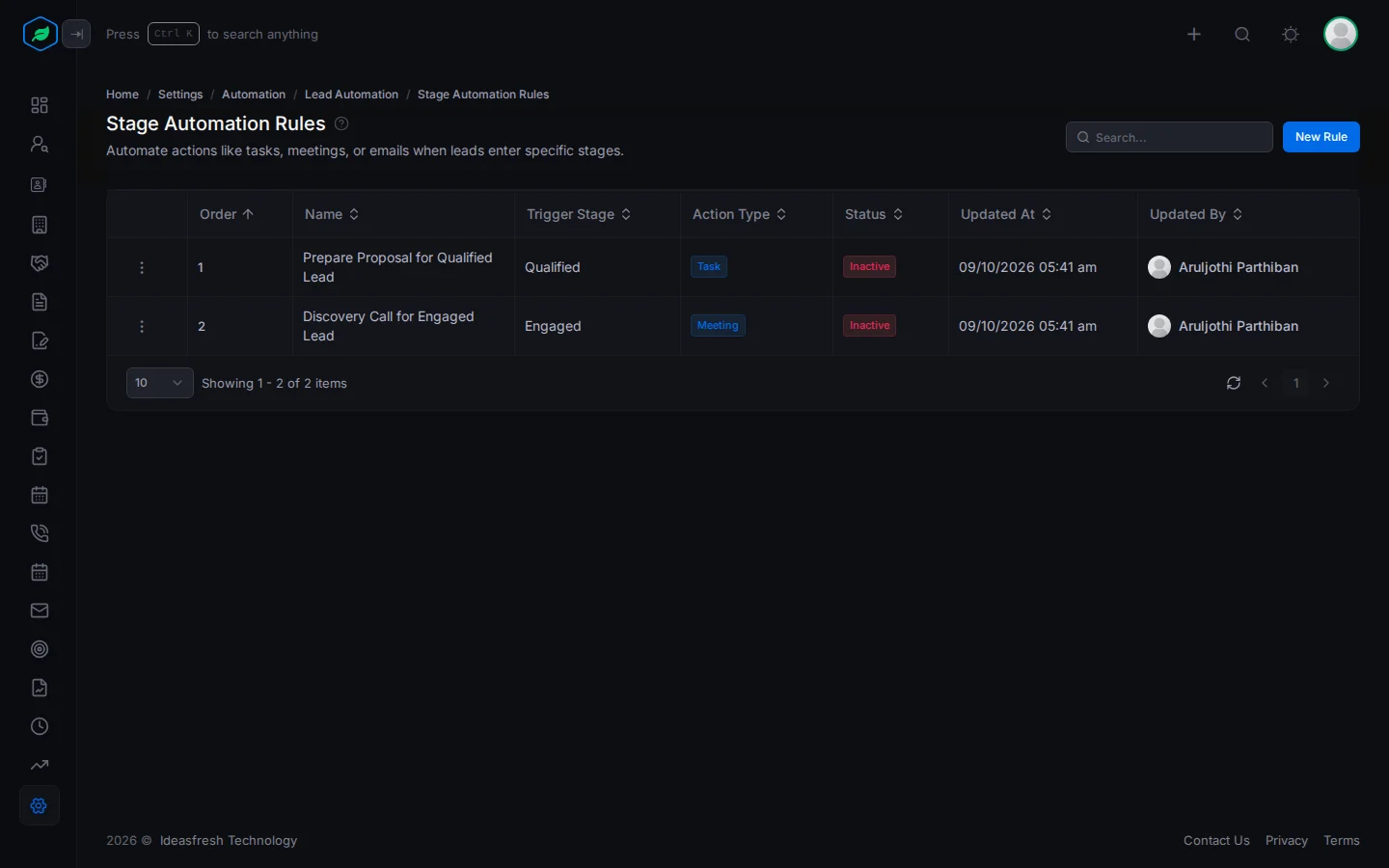
- Go to Settings > Automation > Lead Automation > Stage Automation Rules.
- Click New Rule. The Stage Automation Rule panel opens.
- Fill in the fields. Fields marked * must be filled in.
- Pick the Action Type, and fill in its fields. See below.
- Click Create.
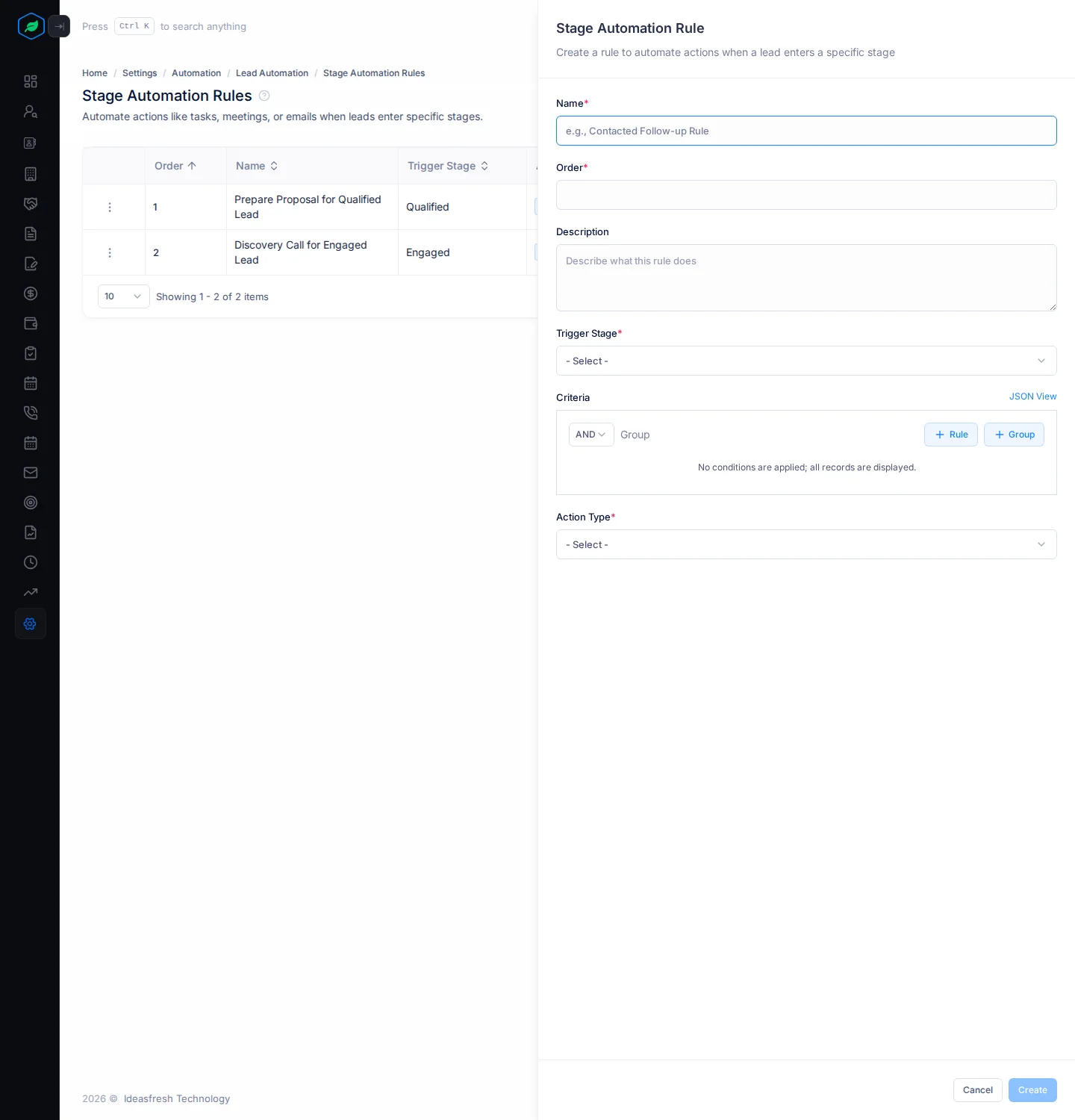
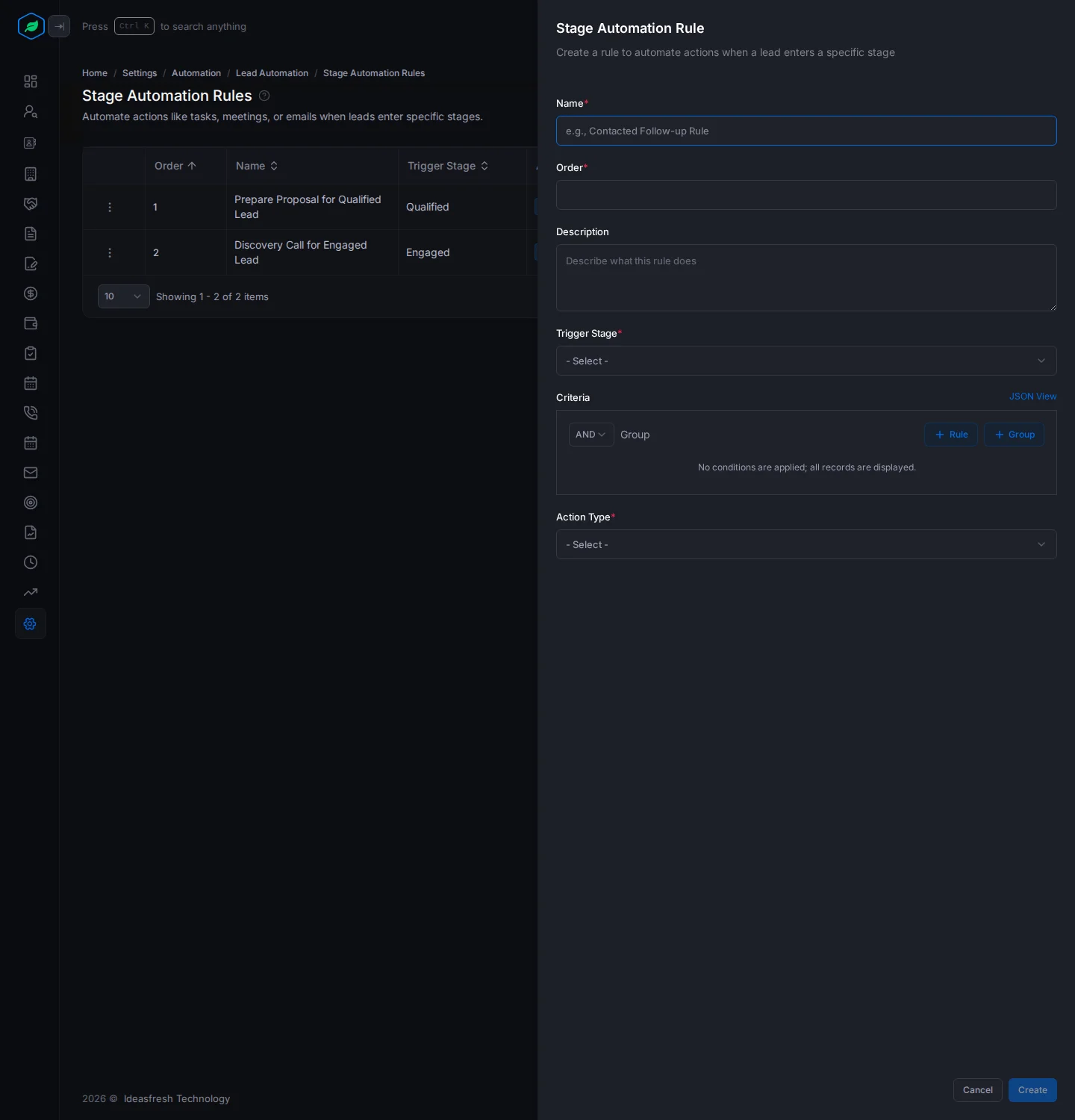
| Field | What to enter |
|---|---|
| Name * | What the rule is for, such as "Documents Pending email" |
| Order * | Its place in the list, from 1 |
| Description | When the rule applies |
| Trigger Stage * | The stage that starts the rule, such as "Documents Pending" |
| Criteria | Which leads it covers. Leave it empty to cover every lead that enters the stage |
| Action Type * | Task, Meeting or Email |
Task
| Field | What to enter |
|---|---|
| Task Title * | What needs doing, such as "Check documents for {{leadName}}" |
| Task Description | Details for the owner |
| Task Notes | Anything else |
| Priority * | Low, Medium or High. Set to Medium at first |
| Due In (Days) * | How many days after the lead enters the stage the task is due. Set to 1 at first |
| Assignment Type * | Lead Owner, or Specific User |
| Assignee * | The user who gets the task. Only shown when you pick Specific User |
Meeting
| Field | What to enter |
|---|---|
| Meeting Title * | What the meeting is, such as "Discovery call with {{leadName}}" |
| Meeting Description | What you'll cover |
| Due In (Days) * | How many days after the lead enters the stage the meeting is. Set to 1 at first |
| Start Time * | The time of day it starts. Set to 10:00 at first |
| Duration (Minutes) * | 15, 30, 45, 60, 90 or 120. Set to 30 at first |
| Meeting Type * | Client, Sales or Follow Up. Set to Client at first |
| Assignment Type * | Who hosts it: Lead Owner, or Specific User |
| Assignee * | The user who hosts it. Only shown when you pick Specific User |
The lead is invited to the meeting, and both get an invite by email.
| Field | What to enter |
|---|---|
| Email Template Folder * | The folder the template is in |
| Email Template * | The email to send |
| CC | Other email addresses to copy in. Type one and press Enter |
| Send To * | Lead, or Owner |
| Reply To * | Owner. Replies go to the lead's owner |
Lead details in the text
In a task or meeting, you can type {{leadName}}, {{leadEmail}}, {{leadCompany}} and {{stageName}}. Each is swapped for the lead's details when the rule runs. For example, "Call {{leadName}}" becomes "Call" followed by the lead's name.
When rules run
Rules run when the lead's owner, or the person who created it, moves it to a new stage. They can do that from the stage bar on the lead's page, or by dragging its card in Kanban View > By Stage. Every Active rule for that stage whose criteria match runs.
Rules don't run when a lead is added, imported or comes from a web form, or when a stage's fallback moves it by itself.
Stage time limits
You set time limits on the stage itself, in Settings > Pipeline Settings > Lead Pipelines. If a lead stays in a stage too long, its owner gets a High priority task "SLA Breached: …", due tomorrow. A stage can also move quiet leads to a fallback stage after a set number of days. See Lead status and lead stages.
Change, switch off or remove a rule
Click ⋮ on a rule:
- Edit changes it.
- Inactive stops it running. Activate starts it again.
- Delete removes it.
Troubleshooting
| You see | Why | What to do |
|---|---|---|
| "A lead stage automation with this name already exists" | Another rule has that name | Pick another name |
| "Email template is required" | You didn't pick a template for an email action | Pick a folder, then a template |
| "You have reached the maximum of … rule(s) on your current plan. Please upgrade for more." | You have as many rules as your plan allows | Delete a rule, or upgrade |
| A new stage isn't in Trigger Stage | The list is kept from when you opened the page | Reload the page |
Related
Still stuck?
Tell us what you were trying to do and we will help.