What you can automate
What you can automate in the CRM, from assigning leads and reminding owners to follow-up sequences and turning accepted quotes into deals.
Updated 12 October 2026 · 4 min read
Automation means Salesfresh does routine work for you, by rules you set once. It can give new leads an owner, remind people about leads and deals that have gone quiet, send a series of follow-up emails, and turn accepted quotes into deals.
For example, you run an agency with six salespeople. Every morning you hand out new leads by hand, each week you hunt for deals nobody has touched, and your team types the same follow-up emails again and again. With automation, new leads from your web forms get an owner straight away. When a lead or deal goes quiet, its owner gets a task. A flow follows up with new leads by itself. Your team spends its time talking to customers, not on admin.
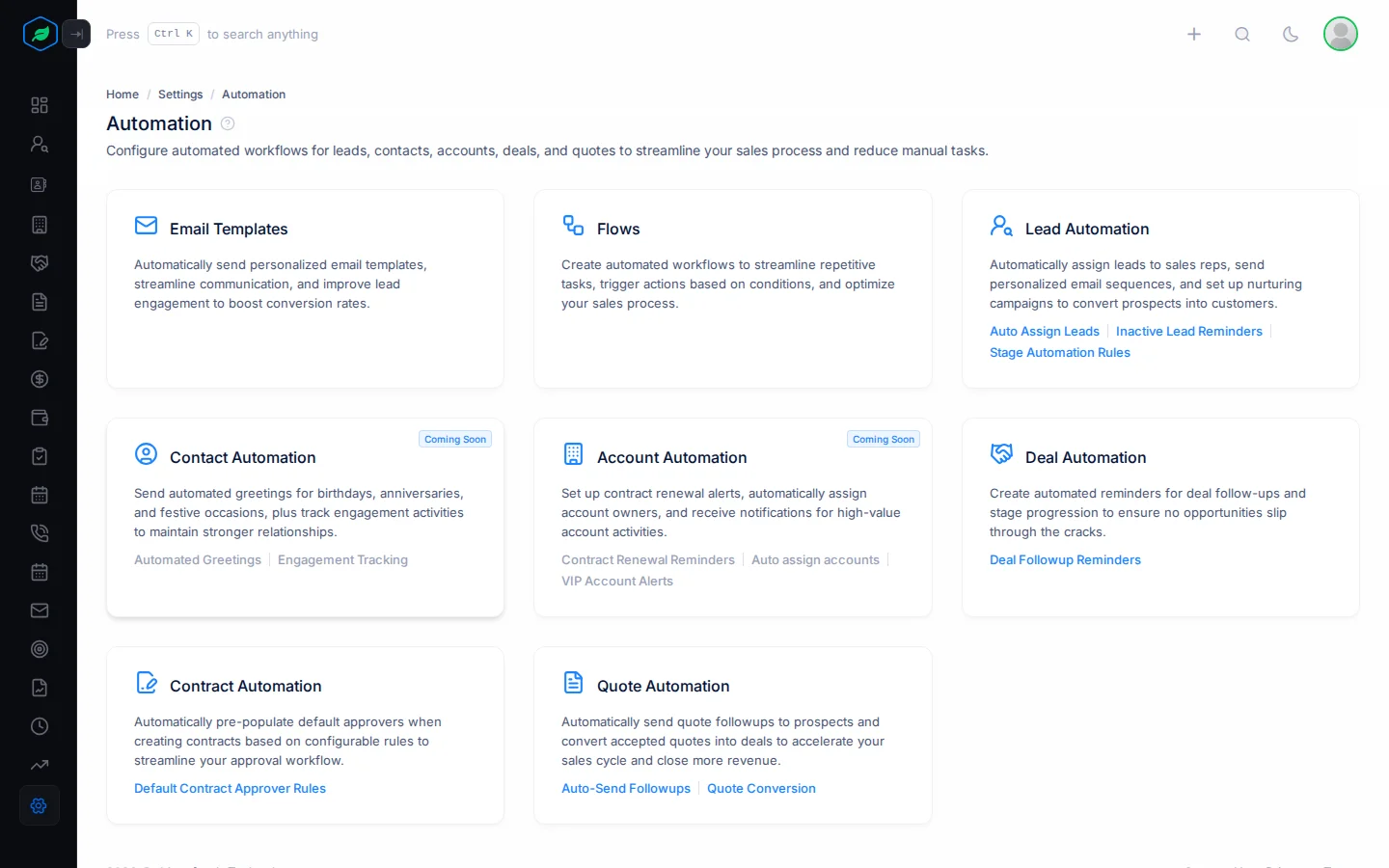
To find it, go to Settings > Automation.
Before you start
- To open Automation in Settings, you need the View Automation permission.
- To add a rule, you need Create Automation. To change one, or switch it on or off, you need Edit Automation. To delete one, you need Delete Automation.
- Automation isn't on the Free plan. See Plans and limits.
If you don't have a permission you need, ask your admin.
What's on the Automation page
| Card | What it does | Guide |
|---|---|---|
| Email Templates | Ready-made emails for flows, quotes and your inbox | Email templates |
| Flows | A series of emails, tasks and calls for the leads and contacts you enroll | Flows overview |
| Lead Automation | Give new leads an owner, remind owners about quiet leads, and act when a lead enters a stage | Auto-assign leads, Inactive lead reminders, Lead stage automation rules |
| Deal Automation | Remind owners about quiet deals | Deal follow-up reminders |
| Contract Automation | Set default approvers for contracts. Contracts don't use these rules yet | Default contract approver rules |
| Quote Automation | Follow up on sent quotes, and turn accepted quotes into deals | Quote follow-ups, Quote conversion rules |
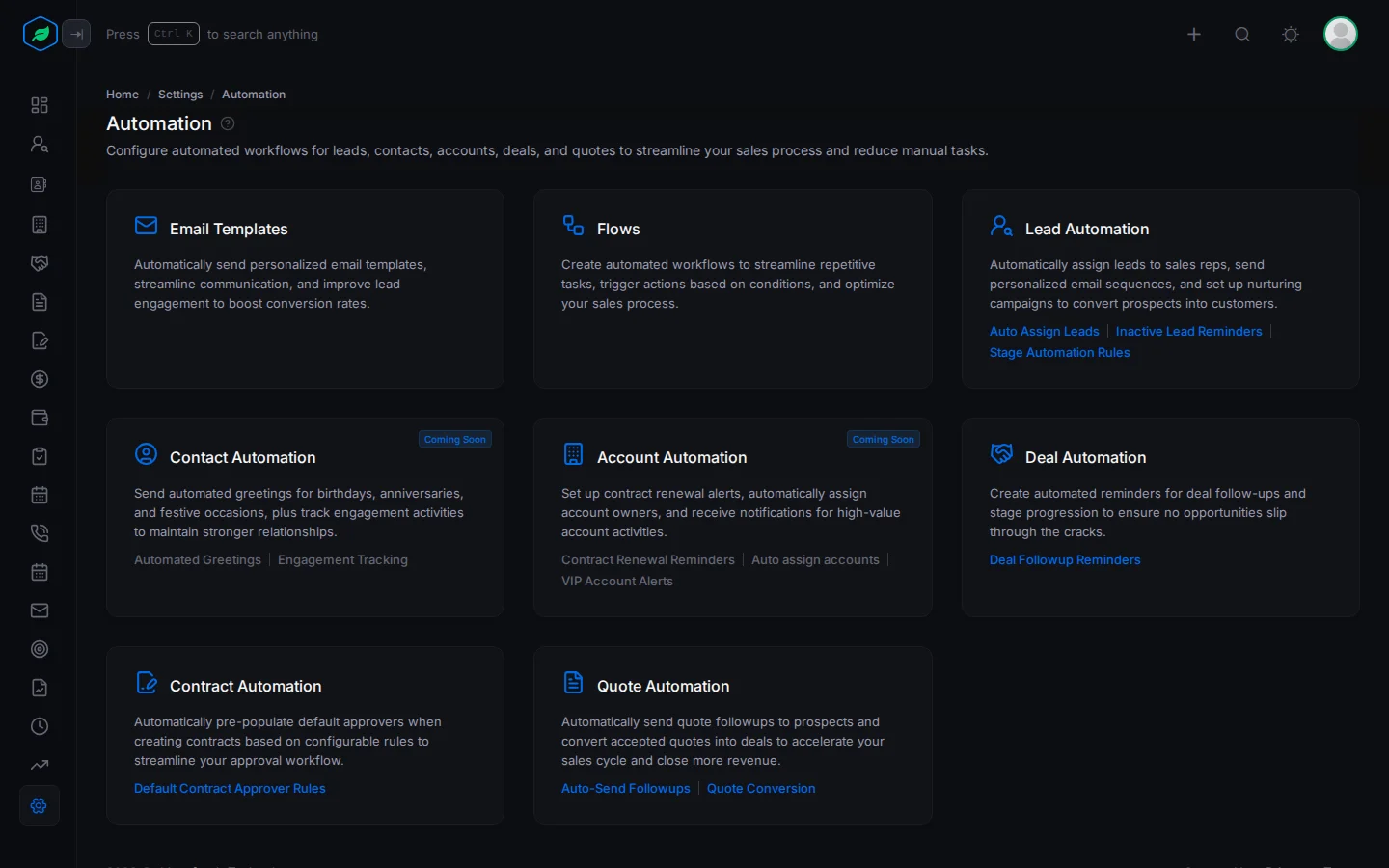
Cards marked Coming Soon, such as Contact Automation and Account Automation, aren't available yet.
How many you can have
| Plan | Email templates | Active flows | Rules of each kind |
|---|---|---|---|
| Free | None | None | None |
| Starter | 25 | 5 | 5 |
| Professional | 50 | 20 | 10 |
| Enterprise | No limit | No limit | No limit |
"Rules of each kind" means, for example, 5 auto-assign rules and 5 deal reminders on Starter. Switched-off rules count. Deleted ones don't. For flows, only Active ones count.
What every rule has in common
- Criteria. Most rules have conditions that decide which records they cover. You build them with + Rule and + Group, like a custom view. See Custom views.
- On and off. To stop a rule without deleting it, click ⋮, then Inactive. To start it again, click Activate.
- What made it. A task or meeting made by a rule shows on its page which rule made it.
Rules that run every day
Inactive lead reminders and deal follow-up reminders run once a day, at your company's office start time, in its time zone. Your company needs a time zone in company settings. See Company settings.
Troubleshooting
| You see | Why | What to do |
|---|---|---|
| Automation isn't in Settings | You don't have the View Automation permission | Ask your admin for the permission |
| "This feature is not available on your current plan. Please upgrade to access it." | Your plan doesn't include automation | Upgrade your plan |
| "You have reached the maximum of … rule(s) on your current plan. Please upgrade for more." | You have as many of that kind of rule as your plan allows | Delete one you don't need, or upgrade |
| "You have reached the maximum of … active flows on your current plan. Please upgrade for more." | You have as many active flows as your plan allows | Upgrade your plan |
Related
Still stuck?
Tell us what you were trying to do and we will help.