Send quote follow-up emails automatically
Email customers again automatically a set time after you send a quote, as a reply in the same email thread.
Updated 12 October 2026 · 4 min read
A quote follow-up rule emails the customer again a set time after you send a quote. The email is a reply in the same thread as the quote, so the customer sees the whole conversation.
For example, you fit air conditioners and send many quotes, but customers often forget to reply. You add a rule: 3 days after a quote is sent, at 10 am, send a friendly reminder. A customer doesn't reply to your quote. Three days later at 10 am, they get the reminder in the same email thread, and they reply to accept. You didn't have to remember to chase them.
Before you start
- To see rules, you need the View Automation permission. To add one, you need Create Automation. To change one, or switch it on or off, you need Edit Automation. To delete one, you need Delete Automation.
- Automation needs a paid plan. You can have 5 rules on Starter, 10 on Professional, and as many as you like on Enterprise. Switched-off rules count. See Plans and limits.
- Write the follow-up emails first, as email templates. See Email templates.
- Follow-ups only go out for quotes you sent with Send Quote, because they reply to that email. See Send a quote.
- Each follow-up counts towards your company's monthly email limit.
If you don't have a permission you need, ask your admin.
Add a rule
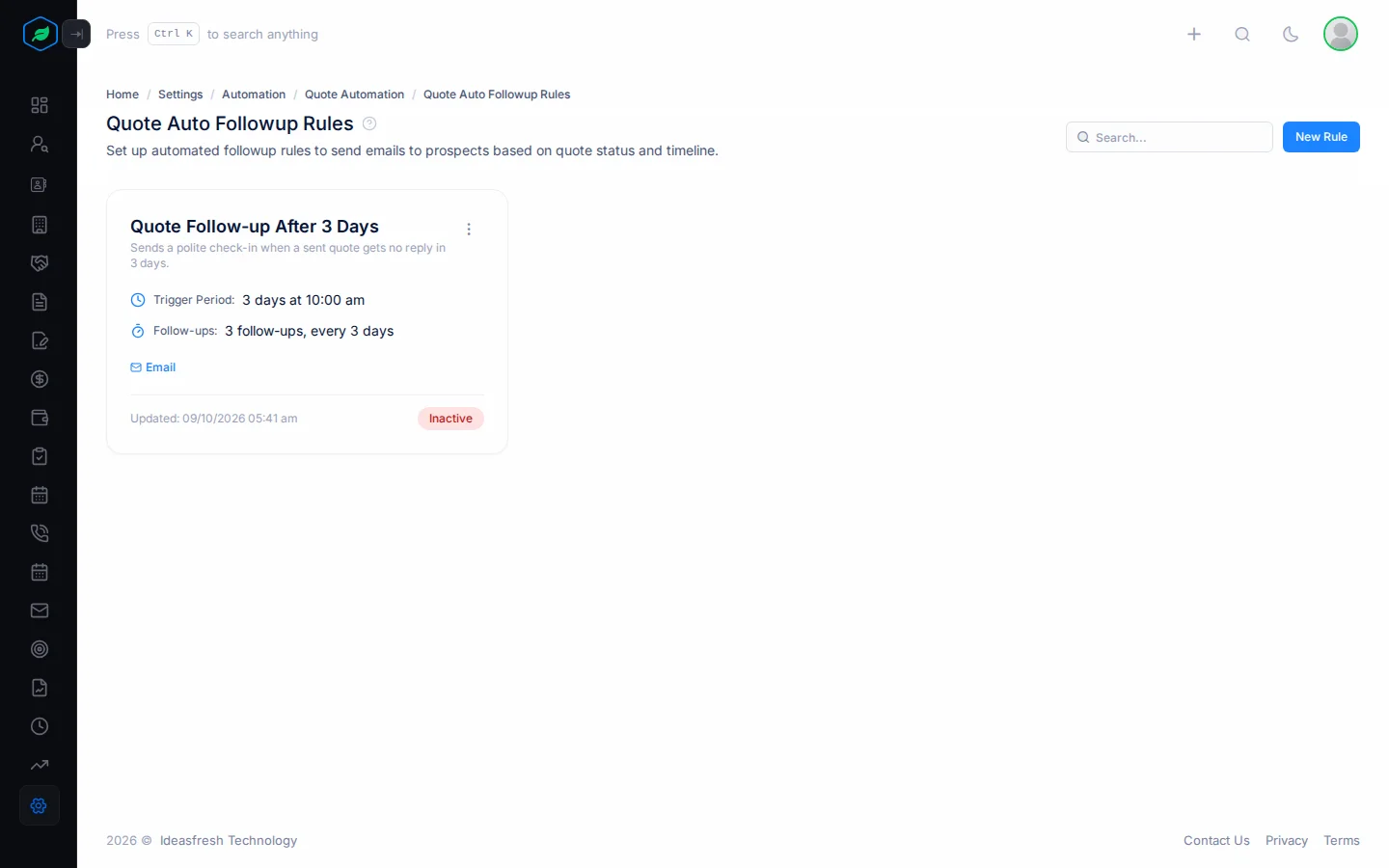
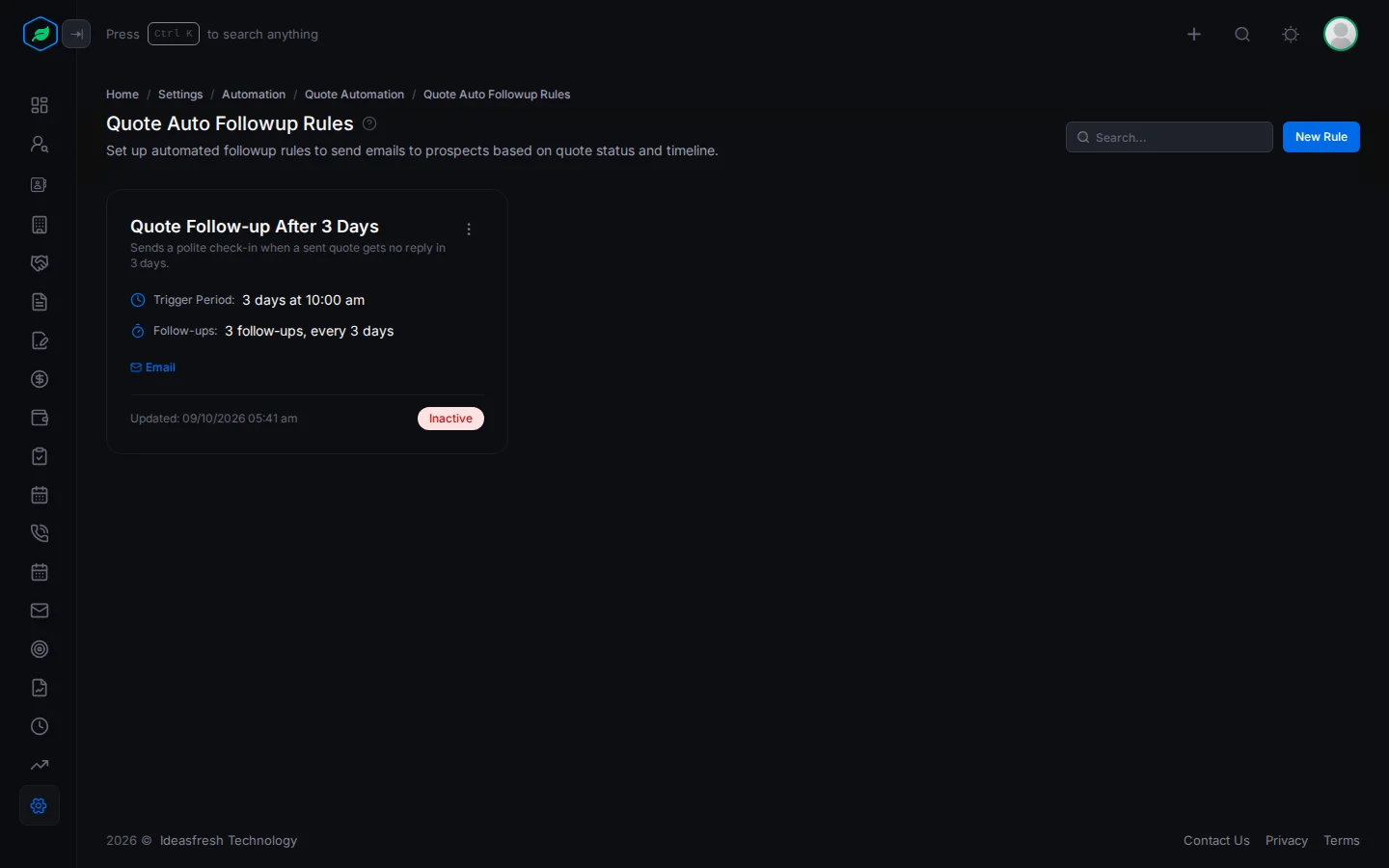
- Go to Settings > Automation > Quote Automation > Auto-Send Followups.
- Click New Rule. The Quote Followup Rule panel opens.
- Fill in the fields. Fields marked * must be filled in.
- Click Create.
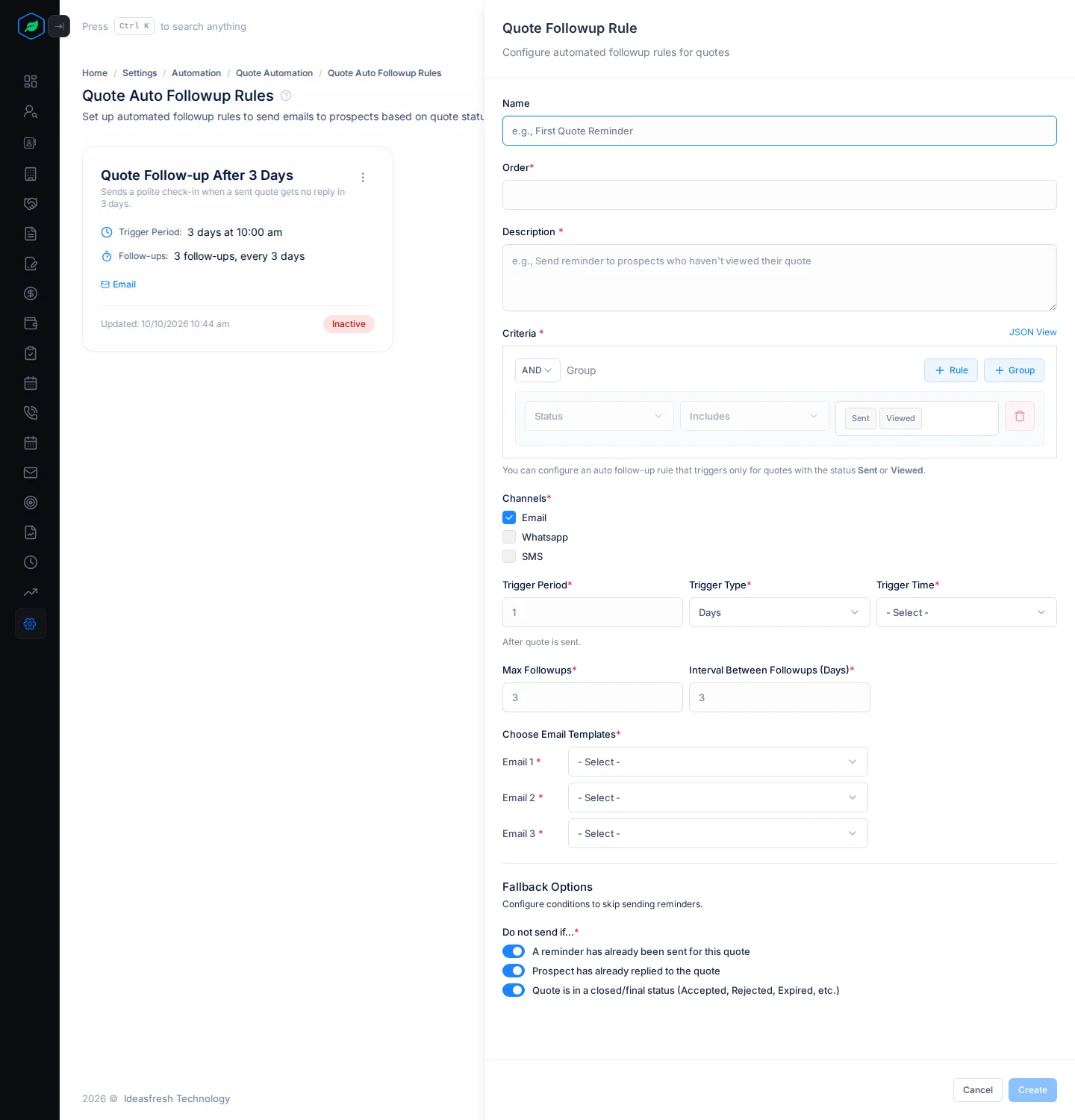
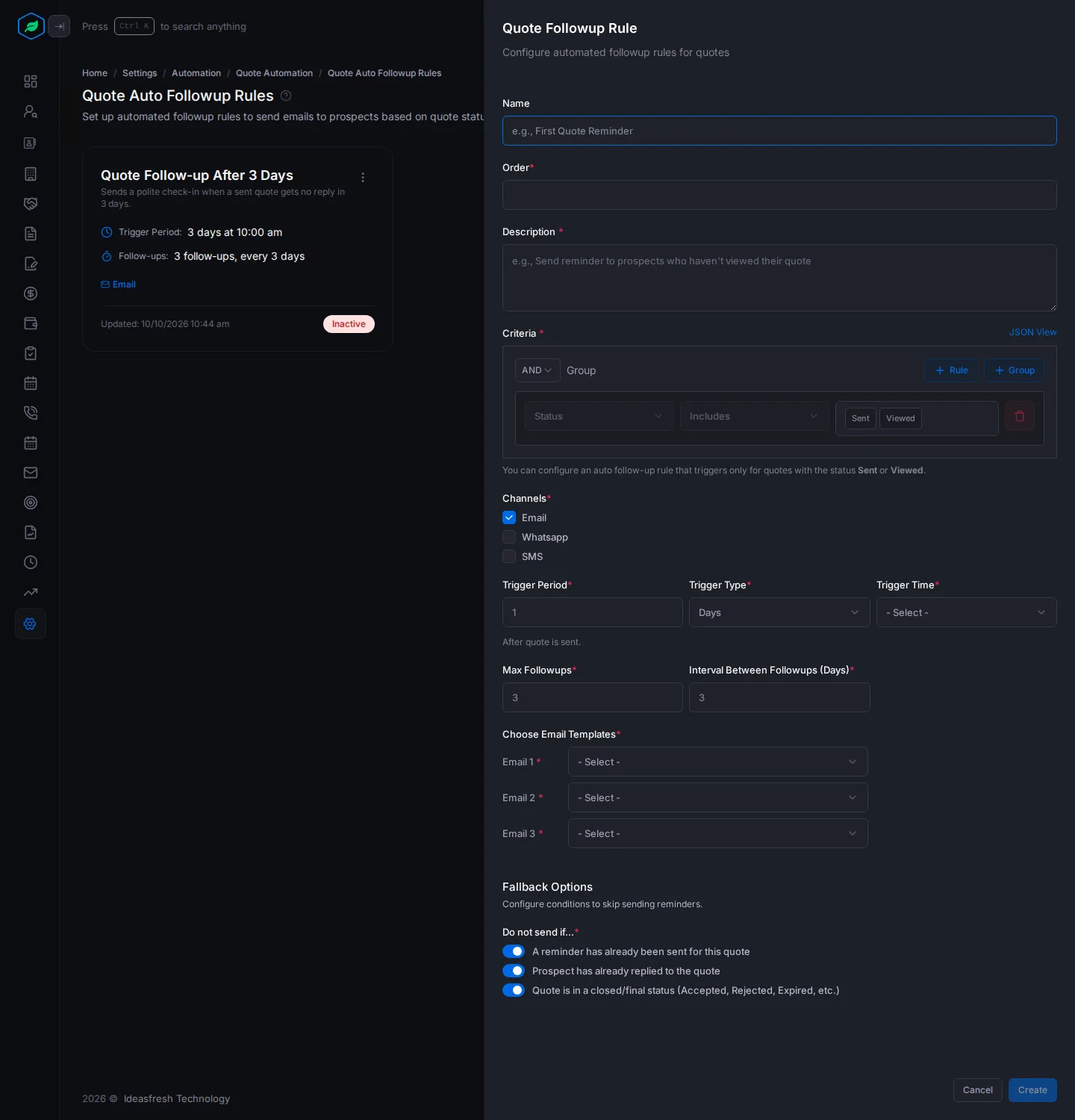
| Field | What to enter |
|---|---|
| Name | What the rule is for, such as "First Quote Reminder". You must fill this in |
| Order * | Its place in the list, from 1 |
| Description * | When the rule applies, such as "Remind customers who haven't replied" |
| Criteria * | Which quotes it covers. It's always limited to quotes that are Sent or Viewed. You can add more conditions |
| Channels * | Email. WhatsApp and SMS aren't available yet |
| Trigger Period * | How long after sending, such as 3. Set to 1 at first |
| Trigger Type * | Days, Weeks or Months. Set to Days at first |
| Trigger Time * | The time of day to send, such as 10:00 am, in your company's time zone |
| Max Followups * | How many emails, from 1 to 10. Set to 3 at first |
| Interval Between Followups (Days) * | The days between emails. Set to 3 at first |
| Choose Email Templates * | One template for each email: Email 1, Email 2 and so on. Each must be different |
| Do not send if... * | Turn on the times not to send. All three are on at first: a reminder was already sent for this quote, the customer already replied, or the quote is closed, such as Accepted, Rejected or Expired |
What gets sent
On the day the trigger period ends, at the trigger time, each Active rule emails the customer on the quote. The email:
- is a reply in the thread of the quote email, with the same subject,
- uses the rule's template. Details such as
{{quote_number}},{{quote_total}},{{receiver_name}}and{{sender_name}}are filled in for you.
Quotes that are accepted, rejected or closed in another way are skipped.
Today each rule sends one follow-up per quote: the first. The later follow-ups and the "already replied" check don't work yet. To see what went out, check the quote's emails.
Change, switch off or remove a rule
Click ⋮ on a rule:
- Edit changes it.
- Inactive stops it sending. Activate starts it again.
- Delete removes it.
Troubleshooting
| You see | Why | What to do |
|---|---|---|
| "Please select different email templates for each followup" | Two follow-ups use the same template | Pick a different template for each |
| "Max Followups cannot exceed 10" | You asked for more than 10 | Enter 10 or fewer |
| "Quote followup rule already exists" | Another rule has that name | Pick another name |
| "This feature is not available on your current plan. Please upgrade to access it." | Your plan doesn't include automation | Upgrade your plan |
| No follow-up was sent | The quote wasn't sent with Send Quote, or your company's monthly email limit is used up | Send quotes with Send Quote. Check your email limit in Plans and limits |
Related
Still stuck?
Tell us what you were trying to do and we will help.