Create reusable email templates
Write ready-made emails once and reuse them when you email a lead, send a quote, or run a flow, with details filled in for each person.
Updated 12 October 2026 · 6 min read
An email template is a ready-made email you write once and use again and again: when you email a lead, send a quote, or run a flow. It can include placeholders, such as {{receiver_name}}, that are swapped for each person's details when the email is sent.
For example, you send the same welcome email to every new lead. Typing it each time takes ten minutes, and sometimes you miss a line. Instead, you write it once as a template, with {{receiver_name}} where the name goes. When you write to a new lead, you click Use Template and pick it. The email fills in with the lead's name, and you click Send.
Before you start
- To see templates, you need the View Automation permission.
- To add a folder, you need Create Automation. To add a template, change one or write its content, you need Edit Automation. To delete one, you need Delete Automation.
- You don't need any of these to use a template when you write an email.
- Templates need a paid plan: 25 on Starter, 50 on Professional, and as many as you like on Enterprise. The ones you start with count. See Plans and limits.
If you don't have a permission you need, ask your admin.
Templates you start with
| Folder | Templates |
|---|---|
| Quote | Send Quote - Standard, Send Quote - Brief |
| Quote Follow Up | Quote Follow-up 1 - Initial Check-in, Quote Follow-up 2 - Offering Assistance, Quote Follow-up 3 - Final Check-in |
| Lead Qualification | Lead Qualification - Initial Contact, Lead Qualification - Discovery, Lead Qualification - Budget & Timeline |
You can change, copy or delete them.
Folders
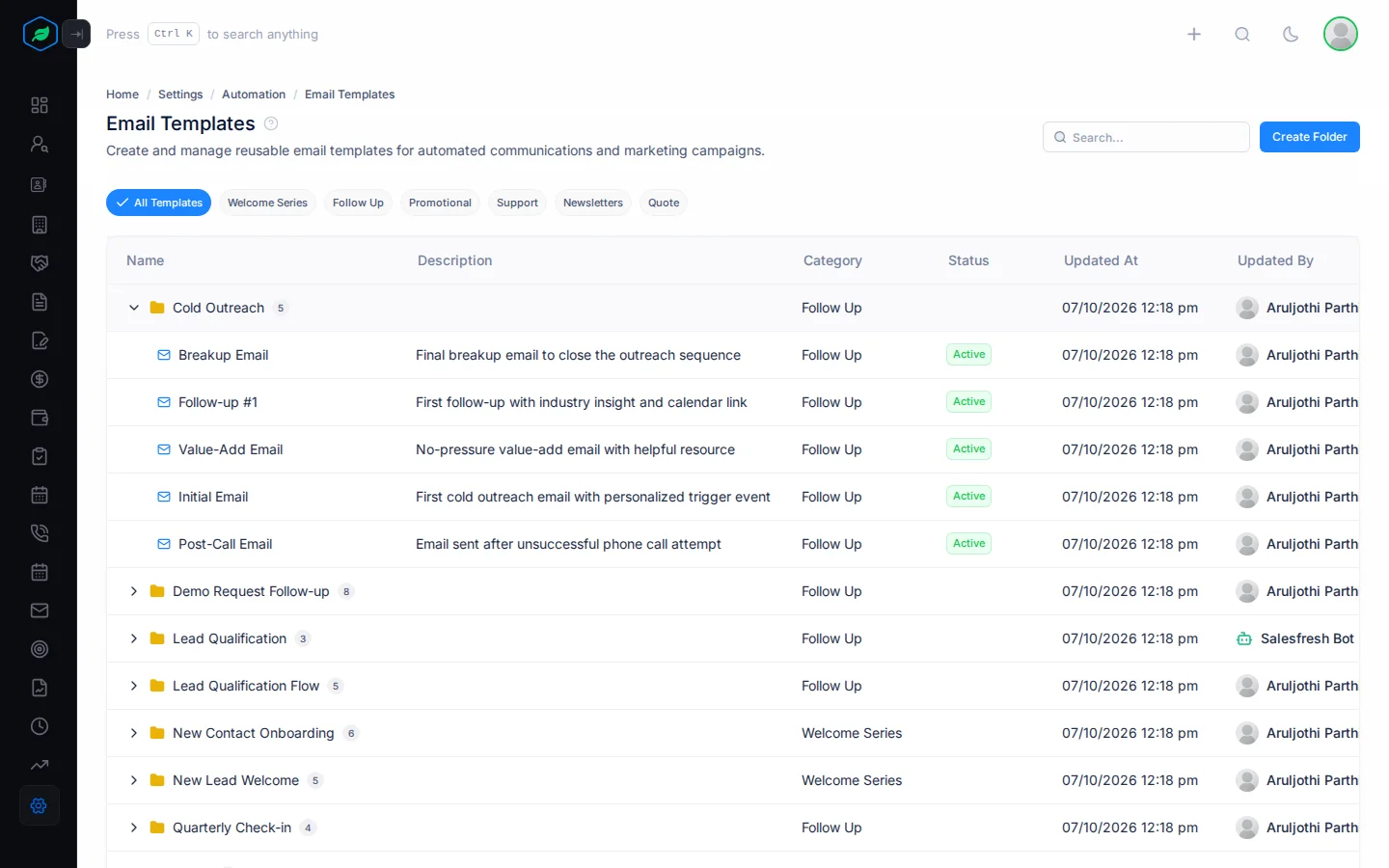
Templates live in folders. Each folder has a category: Welcome Series, Follow Up, Promotional, Support, Newsletters or Quote. A template takes its folder's category. When you send a quote, only templates in Quote folders are offered.
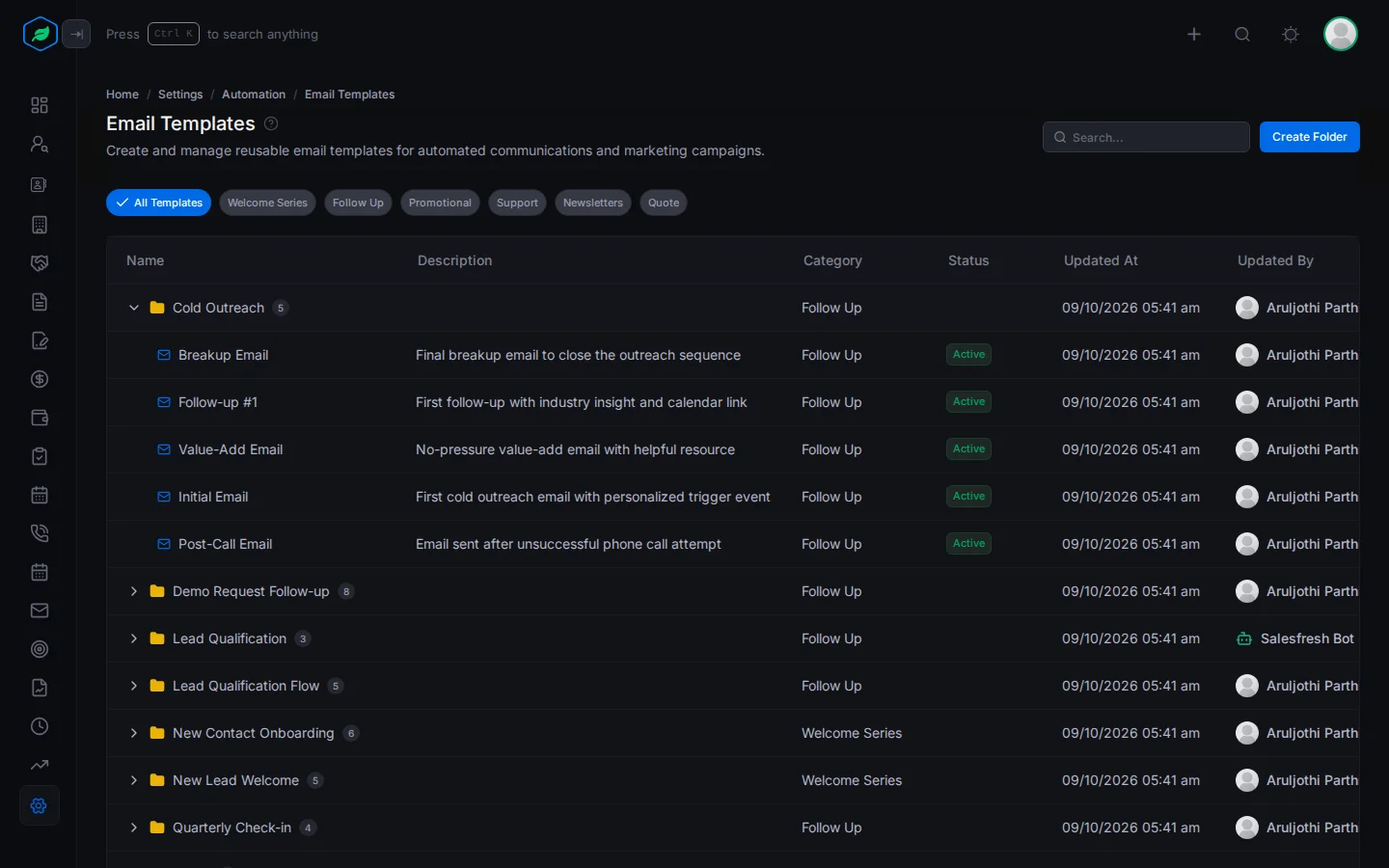
Go to Settings > Automation > Email Templates. Click a folder to see its templates. To see only one category, click it at the top.
Add a folder
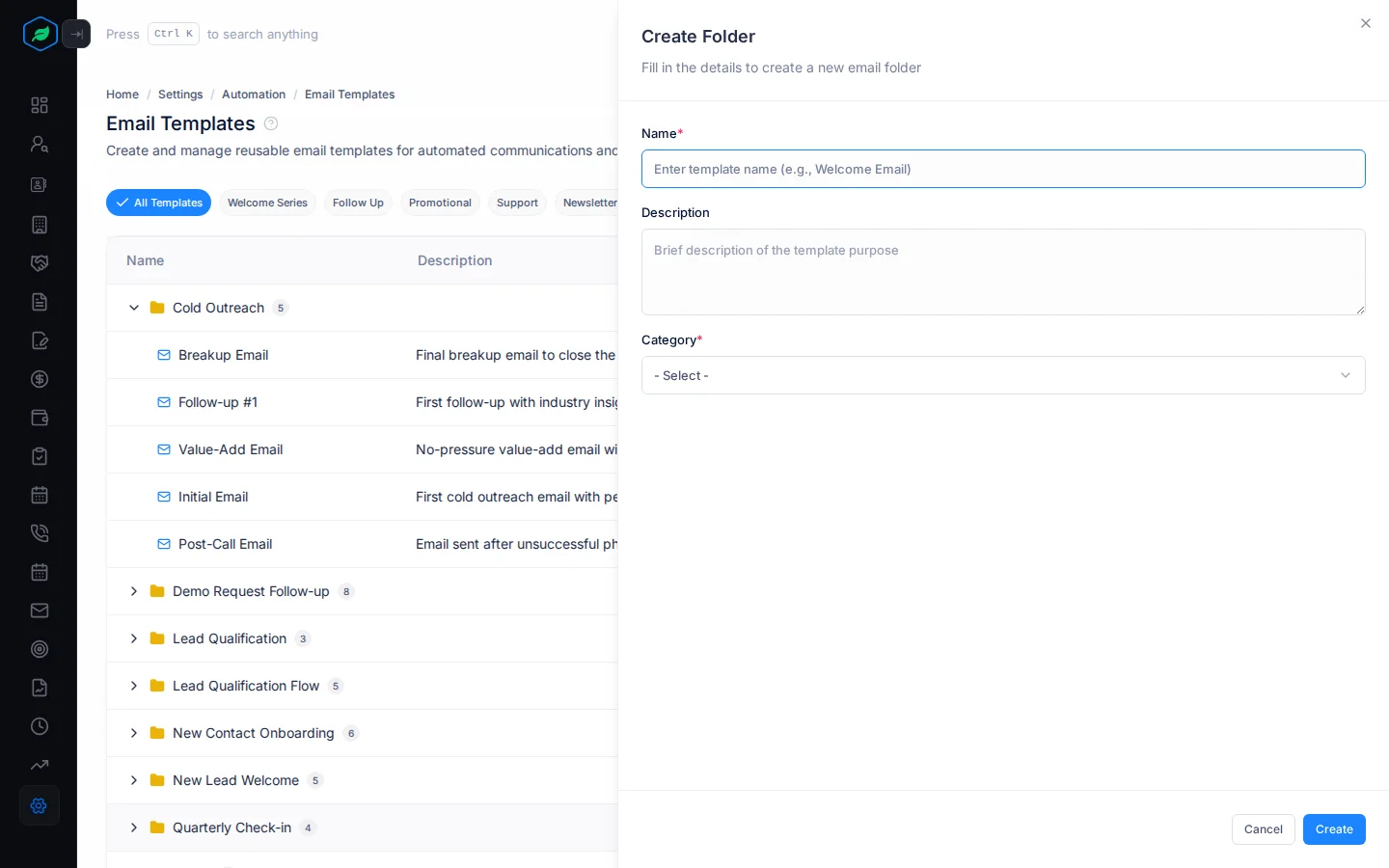
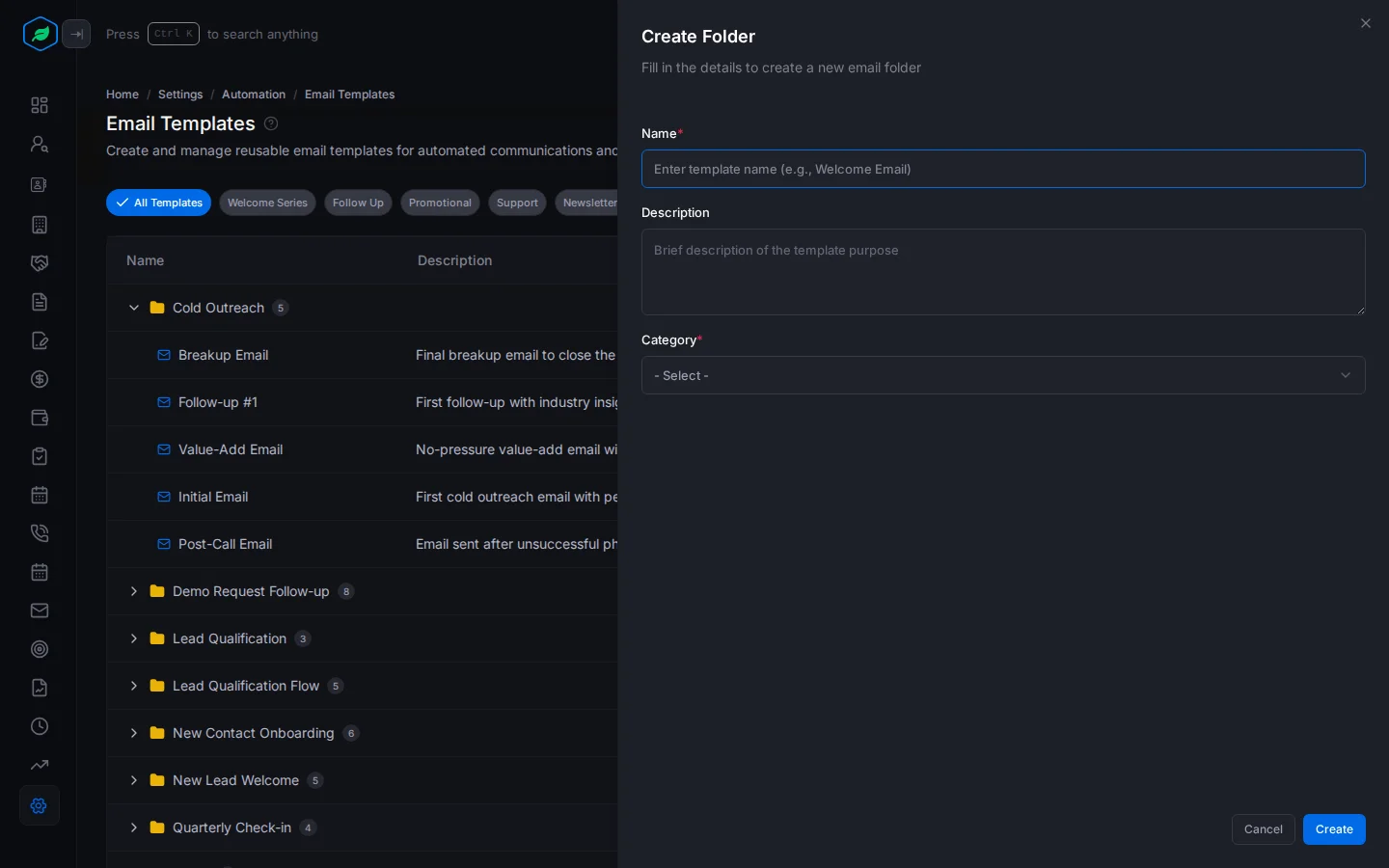
- Click Create Folder. The Create Folder panel opens.
- Fill in the fields and click Create.
| Field | What to enter |
|---|---|
| Name * | The folder's name, such as "Welcome Emails" |
| Description | What's in it |
| Category * | Welcome Series, Follow Up, Promotional, Support, Newsletters or Quote |
Add a template
- Point at a folder, click ⋮, then Create Template. The Create Template panel opens.
- Fill in the fields and click Create.
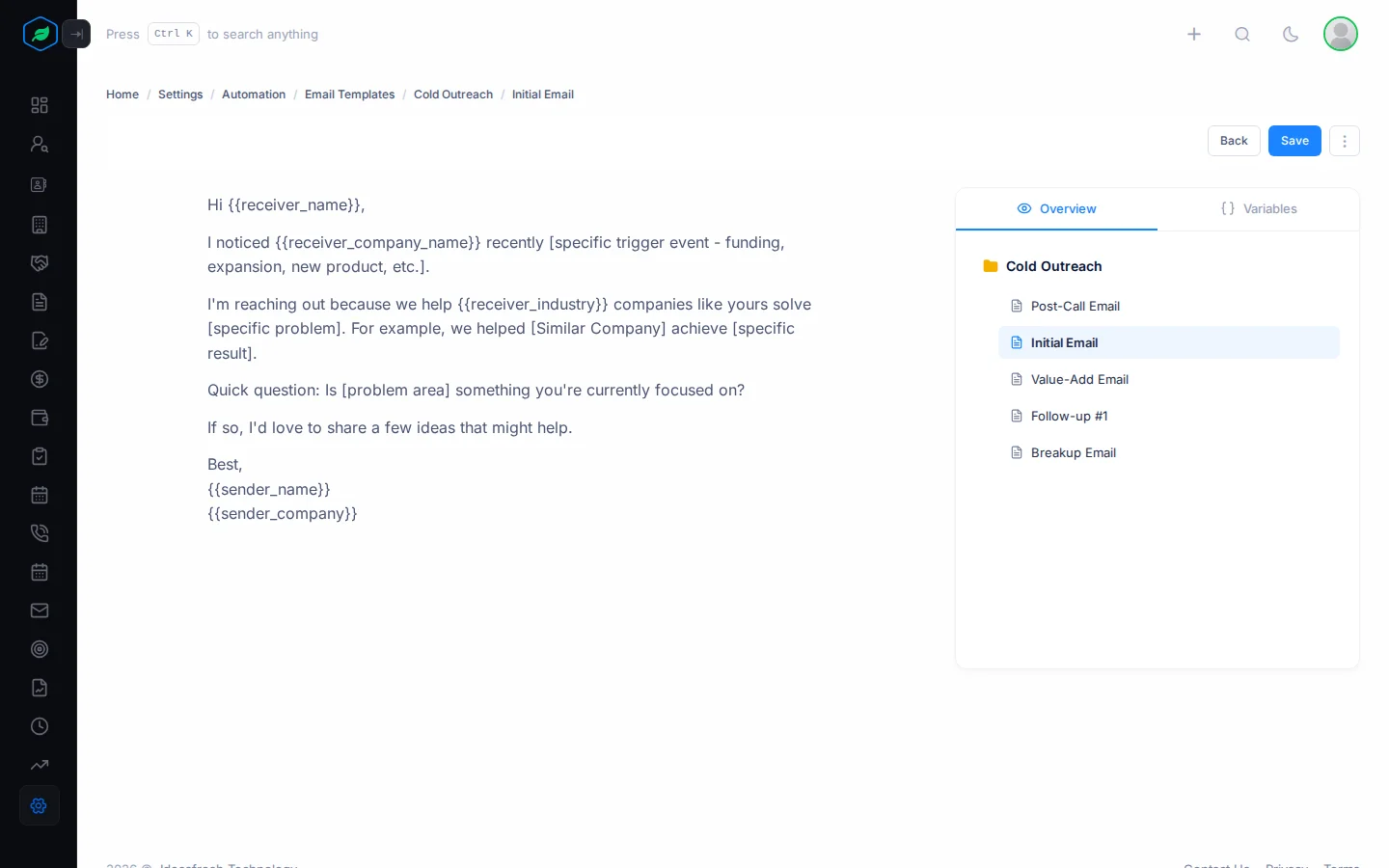
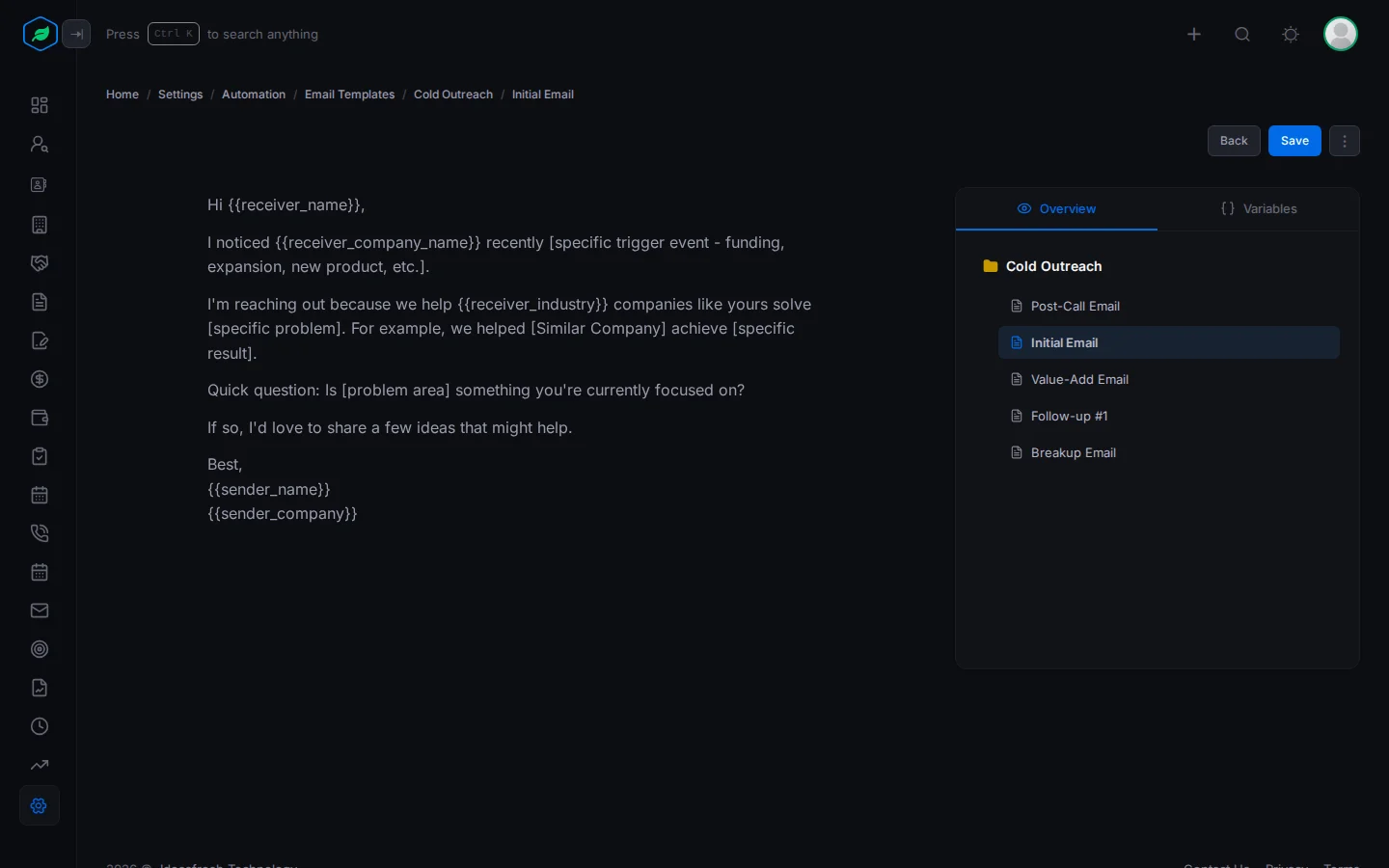
- Click ⋮ on the new template, then Edit Content.
- Write the email. To add a heading, list or table, click + or type /.
- To put in a detail that changes for each person, open the Variables tab, copy a placeholder and paste it where it belongs.
- Click Save.
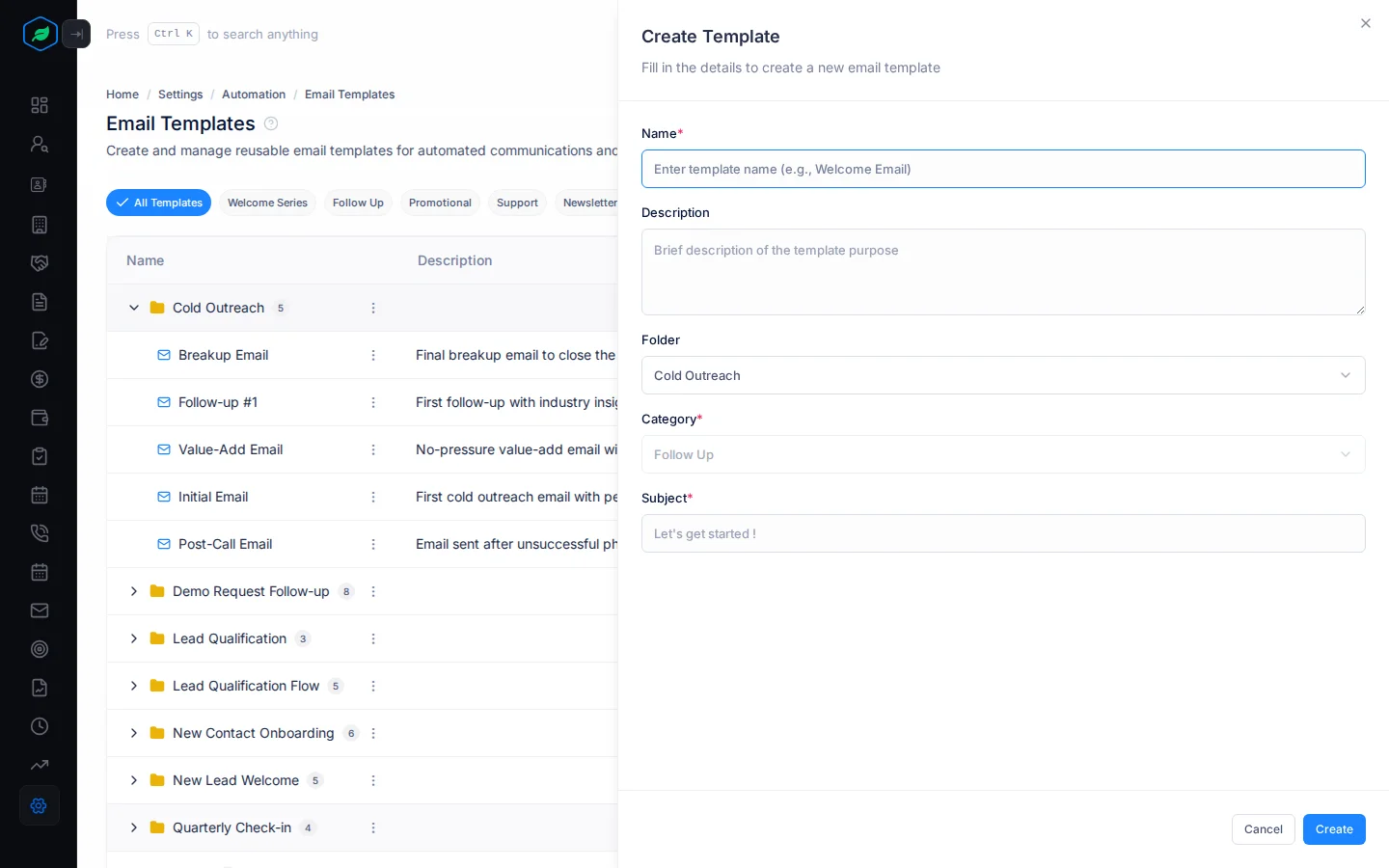
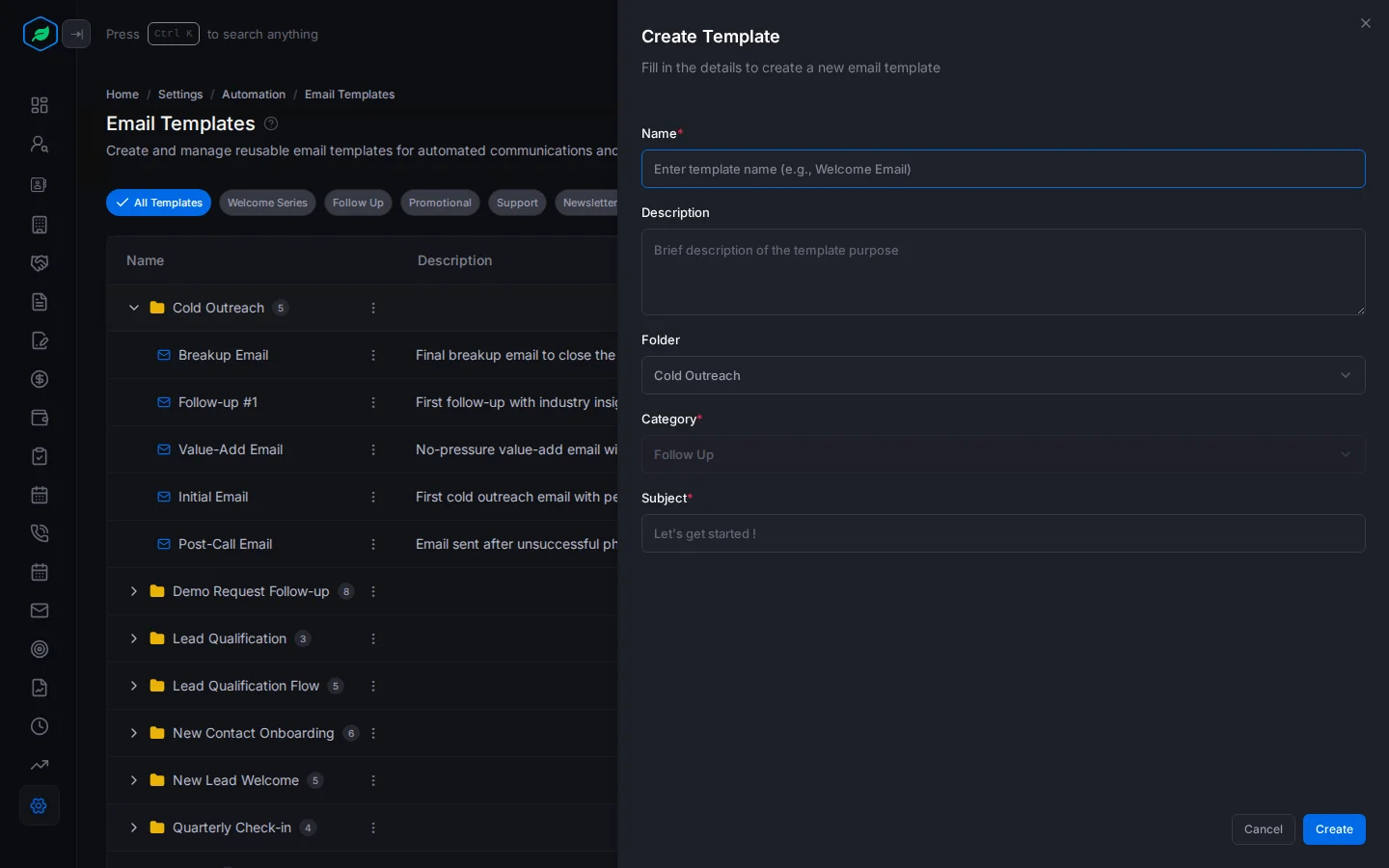
| Field | What to enter |
|---|---|
| Name * | The name people pick, such as "New Lead Welcome". Two templates can't have the same name |
| Description | When to use it |
| Folder | The folder it goes in. Set to the folder you started from |
| Category * | Set for you from the folder |
| Subject * | The email's subject line, such as "Welcome, {{receiver_name}}" |
Placeholders
| Group | Placeholders |
|---|---|
| Receiver Details | {{receiver_name}}, {{receiver_email}}, {{receiver_phone}}, {{receiver_company_name}}, {{receiver_address}}, {{receiver_industry}} |
| Quote Details | {{quote_number}}, {{quote_total}}, {{quote_currency}}, {{quote_status}}, {{quote_issue_date}}, {{quote_expiry_date}} |
| Sender Details | {{sender_name}}, {{sender_email}}, {{sender_phone}}, {{sender_company}}, {{sender_signature}} |
| Sender Company Details | {{company_name}}, {{company_logo}}, {{company_address}}, {{company_website}} |
| Dates | {{today_date}}, {{current_time}} |
- Receiver placeholders are filled from the lead or contact you are writing to. If the email isn't to a lead or contact, they stay as written.
- Quote placeholders are only filled when you send a quote or a quote follow-up.
{{company_name}}is your company. For the customer's company, use{{receiver_company_name}}.
If a template uses a placeholder that doesn't exist, it's marked "Template contains errors" and isn't offered until you fix it.
Where you use templates
| Where | How |
|---|---|
| Writing an email to a lead or contact | Click Use Template and pick one. It replaces the subject and message. In a reply, it goes above the email you are replying to |
| Sending a quote | Use Template shows the templates in Quote folders. See Send a quote |
| Flows | An email step sends a template. See Build a flow |
| Quote follow-ups | Each follow-up sends a template, with the quote email's subject. See Quote follow-ups |
| Lead stage rules | An email action sends a template. See Lead stage automation rules |
Change, copy or delete a template
Click ⋮ on a template:
- Edit changes its name, folder and subject.
- Edit Content changes the email.
- Clone makes a copy called "Name (Copy)" in the same folder.
- Delete removes it. Check first that no flow or rule uses it.
When you delete a folder, the templates in it are hidden, but not removed. They still count towards your plan, and flows still send them. Delete or move the templates before you delete the folder.
Troubleshooting
| You see | Why | What to do |
|---|---|---|
| "Template contains errors" | The template uses a placeholder that doesn't exist | Open it, check Validation Errors and fix the placeholder |
| "Email template already exists" | Another template has that name | Pick another name |
| "Email template folder already exists" | Another folder has that name | Pick another name |
| "You have reached the maximum of … email template(s) on your current plan. Please upgrade for more." | You have as many templates as your plan allows | Delete templates you don't use, or upgrade |
| A template isn't offered when you write an email | It has no content yet, or it has errors | Open it with Edit Content, write or fix the email, and save |
Related
Still stuck?
Tell us what you were trying to do and we will help.