Automate follow-up sequences with flows
What a flow is, how it runs, its statuses, and how to create, clone, edit and delete flows.
Updated 12 October 2026 · 5 min read
A flow is a series of steps that run on their own, such as an email, then a call two days later, then a task if the email isn't opened. You build the series once. Then you add leads or contacts to it, and Salesfresh runs the steps for each one.
For example, people sign up for a free trial class at your yoga studio, and you want them to become members. Sending each one a welcome email and remembering to call them two days later is hard with 30 new people a week. Instead, you build a flow once: a welcome email, then a call two days later. Every Monday, you add the new leads to it. Each one gets the welcome email, and two days later a call is booked for you. You only make the calls.
Other CRMs may call flows "sequences", "cadences" or "workflows".
How a flow works
- Create the flow. Pick who it's for (leads or contacts) and the conditions they must meet. See Create a flow.
- Build the steps. Add email, task and call steps and connect them. See Build a flow.
- Switch it on and add people. Set the flow to Active, then add leads or contacts from its Eligible Records tab. See Enroll records and track a flow.
Each person moves through the steps on their own, following the connections.
Before you start
- To see flows, you need the View Automation permission.
- To create or copy a flow, you need Create Automation. To change one, change its status or add people, you need Edit Automation. To delete one, you need Delete Automation.
- Flows need a paid plan. You can have 5 active flows on Starter, 20 on Professional, and as many as you like on Enterprise. See Plans and limits.
- Email steps send email templates, so write those first. See Email templates.
If you don't have a permission you need, ask your admin.
The Flows page
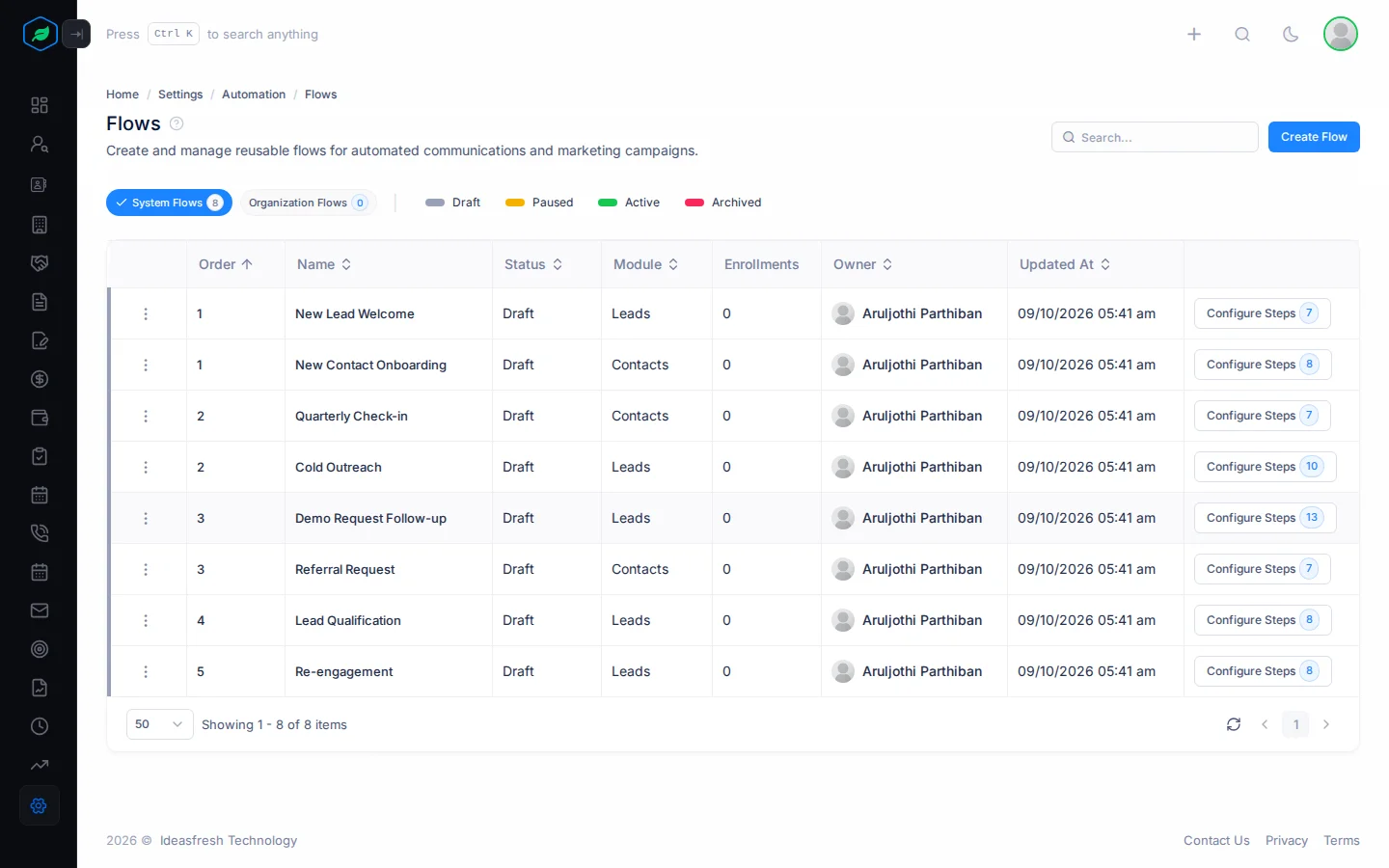
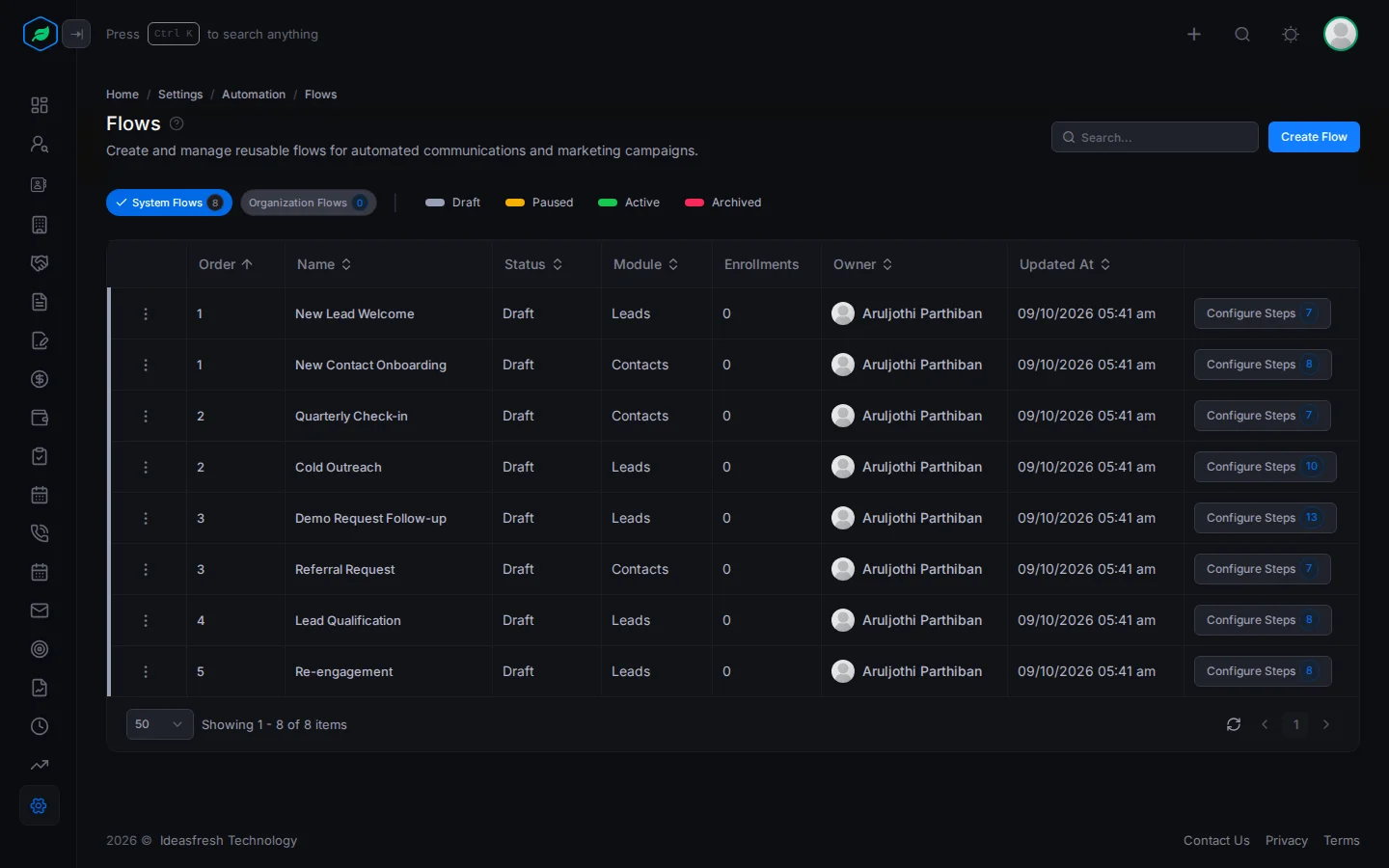
Go to Settings > Automation > Flows. Flows are on two tabs:
- System Flows are flows Salesfresh gives you, such as the ones from sample data. You can't change or delete their details, but you can copy them.
- Organization Flows are the ones your company made.
Each row shows the flow's order, name, status, who it's for, how many people are in it, its owner, and a Configure Steps button with the number of steps.
Create a flow
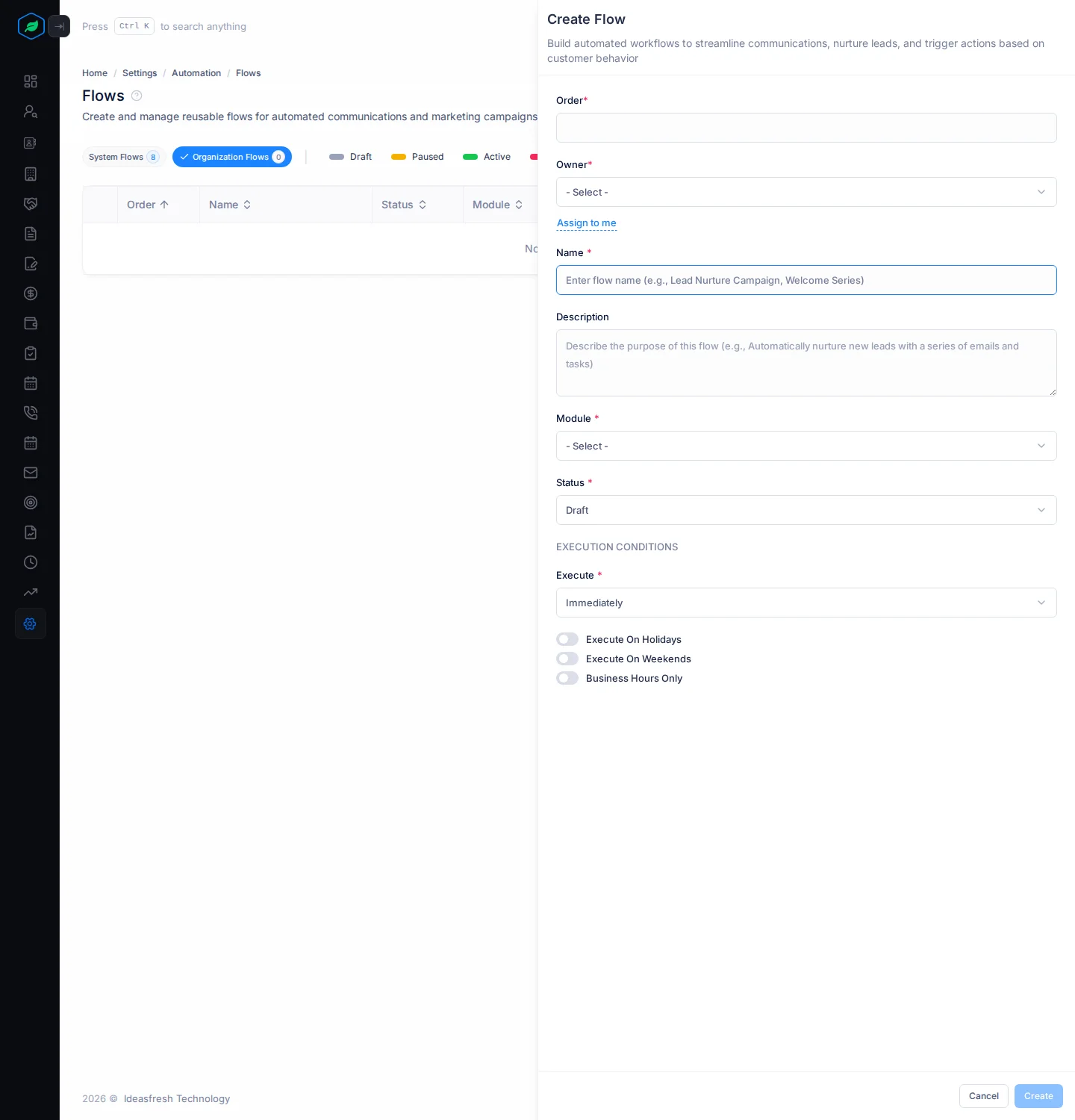
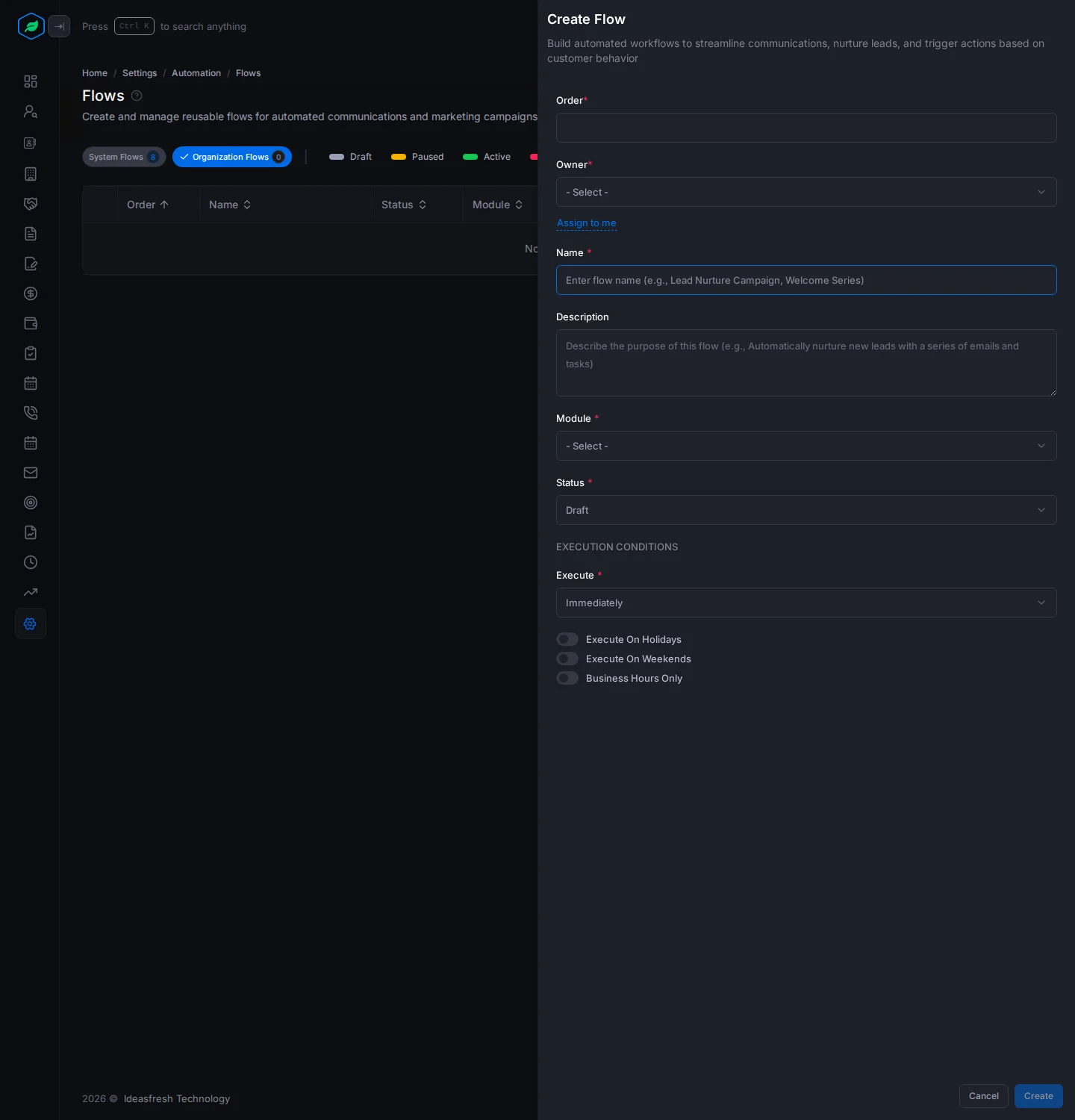
- Click Create Flow. The Create Flow panel opens.
- Fill in the fields. Fields marked * must be filled in.
- Click Create.
| Field | What to enter |
|---|---|
| Order * | Its place in the list, from 1 |
| Owner * | Emails are sent in this person's name, and tasks and calls are given to them. Click Assign to me to pick yourself |
| Name * | What the flow is for, such as "New trial welcome". Two flows for the same module can't have the same name |
| Description | A note on what the flow does |
| Module * | Leads or Contacts. Accounts is listed, but you can't add accounts to a flow yet |
| Conditions * | Which records can be added, such as Lead Source equals Website |
| Status * | Set to Draft at first. Leave it as Draft while you build the steps |
| Execute * | How long to wait before the first step: Immediately, or a number of minutes, hours or days |
| Execute On Holidays, Execute On Weekends, Business Hours Only | Off at first. These don't change anything yet. Steps run at the exact wait you set |
Statuses
| Status | Meaning | Can change to |
|---|---|---|
| Draft | You're still building it. Nobody can be added | Active |
| Active | People can be added | Paused or Archived |
| Paused | Nobody new can be added | Active or Archived |
| Archived | You no longer use it | Active |
To change the status, open the flow and pick one from the dropdown at the top right.
Pausing or archiving a flow stops new people being added. People already in it carry on. To stop one person, pause their place in the flow on their own page. See Enroll records and track a flow.
Copy, change or delete a flow
Click ⋮ on a flow:
- Clone makes a copy called "Name (Copy)", in Draft. Its steps are copied, but not the connections between them, so connect the steps again before you use it.
- Edit changes the flow's details. You can't edit a flow once anyone has been added to it. Copy it instead, and change the copy.
- Delete removes it.
You can't edit or delete a System flow. Copy it instead.
Troubleshooting
| You see | Why | What to do |
|---|---|---|
| "You have reached the maximum of … active flows on your current plan. Please upgrade for more." | You have as many active flows as your plan allows | Upgrade your plan |
| "Flow with this name already exists for this module" | Another flow for these records has that name | Pick another name |
| "This flow cannot be edited because it has active enrollments." | People have been added to the flow | Copy the flow and change the copy |
| "Cannot change status from '…' to '…'" | That change isn't allowed | See Statuses |
| Nobody shows under Eligible Records for an Accounts flow | Accounts can't be added to flows yet | Make the flow for leads or contacts |
Related
Still stuck?
Tell us what you were trying to do and we will help.