Build a flow with email, task and call steps
Add email, task and call steps to a flow, connect them with waits and results, and set when a record leaves the flow.
Updated 12 October 2026 · 8 min read
The step builder is where you decide what a flow does, and in what order. You drag steps onto the page, then connect them. Each connection says when to move on, and after which result.
For example, you sell accounting software, and you want every new lead to get the same follow-up. You add an email step with your welcome email, and a call step. You connect the email to the call, for when the email is Opened, after 1 day. You add a task step "Check email address", and connect the email to it for when the email Bounced. Now each lead who opens the email gets a call the next day. If an email doesn't arrive, you get a task to fix the address.
To open the builder, click Configure Steps on the Flows page, or Steps on a flow's page.
Before you start
- To add or copy a step, you need the Create Automation permission. To change or connect steps, you need Edit Automation. To delete one, you need Delete Automation.
- You can only change the steps until the first person is added to the flow. After that, the builder is read-only. To change the steps, copy the flow.
If you don't have a permission you need, ask your admin.
Add a step
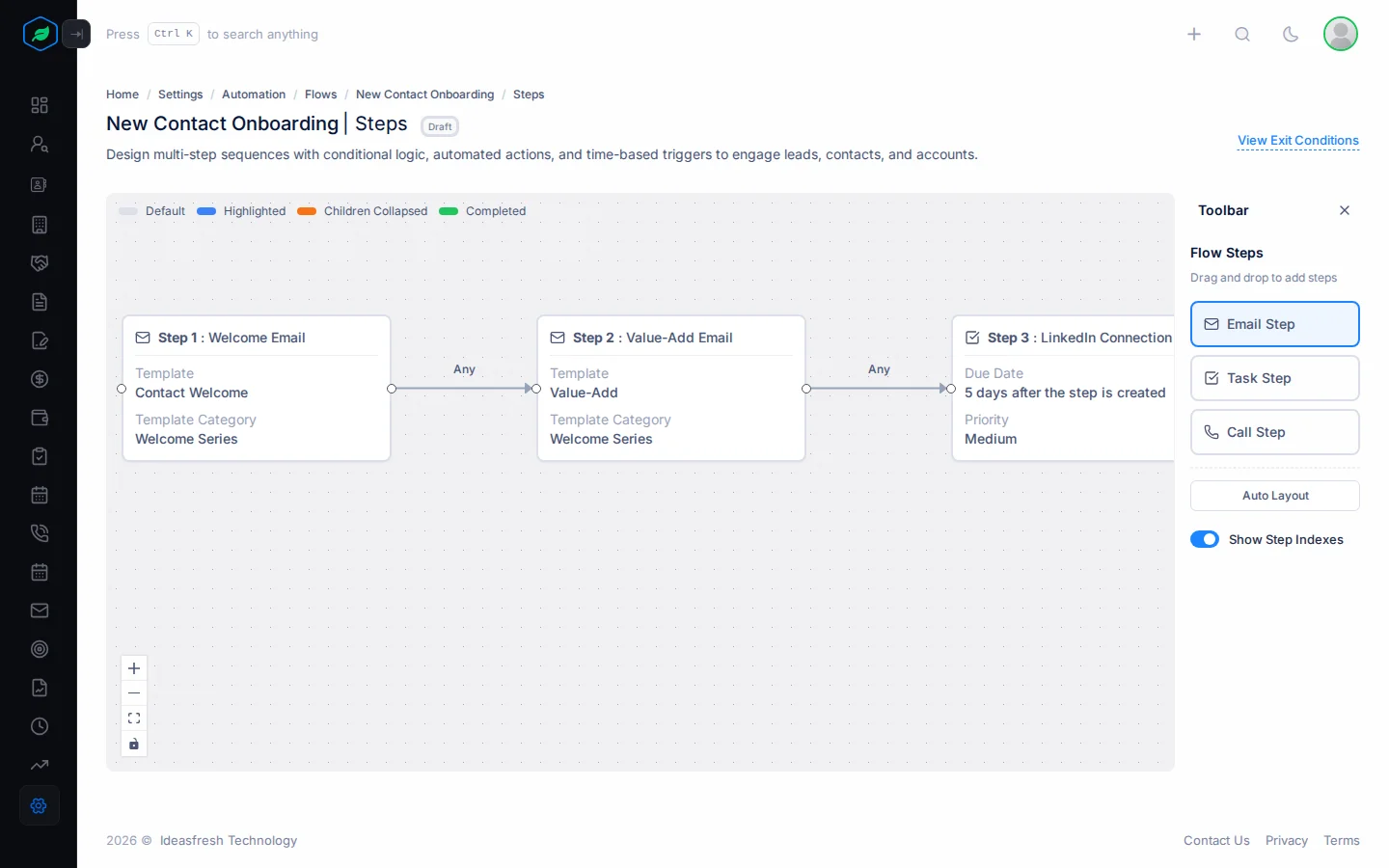
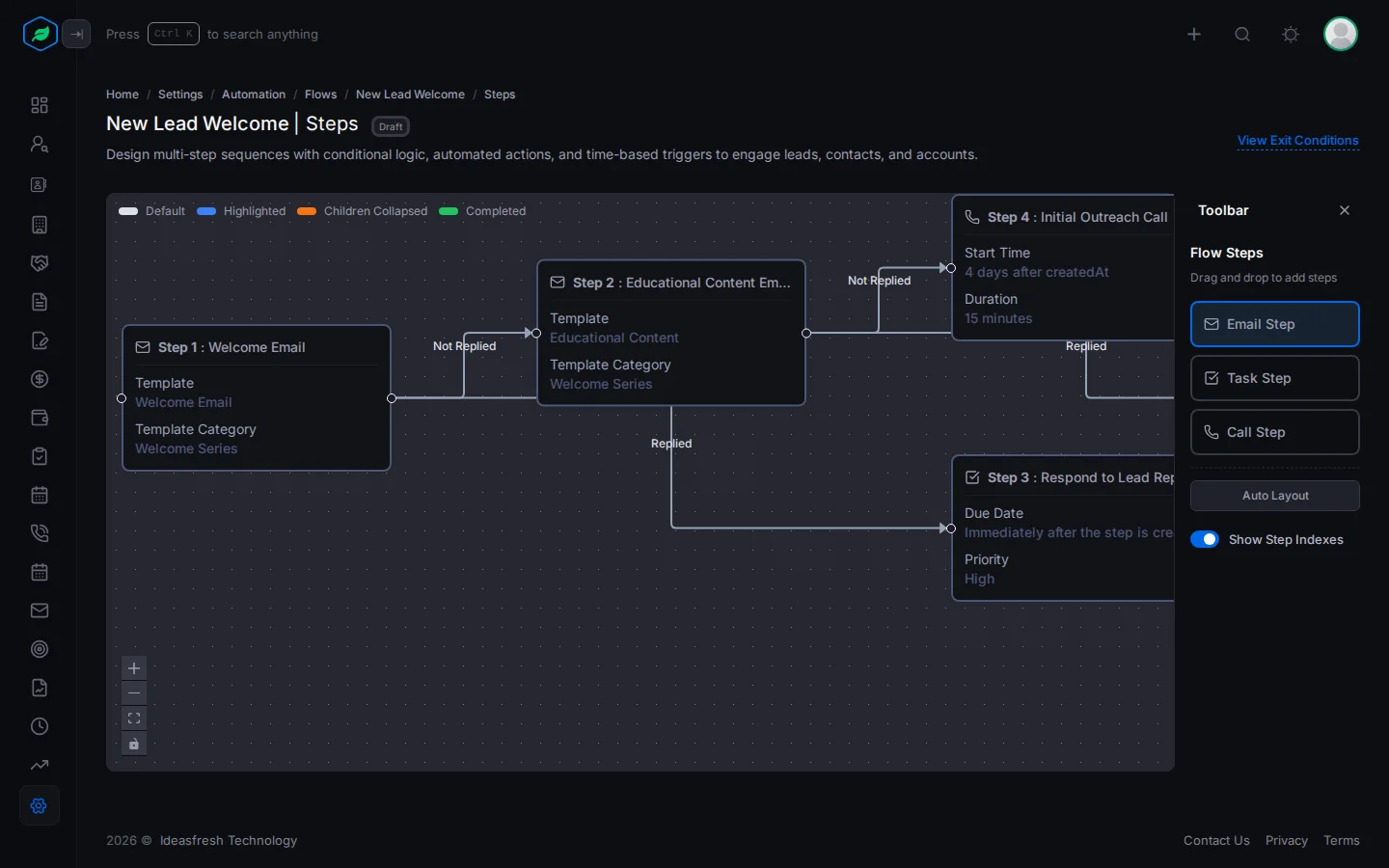
- Drag Email Step, Task Step or Call Step from the Toolbar onto the page. The Create Step panel opens.
- Fill in the fields. Fields marked * must be filled in.
- Click Create.
| Step | What it does for each person |
|---|---|
| Email Step | Sends an email template to them, in the flow owner's name. Replies go to the owner |
| Task Step | Gives the flow's owner a task, called "Flow name - Step title", linked to the person |
| Call Step | Books a call from the flow's owner to the person |
To change, copy or delete a step, click it and use the buttons above it.
Email step
| Field | What to enter |
|---|---|
| Title * | A name for the step, such as "Welcome email" |
| Email Template Folder * | The folder the template is in |
| Template * | The email to send |
Task step
| Field | What to enter |
|---|---|
| Title * | What needs doing, such as "Check email address" |
| Description | Details for the owner |
| Notes | Anything else. You can use placeholders such as the person's name |
| Due Date * | How long after the person was added to the flow the task is due, such as 2 days. Set to 0 at first |
| Priority * | Low, Medium or High. Set to Medium at first |
Call step
| Field | What to enter |
|---|---|
| Title * | What the call is about, such as "Welcome call" |
| Description | Details for the owner |
| Notes | Anything else |
| Start Time * | How long after the person was added to the flow to book the call, such as 2 days |
| Duration * | How long the call should take: 5, 10, 15, 20 or 30 mins, or 1 hour. Set to 15 mins at first |
The call is always booked as Scheduled, whatever you pick under Status, Purpose and Agenda.
Order and timeout
Every step also has:
| Field | What to enter |
|---|---|
| Order * | A label, such as 1 for the first step. The connections decide the real order |
| Condition * | How long to wait for this step's result, such as 7 days. If nothing happens in that time, the person leaves the flow. Set to 7 days at first |
Connect steps
Connections decide what runs next, and when.
- Drag from one step's handle to another, or click a step and then Connect Step. The connect panel opens.
- Fill in the fields and click Connect.
| Field | What to enter |
|---|---|
| From * and To * | The two steps |
| Execute | How long to wait before the next step: Immediately, or a number of minutes, hours or days. Set to Immediately at first |
| after the previous … status is | Which results of the first step move the person on, such as Opened. Leave it as Any to move on whatever happens |
| and outcome is | For a task or call marked Completed, which outcome moves the person on, such as Interested |
Results that work
| From | Results |
|---|---|
| Opened, Clicked, Bounced | |
| Task | Completed with an outcome, Not Started, In Progress, Waiting for Input, Deferred |
| Call | Completed with an outcome, Busy, No Answer, Canceled |
A task or call marked Completed only moves on when you record its outcome on the person's flow, with Update Status. See Enroll records and track a flow.
Give each result one connection. For example, from an email, Opened goes to a call step, and Bounced goes to a task to check the address.
A flow must have one starting step: a step with no connection coming into it.
To tidy the page, click Auto Layout. To see each step's order, turn on Show Step Indexes.
Example flows
Sample data adds these flows. Open one to see how its steps connect, or copy it with Clone and change it to fit your business.
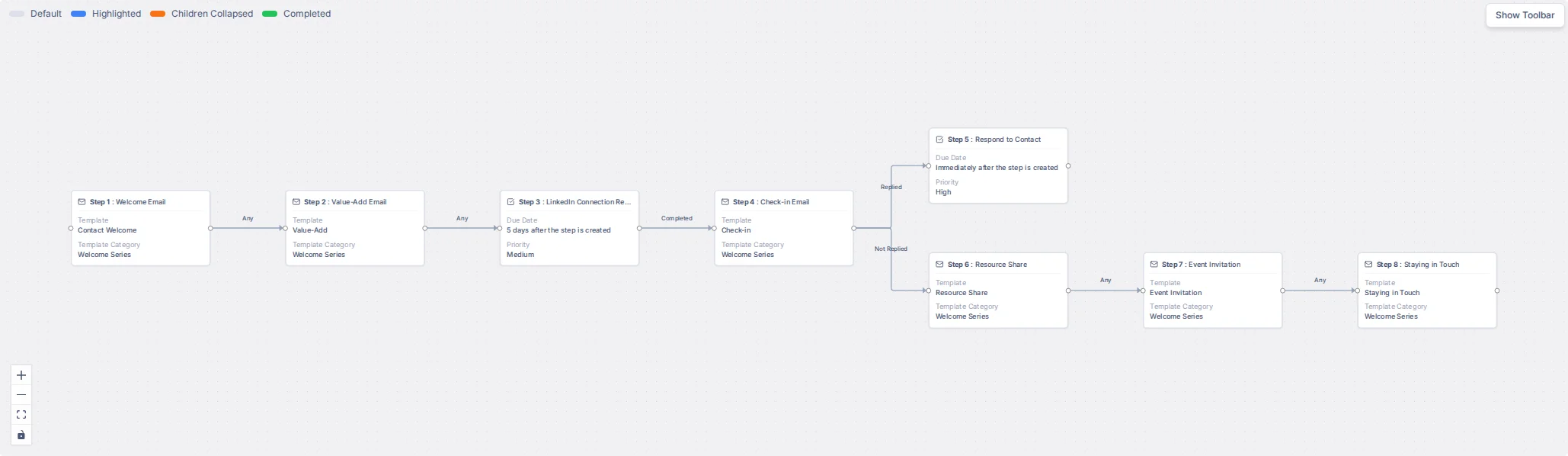
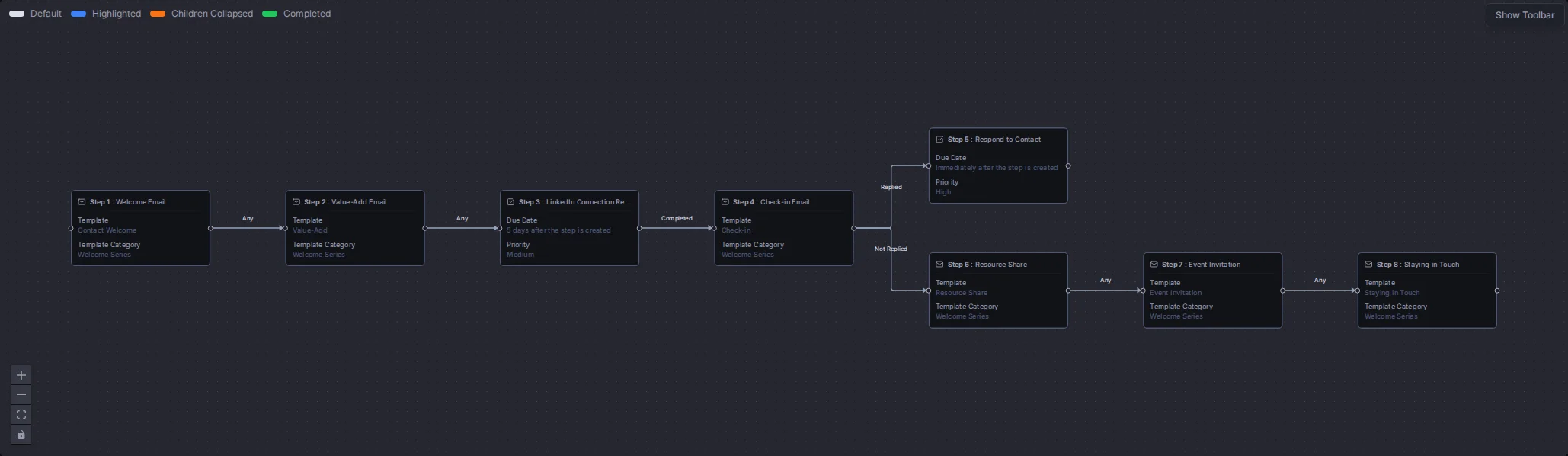
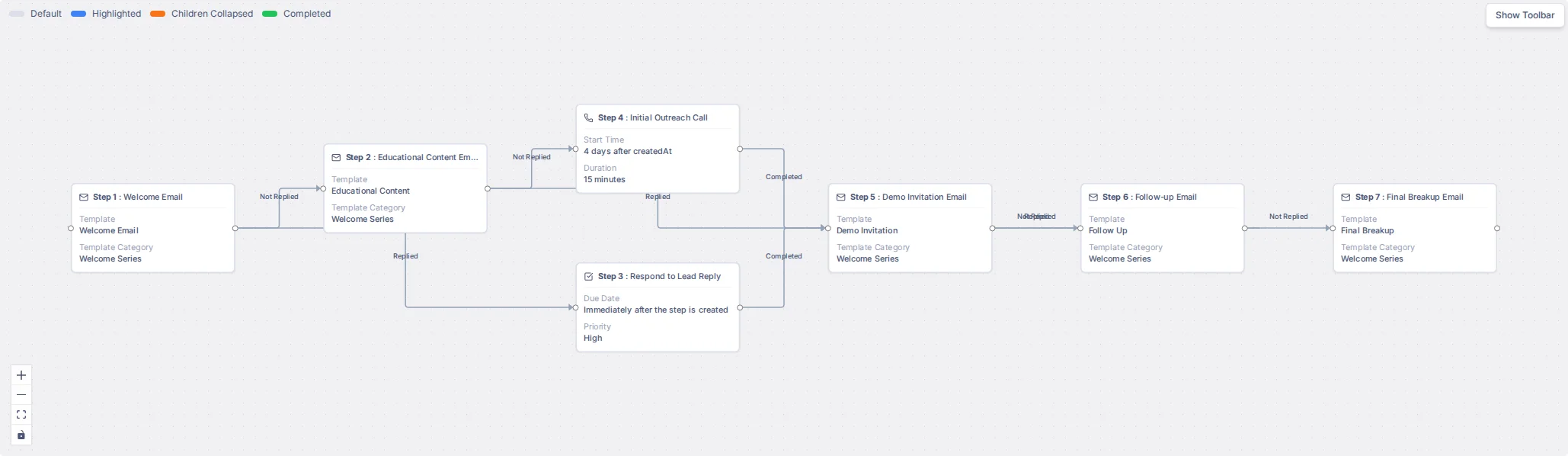
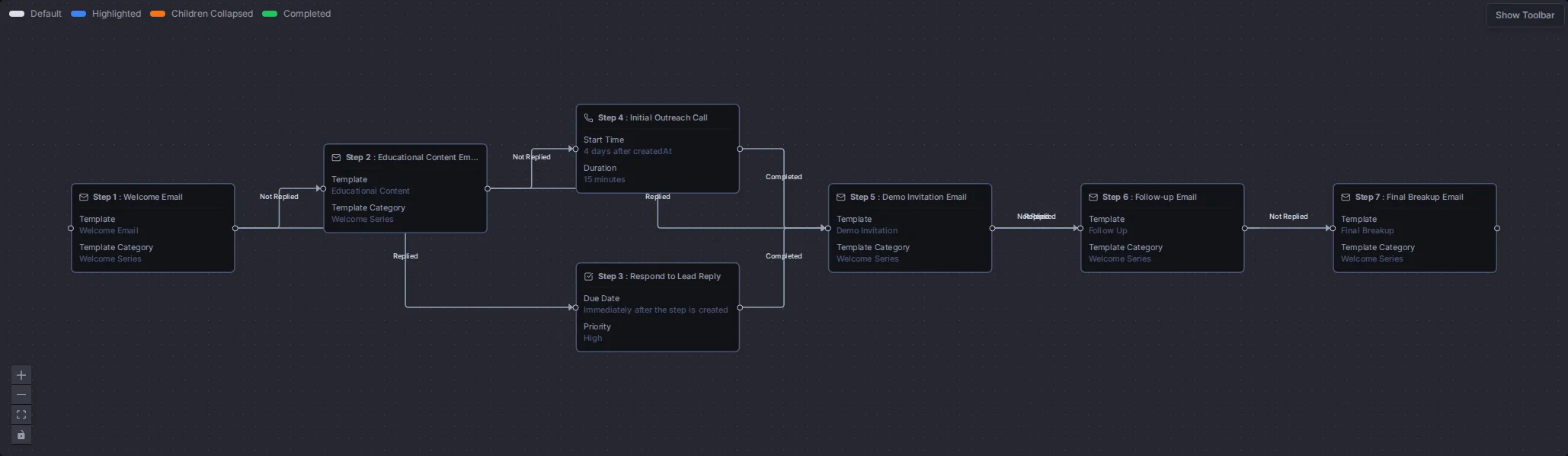
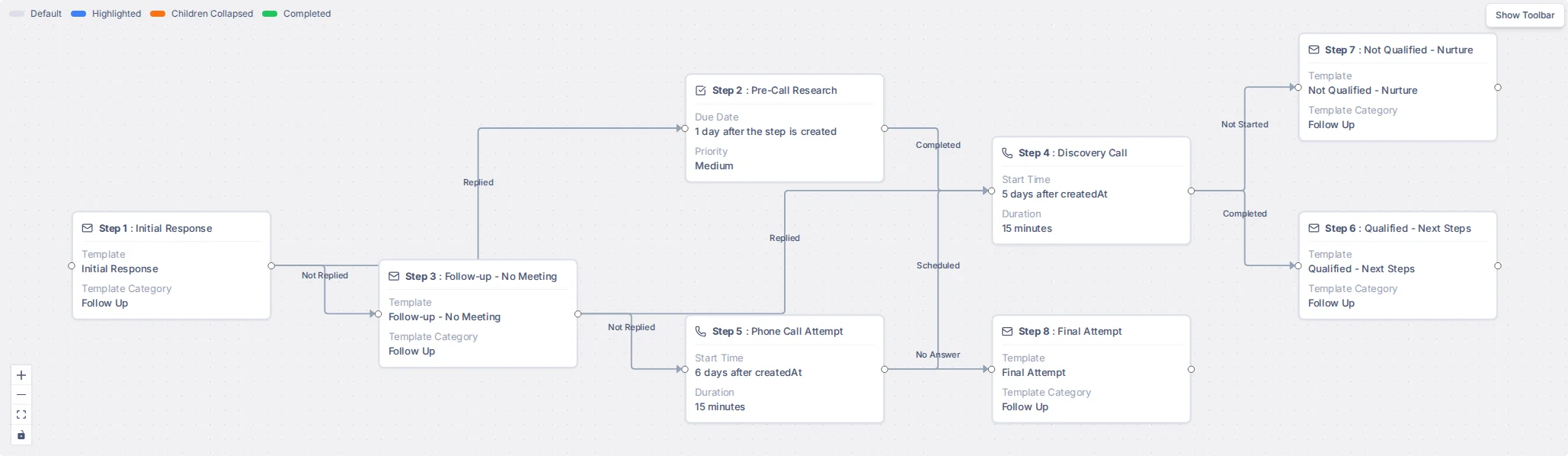
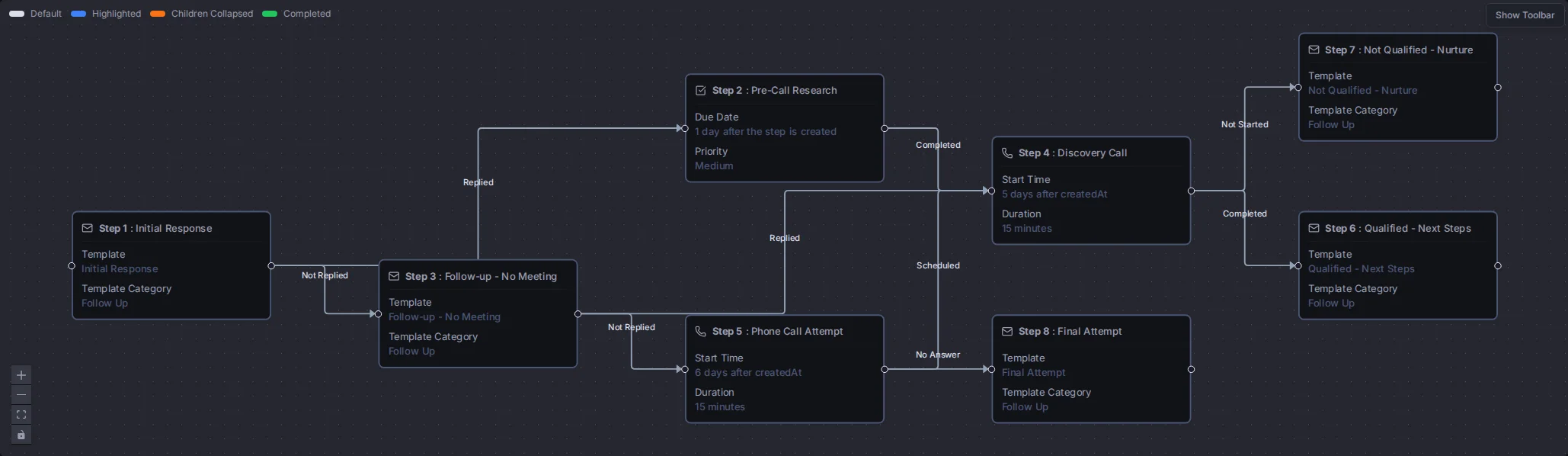
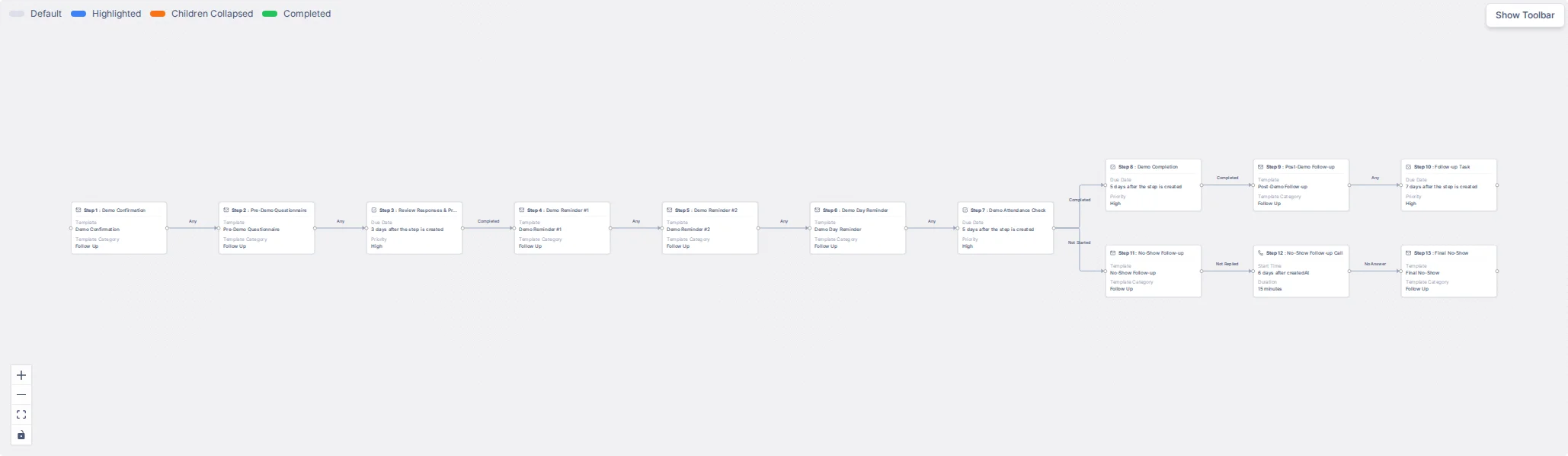
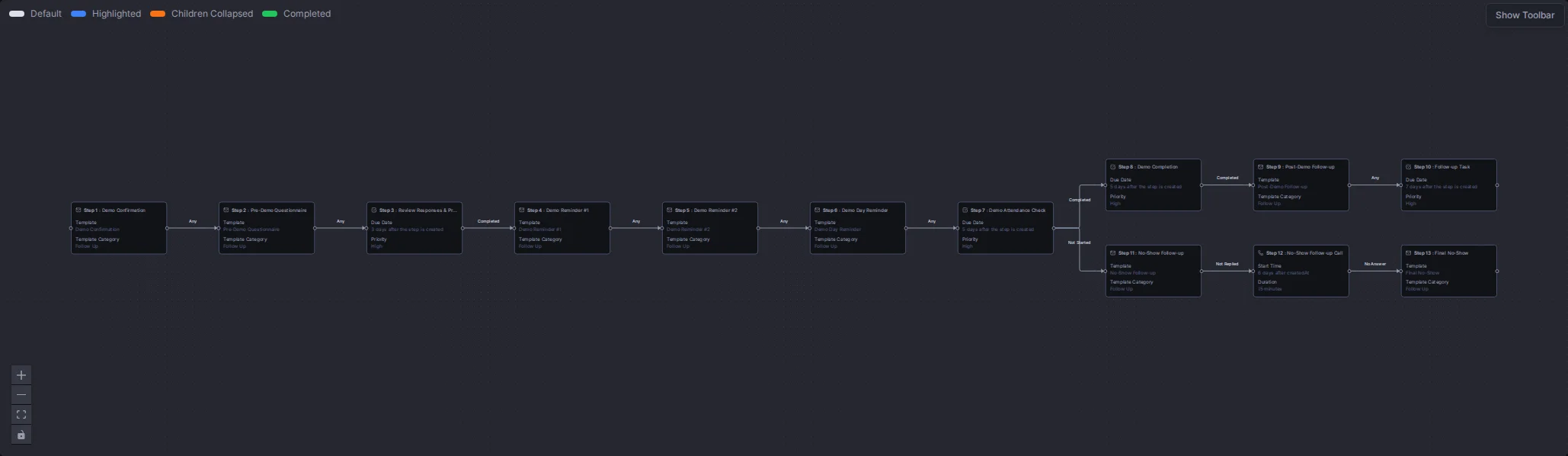
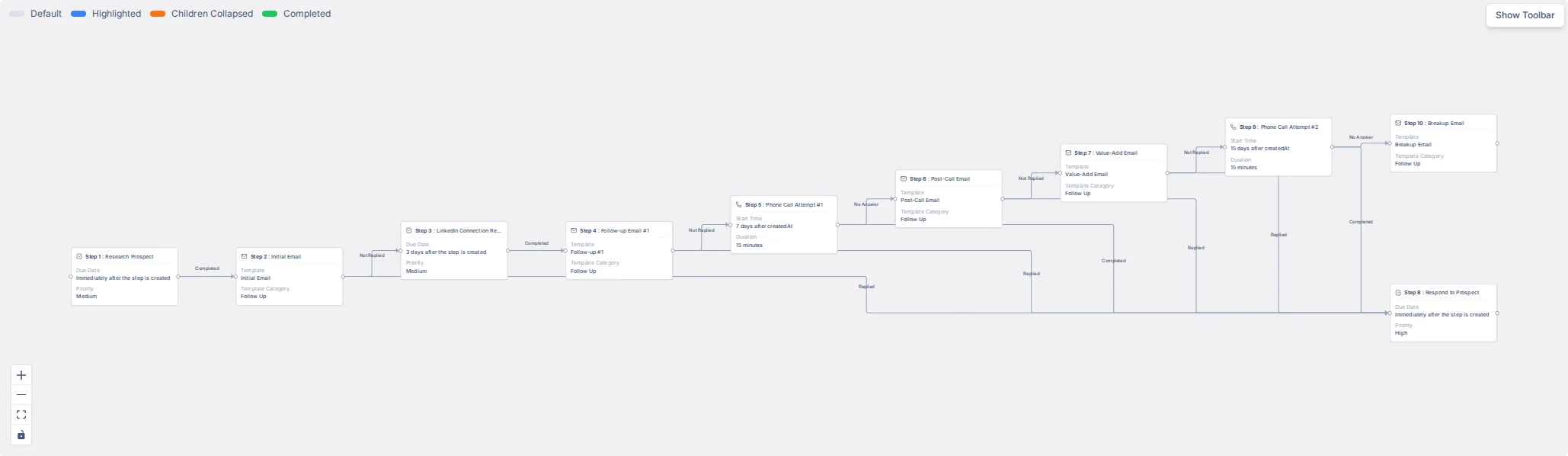
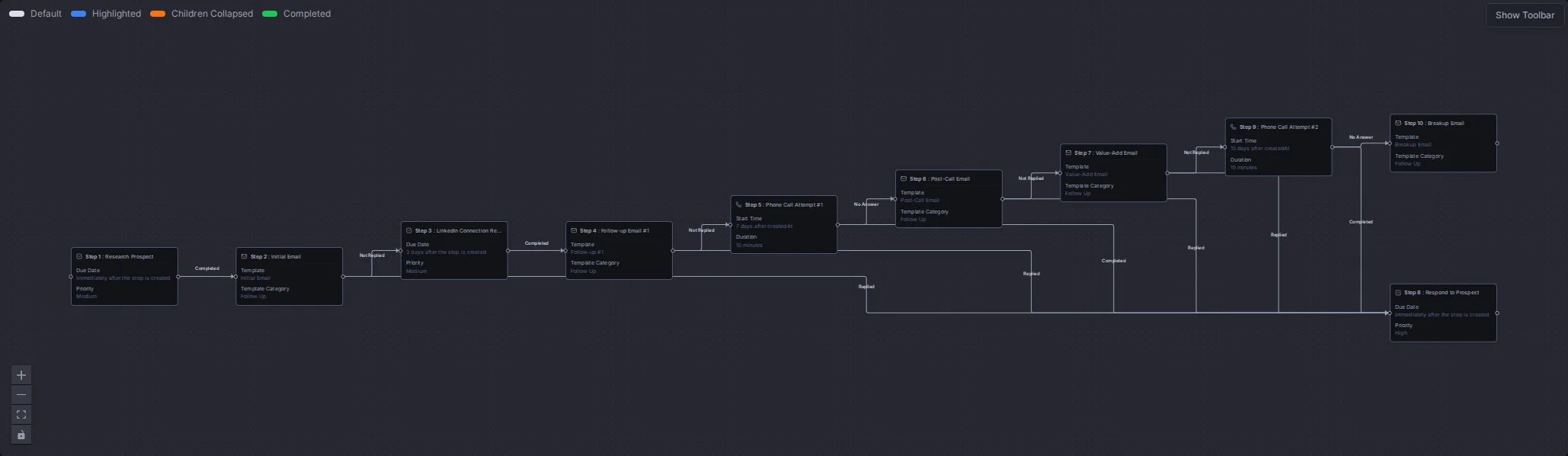
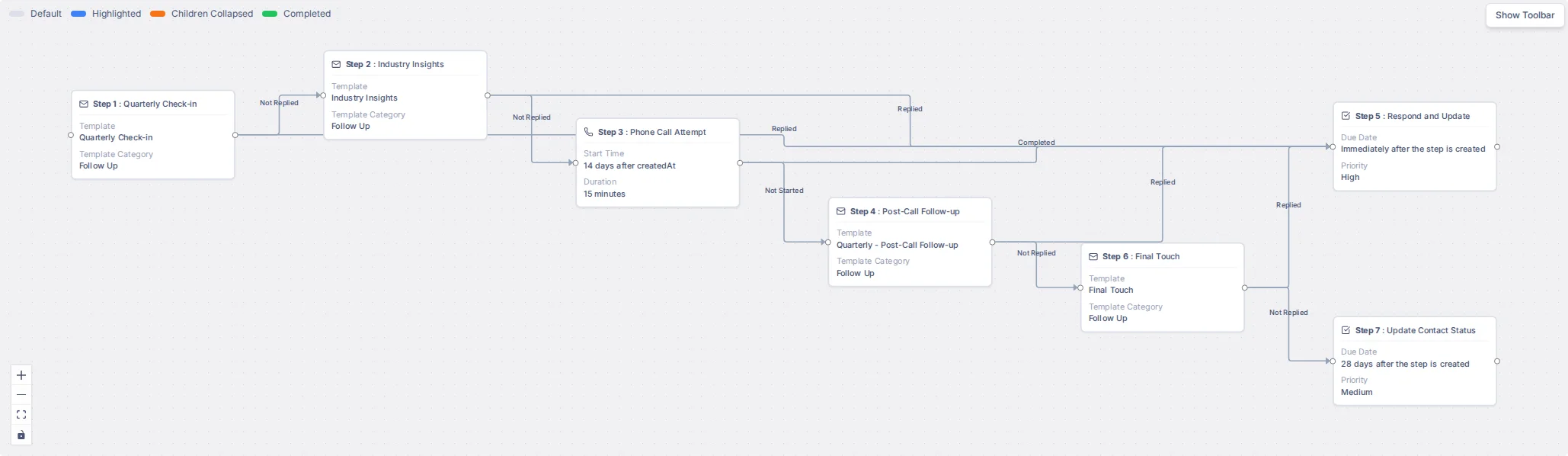
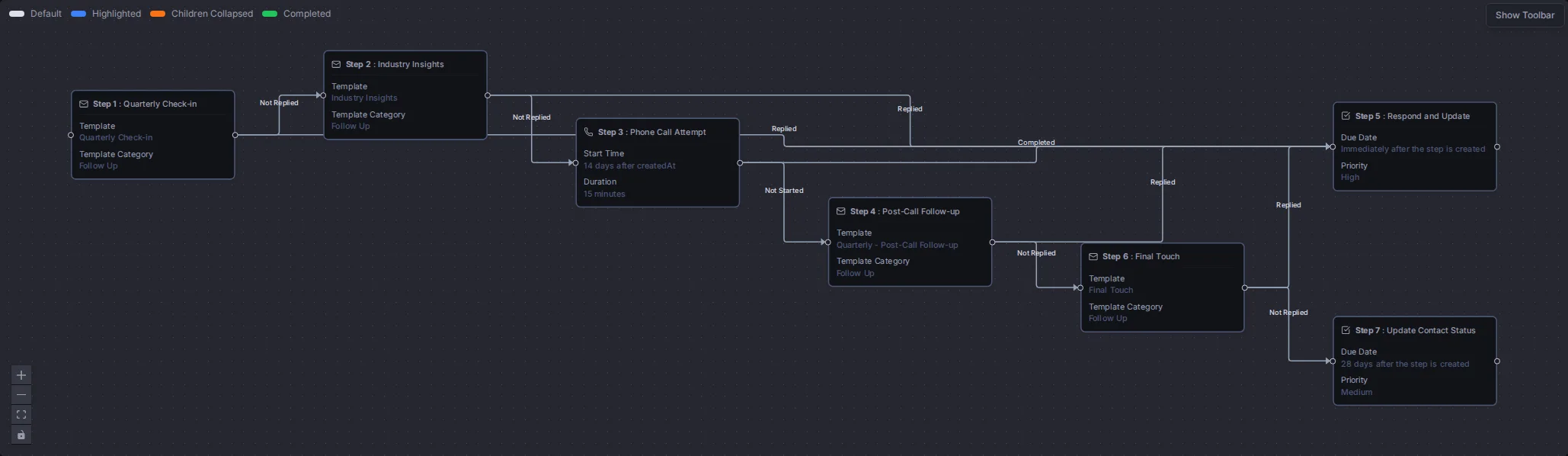
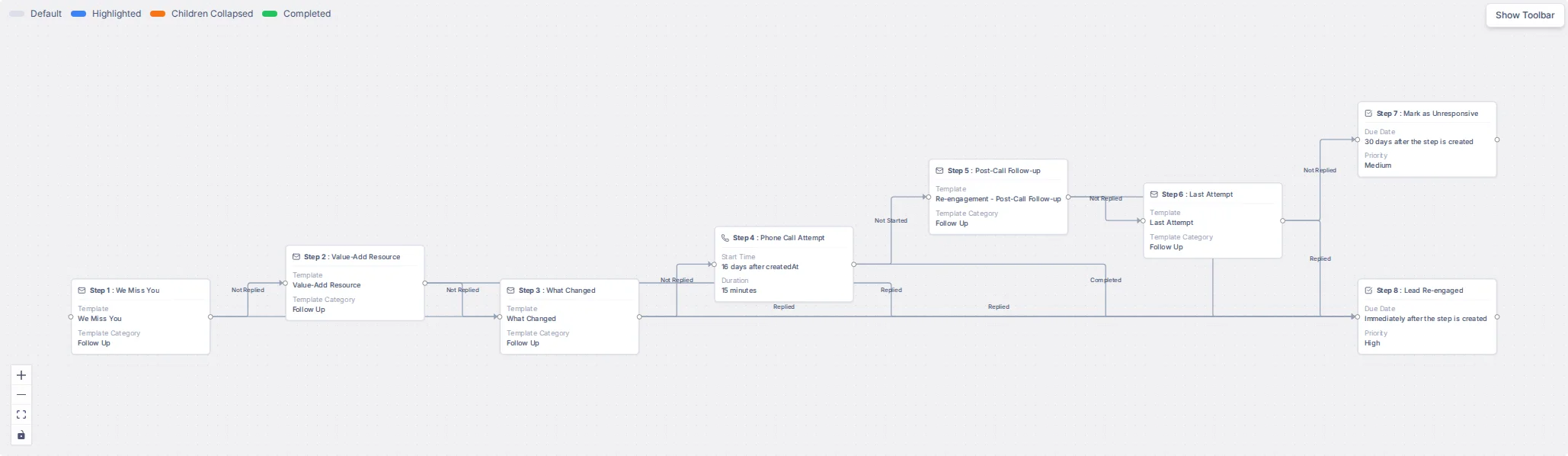
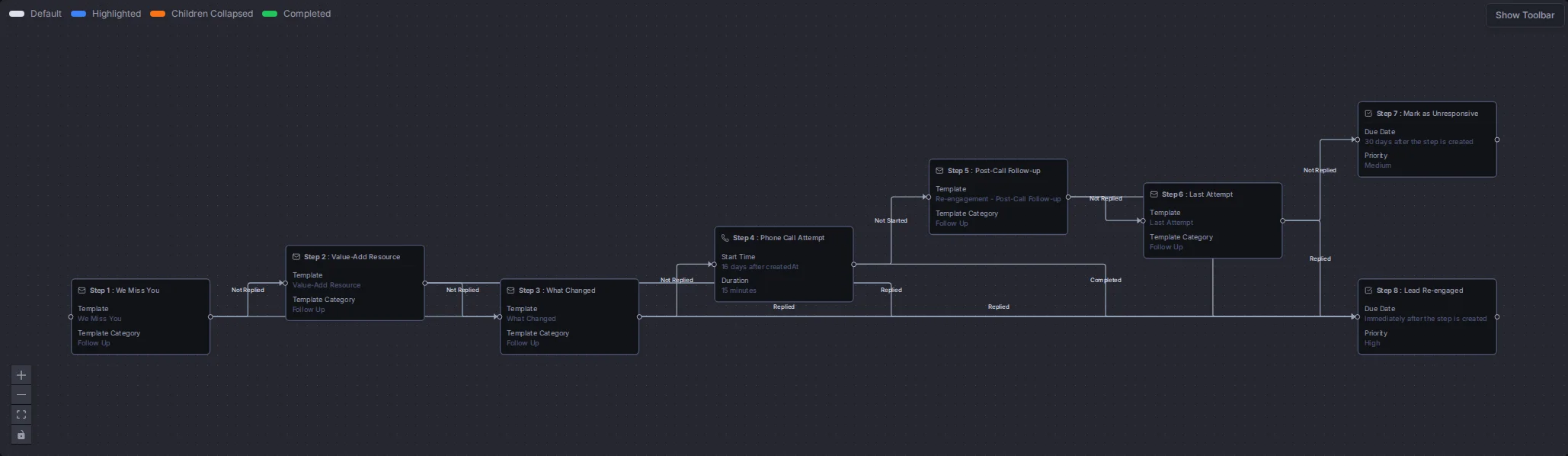
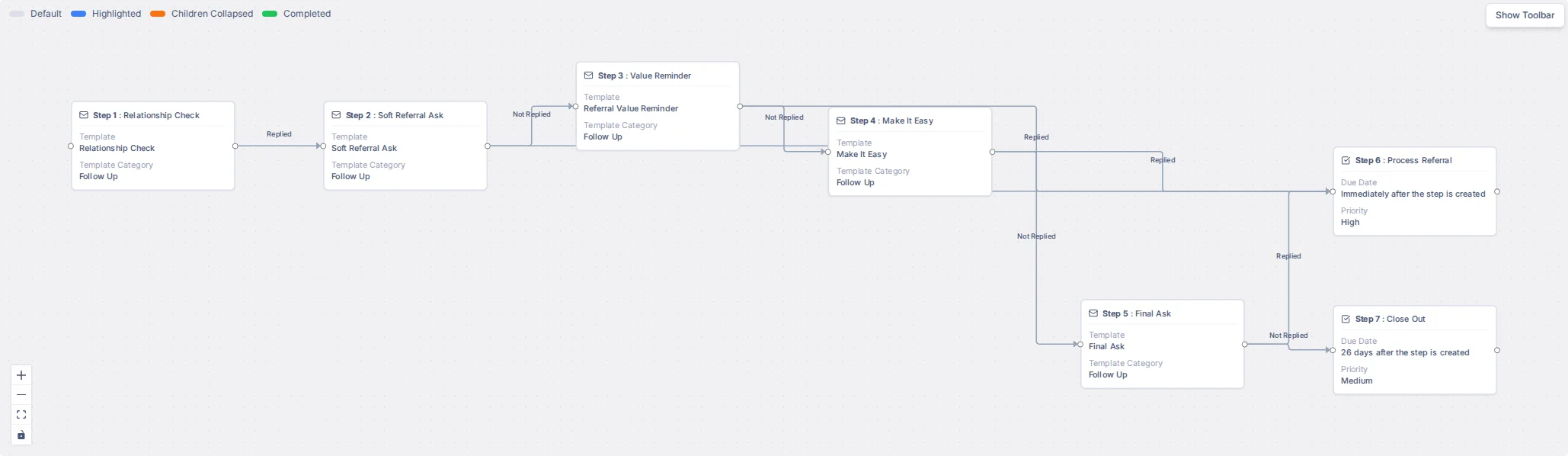
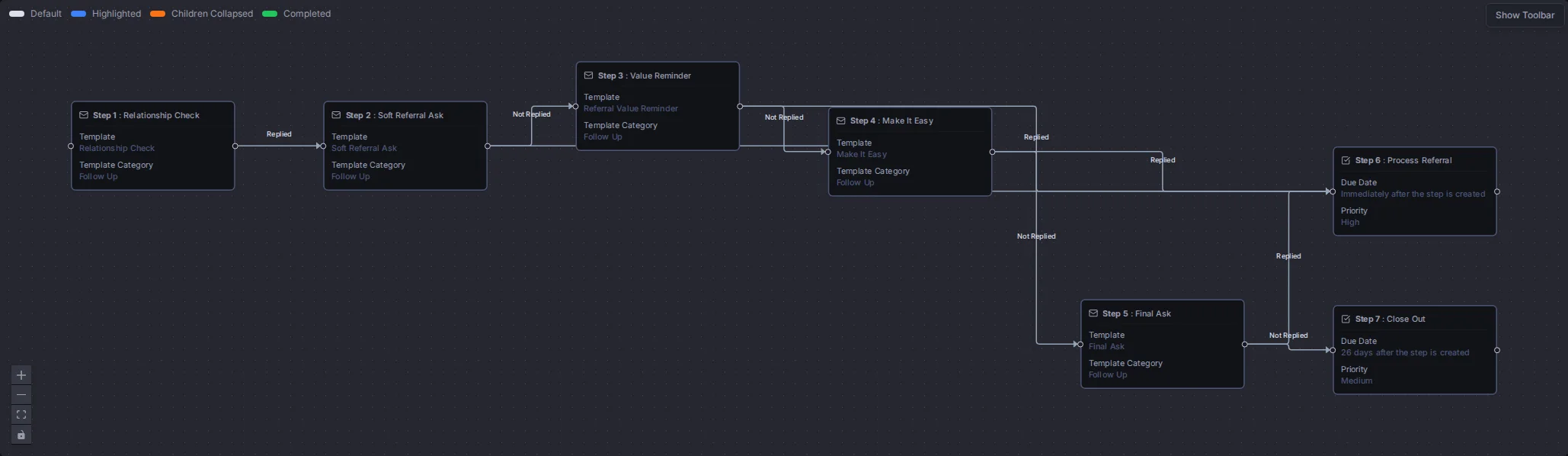
Each picture shows the whole flow. In the builder, close the Toolbar and click the fit view button at the bottom left to see a flow the same way.
New Contact Onboarding
Welcomes a new contact with a few emails and a LinkedIn task. After the check-in email, it splits: a task to respond if they Replied, or more resources and an event invitation if they didn't.
New Lead Welcome
Sends a welcome email, then educational content. If the lead doesn't reply, it books a call. If they reply, it makes a task to respond. Both paths lead to a demo invitation and follow-up emails.
Lead Qualification
Sends a first response, then splits on the reply. A research task and a discovery call lead to a Qualified or Not Qualified email.
Demo Request Follow-up
A long line of emails and tasks before and after a demo. At the attendance check it splits: Completed goes to a post-demo follow-up, Not Started goes to no-show follow-ups.
Cold Outreach
Research, a first email, a LinkedIn task, then follow-up emails and calls. Any reply along the way goes to one task to respond.
Quarterly Check-in
Checks in with a customer each quarter, with an insights email and a call. Replies lead to a task to respond and update the contact.
Re-engagement
Tries to win back a quiet lead or contact with emails and a call. A reply leads to a re-engagement task. No reply ends with a task to mark them unresponsive.
Referral Request
Asks a happy customer for a referral, with reminders. A reply leads to a task to process the referral, and no reply ends with a close-out task.
When people leave a flow on their own
Click View Exit Conditions to see when a person leaves the flow by themselves:
- Leads: deleted, converted, unsubscribed from email, or marked Junk Lead.
- Contacts: deleted, or unsubscribed from email.
These are checked just before each step runs. Replying to a flow email doesn't stop the flow.
Troubleshooting
| You see | Why | What to do |
|---|---|---|
| "Editing disabled - flow has active enrollments" | People are already in the flow | Copy the flow to change its steps |
| "This connection would create a circular flow, which is not allowed" | The connection goes back to an earlier step | Connect to a later step |
| "This flow has an invalid configuration. Please ensure there is only one starting step" | More than one step has no connection coming into it | Connect the extra starting steps |
| "At least one outcome is required when status is completed" | You picked Completed but no outcome | Pick an outcome |
| "From and To steps cannot be the same" | You tried to connect a step to itself | Pick a different step |
| An error when you pick Months or Skip | These can't be saved yet | Use days or weeks, and Exit |
Related
Still stuck?
Tell us what you were trying to do and we will help.