Enroll records in a flow and track progress
Add leads and contacts to an active flow, follow each one through its steps, pause them, and read the flow's dashboard and logs.
Updated 12 October 2026 · 4 min read
Once a flow is Active, you choose who goes through it. Adding someone to a flow is called enrolling them. You can then see where each person is, and how well each step works.
For example, you run a pet grooming salon with a flow for new customers. You open the flow's Eligible Records tab, tick 12 new leads and click Enroll. A week later, the Enrollments tab shows eight still going, three finished and one who left the flow. You called one lead today, so you record that the call step is done, and the lead moves on to the next step.
A flow's page has five tabs: Dashboard, Overview, Eligible Records, Enrollments and Logs.
Before you start
- To see a flow's pages, you need the View Automation permission.
- To add people, pause or resume them, or record a step's result, you need the Edit Automation permission.
- The flow must be Active. See Flows overview.
If you don't have a permission you need, ask your admin.
Add people to a flow
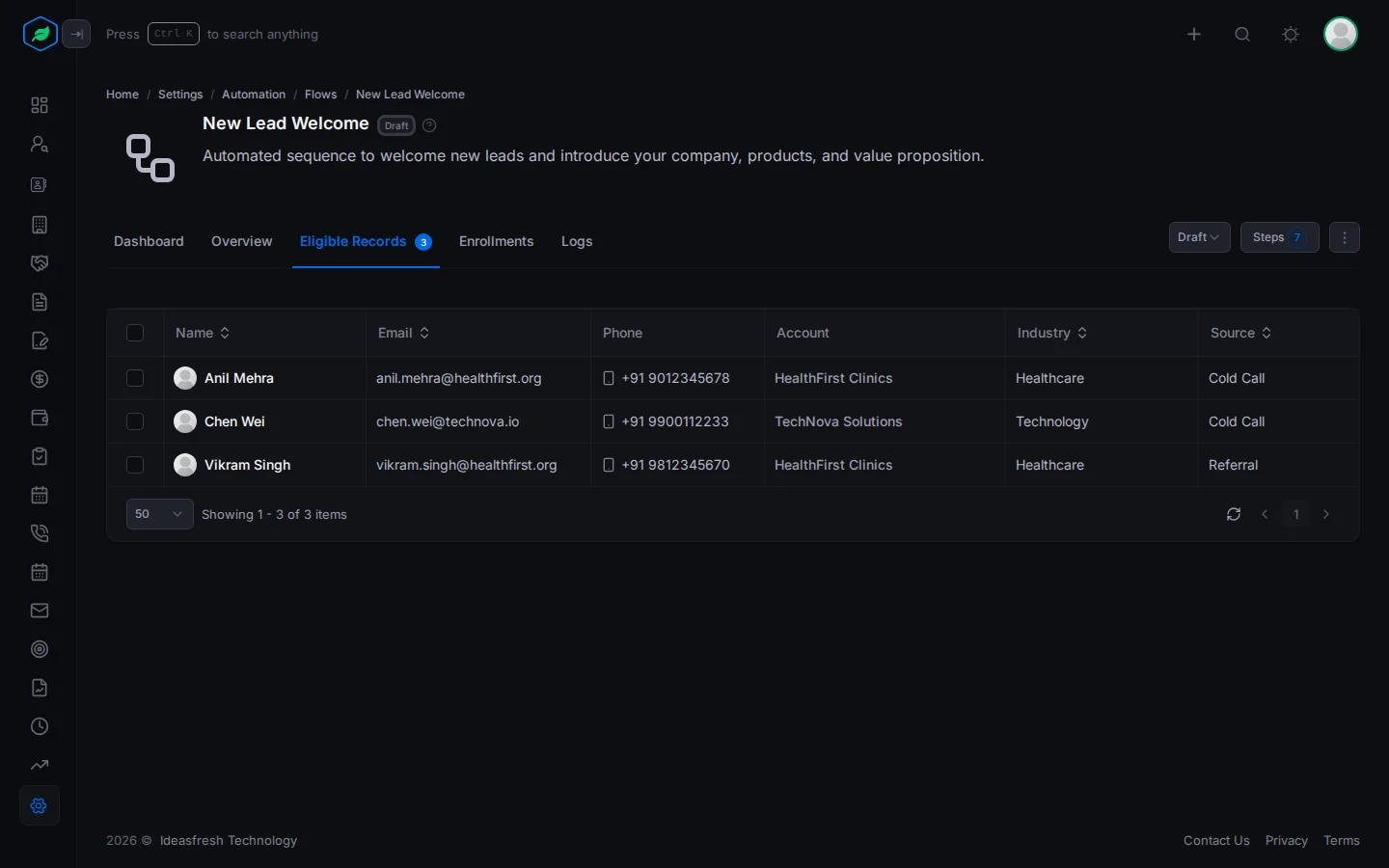
- Open the flow and click Eligible Records. It lists the leads or contacts that meet the flow's conditions and haven't been in it before.
- Tick the people to add.
- Click Enroll and confirm.
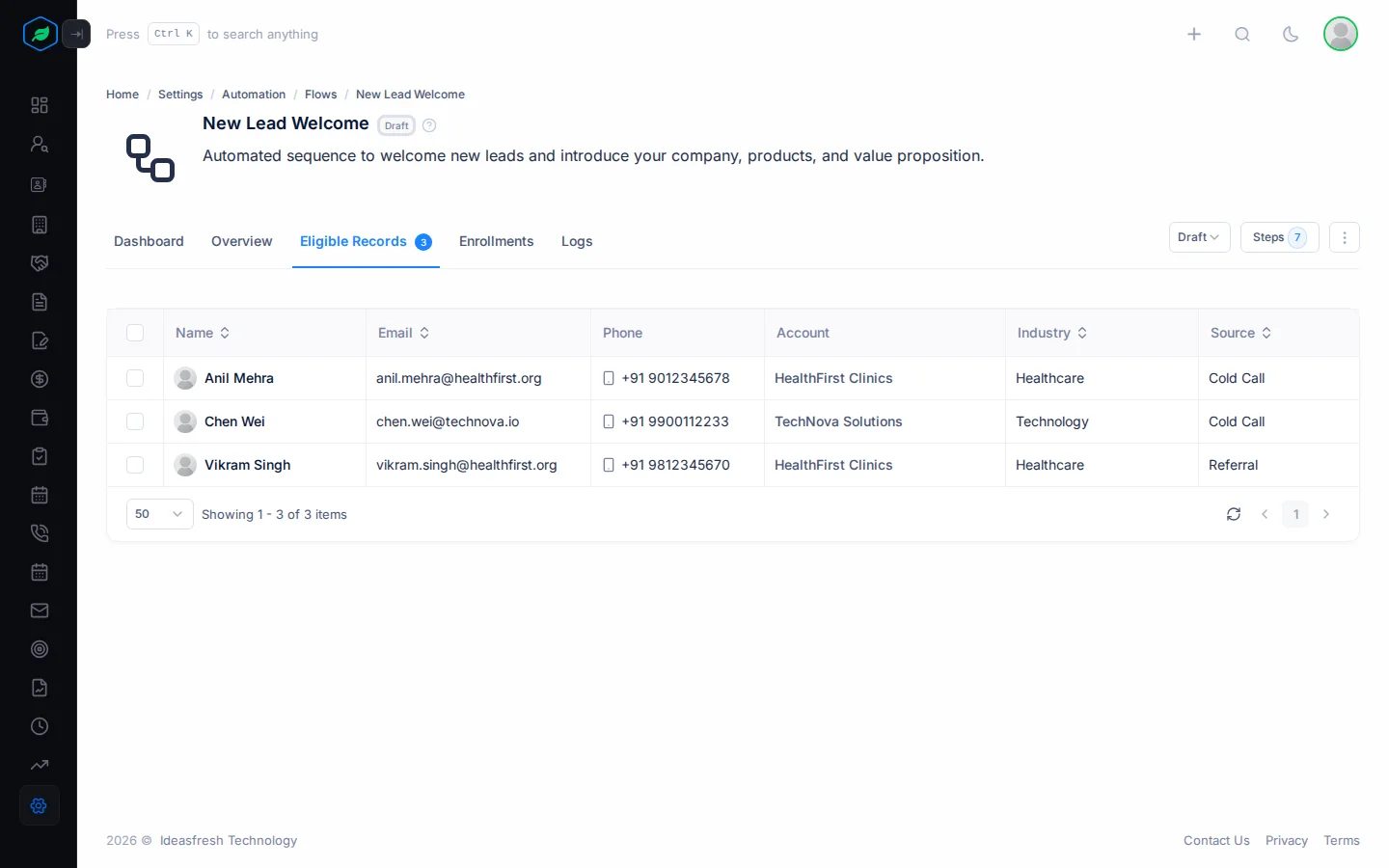
Each person starts at the first step, after the flow's Execute wait. A person can only go through a flow once.
Salesfresh doesn't add people for you. Add new ones from this tab, for example once a week.
People who have unsubscribed from email still show here, marked "This contact no longer wishes to receive our emails". If you add them, they leave the flow at the first step.
Follow each person
Enrollments lists everyone in the flow, with their status, when they started and finished, and why they left, if they did.
| Status | Meaning |
|---|---|
| Active | Moving through the steps |
| Paused | Stopped until someone resumes them |
| Completed | Reached a last step |
| Exited | Left early, such as after a timeout or an exit condition. Exit Reason says why |
On a lead's or contact's Overview, the Enrollments card lists their flows. Click a flow to see its steps, with the finished ones highlighted.
Pause or resume one person
On the Enrollments card, open the flow and click Pause. For example, pause a lead's flow while they are on holiday. To start again, click Resume.
Record a step's result yourself
On the person's flow, click Update Status on a step. Pick the Status, the Outcome if it's a completed task or call, and Completed At, then click Update.
This is how a call's outcome moves the person on. For example, you made the call yourself and the customer was interested. Mark the call step Completed with the outcome Interested, and the person moves to the next step. This doesn't change the call or task itself.
To see each step that ran for this person, click Show Logs.
Dashboard
The Dashboard shows how well the flow works.
| Section | Shows |
|---|---|
| Totals | Total, Active, Completed, Paused and Exited, and Conversion: how many finished out of the total |
| Step Performance | For each step: how often it ran, how often it was completed, the completion rate and how long it took |
| Time Metrics | How long people take to finish |
| Engagement Metrics | For emails, tasks and calls: how many there were, and how many worked or failed |
| Engagement Trends | How many people were added, finished and failed, by day, week or month |
| Exit Analysis | Why people left, and at which step |
For example, if Exit Analysis shows most people leave at the second email, try a different template for it.
Logs
Logs lists every step that ran: when it started and finished, which step it was, its status, and who it was for.
Troubleshooting
| You see | Why | What to do |
|---|---|---|
| Enroll is greyed out: "Flow must be Active to enroll records" | The flow isn't Active | Set the flow to Active on its page |
| "No Eligible Records found" | Nobody meets the conditions, or everyone has already been in the flow | Check the conditions on Overview |
| "The following entities do not meet the flow criteria: …" | Some people you ticked no longer meet the conditions | Untick them and try again |
| "This entity is already enrolled in this flow. Please exit the current enrollment first." | The person is already in the flow | Nothing to do |
| An email step shows Sent, but nothing arrived | The template was deleted, or the email bounced | Check the template and the person's email address |
Related
Still stuck?
Tell us what you were trying to do and we will help.