Send a quote
Email a quote to your customer with its PDF attached, what happens when you send it, and how to preview or download the PDF.
Updated 9 October 2026 · 5 min read
When a quote is ready, email it from Salesfresh. The customer gets your message with the quote attached as a PDF, and the quote moves from Draft to Sent.
For example, a new customer asks for a price. You open the quote and click Send Quote. The customer's email is already filled in, so you pick a template and click Send. The quote goes out in a minute, and you get a task to call the customer a few days later, so the offer isn't forgotten.
Before you start
- You need the Send Quotes permission, and you must be the quote's owner or creator.
- Only Draft quotes can be sent. To resend a rejected quote, move it back to Draft first.
- Each email counts towards your plan's monthly email allowance. See Plans and limits.
Send the quote
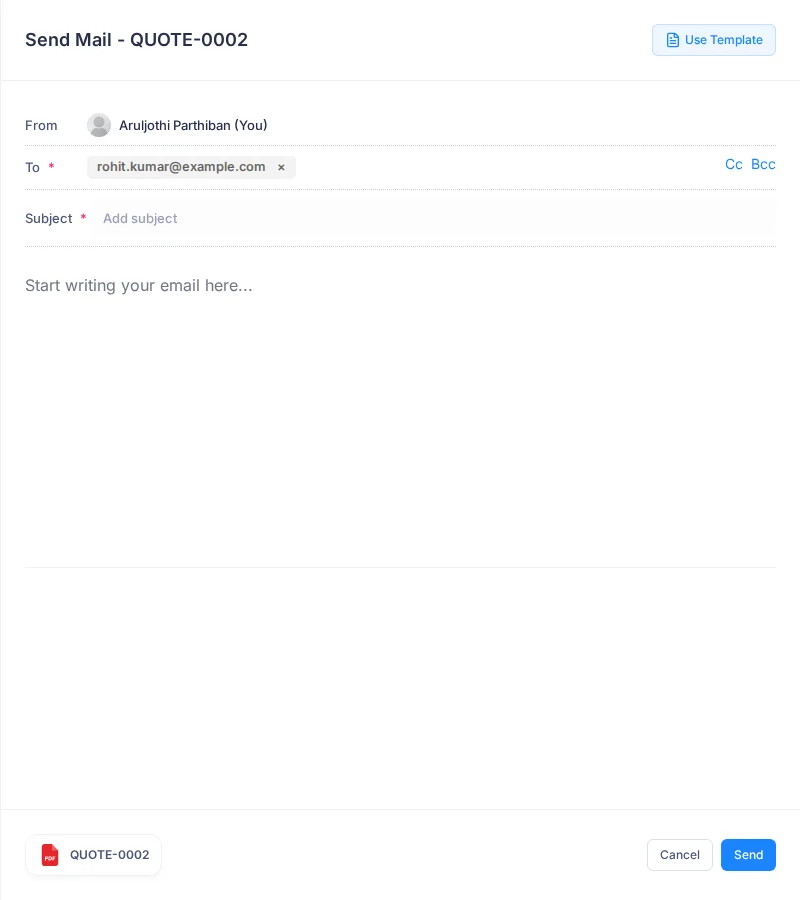
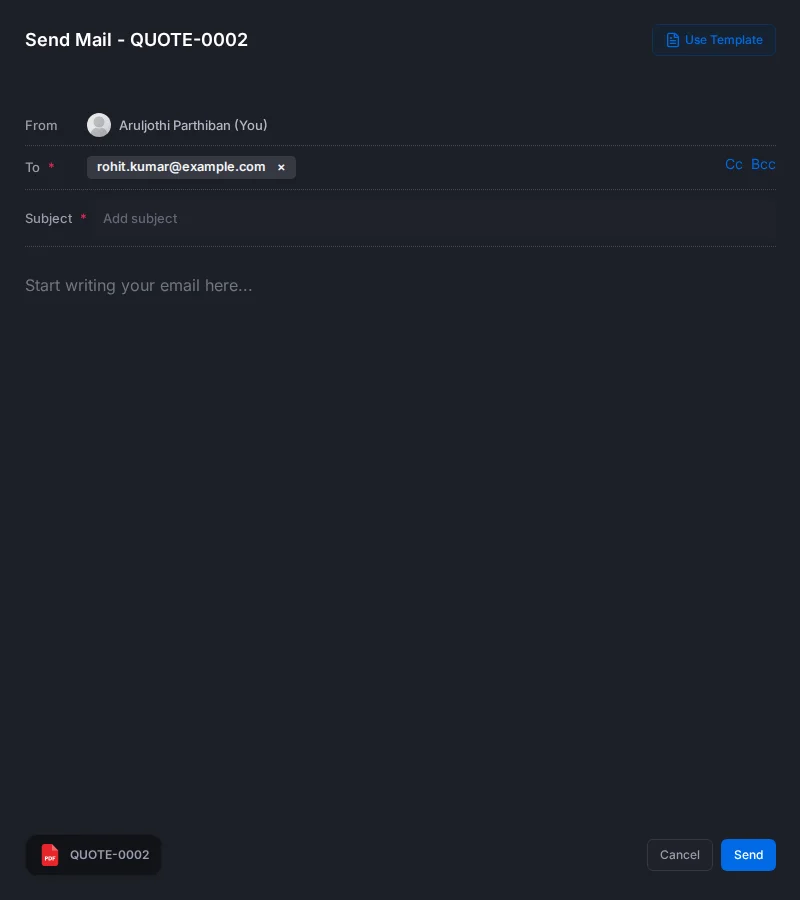
- Open the quote and click Send Quote. The Send Mail panel opens.
- Check To. It starts with the contact's email. Put everyone who should receive the quote in To.
- Enter a Subject and a message, or click Use Template to start from a quote email template.
- Check the attachment: the quote's PDF, named after its number.
- Click Send.
Use a template
Writing the same quote email again and again takes time. A template gives you a ready-made subject and message.
-
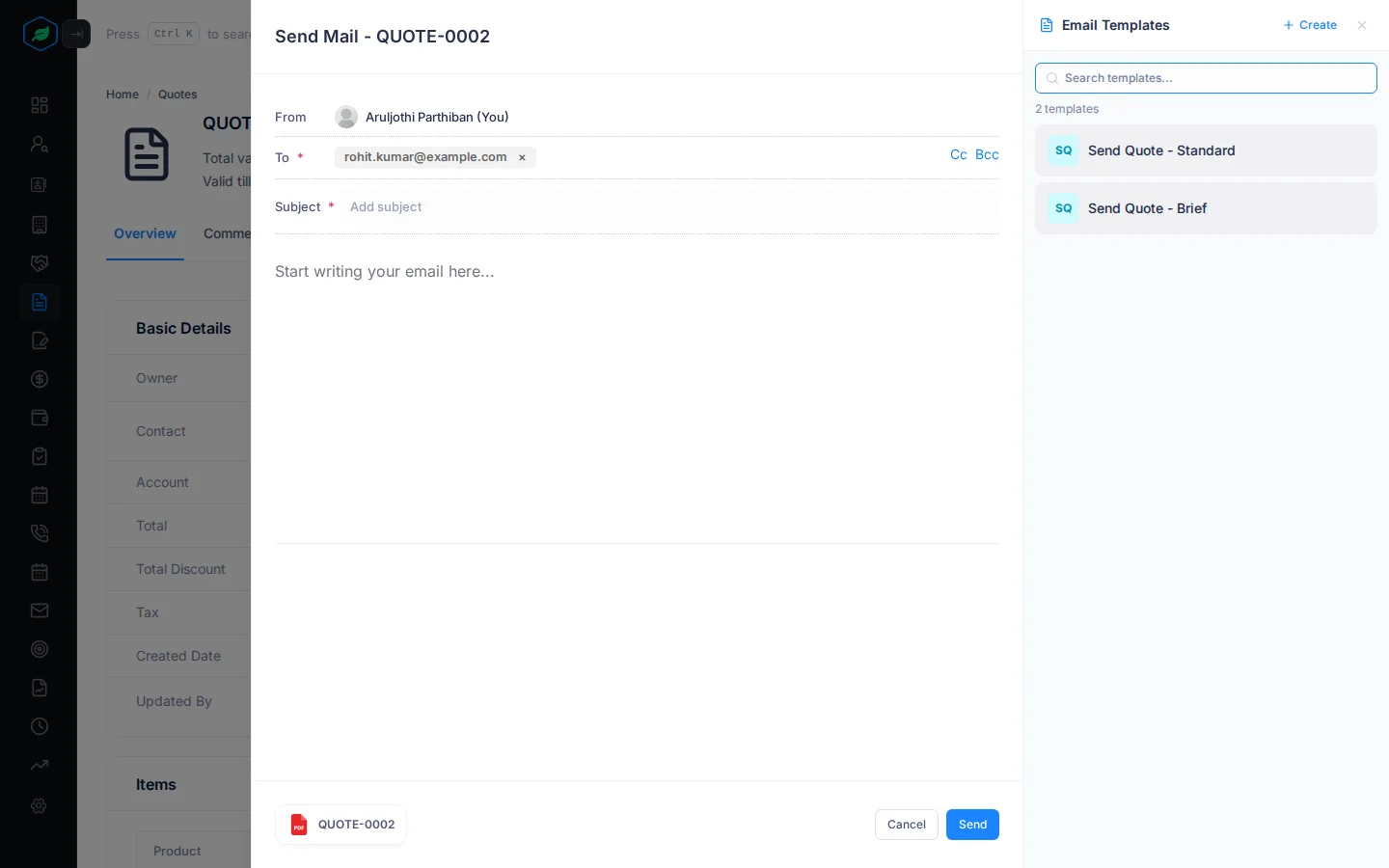
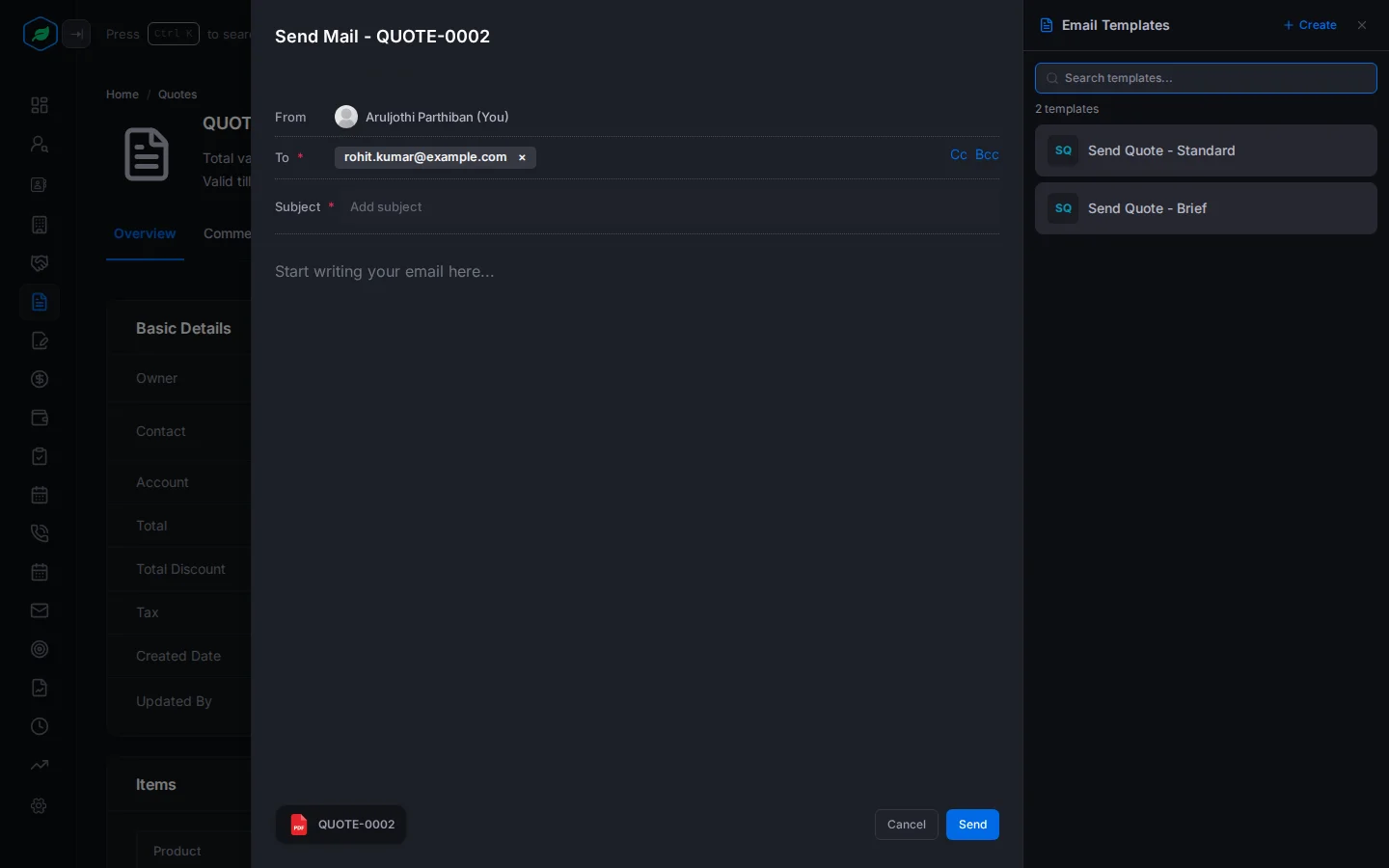
In the Send Mail panel, click Use Template. The Email Templates panel opens next to it, with your quote email templates. Every company starts with two: Send Quote - Standard and Send Quote - Brief. To make your own, click + Create.
-
Click a template. The list closes, and the template's subject and message are filled in for you. You can still change them before you send.
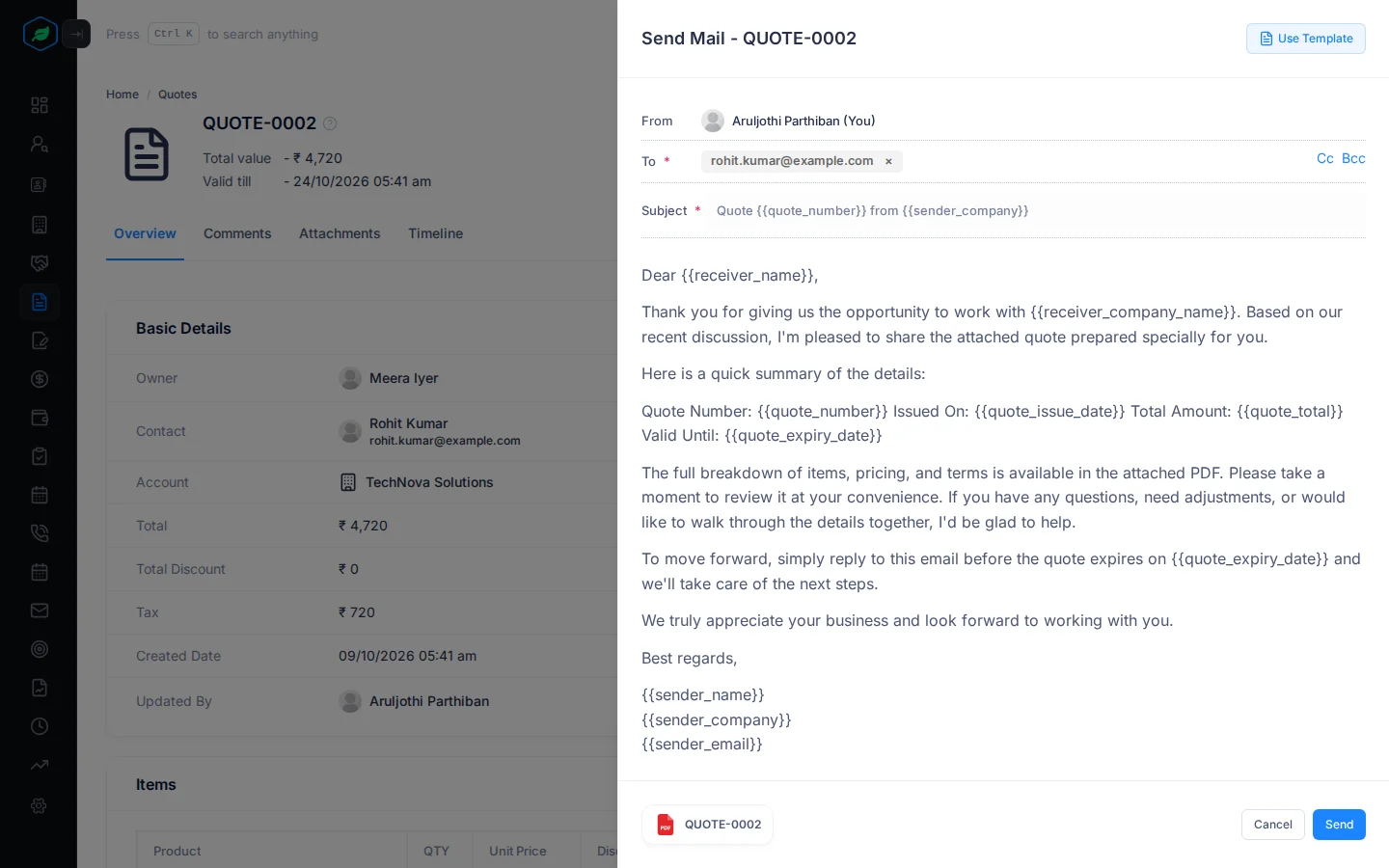
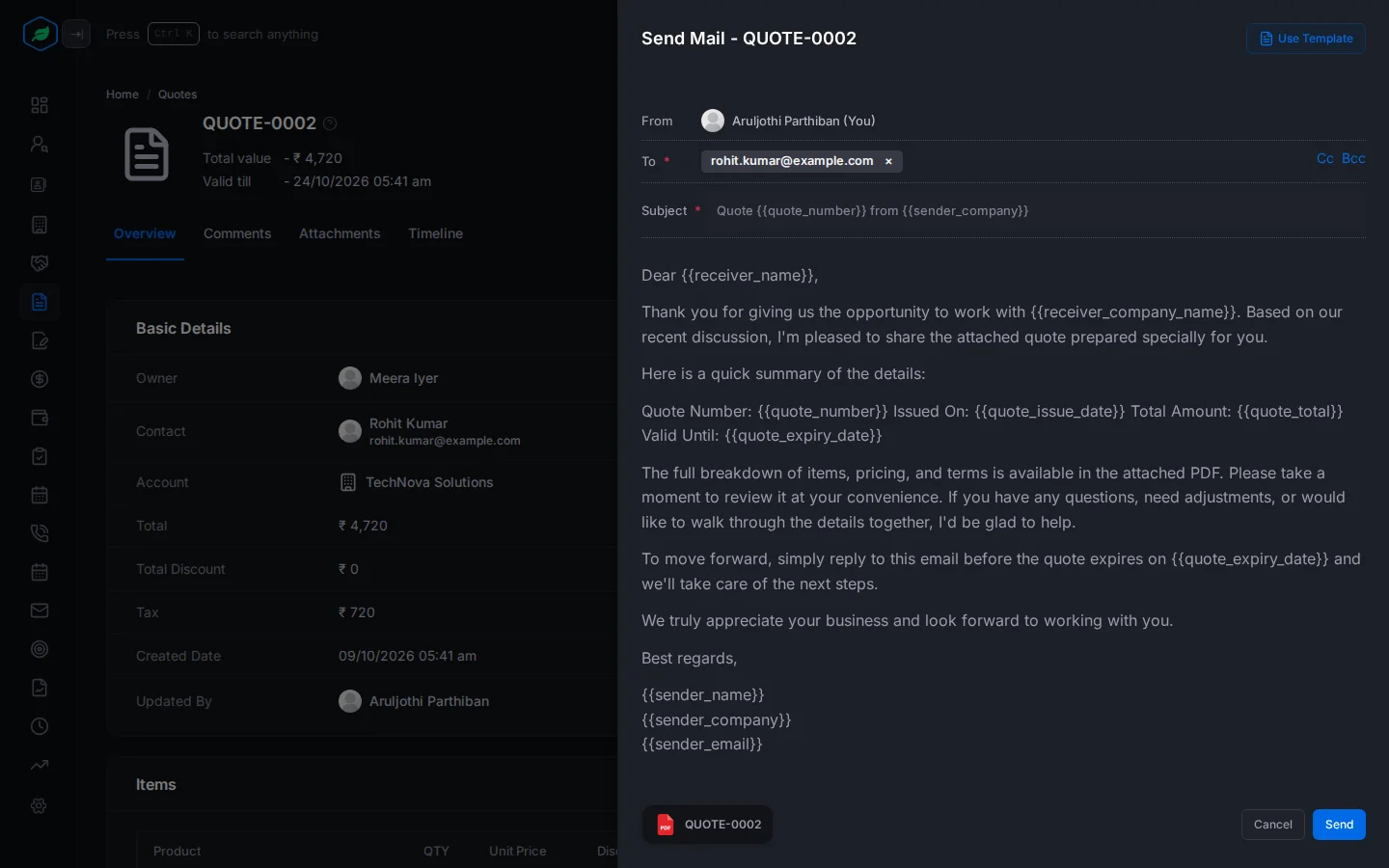
The words in double curly brackets are placeholders. Templates can include placeholders such as {{receiver_name}}, {{sender_company}}, {{quote_number}}, {{quote_total}}, {{quote_currency}}, {{quote_issue_date}} and {{quote_expiry_date}}. When the email is sent, they are replaced with the quote's real details, such as the customer's name and the quote number.
Placeholders save you typing the same details into every email, and they stop mistakes. For example, a subject of Your quote {{quote_number}} becomes Your quote QUOTE-0001 when you send it.
What happens when you send
- The email is sent from Salesfresh on your behalf. When the customer replies, the reply goes to your email address.
- The quote's status becomes Sent and the sent date is recorded on its Overview.
- If Create task to follow up with contact after sending quote was on, the quote's owner gets a task: "Follow up for quote approval - QUOTE-0001". It is due a set number of business days after sending (your admin sets how many), and never later than the quote's Valid Till date.
Accepting or rejecting the quote later marks that follow-up task as done.
Why the follow-up task matters
Customers often read a quote and then forget to reply. The task reminds you to call them before the offer runs out. It is linked to the quote's contact, so it also shows on the contact's page.
You turn this on or off on the quote's form, before you send it. It is on by default. See Create and edit a quote.
Automatic follow-up emails
Your admin can set up Auto-Send Followups in Settings > Automation > Quote Automation. These email the customer again a set time after a quote is sent, as a reply in the same email thread. They need a paid plan.
For example, if the customer hasn't replied after a few days, they get a short reminder in the same thread as your quote. See Quote follow-ups.
Preview and download the PDF
The PDF uses your company's quote template, logo, terms and footer. See Quote templates.
Preview
Click Preview to open the quote's PDF in a new tab. It is also on the quotes list row menu.
Check the preview before you send. It shows exactly what the customer will get, so you can spot a wrong price or a missing item first.
Download
Click Download to save the PDF to your computer. This is useful when you need to share the quote another way, such as printing it for a meeting.
After sending
Record the customer's answer on the quote's page: mark it Viewed once they have seen it, then Accepted or Rejected. See The quote detail page.
Troubleshooting
| You see | Why | What to do |
|---|---|---|
| Send Quote is greyed out: "You don't have permission to send quotes" | Your role cannot send quotes | Ask an admin |
| "At least one 'To' email is required." | The To field is empty | Add the customer's email |
| "Subject is required." | The subject is empty | Enter a subject |
| "Message is required." | The message is empty | Write a message, or use a template |
| "You have reached your email limit of N for this billing period. Please upgrade your plan for more." | Your plan's monthly emails are used up | Wait for the next billing period, or upgrade |
Related
Still stuck?
Tell us what you were trying to do and we will help.