Quotes: overview, statuses and list
What a quote is, how it moves from Draft to Sent to Accepted, how quotes become deals, and how to find them in the quotes list.
Updated 9 October 2026 · 9 min read
A quote is a priced offer you send to a customer: products, quantities, prices, discounts and tax, for one contact at one account. You email it as a PDF, record the customer's answer, and turn an accepted quote into a deal. Quotes shows every offer your team has made, and what each customer said.
For example, you send price offers to ten shops this month. Open Quotes, and the status chips show how many are Sent, Accepted or Rejected. Pick the Valid This Month view to see the offers that end soon, and follow them up before they run out. When a shop says yes, click Create Deal on its quote to turn it into a deal. No reply gets forgotten.
Before you start
| You want to | You need |
|---|---|
| See quotes | The View Quotes permission |
| Create or clone quotes | The Create Quotes permission, and View Quote Settings to open the form |
| Edit quotes or change their status | The Edit Quotes permission. You must also be the quote's owner, or the person who created it |
| Email quotes to customers | The Send Quotes permission. You must also be the owner or the creator |
| Delete quotes | The Delete Quotes permission. You must also be the owner or the creator |
You also need at least one active product. Admins set up products in Settings > Product Management.
How many quotes your company can have depends on your plan. See Plans and limits.
How quotes are created
Add one yourself
Click Create Quote on the quotes list, or click the + button at the top of any page and choose Quote. Fill in the form. See Create and edit a quote.
From a contact's products
Contacts can have a list of products they are interested in, on their Products tab. When the contact asks for a price on one of them, you can start the quote from there instead of from a blank form.
For example, a contact told you last month that they are interested in your payroll software. Today they ask for a price.
- Open the contact and go to the Products tab.
- Find the payroll software, open its ⋮ menu and click Create Quote.
- A new quote opens with the product, the contact and their company already filled in. Add the quantity and any discount, then save it.
You don't have to look up the contact or search for the product again. See Interested products.
By cloning
Copy an existing quote as a new draft, then change what's different. This helps when you make the same offer to another customer. See Clone a quote.
Moving from another CRM, such as Salesforce, HubSpot or Zoho? Contact us and our team will handle the migration for you. You don't need to type your old offers in again.
Quote statuses
A quote's status tells you where the offer stands. Each status can only move to the next ones in the table.
| Status | What it means | What can come next |
|---|---|---|
| Draft | You are still preparing it. A quote can only be edited in Draft | Sent |
| Sent | It has been emailed to the customer | Viewed, Rejected |
| Viewed | The customer has seen it | Accepted, Rejected |
| Accepted | The customer said yes | Deal Created |
| Rejected | The customer said no | Draft, so you can change it and send it again |
| Deal Created | A deal was made from the quote | Invoice Generated |
| Invoice Generated | The customer has been invoiced. This is the last status |
- Sent is set when you email the quote from Salesfresh.
- You set every other status yourself, on the quote's page. A quote must be marked Viewed before you can mark it Accepted.
- Deal Created is set when you click Create Deal on an accepted quote, or when a quote conversion rule makes the deal for you.
To change a status, see The quote detail page.
The quotes list
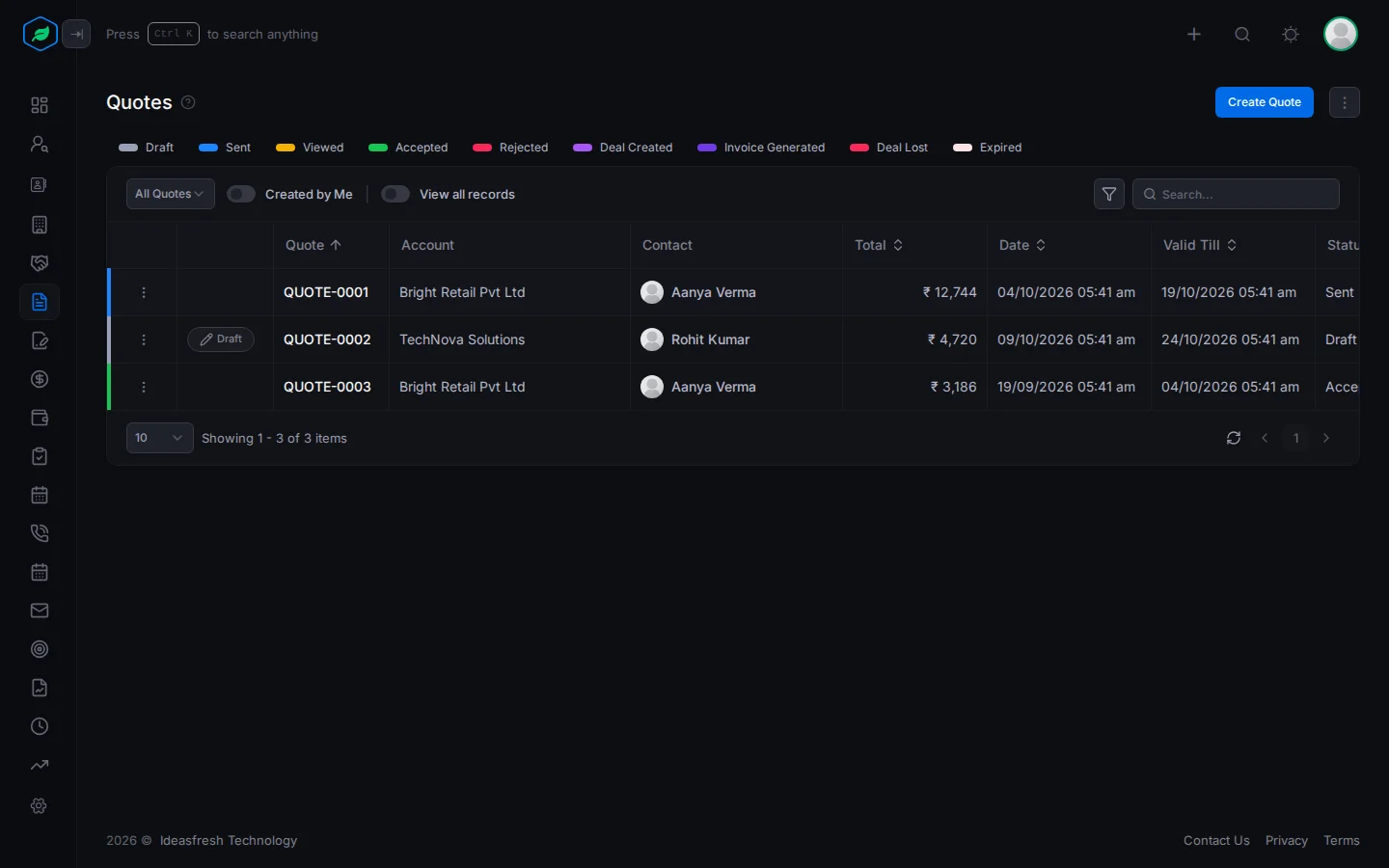
Click Quotes in the sidebar. Above the table there is a coloured chip for each status. Click a chip to see only the quotes in that status. Click it again to see all quotes.
The table shows Quote (its number), Account, Contact, Total, Date, Valid Till, Status, Owner and Created By. A Draft badge means the quote is a copy that hasn't been saved yet.
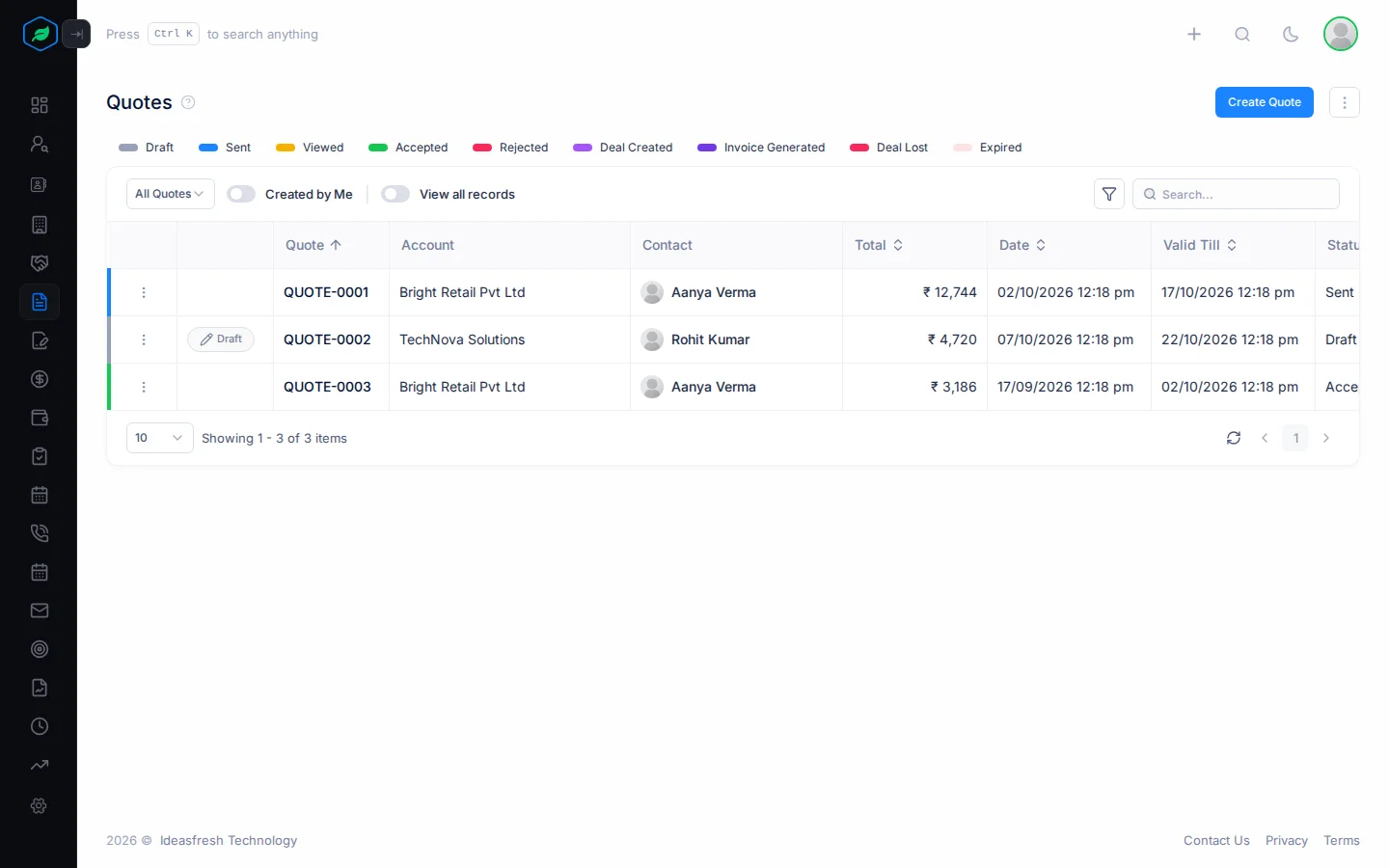
Toolbar
| Control | What it does |
|---|---|
| View list | Switch to another saved view. See Views |
| Created by Me | Show only the quotes you created. You won't see this on the My Quotes views |
| View All Records | Shows the quotes of everyone in your company, not just the ones you are allowed to see by default. For example, a sales manager can use it to check all the team's quotes. To see this switch, your role needs the View All Records permission. Ask your admin if you need it |
| Filter (funnel icon) | Show only the quotes that match what you need. See Filter the list |
| Search | Searches the quote number and notes |
Filter the list
Want to see only certain quotes, for example sent quotes worth more than 50,000? Use the filter to find them.
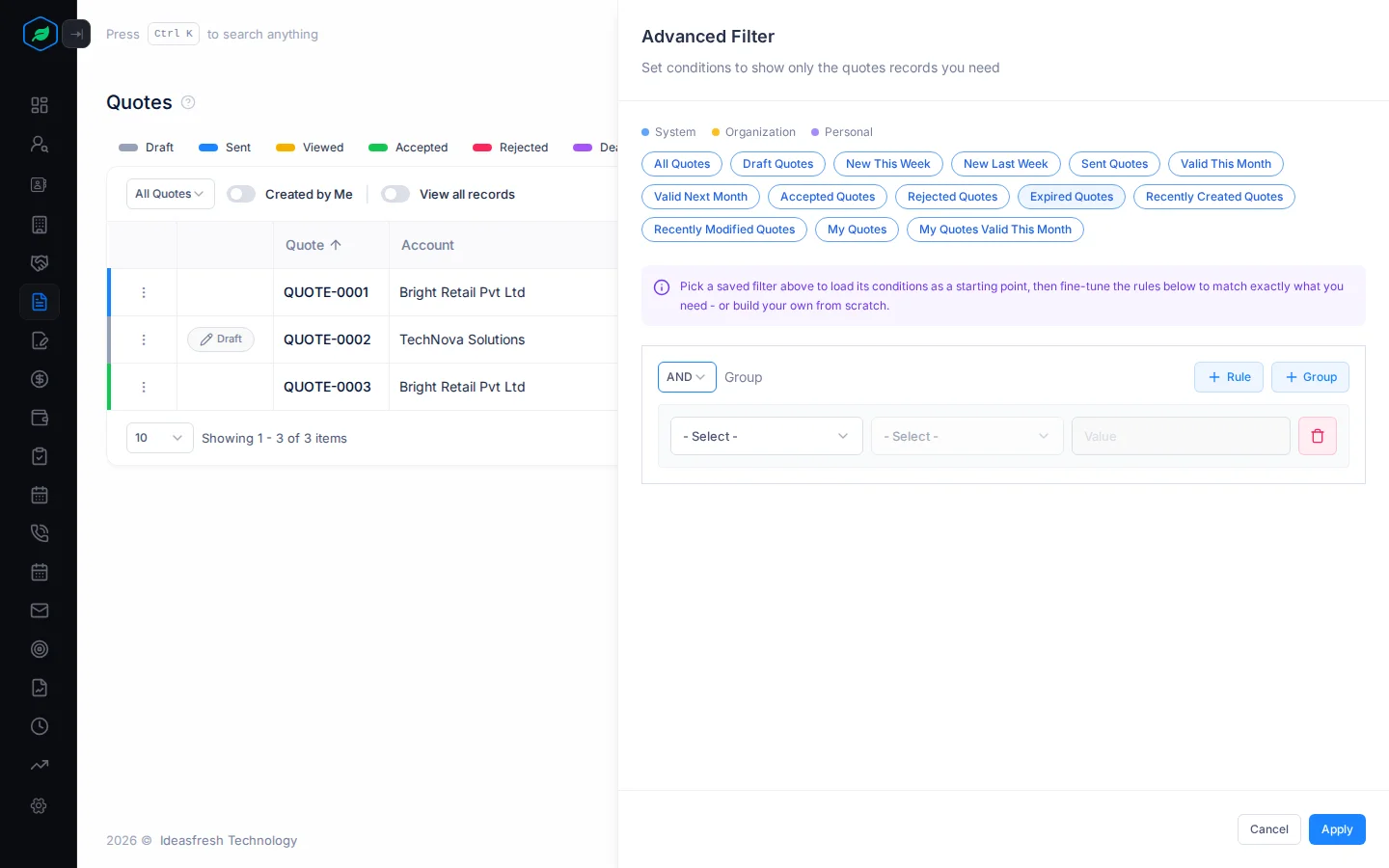
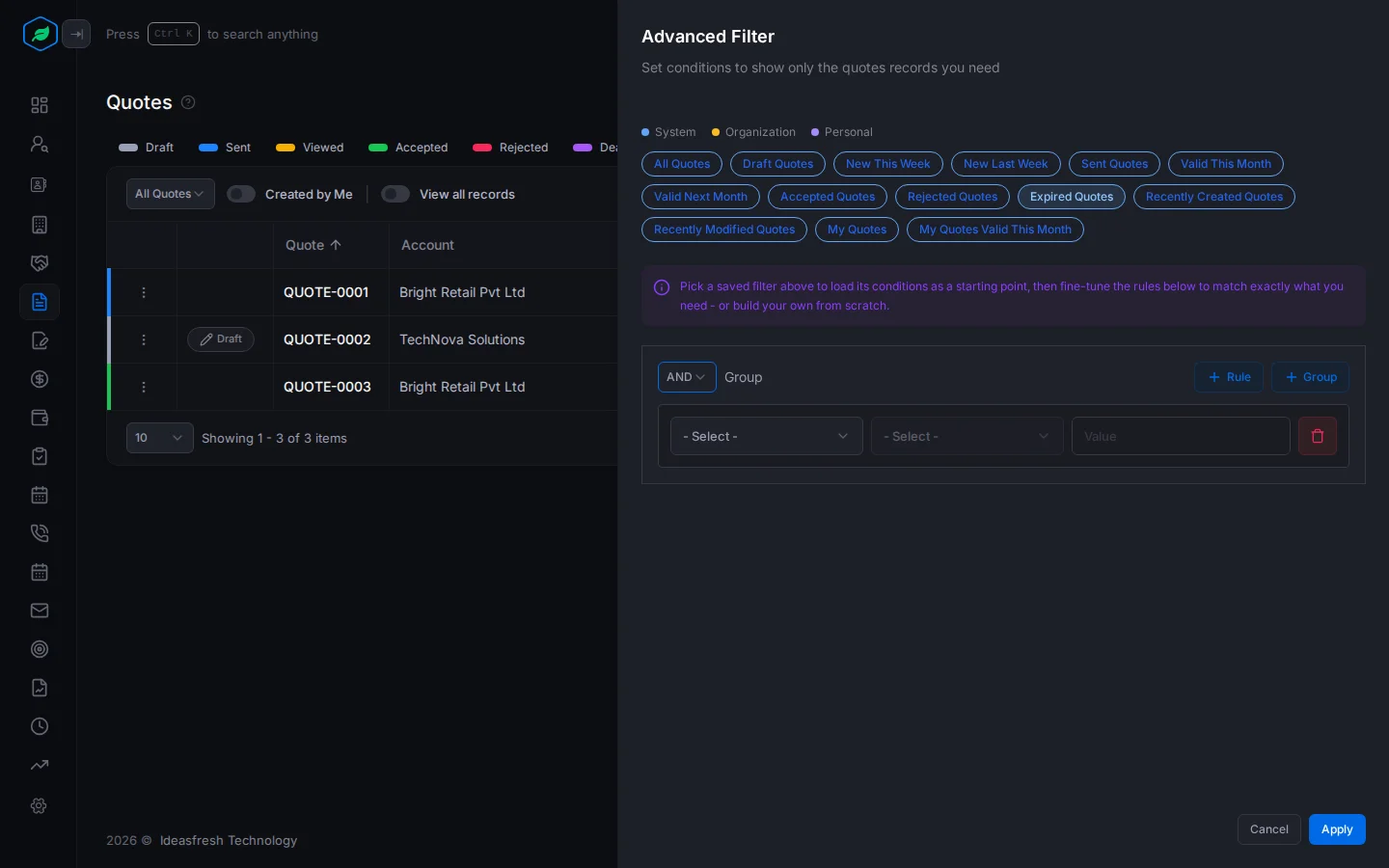
- Click the funnel icon. The Advanced Filter panel opens.
- Click a saved filter at the top, such as one of your views. Its conditions are loaded below, and you can change them. Or start with an empty condition.
- Build your conditions. Pick a field, how to compare it, and a value. Click + Rule to add another condition, or + Group to add a set of conditions.
- Choose AND to show quotes that match every condition, or OR to show quotes that match any of them.
- Click Apply. The list now shows only the quotes that match.
To see all quotes again, click Clear Filter. The filter isn't saved, so if you want to use the same filter again later, ask your admin to add it as a view. You can't use the filter while View All Records is on.
Views
A view is a saved filter. Every company starts with these:
| View | Shows |
|---|---|
| All Quotes | Every quote |
| Draft Quotes | Quotes still in Draft |
| New This Week | Quotes created this week |
| New Last Week | Quotes created last week |
| Sent Quotes | Quotes with the status Sent |
| Valid This Month | Quotes whose Valid Till date is this month |
| Valid Next Month | Quotes whose Valid Till date is next month |
| Accepted Quotes | Quotes with the status Accepted |
| Rejected Quotes | Quotes with the status Rejected |
| Expired Quotes | Quotes whose Valid Till date has passed |
| Recently Created Quotes | Quotes created this week, up to today |
| Recently Modified Quotes | Quotes changed this week, up to today |
| My Quotes | Quotes you own |
| My Quotes Valid This Month | Quotes you own whose Valid Till date is this month |
Expired Quotes helps you clean up. An offer that has run out with no answer is a good reason to call the customer, or to send a new quote with fresh prices.
Row actions
Click the menu at the start of a row to see what you can do with that quote.
| Action | You see it when |
|---|---|
| Preview | Always. It opens the quote's PDF in a new tab, so you can check what the customer sees |
| Edit | You can edit quotes, you own or created the quote, and it is in Draft |
| Clone | Always. It is greyed out if you can't create quotes |
| Delete | You can delete quotes, and you own or created the quote |
Who can see and change a quote
Your admin decides who can see quotes, in Settings > Data Share Policies. It starts as Company Wide.
| Setting | Who sees a quote |
|---|---|
| Company Wide | Everyone in the company |
| Team Based | Everyone in the team picked on the quote, which is one of the owner's teams |
| Owner Only | Only the quote's owner |
| Owner and Team | The owner, and everyone in the team picked on the quote |
The person who created a quote can always see it.
Being able to see a quote doesn't mean you can change it. To edit it, change its status, send it or delete it, you need the permission and you must be the owner or the creator.
To give all of one person's quotes to someone else, open the ⋮ menu at the top right of the quotes list, next to Create Quote, and click Change Owner.
Emails owners get
| Who gets it | When | |
|---|---|---|
| New Quote Assignment | The owner | Someone else creates a quote for them, or makes them its owner |
| Quote Reassigned to Another Owner | The old owner | Someone else gives their quote to a new owner |
| Quote Status Change | The owner | Someone else changes the quote's status by hand |
Don't want these emails? Turn them off in Notification settings.
Deleting a quote
Open the quote's menu, click Delete and confirm. A Draft quote is erased straight away. Any other quote is removed from every list, and erased after your company's retention period.
Quotes don't have a recycle bin. A deleted quote cannot be restored by users. Check before you delete.
Troubleshooting
| You see | Why | What to do |
|---|---|---|
| "Quote not found" | The sharing rules hide the quote from you, it was deleted, you don't own it and didn't create it, or the action needs the quote to be in Draft | Ask the quote's owner, or check its status |
| "You have reached the maximum of N quotes on your current plan. Please upgrade for more." | You have used up your plan's quote limit | Upgrade from My Subscription. See Plans and limits |
Related
Still stuck?
Tell us what you were trying to do and we will help.