Quote terms and conditions
Write the terms printed on your quotes, keep several sets, choose the default, and understand how changes reach quotes already sent.
Updated 9 October 2026 · 4 min read
Terms and conditions are the rules printed on every quote, such as when to pay and what the warranty covers. You write them once, keep several sets, and pick the right set on each quote.
For example, your company sells computers and also repairs them, and each needs different rules. You make one set called "Hardware Supply Terms" and one called "Repair Service Terms", and make the hardware set the default. When someone makes a repair quote, they pick "Repair Service Terms" in Terms. Every quote carries the right rules, and nobody types them again or forgets a line.
Terms also protect you when something goes wrong. Say a customer pays a month late, or asks for extra work after agreeing to a price. If your terms say late payments cost 2% a month, or that scope changes can change the price, you can point to the quote they accepted.
Before you start
- To view terms, you need the View Quote Settings permission. To add, change and delete them, you need Create, Edit and Delete Quote Settings.
- Every company starts with a Default set of four common terms, which you can edit.
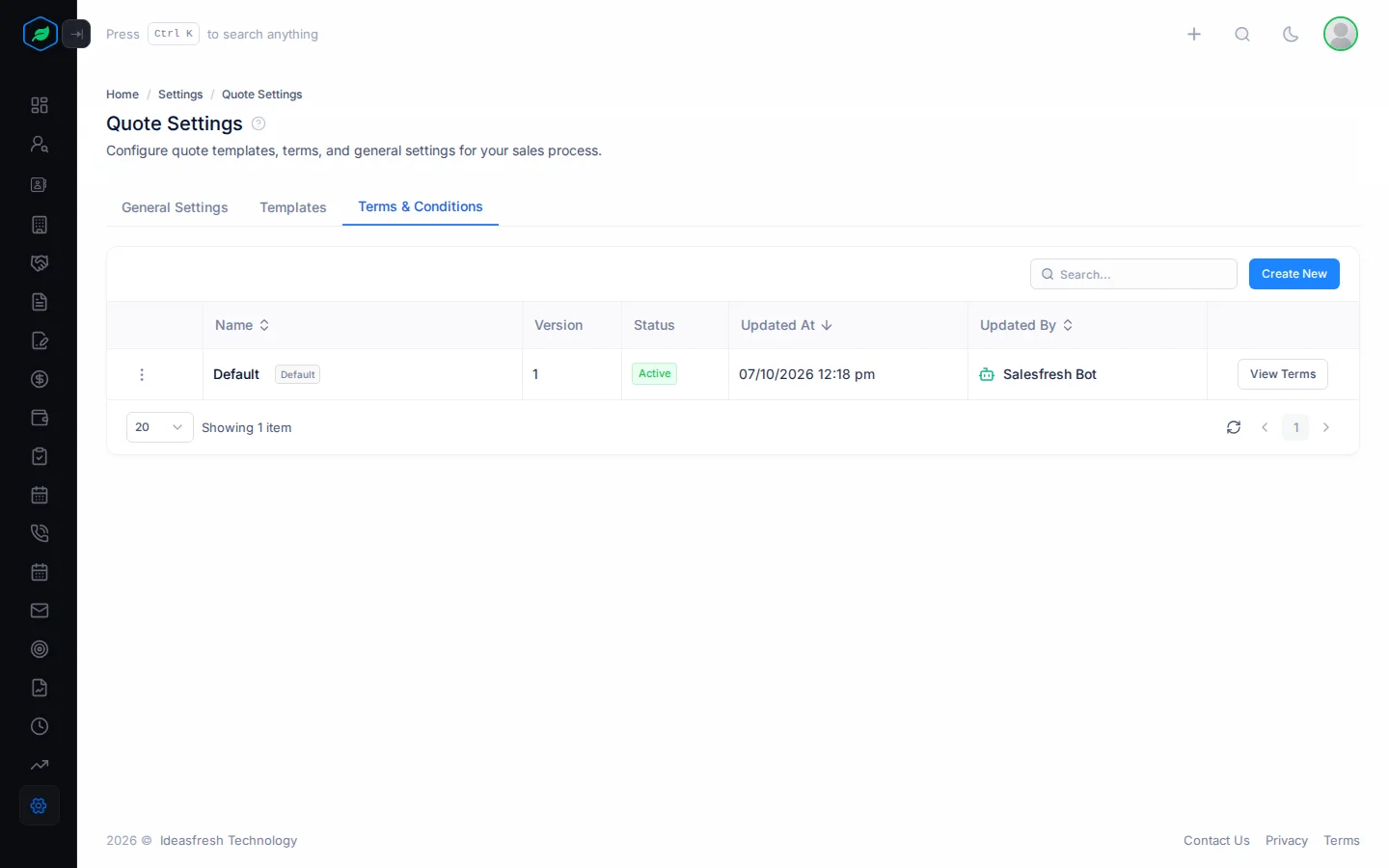
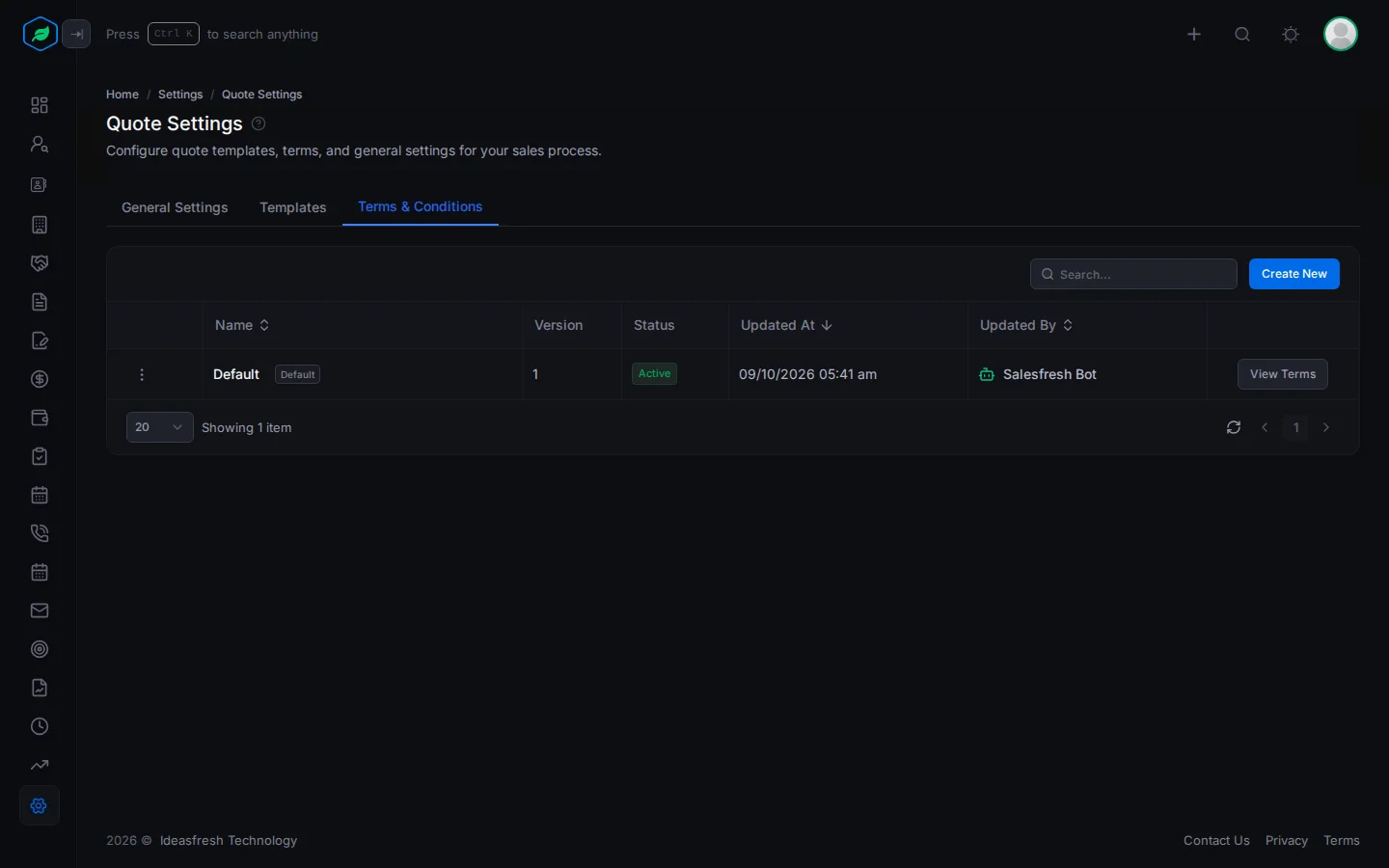
To open it, go to Settings > Quote Settings and click the Terms & Conditions tab.
The Default set
The Default set has these four terms:
- Quote valid for 15 days from the issue date.
- Payment due within 7 days of invoice.
- Any changes to the scope may affect the final price.
- Late payments may incur a 2% monthly interest fee.
Check them against how you work. For example, if you change Default Quote Validity Days in Quote settings to 30, change the first term to match. Otherwise your quote says two different things.
The list
Each set shows its name (with a Default badge on the default one), version, status, when it was last updated and who updated it. View Terms shows its text. Use the search box to find a set by its name, terms or notes.
Add a set of terms
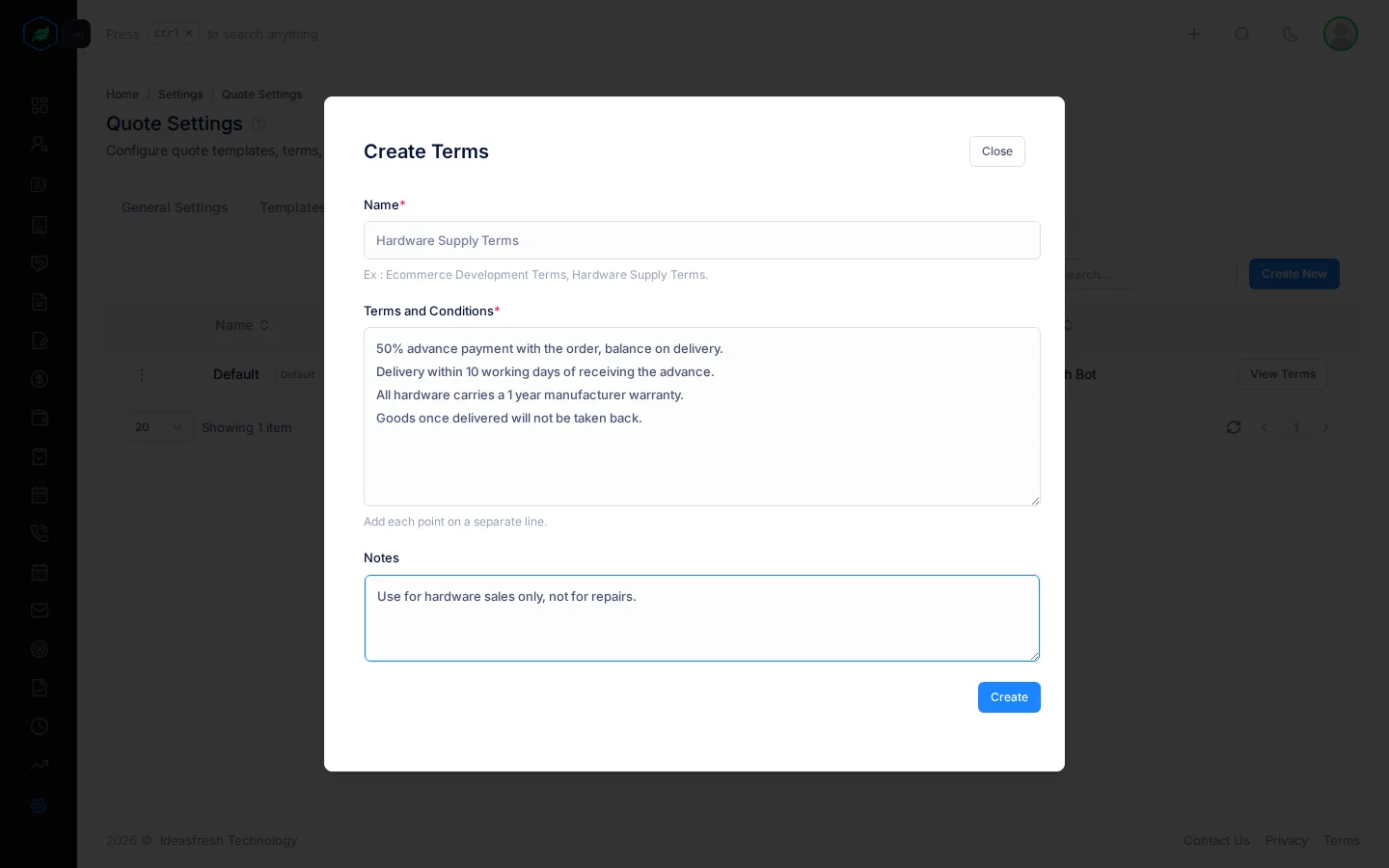
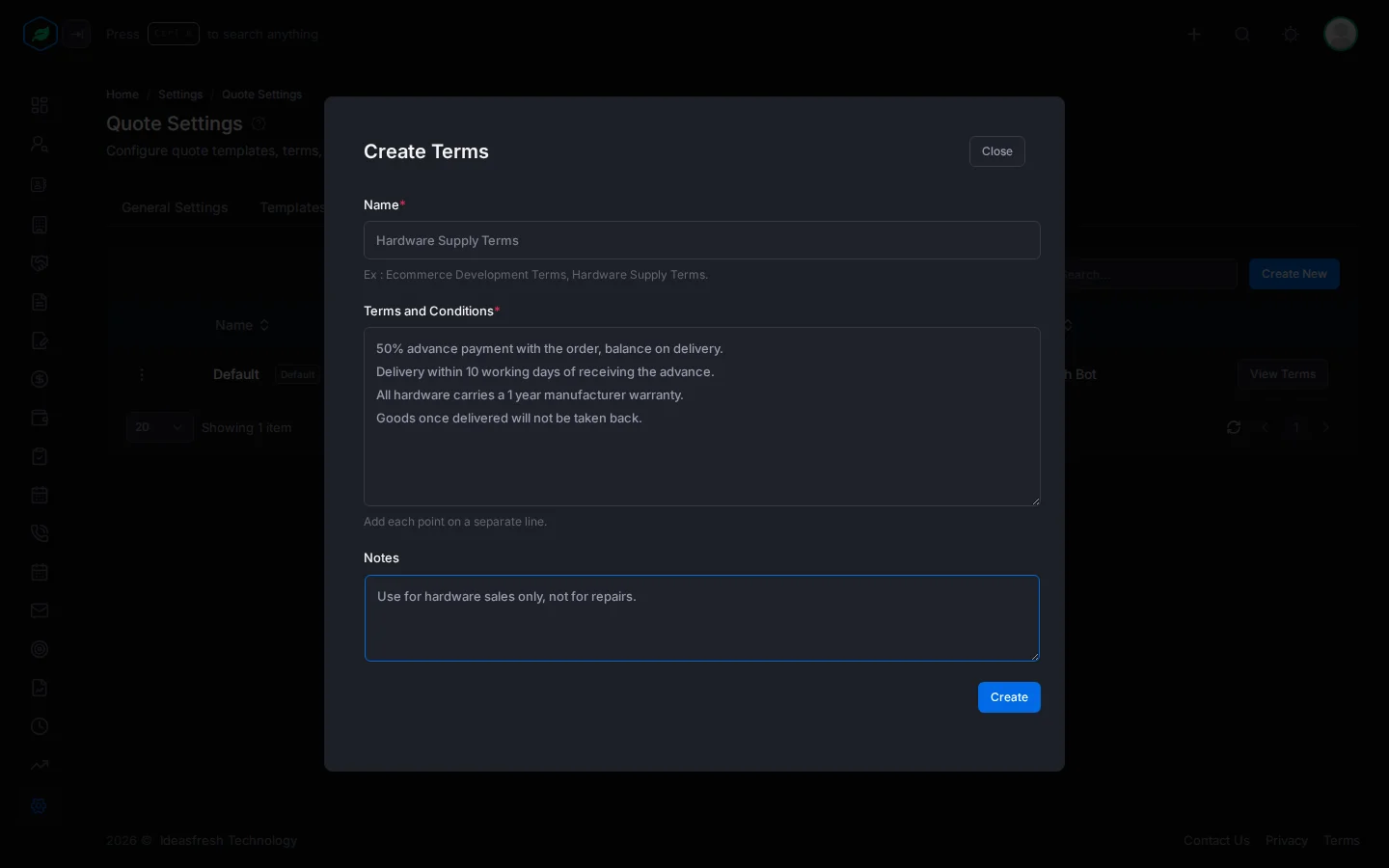
- Click Create New. The Create Terms window opens.
- Enter a Name, for example "Hardware Supply Terms".
- Write the Terms and Conditions, one point per line. Each line prints as its own point.
- Add Notes for your team if you like.
- Click Create.
Use a name no other set has. Creating a set with an existing name replaces that set's terms, including on quotes already sent.
Edit terms
Choose Edit from the set's menu, change it and click Update. Each edit raises the version number.
Quotes point to their terms rather than keeping a copy. Editing a set changes it on every quote that uses it, including quotes already sent, the next time their PDF is generated. To change terms only for future quotes, clone the set and edit the copy.
Choose the default
Choose Mark as default from a set's menu. You see "Your default term has been updated."
New quotes start with the default terms. You can pick a different set on any quote.
Clone a set
Choose Clone from the set's menu and confirm. The copy is named "Name - cloned (1)", with a number at the end, ready to edit. To clone, you need both Create and Edit Quote Settings.
Clone a set when you want new terms for future quotes but must leave the old ones as they are on quotes already sent.
Delete a set
Choose Delete from the set's menu and confirm. Before you delete a set:
- Make sure no quote still needs it. A quote that uses a deleted set prints no terms on its PDF.
- Make sure another set is the default.
Troubleshooting
| You see | Why | What to do |
|---|---|---|
| "Name is required" | The name is empty | Enter a name |
| "Content is required" | The terms are empty | Write at least one point |
| "A terms with this name already exists." | You renamed a set to a name another set has | Use a different name |
Related
Still stuck?
Tell us what you were trying to do and we will help.