Quote settings
Set your quote numbering, default validity, currency and discount type, item limit, follow-up timing, logo, signature and PDF font.
Updated 9 October 2026 · 6 min read
Quote settings decide how every quote in your company is numbered, what a new quote starts with, and how its PDF looks. You set them once, so your team doesn't have to change the same things on every quote.
For example, your quotes look plain and every one says "valid for 15 days", but you want 30. Your admin uploads your company logo, sets the validity to 30 days and adds a thank-you line at the bottom. From then on, every new quote starts with 30 days, and every PDF carries your logo.
The page has three tabs: General Settings, Templates and Terms & Conditions. This page covers General Settings. For the other two, see Quote templates and Quote terms and conditions.
Before you start
- To open Quote Settings, you need the View Quote Settings permission. To save changes, you need Edit Quote Settings.
- Changes apply to new quotes and to PDFs generated from now on.
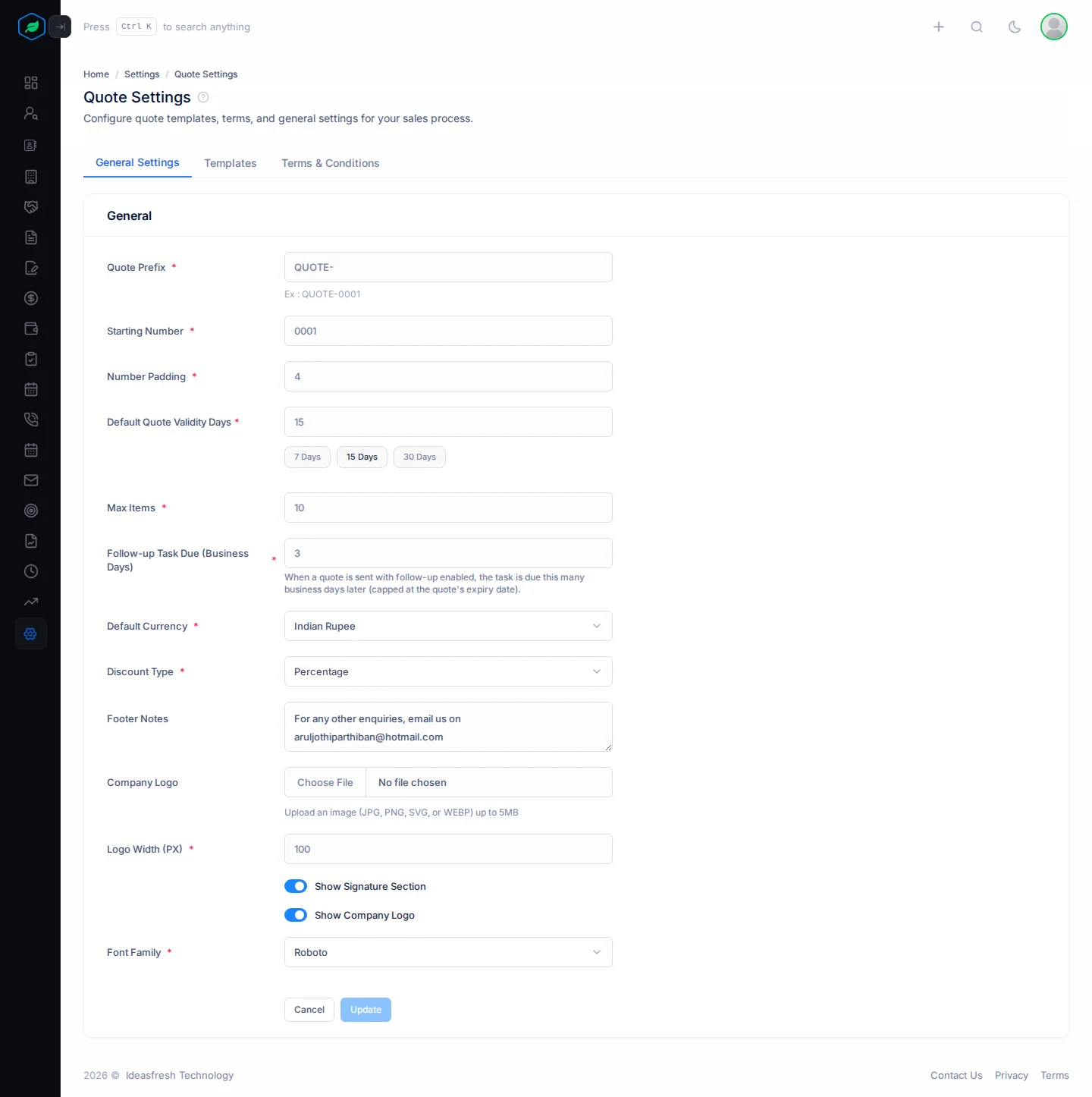
To open it, go to Settings > Quote Settings. The General Settings tab opens first.
Change the settings
- Change the settings you need. Fields marked * must be filled in.
- Click Update to save. Click Cancel to throw your changes away.
The sections below explain each setting.
Quote numbers
Every quote gets a number, such as QUOTE-0001. It is made of three settings.
| Field | What to enter |
|---|---|
| Quote Prefix * | The letters at the start of every quote number, such as QUOTE-. Up to 6 characters. The page shows an example number as you type |
| Starting Number * | The first number of a new series, such as 0001 |
| Number Padding * | How many digits the number has, from 4 to 6. With 4, numbers run QUOTE-0001, QUOTE-0002 |
A clear prefix helps everyone tell a quote apart from your other papers. For example, if your invoices start with INV-, give quotes Q- or QUOTE-. When a customer calls about "Q-0042", anyone on your team knows it is a quote.
Starting Number helps when you move from another tool. Say your last quote there was number 250. Set Starting Number to 0251, and your numbers carry on where they stopped.
How quote numbers work
- Each new quote gets the next number after the highest one in the current series.
- Starting Number only matters for a new series.
- Changing the prefix or padding starts a new series, so a new prefix starts again from the starting number.
For example, at the start of a new year you change the prefix from Q26- to Q27-. With a starting number of 0001, the next quote is Q27-0001. If you ever go back to Q26-, numbering carries on after the highest Q26- number.
What a new quote starts with
These settings fill in a new quote for you. Your team can still change them on each quote.
| Field | What to enter |
|---|---|
| Default Quote Validity Days * | How many days a new quote is valid. Type a number, or click 7 Days, 15 Days or 30 Days |
| Default Currency * | The currency new quotes start with |
| Discount Type * | The discount type new item rows start with: Percentage or Flat (an amount) |
Validity matters because prices change. A new quote's Valid Till date is set this many days after it is made. So a customer can't come back months later and ask for an old price.
Max Items
Max Items * is the most product lines a quote can have. It starts at 10. Once a quote has this many lines, your team can't add another one.
Use it to keep quotes short and easy to read. Raise it if you often sell many products in one quote.
Follow-up Task Due (Business Days)
When a quote is sent with follow-up on, Salesfresh creates a task to follow it up. Follow-up Task Due (Business Days) * sets when that task is due, from 1 to 30 business days after the quote is sent. It starts at 3.
Business days skip Saturdays and Sundays. For example, with 3, a quote sent on a Friday gets a task due the next Wednesday.
The task is never due after the quote's Valid Till date. If the quote runs out sooner, the task is due on that date instead. This way you call the customer while the quote can still be accepted.
How the PDF looks
| Field | What to enter |
|---|---|
| Footer Notes | A line printed at the bottom of every quote PDF |
| Company Logo | An image up to 5 MB (JPG, PNG, SVG or WEBP). You crop it after you pick it |
| Logo Width (PX) * | How wide the logo prints, in pixels. It starts at 100 |
| Show Company Logo | Prints the logo on the PDF |
| Show Signature Section | Adds "Created By" and "Customer Signature" boxes to the PDF |
| Font Family * | The PDF font: Roboto, Open-Sans, Poppins, Lato, PT Serif or Tinos |
Footer Notes starts with a line that asks customers to email "your_email@" at your company's domain. Change it to a real address, or to your own message, such as a thank-you line.
The crop starts square. For a wide logo, pick another shape under Aspect Ratio, such as 16:9.
Turn on Show Signature Section if your customers sign quotes to accept them. The customer signs the printed PDF in the box, so you have proof of what they agreed to.
These settings are used each time a PDF is made. So if you change the logo or font, a quote you download again also shows the change.
Troubleshooting
| You see | Why | What to do |
|---|---|---|
| "Prefix must be at most 6 characters" | The prefix is too long | Shorten it |
| "You can only use the default quote template on your current plan. Please upgrade to choose other templates." | Your company is on a template your plan does not include | Switch to the Default template in Settings > Quote Settings > Templates, then save. Or upgrade from My Subscription. See Plans and limits |
Related
Still stuck?
Tell us what you were trying to do and we will help.