Create, edit and clone a quote
Fill in a quote's customer, addresses, dates, currency and terms, add line items with discounts and tax, and see how the totals are worked out.
Updated 9 October 2026 · 8 min read
You use the quote form to build a price offer for a customer, with products, discounts and tax. Salesfresh works out the totals for you, so there is no calculator and no mistake in the sums.
For example, a school asks for a price for 12 CCTV cameras and one recorder. Click Create Quote. Under Bill To, pick the school, then the principal, and pick the school's address with Choose Address. In Items, add the camera with a Quantity of 12 and the recorder with a quantity of 1. Give a 10% discount on the cameras, enter the Tax (%) and click Save. The quote is saved as a draft with its own number, such as QUOTE-0001, ready to send.
Before you start
- To create or clone a quote, you need the Create Quotes permission and View Quote Settings. To edit one, you need Edit Quotes, and you must be the quote's owner or the person who created it.
- Your company needs at least one active product, set up in Settings > Product Management.
- You can only edit a quote while it is in Draft. To change a rejected quote, move it back to Draft first.
- A quote needs an account, and a contact at that account. If they aren't in Salesfresh yet, add them first. You can also add the contact from the quote form.
Create a quote
- Go to Quotes and click Create Quote. You can also click the + button at the top of any page and choose Quote.
- Fill in Basic Details, and add at least one item. Fields marked * must be filled in.
- Click Save. The quote is saved as a Draft with the next quote number, such as QUOTE-0001.
The gear icon next to Save opens Quote Settings. That is where your admin sets defaults such as the validity period and currency, so most quotes need fewer changes. See Quote settings.
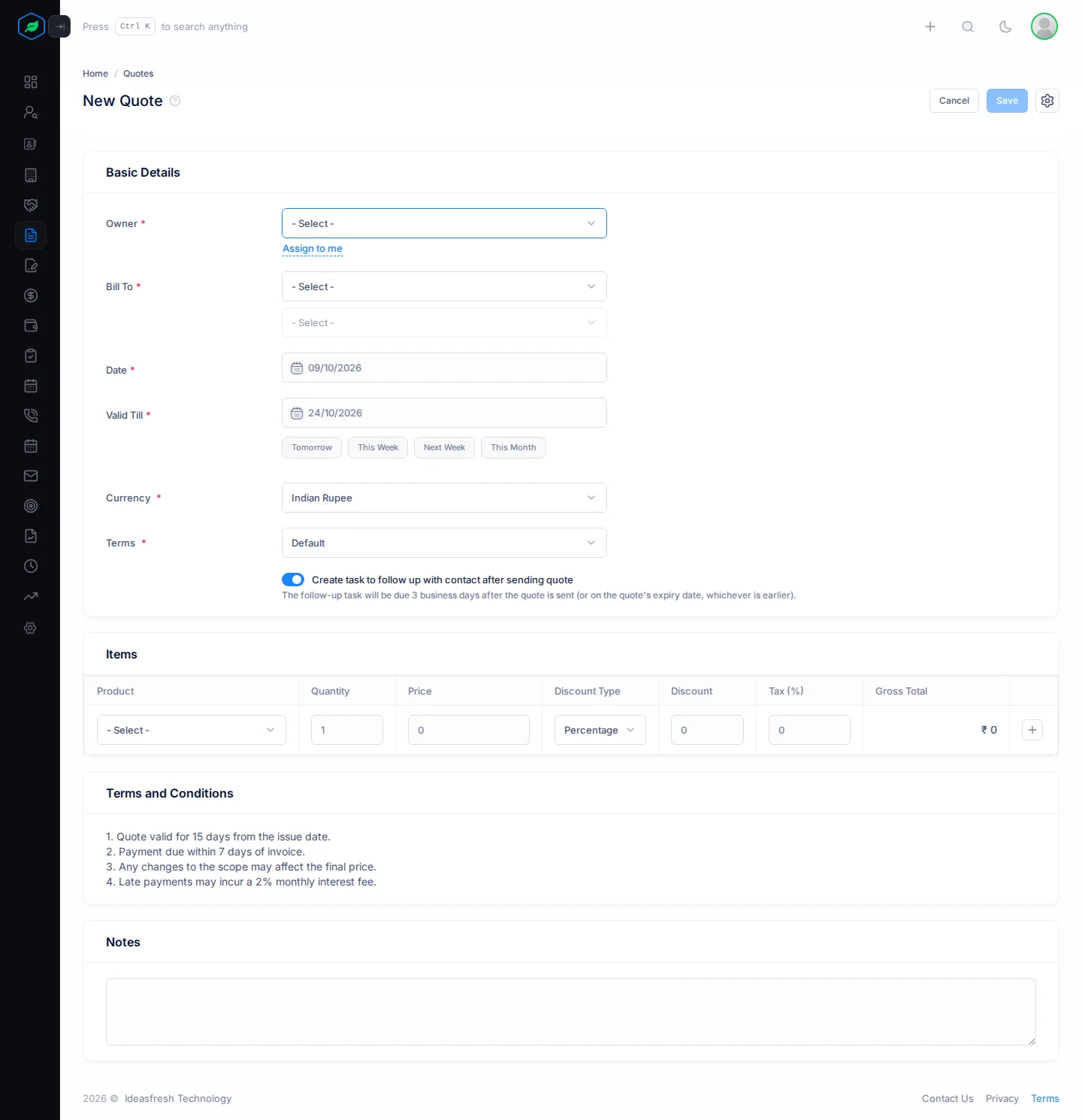
Basic Details
| Field | What to enter |
|---|---|
| Owner * | The person in charge of the quote. Click Assign to me to pick yourself |
| Team | One of the owner's teams. You only see this if the owner is in a team. If your company shares quotes by team, this decides who can see the quote |
| Bill To * | The account you are sending the offer to, then a contact at that account. If the person isn't in Salesfresh yet, click Add New to add them at that account |
| Billing Address and Shipping Address | Where to send the bill, and where to deliver. You see these once you pick a contact. See Addresses |
| Date * | The date of the quote. It starts as today. You can't pick a date in the past |
| Valid Till * | The last day the offer stands. It starts from your company's default validity period. Quick options: Tomorrow, This Week, Next Week and This Month. It must be on or after the Date |
| Currency * | The currency of the prices. It starts as your company's default currency |
| Terms * | The terms and conditions printed on the quote, such as payment and delivery terms. It starts as your company's default terms |
| Create task to follow up with contact after sending quote | On at first. See The follow-up task |
If you change the account, the contact and addresses are cleared. If you change the contact, the addresses are cleared. This stops a quote going out with another customer's address on it.
Start a quote from a contact's products
You can also start a quote from a contact's Products tab, by clicking Create Quote on one of their products. The new quote already has the product, the contact and the contact's account filled in.
In that case, Bill To is locked, so you can't change the account or the contact on the form. This makes sure the quote goes to the person who asked about the product. Need to send it to someone else? Start a new quote from Quotes instead. See From a contact's products.
Addresses
The addresses are printed on the quote, so the customer can check where the bill goes and where the goods will arrive.
- Click Choose Address under Billing Address. You see the contact's and the account's addresses. Pick one.
- If the goods go to the same place, tick Same as Billing Address. If not, click Choose Address under Shipping Address.
At least one address is required. If none are listed, add an address to the contact or the account first.
Valid Till
Valid Till tells the customer how long your prices stand. It also drives the Valid This Month and Expired Quotes views on the quotes list, so you can see which offers to follow up before they run out.
For example, your supplier's prices change at the end of the month. Pick This Month, so the customer knows the price only holds until then.
The follow-up task
When this is on, Salesfresh adds a task for the quote's owner as soon as the quote is sent, linked to the contact. Customers often don't reply to a quote, and the task reminds you to call them.
- The task is due a number of business days after the quote is sent. Your admin sets the number in Quote Settings. If the quote's Valid Till date comes sooner, the task is due on that date instead.
- When you mark the quote Accepted or Rejected, the task is marked complete for you.
Items
Each row is one product line on the quote.
| Column | What to enter |
|---|---|
| Product | Pick one of your active products. Its name, description and price are filled in for you |
| Quantity | How many the customer is buying. A whole number, at least 1 |
| Price | The price of one unit. It starts as the product's price. Change it if you agreed a different price. It must be more than 0 |
| Discount Type | Percentage or Amount. The first row starts with your company's default |
| Discount | How much off the line. You can type it once you pick a type. A percentage must be under 100. An amount can't be more than the unit price |
| Tax (%) | The tax rate for this line, such as 18. A whole number from 0 to 100 |
| Gross Total | Worked out for you |
Click + to add a row, and − to remove one. Your admin sets the most rows a quote can have (Max Items), and you can't add more rows once you reach it.
Each line has its own tax rate, so one quote can mix products that are taxed differently.
How totals are worked out
Each line's total is worked out for you: price × quantity, minus the discount, plus tax. The discount comes off before tax. An Amount discount comes off the whole line once, not each item. The quote's total adds up all the lines.
Terms and Notes
The Terms and Conditions card shows the terms you picked, one point per line. Check them before you save, because the customer sees them on the PDF.
Use Notes for anything else the customer should know, such as "Installation is included" or "Delivery in 2 weeks".
Edit a quote
Open the quote's menu and click Edit. You only see Edit while the quote is in Draft. Change what you need and click Update.
Once a quote is sent, you can't edit it, so the customer's copy and yours always match. If the customer rejects it, move it back to Draft, change it and send it again.
Clone a quote
Cloning makes a copy of a quote. It helps when you make the same offer to another customer, such as another school.
- Open the quote's menu, click Clone and confirm.
- Salesfresh creates a new Draft with the next number and opens it.
- Choose the billing and shipping addresses again. Clones don't copy them.
- Change what you need and click Update.
The copy keeps the account, contact, currency, terms, notes, items and owner. Its date is today and it is valid for 7 days. Change Valid Till if you need longer.
Troubleshooting
| You see | Why | What to do |
|---|---|---|
| "No products are configured in your account. To proceed, …" | Your company has no active products | Ask an admin to add products |
| "Address is required" | You haven't chosen a billing or shipping address | Click Choose Address. If none are listed, add an address to the contact or the account |
| "Valid Till must be after Effective Date" | Valid Till is before the quote's date | Pick a later Valid Till |
| "Percentage discount cannot be 100% or more" | A line has a percentage discount of 100 | Use a smaller discount |
| "A quote cannot have more than N item(s)" | You added more rows than Max Items allows | Remove rows, or ask an admin to raise Max Items |
| "Quote not found" | The quote is no longer in Draft, or you don't own it and didn't create it | Move a rejected quote back to Draft, or ask the owner |
Related
Still stuck?
Tell us what you were trying to do and we will help.