The quote detail page
What is on a quote's page, how to change its status, turn an accepted quote into a deal, and read its items, terms and addresses.
Updated 9 October 2026 · 6 min read
A quote's page is where you follow one price offer, from sending it to the customer's "yes". Click a quote's number anywhere in Salesfresh to open its page. The header shows the quote number, its total value and the date it is valid till.
For example, a customer calls to say they have read your quote. Open the quote's page and set the status to Viewed. A few days later they say yes, so you set it to Accepted, and the follow-up task for the quote is marked as done. Then click Create Deal. Salesfresh makes a deal with the quote's total and closing date, so you don't type anything twice.
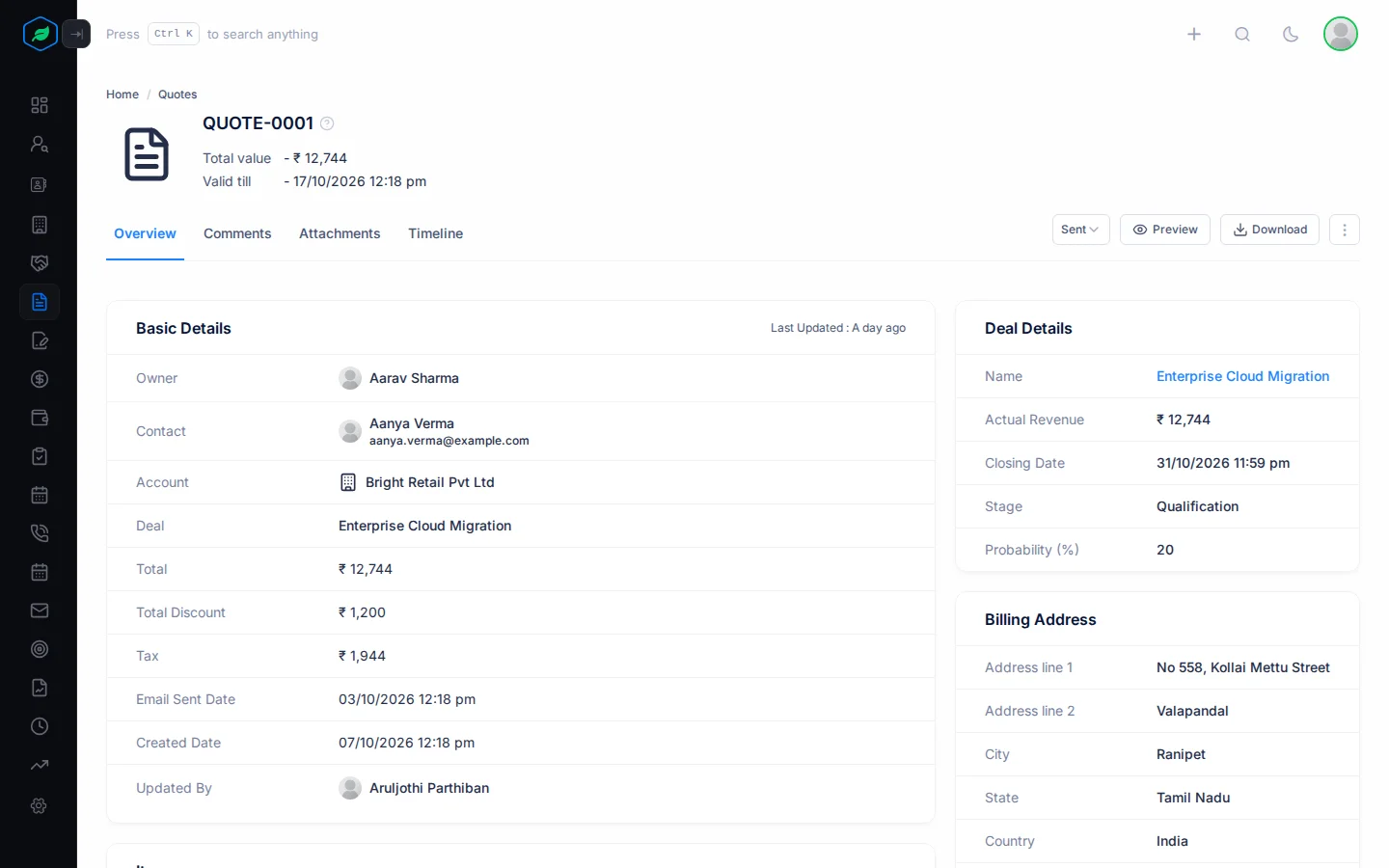
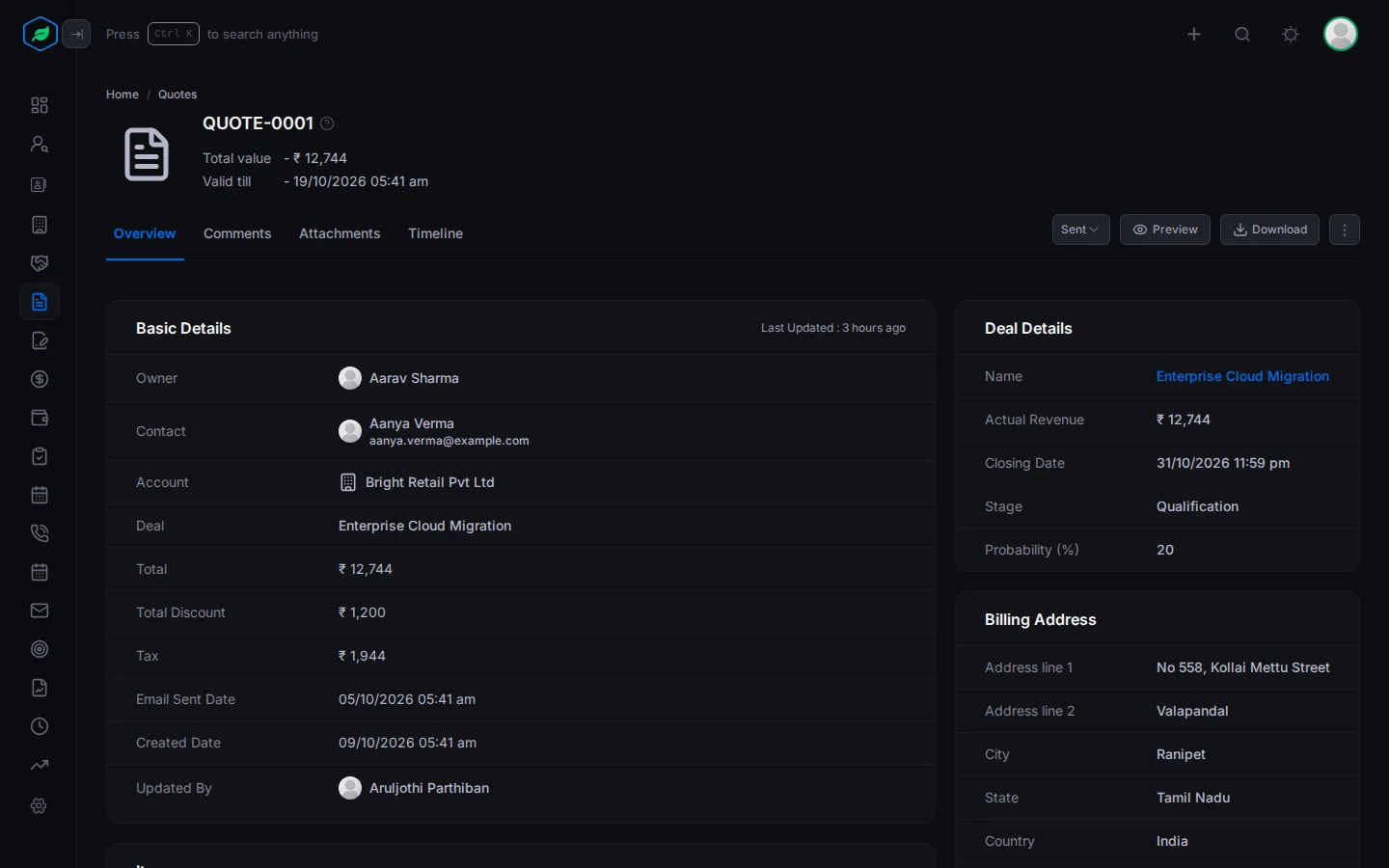
You can also use the page to:
- open or save the PDF with Preview or Download,
- move a rejected quote back to Draft, change it and send it again.
The action bar
The buttons you see depend on the quote's status.
| Control | Shown when | What it does |
|---|---|---|
| Status | The quote has been sent | Moves the quote to its next status |
| Create Deal | The quote is Accepted | Turns the quote into a deal |
| Preview | Always | Opens the PDF in a new tab |
| Send Quote | The quote is in Draft | Emails it to the customer. See Send a quote |
| Download | Always | Saves the PDF |
| The ⋮ menu | Always | Edit (Draft only), Clone, Delete |
Clone is handy when a customer asks for a second version, such as the same items with a bigger discount. The copy starts as a new Draft, so the quote you already sent stays as it was.
Change a quote's status
The status shows your team where each offer stands. Salesfresh doesn't know when the customer reads or answers your quote, so you set the status yourself each time you hear from them.
- Open the status dropdown. It lists only the statuses the quote can move to next.
- Pick one and confirm.
| From | Can move to |
|---|---|
| Sent | Viewed, Rejected |
| Viewed | Accepted, Rejected |
| Accepted | Deal Created (use Create Deal) |
| Rejected | Draft |
| Deal Created | Invoice Generated |
For example, after you send the bill for an accepted quote, set its status to Invoice Generated. Anyone who opens the quote can see the customer has been billed.
Accepting or rejecting a quote marks its follow-up task as done. Moving a rejected quote back to Draft lets you edit and send it again.
Changing the status needs the Edit Quotes permission, and you must be the quote's owner or creator.
If someone else changes the status of a quote you own, you get an email. Don't want these emails? Turn them off in Notification settings.
Turn an accepted quote into a deal
Click Create Deal on an accepted quote. Salesfresh creates a deal and opens it for editing:
| Deal field | Taken from |
|---|---|
| Name | The account and contact, such as "Acme Ltd - Priya Shah" |
| Type | New Business |
| Stage | Negotiation/Review (the stage with 90% probability) |
| Expected Revenue | The quote's total |
| Closing Date | The quote's Valid Till date |
| Owner and team | The quote's owner and team |
The quote's status becomes Deal Created, and the deal is shown on the quote's Overview. Creating the deal needs the Create Deals permission.
Why it matters: the deal is where you track the sale until it is won. It starts with the right amount and date, and the quote shows on the deal's Quotes tab, so you can always see what price you offered. See The deal detail page.
If your admin set up Quote Conversion rules in Settings > Automation > Quote Automation, accepting a quote can create the deal for you, using the rule's settings. See Quote conversion rules.
Tabs
A tab shows a count when it has something in it.
Overview
- Basic Details: owner, team, contact (with email), account, deal (if linked), total, total discount, tax, email sent date, and who created and last updated the quote.
- Items: each product with quantity, unit price, discount, tax and total.
- Notes: anything else your team should know about the quote.
- Terms and Conditions: the terms printed on the quote.
- Automation Rules: the quote automation rules active in your company.
- Deal Details: shown once a deal is linked, with its name, actual revenue, closing date, stage and probability.
- Billing Address and Shipping Address.
The Automation Rules card tells you what Salesfresh will do with this quote on its own. For example, if a follow-up rule is active, you know the customer will get a reminder email, so you don't send one by hand as well. Click a rule to open it.
Comments
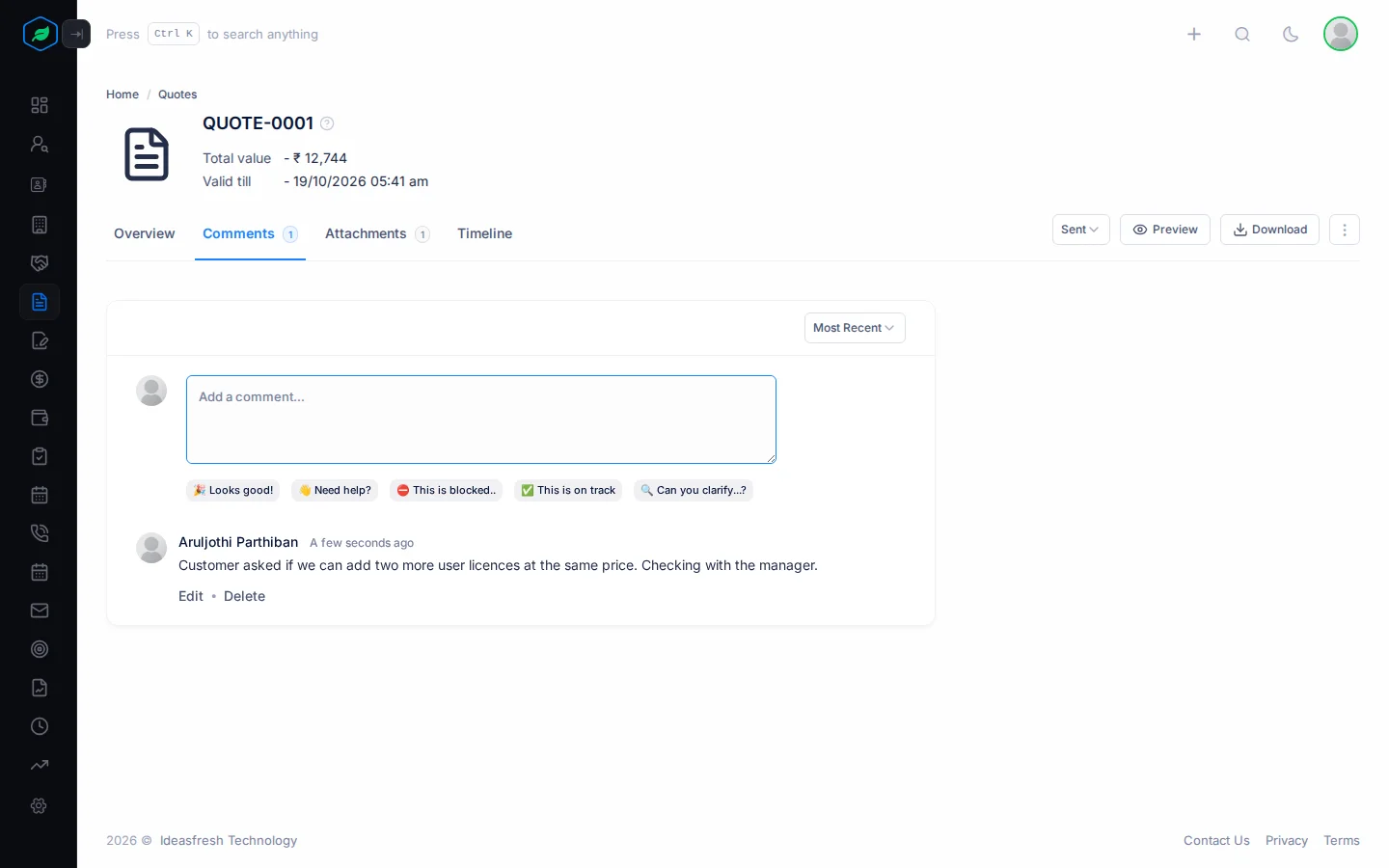
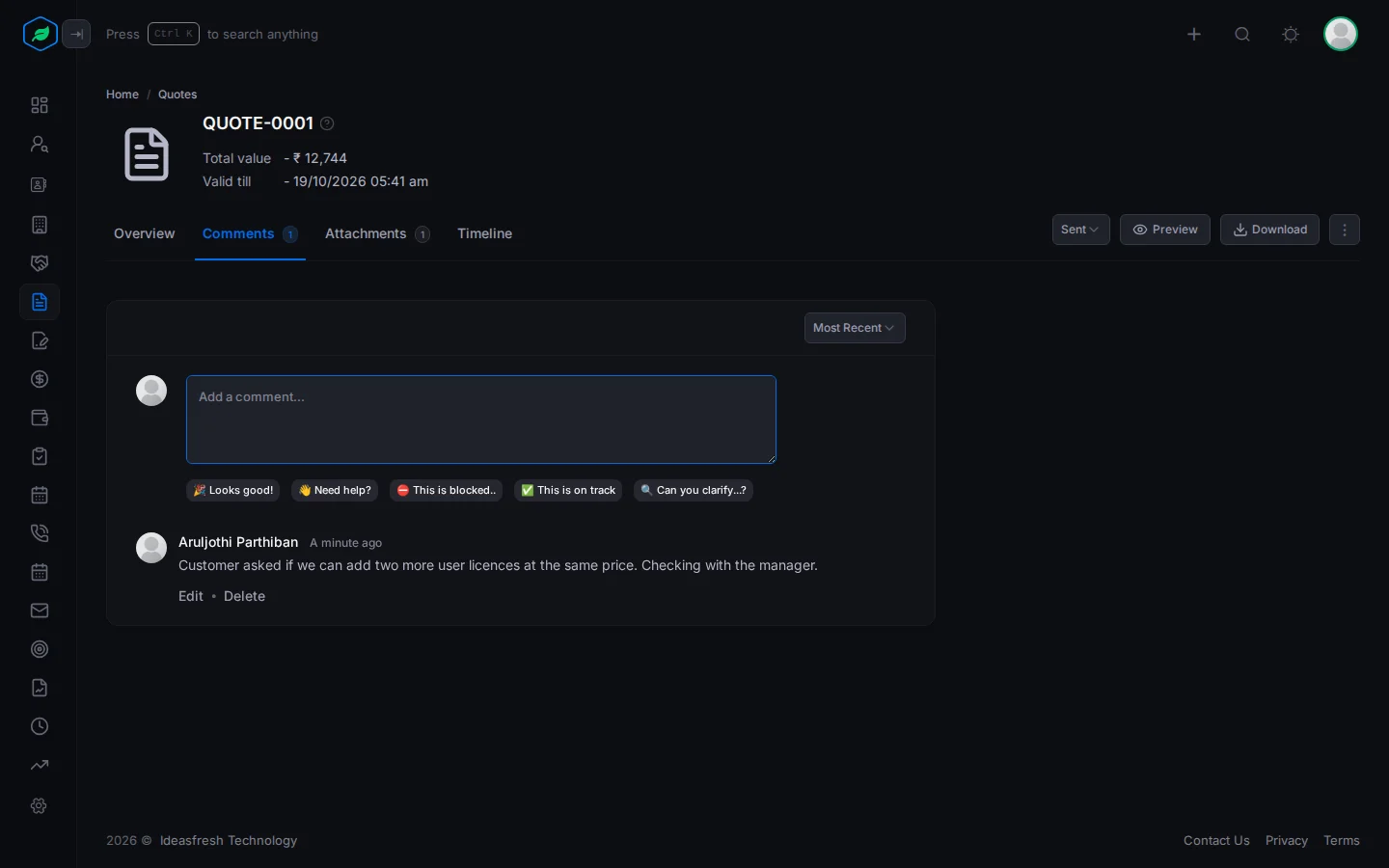
Comments are notes your team writes on the quote, so everyone knows what the customer said about it.
For example, after a call you might write: "They want delivery included in the price." Whoever makes the next version of the quote knows what to change.
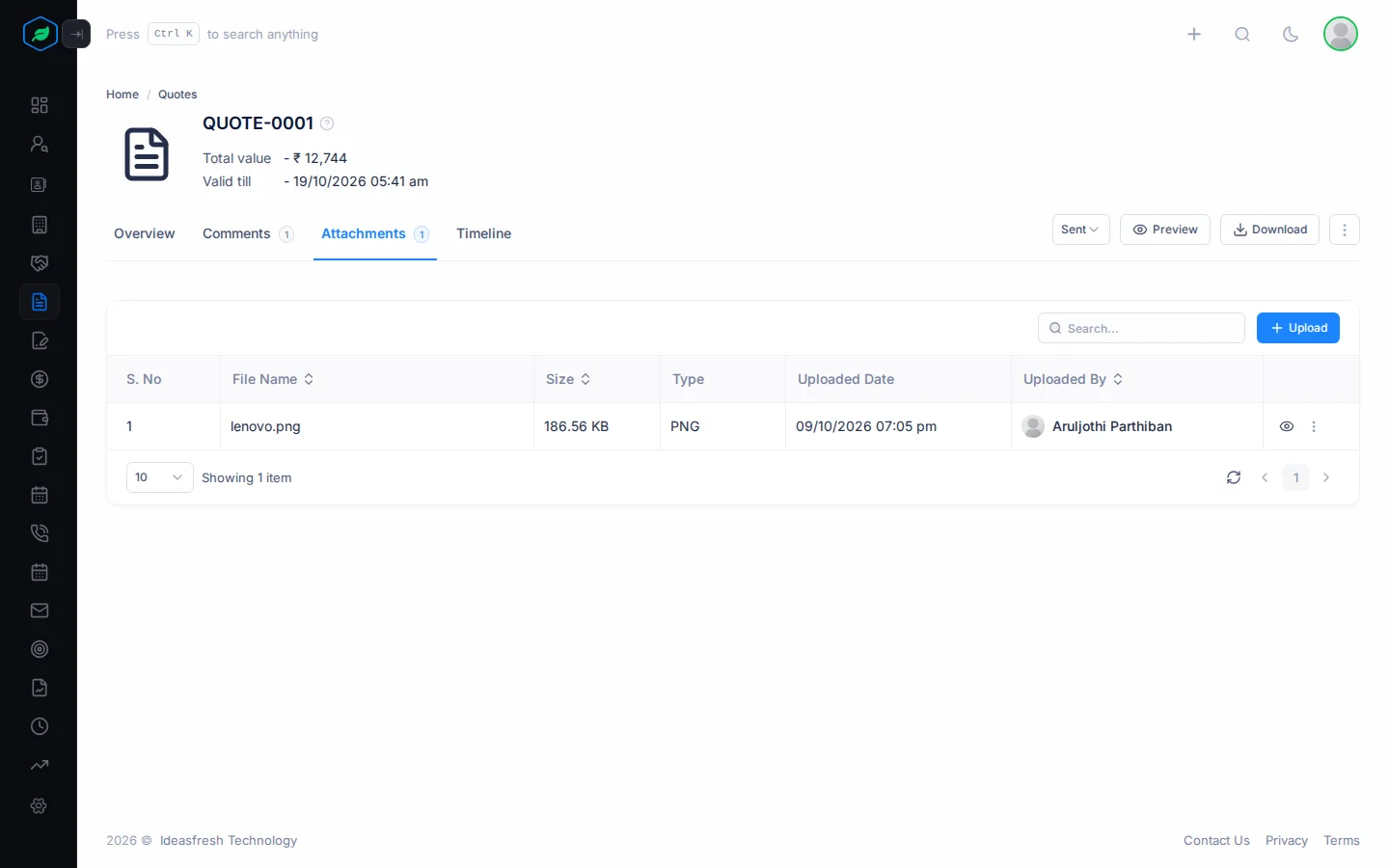
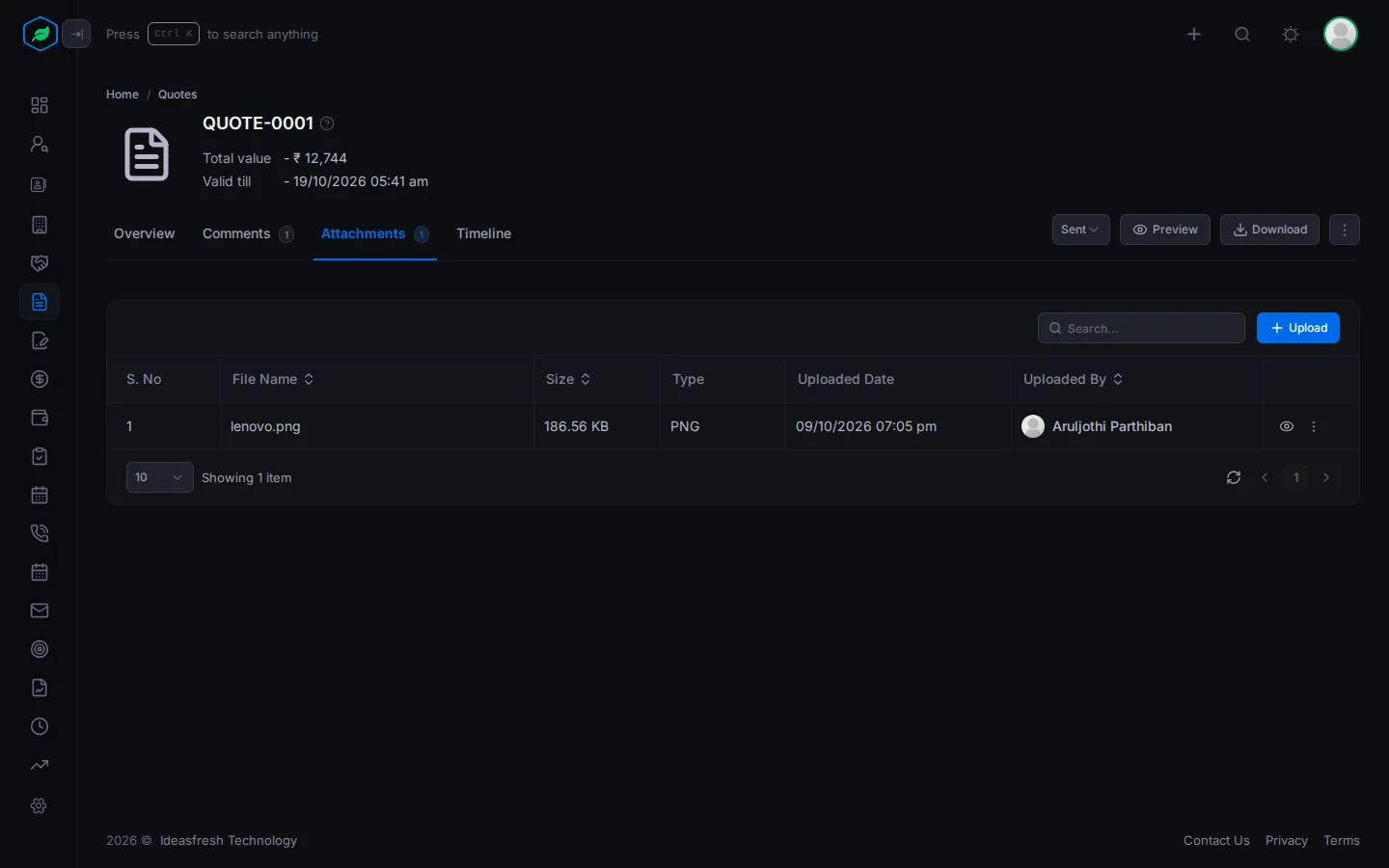
Attachments
Attachments keep the files about a quote in one place, such as the customer's signed copy or their purchase order. Files count towards your company's storage.
Timeline
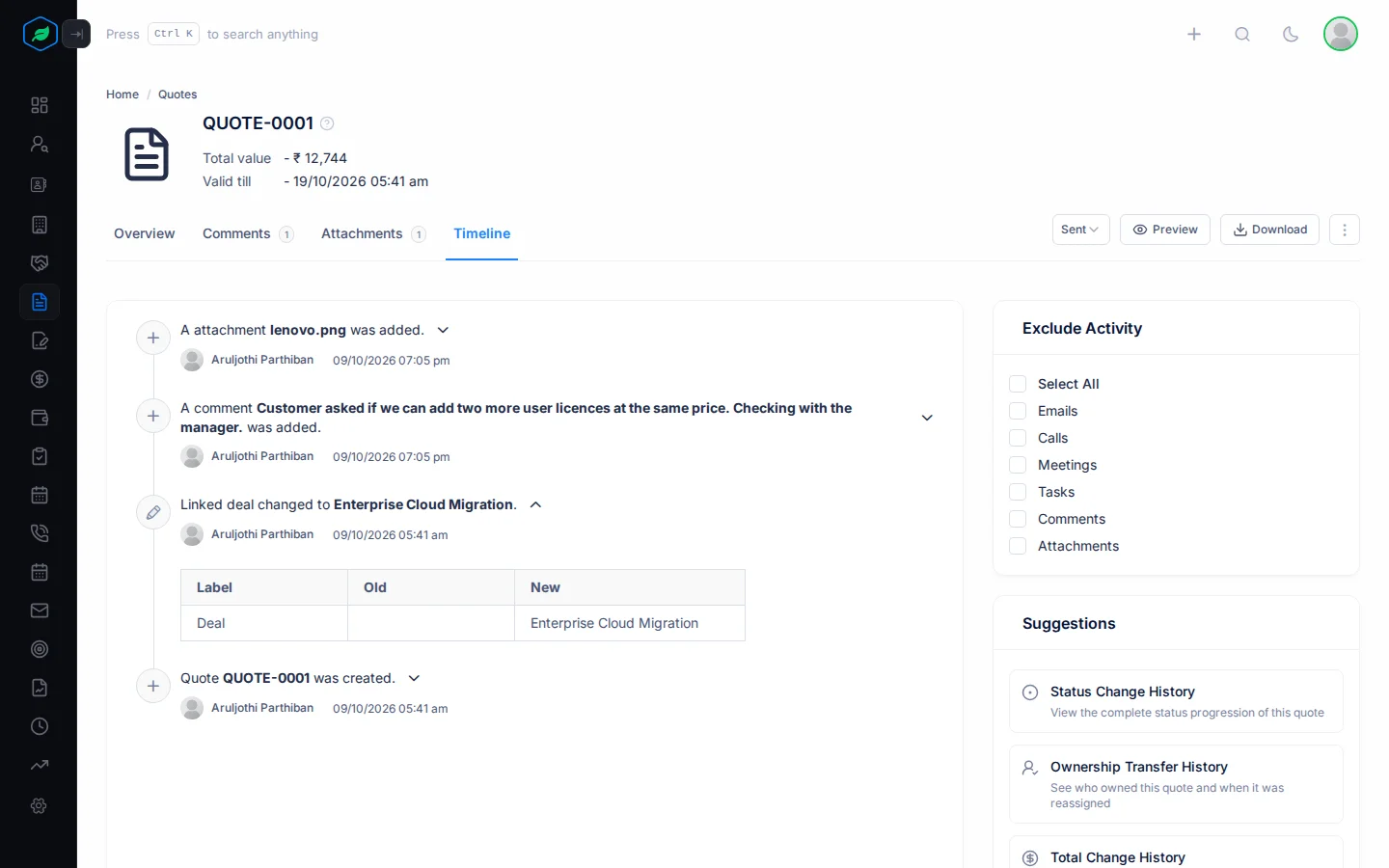
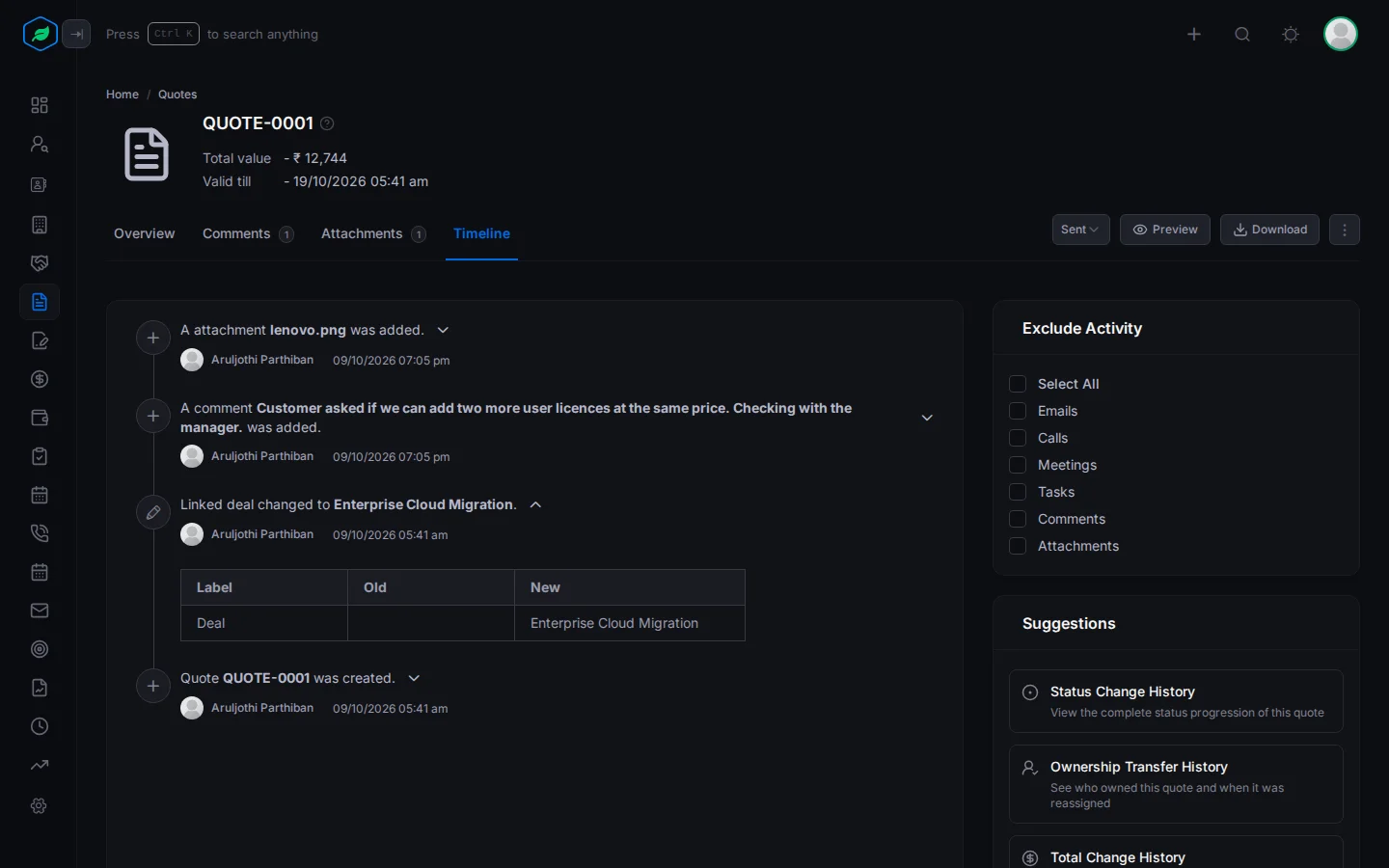
The quote's history. It lists changes to the quote, such as its status, owner, total and validity, with who made each change and when. For example, if the total changed after the quote was sent, the Timeline shows who changed it. It works the same way as a lead's Timeline. See Timeline on the lead detail page.
To see exactly what changed, click the arrow next to an entry. A table opens with the old value and the new value. In the example below, the quote was linked to a deal.
Troubleshooting
| You see | Why | What to do |
|---|---|---|
| "Invalid status transition from X to Y" | That status cannot follow the current one | Pick a status the dropdown offers |
| "Please create a deal from this quote first." | You picked Deal Created without a linked deal | Use Create Deal instead |
| "Only accepted quotes can be converted to deals" | The quote is not Accepted | Mark it Viewed, then Accepted |
| "This quote is already associated with a deal" | A deal was already created, possibly by a conversion rule | Refresh the page to see the linked deal |
| "Quote not found" | You are not the quote's owner or creator, or it was deleted | Ask the quote's owner |
Related
Still stuck?
Tell us what you were trying to do and we will help.