Turn accepted quotes into deals automatically
Create a deal automatically the moment a quote is marked Accepted, with the stage, amount, closing date and owner you choose.
Updated 12 October 2026 · 4 min read
A quote conversion rule creates a deal the moment a quote is marked Accepted. Nobody has to click Create Deal and type the amount again.
For example, you sell office furniture. A customer accepts a quote for 20 desks, and someone marks the quote Accepted. Without a rule, they must also create the deal and type in the amount and the date, and on busy days they forget, so the sale is missing from your deals. With a rule, Salesfresh creates the deal straight away, linked to the same customer, and the quote changes to Deal Created.
Before you start
- To see rules, you need the View Automation permission. To add one, you need Create Automation. To change one, or switch it on or off, you need Edit Automation. To delete one, you need Delete Automation.
- Automation needs a paid plan. You can have 5 rules on Starter, 10 on Professional, and as many as you like on Enterprise. Switched-off rules count. See Plans and limits.
If you don't have a permission you need, ask your admin.
Add a rule
- Go to Settings > Automation > Quote Automation > Quote Conversion.
- Click Create Rule. The Quote Conversion Rule panel opens.
- Fill in the fields. Fields marked * must be filled in.
- Click Create.
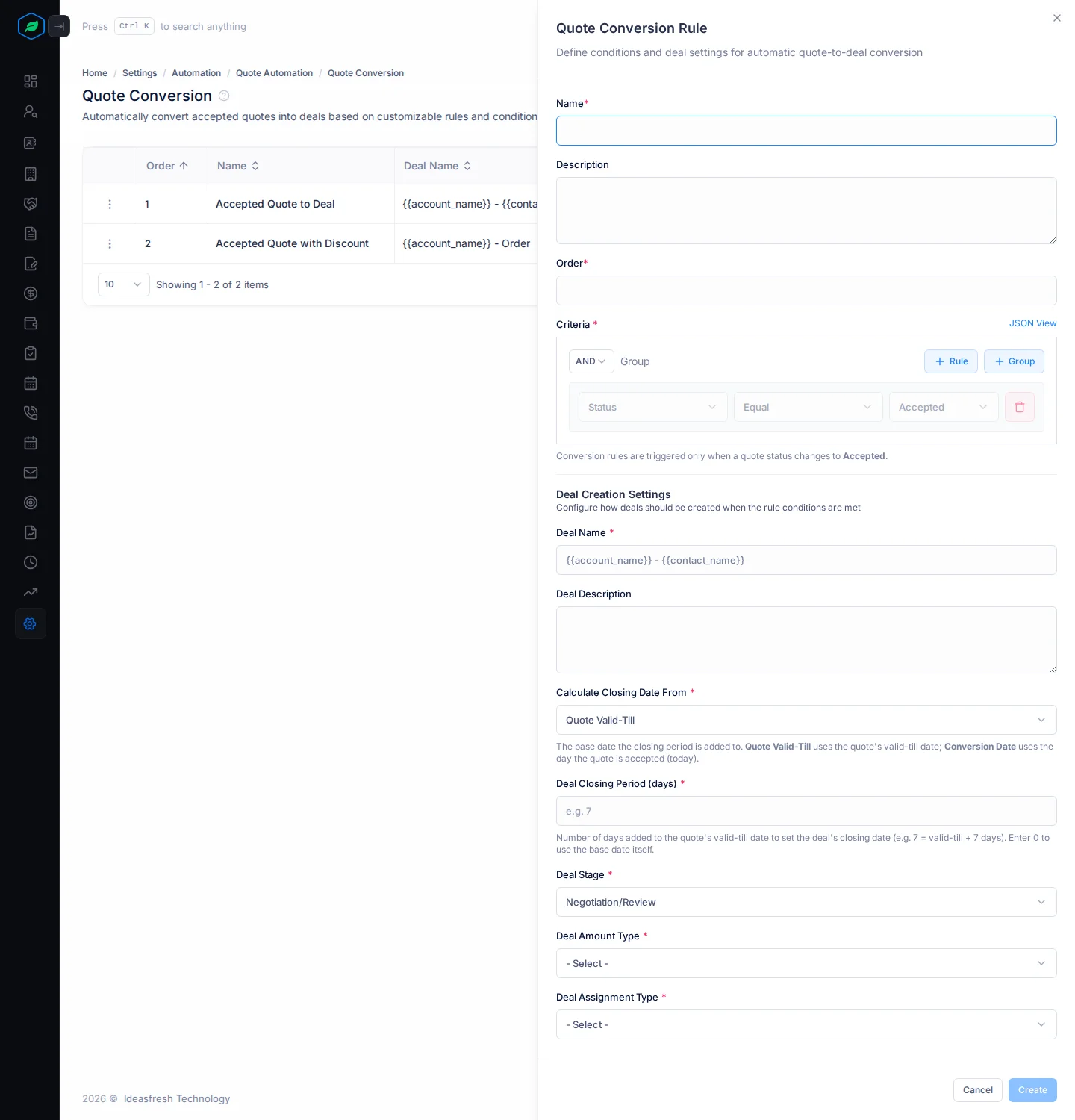
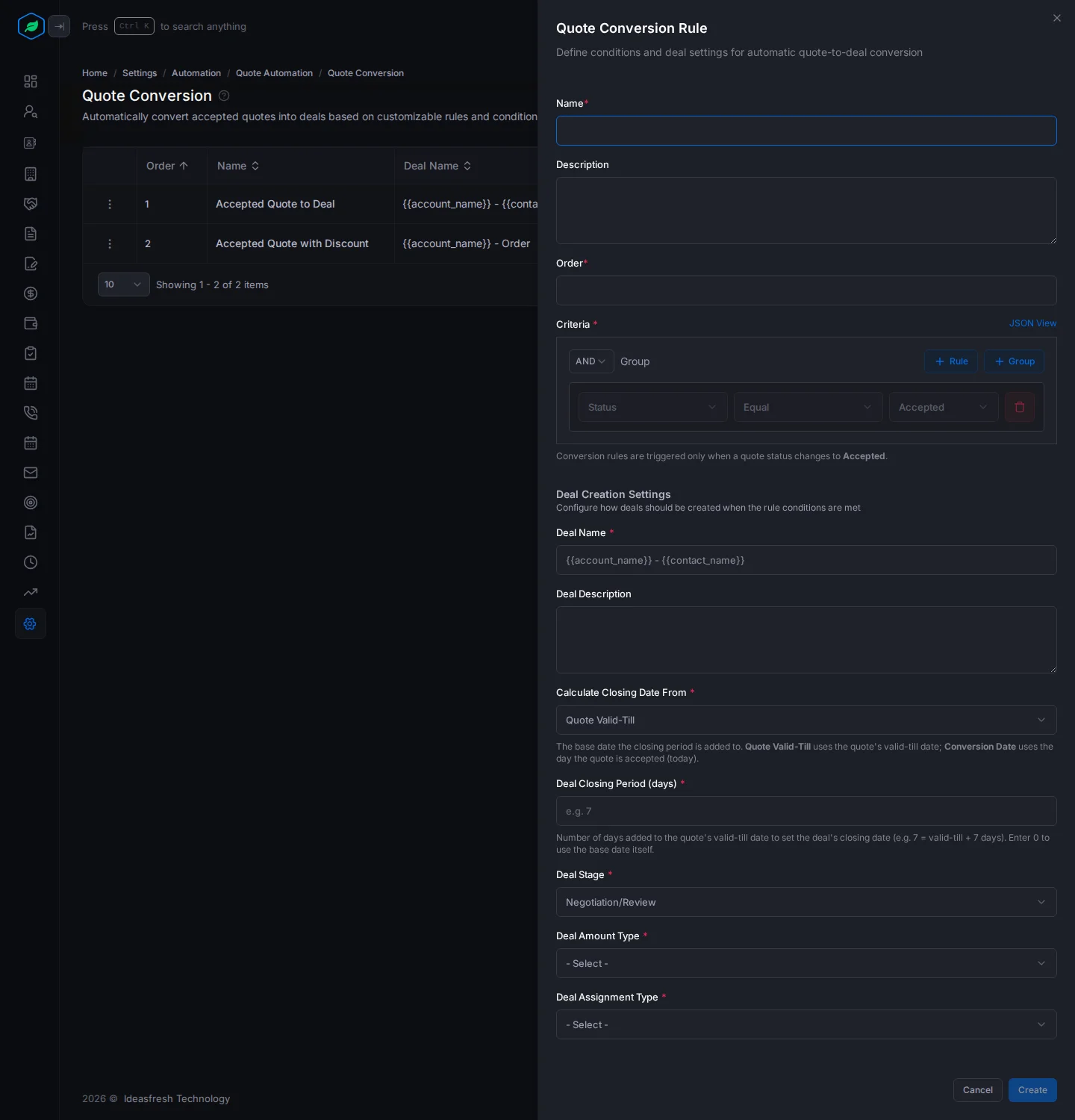
| Field | What to enter |
|---|---|
| Name * | What the rule is for, such as "Accepted quotes to deals" |
| Description | When the rule applies |
| Order * | Its place in the list, from 1. The rule with the lowest order is used |
| Criteria * | Set for you: quotes whose status changes to Accepted |
| Deal Name * | The new deal's name. Set to {{account_name}} - {{contact_name}} at first, which fills in the customer's names |
| Deal Description | A note for the deal |
| Calculate Closing Date From * | Quote Valid-Till or Conversion Date. Set to Quote Valid-Till at first |
| Deal Closing Period (days) * | Days added to that date, such as 30. Enter 0 to use the date itself |
| Deal Stage * | The stage the deal starts in. Set to your last open stage at first |
| Deal Amount Type * | How to set the deal's amount: Fixed Amount, Percentage of Quote Total or Formula |
| Deal Amount, Percentage of Quote Total (%) or Formula * | The amount, such as 5000, the percentage, such as 100, or a formula using quote_total, such as quote_total * 0.9. Which one you see depends on the amount type |
| Deal Assignment Type * | Who owns the deal: Quote Owner, or Specific User |
| Assignee * | The user who owns the deal. Only shown when you pick Specific User |
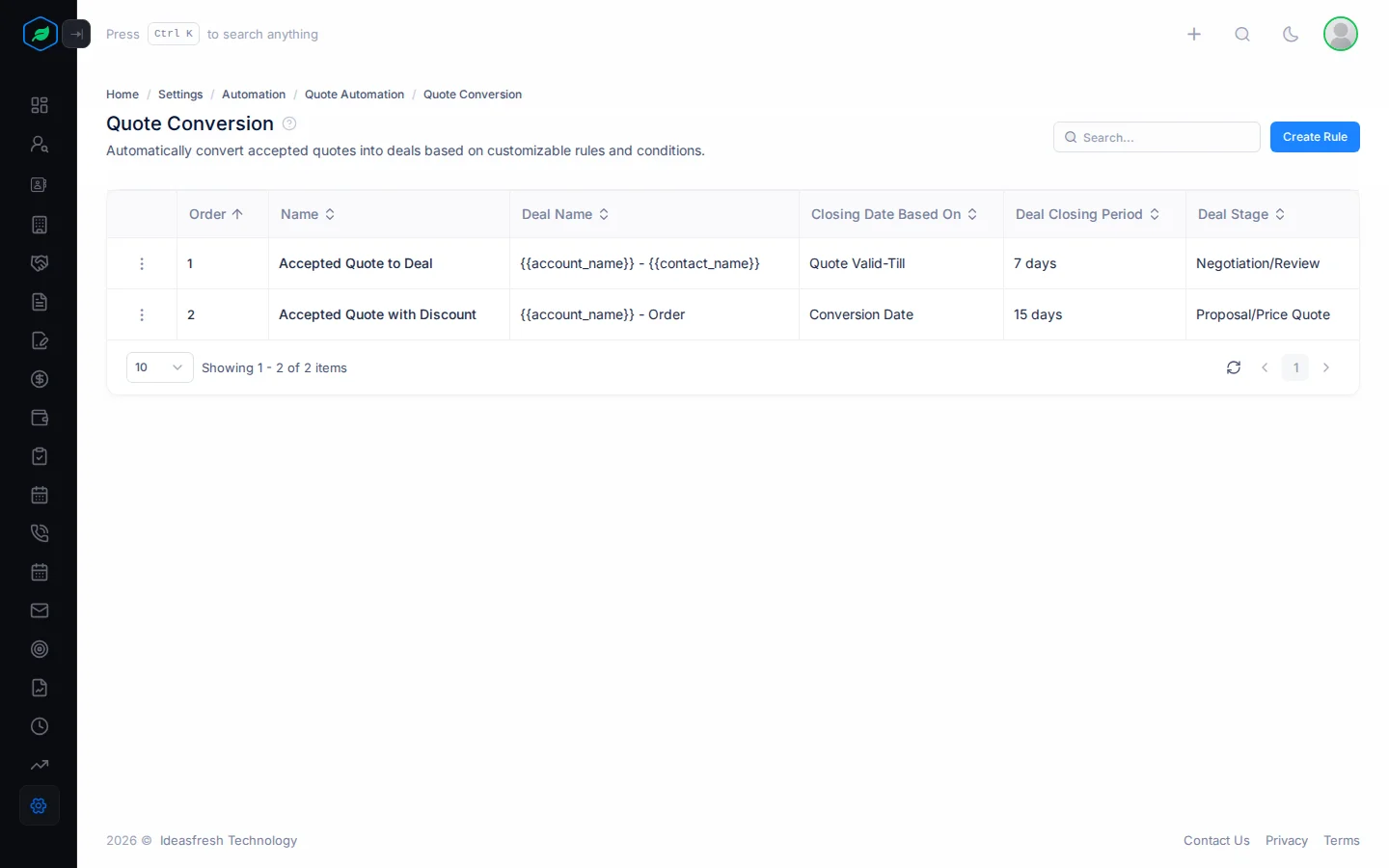
What happens when a quote is accepted
- The quote's owner, or the person who created it, marks it Accepted on its page.
- If the quote has no deal yet, the Active rule with the lowest Order is used.
- A New Business deal is made with the rule's deal name, stage, amount and closing date. It's linked to the quote's contact and account.
- The quote's status changes to Deal Created, and the deal shows on the quote.
Rules don't check their criteria yet. The Active rule with the lowest order is always used. Keep one Active rule, or put the one you want first.
A deal made by a rule doesn't send the owner an email. Tell them about it yourself.
Change, switch off or remove a rule
Click ⋮ on a rule:
- View shows its settings.
- Edit changes it.
- Inactive stops it making deals. Activate starts it again.
- Delete removes it.
Troubleshooting
| You see | Why | What to do |
|---|---|---|
| "Percentage cannot exceed 100" | The percentage is over 100 | Enter 100 or less |
| "Formula is required" | You picked Formula but left it empty | Enter a formula using quote_total |
| "Quote conversion rule already exists" | Another rule has that name | Pick another name |
| Calculate Closing Date From is empty when you edit a rule | The form doesn't fill it in when you edit | Pick it again before you save |
| No deal was made | The rule's stage was renamed, or the quote already had a deal | Edit the rule and pick the stage again |
| A new stage isn't in the Deal Stage list | The list is kept from when you opened the page | Reload the page |
Related
Still stuck?
Tell us what you were trying to do and we will help.