The deal detail page
What is on a deal's page, from the stage bar and revenue details to its quotes, contact person, lost reason, tabs and locking.
Updated 9 October 2026 · 7 min read
A deal's page shows where one sale stands: what it is worth, who you are dealing with, and every quote, note, file and activity linked to it. Click a deal's name anywhere in Salesfresh to open it.
For example, a teammate is on leave, and you take over one of their deals. Open the deal's page. The stage bar shows how far the sale has got. Contact Person has the customer's email and phone number. The Comments tab has your teammate's notes, and Activities shows a call planned for today. You can carry on with the sale without asking anyone, and the customer doesn't notice the change.
When you open a deal, it is marked as read, so it no longer shows in the Unread Deals view.
The header
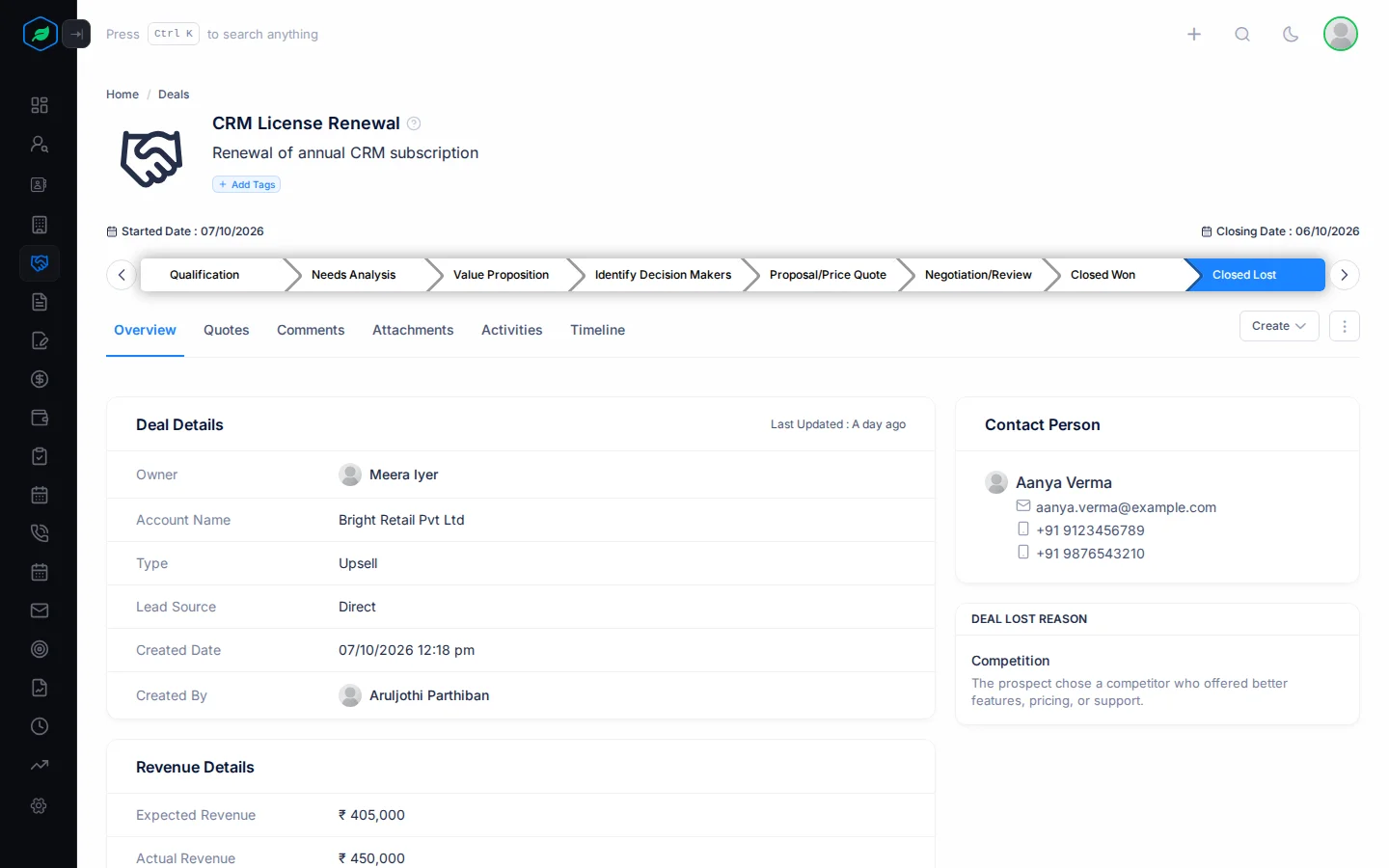
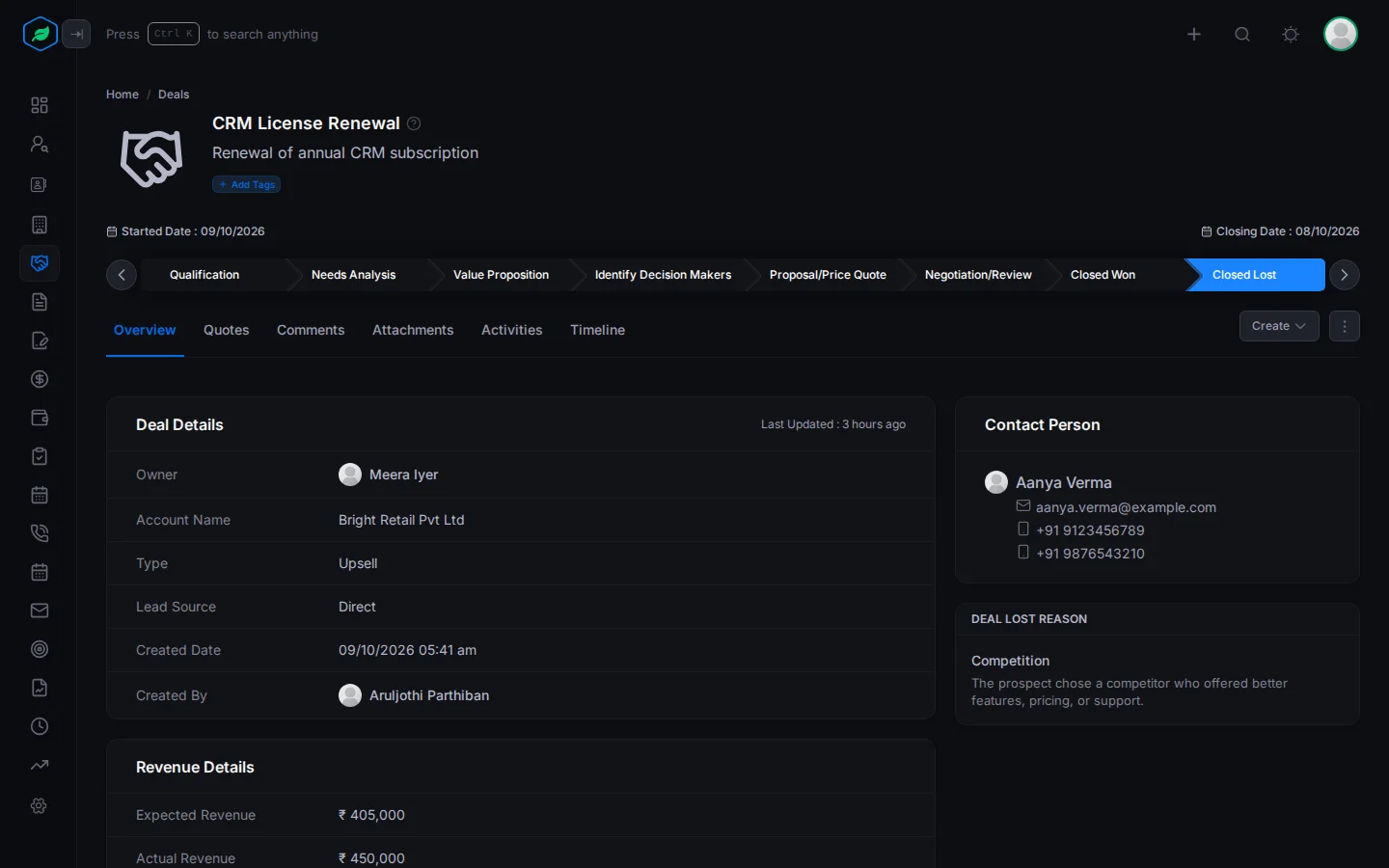
- The deal's name and description. A lock badge shows if the deal is locked. Point at it to see who locked it.
- The deal's tags. See Tags.
Tags
Tags are short labels you put on a deal, so your team can spot important deals at a glance and filter the deals list by them.
For example, tag a large deal High Priority, so everyone knows to give it extra attention.
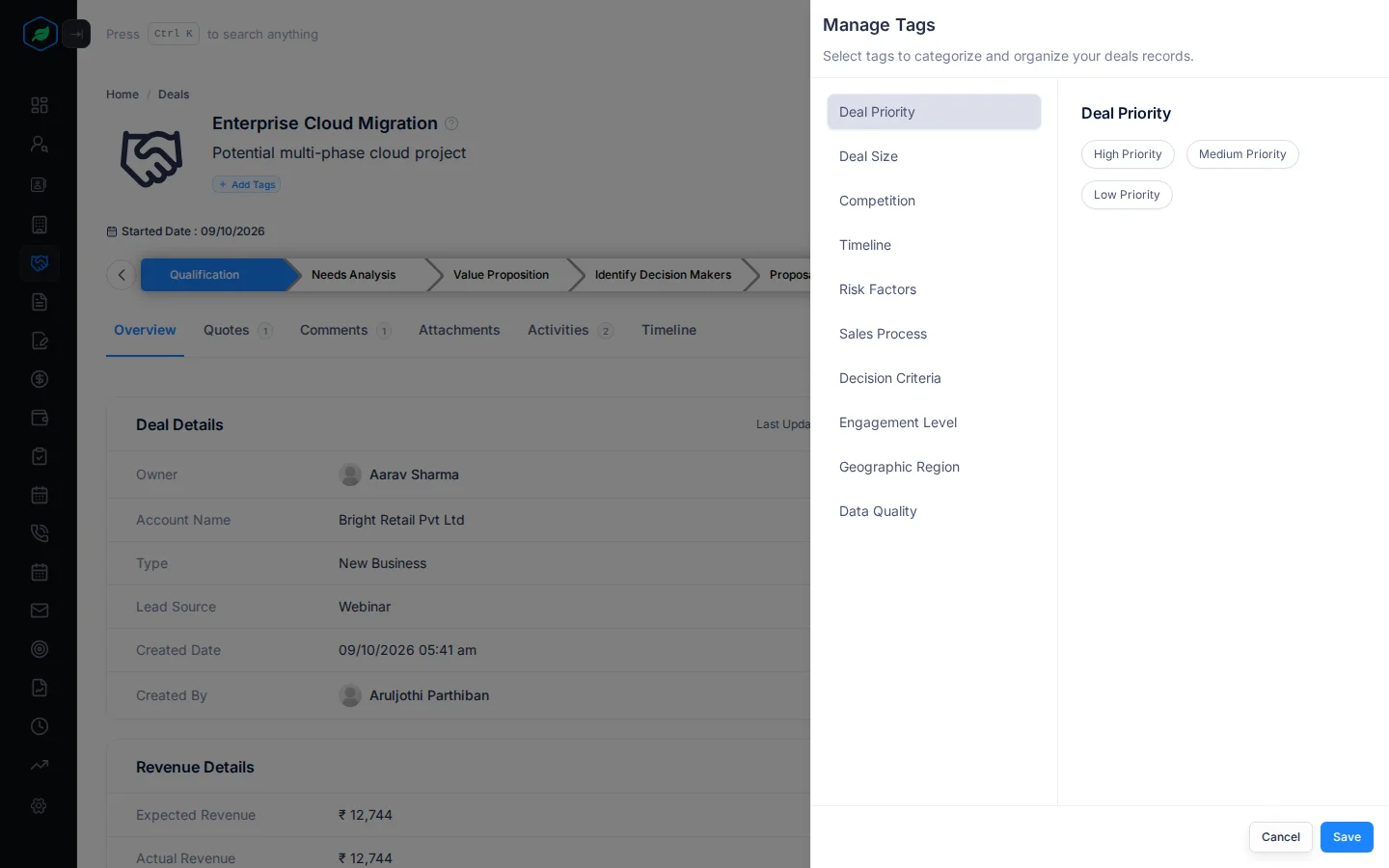
- Under the deal's name, click Add Tags. If the deal already has tags, click the + beside them.
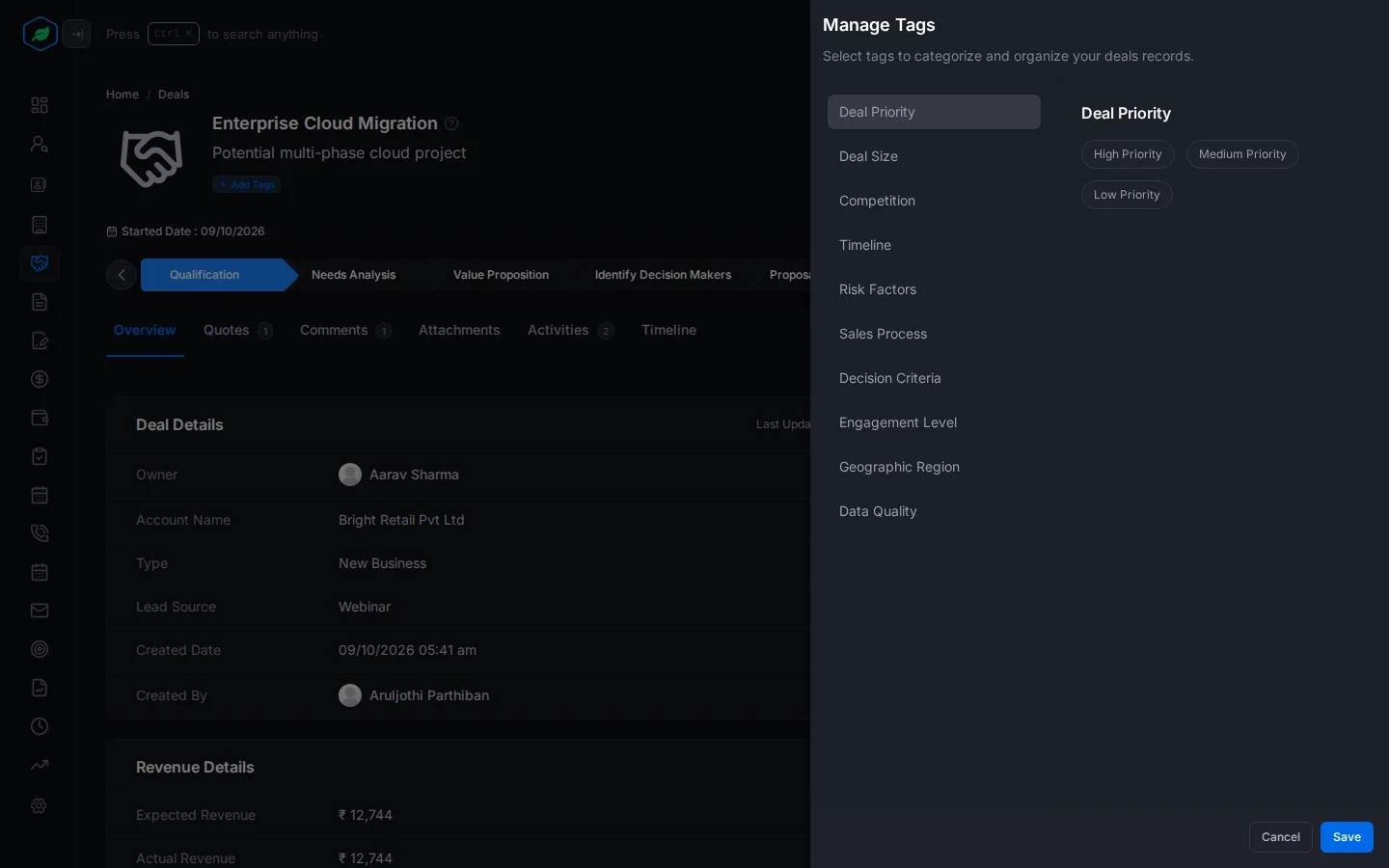
- Manage Tags opens. Tag groups, such as Deal Priority and Deal Size, are on the left. Click a group, then click the tag you want on the right. You can pick one tag from each group. Click a tag again to remove it.
- Click Save.
You can change a deal's tags if you own it or created it. Your admin sets up the tags your company can use. See Tags.
The stage bar
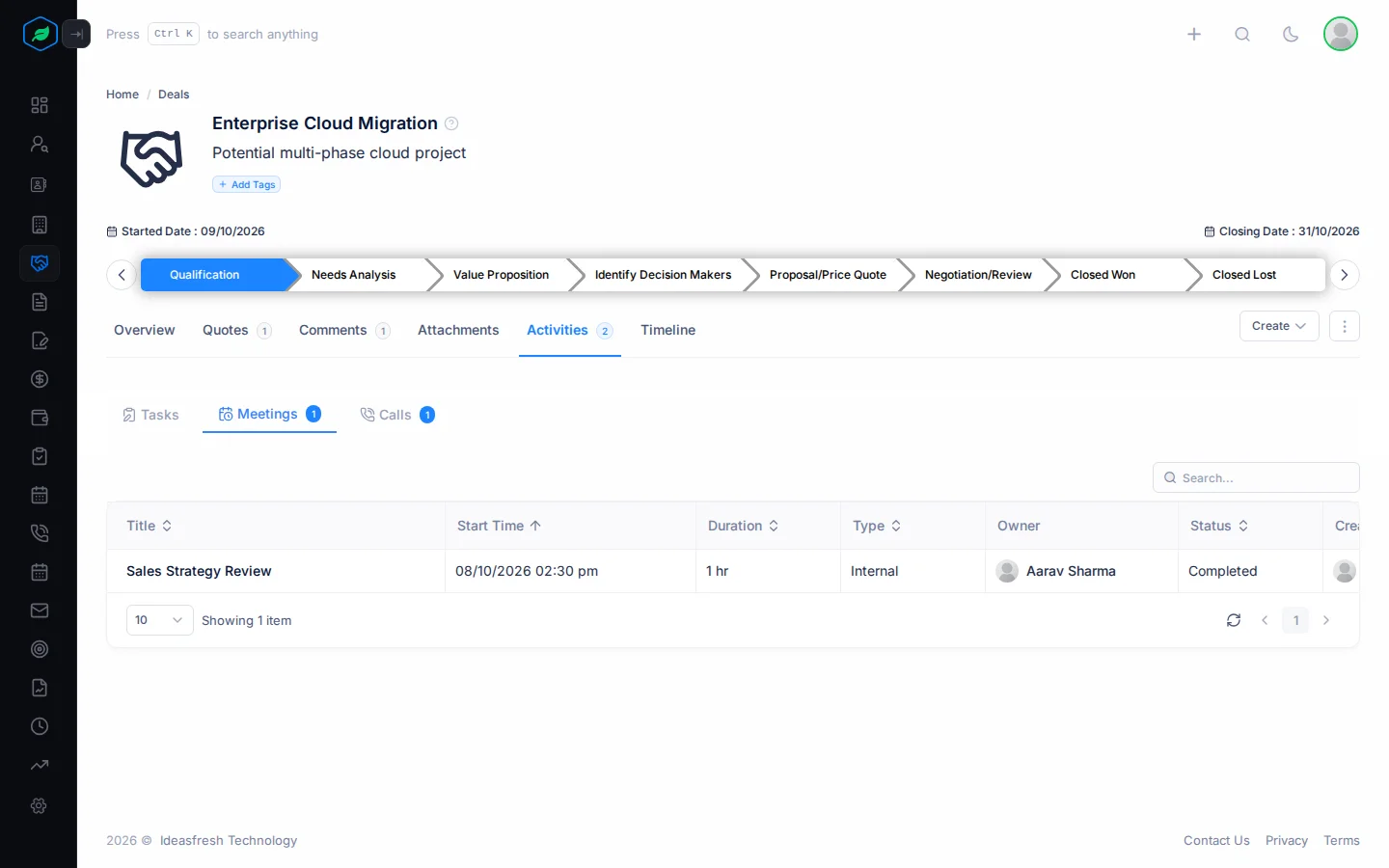
Under the header, the stage bar shows the Started Date (when the deal was created), the Closing Date, and every stage in your pipeline. The stage the deal is in now is highlighted.
Each time the sale moves forward, move the deal to the next stage. For example, after a meeting where the customer tells you what they need, click Needs Analysis on the stage bar. The deal moves there, and its probability goes up from 10% to 20%.
- You confirm the move first. You can move a deal forwards or backwards.
- Clicking Proposal/Price Quote opens the New Quote form, so you can write the quote straight away.
- When the customer says yes, click Closed Won. If they say no, click Closed Lost. A panel opens so you can type the amount they paid, or pick why you lost.
- You can only move the deal if you own it or created it, and it isn't locked.
See Win or lose a deal.
Header actions
| Action | What it does |
|---|---|
| Activities | Add a Task, Meeting or Call for the deal |
| ⋮ | Edit, Clone, Lock or Unlock, Delete |
Tabs
A tab shows a count when it has something in it.
Overview
-
Deal Details: owner, team, account, type, lead source, and when and by whom the deal was created.
-
Revenue Details: expected revenue, actual revenue, closing date, actual closing date (once the deal is won or lost), campaign source, stage and probability.
-
Notes.
-
Contact Person: the deal's contact, with their email and phone numbers.
-
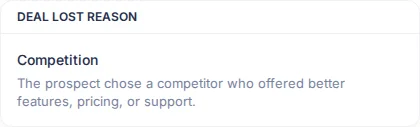
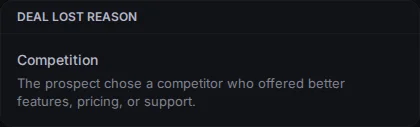
Deal Lost Reason: only for a lost deal. It shows the reason you picked when you lost it, and what that reason means.
Why it matters: over time, these reasons show you why you lose sales. For example, if many deals are lost to Pricing Issues, you may need to look at your prices. If many are lost to Lack of Follow-Up, your team may need to call customers back sooner. Picking the right reason each time helps you win more deals in the future.
Quotes
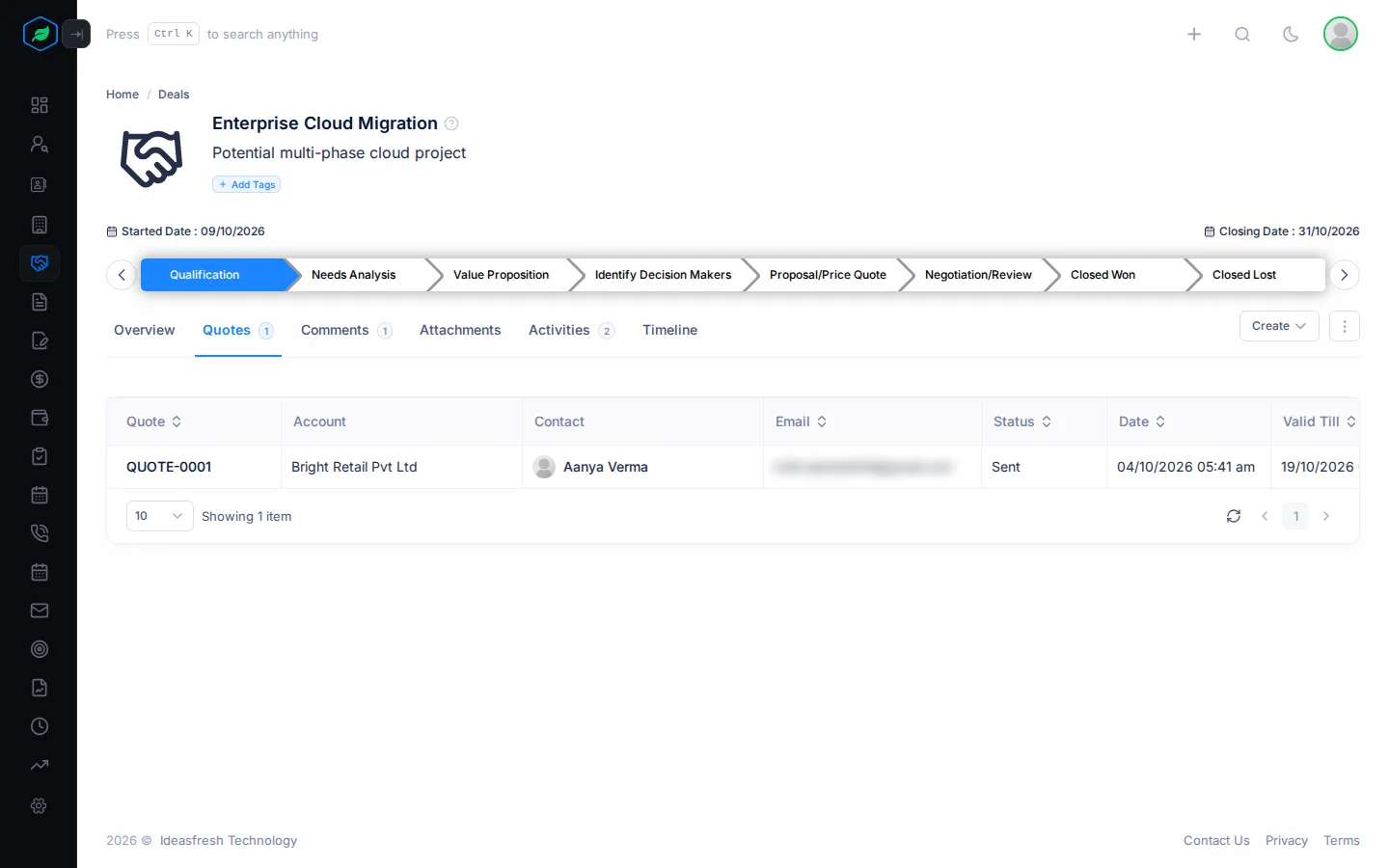
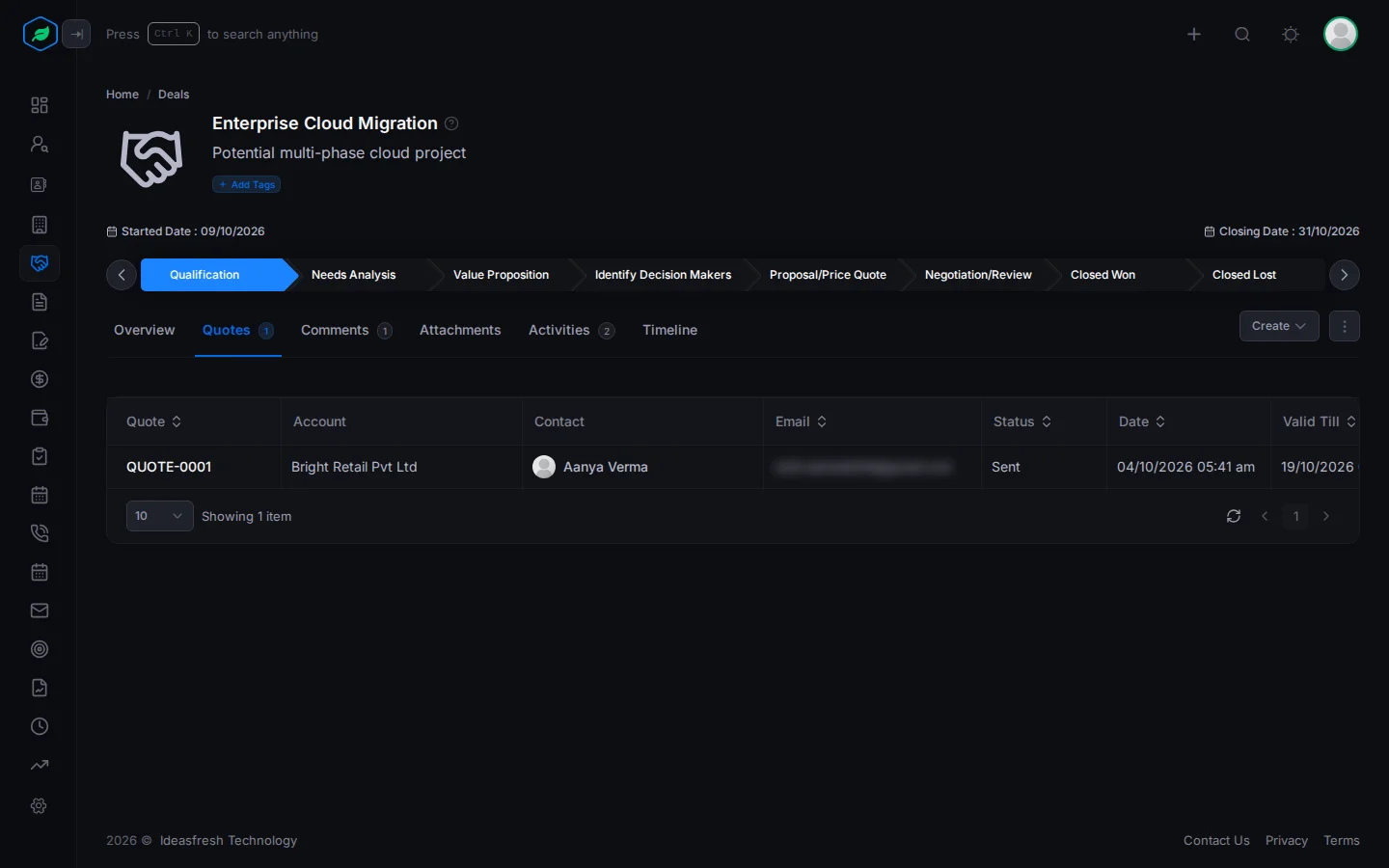
The quotes linked to this deal, with their number, status, dates and total. A quote is linked to a deal when the deal was created from that quote. This helps you see what price you offered the customer.
Comments
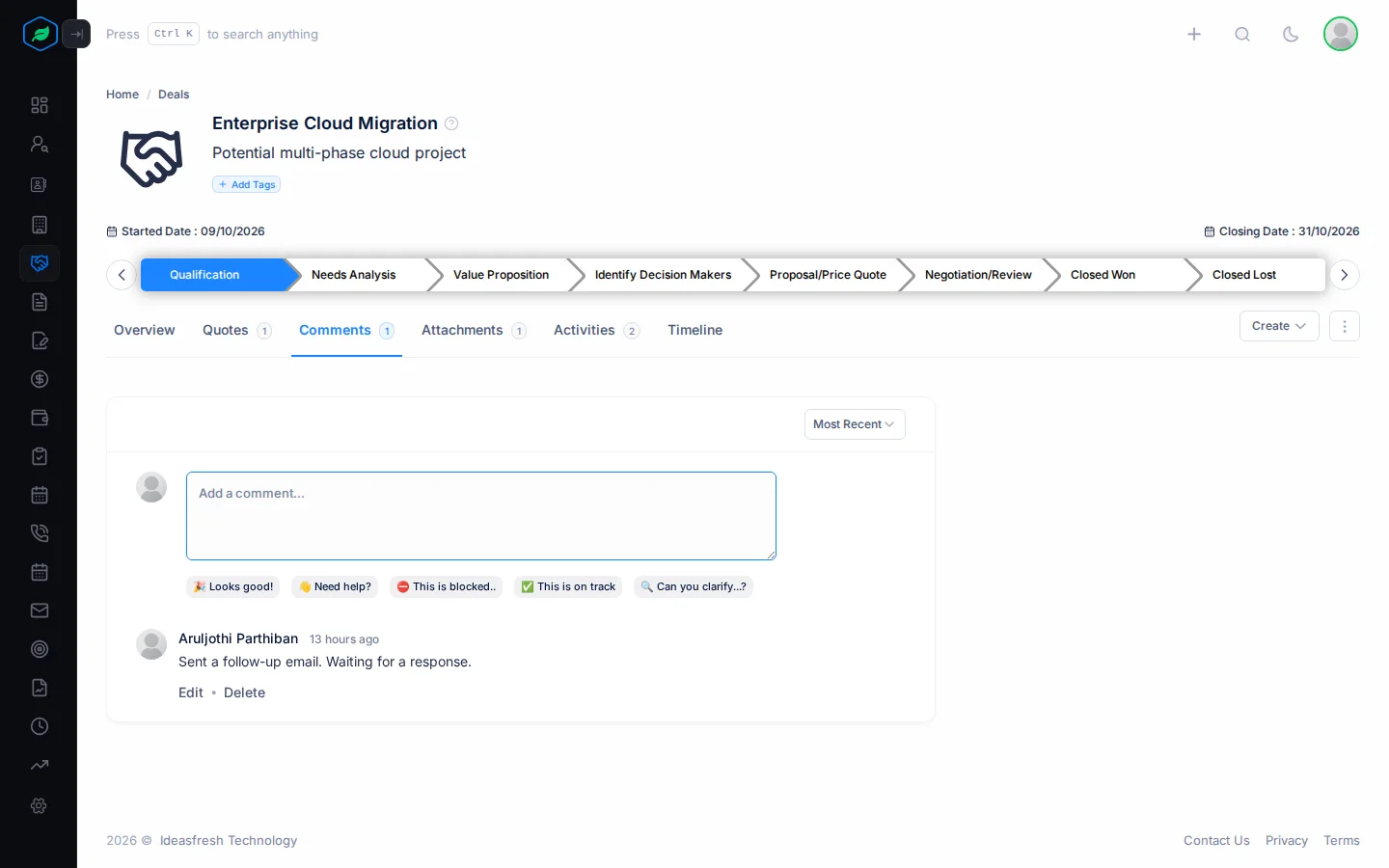
Comments are notes your team writes on the deal, so everyone knows what has happened and what comes next.
For example, after a call you might write: "They want a 10% discount if they order before the 15th." Anyone who picks up the deal knows the latest terms.
Attachments
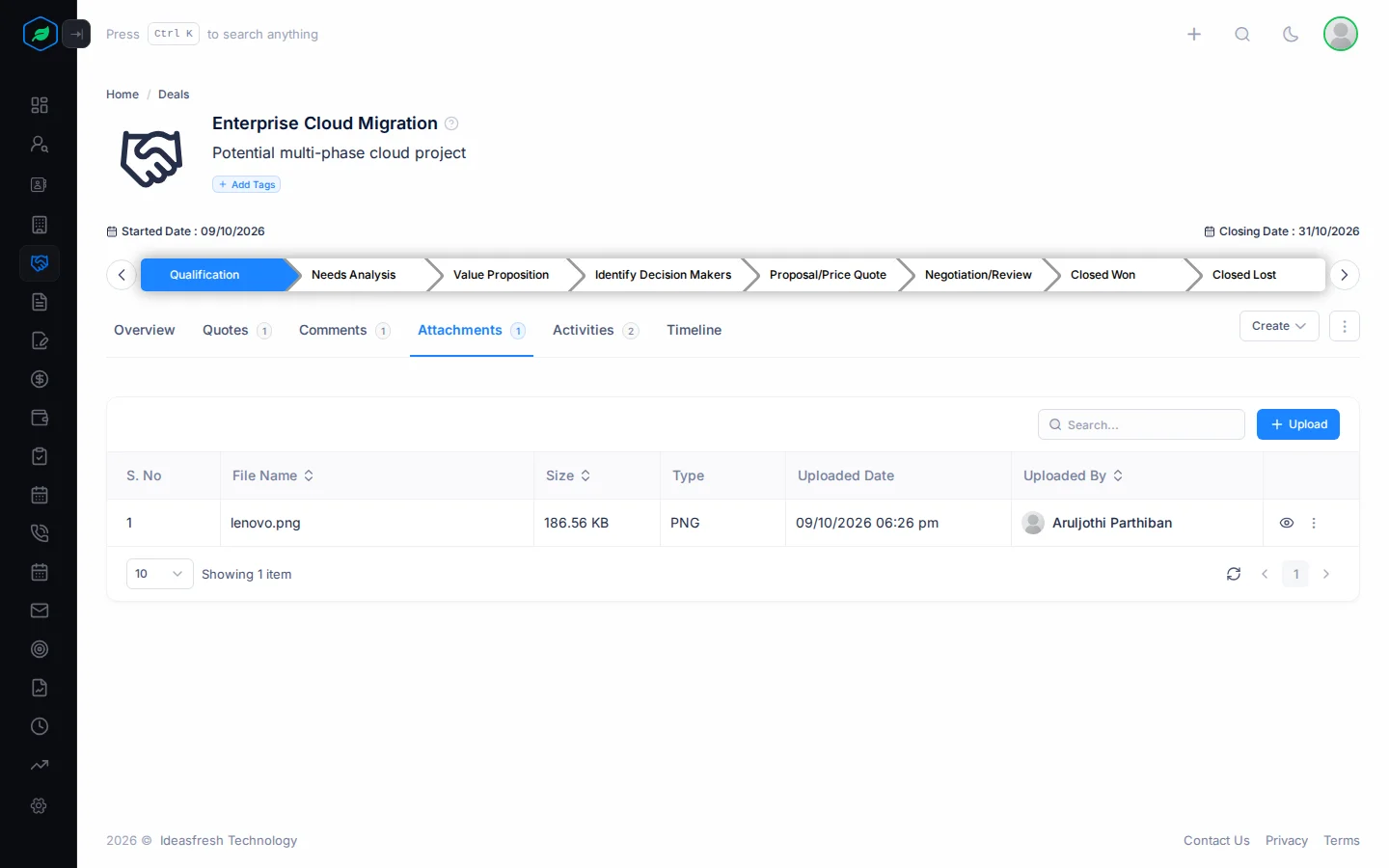
Attachments keep the files about a deal in one place, such as the proposal you sent or the customer's purchase order. Files count towards your company's storage.
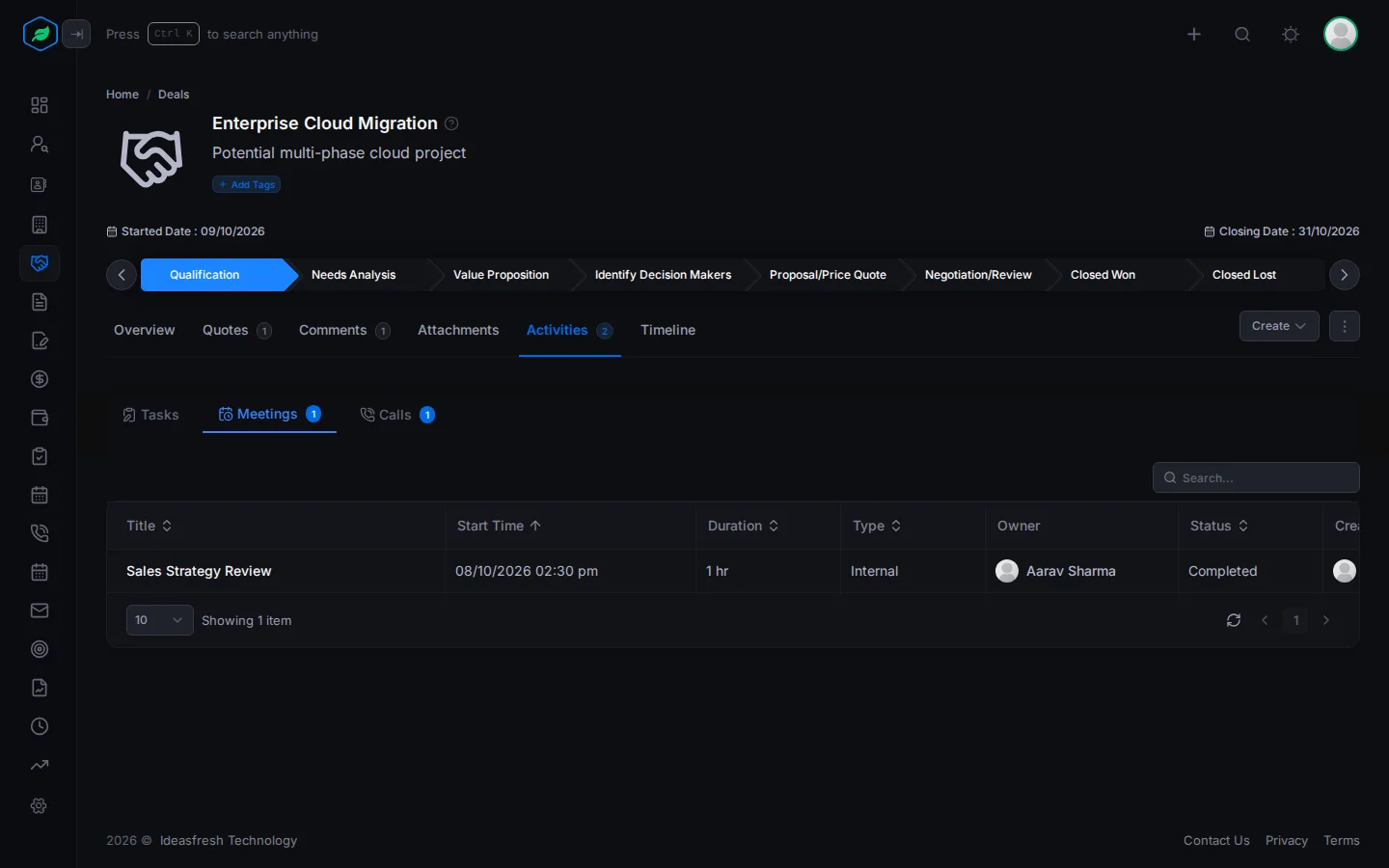
Activities
The tasks, meetings and calls linked to the deal. This includes follow-up tasks created by automation. They show what has been done to close the sale, and what is planned next.
For example, the customer asks for a demo next Wednesday. Add a meeting for Wednesday on this tab. You get a reminder before it starts, and anyone who opens the deal can see the demo is booked.
Timeline
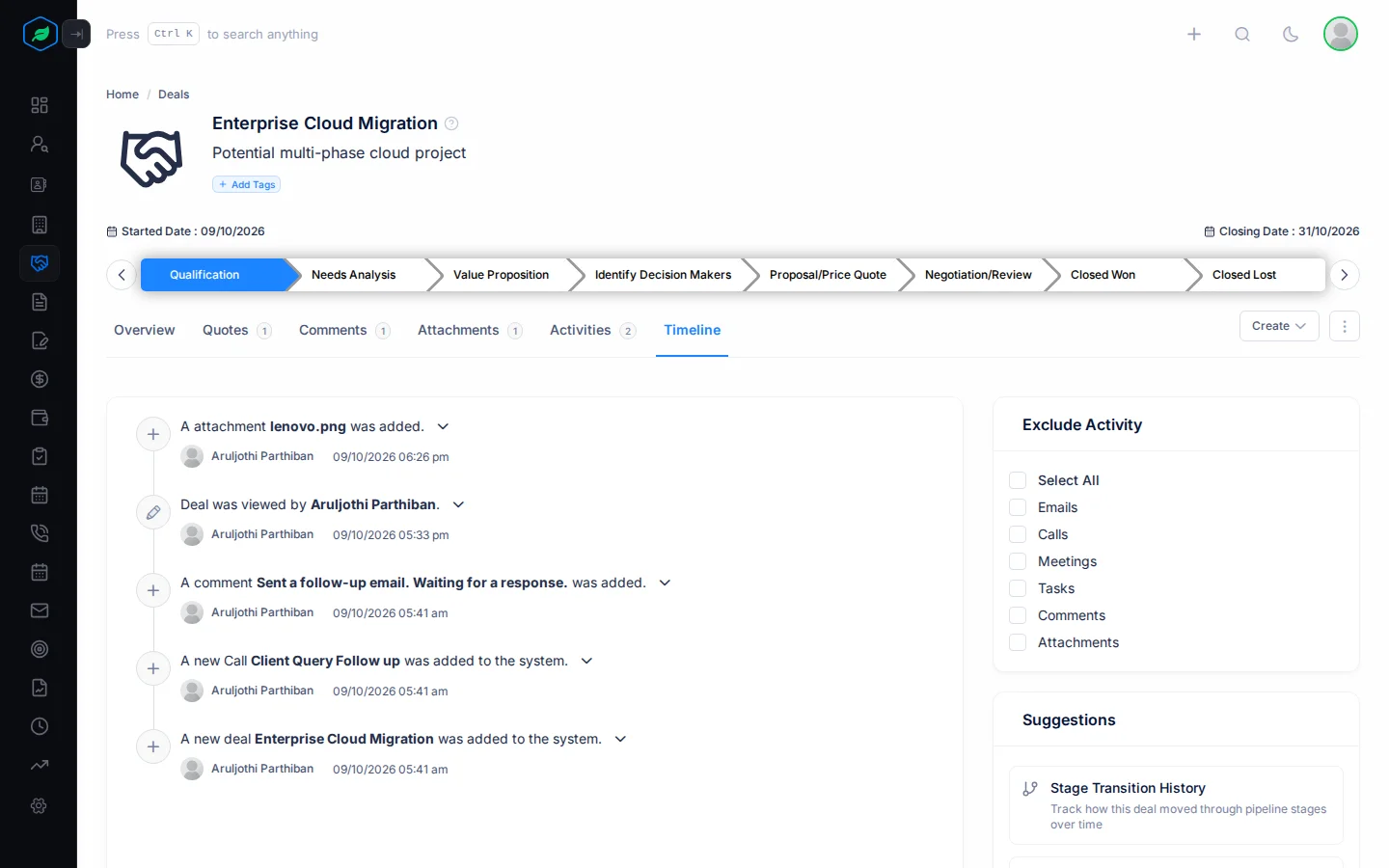
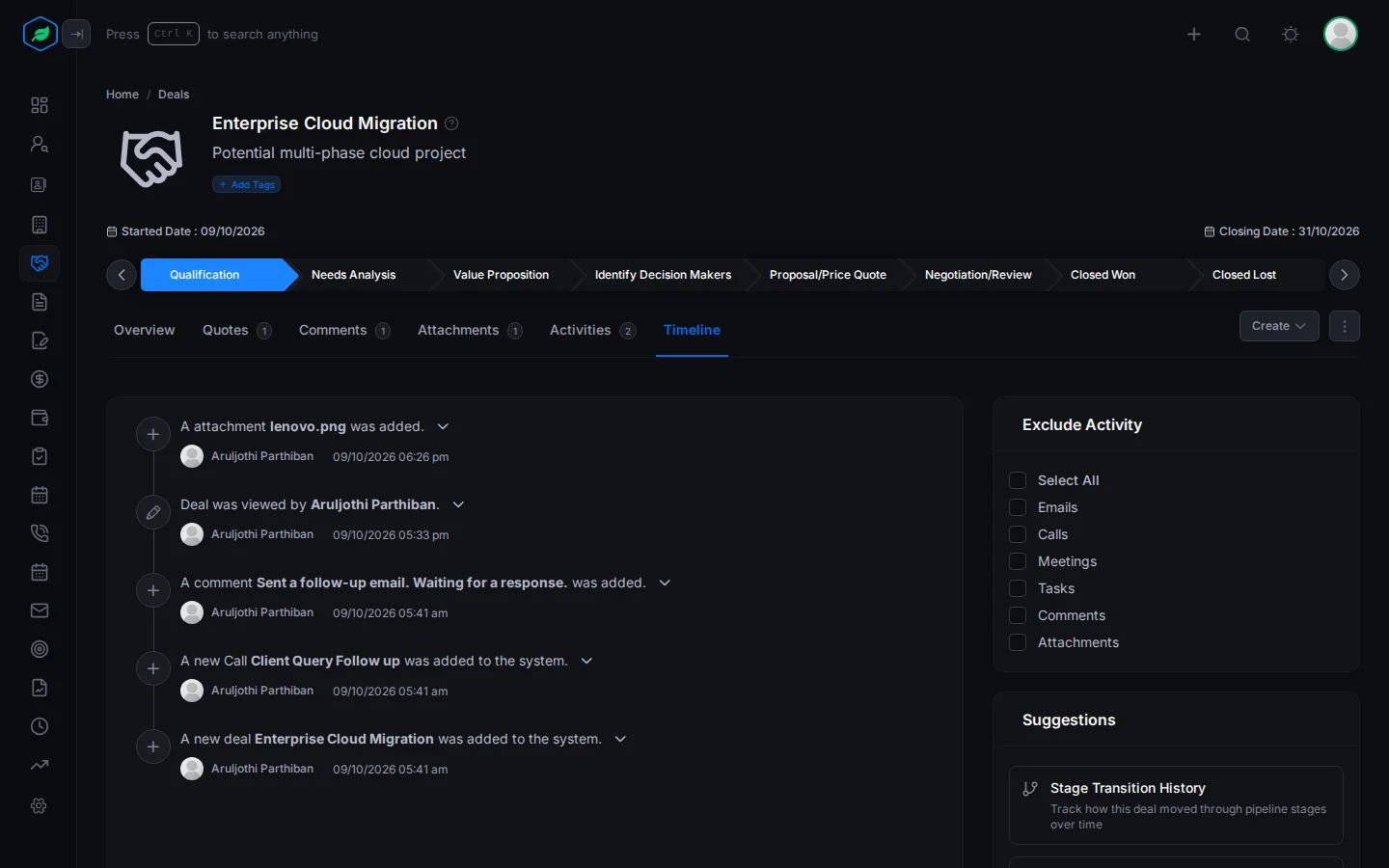
The deal's history. It lists every change to the deal, newest first, such as its stage, owner, probability, closing date and revenue, with who made each change and when. For example, if the expected revenue suddenly dropped, the Timeline shows who changed it and when. It works the same way as a lead's Timeline. See Timeline on the lead detail page.
Lock a deal
Locking a deal freezes it. Nobody can change it, move it to another stage or delete it until it is unlocked.
Why lock a deal?
- You and the customer have agreed the price and terms. Locking makes sure nobody changes them by mistake.
- The deal is waiting for a manager's approval, and must stay exactly as it is until then.
- You want to make sure the deal isn't deleted by mistake. A locked deal can't be deleted.
Locking doesn't hide the deal. Your team can still see it, and anyone who can open it can still add comments, attach files and schedule tasks, meetings and calls.
Lock or unlock
- Open the ⋮ menu and click Lock.
- The deal shows a lock badge and this banner: "This deal is locked and cannot be edited further. However, you can still add comments, attach files, and schedule meetings or calls."
| While it is locked, nobody can | You can still |
|---|---|
| Edit the deal | Add comments |
| Move it to another stage | Attach files |
| Delete it | Schedule tasks, meetings and calls |
The deal's owner or the person who created it can lock it. Only the person who locked it can unlock it.
To unlock a deal, open the ⋮ menu and click Unlock.
Troubleshooting
| You see | Why | What to do |
|---|---|---|
| "Deal not found" | The deal was deleted, the sharing rules hide it, or you don't own it and didn't create it | Ask the deal's owner, or an admin |
| Nothing happens when you click a stage on the stage bar | You don't own the deal and didn't create it, or it is locked | Ask the owner, or ask the person who locked it to unlock it |
| Edit is missing from the ⋮ menu | You don't own the deal and didn't create it, or it is locked | Ask the owner, or ask the person who locked it to unlock it |
Related
Still stuck?
Tell us what you were trying to do and we will help.