The account detail page
What is on an account's page, from its contacts and deals tabs to company details, addresses, the timeline and locking an account.
Updated 9 October 2026 · 7 min read
An account's page has everything about one company in one place: its details, the people who work there, the deals you have with them, and every note, file and activity. Click an account's name anywhere in Salesfresh to open it.
For example, you have a review call with a client tomorrow. Open their account. The Contacts tab shows the people you work with there. The Deals tab shows the amount and stage of each deal. The Comments tab has your team's notes from last month. In a few minutes, you know the whole story with this client, and you go into the call prepared.
When you open an account, it is marked as read, so it no longer shows in the Unread Accounts view.
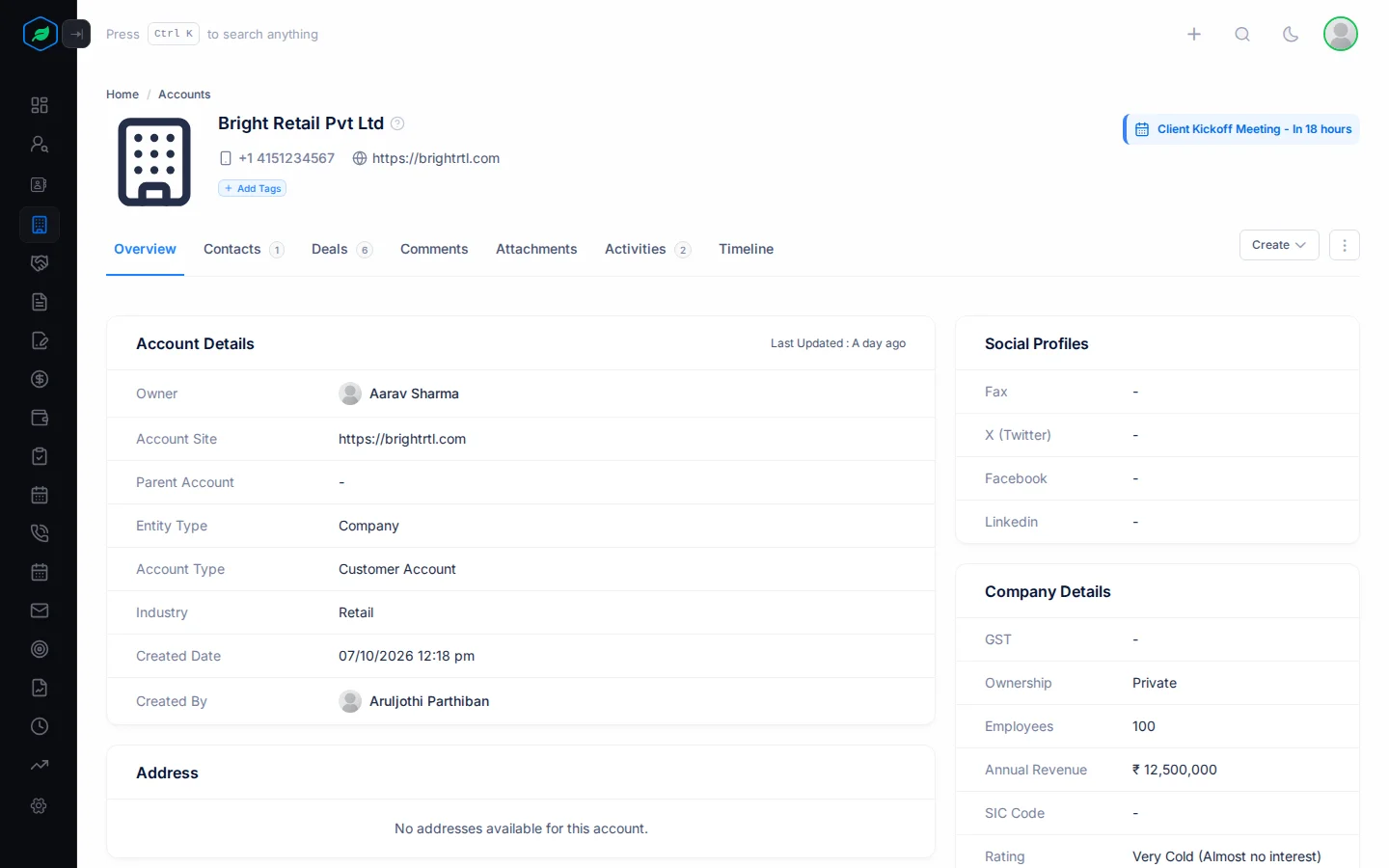
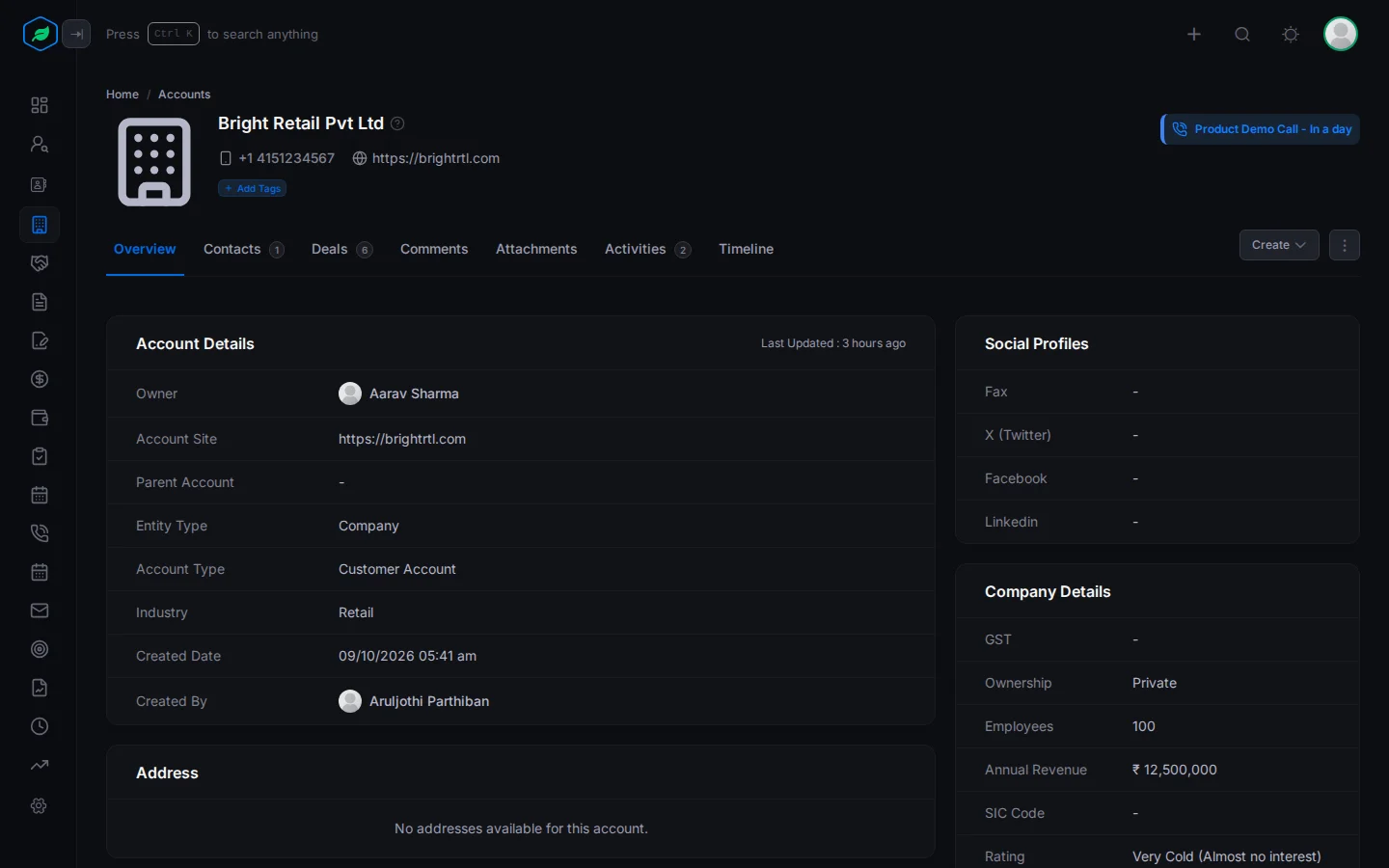
The header
- The account's name and description. A lock badge shows if the account is locked. Point at it to see who locked it.
- The first phone number and the website.
- The account's tags. See Tags.
- The next task, meeting or call.
Tags
Tags are short labels you put on an account, so your team can spot important companies at a glance and filter the accounts list by them.
For example, tag a large company Enterprise and a small one SMB. Your team can then filter the accounts list to see only your enterprise clients.
- Under the account's name, click Add Tags. If the account already has tags, click the + beside them.
- Manage Tags opens. Tag groups, such as Account Size and Priority, are on the left. Click a group, then click the tag you want on the right. You can pick one tag from each group. Click a tag again to remove it.
- Click Save.
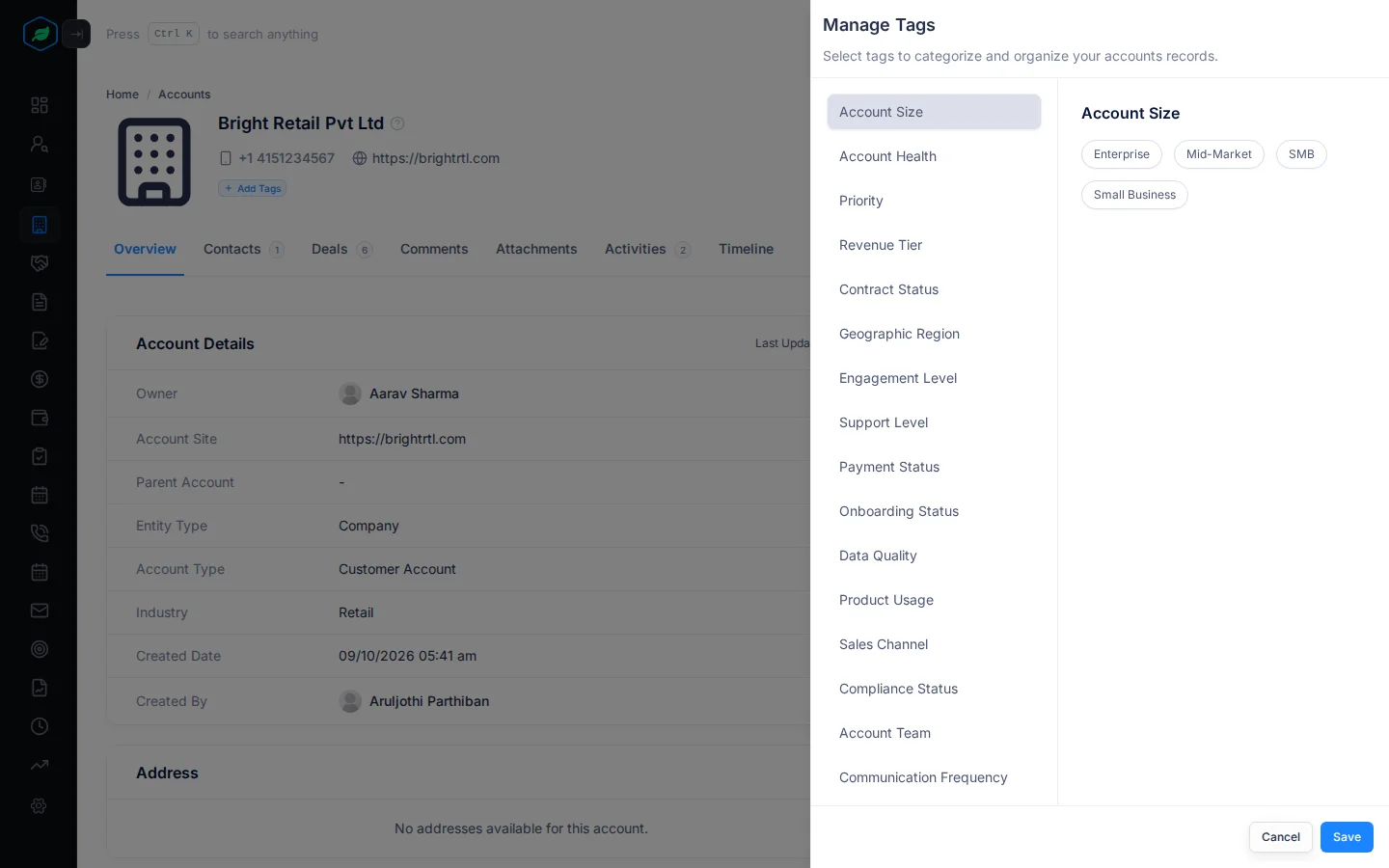
You can change an account's tags if you own it or created it. Your admin sets up the tags your company can use. See Tags.
Header actions
| Action | What it does |
|---|---|
| Activities | Add a Task, Meeting or Call for the account |
| ⋮ | Edit, Clone, Lock or Unlock, Delete |
Tabs
A tab shows a count when it has something in it. Contacts and deals you aren't allowed to see aren't counted.
Overview
- Account Details: owner, team, website (shown as Account Site), parent account, entity type, account type, industry, and when and by whom the account was created.
- Company Details: GST, ownership, employees, annual revenue, SIC code, and the rating with what it means, such as "Warm (Moderate interest)".
- Social Profiles: fax, X (Twitter), Facebook and LinkedIn.
- Addresses: each address with its type, such as Billing Address. Click Locate this on the map to open it in Google Maps.
- Notes.
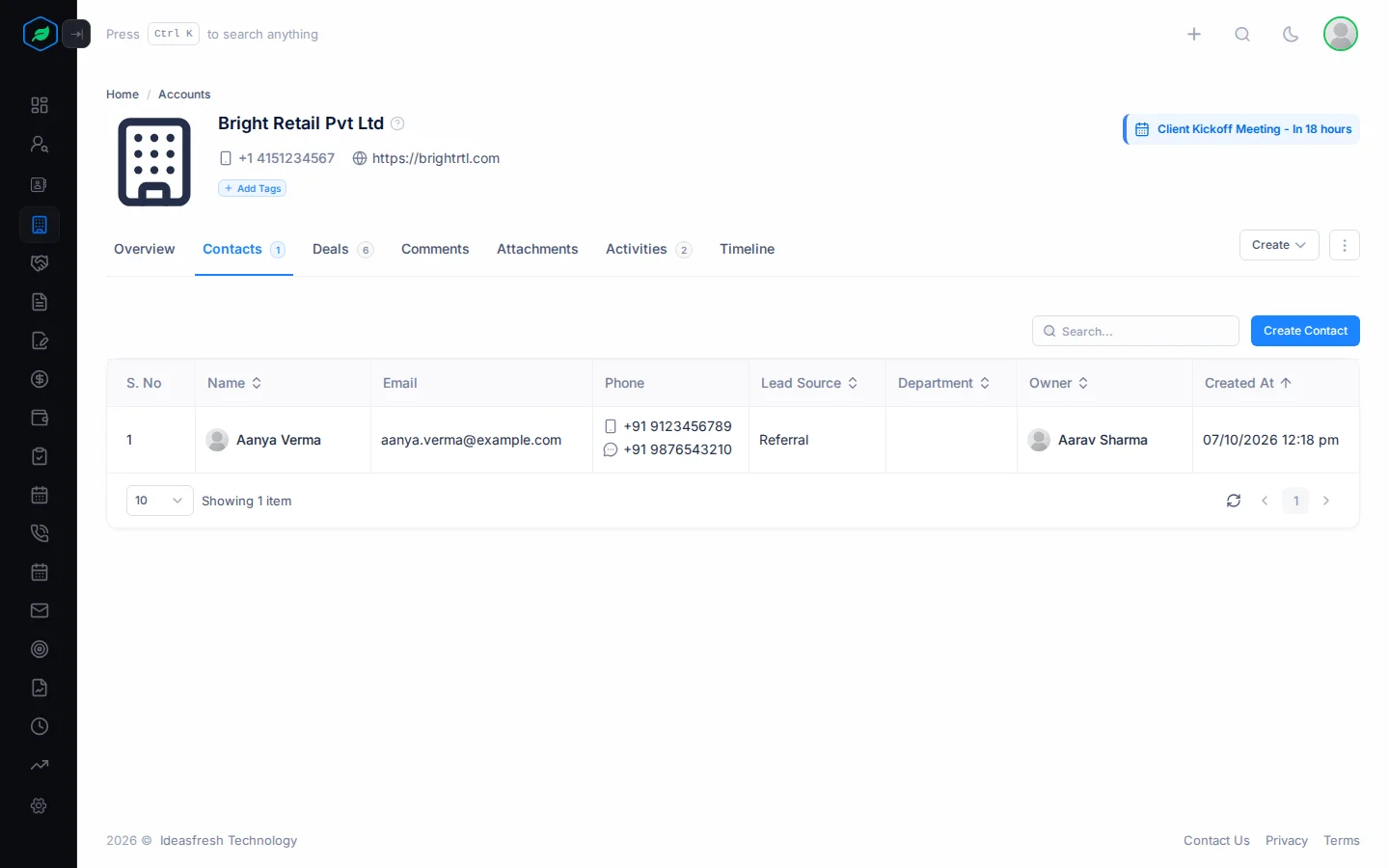
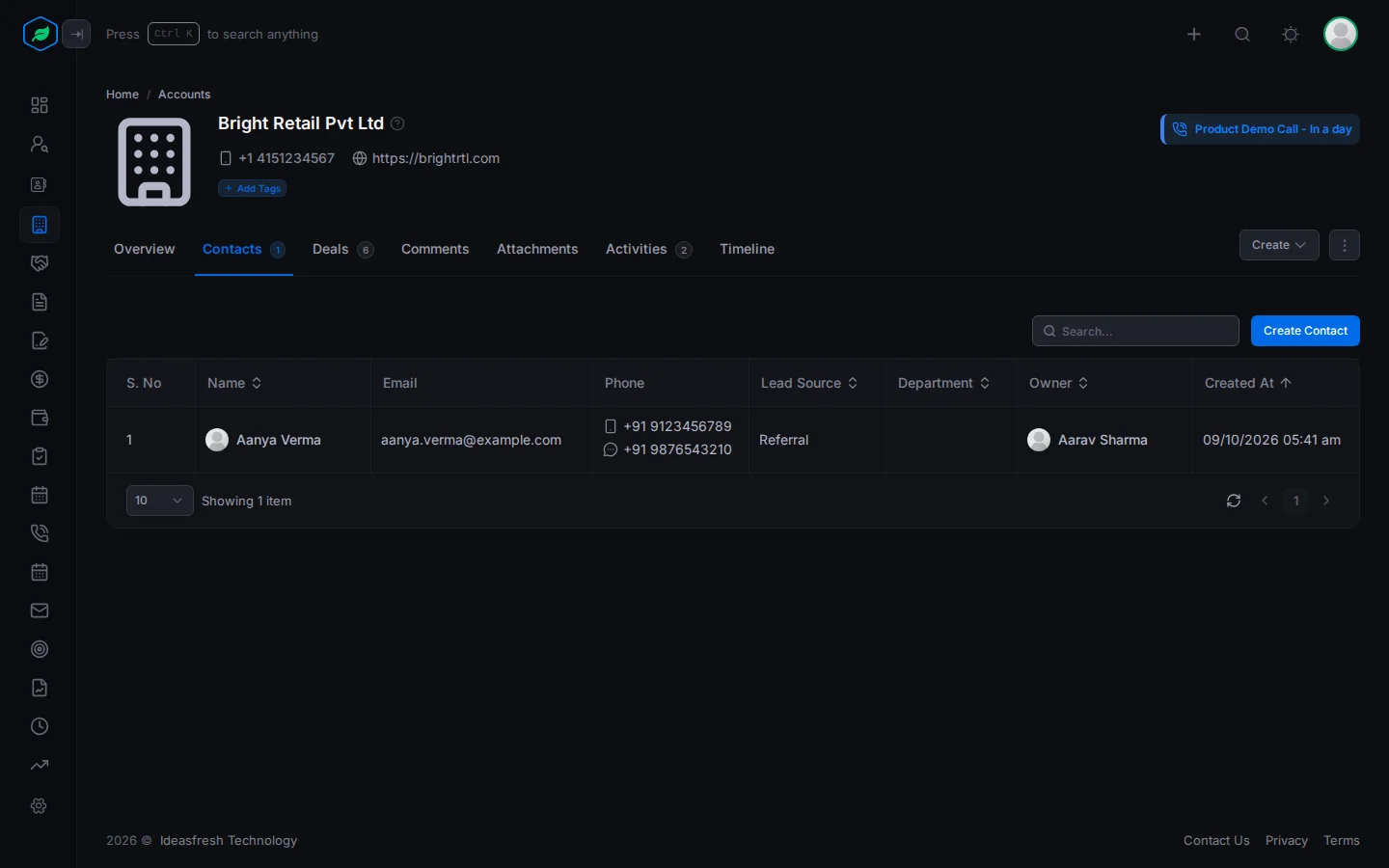
Contacts
Everyone who works at this company, with their email, phone, lead source, department and owner. Use the search box to find someone. This shows you who to talk to at the company.
Met someone new from this company? Click Create Contact. The contact form opens with this account already filled in. You need the View Contacts permission to see this tab.
Deals
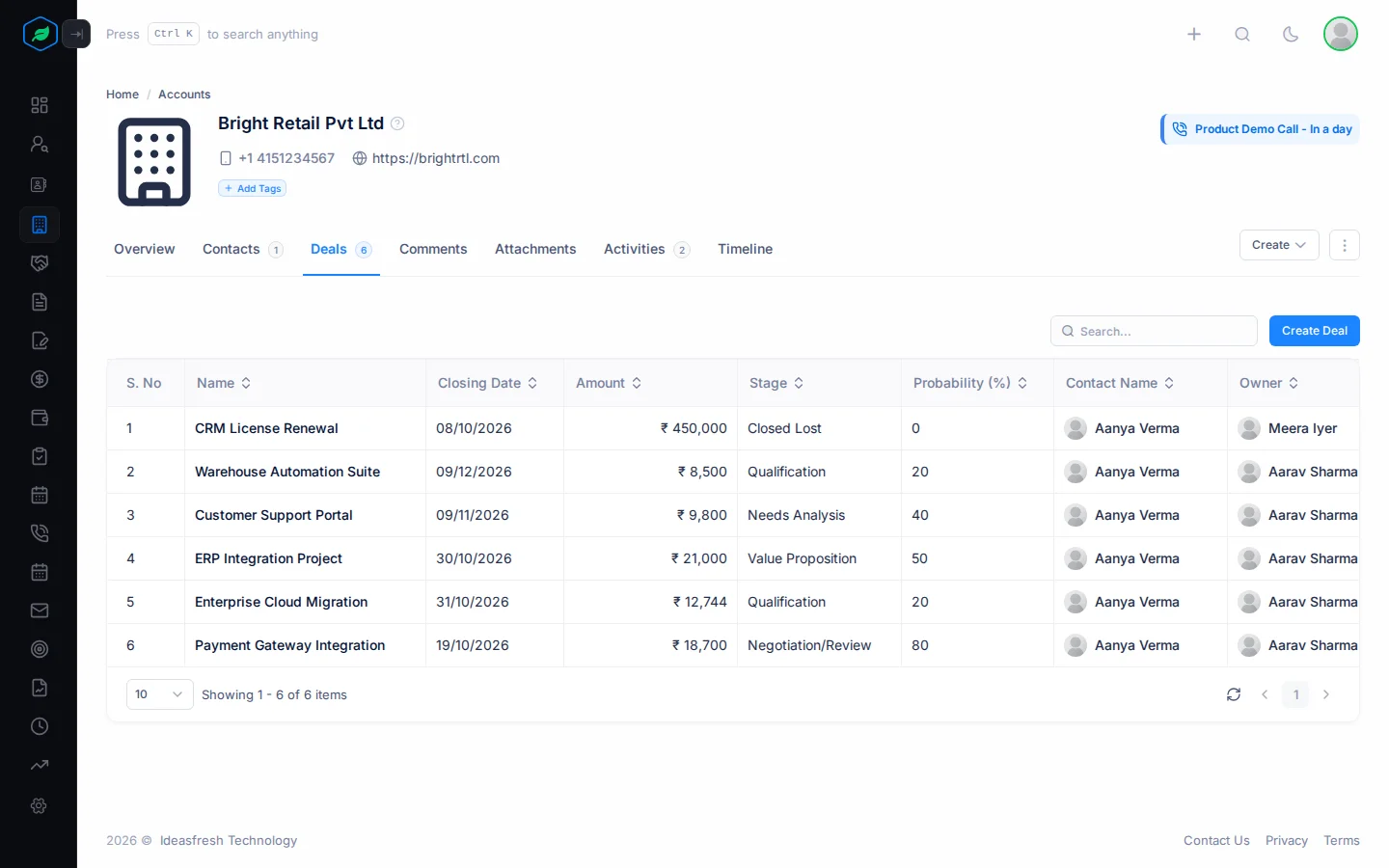
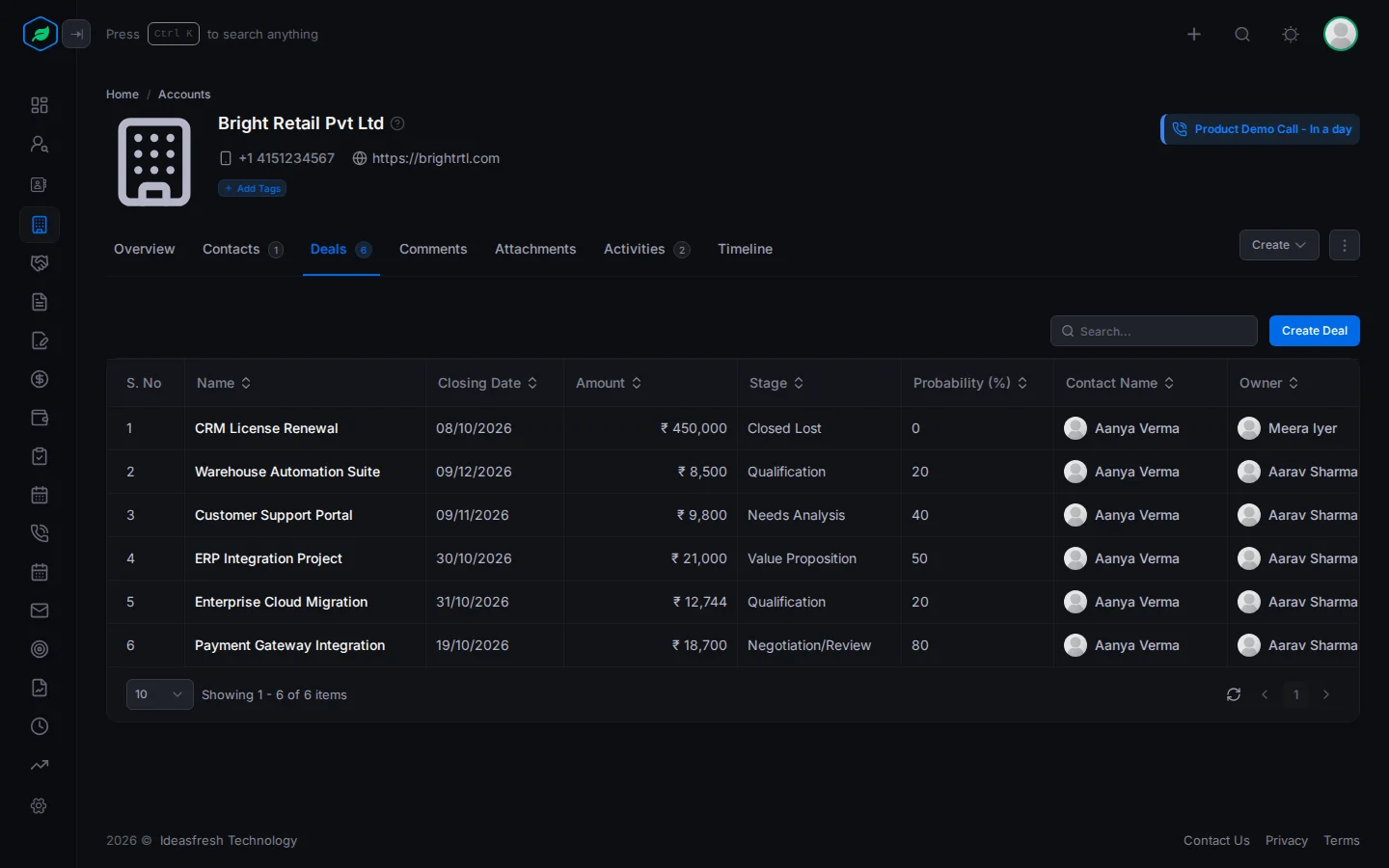
Every deal with this company, with its closing date, amount, stage, chance of winning, contact and owner. Click a deal's name to open it. This shows you everything you are selling to the company at a glance.
The company wants to buy something new? Click Create Deal. The deal form opens with this account already filled in. You need the View Deals permission to see this tab.
Comments
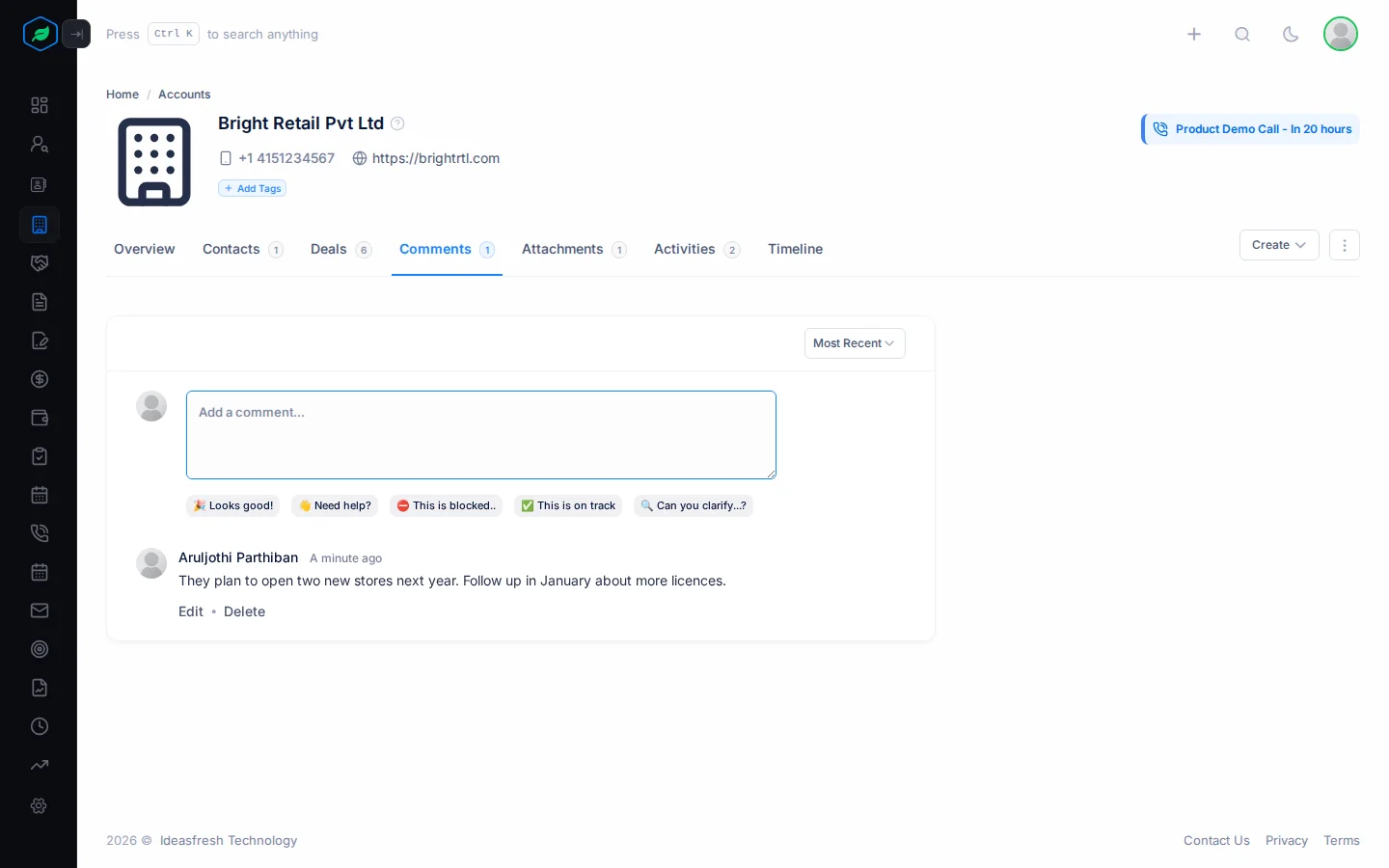
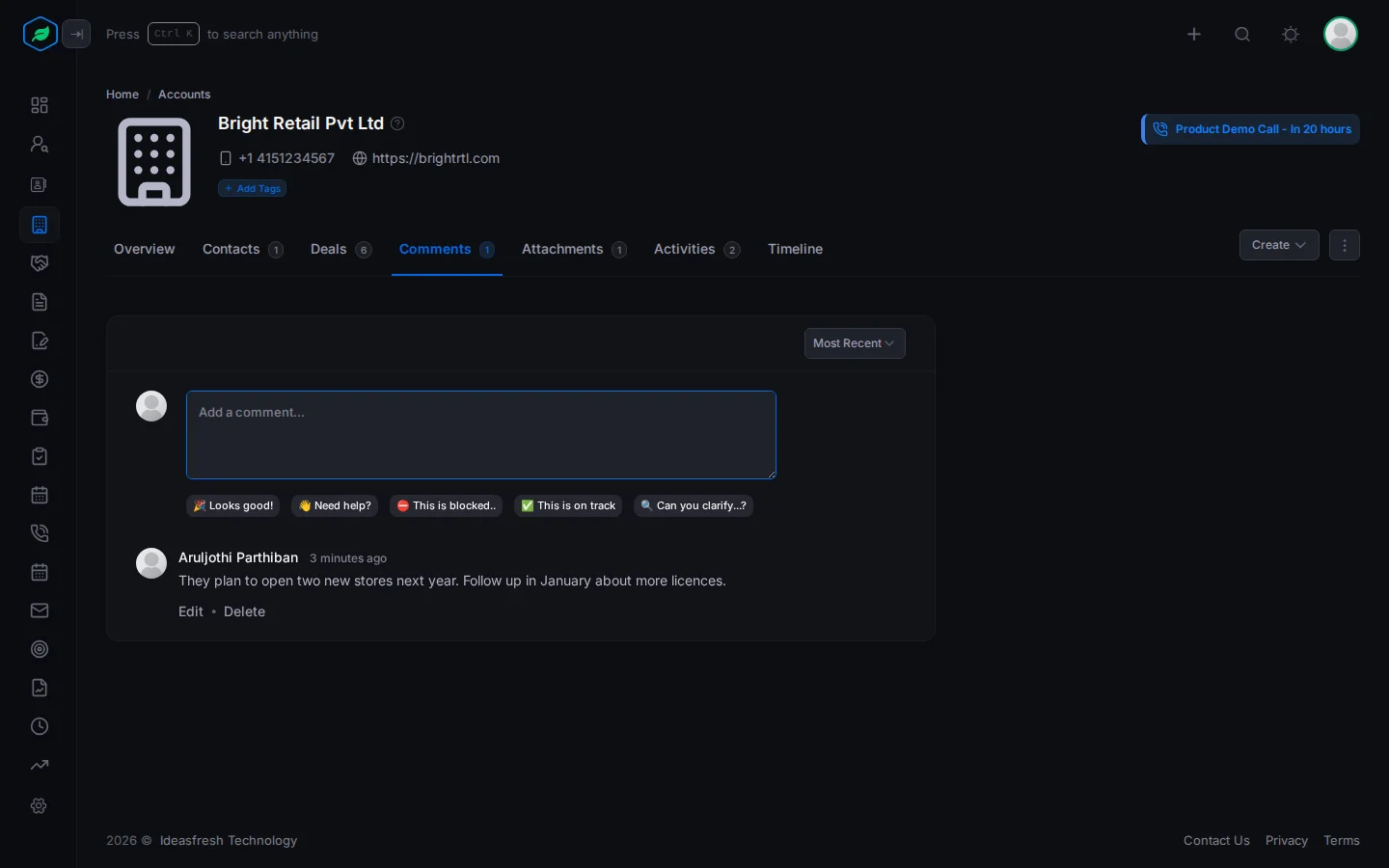
Comments are notes your team writes on the account, so everyone knows what has happened and what comes next.
For example, after a meeting you might write: "They plan to open two new branches next year. Follow up in January." Anyone who opens the account later knows about it.
Attachments
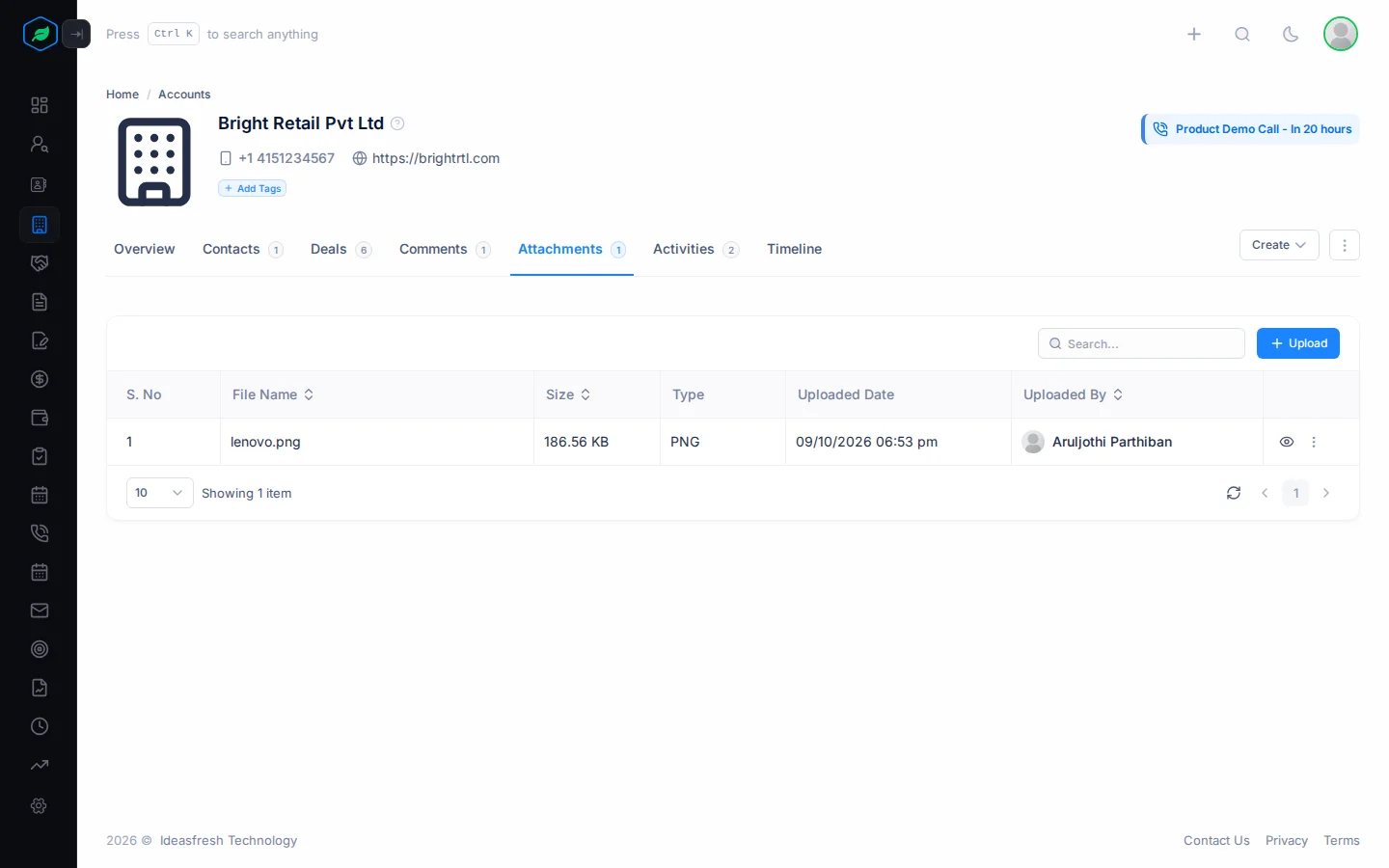
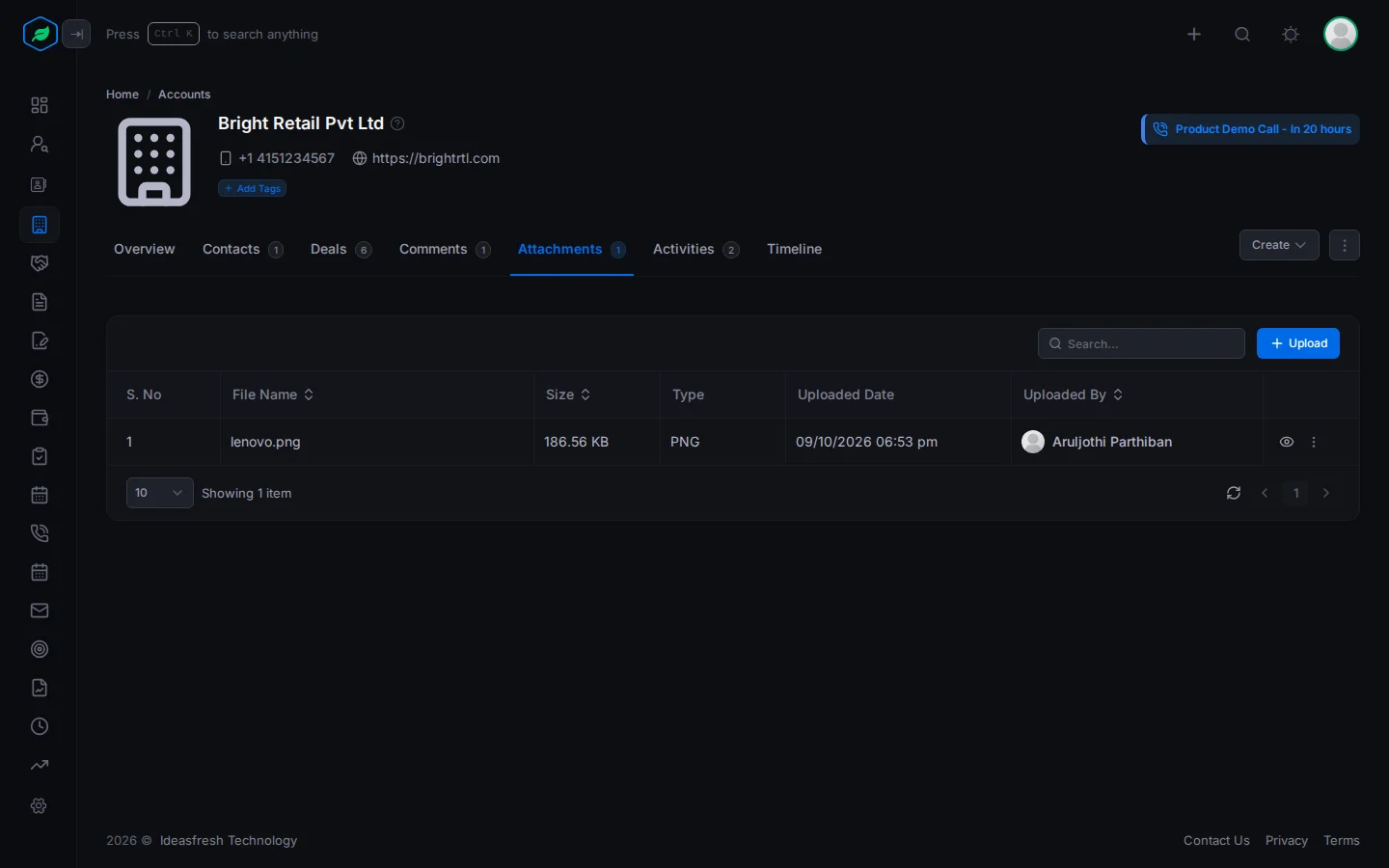
Attachments keep the files about a company in one place, such as signed agreements, price lists or their GST certificate. Files count towards your company's storage.
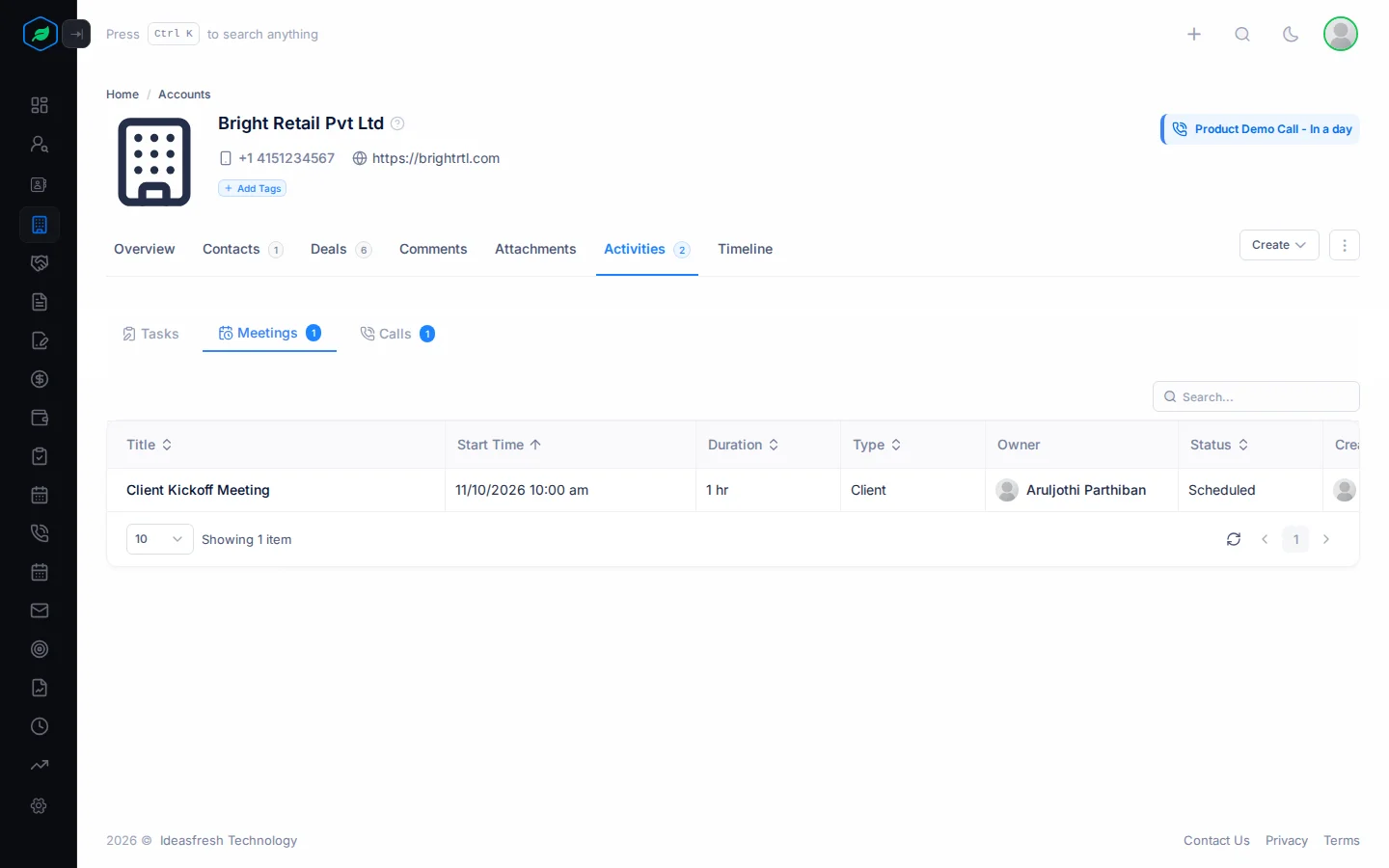
Activities
The tasks, meetings and calls linked to the account. They show what your team has done with the company, and what is planned next.
Timeline
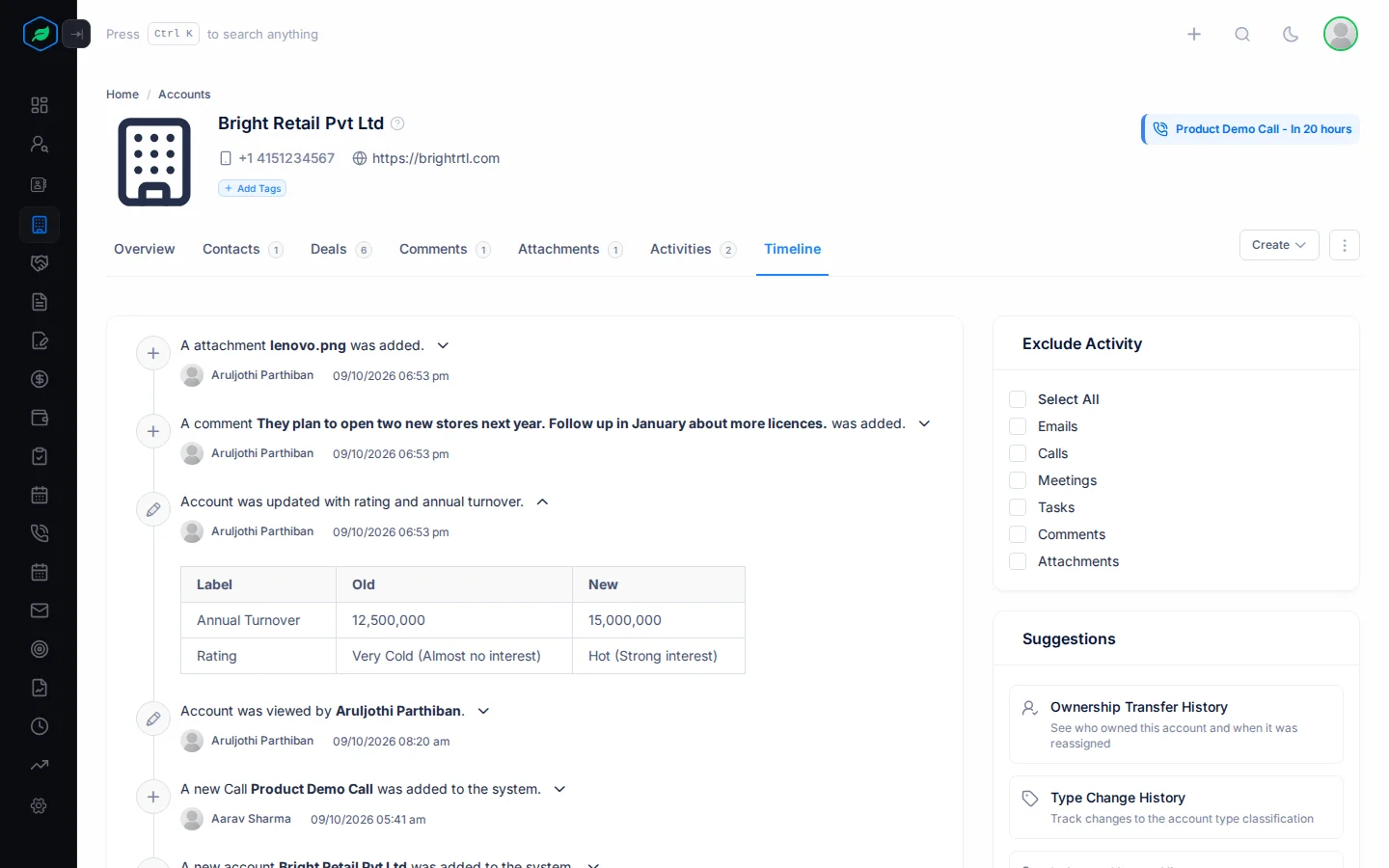
The account's history. It lists every change to the account and its addresses, newest first, with who made it and when. For example, if the billing address changed and an invoice went to the wrong place, the Timeline shows who changed it and when. It works the same way as a lead's Timeline. See Timeline on the lead detail page.
To see exactly what changed, click the arrow next to an entry. A table opens with each field's old value and new value. In the example below, the account's rating went from Very Cold to Hot, and its annual turnover went up.
Lock an account
Locking an account freezes it. Nobody can change its details or delete it until it is unlocked.
Why lock an account?
- Someone has checked the company's details, such as its GST number and billing address, and confirmed they are correct. Locking keeps them that way.
- You want to make sure the account isn't deleted by mistake. A locked account can't be deleted.
- An important client's details must not change without the owner knowing.
Locking doesn't hide the account. Your team can still see it, and anyone who can open it can still add comments, attach files and schedule tasks, meetings and calls.
Lock or unlock
- Open the ⋮ menu and click Lock.
- The account shows a lock badge and this banner: "This account is locked and cannot be edited further. However, you can still add comments, attach files, and schedule meetings or calls."
| While it is locked, nobody can | You can still |
|---|---|
| Edit the account | Add comments |
| Delete it | Attach files |
| Schedule tasks, meetings and calls |
The account's owner or the person who created it can lock it. Only the person who locked it can unlock it.
To unlock an account, open the ⋮ menu and click Unlock.
Banners
- View all records: if you turned on View all records on the accounts list, an account that belongs to someone else shows a banner that says so. You can read it, but to change it you must be its owner or the person who created it.
- Deleted: you can still open a deleted account's page. The banner shows when it was deleted, how many days you have left to restore it, and a Restore Account button. See Delete and restore an account.
Troubleshooting
| You see | Why | What to do |
|---|---|---|
| "Account not found" | The account was deleted, the sharing rules hide it, or you don't own it and didn't create it | Ask the account's owner, or an admin |
Related
Still stuck?
Tell us what you were trying to do and we will help.