Create, edit and clone an account
Every field on the account form, including tax IDs, addresses and parent accounts, plus duplicate names and how cloning an account works.
Updated 9 October 2026 · 7 min read
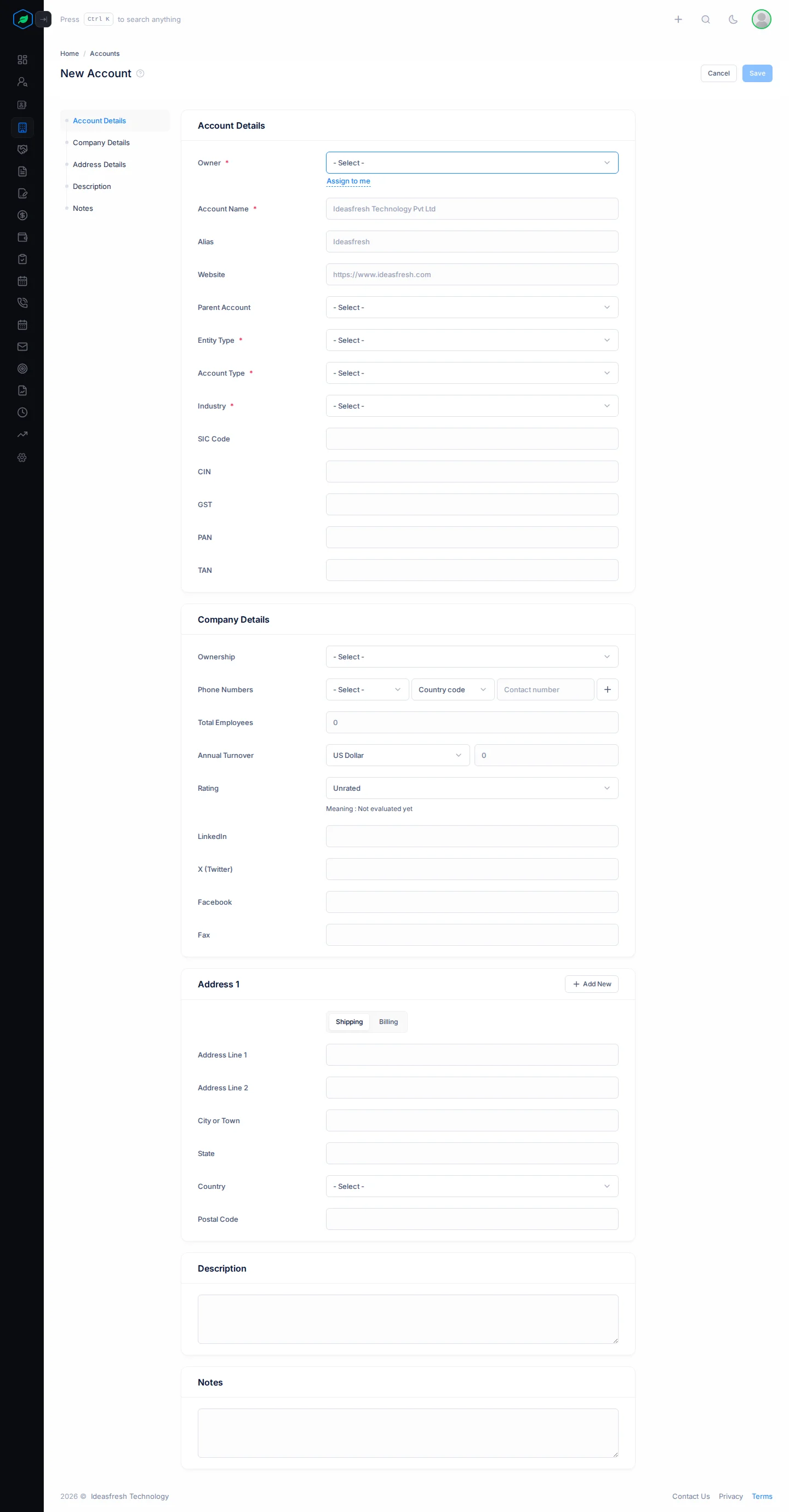
You use the account form to add a company you do business with, or to change its details later. The same form is used to finish a copy of an account.
For example, a building company starts buying from you. It has a head office and a site office. Create one account for the head office, with its tax details and billing address. Then create a second account for the site office, and set its Parent Account to the head office. Now everyone can see the two offices belong to the same company.
Before you start
- To create or clone an account, you need the Create Accounts permission. To edit one, you need Edit Accounts, and you must be the account's owner or the person who created it.
- You can't edit an account that is locked.
- Account Types, Ownerships and Industries come from lists your admin sets up in Settings > Configurations.
Create an account
- Go to Accounts and click Create Account. You can also click the + button at the top of any page.
- Fill in the form. Fields marked * must be filled in.
- Click Save.
If you try to leave the page before you save, Salesfresh asks you to confirm first.
Adding a lead or contact, and their company isn't in Salesfresh yet? Click Add New next to Account on their form. It only asks for the name, entity type, account type and industry, and you become the owner. You can fill in the rest later on the account's page.
The form, section by section
Account Details
| Field | What to enter |
|---|---|
| Owner * | The person in charge of the account. Click Assign to me to pick yourself |
| Team | One of the owner's teams. If your company shares records by team, this decides who can see the account |
| Account Name * | The company's name. No other account in your company can have it |
| Alias | A short name or trading name, such as "ABC" for "ABC Private Limited". You can search for accounts by alias |
| Website | The company's website, for example https://www.example.com |
| Parent Account | The account this one belongs to, such as a head office. See Parent accounts |
| Entity Type * | Individual, Company, or Government / Public Sector |
| Account Type * | Pick from your company's list of account types |
| Industry * | Pick from your company's list of industries |
| SIC Code | The company's industry code |
| CIN | The company's Corporate Identity Number |
| GST | The company's 15-character GSTIN, for example 33AAAAA0000A1Z5. Letters are made capital for you, and the number is checked for mistakes |
| PAN | The company's 10-character PAN, for example AABCI1234A |
| TAN | The company's 10-character TAN, for example BLRI12345A |
Company Details
| Field | What to enter |
|---|---|
| Ownership | Pick from your company's list of ownership types |
| Phone Numbers | Up to 3 numbers. For each one, pick its type, such as Mobile or Landline, then pick the country code and type the number. If you start a number, finish it, or leave it empty |
| Total Employees | How many people work there |
| Annual Turnover | The amount and the currency. The currency is set to US Dollar at first |
| Rating | How interested you think the company is. See the table below |
| LinkedIn, X (Twitter), Facebook | A link to the company's profile, for example https://www.linkedin.com/company/name |
| Fax | The company's fax number |
| Rating | Meaning |
|---|---|
| Unrated | You haven't judged it yet |
| Very Cold | Almost no interest |
| Cold | Low interest |
| Warm | Some interest |
| Hot | Strong interest |
| Very Hot | Ready to buy |
The rating shows on the accounts list, so your team can pick out the most interested companies with the rating chips.
Address Details
An account can have up to 3 addresses. Each one is a Shipping or Billing address. For example, the billing address is where you send invoices, and the shipping address is where you deliver goods.
- The first address is set to Shipping at first. Click Add New to add another. It uses whichever type isn't taken yet.
- On the second and third address, tick Same as … Address to copy the address above it.
- An address has Address Line 1 and 2, City or Town, State, Country and Postal Code. If you fill in any part of an address, Address Line 1 must be filled in too.
Description and Notes
Type anything else your team should know. The description can be up to 255 characters.
Edit an account
Open the account, open the ⋮ menu and click Edit. Or pick Edit from the row menu on the list. Change what you need and click Update.
Duplicate names
Two accounts in your company can't have exactly the same name.
- If another account already has the name, Salesfresh won't let you save.
- If a deleted account had the name, a Confirmation window asks if you want to Restore that account, or Delete it for good. If you delete it, save your new account again.
Parent accounts
A parent account links a company's branches or smaller companies to one main account. This shows your team that they belong to the same company.
For example, a retail chain has a head office and five stores. Create an account for each store, and set each store's Parent Account to the head office. Anyone who opens a store's page sees which head office it belongs to, under Account Details.
- An account can't be its own parent, or the parent of an account above it.
- You can't delete an account that has child accounts. Delete the children first, or move them to another parent.
Clone an account
Cloning makes a copy of an account. It helps when you need to add a similar company, such as another branch.
- Open the menu at the start of the account's row, or the ⋮ menu on its page. Click Clone and confirm.
- Salesfresh makes a Draft copy with the same name and opens it so you can edit it.
- Change the name. You can't save the copy with the original name.
- Click Update. The Draft badge goes away.
The copy keeps the original's details, owner, parent account and addresses. It doesn't copy the tags or team. Only the person who made a draft can see it.
Troubleshooting
| You see | Why | What to do |
|---|---|---|
| "A account with this name already exists." | Another account has this name, or you saved a copy without changing its name | Use a different name, or open the account that already exists |
| "An account with this name was deleted on … Do you want to restore it instead ?" | A deleted account still has this name | Restore it, or delete it and save again |
| "Please enter a valid website URL, e.g., https://www.ideasfresh.com" | The website doesn't start with https://, or it has a page path | Type only the address, starting with https:// |
| "Enter a valid 15-character GSTIN, e.g. 33AAAAA0000A1Z5" | The GST number is the wrong length or format | Check the GSTIN and type all 15 characters |
| "This GSTIN doesn't look right — please double-check it." | The GSTIN has a mistake in it | Type it again from the GST certificate |
| "An account cannot be its own parent, or a child of one of its own sub-accounts." | The parent you picked is below this account | Pick an account higher up |
| "This account hierarchy already contains a loop. Clear the parent on one of its accounts first." | The parent links already go round in a circle | Clear Parent Account on one account in the circle |
| "You have reached the maximum of N accounts on your current plan. Please upgrade for more." | You have used up your plan's account limit | Upgrade from My Subscription. See Plans and limits |
Related
Still stuck?
Tell us what you were trying to do and we will help.