The contact detail page
What is on a contact's page, from the header actions to each tab, including deals, interested products, emails and locking a contact.
Updated 9 October 2026 · 7 min read
A contact's page has everything about that person in one place: their details, their company, their deals and products, and every email, call, meeting, note and file linked to them. Click a contact's name anywhere in Salesfresh to open it.
For example, before you meet a customer, open their page. The Deals tab shows the deal you are still working on. The Products tab shows what else they are interested in. The Emails tab shows the last question they asked. You walk in knowing what they want, and they don't have to explain it all again.
When you open a contact, it is marked as read, so it no longer shows in the Unread Contacts view.
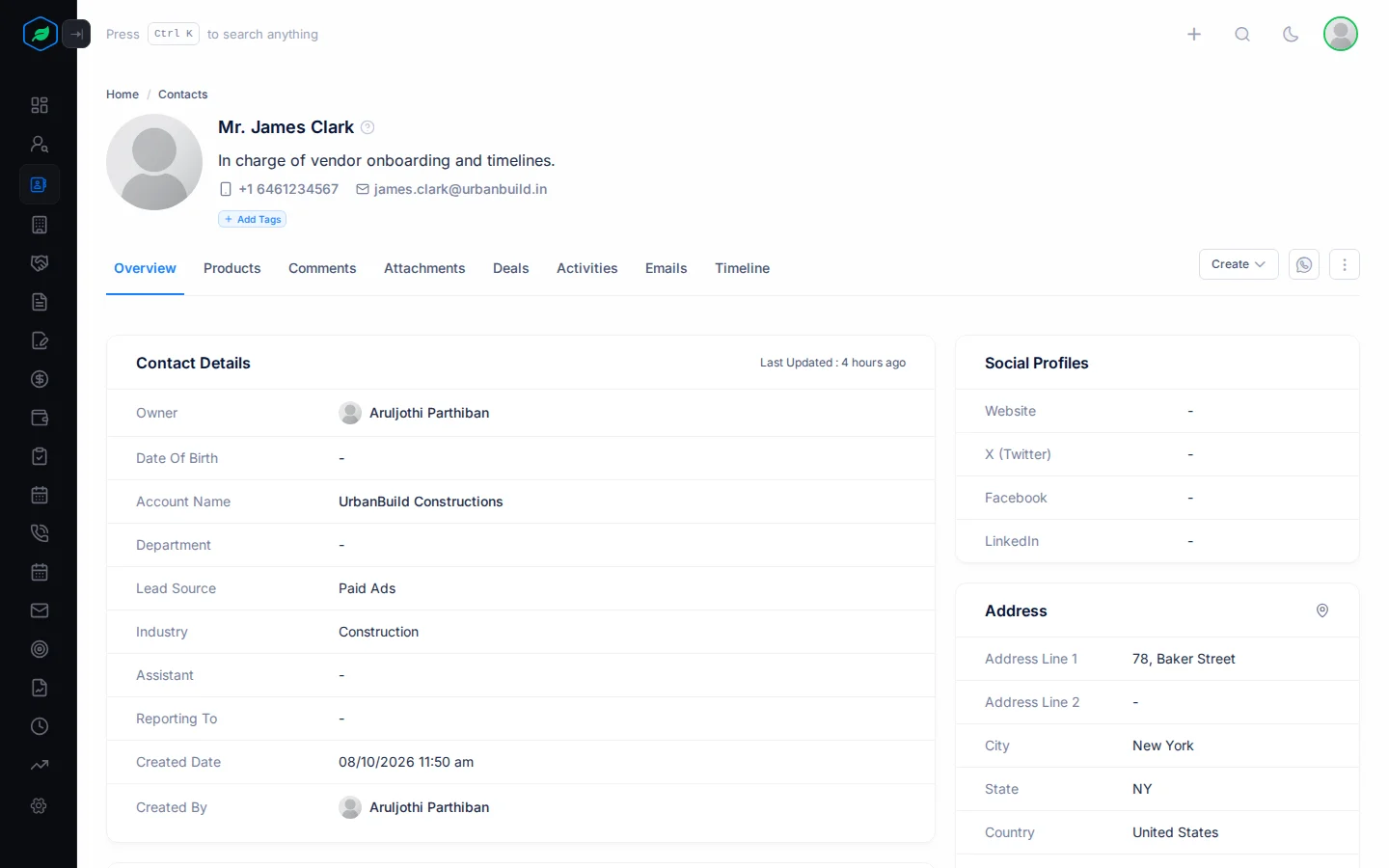
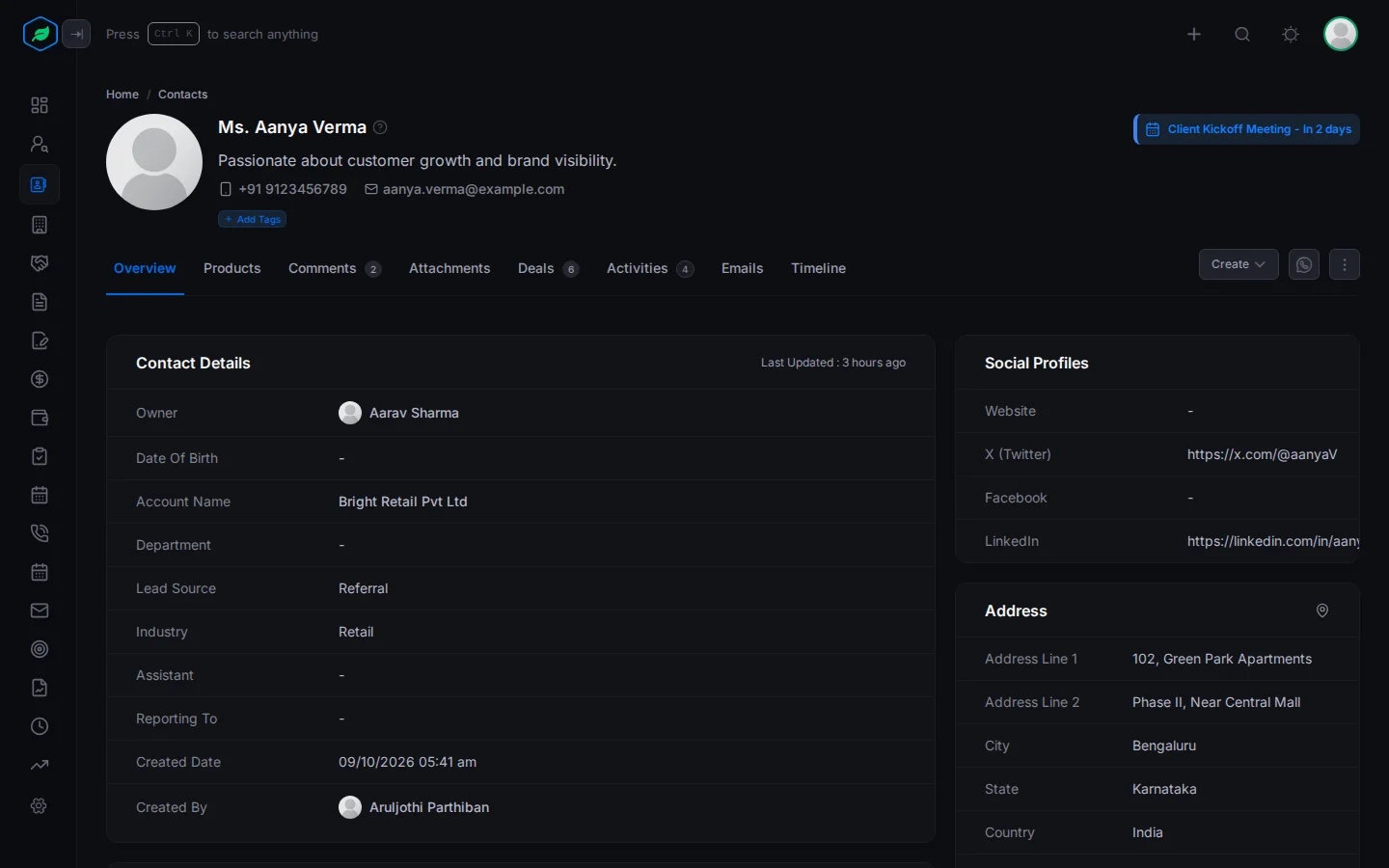
The header
- The contact's photo, salutation and name. A lock badge shows if the contact is locked. Point at it to see who locked it.
- Their description, first phone number and email.
- The contact's tags. See Tags.
- Their next task, meeting or call.
Tags
Tags are short labels you put on a contact, such as Active Customer or Partner. They help you spot important people at a glance, and you can filter the contacts list by them.
For example, a contact has just bought from you. Tag them Active Customer, so anyone on your team who opens their page knows they are a customer now, not a prospect.
- Under the contact's name, click Add Tags. If the contact already has tags, click the + beside them.
- Manage Tags opens. Tag groups, such as Relationship Status and Priority, are on the left. Click a group, then click the tag you want on the right. You can pick one tag from each group. Click a tag again to remove it.
- Click Save.
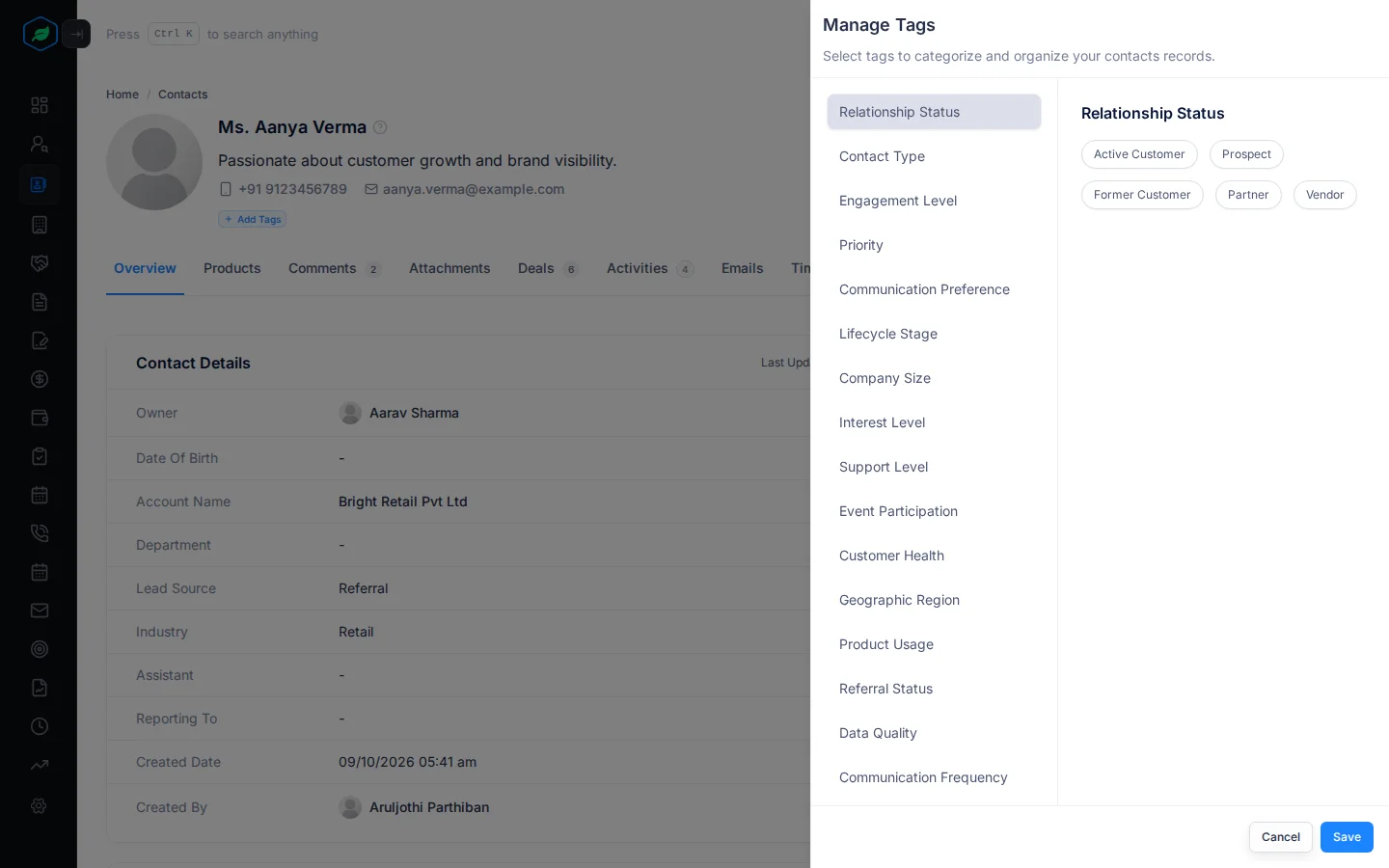
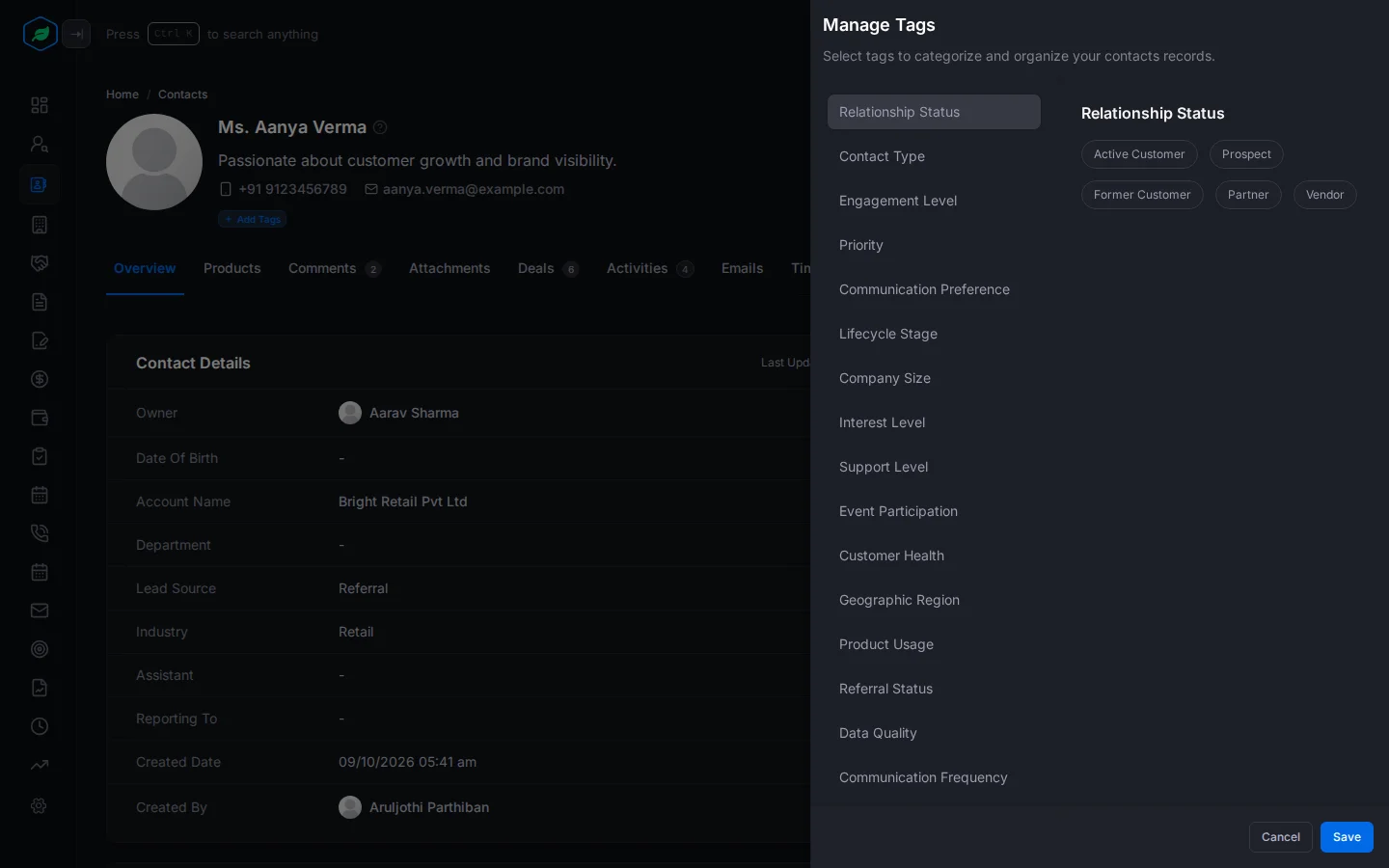
You can change a contact's tags if you own it or created it. Your admin sets up the tags your company can use. See Tags.
Header actions
| Action | What it does |
|---|---|
| Create | Add a Task, Meeting or Call for the contact |
| WhatsApp ("Share on WhatsApp") | Opens a WhatsApp chat with the contact's first WhatsApp number. If they don't have one, it uses their first Mobile number |
| ⋮ | Edit, Clone, Lock or Unlock, Subscribe or Unsubscribe, Delete |
The WhatsApp button only works if the contact has a WhatsApp or Mobile number. To change a number's type, edit the contact.
Tabs
A tab shows a count when it has something in it.
Overview
- Contact Details: owner, team, date of birth, account, department, lead source, industry, assistant, who they report to, and when and by whom the contact was created.
- Communication Details: emails, phone numbers and fax.
- Notes.
- Enrollments: the automation flows the contact is in.
- Social Profiles: X (Twitter), Facebook and LinkedIn.
- Address: each saved address. Click Locate this on the map to open it in Google Maps.
Products
The products this contact is interested in, with priority, interest level, budget and notes. This helps you see what else you could sell them. Products copied from a converted lead show here too.
For example, a contact bought your software, and they are also interested in your support plan. When you're ready, open the product's menu and click Create Quote. A new quote starts with that product, the contact and their account filled in.
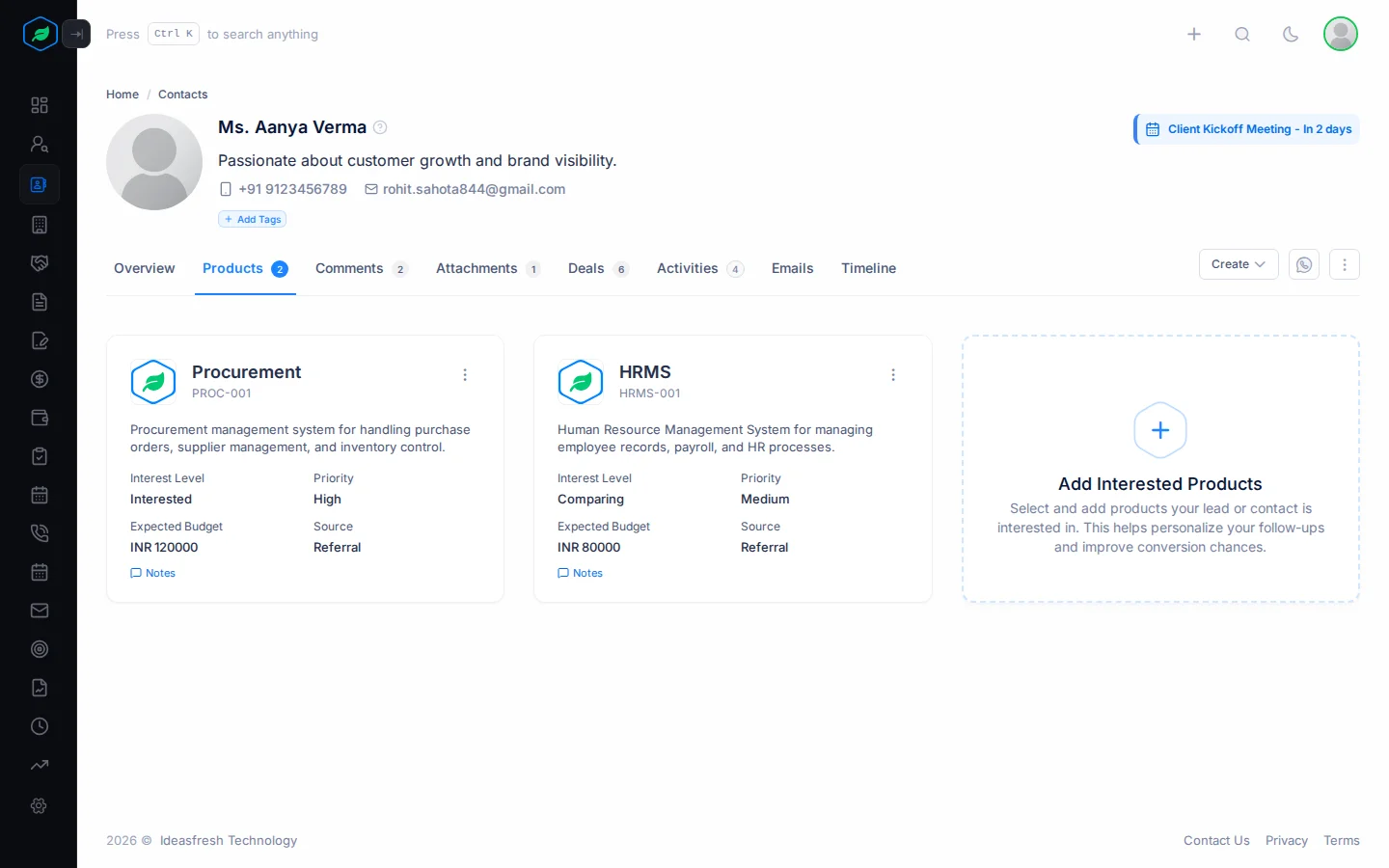
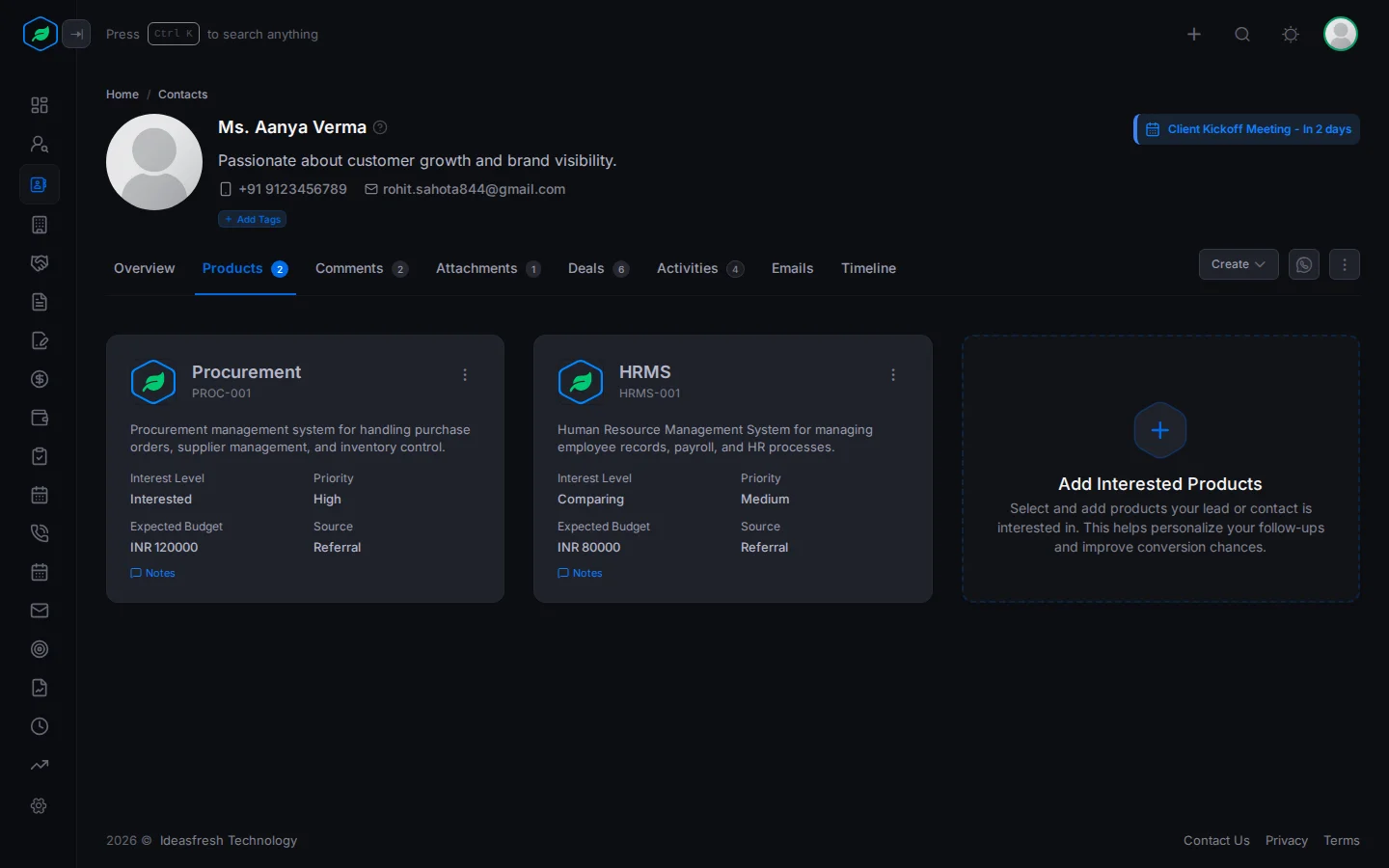
Adding and removing products uses the Leads permissions (Create Leads and Delete Leads). See Interested products.
Comments
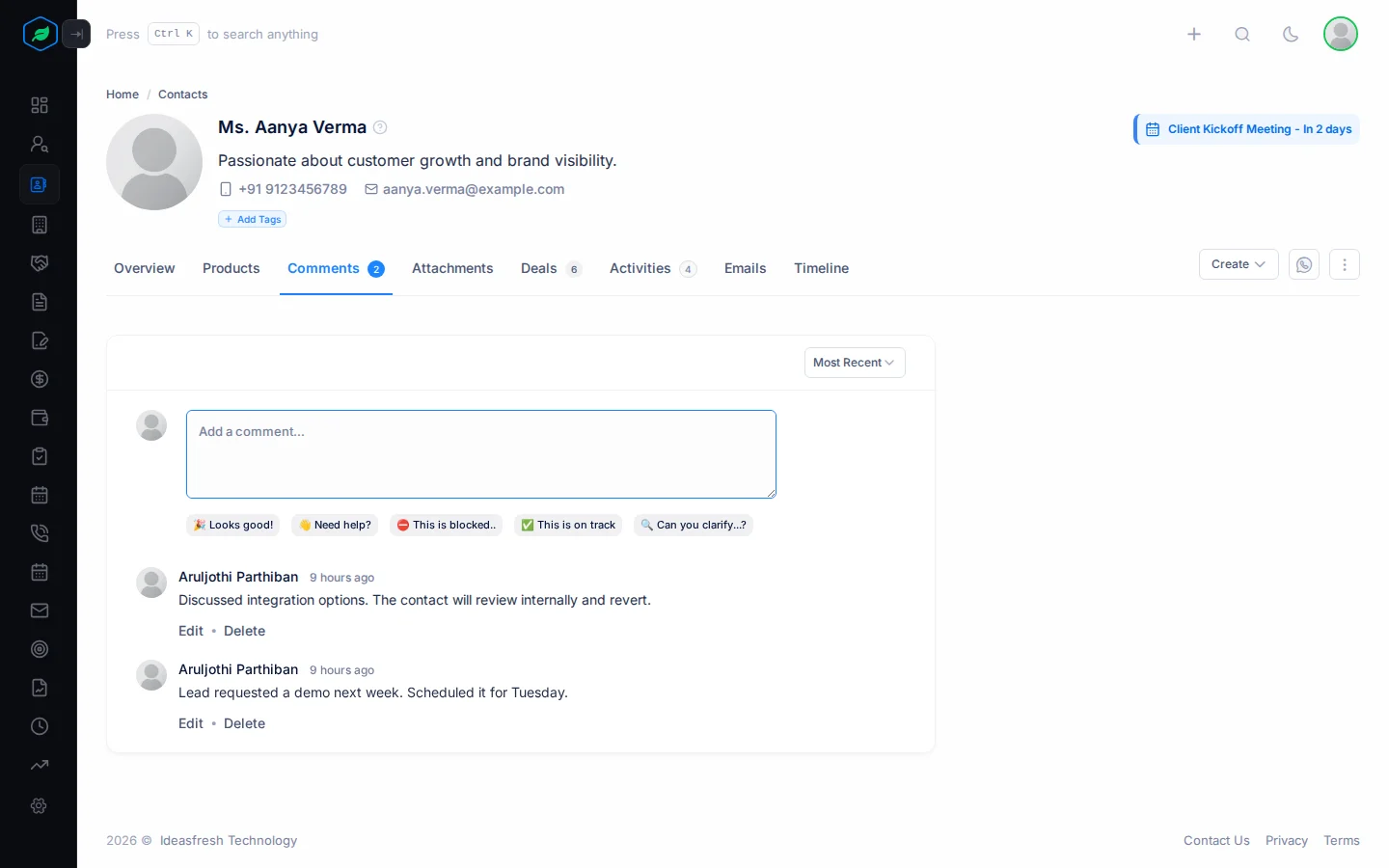
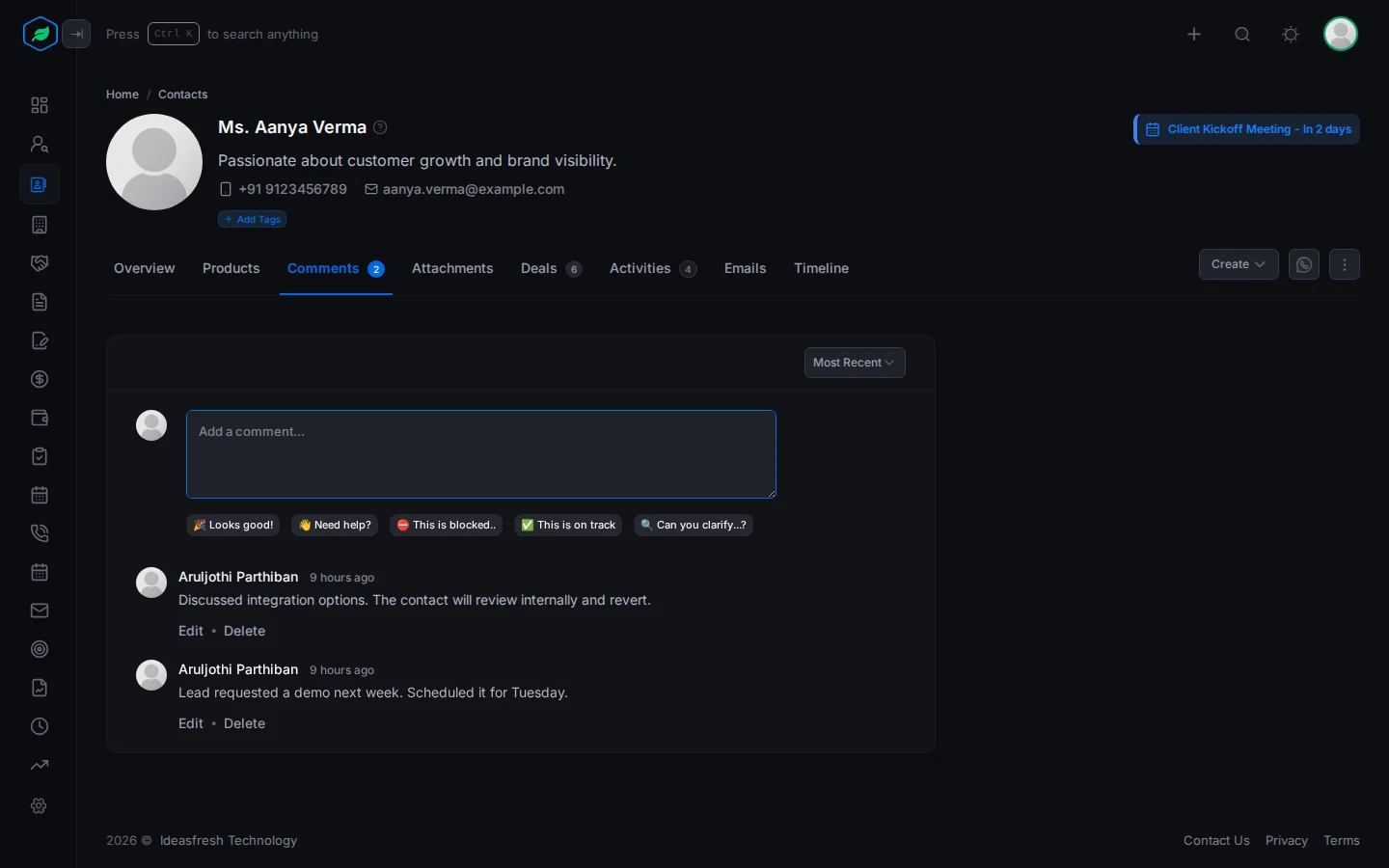
Comments are notes your team writes on the contact, so everyone knows what has happened and what comes next.
For example, after a call you might write: "Wants to add 10 more users next quarter. Call again in March." A teammate who opens the contact later knows exactly where things stand.
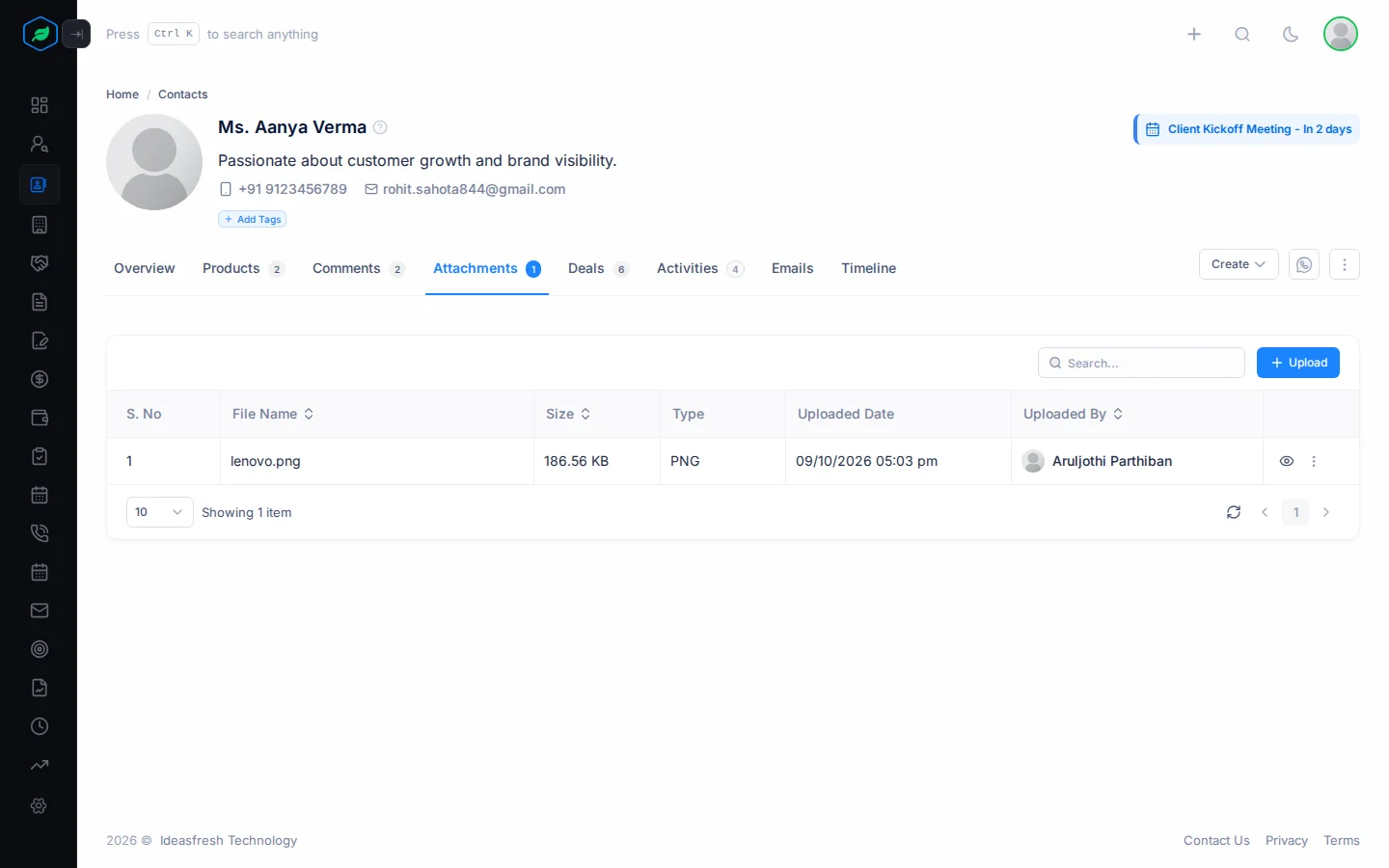
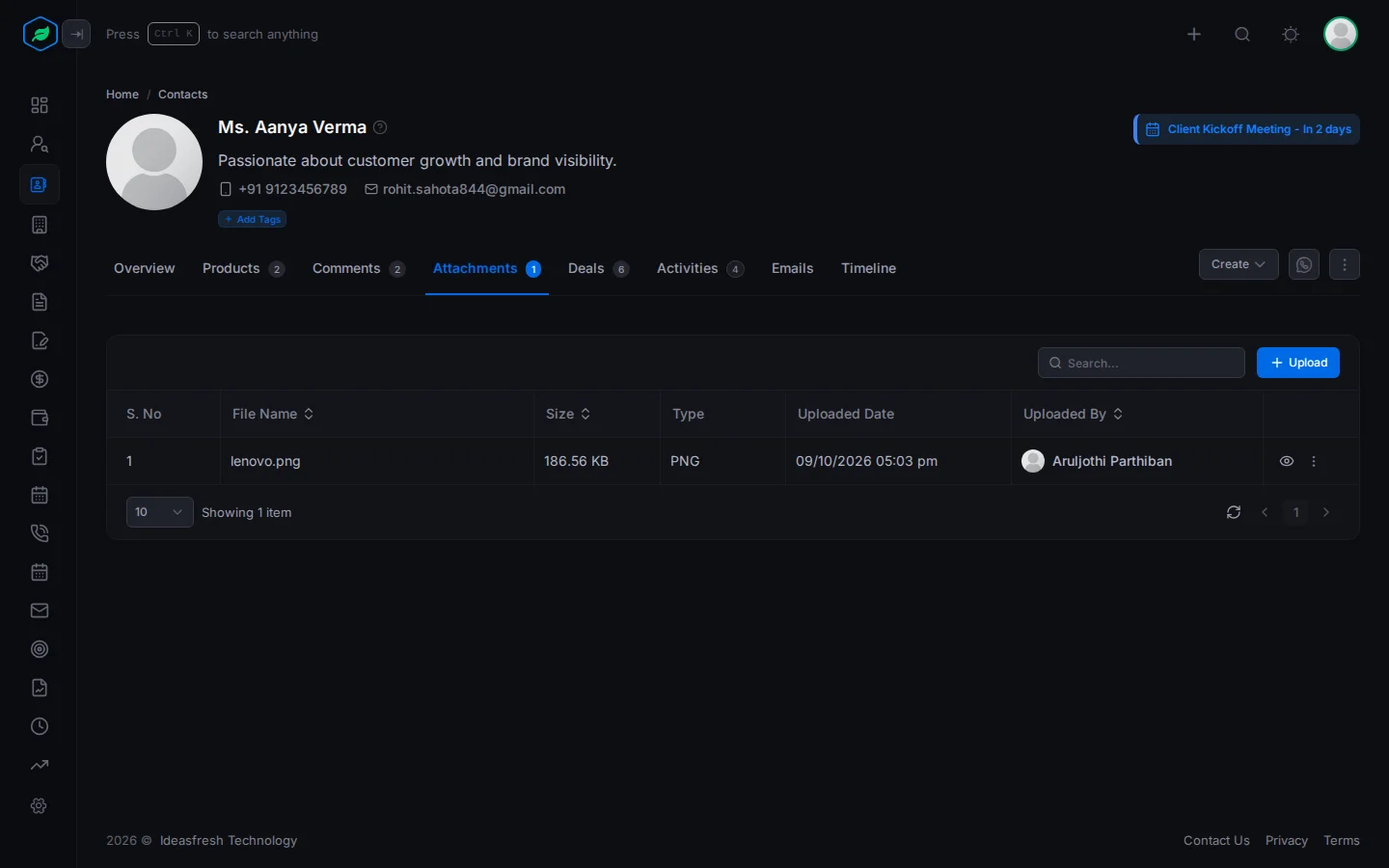
Attachments
Attachments keep the files about a contact in one place, such as a signed agreement, their requirements or a visiting card. Files count towards your company's storage.
Deals
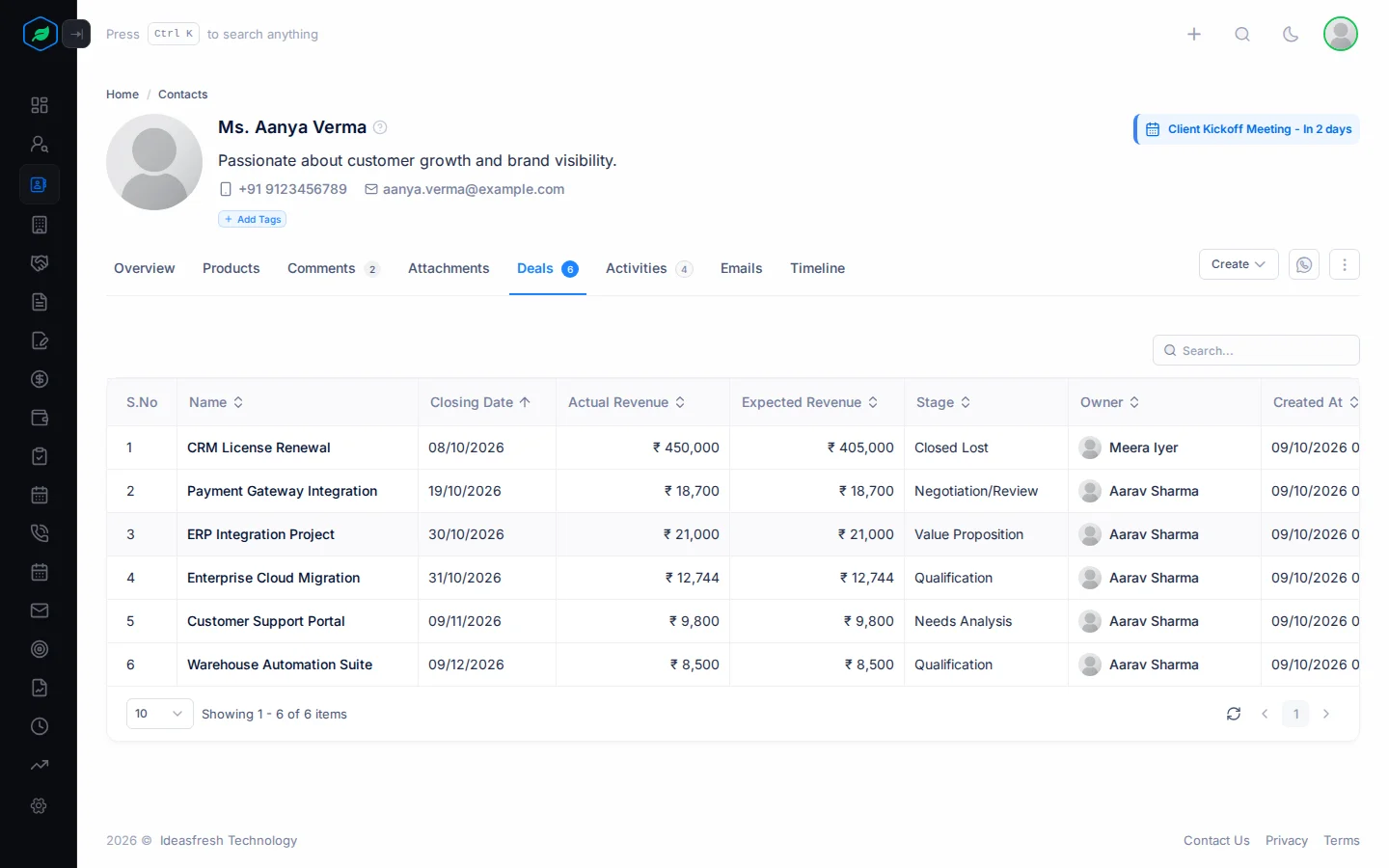
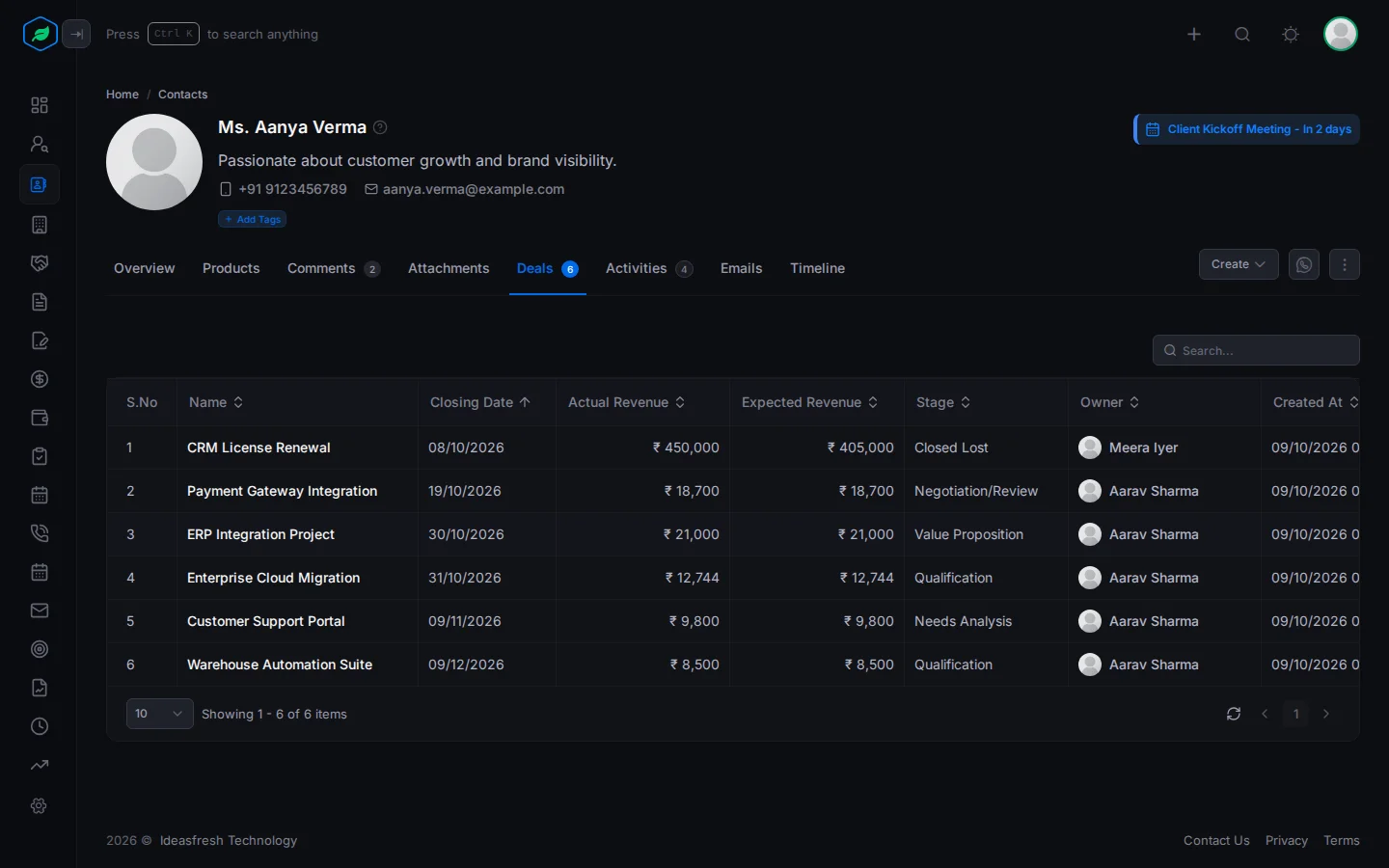
Every deal for this contact, with its closing date, revenue, stage and owner. Use the search box to find one. This shows you everything you are selling to this person at a glance. You need the View Deals permission to see this tab.
Activities
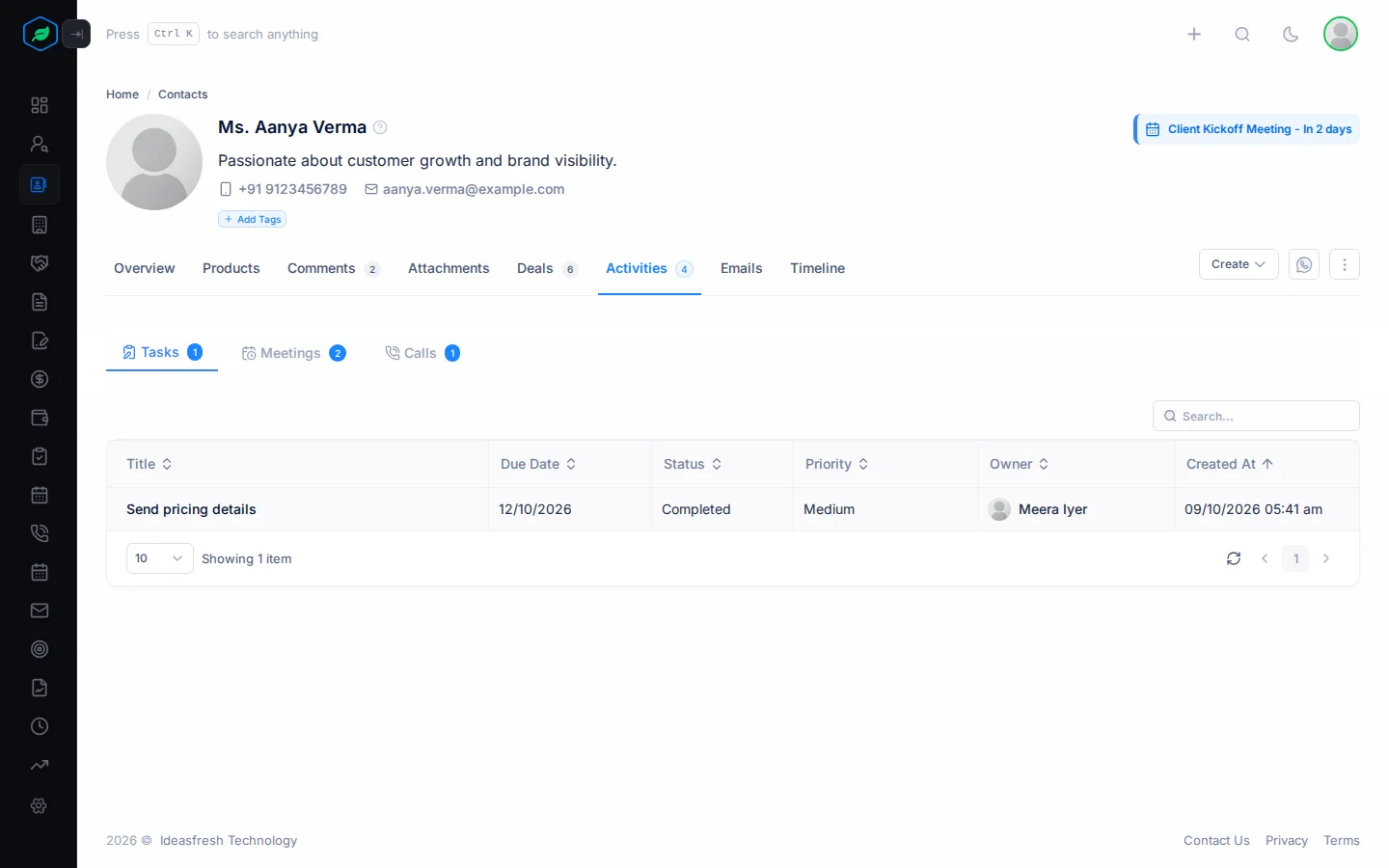
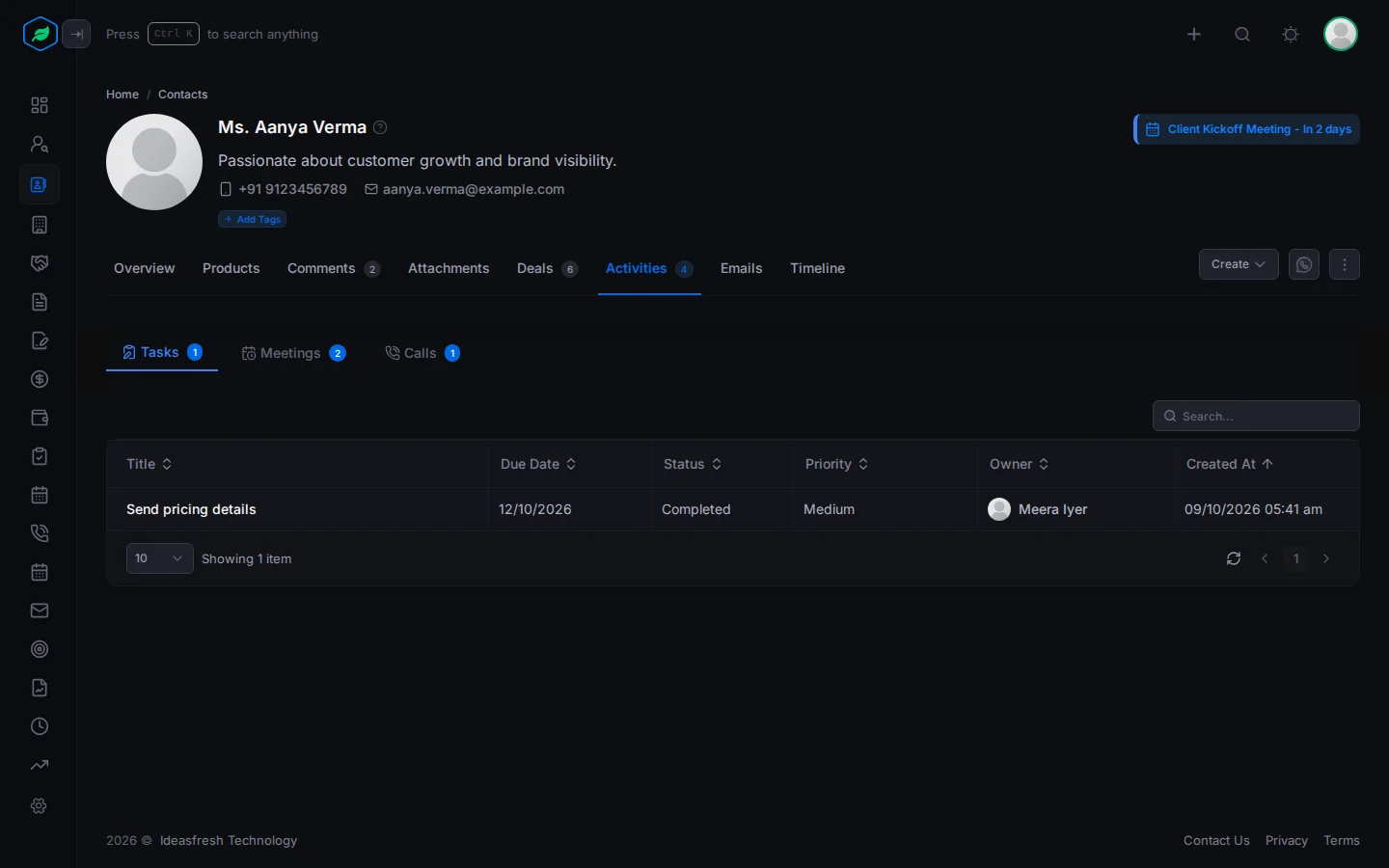
The tasks, meetings and calls linked to the contact. They show what your team has done with the contact, and what is planned next.
For example, a customer asks you to call back next Tuesday. Add a call for Tuesday on this tab. On Tuesday, you get a reminder, and anyone who opens the contact can see the call is planned.
Emails
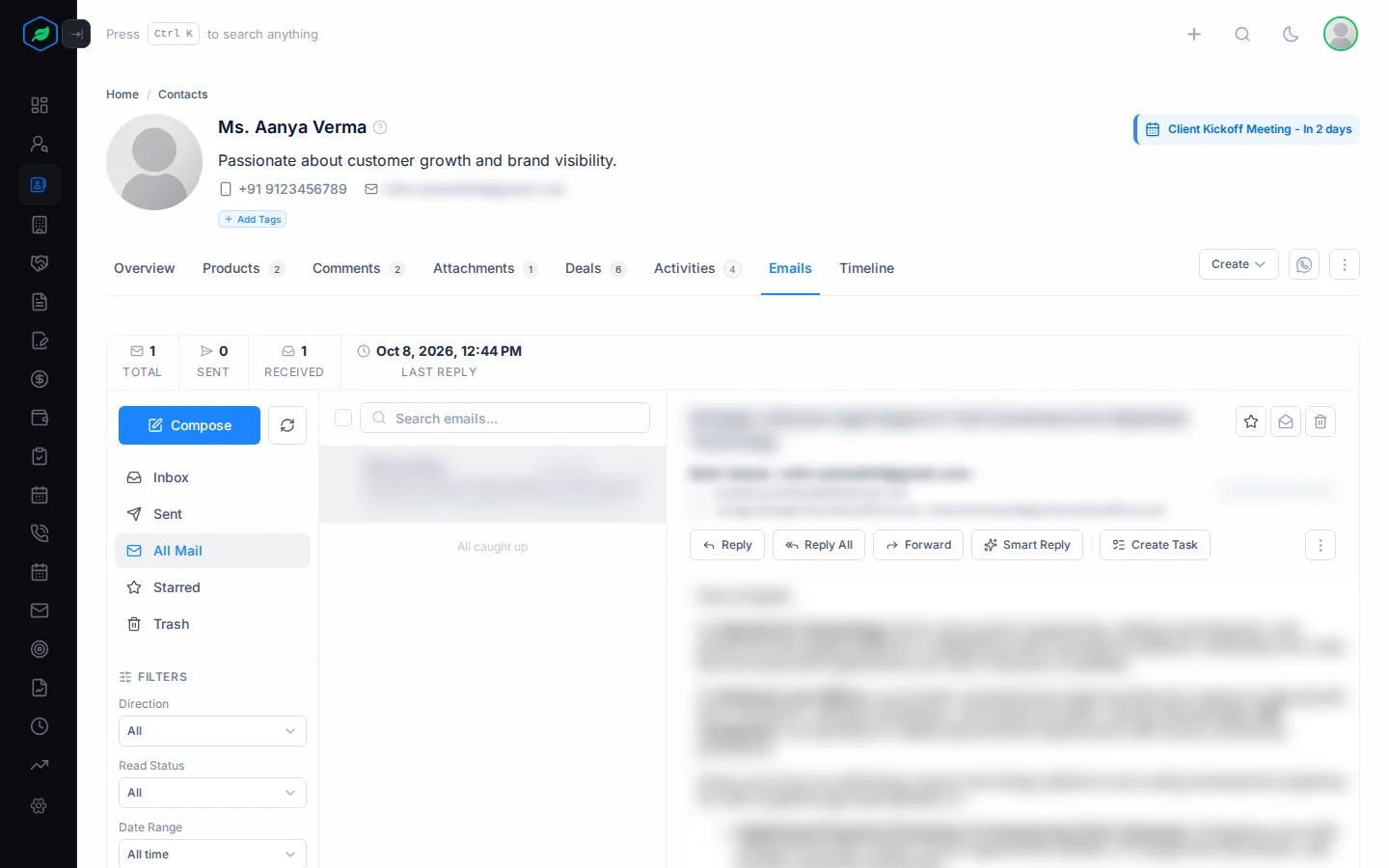
Every email between you and this contact, in one place. You don't have to search your inbox to remember what you said last time. Connect your Gmail or Outlook mailbox first, then emails sent to or from the contact's address show here. The tab shows how many are unread. See Connect Gmail or Outlook.
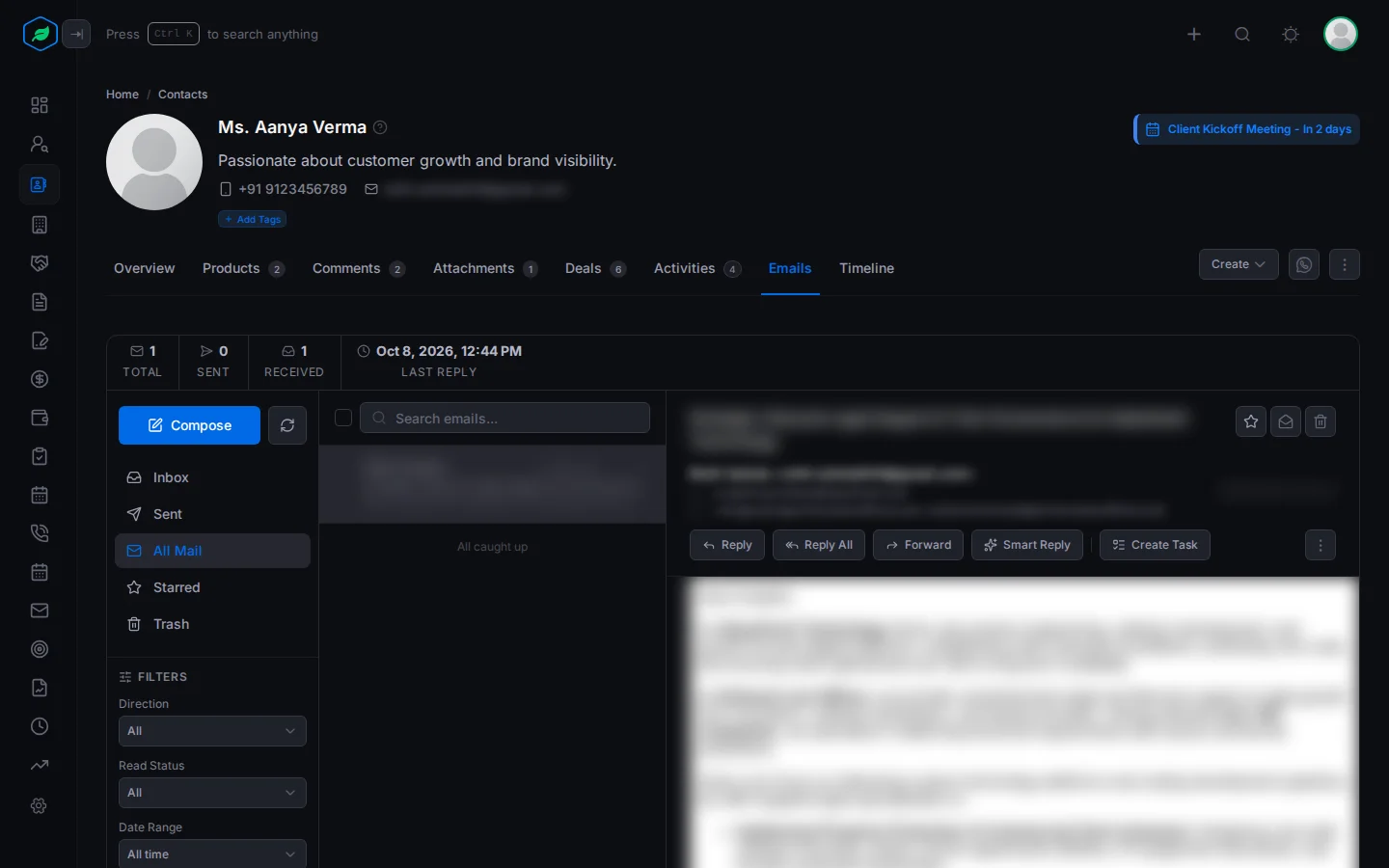
You only see emails from your own mailbox. Emails your teammates exchanged with the contact show up in their Emails tab, not yours.
Timeline
The contact's history. It lists every change to the contact, newest first, with who made it and when. For example, if a contact's phone number was changed and you want to know why, the Timeline shows who changed it and when. It works the same way as a lead's Timeline. See Timeline on the lead detail page.
Lock a contact
Locking a contact freezes it. Nobody can change their details or delete them until the contact is unlocked.
Why lock a contact?
- Someone has checked the contact's details and confirmed they are correct. Locking keeps them that way.
- You want to make sure the contact isn't deleted by mistake. A locked contact can't be deleted.
- An important customer's details must not change without the owner knowing.
Locking doesn't hide the contact. Your team can still see it, and anyone who can open it can still add comments, attach files and schedule tasks, meetings and calls.
Lock or unlock
- Open the ⋮ menu and click Lock.
- The contact shows a lock badge and this banner: "This contact is locked and cannot be edited further. However, you can still add comments, attach files, and schedule meetings or calls."
| While it is locked, nobody can | You can still |
|---|---|
| Edit the contact | Add comments |
| Delete it | Attach files |
| Schedule tasks, meetings and calls |
The contact's owner or the person who created it can lock it. Only the person who locked it can unlock it.
To unlock a contact, open the ⋮ menu and click Unlock.
Viewing other people's contacts
If you turned on View all records on the contacts list, a contact that belongs to someone else shows a banner that says so. You can read it, but to change it you must be its owner or the person who created it.
Troubleshooting
| You see | Why | What to do |
|---|---|---|
| "Contact not found" | The contact was deleted, or the sharing rules hide it from you | Ask the contact's owner, or an admin |
| "Invalid phone number" | The WhatsApp or Mobile number isn't complete | Edit the contact and finish the number |
Related
Still stuck?
Tell us what you were trying to do and we will help.