Create, edit and clone a contact
Every field on the contact form, which ones are required, how duplicate emails are handled, and how cloning a contact works.
Updated 9 October 2026 · 6 min read
You use the contact form to add a person you do business with, or to change their details later. The same form is used to finish a copy of a contact.
For example, you meet two buyers from the same company at a trade fair. Back at your desk, create the first buyer as a contact. Then clone them to add the second buyer quickly, since they work for the same company.
Before you start
- To create or clone a contact, you need the Create Contacts permission. To edit one, you need Edit Contacts, and you must be the contact's owner or the person who created it.
- You can't edit a contact that is locked.
- Lead Sources and Industries come from lists your admin sets up in Settings > Configurations.
Create a contact
- Go to Contacts and click Create Contact. You can also click the + button at the top of any page.
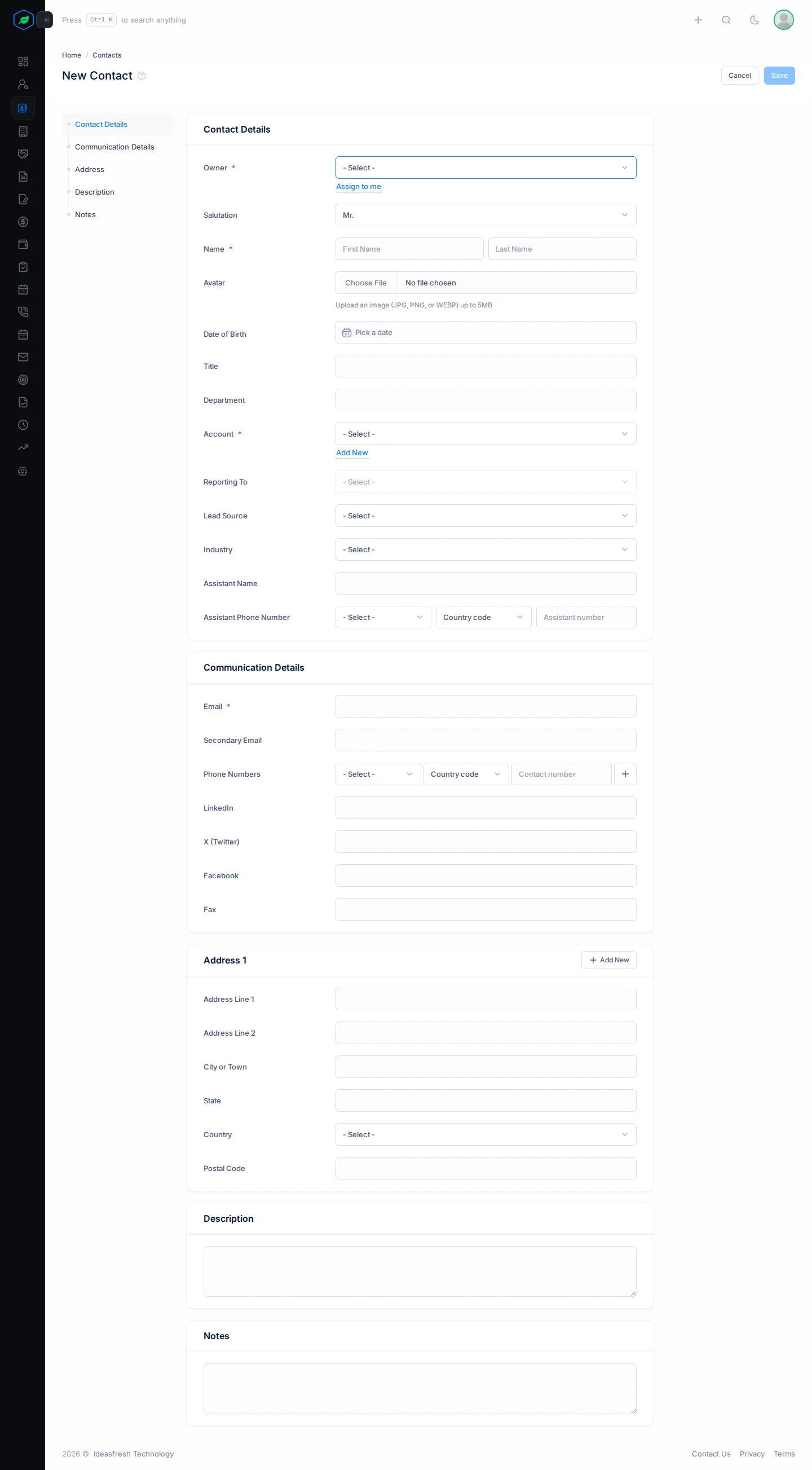
- Fill in the form. Fields marked * must be filled in.
- Click Save.
If you try to leave the page before you save, Salesfresh asks you to confirm first.
Add the contact from an account's Contacts tab, and the account is filled in for you. Add one from an email in Emails, and the sender's name and email are filled in, with you as the owner.
The form, section by section
Contact Details
| Field | What to enter |
|---|---|
| Owner * | The person in charge of the contact. Click Assign to me to pick yourself |
| Team | One of the owner's teams. If your company shares records by team, this decides who can see the contact |
| Salutation * | Mr., Mrs., Ms., Dr. or Prof. Set to Mr. at first |
| Name * | The first name, and the last name if you have it. Paste a full name into First Name and it is split for you |
| Avatar | A photo of the contact, up to 5 MB. Upload it and crop it to fit |
| Date of Birth | Their birthday |
| Title | Their job title |
| Department | The department they work in |
| Account * | The company they work for. Pick one, or click Add New to create it here |
| Reporting To | Their manager, picked from contacts at the same account. You can pick one once you choose an account. See Reporting lines |
| Lead Source | Pick from your company's list of lead sources |
| Industry | Pick from your company's list of industries |
| Assistant Name and Assistant Phone Number | Their assistant's details. If you start the phone number, finish it, or leave it empty |
Communication Details
| Field | What to enter |
|---|---|
| Email * | A valid email address. No other contact in your company can have it |
| Secondary Email | Another email. It can't be the same as Email |
| Phone Numbers | Up to 3 numbers. For each one, pick its type, such as Mobile or WhatsApp, then pick the country code and type the number. If you start a number, finish it, or leave it empty |
| LinkedIn, X (Twitter), Facebook | A link to their profile, for example https://www.linkedin.com/in/name |
| Fax | Their fax number |
Want to message the contact on WhatsApp from their page? Give them a WhatsApp or Mobile number.
Address
You can add up to 3 addresses, such as an office and a warehouse. Click Add New for each one. An address has Address Line 1 and 2, City or Town, State, Country and Postal Code. If you fill in any part of an address, Address Line 1 must be filled in too. Click the bin icon to remove an address.
Description and Notes
Type anything else your team should know. The description can be up to 255 characters.
Edit a contact
Open the contact, open the ⋮ menu and click Edit. Or pick Edit from the row menu on the list. Change what you need and click Update.
Duplicate emails
Two contacts in your company can't have the same email address.
- If another contact already has the email, Salesfresh won't let you save.
- If a deleted contact had it, a Confirmation window asks if you want to Restore that contact, or Delete it for good.
Whichever you pick in that window, the contact you were adding isn't saved. Restore the old contact, or delete it and then add the new contact again.
Reporting lines
Reporting To shows who reports to whom at a company. This helps you see who makes the decisions.
For example, you deal with a buyer at a company, but their manager signs off on big orders. Set the buyer's Reporting To to the manager. Anyone who opens the buyer's page can see who to go to for approval.
A contact can't report to themselves, or to anyone who reports to them, directly or further down.
Clone a contact
Cloning makes a copy of a contact. It helps when you need to add someone similar, like a colleague from the same company.
- Open the menu at the start of the contact's row, or the ⋮ menu on their page. Click Clone and confirm.
- Salesfresh makes a Draft copy and opens it so you can edit it.
- Type the new person's email and phone numbers. These are left empty because two contacts can't have the same email.
- Click Update. The Draft badge goes away.
The copy keeps the original's owner and addresses. It doesn't copy the tags, date of birth or team. Only the person who made a draft can see it, and if you delete a draft, it is deleted for good.
Troubleshooting
| You see | Why | What to do |
|---|---|---|
| "A contact with this email already exists." | Another contact has this email | Open that contact instead |
| "A contact with this email was deleted on … Do you want to restore it instead ?" | A deleted contact still has this email | Restore it, or delete it and add the new contact again |
| "Account is required" | Every contact you add from the form needs an account | Pick an account, or click Add New |
| "Secondary email must be different from email" | The two email fields are the same | Clear or change the secondary email |
| "A contact cannot report to itself, or to one of its own reports." | The manager you picked reports to this contact | Pick someone higher up |
| "This reporting hierarchy already contains a loop. Clear the reports-to on one of its contacts first." | The reporting lines already go round in a circle | Clear Reporting To on one contact in the circle |
| "You have reached the maximum of N contacts on your current plan. Please upgrade for more." | You have used up your plan's contact limit | Upgrade from My Subscription. See Plans and limits |
Related
Still stuck?
Tell us what you were trying to do and we will help.