Connect your Gmail or Outlook mailbox
Connect your Gmail or Outlook mailbox so emails with your leads and contacts appear in the CRM, and the emails you send come from your own address.
Updated 10 October 2026 · 5 min read
Connect your work mailbox to Salesfresh once. After that:
- your emails with leads and contacts show up in Salesfresh by themselves,
- emails you send from Salesfresh come from your own email address.
For example, you write to customers from Gmail every day. Before you connect, those emails are only in Gmail. To see what you last told a customer, you have to switch between Gmail and Salesfresh. Once you connect, every email with that customer shows on their page, next to their deals and tasks. Emails you send from Salesfresh come from your own address, and replies come back to your inbox. You keep using Gmail as before.
Before you start
- Your company needs a paid plan. Each plan lets a set number of people connect a mailbox. See Plans and limits.
- Your admin must add you to the mailbox's Allowed Users list first. If you can't see Gmail or Outlook in Settings > Integrations, ask your admin.
- Connect the same email address you use to sign in to Salesfresh.
- You can connect one mailbox: Gmail or Outlook, not both.
Connect your mailbox
- Go to Settings > Integrations and open Gmail or Outlook.
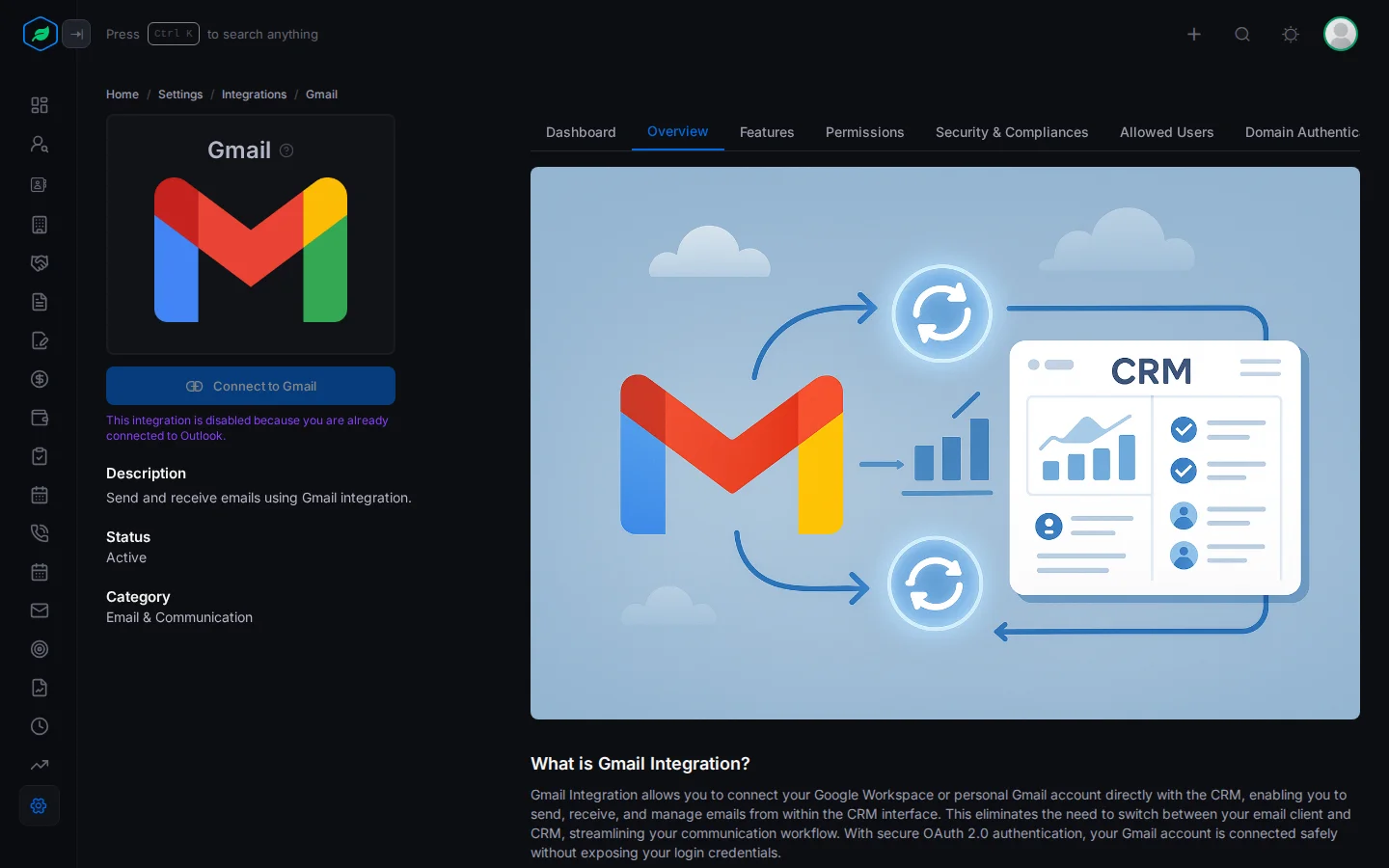
- Click Connect to Gmail or Connect to Outlook.
- Sign in to your Google or Microsoft account. Allow the access Salesfresh asks for.
- You come back to Salesfresh, and the Dashboard tab opens.
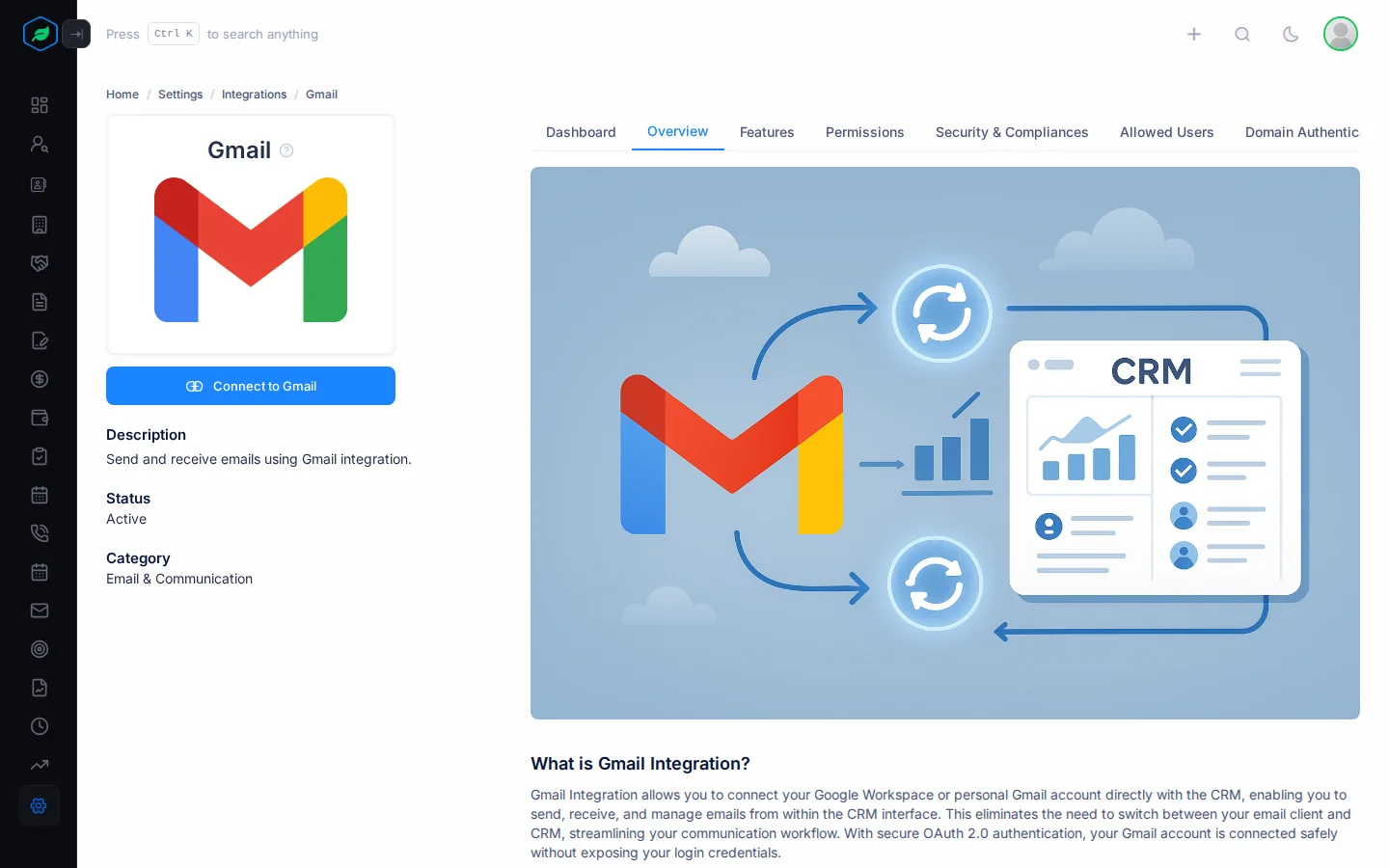
Salesfresh asks to read your email, send email for you, and mark emails as read. To see the exact access, open the Security & Compliances tab.
Check your mailbox is working
The Dashboard tab shows:
- how many emails were copied in, sent and received,
- how many are linked to your leads and contacts,
- when the last copy ran.
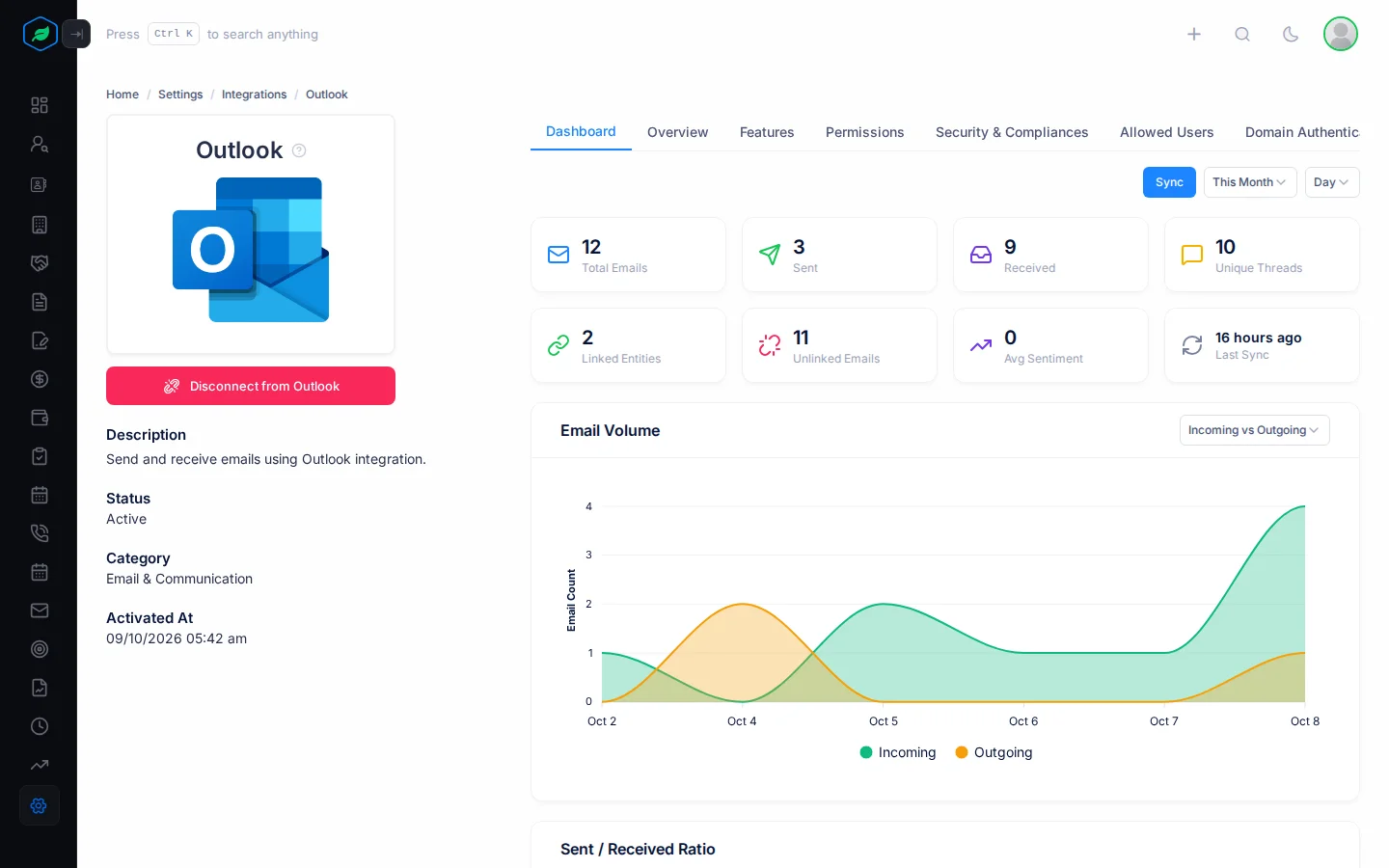
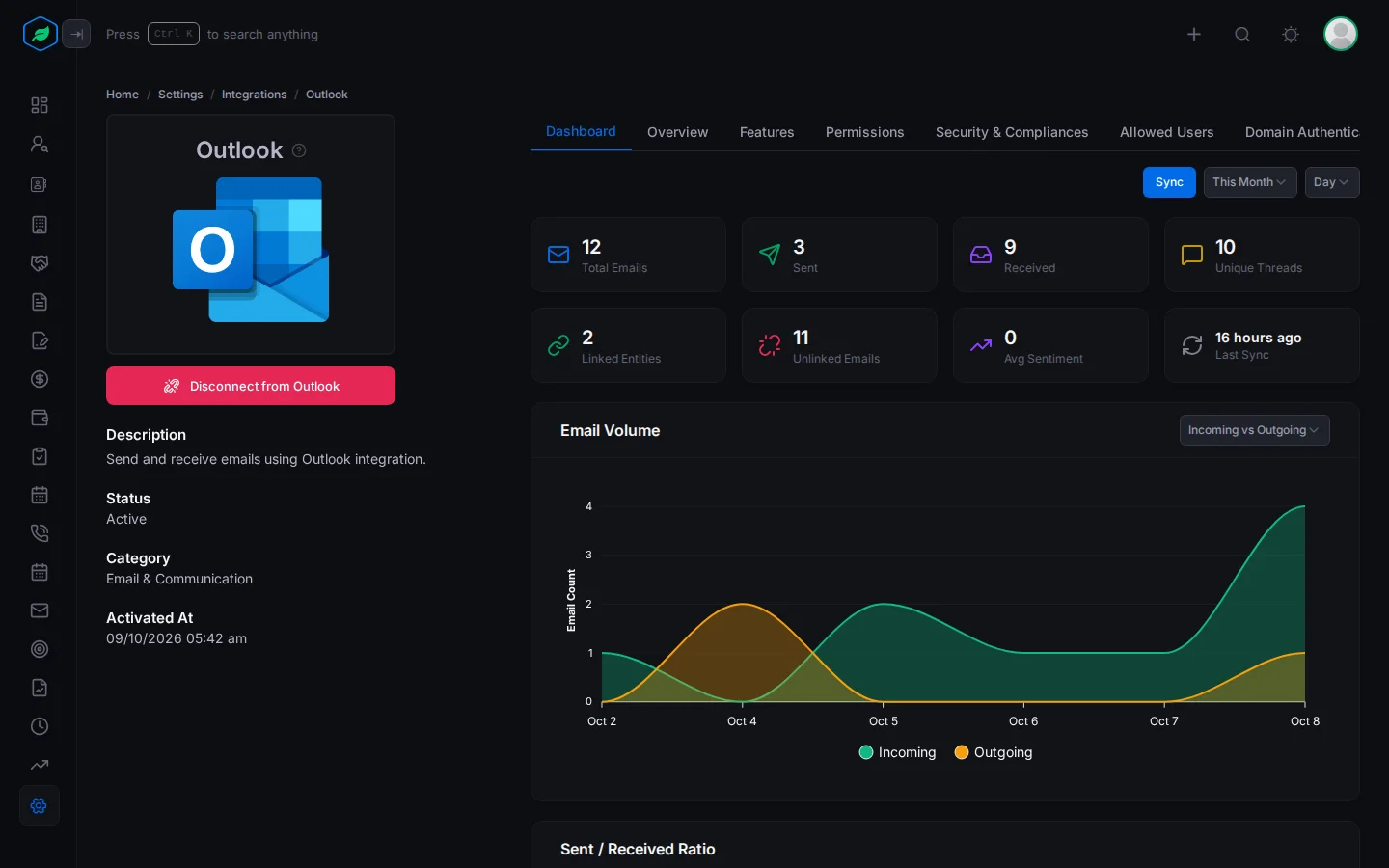
To copy new emails in now, click Sync. If something went wrong, open the Logs tab. It shows each copy run and any error.
Give people access (admins)
You choose who can connect a mailbox. To do this, you need the Manage Integration permission. If you don't have it, ask your admin.
- Open Gmail or Outlook in Settings > Integrations.
- Open the Allowed Users tab and click Add User.
- Search for the people, pick them and click Save.
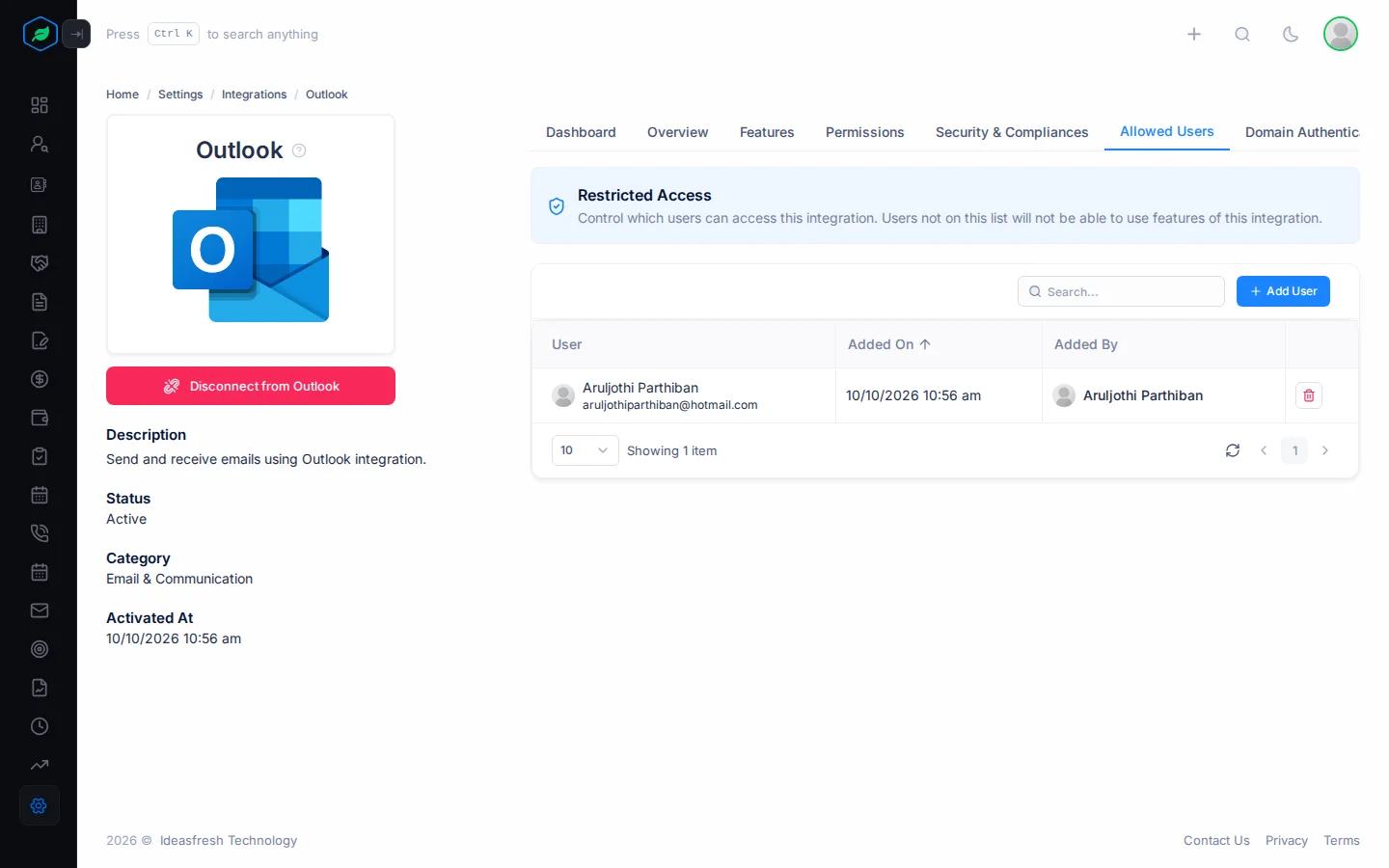
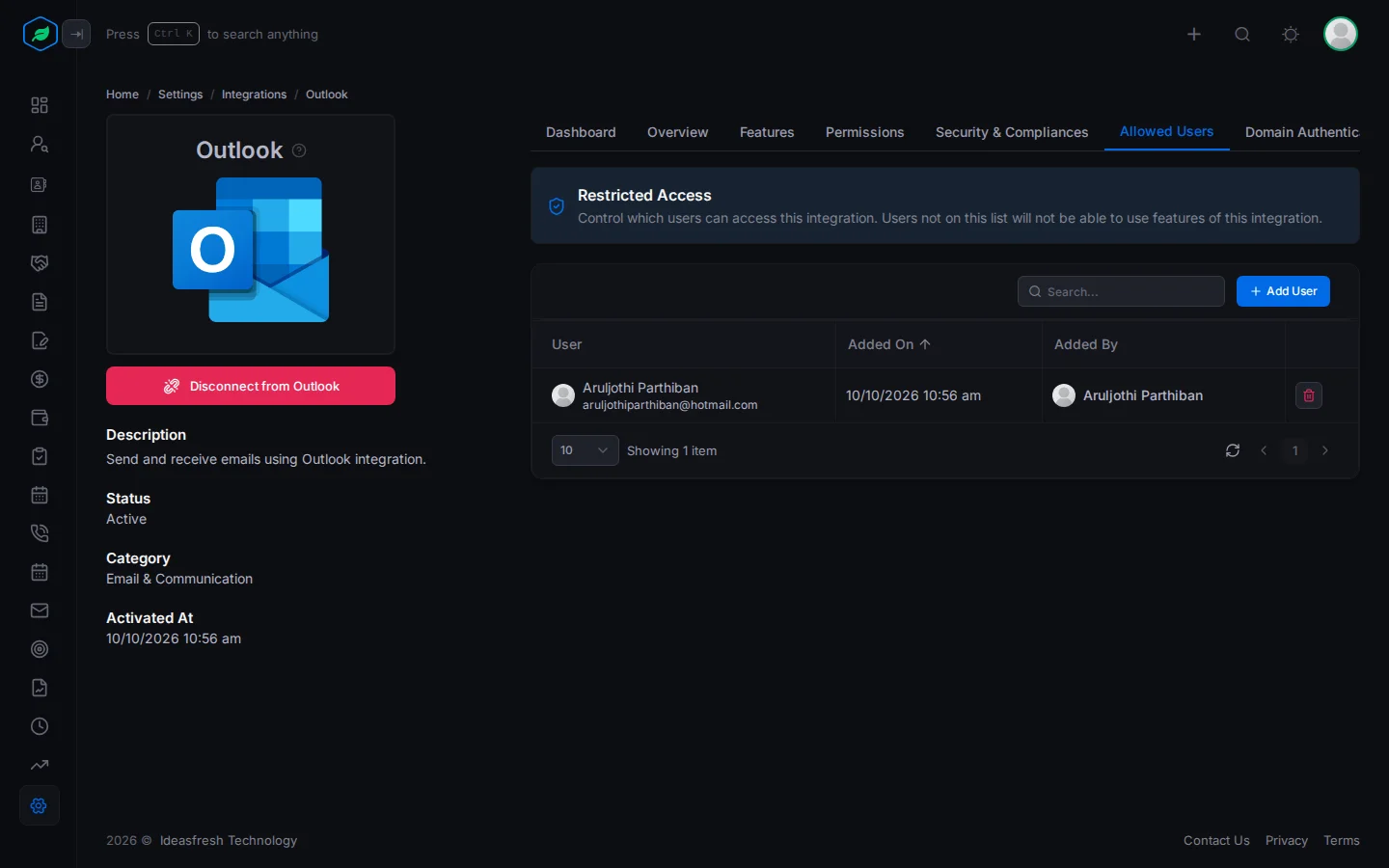
Each person on the list uses one of your plan's mailbox places, even before they connect. To free a place, remove someone from the list. When you connect your own mailbox as an admin, you are added to the list for you.
What is copied into Salesfresh
Salesfresh copies the emails in your inbox and your sent folder.
- The first time, it copies emails from the start of this month.
- After that, it copies new emails every 5 minutes, from 8 am to 6 pm in your company's time zone.
- It leaves out newsletters, adverts and automatic emails, such as emails from "no-reply" addresses. In Gmail, it leaves out the Social, Promotions and Forums tabs. In Outlook, it leaves out the Other inbox at first.
Each email is linked to the leads and contacts whose email address is on it. Other emails are kept, but not linked to anyone.
Only you see your emails, even on a lead's or contact's page. Your teammates see their own emails with that person.
To see this list any time, click What gets synced ? on the Emails page.
Which address your emails come from
With a mailbox connected, emails you send from Salesfresh come from your own address. They also show in your mailbox's sent folder.
Without one, they come from Salesfresh's own address. They also count towards your company's monthly email limit. When you write an email, a line above Attach Files shows which address it will come from.
Disconnect
Click Disconnect from Gmail or Disconnect from Outlook, and confirm.
- New emails stop being copied.
- Emails already in Salesfresh stay.
- You stay on the Allowed Users list, so you still use a place on your plan. To free it, your admin removes you from the list.
Troubleshooting
| You see | Why | What to do |
|---|---|---|
| Gmail or Outlook isn't in Settings > Integrations | You aren't on the Allowed Users list | Ask your admin to add you |
| "The … account email (…) does not match your registered email. Please connect using the same email." | You signed in to a different mailbox | Connect with the address you use for Salesfresh |
| Connect to … is greyed out and says you're already connected to the other mailbox | You already connected the other one | Disconnect it first |
| "This feature is not available on your current plan. Please upgrade to access it." | Your plan doesn't include mailboxes | Upgrade your plan |
| "You have reached the maximum of … synced mailbox(es) on your current plan. Please upgrade for more." | Every place on your plan is used | Remove someone from Allowed Users, or upgrade |
| "Authorization code has expired or is invalid. Please try connecting again." | Signing in took too long | Click Connect again |
| New emails stop showing up | The link to your mailbox stopped working | Open Logs. If the copies failed, disconnect and connect again |
Related
Still stuck?
Tell us what you were trying to do and we will help.