Get reply suggestions and read the mood of each email
Let the CRM suggest replies to customer emails, and see at a glance whether each email sounds positive or negative and what the customer wants.
Updated 12 October 2026 · 3 min read
Salesfresh reads your customers' emails and helps you in two ways:
- Sentiment tells you if an email sounds positive, neutral or negative, and what the person wants.
- Smart Reply suggests short replies you can start from.
For example, you get 60 emails a day. A customer's complaint about a late delivery is number 45, so you would normally see it in the evening. Instead, you set the Sentiment filter to Negative. The complaint is at the top, marked Complaint. You open it and click Smart Reply. You pick a suggestion, add that the goods leave today, and send it. The upset customer gets an answer in minutes, not hours.
Before you start
- Connect your Gmail or Outlook first. See Connect Gmail or Outlook.
- To use these, you need the View Email Client permission. If you don't have it, ask your admin.
- There is no extra charge or limit.
- Salesfresh does this on its own servers. Your emails aren't sent to an outside AI service.
Sentiment
When an email with a lead or contact is copied into Salesfresh, it gets two labels.
The sentiment is Positive, Neutral or Negative. It tells you how the person feels.
The intent is what the person seems to want. It is one of these:
- Purchase Intent, such as "Please send the order form"
- Book Meeting
- Request Information
- General Inquiry
- Greeting
- Complaint
- Refund Request
- Urgent Request
- Escalation, such as asking to speak to a manager
- Churn Risk, meaning they may be thinking of leaving
Where you see it
- On the email list, as a green line for positive or a red line for negative.
- Under the sender on the open email. Point at the intent to read a one-line summary.
- In AI Sentiment on the right of the page.
- In the Sentiment filter, to see only positive, neutral or negative emails.
- On a lead's or contact's Emails tab, which shows the usual mood of their emails and the latest intent.
An email gets its sentiment when it is copied in, if it's linked to a lead or contact then. If you link an email yourself later, it doesn't get one.
Smart Reply
- Open an email you received.
- Click Smart Reply. The Suggested Replies panel opens. Up to 3 suggestions appear after a moment.
- Click one. A reply opens with that text and your signature.
- Change anything you need, then click Send.
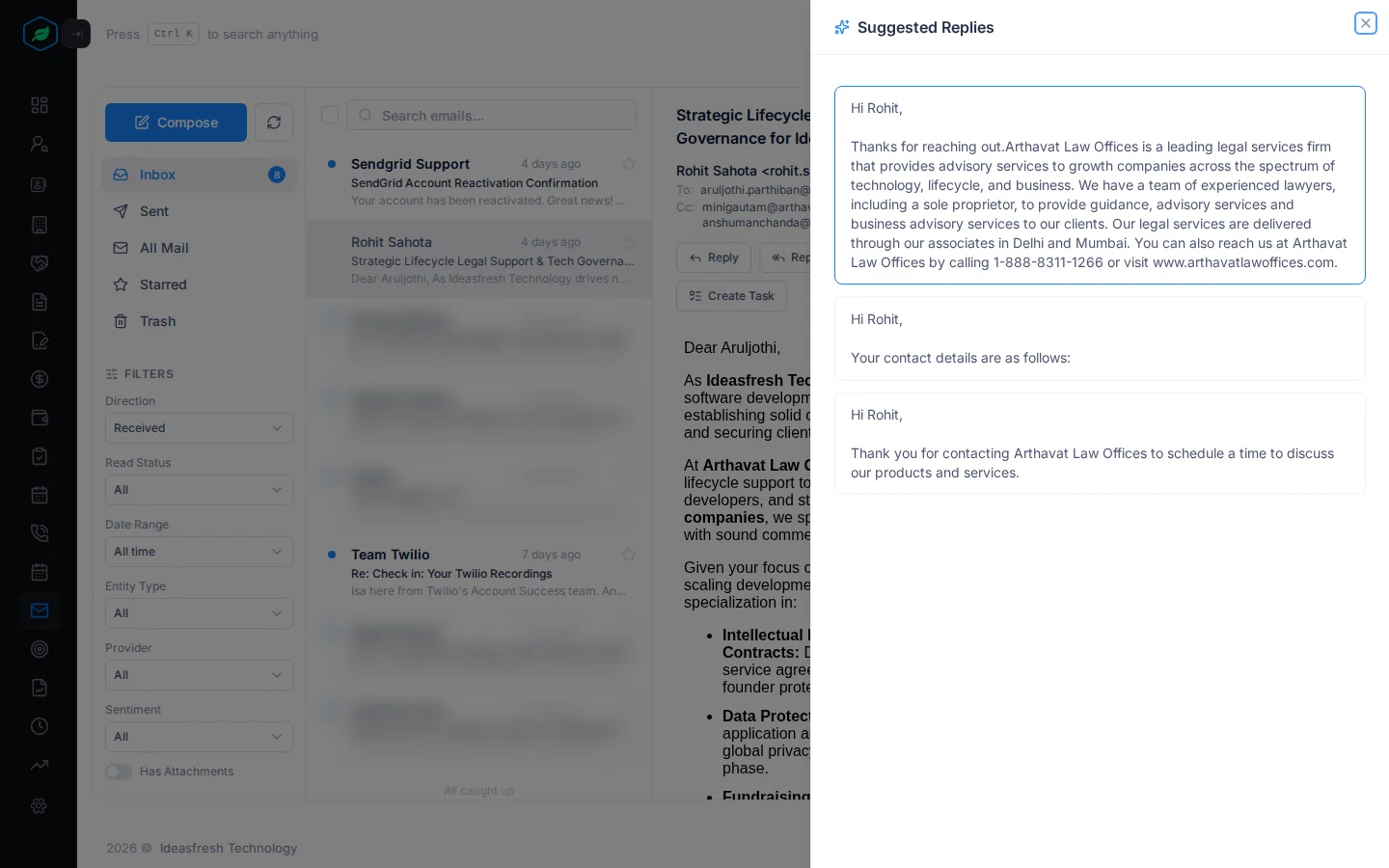
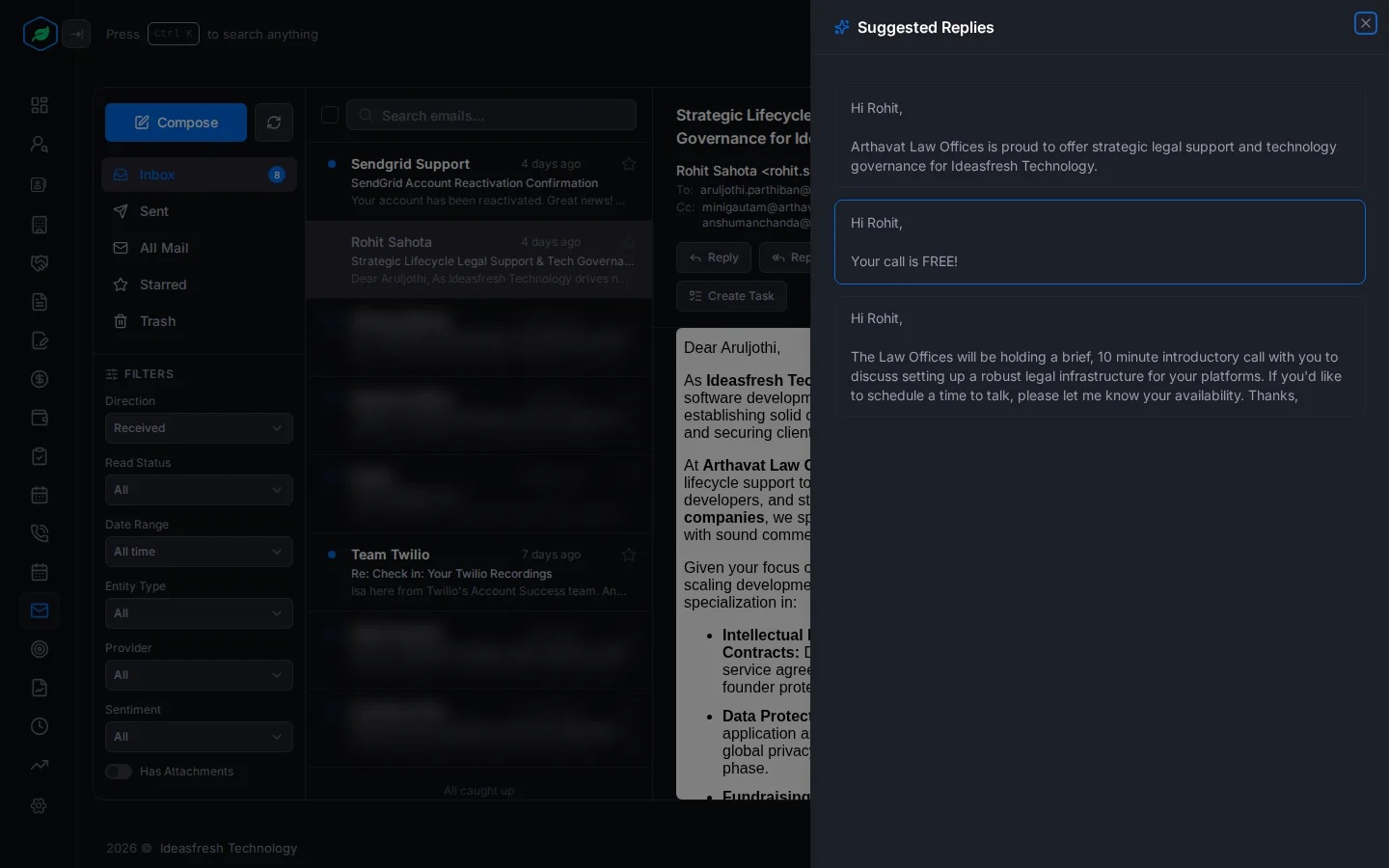
The suggestions are a quick start, not a finished email. Always read them before you send. Add the details only you know, such as a delivery date or a price.
Troubleshooting
| You see | Why | What to do |
|---|---|---|
| Smart Reply is missing | The email is one you sent, or it's in Trash | Smart Reply is for emails you received |
| "No suggestions available for this email." | The email has no text to work from, such as an image-only email, or the suggestions couldn't be made | Write the reply yourself, or reload the page and try again |
| No sentiment on an email | It isn't linked to a lead or contact, or it was linked after it arrived | Link it. New emails from that person get one |
Related
Still stuck?
Tell us what you were trying to do and we will help.