Write and reply to emails
Write a new email, reply or forward, see which address it comes from, and turn an email into a task, call or meeting.
Updated 10 October 2026 · 4 min read
You can write, reply to and forward emails without leaving Salesfresh. You can also turn an email into a task, call or meeting, so the follow-up shows on the customer's page.
For example, a customer emails to ask for a call tomorrow. You open the email and reply that you will call at 10 am. Then you click ⋮, choose Schedule a Call and pick 10 am. The call is saved on the customer's page, and you get a reminder before it.
Before you start
- To write and send emails, you need the View Email Client permission. If you don't have it, ask your admin.
- Connect your Gmail or Outlook, so emails come from your own address. Without a connected mailbox, they come from Salesfresh's own address. See Connect Gmail or Outlook.
Write a new email
- Click Emails in the sidebar, then Compose. The Compose Email panel opens.
- Fill in the fields.
- Click Send.
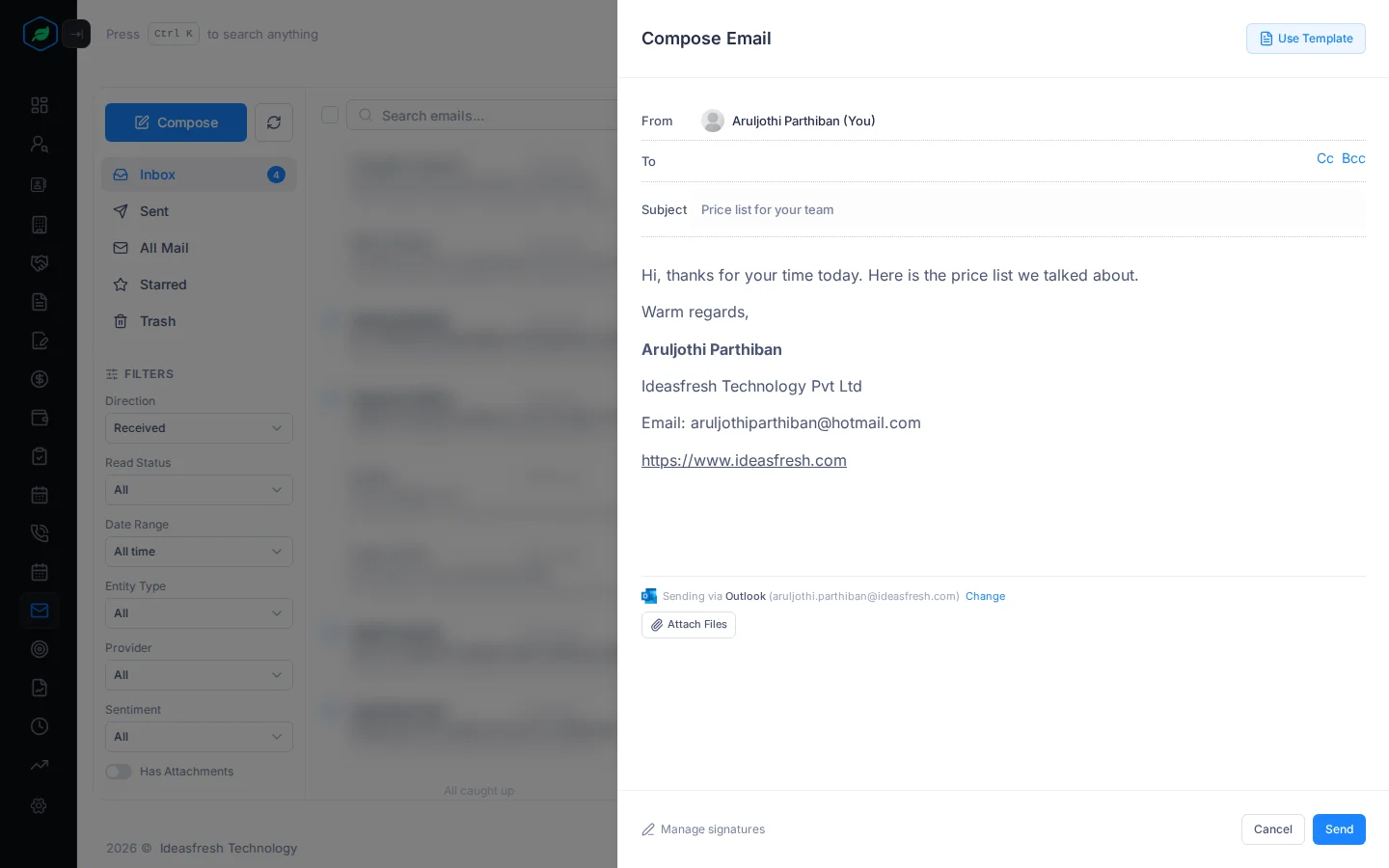
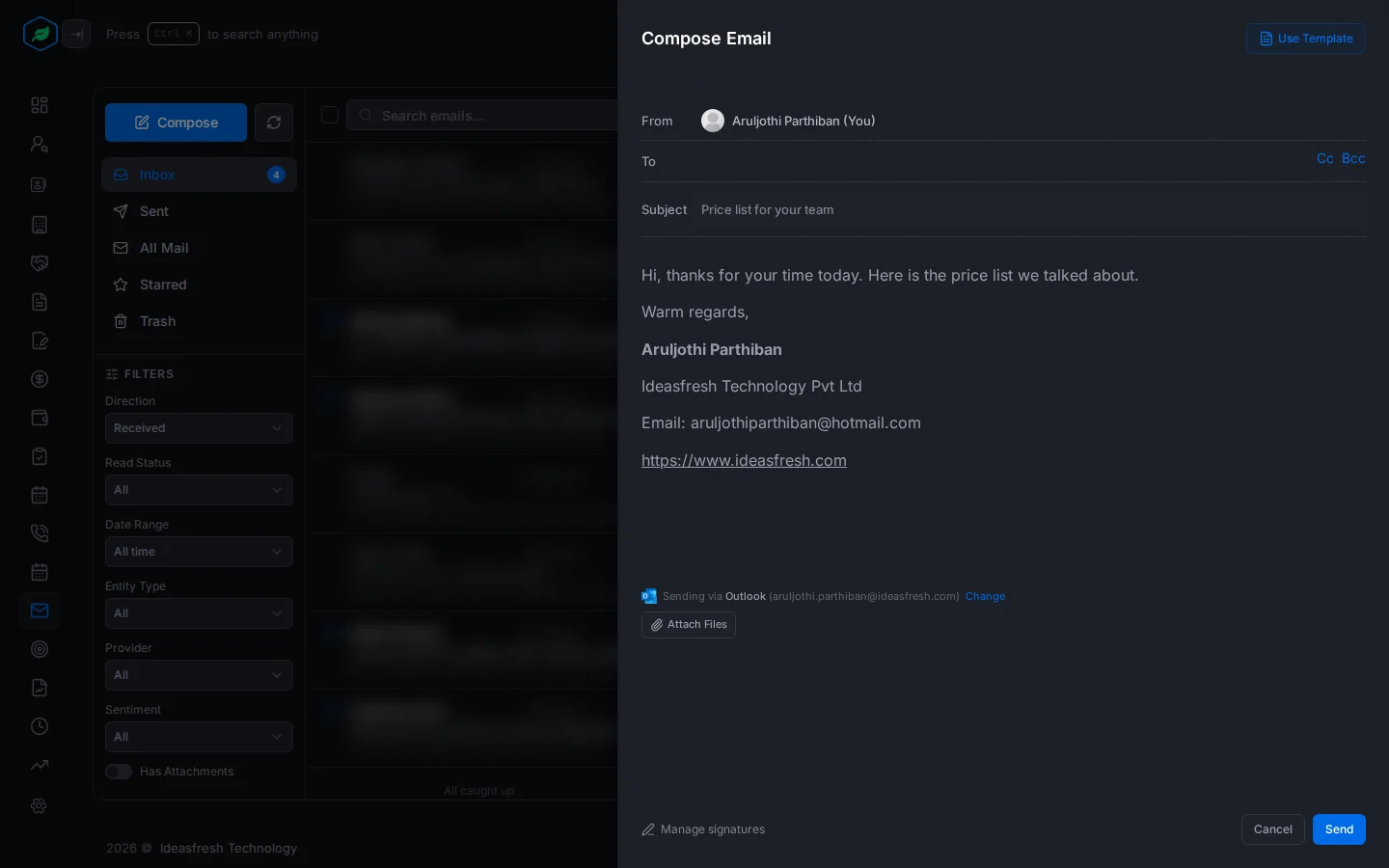
| Field | What to enter |
|---|---|
| To * | The email address of the person you are writing to. Click Cc or Bcc to copy others in |
| Subject * | What the email is about, such as "Price list for your team" |
| Message * | What you want to say. Your default signature is already at the bottom. To start from a ready-made email, click Use Template. See Email templates |
| Attach Files | Files to send, such as a price list. Each file can be up to 10 MB |
A line above Attach Files shows which address the email comes from: your connected mailbox, or Salesfresh's own address. Emails from Salesfresh's address count towards your company's monthly email limit. See Plans and limits.
Reply or forward
- Open the email.
- Click Reply, Reply All or Forward. A reply box opens under the email, with your signature in it.
- Write your reply and click Send.
To start from a suggested reply, click Smart Reply. See Smart Reply and email sentiment.
If you leave a reply half written, Salesfresh saves it. Next time you open the email, click Resume to carry on, or Discard to delete it.
Turn an email into a task, call or meeting
When an email needs a follow-up, add it straight from the email. The follow-up shows on the customer's page, so your team knows about it.
The email must be linked to a lead or contact first. If it isn't, these buttons are greyed out. See Link an email to a lead or contact.
Add a task
- Click Create Task. A short form opens under the email.
- Check the title. It starts with "Follow up:" and the email's subject.
- Pick the due date, or click Today, Tomorrow, This Week or Next Week.
- Click Create Task.
Schedule a call or meeting
- Click ⋮, then Schedule a Call or Schedule a Meeting. A short form opens under the email.
- Check the title. It starts with "Call:" or "Meeting:" and the email's subject.
- Pick the start and end time. Click 30 mins, 1 hour or 2 hours to set the length.
- Pick a Purpose and write an Agenda if you like.
- Click Schedule Call or Schedule Meeting.
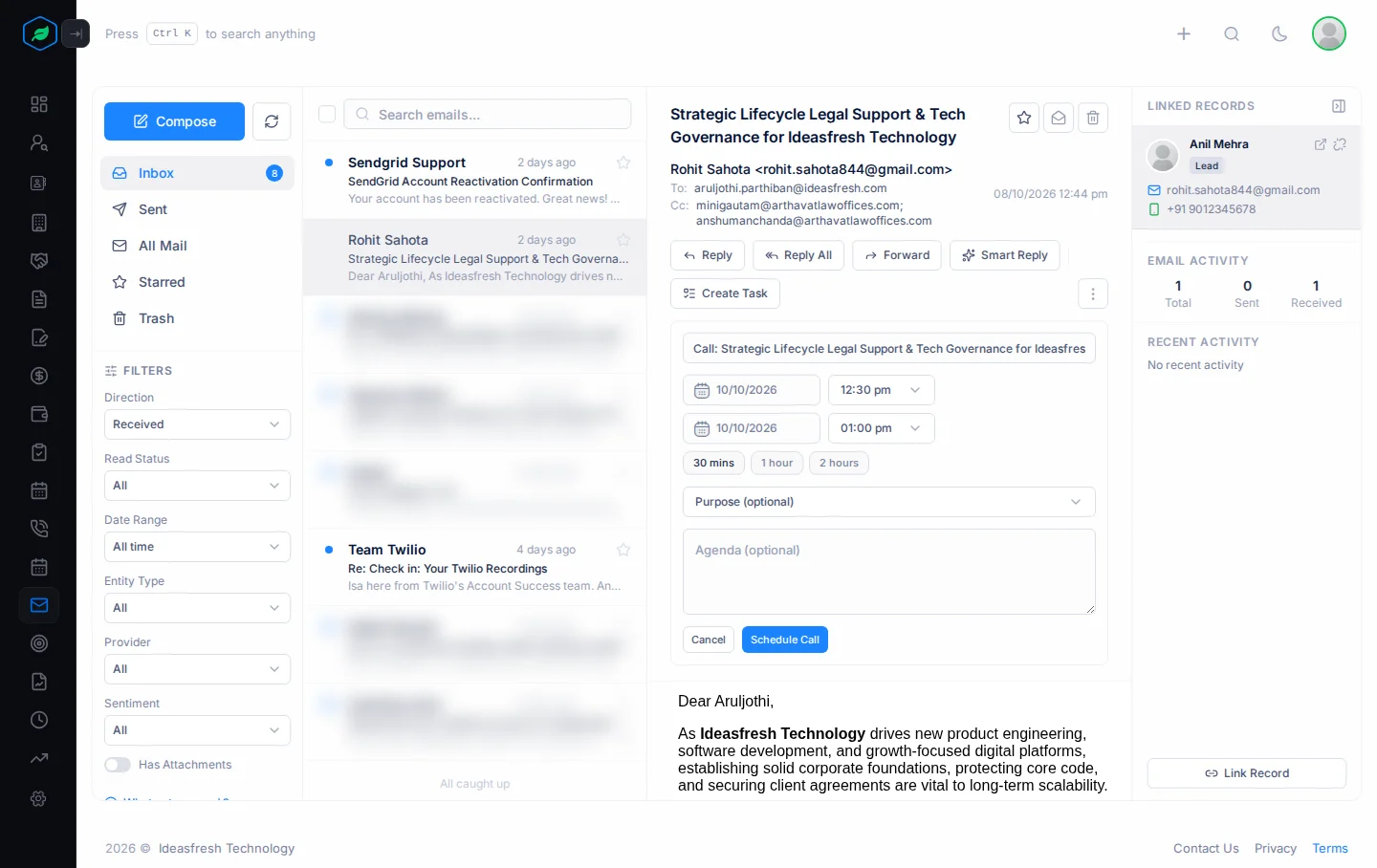
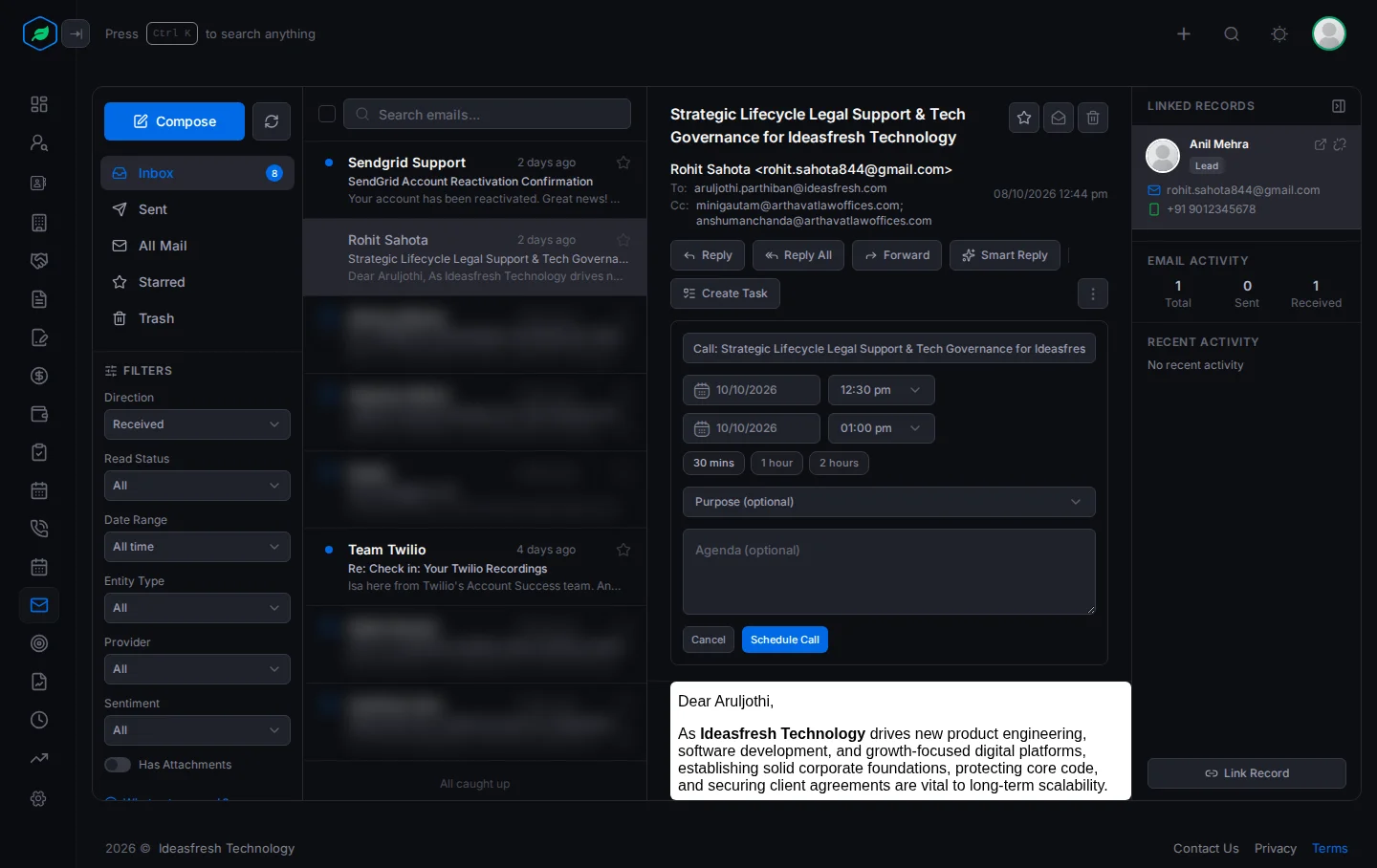
The call or meeting is with the lead or contact the email belongs to.
Troubleshooting
| You see | Why | What to do |
|---|---|---|
| "Please enter at least one recipient." | To is empty | Add an email address |
| "Subject is required." or "Email content is required." | The subject or the message is empty | Fill it in |
| "File size must not exceed 10MB" | A file is too big | Send a smaller file, or a link to it |
| "You have reached your email limit of … for this billing period. Please upgrade your plan for more." | Your company has used its monthly limit for emails sent from Salesfresh's address | Connect your mailbox, or upgrade your plan |
| Create Task, Schedule a Call or Schedule a Meeting is greyed out | The email isn't linked to a lead or contact | Click Link Record first |
Related
Still stuck?
Tell us what you were trying to do and we will help.