Create, edit and clone a task
Every field on the task form, creating a task from an email, and how to edit, clone and delete tasks.
Updated 10 October 2026 · 4 min read
You use the task form to note something that needs doing, who does it and by when. Once it's saved, the task shows on the record it's for, and its owner gets a reminder on the day it's due.
For example, a customer asks for a proposal by next Friday. Click Create Task, type "Send proposal" as the title, pick the customer under Related To and pick next Friday as the Due Date. Set the Priority to High, because the deal depends on it, and click Save.
Before you start
- To create or clone a task, you need the Create Tasks permission. To edit one, you need Edit Tasks. To delete one, you need Delete Tasks.
- To edit or delete a task, you must be its owner or the person who created it.
Create a task
- Click Create Task on the Tasks page, or click + at the top of any page and choose Task.
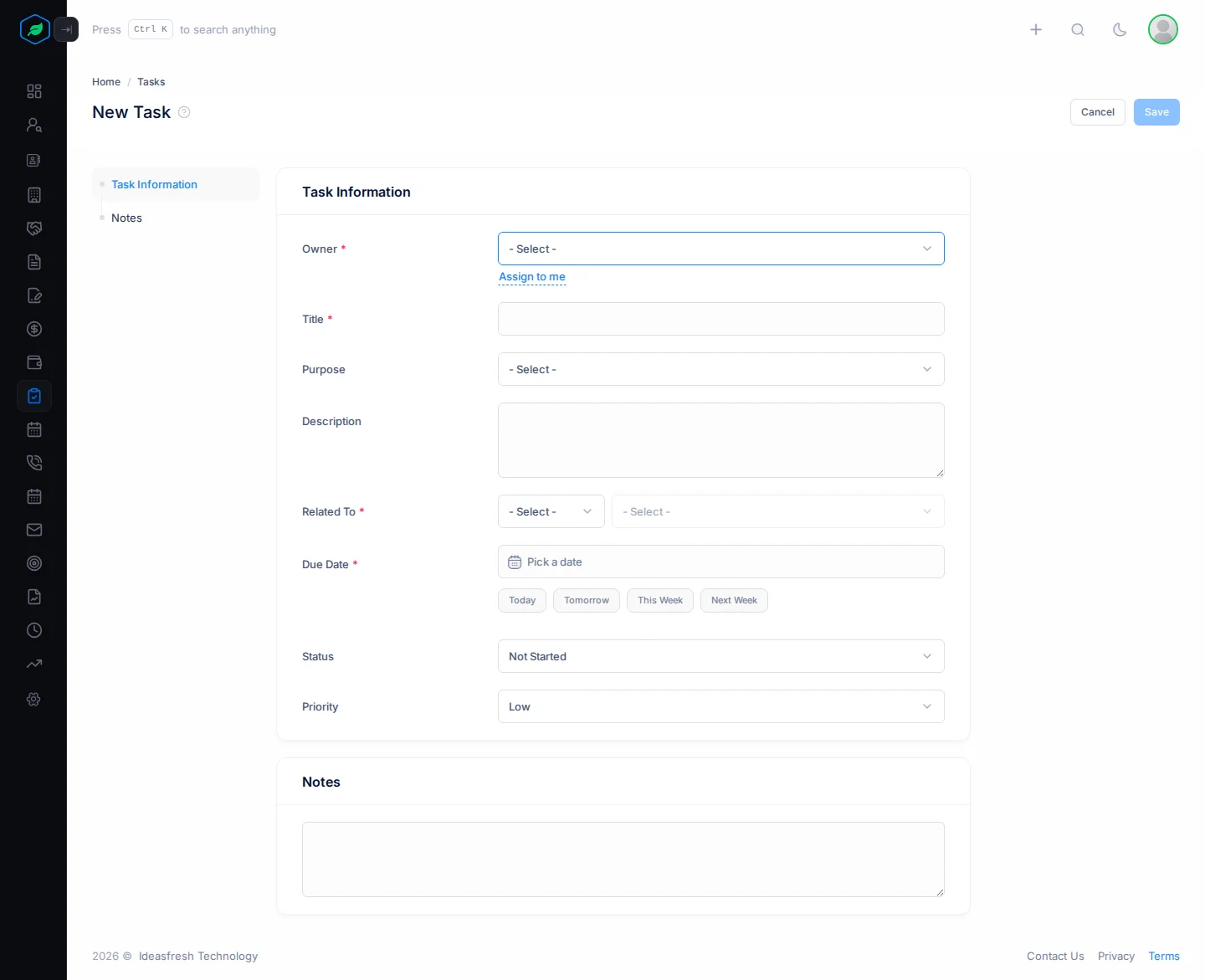
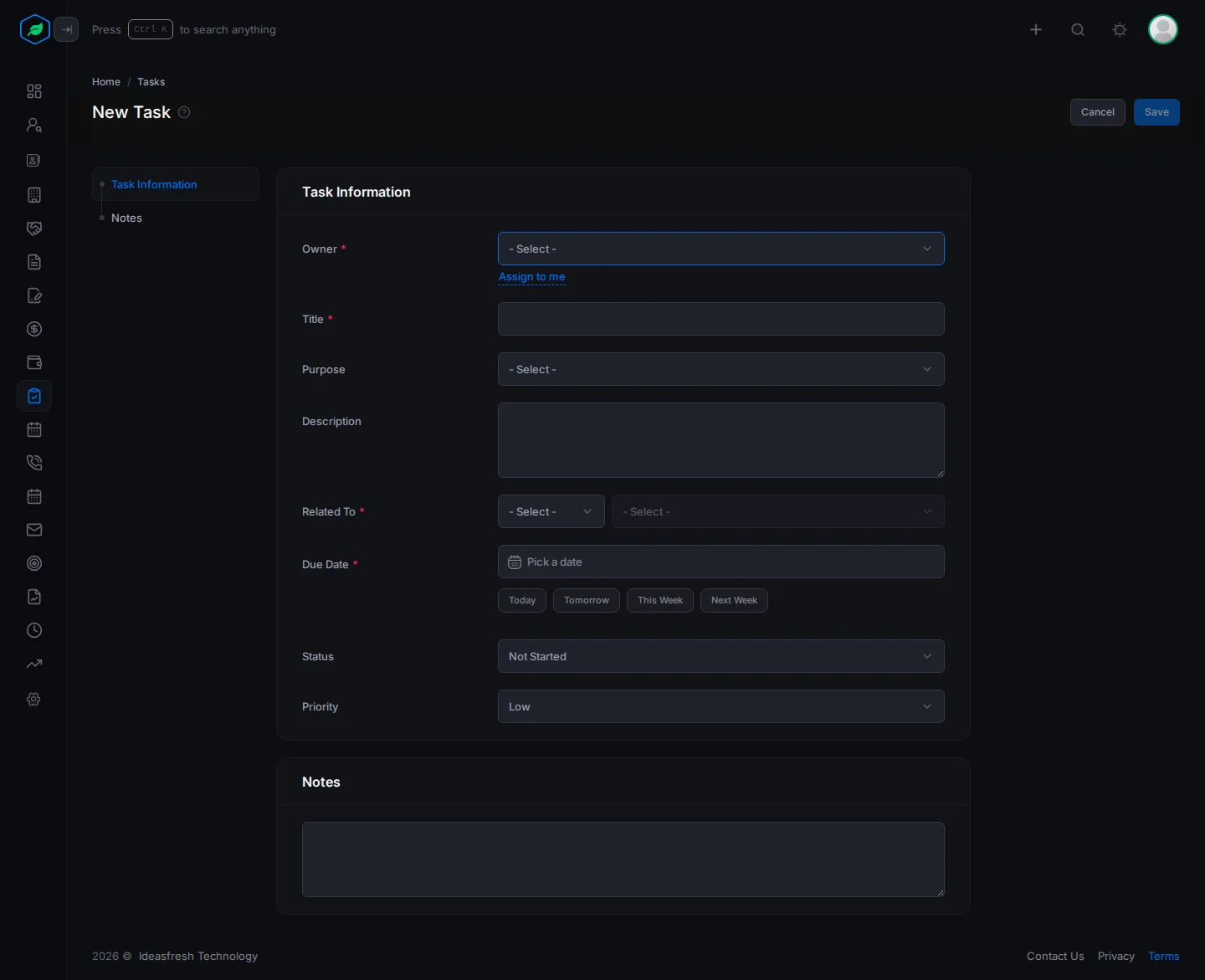
- Fill in Task Information. Fields marked * must be filled in.
- Add Notes if you like.
- Click Save.
| Field | What to enter |
|---|---|
| Owner * | The person who does the task. Click Assign to me to pick yourself. If you pick a teammate, they get an email about it |
| Team | One of the owner's teams. You only see this if the owner is in a team. If your sharing rules are based on teams, this decides who can see the task |
| Title * | What needs doing, such as "Send price list" |
| Purpose | Why the task exists, such as Follow-up. Pick from your company's list. See Activity purposes and outcomes |
| Description | Any details, such as which price list to send |
| Related To * | The record the task is for. Pick Leads, Contacts, Accounts or Deals, then the record |
| Due Date * | The day it should be done. Click Today, Tomorrow, This Week or Next Week to fill it in quickly. This Week means the last day of this week. You can't pick a date in the past |
| Status | Set to Not Started at first. See Statuses |
| Priority | Low, Medium or High. Set to Low at first |
Create a task from an email
When a customer's email needs a follow-up, create the task straight from the email, so you don't forget it. For example, a customer asks for a proposal by next week. You open their email and add a task to send it.
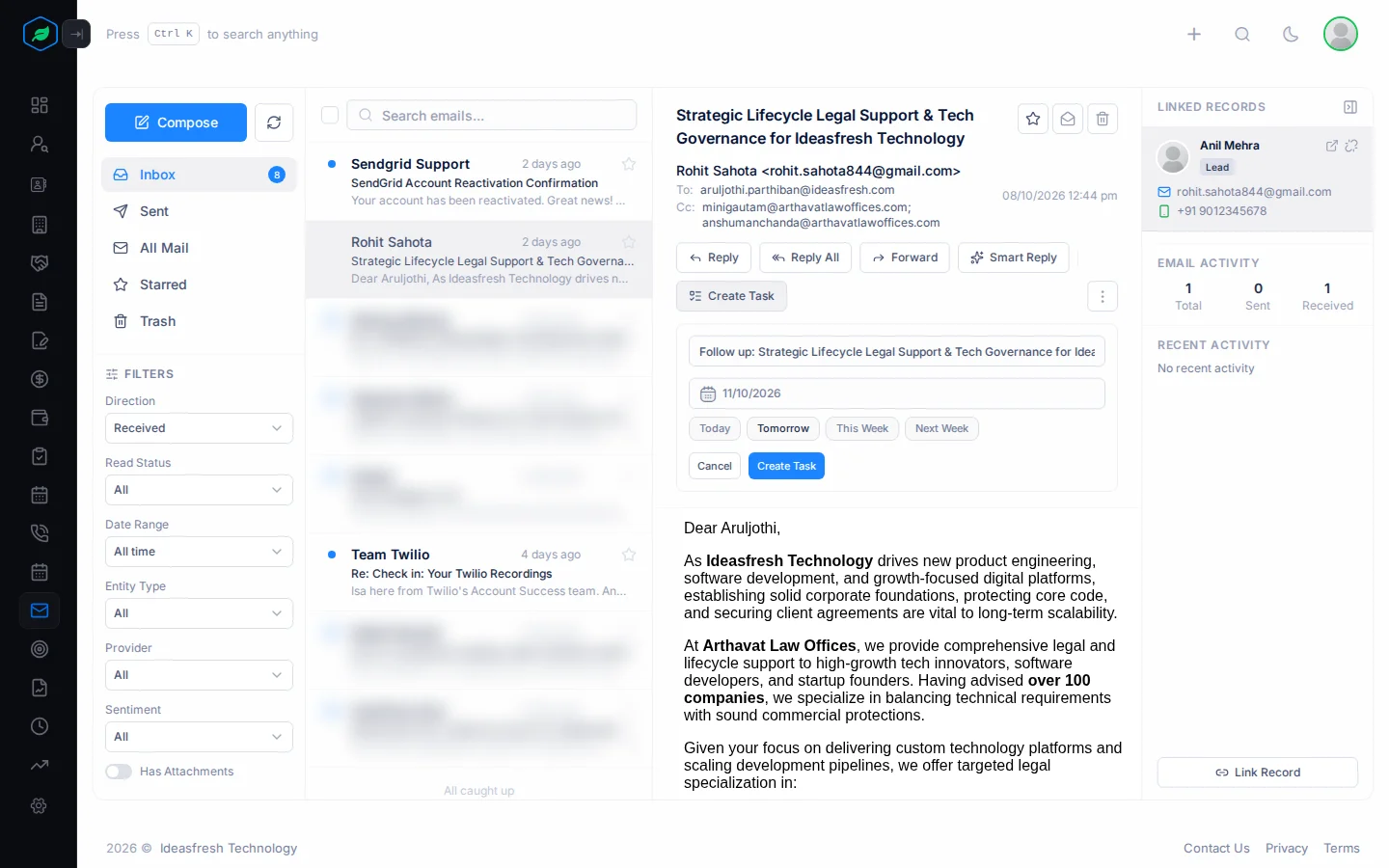
- Click Emails in the sidebar and open the email.
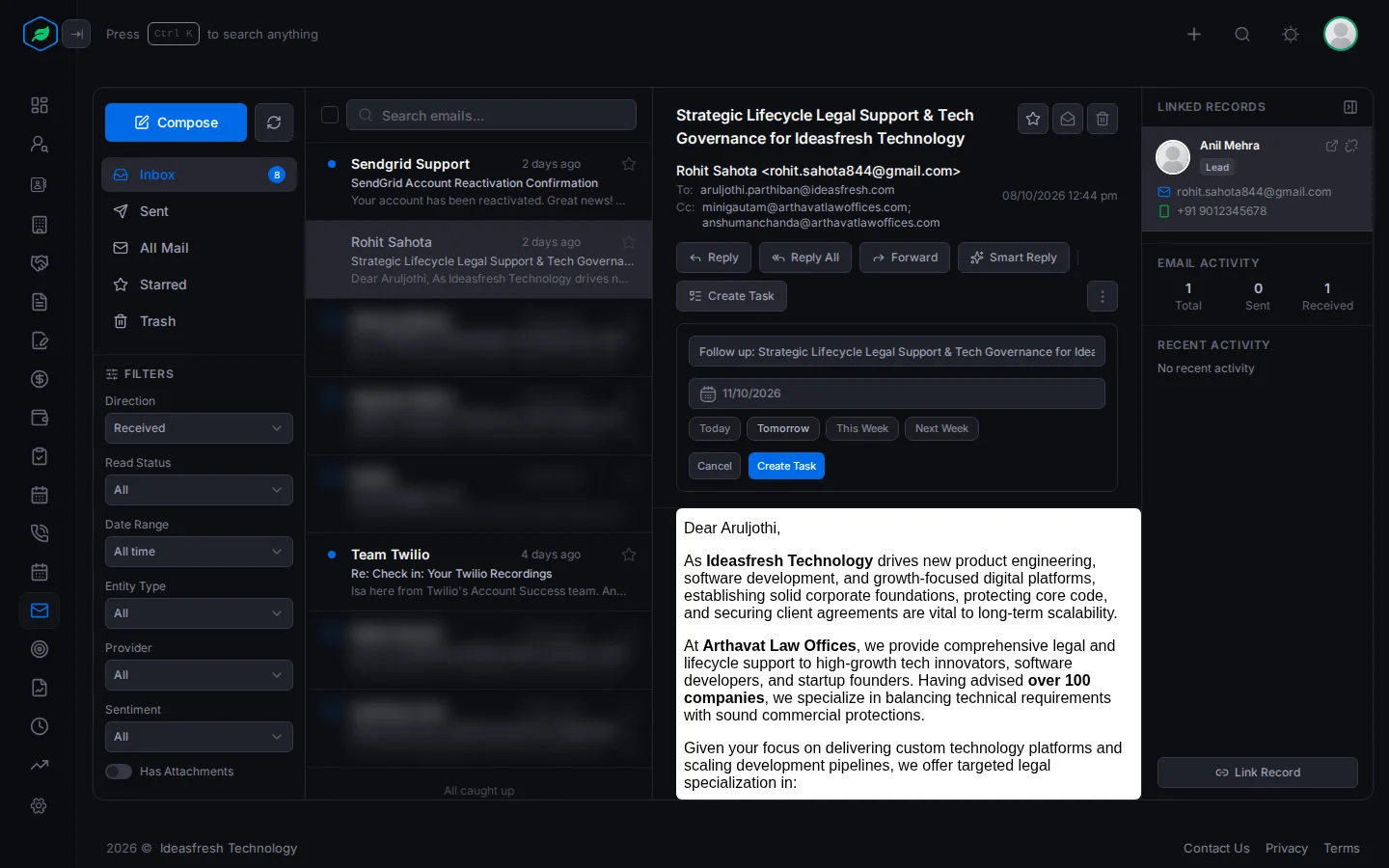
- Click Create Task. A short form opens under the buttons.
- Check the title. It starts as "Follow up:" and the email's subject. Change it if you like, such as "Send the proposal".
- Pick the due date, or click Today, Tomorrow, This Week or Next Week.
- Click Create Task.
The task is yours, with Medium priority, and it's linked to the lead or contact the email belongs to. The email must be linked to a lead or contact first. If it isn't, Create Task is greyed out. See The email client.
Edit a task
Click ⋮ on the task's page or on its row, then Edit. Change what you need, such as the owner or the due date, and click Update.
If you give the task to someone else, they get an email, and so does the old owner. To reopen a completed task, edit it and change the Status.
Clone a task
Cloning saves time when you need the same task again, such as for another customer.
- Click ⋮, then Clone, and confirm.
- A copy called "Title (Copy)" opens, with the status set back to Not Started.
- Change what you need and click Update.
Only you can see the copy until you click Update.
Delete a task
Click ⋮, then Delete, and confirm. You can't restore a deleted task.
Troubleshooting
| You see | Why | What to do |
|---|---|---|
| "Select at least one" | You haven't picked a record under Related To | Pick a lead, contact, account or deal |
| "Due date is required" | You haven't picked a due date | Pick a date |
| "Title can't be longer than 100 characters." | The title is too long | Make it shorter, and put the details in Description |
| Create Task is greyed out on an email | The email isn't linked to a lead or contact | Click Link Record on the email first |
| "Task not found" | You aren't the task's owner or creator, or it was deleted | Ask the owner |
Related
Still stuck?
Tell us what you were trying to do and we will help.