The task detail page
What is on a task's page, how to change its status, mark it complete with an outcome, and why some tasks say they were made automatically.
Updated 10 October 2026 · 3 min read
A task's page shows everything about it: what needs doing, who does it, when it's due and who it's for. It is also where you move the task along and mark it done.
Click a task's title on the Tasks page, on the Calendar, or on a record's Activities tab to open it.
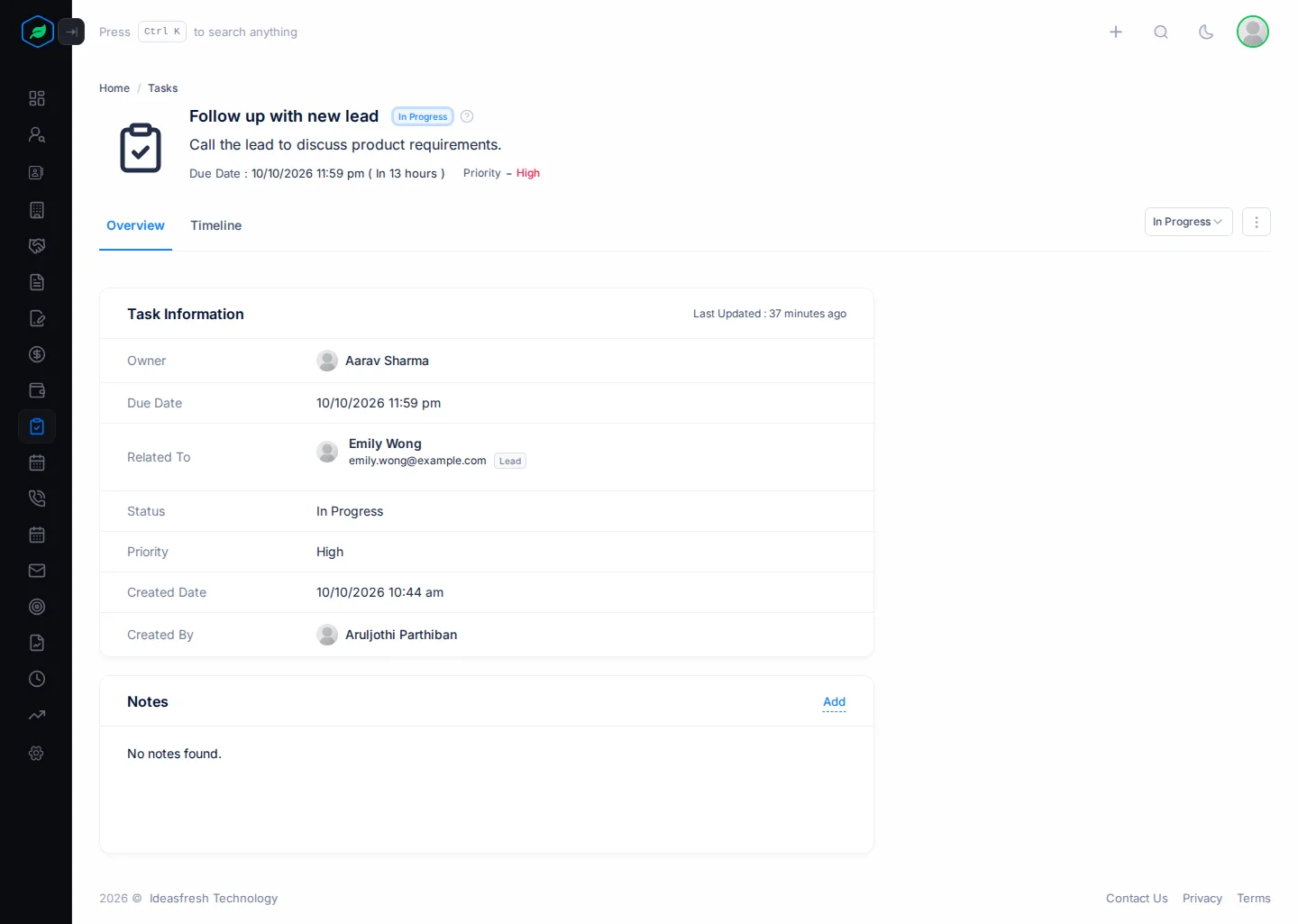
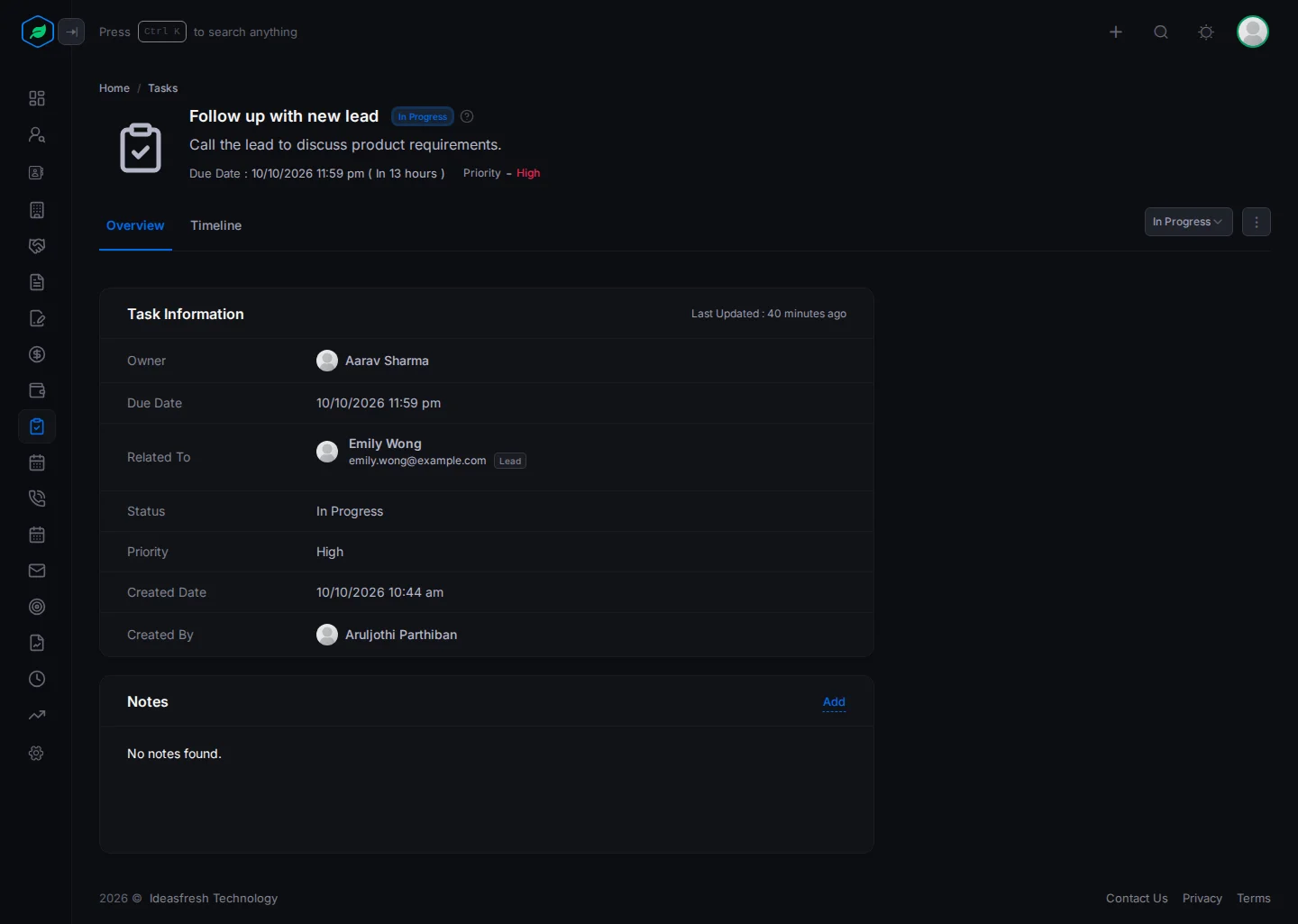
At the top
The top of the page shows the title, the status, the description, the due date and how long until it's due, and the priority. On the right are the status dropdown and the ⋮ menu.
Overview
Task Information shows the owner, due date, related record, status, priority, and who made the task and when. Once set, it also shows the purpose and outcome.
Notes is for anything your team should know, such as what the customer said. Click Add or Edit to write notes. You can do this if you own or created the task and can edit tasks.
Tasks made for you
Some tasks are made by Salesfresh, such as when a lead stays in a stage too long. These have an Auto-generated Task card, saying what made the task and why. For example, a task "SLA Breached: …" tells you a lead has waited too long for a reply, so call them first.
Timeline
Timeline lists every change to the task: who changed what, and when. For example, if the due date moved, you can see who moved it. Click the arrow next to an entry to see exactly what changed.
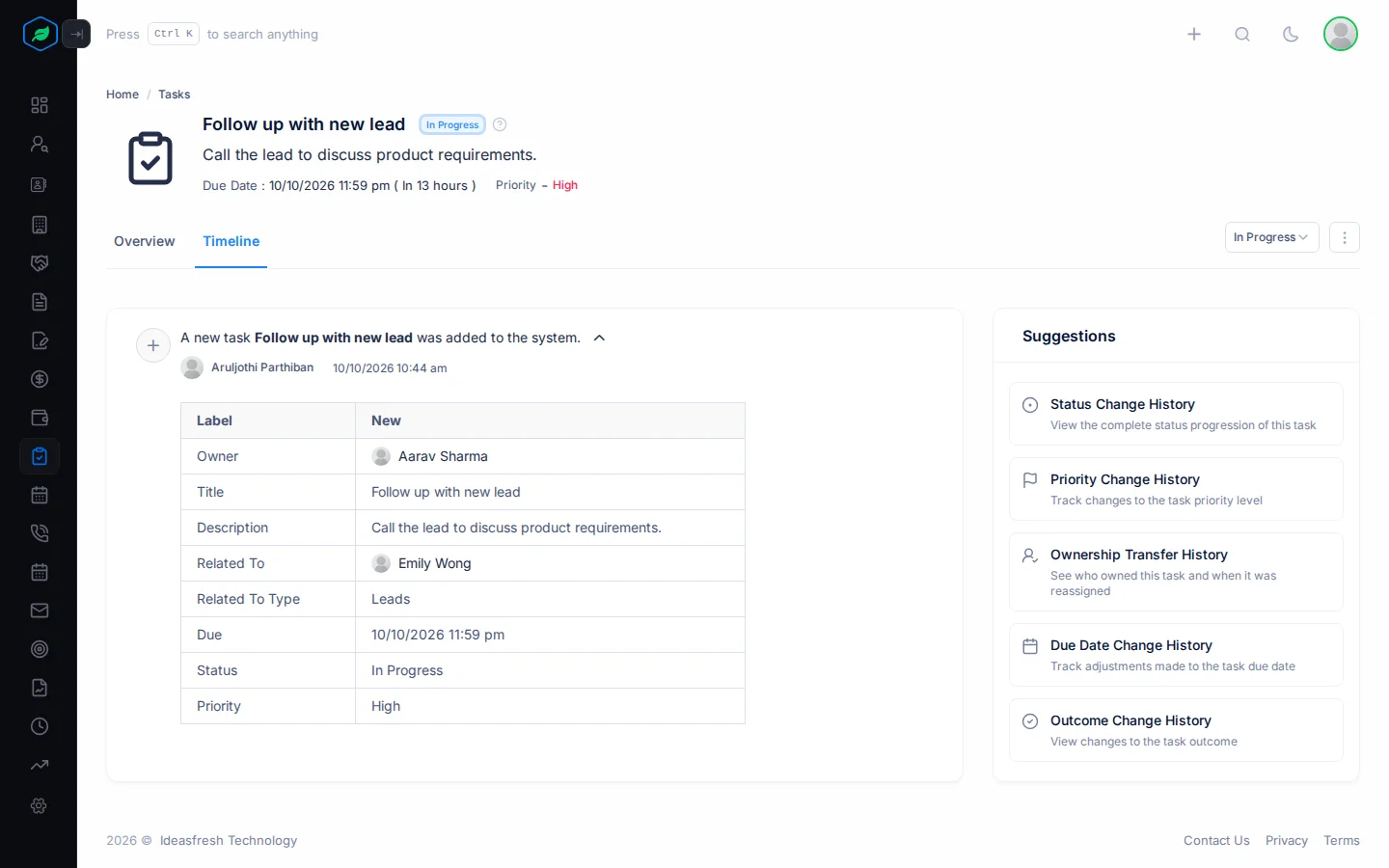
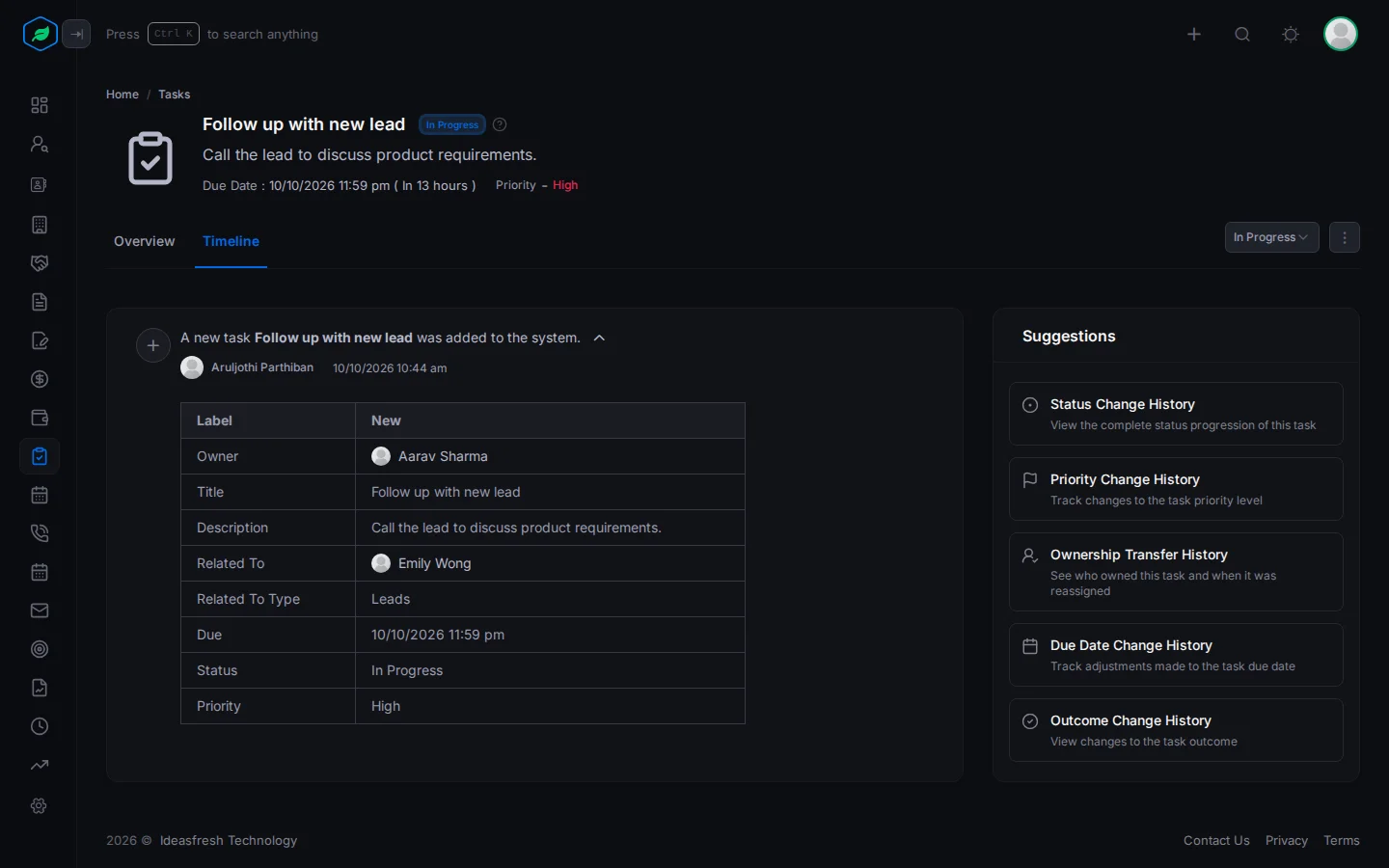
Suggestions on the right lets you see the history of one thing at a time, such as Status Change History or Due Date Change History. Click one to see only those changes. Click it again to go back to the full timeline. For example, click Ownership Transfer History to see everyone who has owned the task.
Change the status
Pick a status from the dropdown at the top right and confirm. For example, when you start on a task, pick In Progress, so your team knows someone is on it.
You can do this if you own or created the task. The dropdown is hidden once the task is completed.
Complete a task
- Click Mark as Completed. On the Tasks page, you can also click ⋮ on the task's row, then Complete.
- Pick the Purpose and the Outcome, such as Interested or No Response. If the task already has a purpose, it is filled in. You pick both or neither.
- Click Yes.
The outcome tells your team how it went without reading notes. For example, a manager can see which follow-ups ended with an interested customer.
Only the owner can complete a task. To reopen a completed task, edit it and change the Status.
The ⋮ menu
Edit, Clone and Delete are in the ⋮ menu at the top right. See Create and edit a task.
Troubleshooting
| You see | Why | What to do |
|---|---|---|
| Mark as Completed is missing | You aren't the task's owner, or it's already completed | Ask the owner |
| The status dropdown is missing | The task is completed, or you don't own it and didn't create it | Ask the owner |
| "Task not found" | The sharing rules hide the task from you, or it was deleted | Ask the owner |
Related
Still stuck?
Tell us what you were trying to do and we will help.