Set up activity purposes and outcomes
Set up the purposes and outcomes your team picks for tasks, calls and meetings, so you can see why each activity happened and how it went.
Updated 10 October 2026 · 6 min read
A purpose says why a task, call or meeting happens, such as Discovery or Product Demo. An outcome says how it went, such as Interested or Callback Requested.
Your team picks a purpose when they add an activity. They pick an outcome when they mark it complete.
Everyone picks from the same short list, so everyone uses the same words. For example, without outcomes, one salesperson writes "keen" after a call. Another writes "liked it", and a third writes nothing. Their manager can't tell which calls went well. With outcomes, all three pick Interested, and the manager sees it straight away.
Your admin sets up both lists in Settings > Activity Settings.
Before you start
- To see the lists, you need the View Activity Settings permission.
- To add one, you need the Create Activity Settings permission.
- To change one, or switch it off or on, you need the Edit Activity Settings permission.
- To delete one, you need the Delete Activity Settings permission.
- To clone one, you need both the Create Activity Settings and Edit Activity Settings permissions.
If you don't have a permission you need, ask your admin. Your team doesn't need any of these to pick a purpose or outcome on an activity.
Where your team picks them
- On a new task, call or meeting, they pick a Purpose.
- On a call's Outcome card, they pick a Result.
- When they mark a task, call or meeting complete, they pick the Purpose and the Outcome. If the activity already has a purpose, it is filled in for them, and they must pick an outcome.
The lists only show purposes and outcomes that are Active and set up for that kind of activity. They are shown in their Order.
Targets can use them too. For example, a target can count the calls that ended as Interested.
The two lists
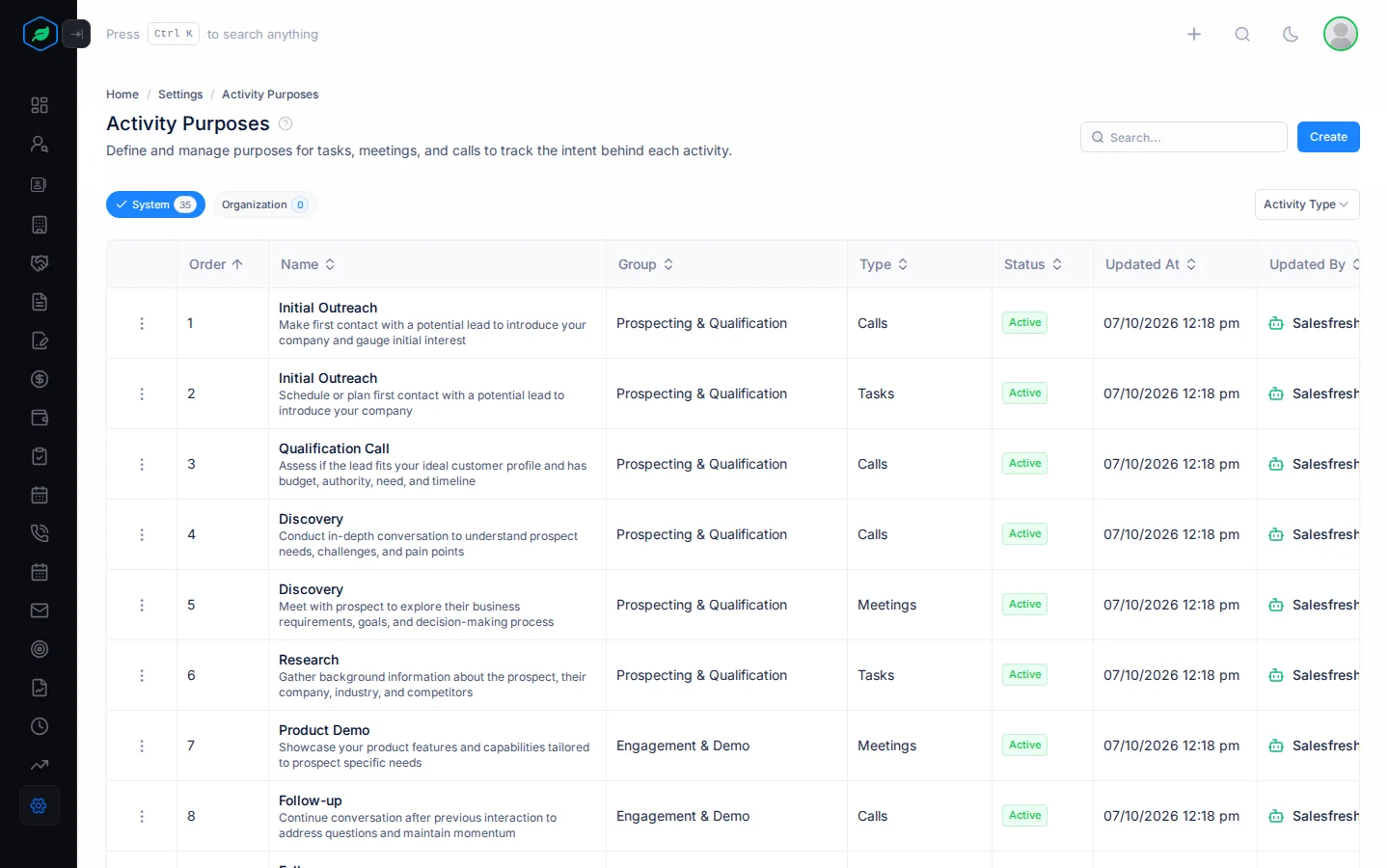
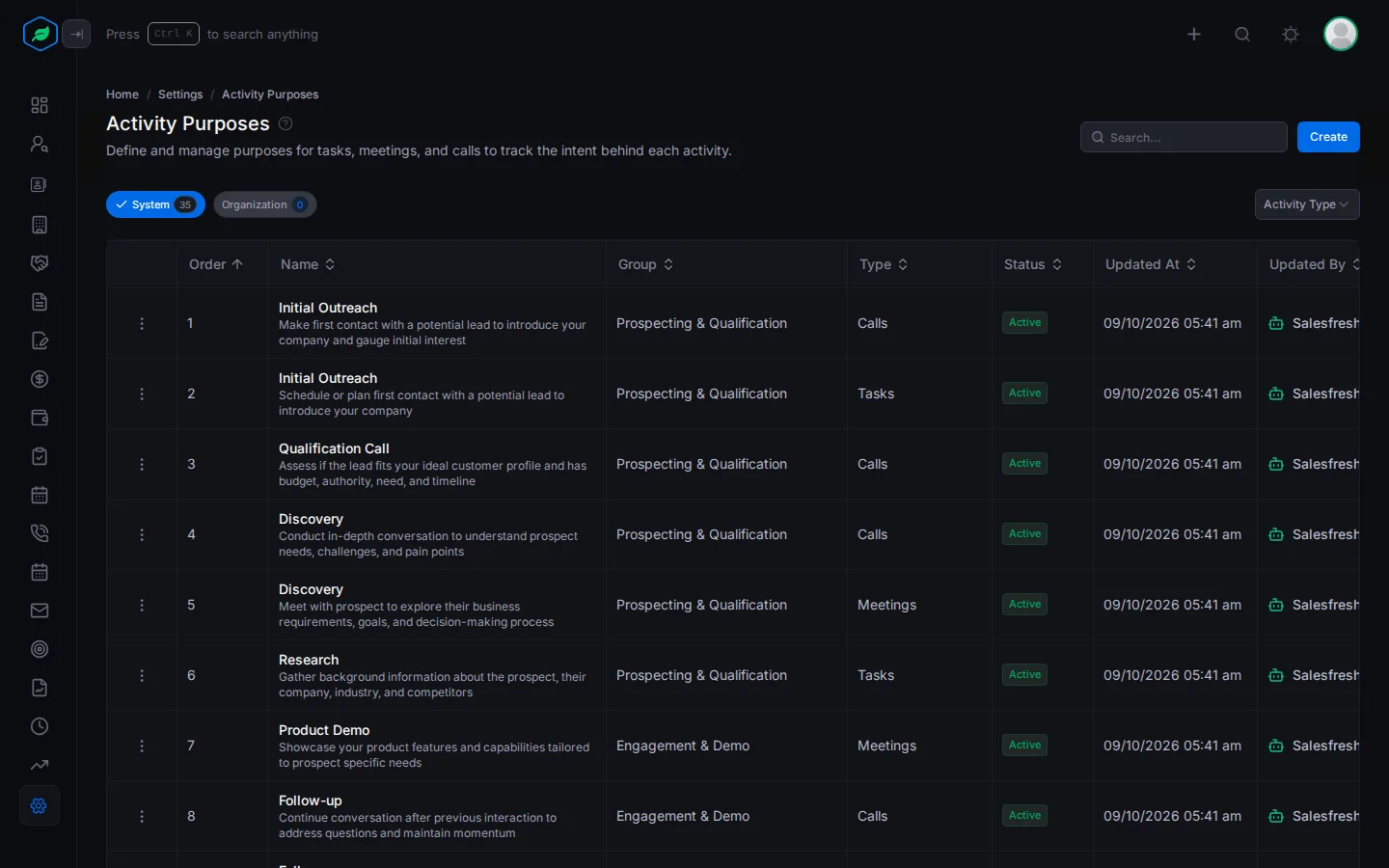
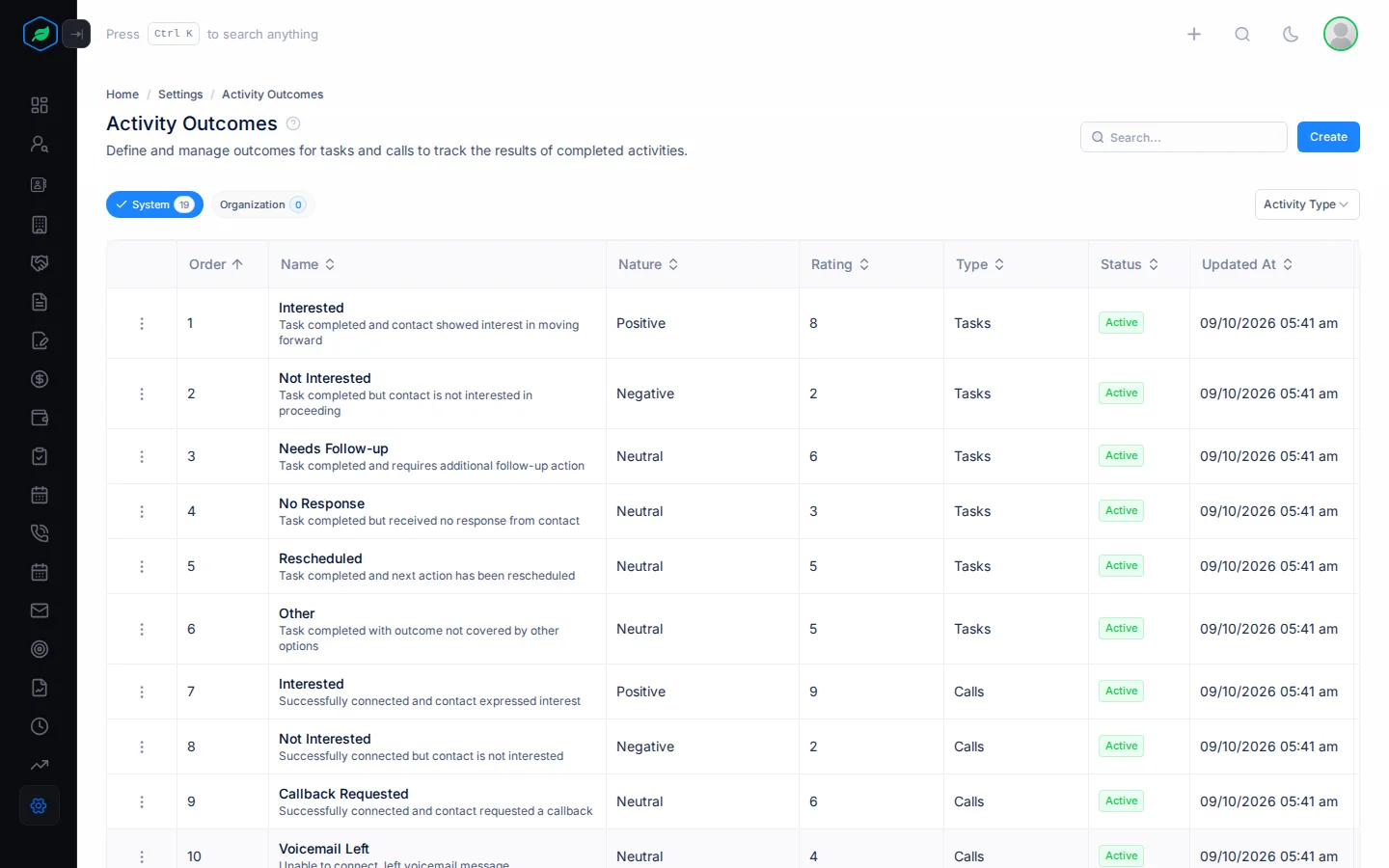
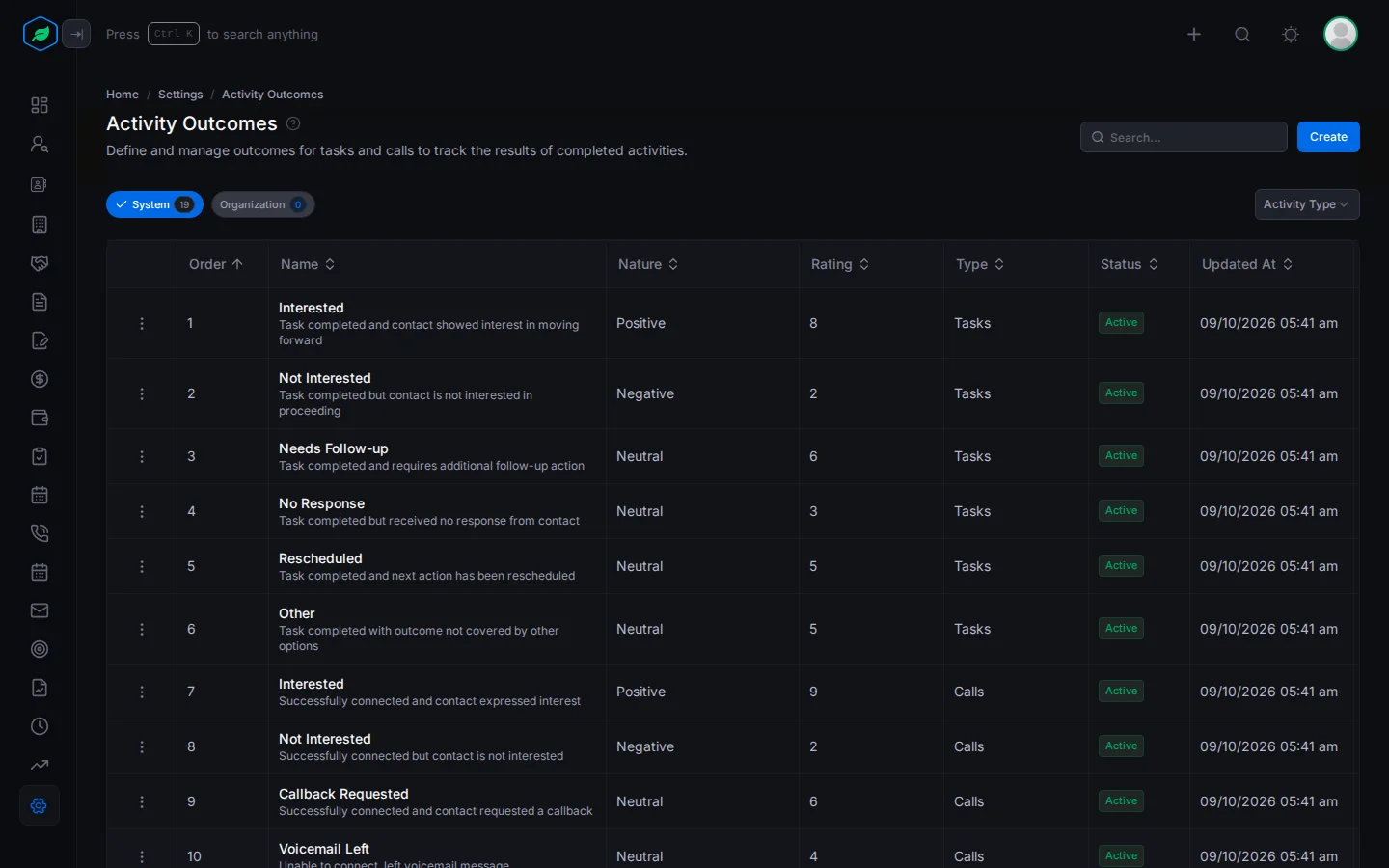
Open Activity Purposes or Activity Outcomes. Each list has two tabs:
- System has the ones every company starts with. You can switch them off, but you can't change or delete them.
- Organization has the ones your company added. You can change and delete them.
To see only tasks, calls or meetings, pick one under Activity Type.
Purposes you start with
| Group | Purposes |
|---|---|
| Prospecting & Qualification | Initial Outreach, Qualification Call, Discovery, Research |
| Engagement & Demo | Product Demo, Follow-up, Presentation, Technical Discussion |
| Negotiation & Closing | Proposal Discussion, Negotiation, Contract Review, Closing Call |
| Post-Sale | Onboarding, Training, Check-in, Support, Renewal Discussion, Upsell/Cross-sell |
| Relationship Management | Networking, Referral Request, Feedback Collection, Event Invitation |
| Administrative | Internal Sync, Documentation, Planning |
Each one is only offered for the activities it suits. For example, Product Demo is only offered for meetings.
Outcomes you start with
| For | Outcomes |
|---|---|
| Tasks | Interested, Not Interested, Needs Follow-up, No Response, Rescheduled, Other |
| Calls | Interested, Not Interested, Callback Requested, Voicemail Left, No Answer, Wrong Number, Do Not Call |
| Meetings | Interested, Not Interested, Needs Follow-up, No Show, Rescheduled, Other |
You can add your own outcomes for tasks and calls. For meetings, you can only use the outcomes above.
Add a purpose
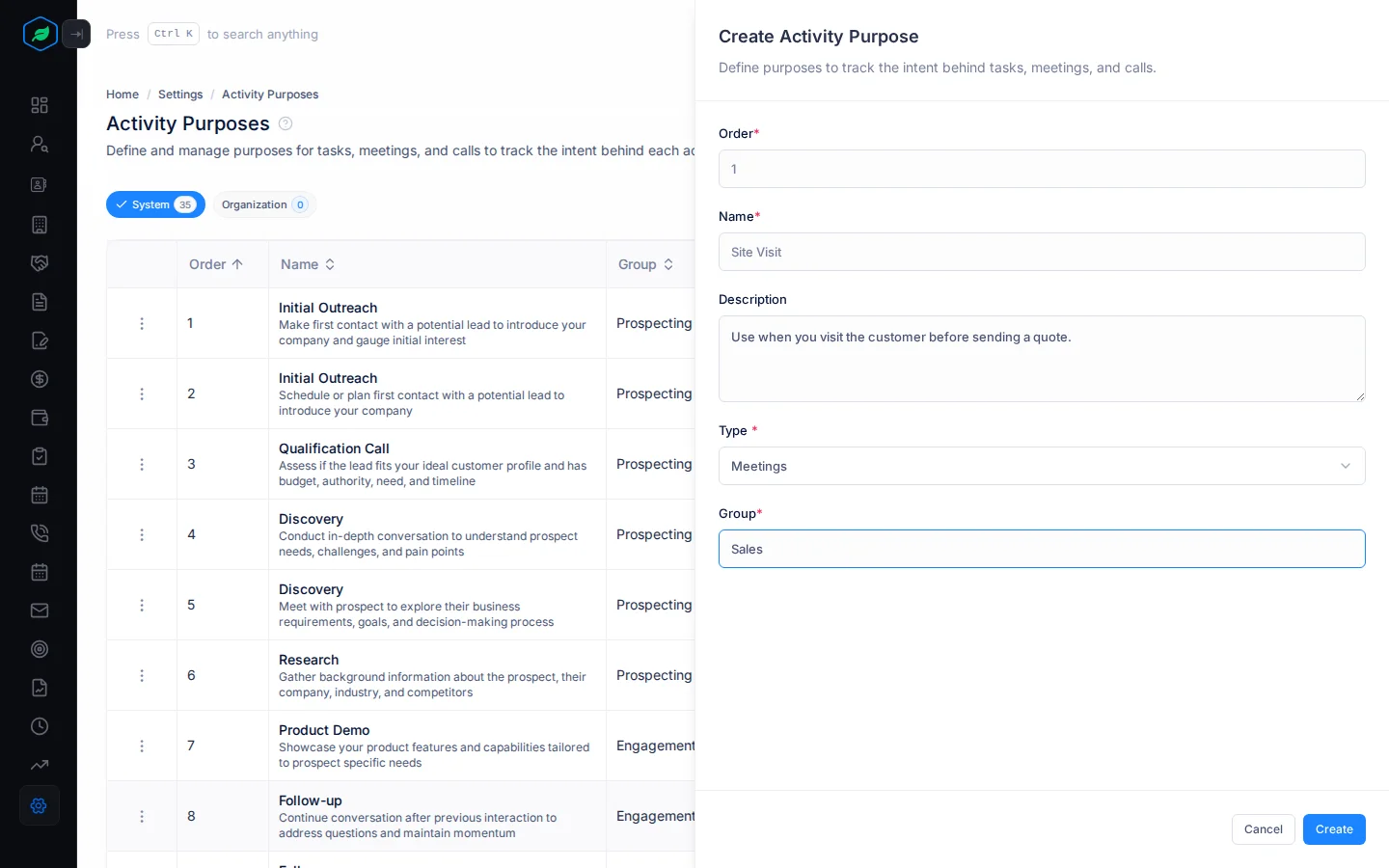
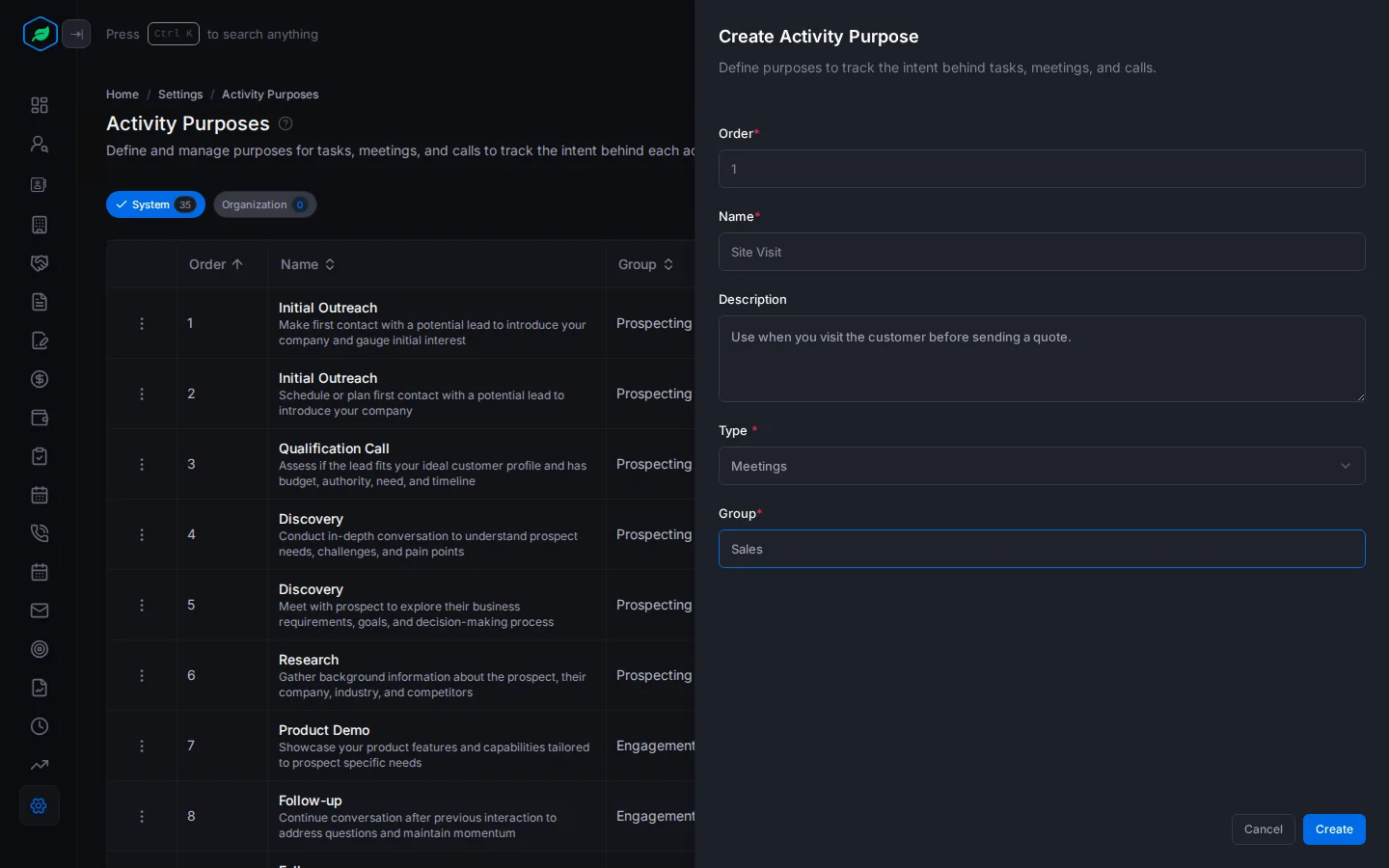
For example, your company fits solar panels on homes. Your team visits every home before sending a quote. Add a purpose called "Site Visit", so every visit is saved the same way.
- Open Activity Purposes and click Create. The Create Activity Purpose panel opens.
- Fill in the fields. Fields marked * must be filled in.
- Click Create.
| Field | What to enter |
|---|---|
| Order * | Where it shows in the list, from 1. For example, 1 puts it first. Set to 0 at first, so change it |
| Name * | What your team picks, such as "Site Visit". It can't match another purpose for the same type |
| Description | When to use it, such as "Use when you visit the customer before sending a quote" |
| Type * | Tasks, Calls or Meetings. To offer the same purpose for calls and meetings, add it once for each |
| Group * | The heading it's listed under, such as "Sales" |
Add an outcome
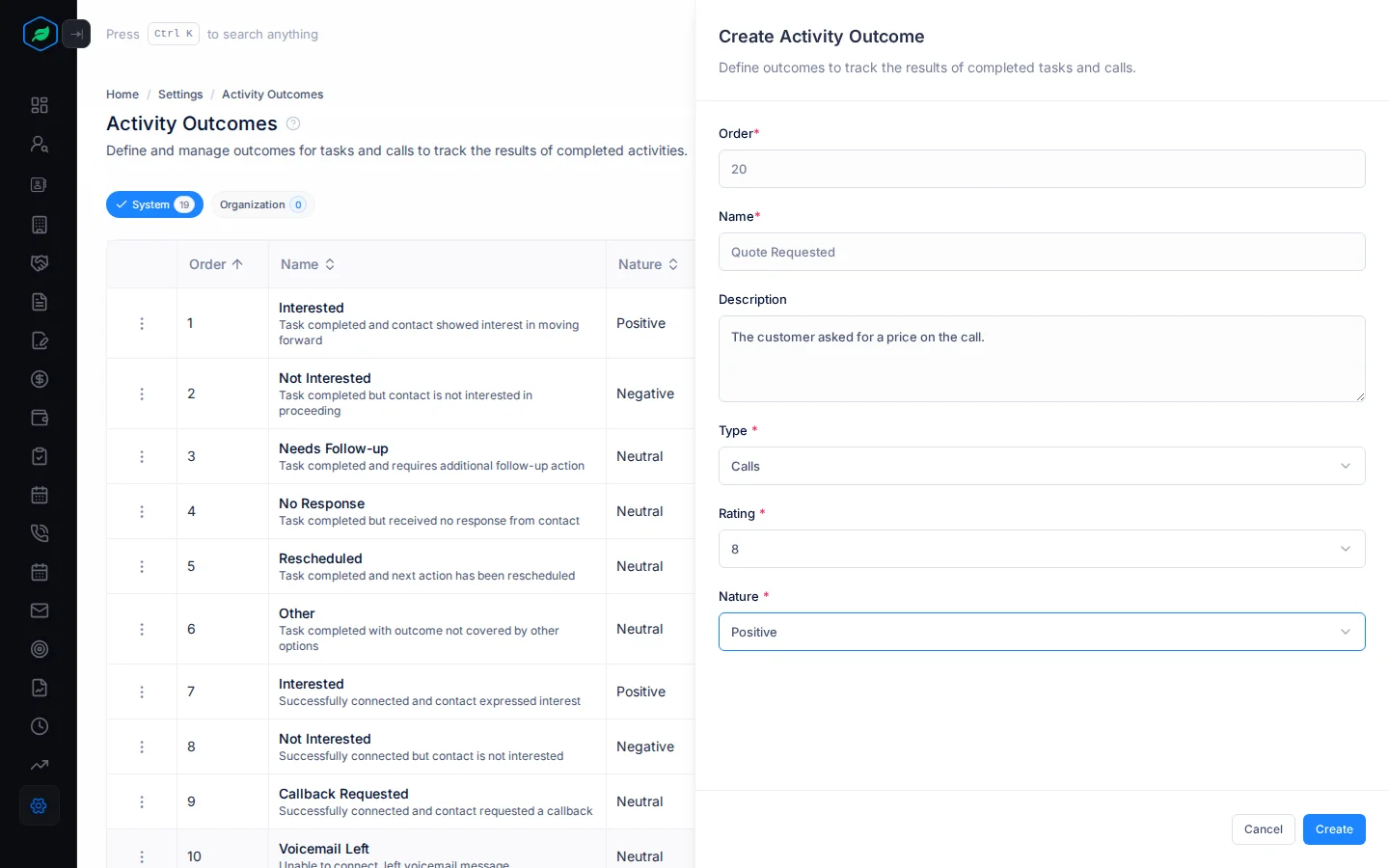
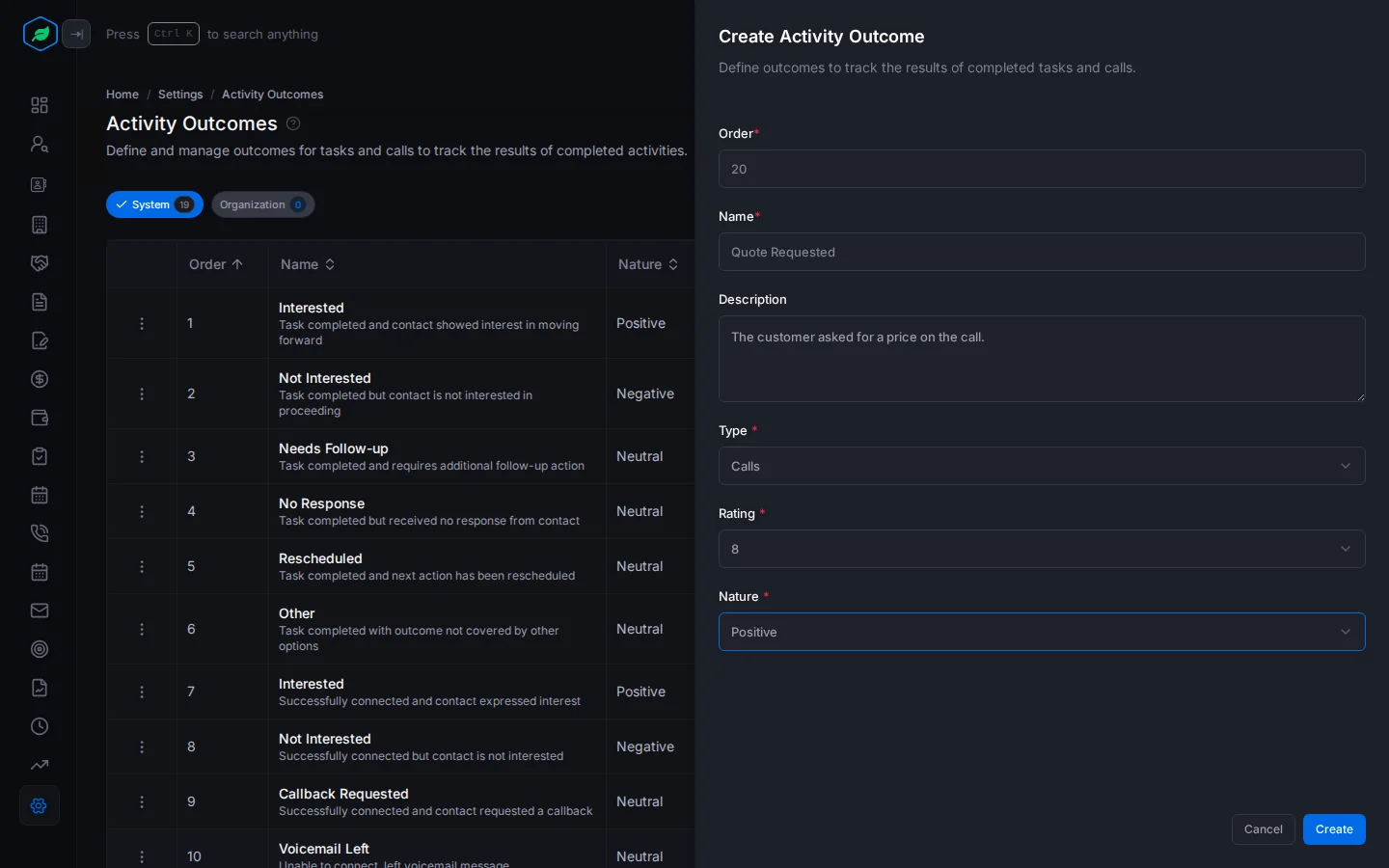
- Open Activity Outcomes and click Create. The Create Activity Outcome panel opens.
- Fill in the fields. Fields marked * must be filled in.
- Click Create.
| Field | What to enter |
|---|---|
| Order * | Where it shows in the list, from 1. Set to 1 at first |
| Name * | What your team picks, such as "Quote Requested". It can't match another outcome for the same type |
| Description | What it means, such as "The customer asked for a price on the call" |
| Type * | Tasks or Calls |
| Rating * | From 1 to 10. A higher rating is a better result. For example, Interested might be 9 and Wrong Number 1. Set to 1 at first |
| Nature * | Positive, Negative or Neutral |
Targets can use the rating and nature to count only good results. For example, a target can count calls with a Positive outcome.
Change, switch off or remove
Click ⋮ on a row.
- Edit changes one your company added.
- Inactive hides it from new activities. Activate shows it again. This works on System ones too. For example, if your team never runs training, switch Training off to make the list shorter.
- Clone makes a copy called "Name (Copy)" on the Organization tab. To change the words of a System purpose, clone it, edit the copy, and switch the original off.
- Delete removes one your company added. Activities that already use it keep it.
After you add or switch on a purpose, your team may need to reload the page to see it.
Troubleshooting
| You see | Why | What to do |
|---|---|---|
| "Order must be at least 1" | The order is 0 | Enter 1 or more |
| "Engagement purpose already exists" or "Engagement outcome already exists" | That name is already used for this type | Use a different name |
| Purpose is greyed out on a form | There are no active purposes for that kind of activity | Activate or add one, then reload the page |
| Yes stays greyed out when completing an activity | You picked an outcome but no purpose, or the other way round | Pick both, or leave both empty |
Related
Still stuck?
Tell us what you were trying to do and we will help.