Calls: overview, list and views
What a call record is, scheduled and logged calls, the emails people get, and how to find calls on the Calls page and in views.
Updated 10 October 2026 · 4 min read
A call in Salesfresh is a note of a phone call with a lead or contact. There are two kinds:
- A scheduled call is one you plan to make. Salesfresh sends you a reminder before it.
- A logged call is one that already happened. You save it so your team knows about it.
If your company uses Twilio, calls you make in Salesfresh are saved for you. See Call with Twilio.
For example, a parent calls your coaching centre on Monday to ask about classes. After the call, you log it and write down what they asked. They want a call back on Thursday at 5 pm, so you schedule one. On Thursday, just before 5, you get a reminder email. You make the call and mark it Completed. If you are away that day, a teammate can open the parent's page and see what was said.
Before you start
- To see calls, you need the View Calls permission. If you don't have it, ask your admin.
- You always see the calls you created. Whether you see your teammates' calls depends on your company's sharing rules.
Where calls come from
- Click Create Call on the Calls page, or click + at the top of any page and choose Call.
- On a lead, contact, account or deal, click Create and choose Call. From a lead or contact, that person is already filled in as the one you call.
- On an email in your inbox, click ⋮, then Schedule a Call.
- On the Calendar, click an empty slot at the time you want, such as Friday at 11 am. In the New Activity window, click Call. The form opens with that time filled in.
- Calls you make through Twilio are saved for you when you hang up.
Statuses
| Status | Meaning |
|---|---|
| Scheduled | You plan to make the call |
| Completed | You spoke |
| No Answer, Busy or Failed | The call didn't get through |
| Canceled | The call is off |
The Calls page
Click Calls in the sidebar. Each row is one call. It shows the title, date and time, how long it took, who called whom, the status, the owner and when it was last changed.
- The arrow next to the title shows the direction: into your company or out of it.
- The colour on the left of each row shows the status.
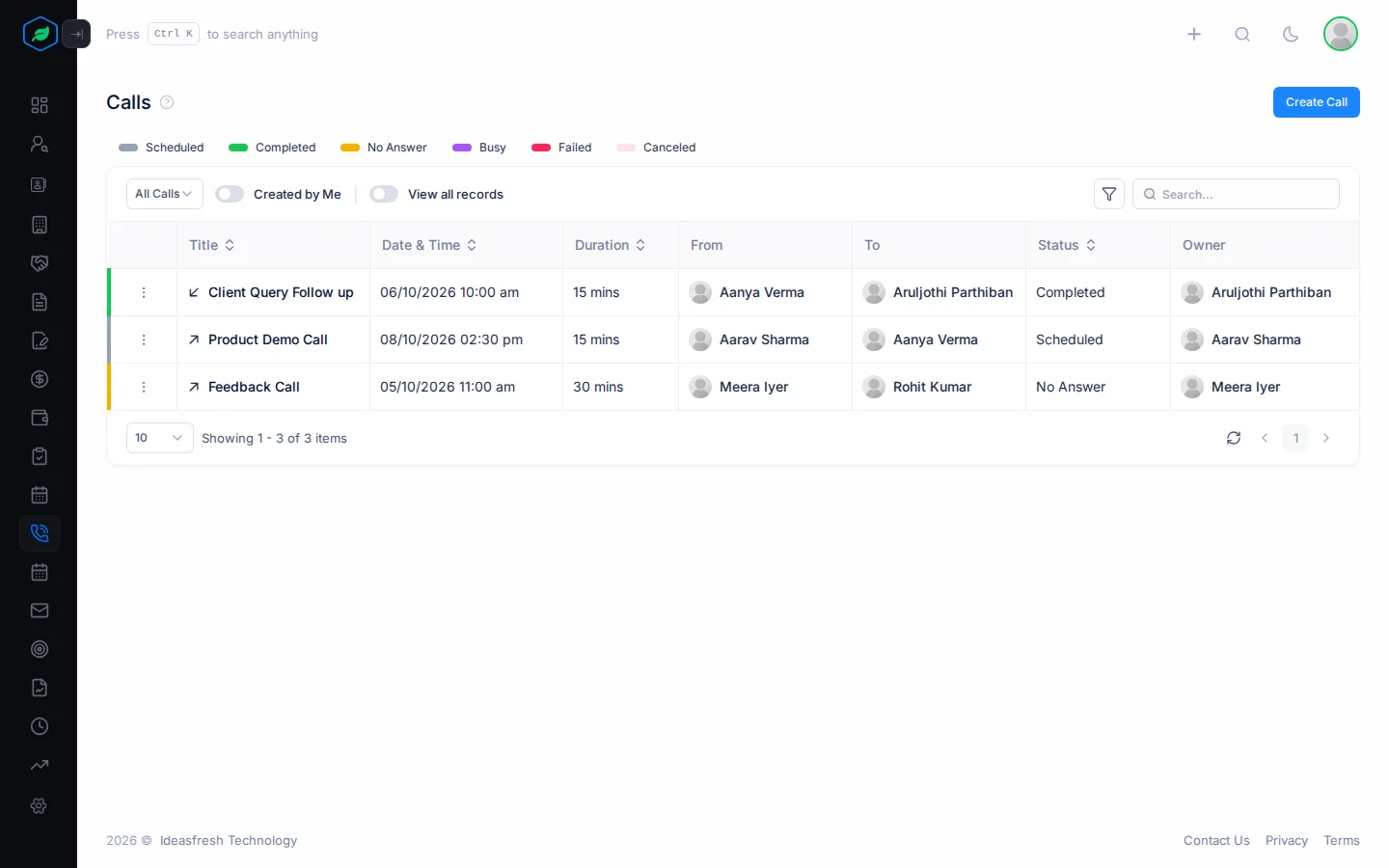
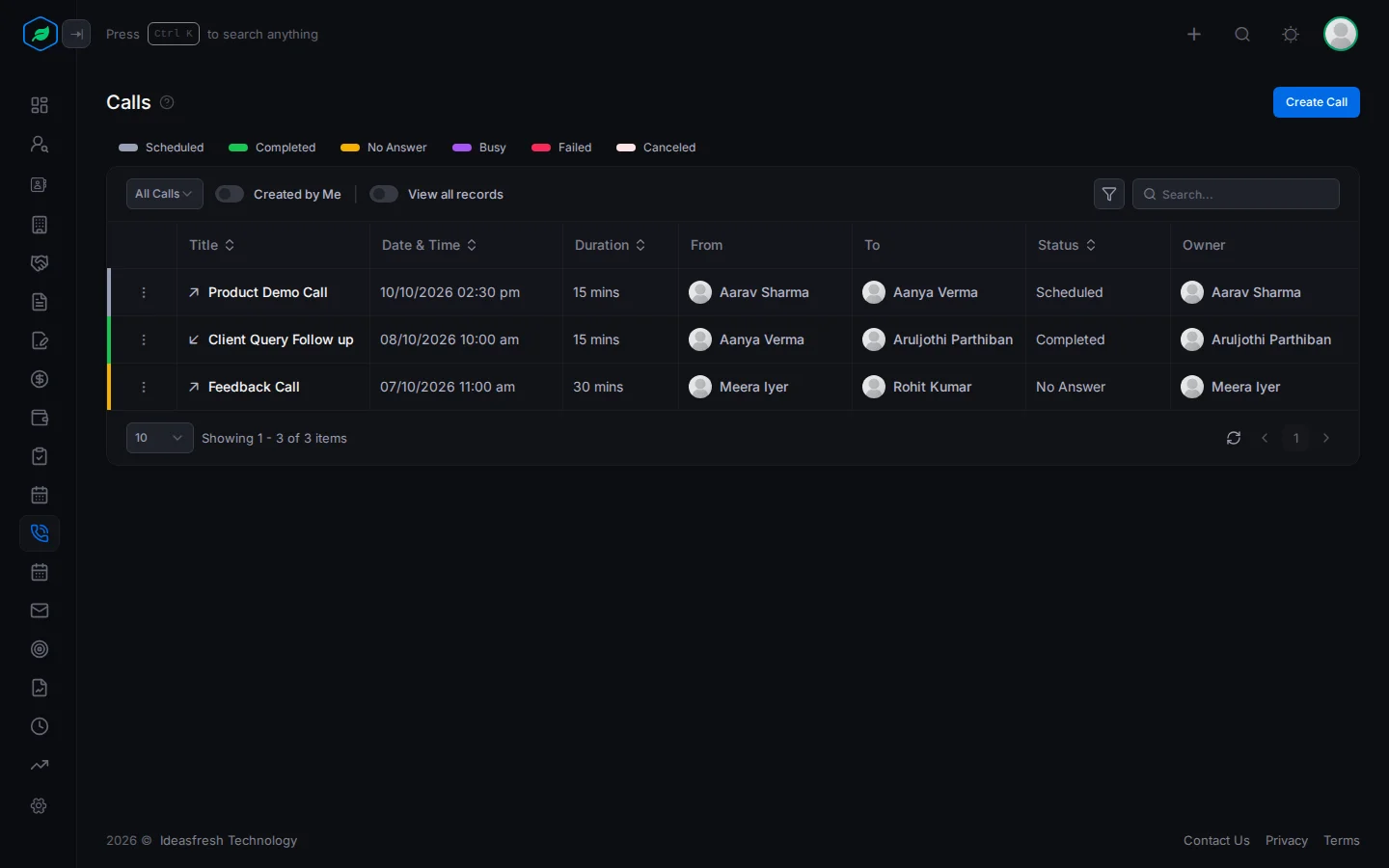
On All Calls and My Calls, click a status above the table to see only those calls. Click a call's title to open it. See The call detail page.
Views
A view is a ready-made list. Pick one to see the calls you need. For example, open My Today's Scheduled Calls each morning to plan your day.
| View | Shows |
|---|---|
| All Calls | Every call you can see |
| Scheduled Calls | Calls you still have to make |
| Overdue Calls | Scheduled calls whose time has passed |
| Completed, Canceled, No Answer and Failed Calls | Calls with that status |
| Incoming Calls and Outgoing Calls | Calls in that direction |
Views that start with My show calls that involve you. For example, My Calls shows calls you own, make or receive.
Emails about calls
- When someone schedules a call for you, you get an email.
- When a call is given to someone else, the new owner and the old owner get an email.
- When you schedule a call, the lead or contact you will call also gets an email.
- When a scheduled call is moved or cancelled, the lead or contact gets an email. The owner gets one too, if someone else made the change.
- The owner gets a reminder email up to 30 minutes before a scheduled call.
You can turn off the emails about calls given to you in Notification settings.
Related
Still stuck?
Tell us what you were trying to do and we will help.