Plan your week on the activity calendar
See your tasks, calls and meetings by day, week or month, check your team's schedule, reschedule by dragging and create activities from an empty slot.
Updated 10 October 2026 · 5 min read
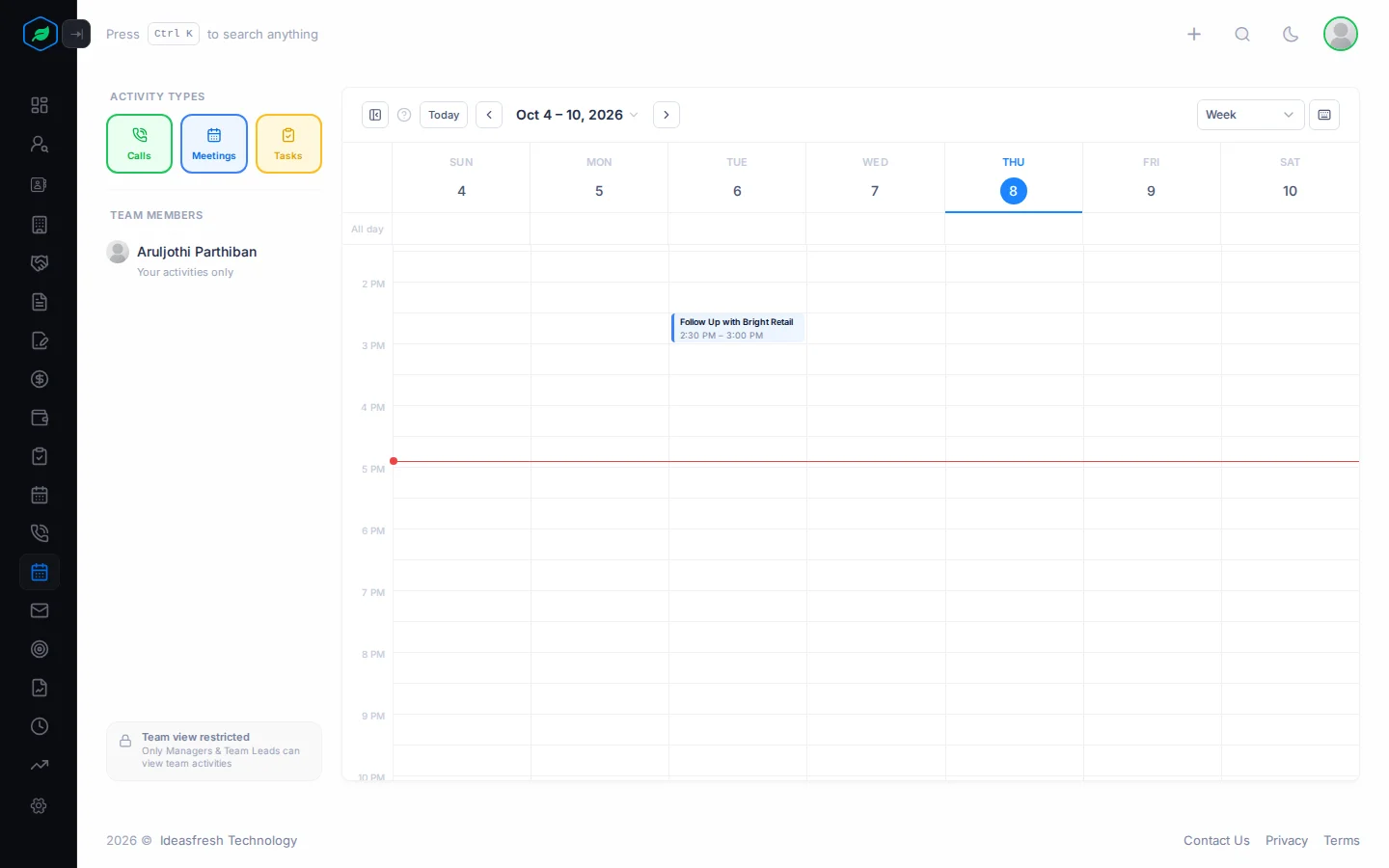
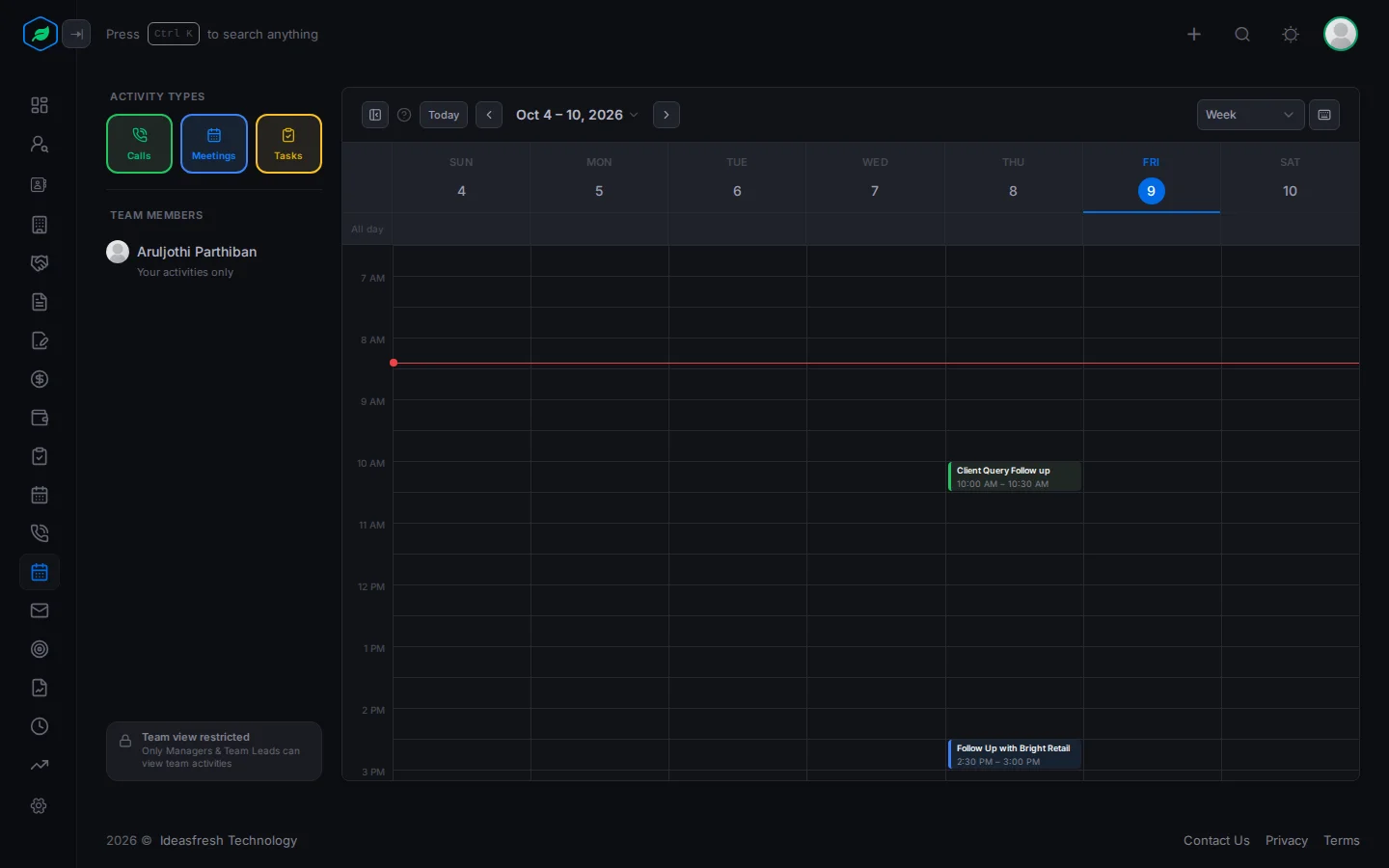
The Calendar shows your tasks, calls and meetings in one place. You can see them by day, week or month. To open it, click Calendar in the sidebar.
For example, on Monday morning you open the calendar. You see all your calls, meetings and tasks for the week. A customer asks to move Wednesday's meeting to Thursday. You drag the meeting to Thursday, and everyone invited gets an email with the new time. Then you click an empty slot on Friday and schedule a follow-up call there.
If you lead a team, the calendar also shows who has late work. You can help before a customer is let down.
Before you start
- You don't need a permission to open the Calendar.
- To add a task, meeting or call from the Calendar, you need the Create Tasks, Create Meetings or Create Calls permission.
- To move a call or meeting to a new time, you need the Edit Calls or Edit Meetings permission. You must also be its owner, or the person who created it.
If you don't have a permission you need, ask your admin.
What you see
You see:
- tasks and calls you own,
- calls you make or receive,
- meetings you own or are invited to.
Deleted activities don't show. A copy made with Clone shows only after you save it.
| Activity | Where it shows | Colour |
|---|---|---|
| Calls | At their start time | Green |
| Meetings | At their start time. All-day meetings show in the All day row at the top | Blue |
| Tasks | In the All day row, on their due date. In Day view, at their due time | Yellow. Red when late |
Change the view
Pick Day, Week, Work Week or Month. Work Week is Monday to Friday. The calendar opens in Week view.
- To go back to today, click Today.
- To move back or forward, click the arrows.
- To go to another date, click the date at the top and pick one.
- In Week or Month view, click a date to see that day.
- Month view shows two activities a day. To see the rest, click +N more.
The calendar remembers the view you used last, and which activities you chose to show.
Keyboard shortcuts
You can also use the keyboard.
| Key | What it does |
|---|---|
| ← or ↑ | Go back |
| → or ↓ | Go forward |
| T | Go to today |
| D, W or M | Day, Week or Month view |
| ? | Show the shortcuts |
Show only some activities
Under Activity Types, click Calls, Meetings or Tasks to hide or show them. For example, hide tasks to see only the times you are busy.
See your team's activities
Team managers and team leads see everyone in their teams under Team Members.
- A red number next to a person shows how many of their tasks are late.
- A grey number shows how many activities they have.
- Click a person to see only their activities. Click Everyone to see the whole team.
For example, a sales manager sees a red 3 next to one person. The manager clicks the name and finds three follow-ups that were missed, and steps in before the customers are let down.
Everyone else sees "Team view restricted", and only their own activities. Your admin sets team roles in Settings > Teams. See Teams.
Open an activity
Click an activity to see its time, related record, owner and status. For a meeting, you also see where it is and who is invited. To go to its page, click Open.
Move a call or meeting
In Day, Week or Work Week view, drag a call or meeting to a new time. It keeps the same length. If you move a meeting, everyone invited gets an email with the new time.
You can't drag a task, an all-day meeting, or anything in Month view. Open it and change the date there.
Add an activity from an empty slot
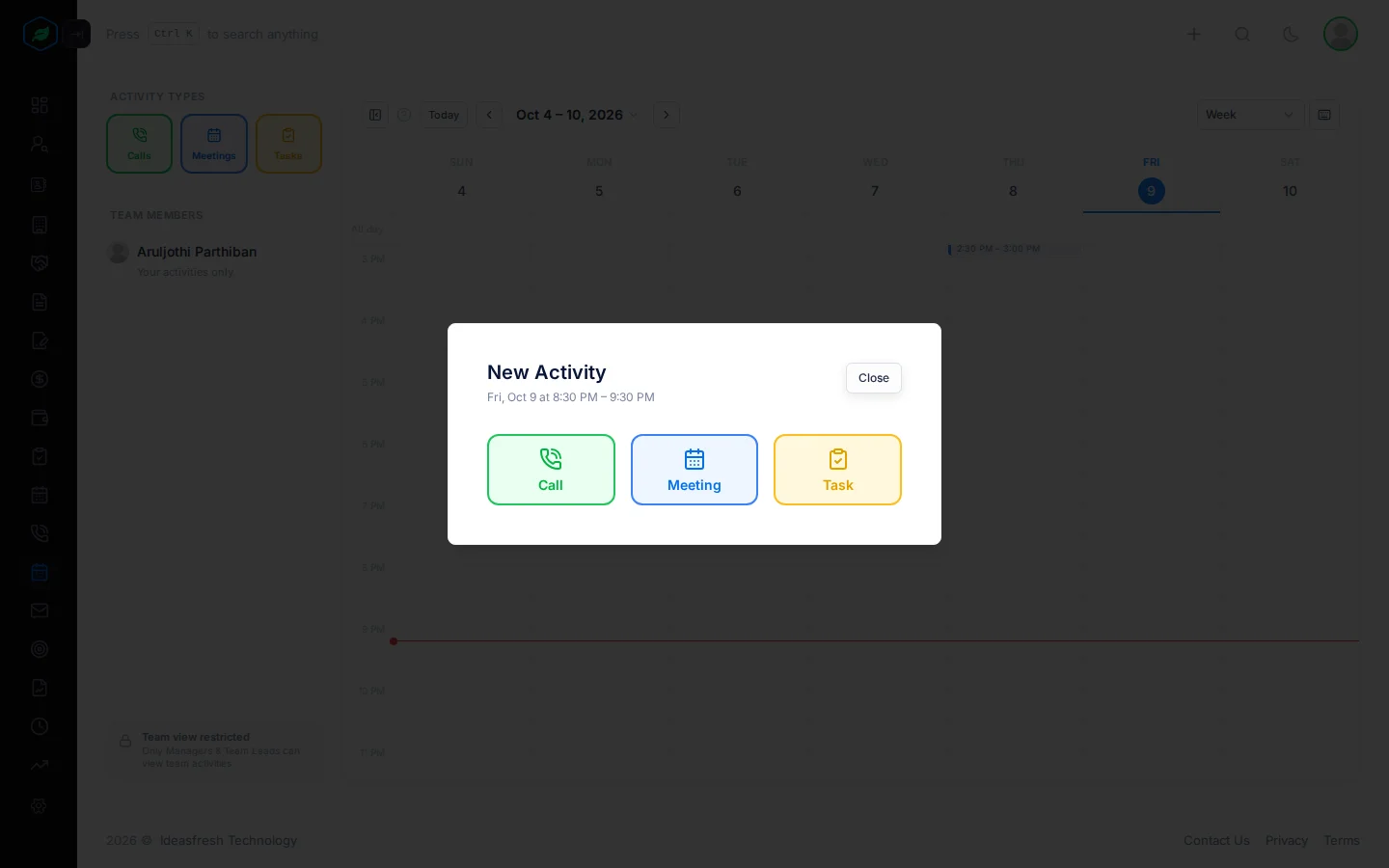
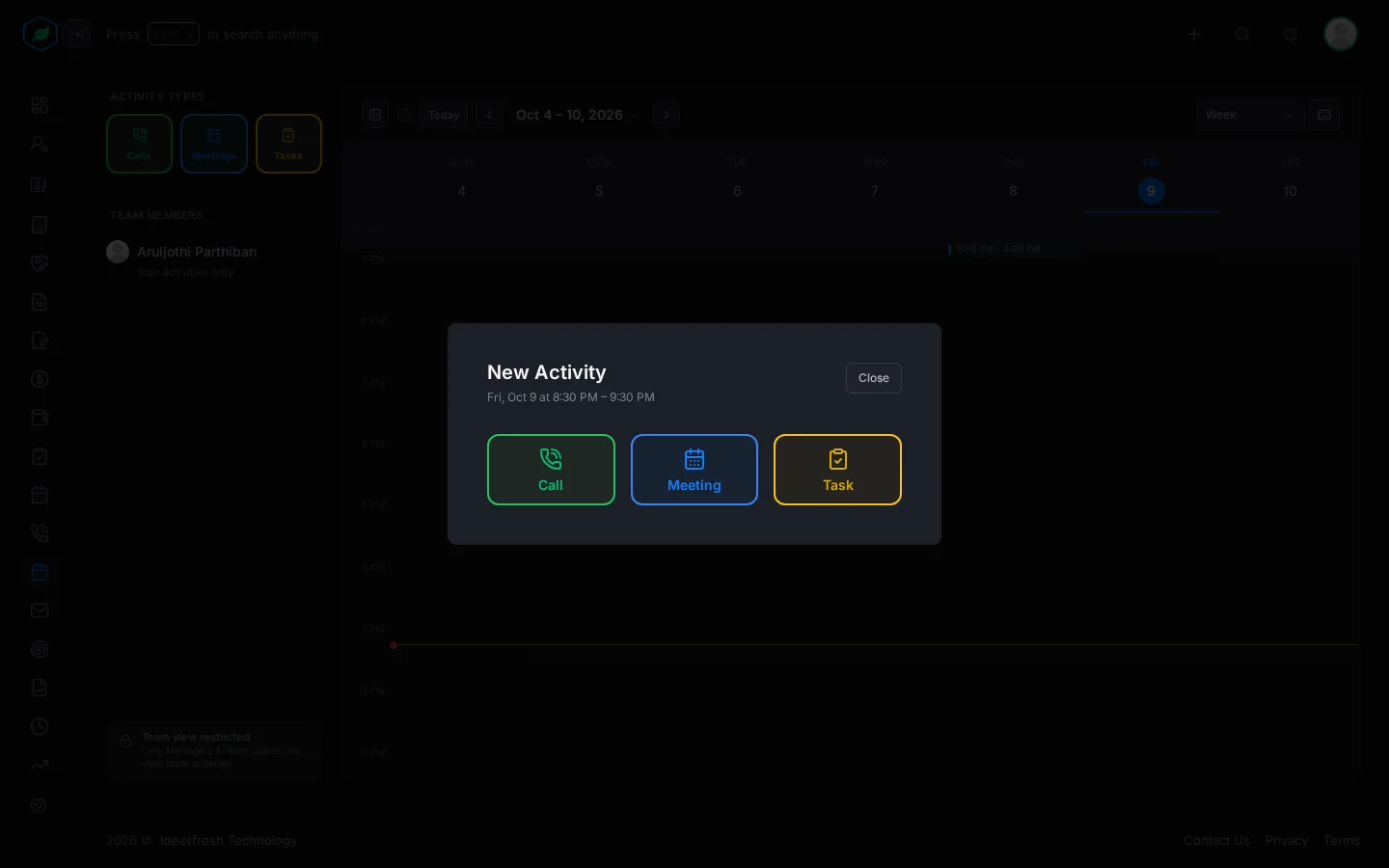
- In Day, Week or Work Week view, click an empty slot. For a longer time, drag across several slots.
- In the New Activity window, click Call, Meeting or Task.
- The form opens with the time filled in. For a task, the day becomes the due date. Fill in the rest and save.
Google and Outlook calendars
The calendar doesn't sync with Google Calendar or Outlook. When you invite people to a meeting, they get an email with an invite. They can add it to their own calendar from there. See Meetings overview.
Troubleshooting
| You see | Why | What to do |
|---|---|---|
| "Failed to reschedule. Please try again." | You don't own the activity and didn't create it. Or you don't have the Edit Calls or Edit Meetings permission | Ask the owner, or ask your admin for the permission |
| "Team view restricted" | Only team managers and team leads see their team's activities | Ask your admin to change your role in the team |
Related
Still stuck?
Tell us what you were trying to do and we will help.