Meetings: overview, list and views
What a meeting is, where meetings come from, the invites and reminders people get, and how to find meetings on the Meetings page and in views.
Updated 10 October 2026 · 4 min read
A meeting brings together people from your team and the leads or contacts you are selling to. When you save it, everyone invited gets an email with a calendar invite. After the meeting, you mark it complete and note how it went.
For example, a customer wants a demo of your software on Saturday at 11 am. You schedule a meeting, invite the customer and your product expert, and paste the video call link. Both get an invite they can add to their own calendar. The customer then asks for 12 instead, so you change the time, and both get an updated invite. Nobody has to send emails by hand. After the demo, you mark it complete with the outcome Interested, so your team can see how it went.
Before you start
- You need View Meetings to see meetings.
- Who else's meetings you see depends on your company's sharing rules for meetings. You always see meetings you created.
Where meetings come from
You add them
- Click Create Meeting on the Meetings page, or click + at the top of any page and choose Meeting.
- On a lead, contact, account or deal, click Create and choose Meeting. From a lead or contact, that person is already a participant, and their account is filled in under Related To. From an account or deal, Related To is filled in.
- On the Calendar, click an empty slot at the time you want, such as Friday at 11 am. In the New Activity window, click Meeting. The form opens with that time filled in.
See Schedule and edit a meeting.
Salesfresh adds them for you
Lead stage rules can create a meeting when a lead reaches a stage. See Lead status and lead stages.
Invites and reminders
When you save a meeting, every participant gets an email with a calendar invite. They open it to add the meeting to Google Calendar, Outlook or any other calendar. Salesfresh doesn't add it to anyone's calendar on its own.
| When | Who gets an email |
|---|---|
| The meeting is created | Every participant gets an invite. The owner gets one too, if someone else made the meeting |
| The time changes | Every participant gets an updated invite. The owner gets one too, if someone else made the change |
| Someone is added or removed | That person |
| The owner changes | The new owner and the old owner |
| The meeting is cancelled or deleted | Every participant. The owner too, if someone else cancelled it |
| Up to 30 minutes before it starts | Participants who are users get a reminder |
Leads and contacts always get their emails. Users can turn off the scheduled, cancelled, assigned and reassigned emails in Notification settings.
Statuses
| Status | Meaning |
|---|---|
| Scheduled | Still to happen |
| Completed | It happened |
| Cancelled | Called off |
| Missed | It didn't happen, and nobody cancelled it |
The Meetings page
Click Meetings in the sidebar. Each row shows the meeting's title, type, start time, length, owner, status, related record and who created it. The coloured edge of each row shows its status.
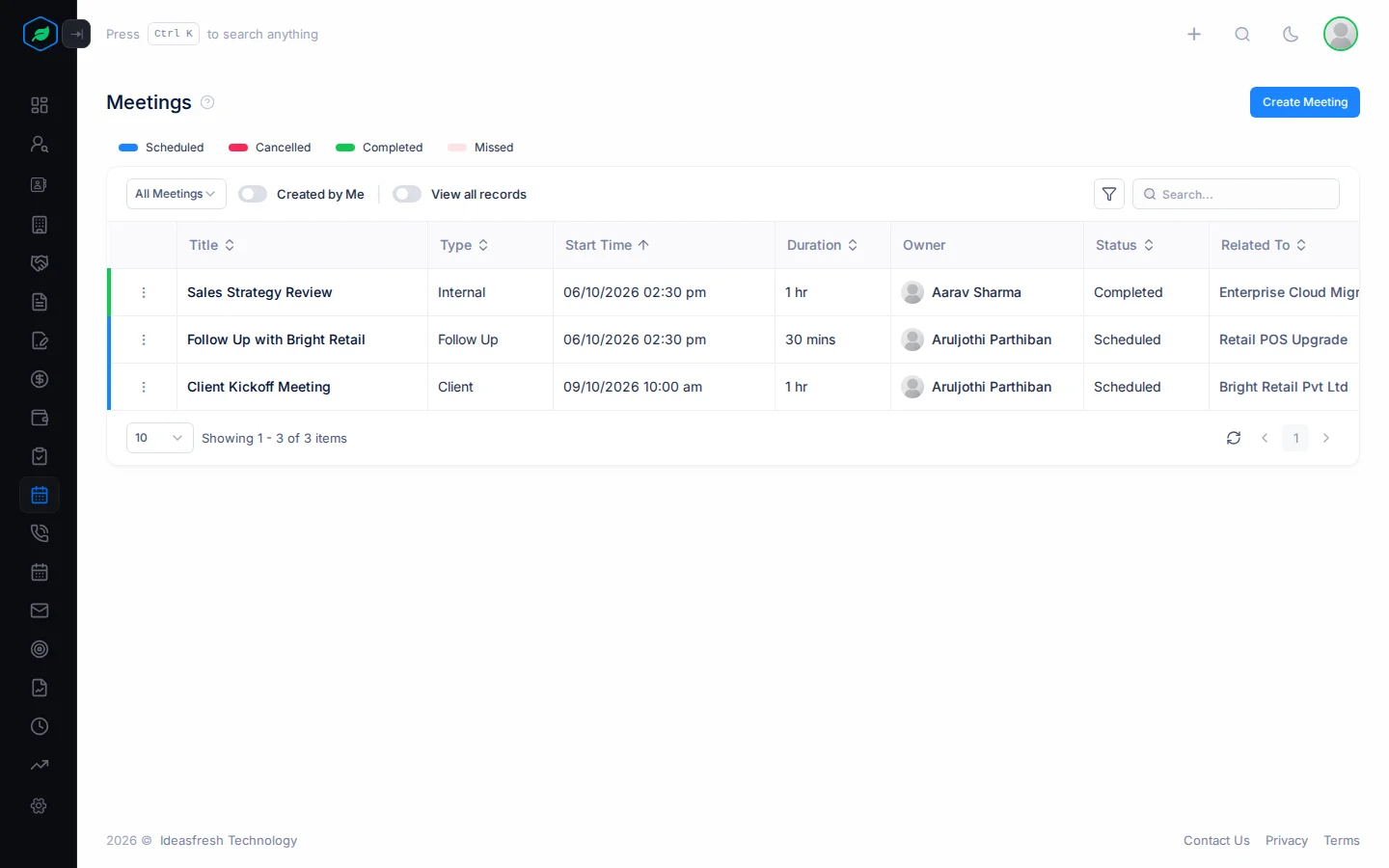
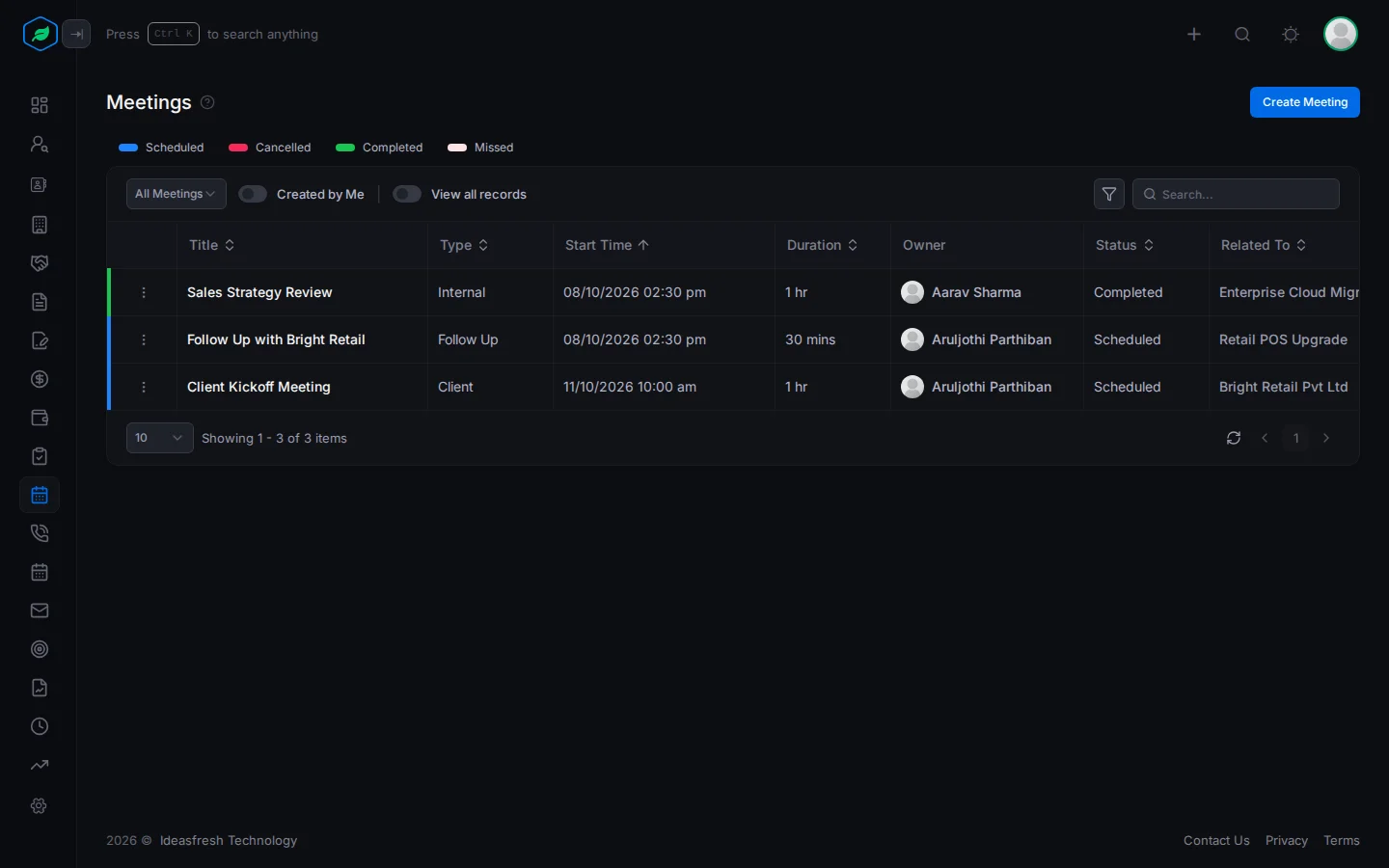
Click a status above the table to show only those meetings. Click a meeting's title to open it. See The meeting detail page.
Views
Pick a view to see the meetings you need. For example, open Today's Meetings in the morning to plan your day.
| View | Shows |
|---|---|
| All Meetings | Every meeting you can see |
| Today's Meetings | Meetings today, apart from completed ones |
| This Week Meetings | Meetings this week, apart from completed ones |
| Upcoming Meetings | Meetings from tomorrow on, apart from completed ones |
| Cancelled, Missed and Completed Meetings | Meetings with that status |
Views starting with My, such as My Today's Meetings, show only meetings you own or are invited to.
Related
Still stuck?
Tell us what you were trying to do and we will help.