Schedule, edit and clone a meeting
Every field on the meeting form, who you can invite, and how to reschedule, clone and delete meetings.
Updated 10 October 2026 · 5 min read
You use the meeting form to set a time, a place and who should come. When you save it, everyone invited gets an email with a calendar invite.
For example, a customer wants a demo on Saturday at 11 am. Click Create Meeting, type "Product demo" as the title and pick the time. Paste the video call link in Location, add the customer and your product expert under Participants, and click Save.
Before you start
- To schedule or clone a meeting, you need the Create Meetings permission. To edit one, you need Edit Meetings. To delete one, you need Delete Meetings.
- To edit or delete a meeting, you must be its owner or the person who created it, and it must still be Scheduled.
- Participants must already be users, leads or contacts in Salesfresh. To invite someone new, add them as a lead or contact first.
Schedule a meeting
- Click Create Meeting on the Meetings page, or click + at the top of any page and choose Meeting.
- Fill in Meeting Information. Fields marked * must be filled in.
- Add Notes if you like.
- Click Save.
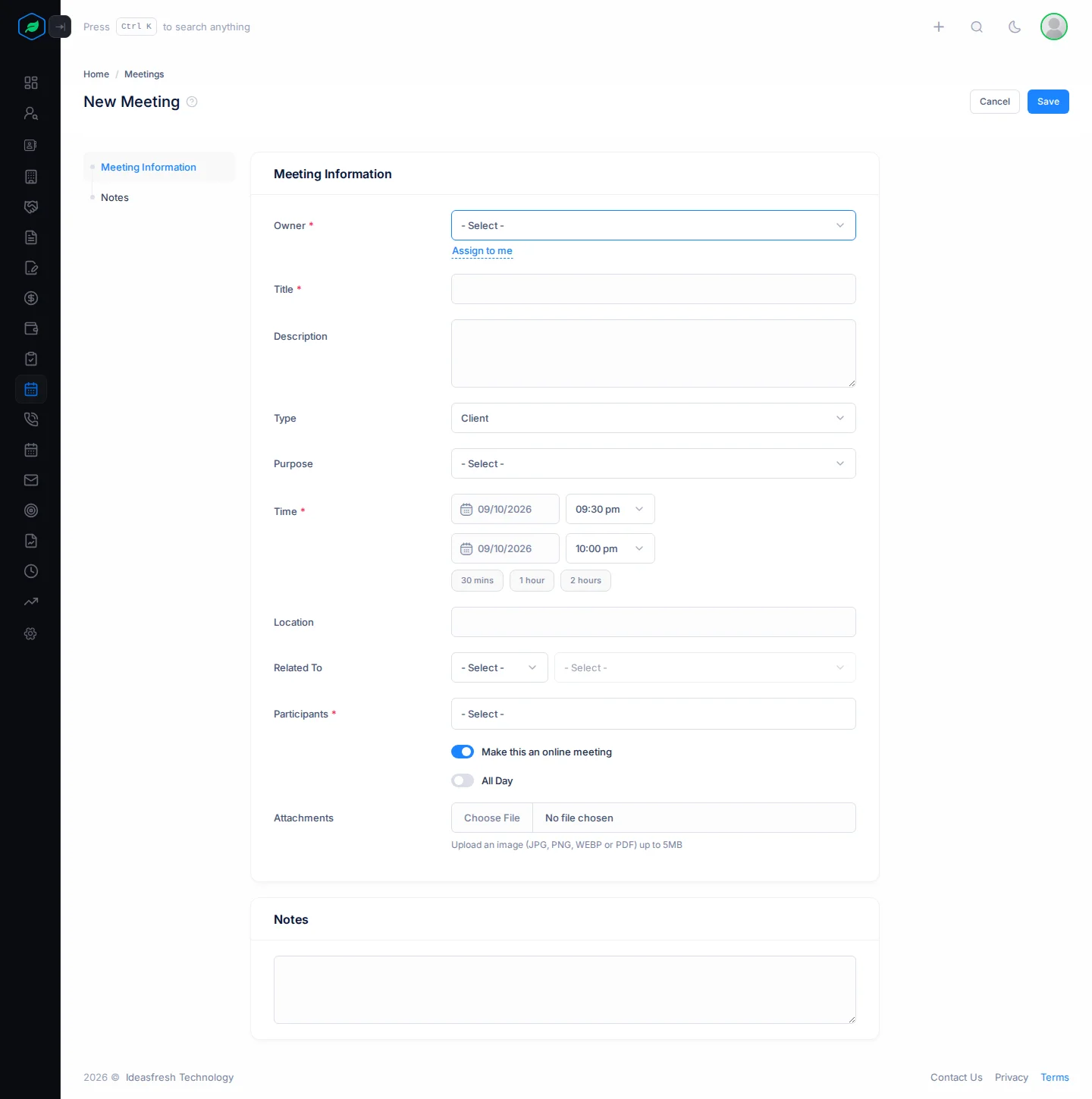
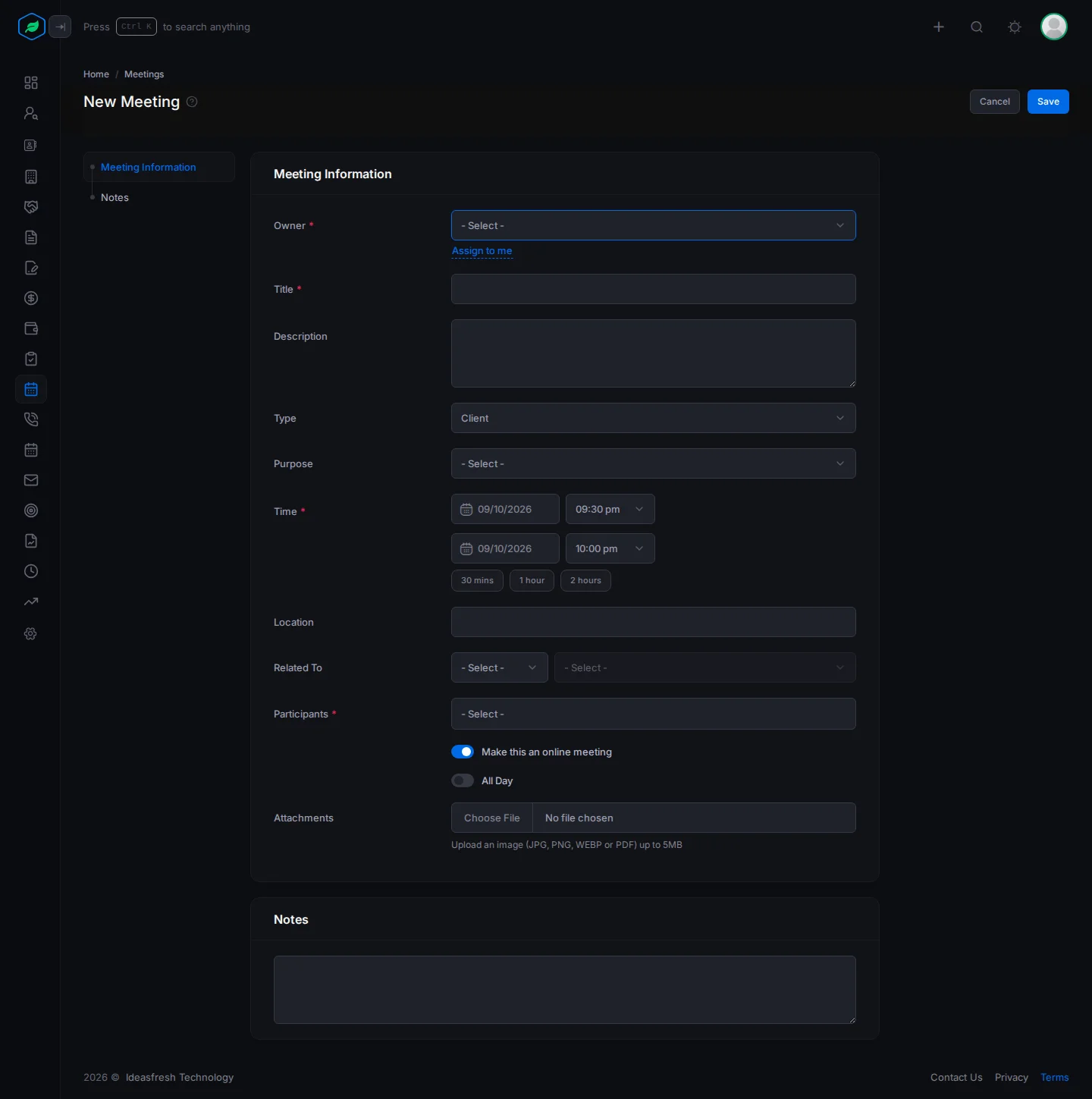
| Field | What to enter |
|---|---|
| Owner * | The person who runs the meeting. Click Assign to me to pick yourself. The owner is always part of the meeting, so don't add them again under Participants |
| Team | One of the owner's teams. You only see this if the owner is in a team. If your sharing rules are based on teams, this decides who can see the meeting |
| Title * | What the meeting is, such as "Product demo" |
| Description | Any details, such as what you will cover |
| Type | Client, Internal, Sales or Follow Up. Set to Client at first |
| Purpose | Why you are meeting, such as Product Demo. Pick from your company's list. See Activity purposes and outcomes |
| Time * | The start and end. Click 30 mins, 1 hour or 2 hours to set the length from the start. You can't pick a date in the past, and a meeting can't be longer than 24 hours |
| Location | The address, or the link to the video call |
| Related To | An account or deal, so the meeting shows on its page. If you pick an account, you can only invite that account's leads and contacts |
| Participants * | The people you invite. Type at least 2 letters of a name or email to find a user, lead or contact |
| Make this an online meeting | On at first. Salesfresh doesn't create a video call for you. Paste your Zoom, Teams or Google Meet link in Location |
| All Day | Turn on for a meeting that takes the whole day, such as a site visit |
| Attachments | Files everyone should see first, such as an agenda. Each file can be up to 5MB. They are attached to the invite emails |
Reschedule or edit a meeting
Click Reschedule on the meeting's page, or ⋮ then Edit. Both open the form. Change what you need and click Update.
If you change the time, everyone invited gets an updated invite. If you add or remove someone, that person gets an email.
On the Calendar, you can also drag a meeting to a new time.
Clone a meeting
Cloning saves time when you hold the same meeting again, such as a weekly review.
- Click ⋮, then Clone, and confirm.
- A copy called "Title (Copy)" opens. It keeps the participants, but not the attachments.
- Change the time and anything else, and click Update.
Only you can see the copy until you click Update.
Delete a meeting
Click ⋮, then Delete, and confirm. Everyone invited gets a cancellation email. You can't restore a deleted meeting.
If the meeting is called off but you want to keep a record of it, cancel it instead. See The meeting detail page.
Troubleshooting
| You see | Why | What to do |
|---|---|---|
| "Owner is automatically included in the meeting. Please remove them from participants." | The owner is also a participant | Remove the owner from Participants |
| "End time must be after start time" | The end is before the start | Change the time |
| "Start time and end time cannot be the same" | The meeting has no length | Pick a later end time |
| "Meeting duration cannot be more than 24 hours" | The meeting is longer than a day | Split it into several meetings |
| "At least one participant is required" | Nobody is invited | Add a user, lead or contact |
| "File size must not exceed 5MB" | An attachment is too big | Make the file smaller, or share a link in the notes |
| "Meeting not found" | The meeting isn't Scheduled any more, you didn't create it and don't own it, or it was deleted | Ask the owner |
Related
Still stuck?
Tell us what you were trying to do and we will help.