Choose which emails you get
Choose which emails you get when leads, deals, tasks, meetings and calls are assigned to you or change.
Updated 9 October 2026 · 1 min read
Salesfresh emails you when something happens to your work. For example, when a lead is assigned to you or a meeting is cancelled. In Notification Settings you can turn each of these emails on or off.
Change your settings
- Click your photo at the top right and choose Notification Settings. You can also open it from My Profile.
- Turn each email on or off. They are grouped by module, such as Leads Notifications and Meetings Notifications.
- Click Save.
All emails are on until you turn them off. Your settings only change the emails you get. They don't affect your colleagues.
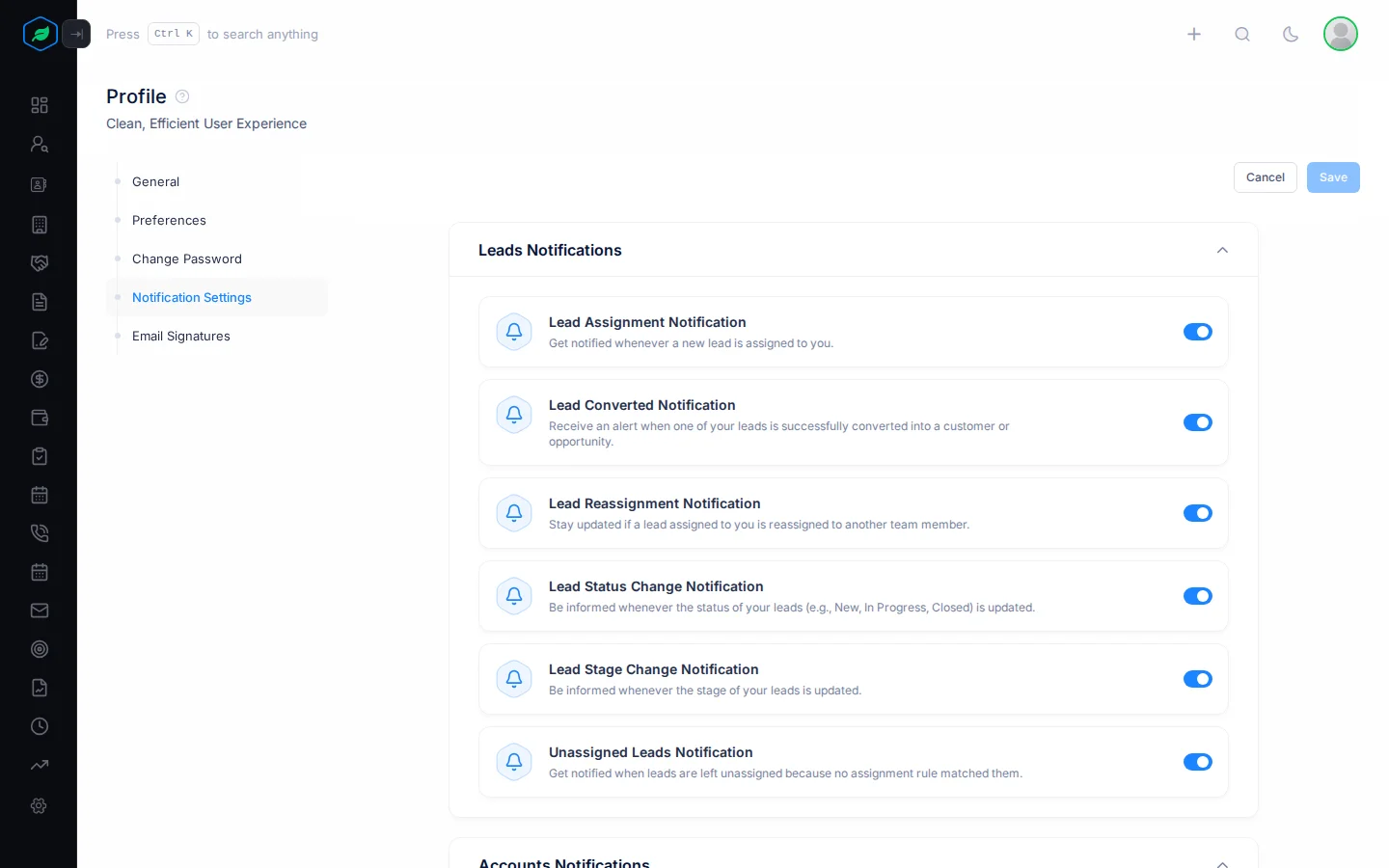
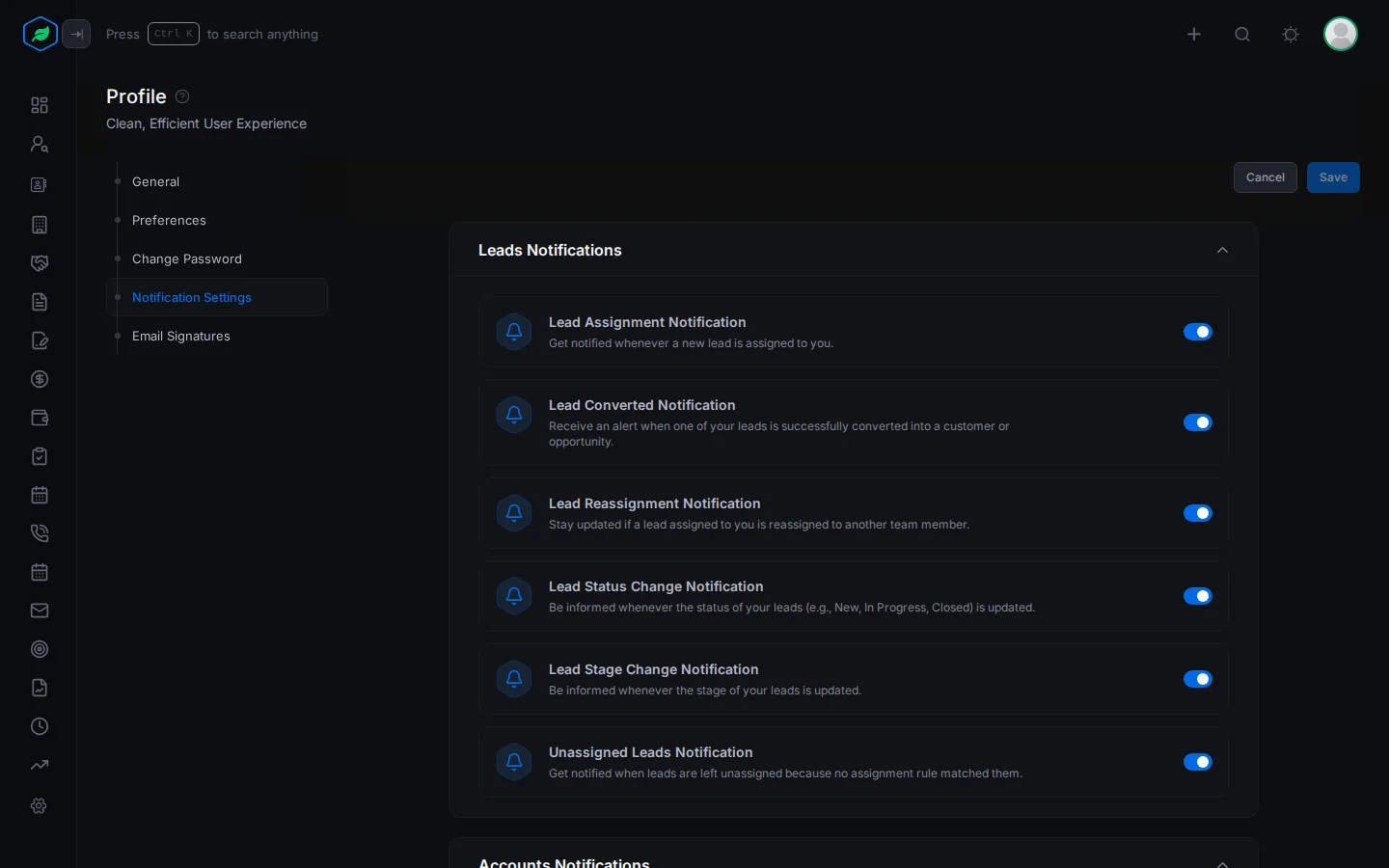
Emails you can turn off
| Module | You get an email when a record is |
|---|---|
| Leads | Assigned to you, reassigned, converted, moved to a new status or stage, or left without an owner (admins only) |
| Accounts | Assigned to you or reassigned |
| Deals | Assigned to you, reassigned or moved to a new stage |
| Quotes | Assigned to you, reassigned or moved to a new status |
| Tasks | Assigned to you or reassigned |
| Meetings | Assigned to you, reassigned, scheduled, rescheduled or cancelled |
| Calls | Assigned to you, reassigned, scheduled, rescheduled or cancelled |
Note
Reminders before a task is due, a meeting starts or a call starts are always sent. Turning off their switch doesn't stop them.
All of these come by email. Salesfresh doesn't have a list of notifications inside the app.
Related
Still stuck?
Tell us what you were trying to do and we will help.