Your profile and preferences
Update your name and phone, and choose how dates, times and numbers look to you.
Updated 9 October 2026 · 1 min read
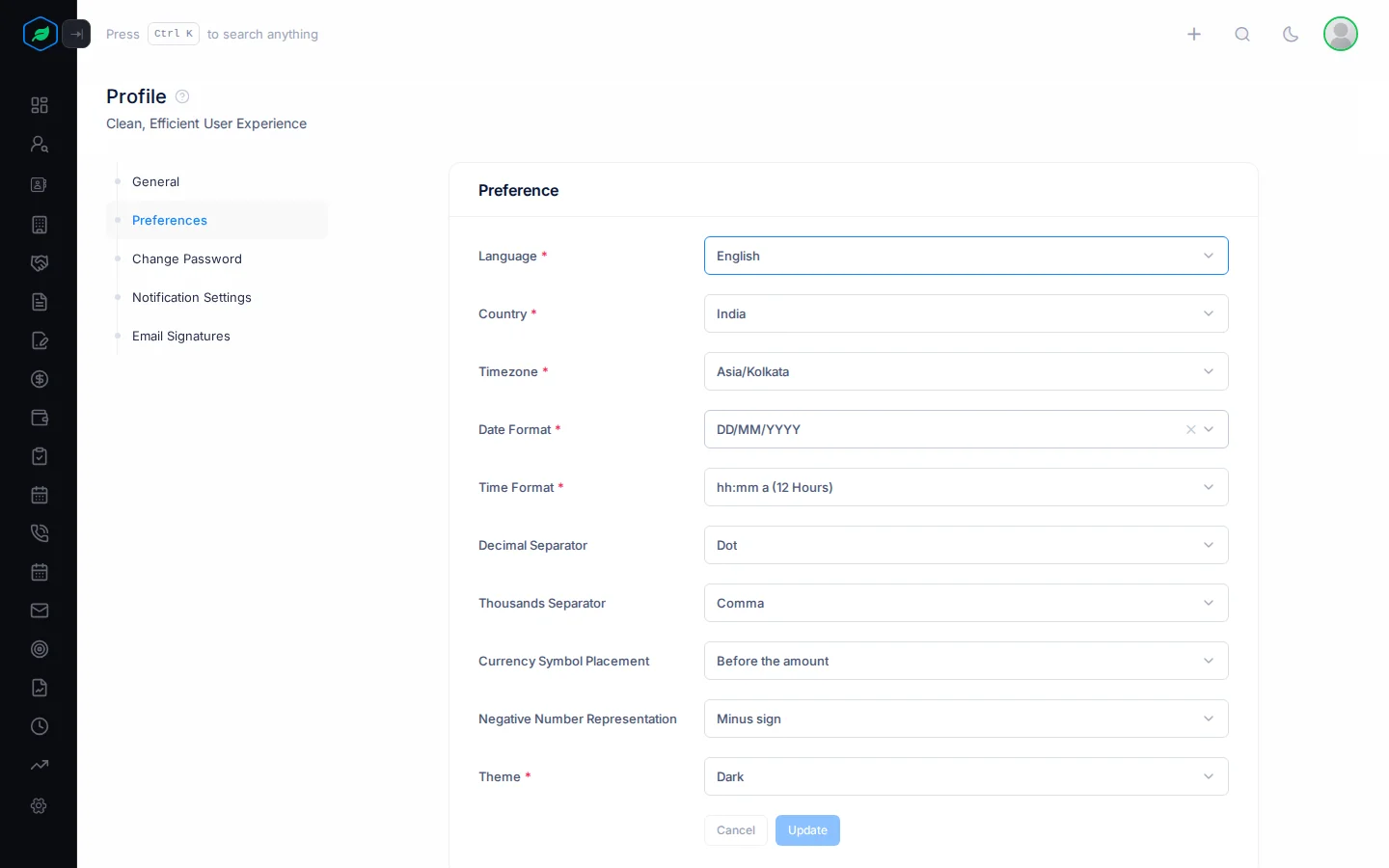
Your profile has your own details, and settings for how Salesfresh shows dates, times and numbers to you. To open it, click your photo at the top right and choose My Profile.
General
Here you can change your Salutation, Name, Title, About, Birth Date and Phone Number. Click Update to save.
Preferences
| Setting | What it changes |
|---|---|
| Country | The timezones you can pick from |
| Timezone | The timezone all dates and times are shown in |
| Date Format | How dates look, such as DD/MM/YYYY |
| Time Format | A 24-hour or 12-hour clock |
| Decimal Separator, Thousands Separator | How numbers and amounts look, such as 1,000.50 or 1.000,50 |
| Currency Symbol Placement | ₹100 or 100₹ |
| Negative Number Representation | -100 or (100) |
| Theme | Light or dark |
These settings only change what you see. Your colleagues keep their own. Emails Salesfresh sends you also use your date and time settings.
Click Update to save. You see "Preference Updated Successfully".
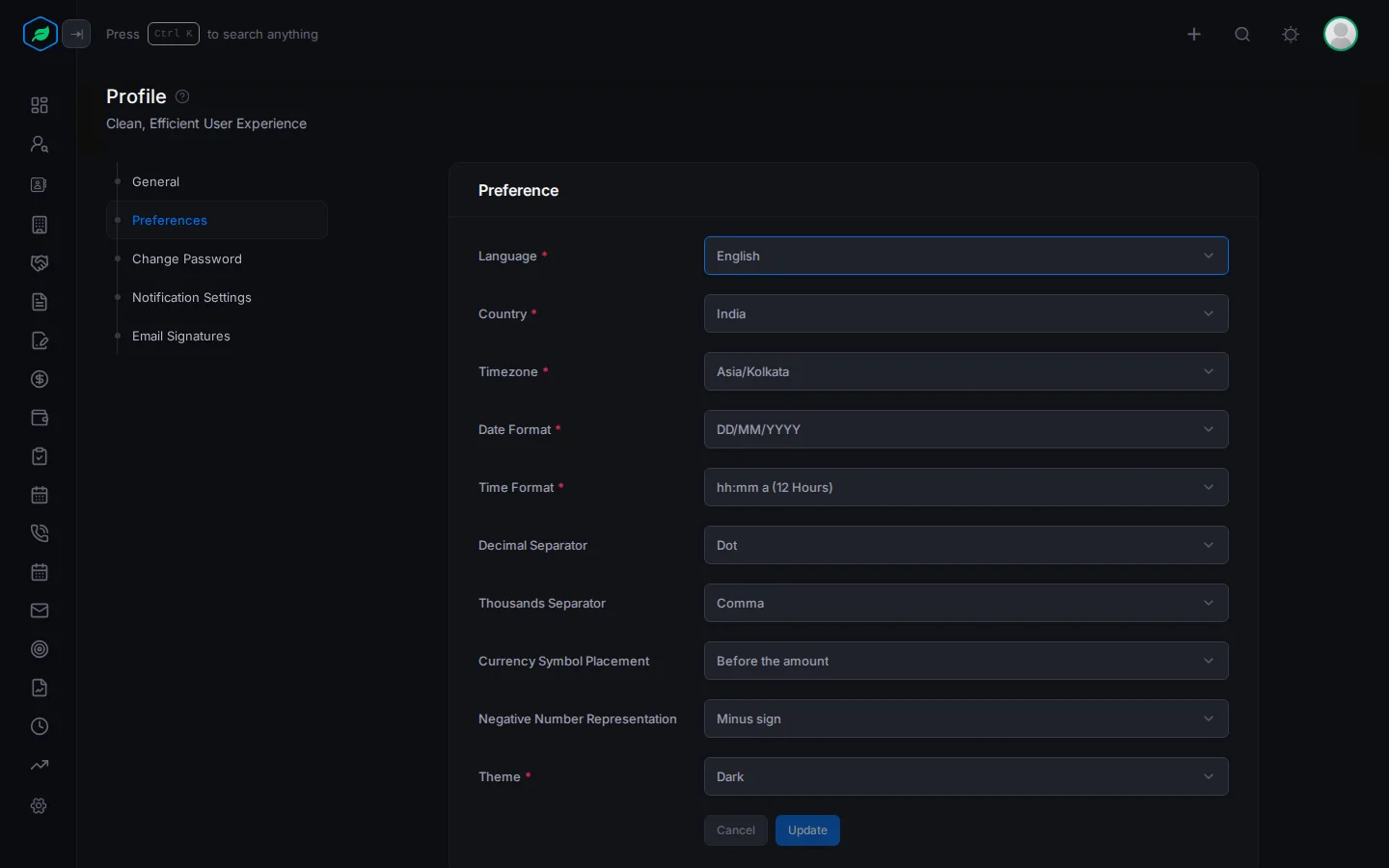
If you also use Salesfresh in another browser or on another device, your changes show there the next time you sign in.
My Teams
To see the teams you are in, click your photo and choose My Teams. Click View Members to see who else is in a team. See Teams.
Related
Still stuck?
Tell us what you were trying to do and we will help.