Arrange your own sidebar
Arrange your own sidebar by reordering modules, grouping them into folders, hiding what you don't use and adding your own links.
Updated 12 October 2026 · 4 min read
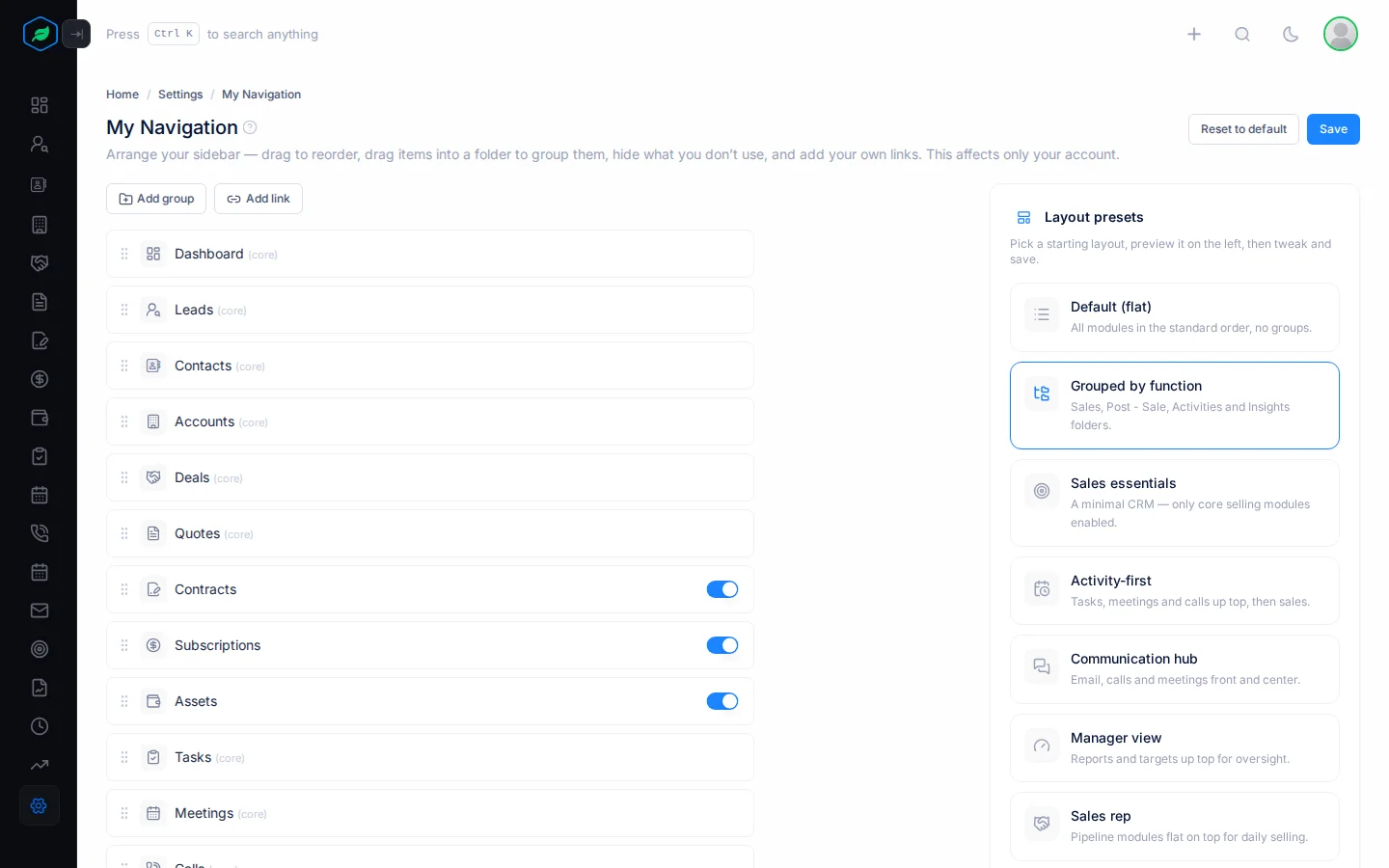
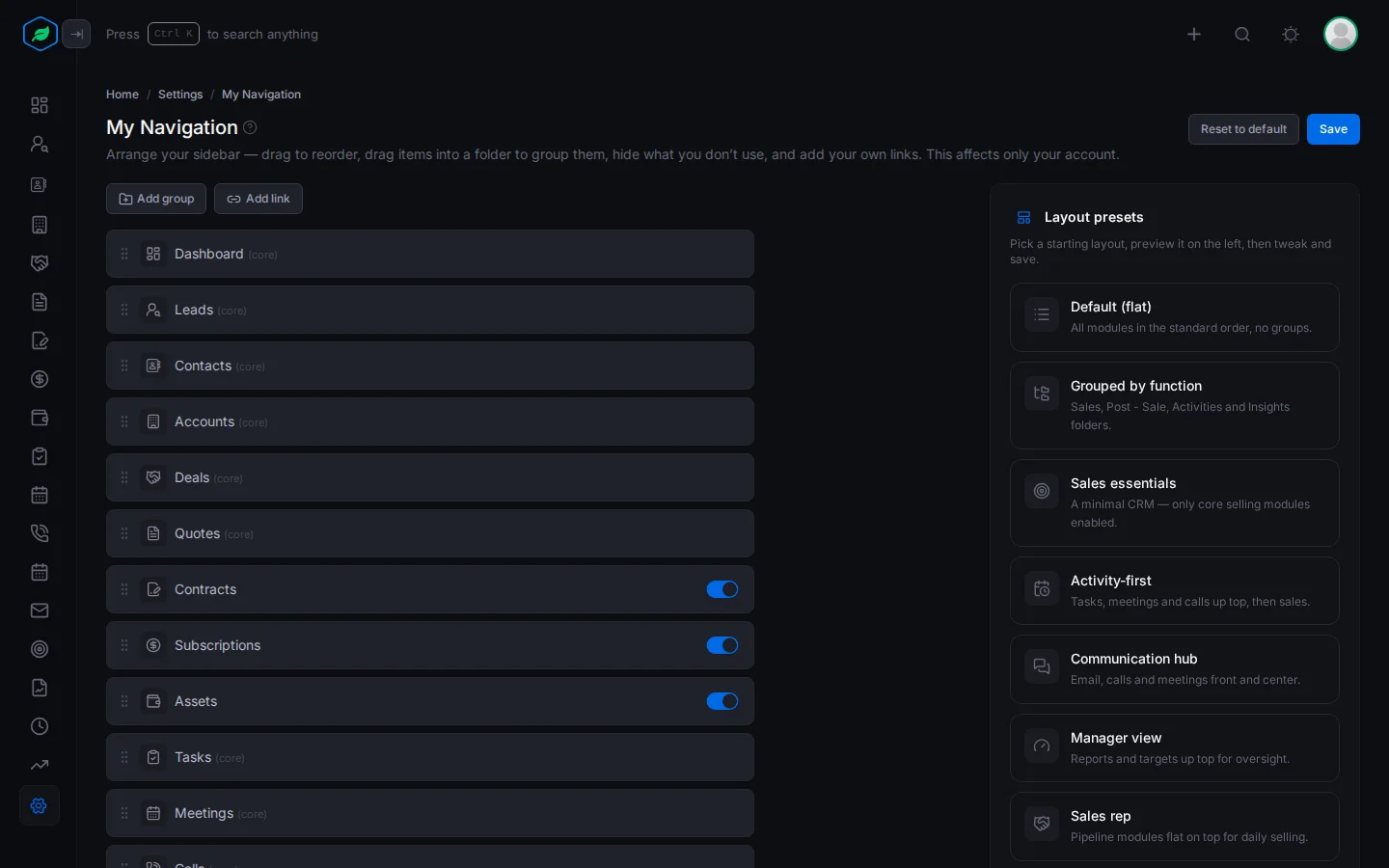
In My Navigation you set up the sidebar the way you like. You can move modules, put them in folders, hide the ones you don't use, and add your own links. Only your sidebar changes. Your colleagues keep theirs.
For example, a salesperson only uses leads, deals and calls, and keeps a price list in a shared drive. They pick the Sales rep layout, hide Contracts and Assets, and add a link called "Price list" to the shared drive. Now the modules they use every day are at the top, and the price list is one click away.
Your admin sets the sidebar for the whole company in Module customization.
Before you start
- Everyone can open My Navigation. No permission is needed.
- Your admin decides if people can change their own sidebar, with Allow users to customize in Module customization. If it's off, you see "Navigation is managed by your organization administrator." and can't make changes.
- You only see the modules your company uses and your role allows.
Change your sidebar
- Go to Settings > My Navigation.
- Change what you need, using the table below.
- Click Save. Nothing changes until you save.
| To | Do this |
|---|---|
| Move a module | Drag it up or down by its handle |
| Make a folder | Click Add group and type a Group name. Then drag modules into it |
| Hide a module | Turn off its switch. You can't hide modules marked (core) |
| Add a link | Click Add link. See below |
| Start from a ready-made layout | Click a preset under Layout presets. See below |
If you delete a folder, the modules in it move back to the main list.
Add a link
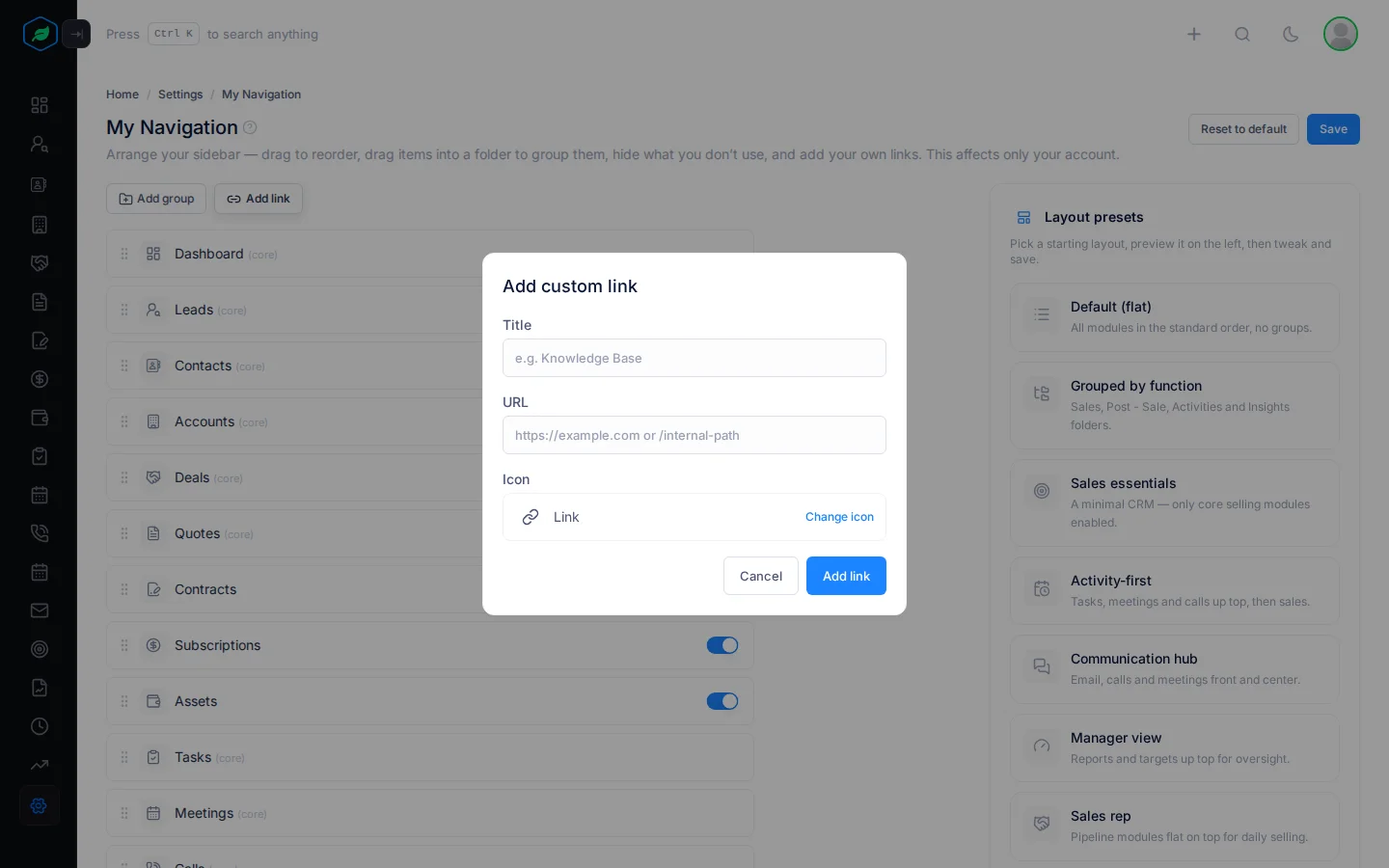
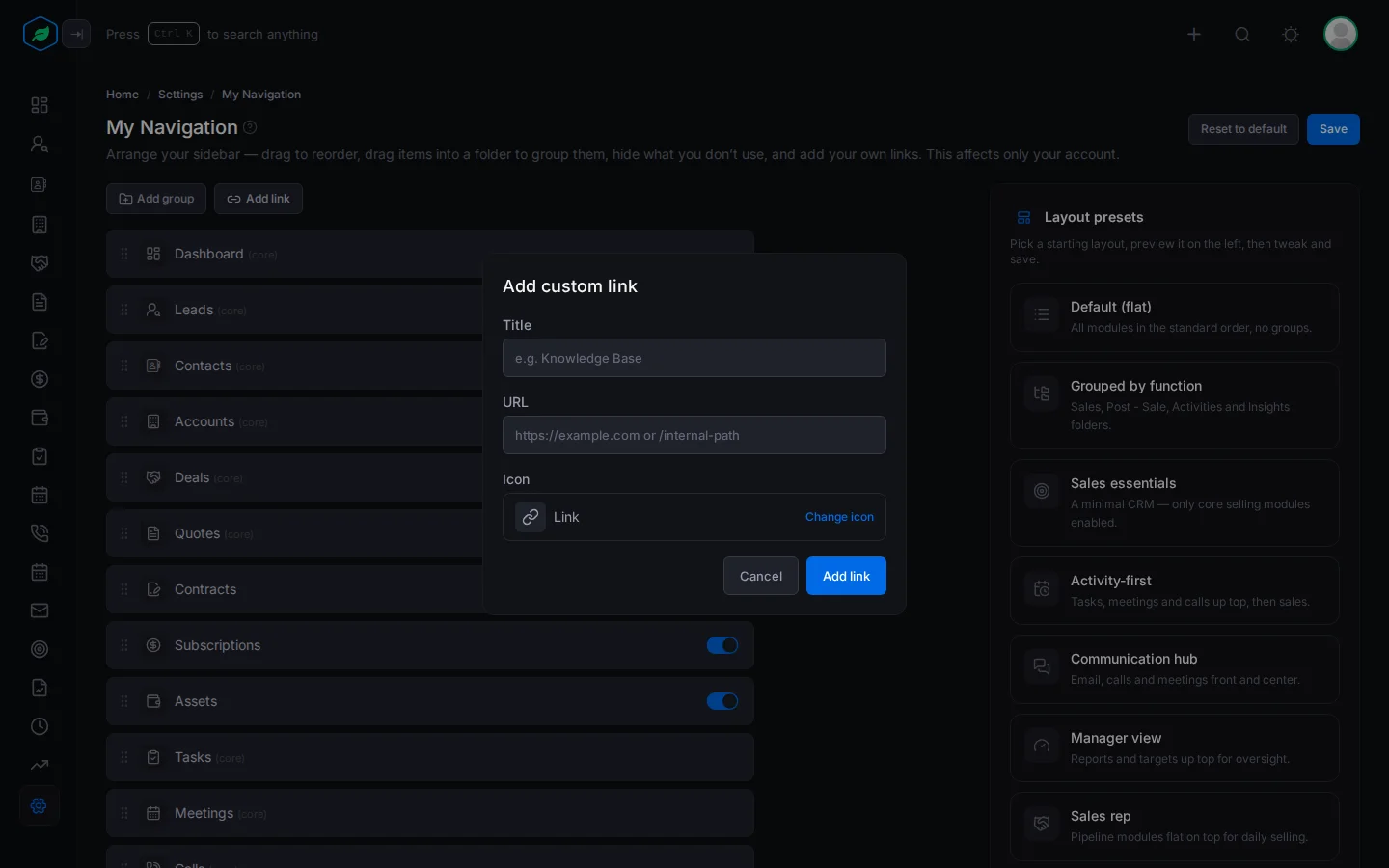
- Click Add link. The Add custom link window opens.
- Fill in the fields.
- Click Add link.
| Field | What to enter |
|---|---|
| Title | The name in your sidebar, such as "Price list" |
| URL | Another website, starting with https://, or a page in Salesfresh, starting with / |
| Icon | Click Change icon to pick one. Set to a link icon at first |
Layout presets
A preset is a ready-made layout to start from. You can change it after.
- Click a preset under Layout presets. The editor shows how it looks, and the preset says Applied.
- Move, hide or add anything you like.
- Click Save. You can try a few presets before you save.
| Preset | What you get |
|---|---|
| Default (flat) | All modules in the standard order, with no folders |
| Grouped by function | Modules in Sales, Post-sale, Activities and Insights folders |
| Sales essentials | Only the main selling modules: Dashboard, Leads, Contacts, Accounts, Deals, Tasks, Reports and Settings |
| Activity-first | Tasks, meetings and calls at the top, then sales |
| Communication hub | Emails, calls and meetings at the top |
| Manager view | Reports and targets at the top |
| Sales rep | Leads, deals and the other selling modules at the top |
| Service desk | Contracts, subscriptions, assets and other after-sale work at the top |
| Compact (2 groups) | Everything in two folders, CRM and Workspace |
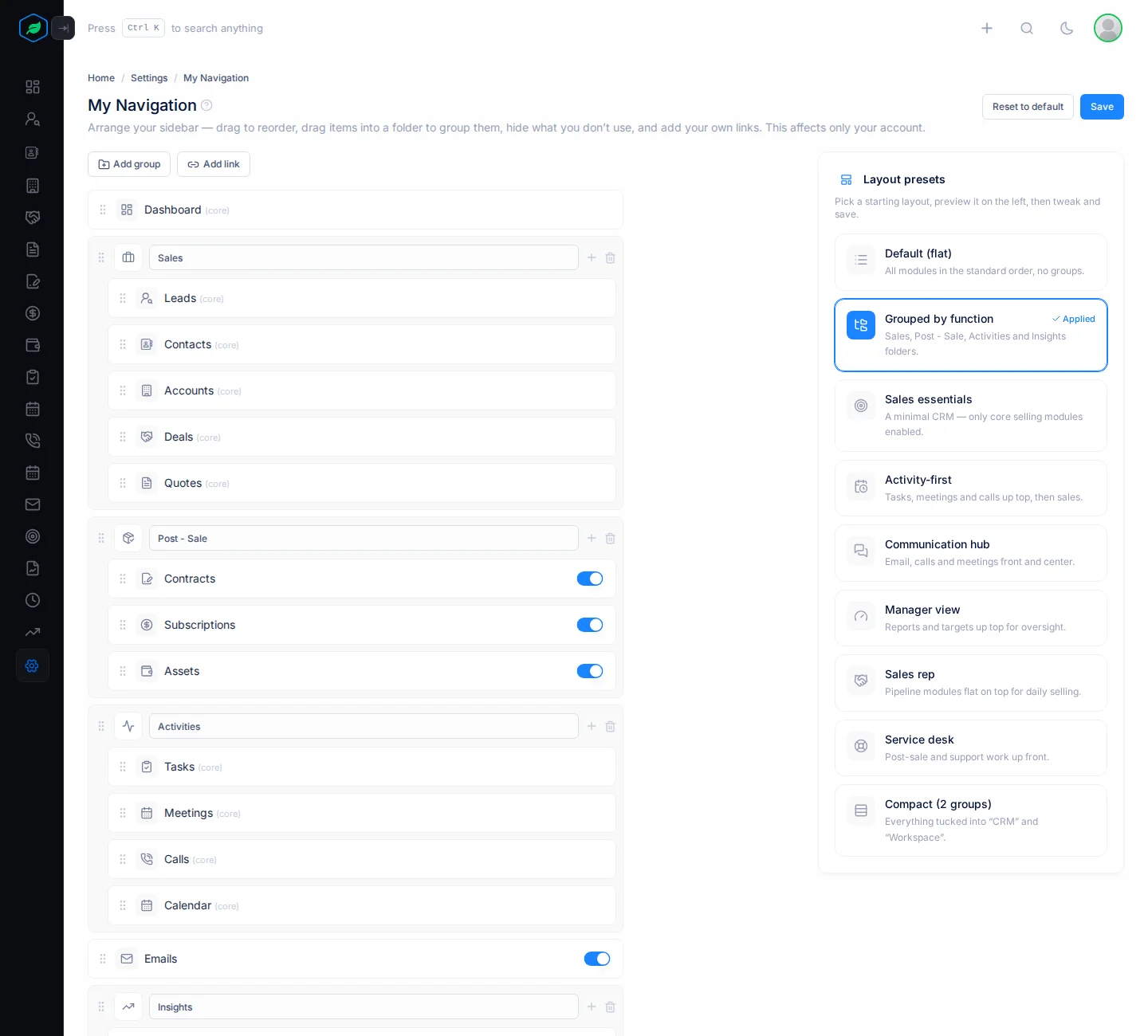
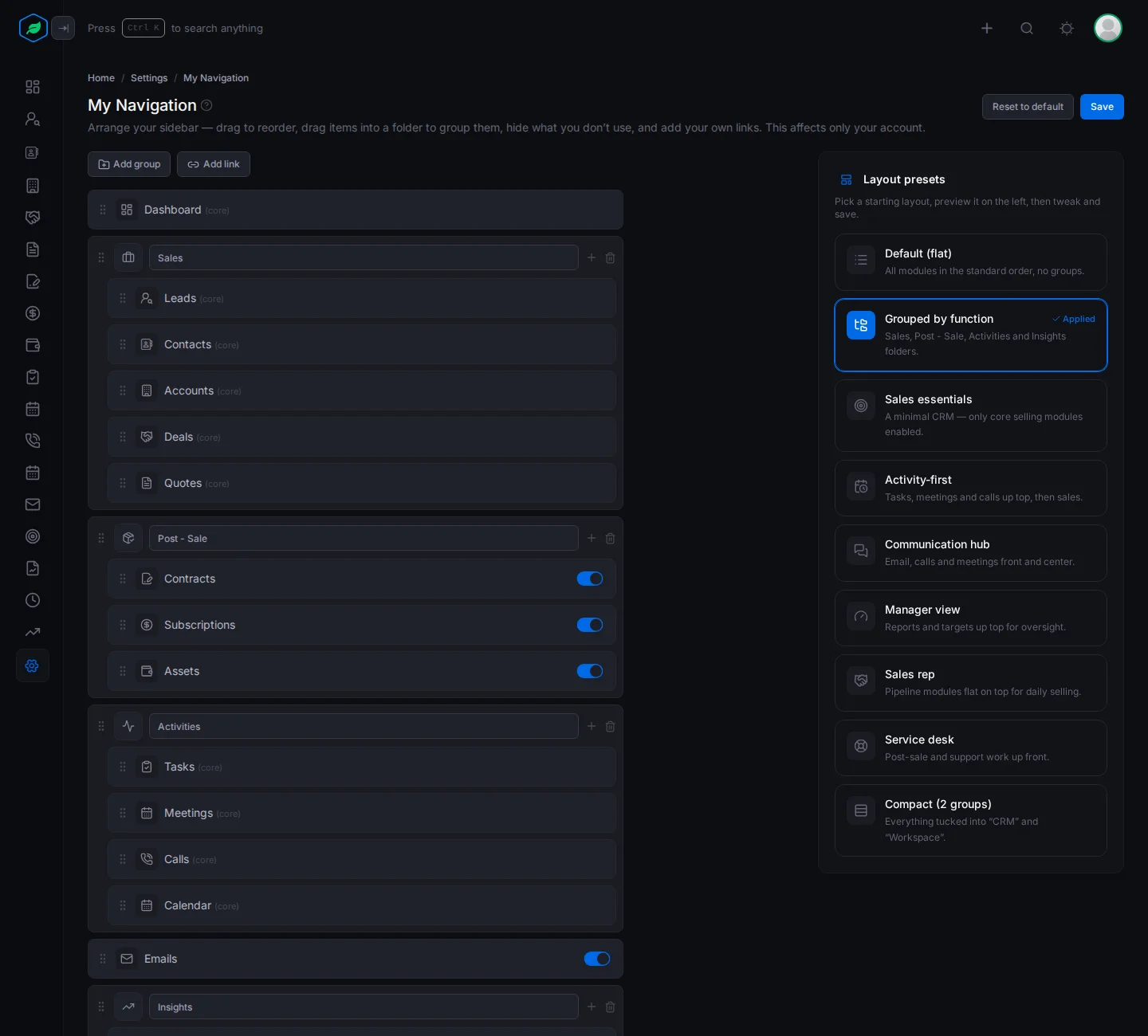
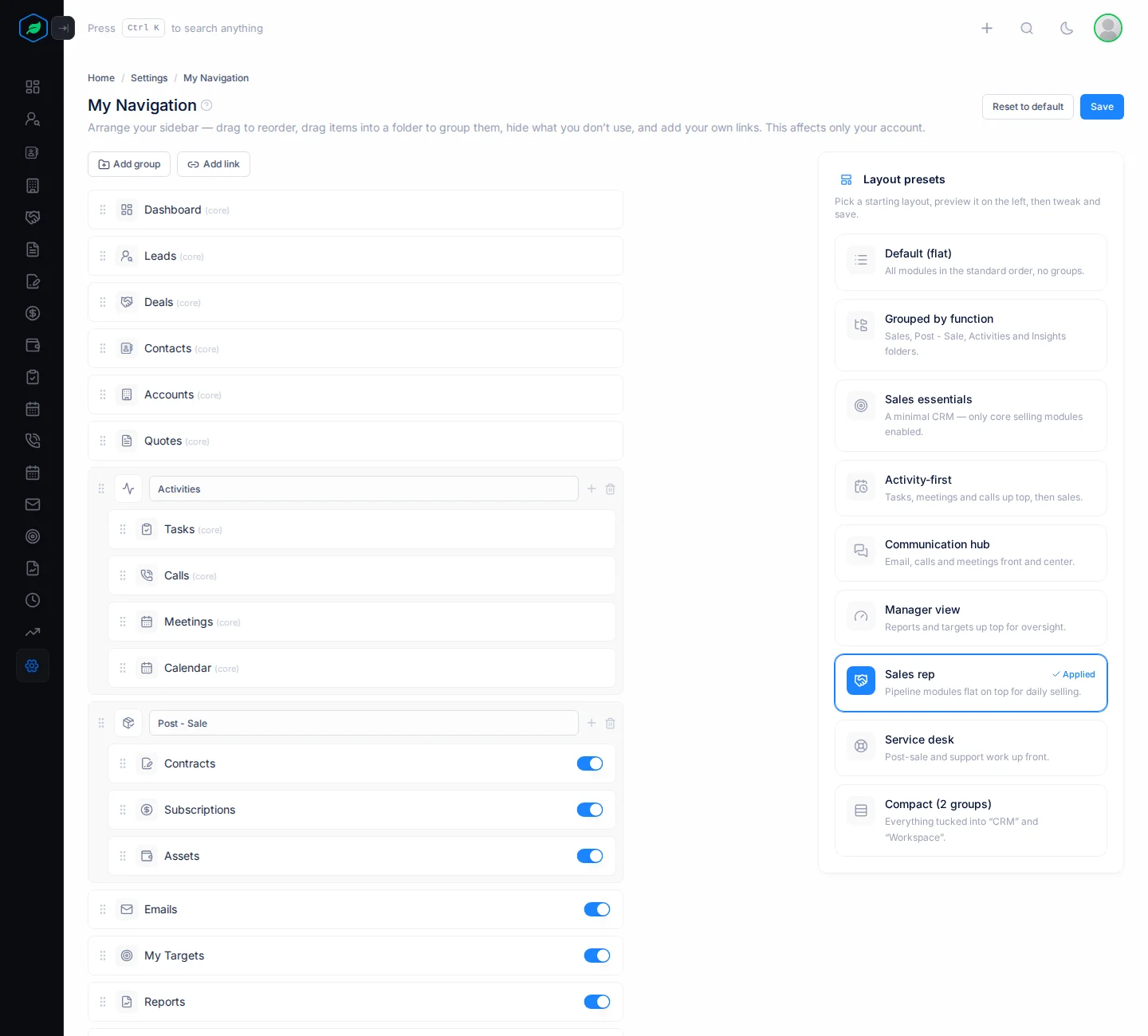
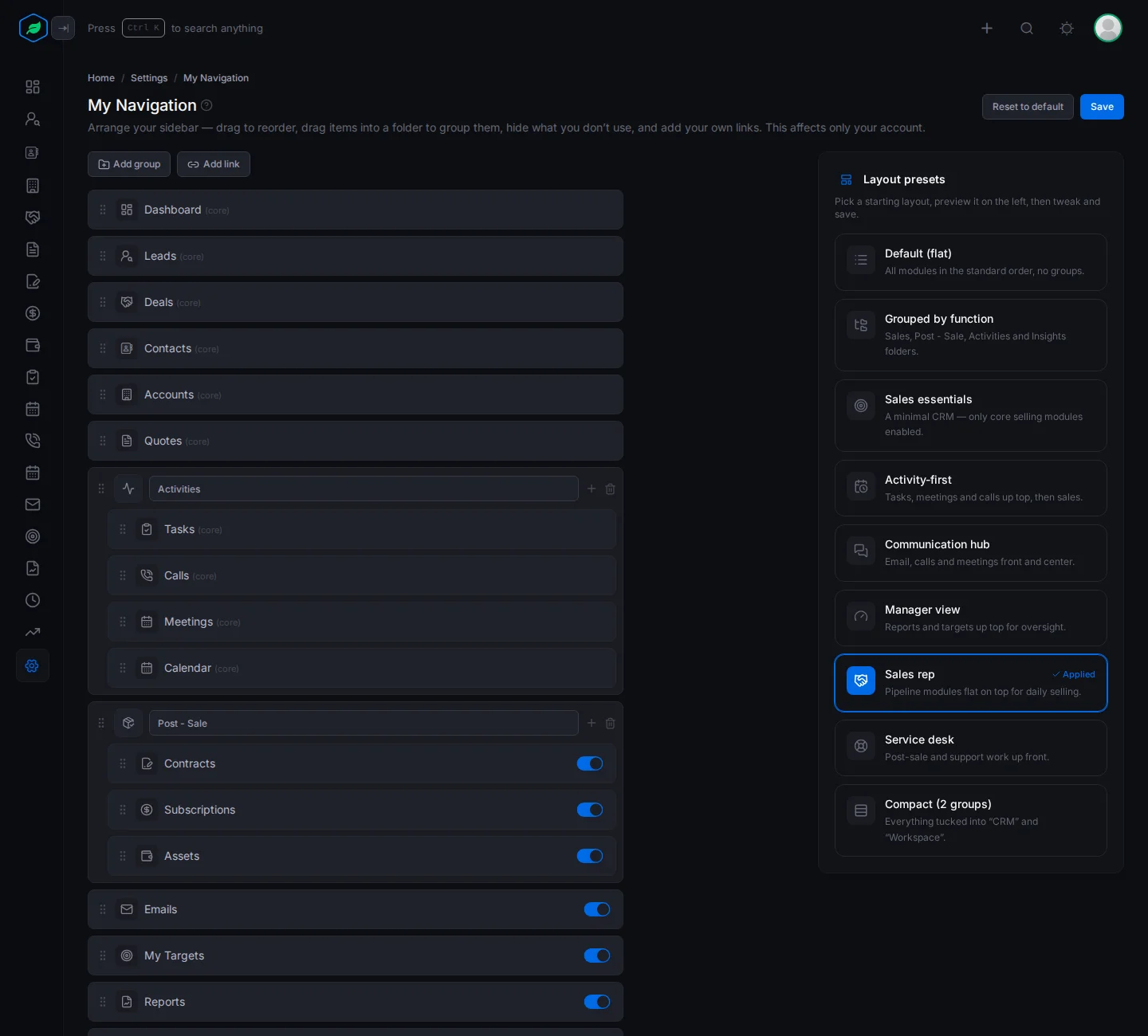
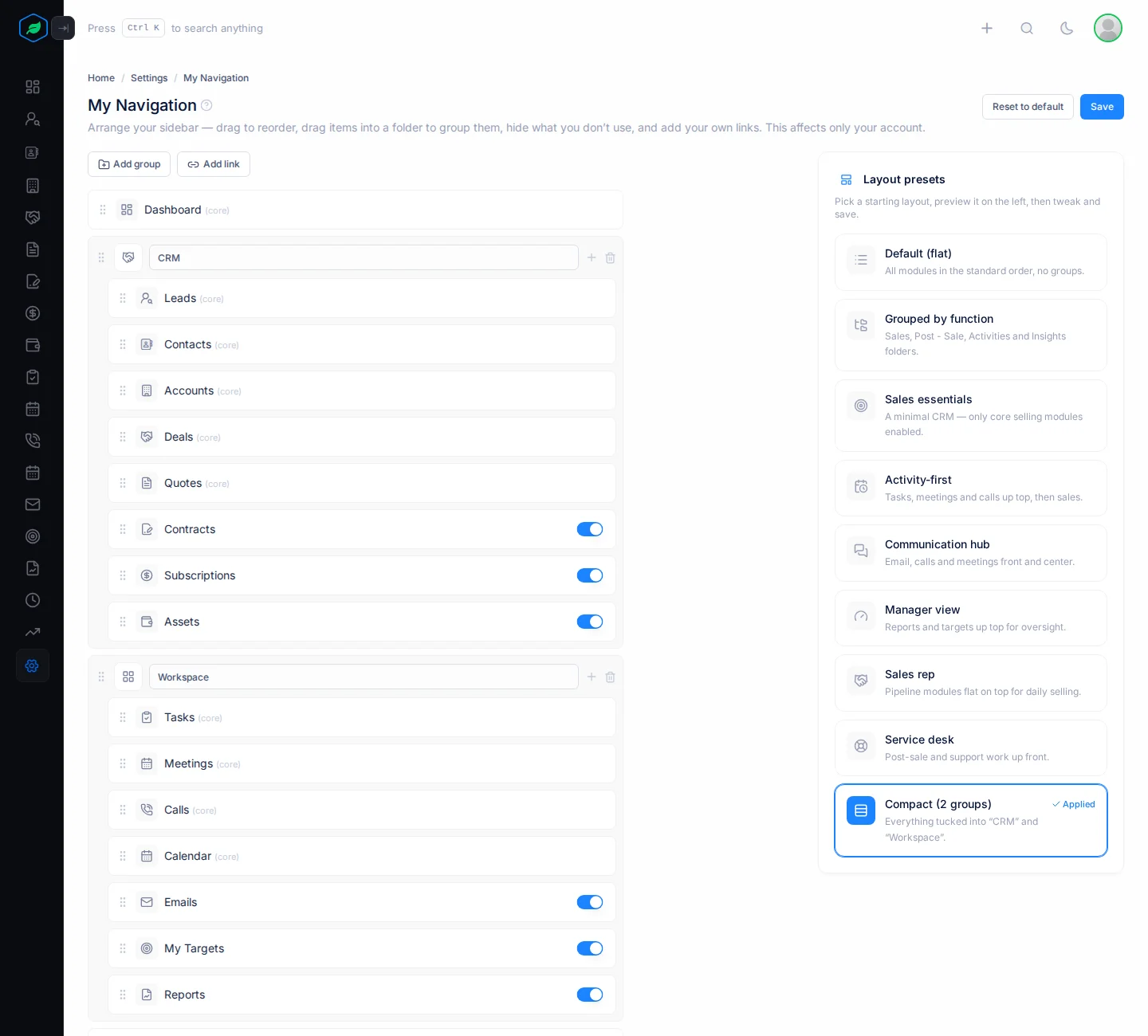
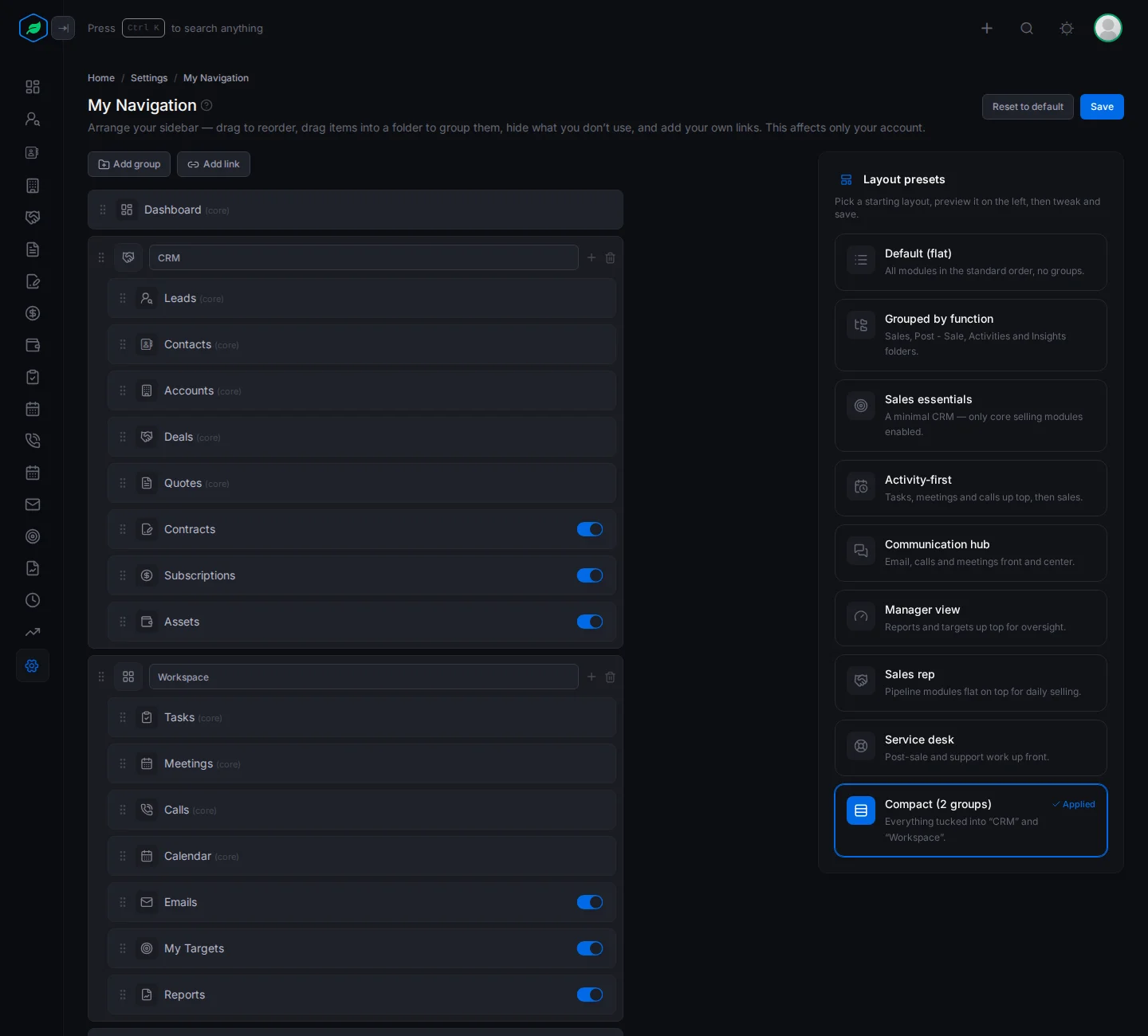
Here's how three of them look in the editor.
Grouped by function puts modules in folders by the kind of work: Sales, Post - Sale, Activities and Insights.
Sales rep puts Leads, Deals, Contacts, Accounts and Quotes at the top, outside any folder. Activities and Post - Sale modules go in folders below.
Compact (2 groups) puts everything in two folders, CRM and Workspace, for a short sidebar.
Go back to the company layout
Click Reset to default. Your own layout is deleted straight away, and you get your company's sidebar back.
Once you save your own layout, changes your admin makes to the company's order or folders don't reach you. If your company switches on a new module, it's added at the end of your list. To get the company layout again, click Reset to default.
Troubleshooting
| You see | Why | What to do |
|---|---|---|
| "Navigation is managed by your organization administrator." | Your admin turned off Allow users to customize | Ask your admin |
| "Title is required." | The link has no title | Type a title |
| "Enter a valid http(s) URL or a path starting with /." | The link address isn't valid | Start it with https:// or / |
| A module is missing from the list | Your company switched it off, or your role can't see it | Ask your admin |
Related
Still stuck?
Tell us what you were trying to do and we will help.