See your plan, payments and invoices
See your plan, seats and next payment, what each subscription status means, and find every invoice.
Updated 12 October 2026 · 4 min read
My Subscription shows your company's Salesfresh plan: how many seats you pay for, when the next payment is, and every invoice.
For example, a travel agency's accountant asks for last quarter's invoices. The owner opens My Subscription, goes to Billing History, and downloads each invoice as a PDF. They also check Seats to see that 6 of their 8 seats are in use, so they can hire two more people without paying extra.
Before you start
- To see the subscription, you need the View Subscription permission. To choose a plan, you need Create Subscription. To change or cancel it, you need Edit Subscription.
- My Subscription shows in the menu under your photo for people with the Org Admin role.
- For a company in India, add your GSTIN and address in Company settings first. They're printed on your invoices so you can claim the GST.
If you don't have a permission you need, ask your admin.
The My Subscription page
Open the menu under your photo and click My Subscription. The top shows your subscription number, its status, its dates, your plan and your billing cycle. The page has three tabs: Overview, Billing History and Timeline.
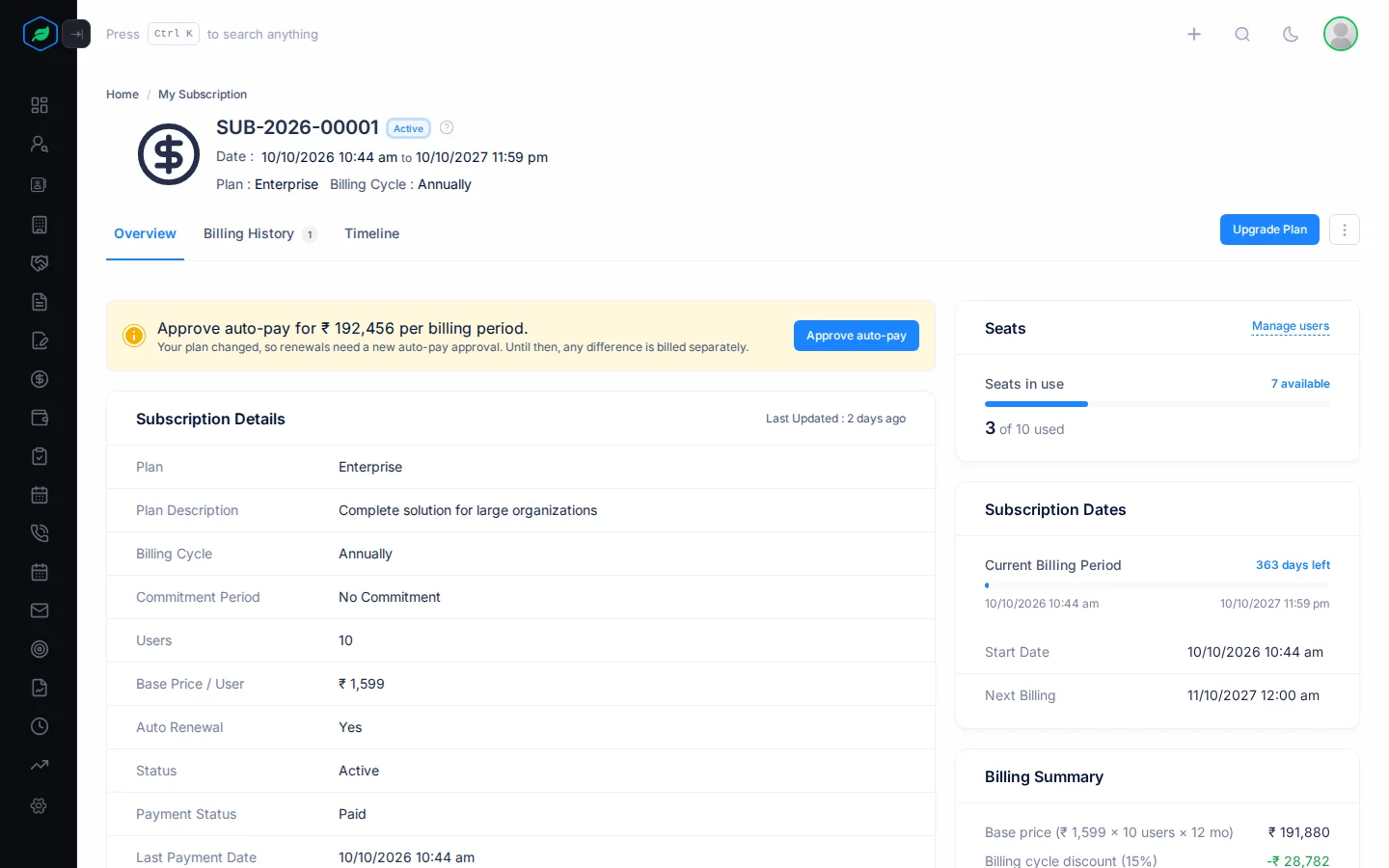
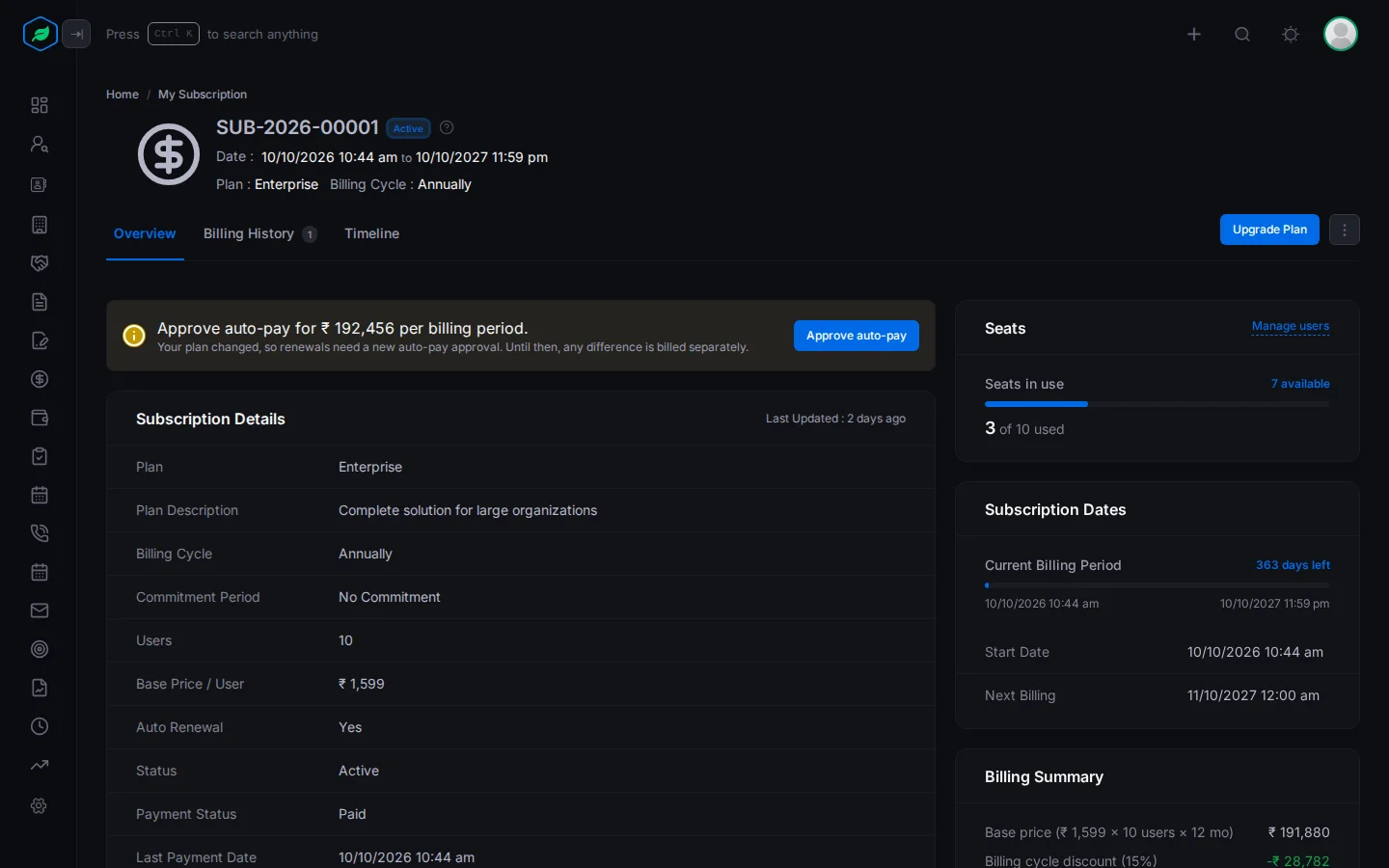
The Overview tab shows:
- Subscription Details: your plan, billing cycle, commitment period, users and price.
- Seats: how many seats are in use. Click Manage users to go to your users.
- Subscription Dates: when the current period started and when the next payment is.
- Billing Summary: how your price is worked out.
- Any change waiting to happen, such as fewer seats next period, with a button to undo it.
To change your plan, see Change or cancel your plan.
Statuses
| Status | Means |
|---|---|
| Trial | Your free trial. Auto-pay takes the first payment when it ends |
| Active | Everything works |
| Suspended | A payment failed twice, or the first payment is late. You can view and download, but not add or change |
| Deactivated | A payment failed three times. Access stops until you pay |
| Paused | Auto-pay was paused at your bank. Click Approve auto-pay |
| Cancelled | The subscription ended. Click Reactivate to come back |
| Expired | The subscription ran out. Click Renew to come back |
If a payment fails
| What happened | What it means |
|---|---|
| A renewal payment failed once | Everything still works |
| It failed again, or the first payment is late | Read-only |
| It failed a third time | Access stops |
A banner shows at the top of every page. On My Subscription, click Pay now to pay. On other pages, people with View Subscription see Manage subscription, which opens My Subscription.
Billing History
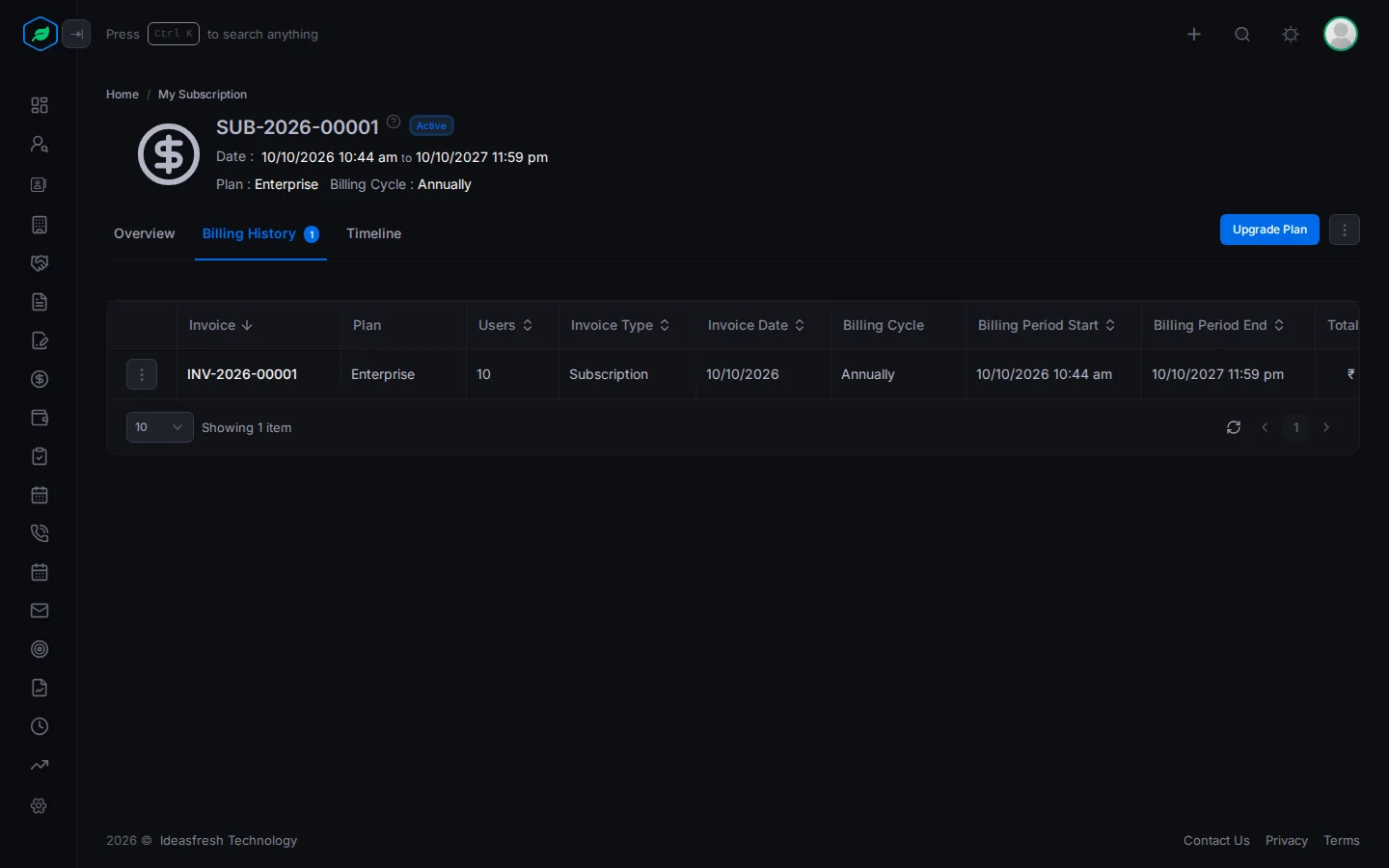
The Billing History tab lists every invoice with its plan, users, type, date, billing period, total and payment status.
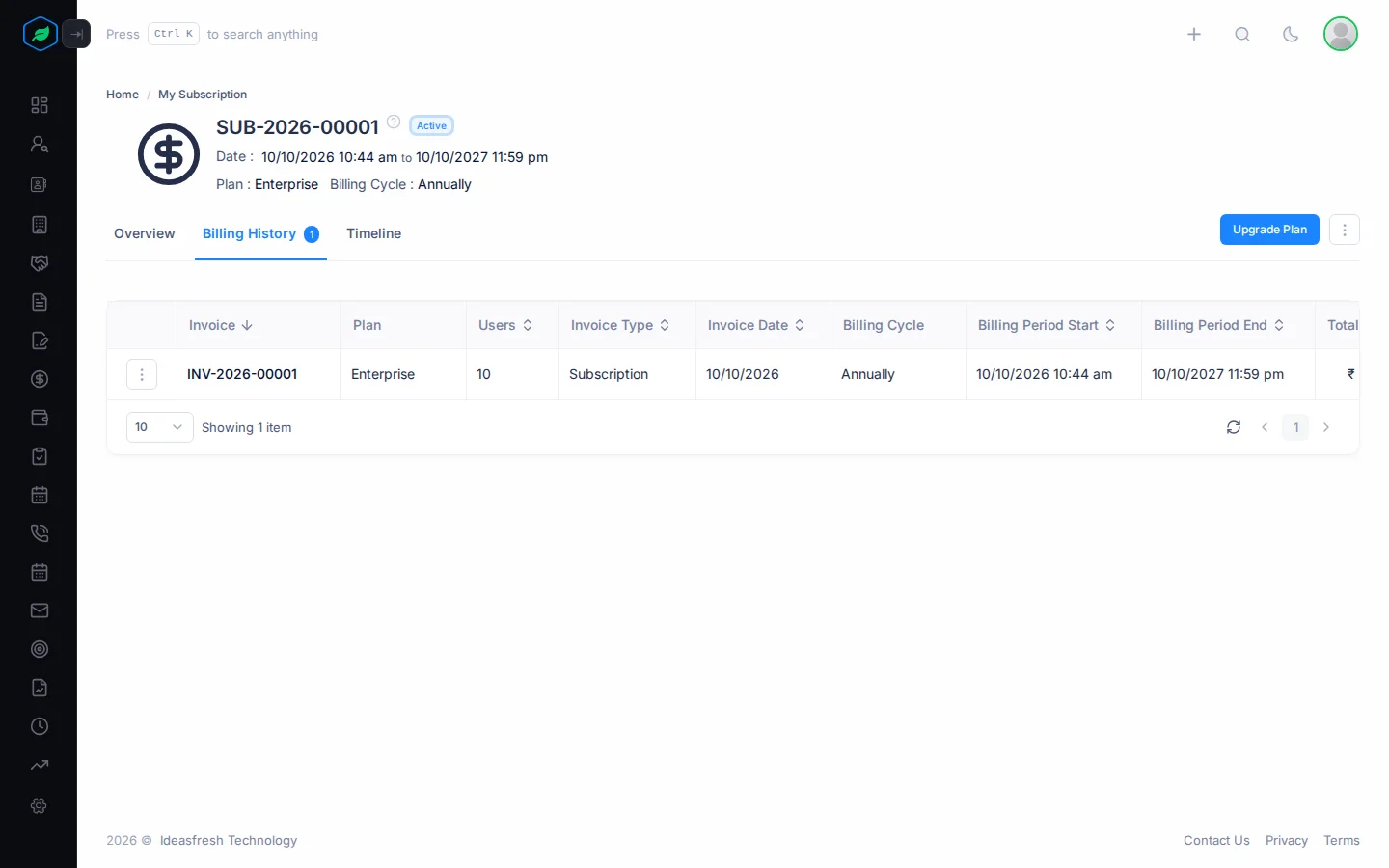
- Click an invoice number to see how it was worked out.
- Click ⋮ on an invoice, then Preview or Download to get the PDF. A copy is also emailed when you pay.
- An unpaid invoice has Proceed to payment while its payment link works. A plan change still waiting for payment also has Cancel, which asks you to confirm and then voids its payment link.
Timeline
The Timeline tab lists every change to your subscription: when, what changed, the amount, its status, and when it takes effect.
Troubleshooting
| You see | Why | What to do |
|---|---|---|
| "Your subscription is suspended due to non-payment. Pay now to restore access." | Payments failed | Click Pay now on My Subscription |
| "Your auto-pay is paused. Approve auto-pay again from My Subscription to continue." | Auto-pay was paused at your bank | Click Approve auto-pay |
| "Invoice is available only after payment is completed" | The invoice isn't paid yet | Pay it first |
| "Ask your administrator to manage the subscription" | You don't have View Subscription | Ask your admin |
Related
Still stuck?
Tell us what you were trying to do and we will help.