Find your way around
The sidebar, the + button, search, your profile menu and Settings, and where to find each part of the CRM.
Updated 9 October 2026 · 2 min read
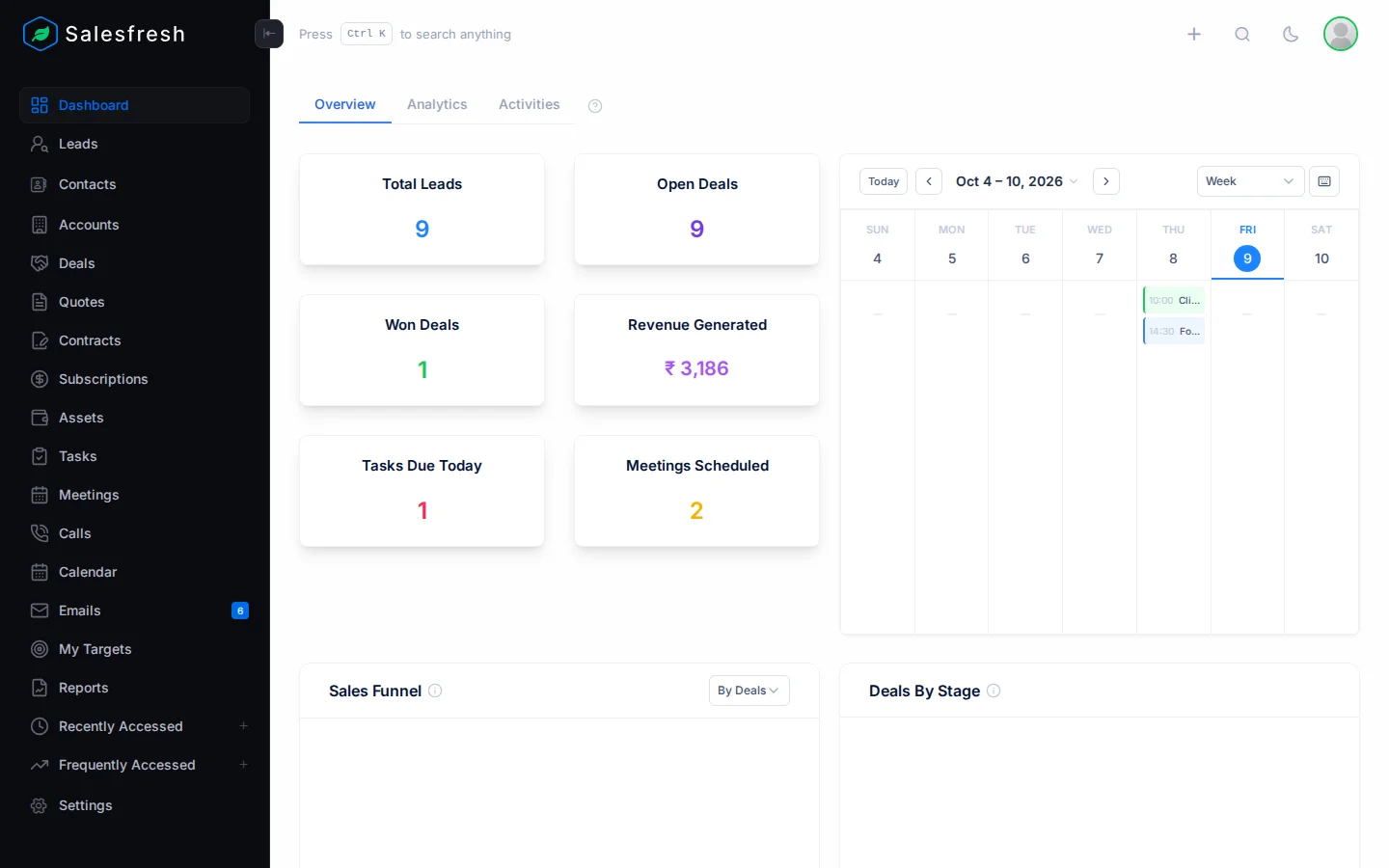
Most of your work in Salesfresh starts from two places: the sidebar on the left and the header at the top.
The sidebar
The sidebar has a link to each part of the CRM, such as Leads, Deals, Tasks and Reports. You only see the parts your company uses and your role allows.
Under the links, Recently Accessed and Frequently Accessed show the last 10 pages you opened, and the 10 you open most.
Want the links in a different order? Your admin can change it for everyone in Module customization. You may also be able to change it just for yourself in My Navigation.
The header
| Item | What it does |
|---|---|
| Target progress | Shows how close you are to your target, if you have one. See My targets |
| + | Create a lead, contact, deal, task or another record from any page |
| Search | Find any record or page. You can also press Ctrl+K, or Cmd+K on a Mac. See Global search |
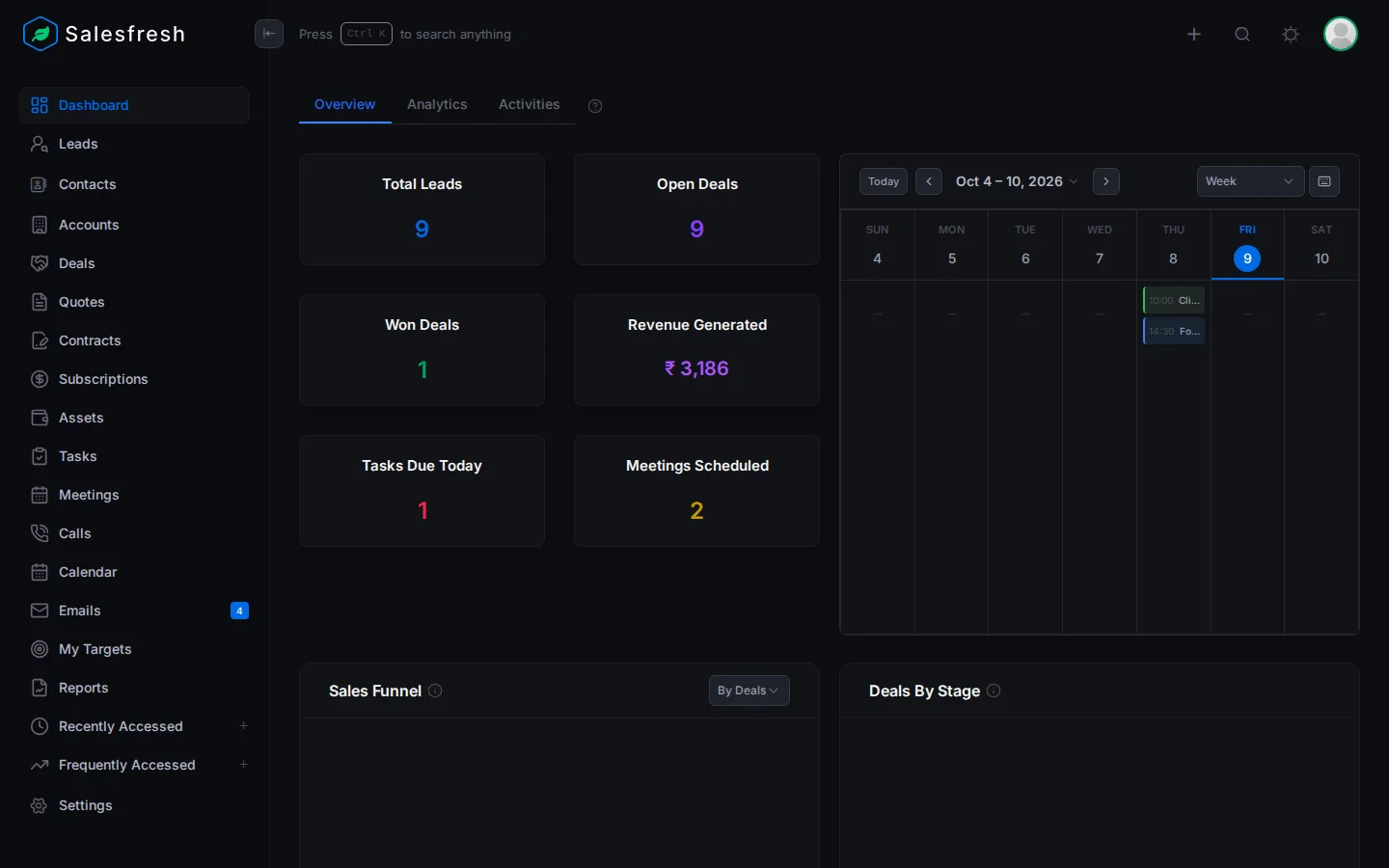
| Sun or moon | Switch between the light and dark theme |
| Your photo | Opens your menu |
Your menu
Click your photo to open your menu.
| Item | What it's for |
|---|---|
| My Profile | Your details and preferences. See Your profile and preferences |
| My Teams | The teams you are in |
| My Targets | Your targets |
| Switch Account | Move to another company, if you belong to more than one |
| My Subscription | Your company's plan and invoices. Only Org Admins see this |
| Notification Settings | Choose which emails you get. See Notification settings |
| Help Center | Opens these help pages |
| Logout | Sign out |
Settings
Click Settings at the bottom of the sidebar to set up how your company uses Salesfresh. Users, roles, pipelines, products and automation are all here. Each card opens one area. To find a setting fast, type its name in the search box at the top.
You only see the cards your role allows.
Help on every page
Many pages have a ? next to the page title. Click it to open the help page for that screen.
Related
Still stuck?
Tell us what you were trying to do and we will help.