Add a signature to your emails
Create email signatures with your name, role and contact details, choose a default, and have it added to every email you write in the CRM.
Updated 10 October 2026 · 3 min read
A signature is the few lines at the end of an email, with your name, job title and phone number. Save it once in Salesfresh. After that, it's added to the emails you write.
For example, you write 30 emails a day. Typing your name and number at the end of each one takes time. Sometimes you forget, or type a number wrong, and the customer can't call you back. With a saved signature, every new email already has your correct details at the bottom.
You can keep more than one. For example, a full one with your phone number and website for first emails, and a short "Thanks, Sales Team" for quick replies.
Before you start
- To add and change signatures, you need the View Email Client permission.
- To delete a signature, you also need the Delete Emails permission.
If you don't have a permission you need, ask your admin. Your signatures are your own. Your teammates don't see them.
Create a signature
- Click your photo at the top right, then My Profile, then Email Signatures.
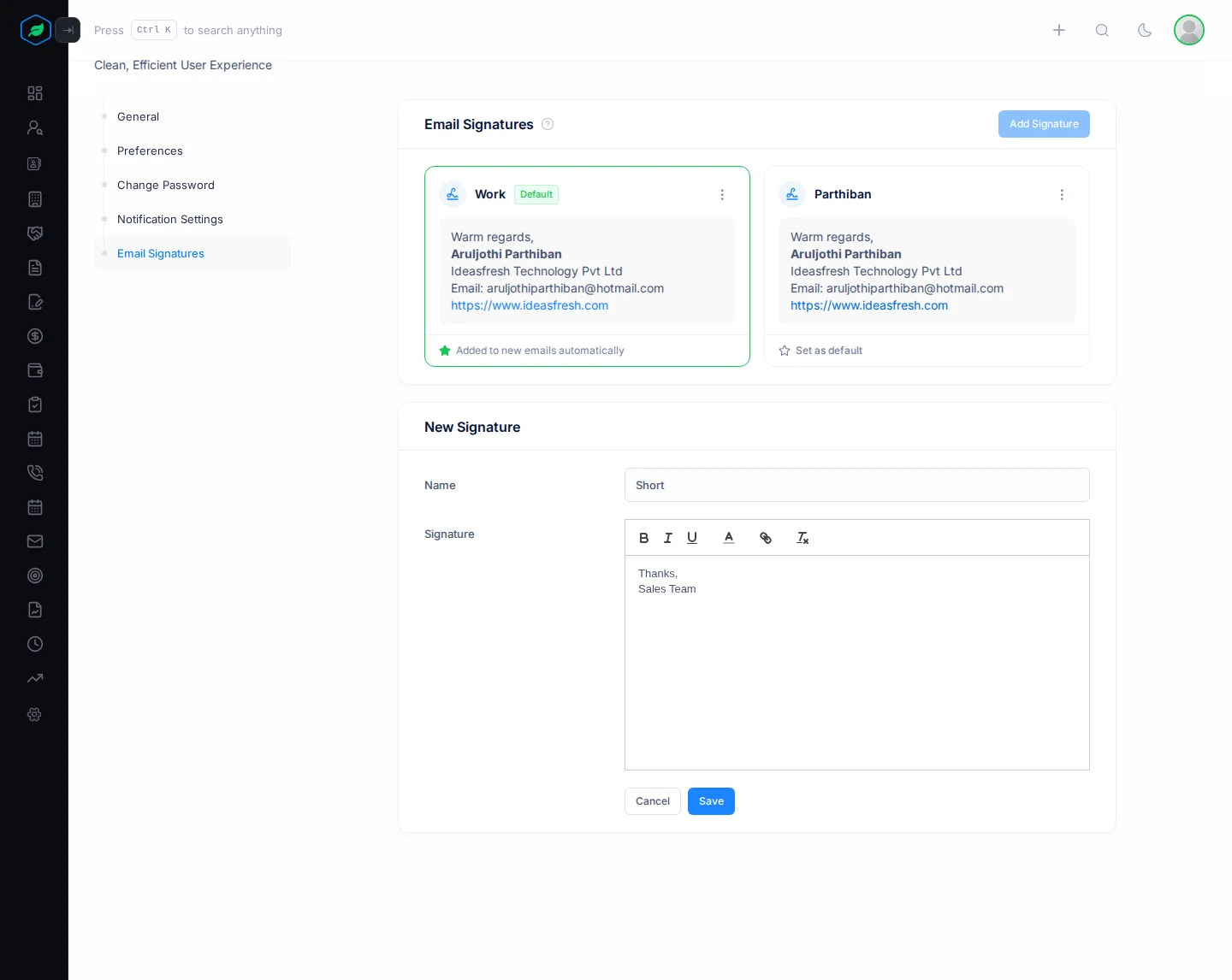
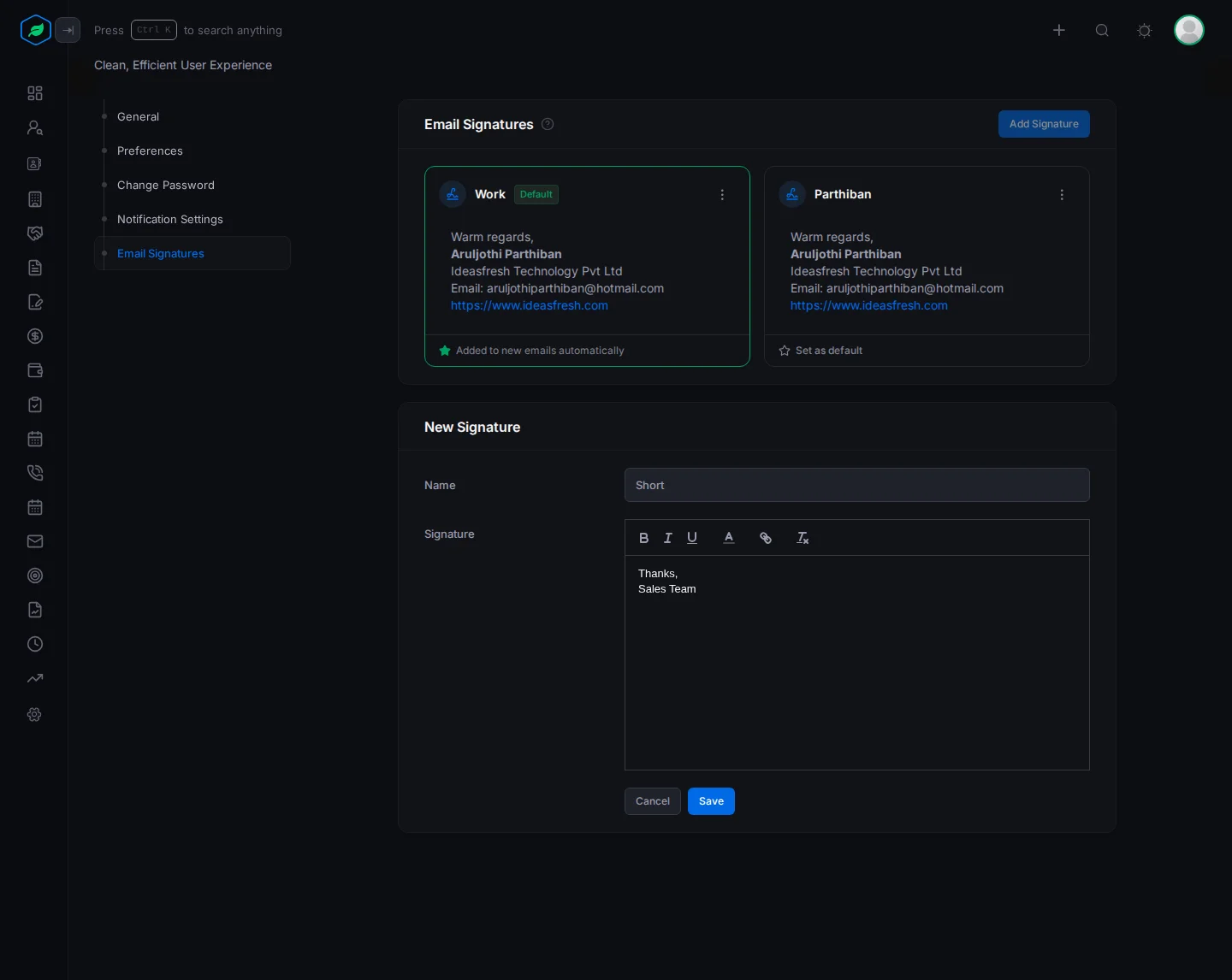
- Click Add Signature. The New Signature form opens.
- Fill in the fields.
- Click Save.
| Field | What to enter |
|---|---|
| Name | A name to tell your signatures apart, such as "Work" or "Short" |
| Signature | The lines to add at the end of your emails, such as "Thanks, Sales Team". You can make text bold, italic or underlined, change its colour, and add a link, such as your booking page |
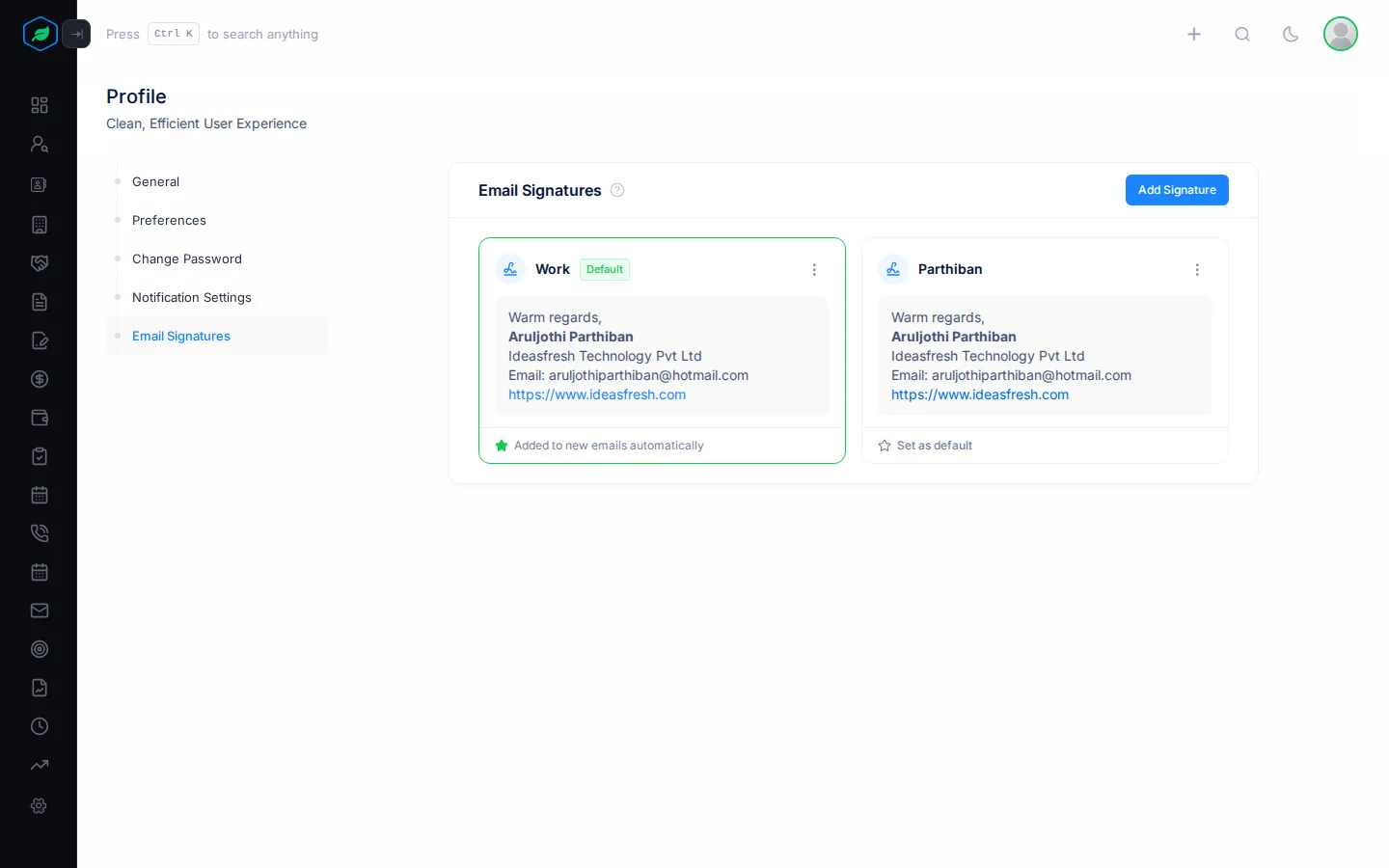
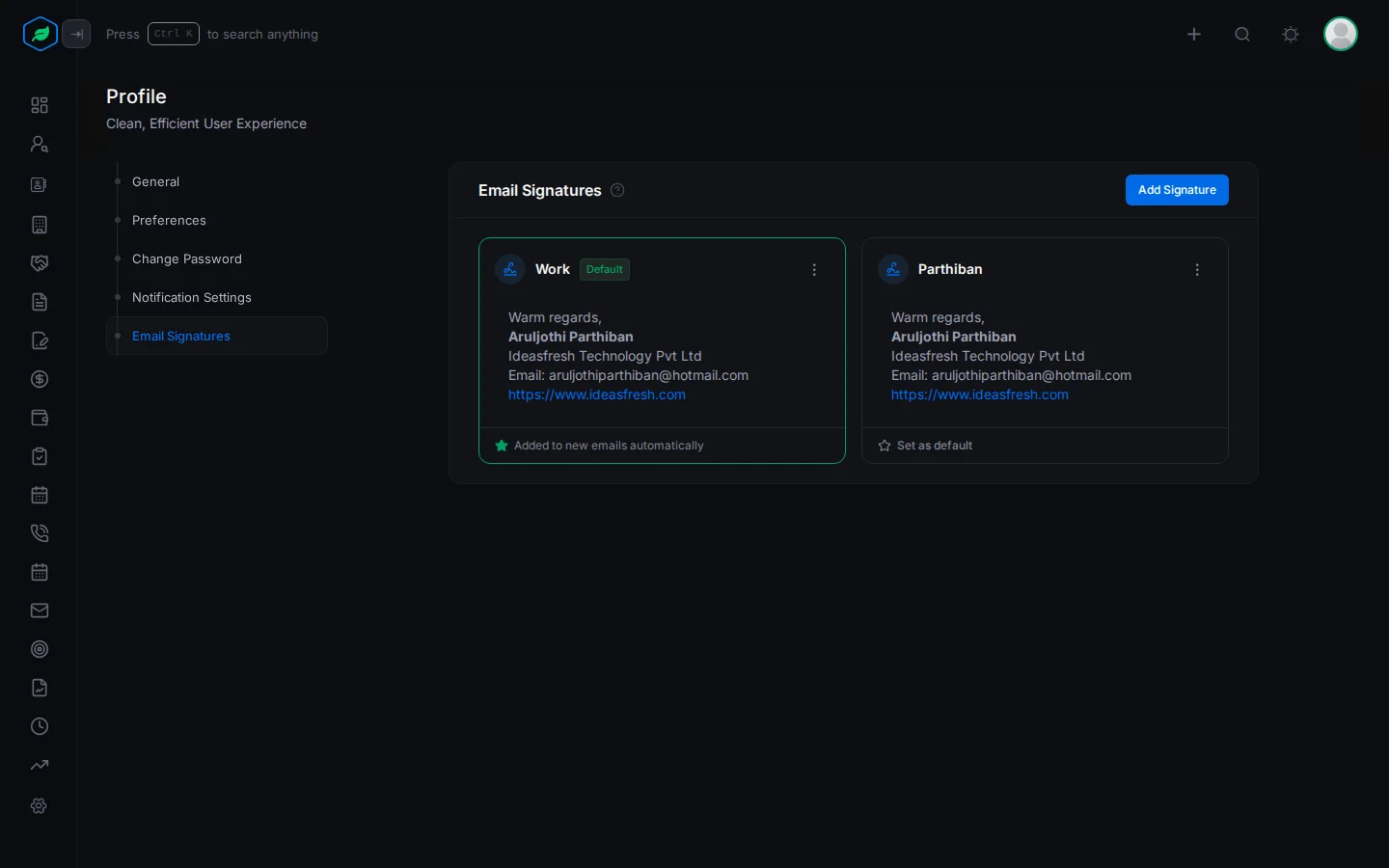
Your first signature becomes your default. It has a Default badge and says "Added to new emails automatically".
Choose your default
Your default signature is the one added to your emails. To change it, click Set as default at the bottom of another signature.
When you edit your default signature, it stops being the default. Click Set as default on it again after you save.
Where your signature is added
Your default signature is added for you when you write:
- a new email,
- a reply,
- a forward. Here it goes above the forwarded email.
This works in Emails and on a lead's or contact's page. You can still change it in the email before you send.
Email templates can include {{sender_signature}}. When the email is sent, this is swapped for your default signature. For example:
- A quote email uses the signature of the person who sends the quote.
- An email sent by a flow uses the signature of the flow's owner.
To open this page while you write an email, click Manage signatures at the bottom of the email. It opens in a new tab.
Edit or delete
Click ⋮ on a signature, then Edit or Delete. When you edit, change what you need and click Update.
If you delete your default, click Set as default on another one.
Troubleshooting
| You see | Why | What to do |
|---|---|---|
| No signature in a new email | You have no signatures yet | Add one |
{{sender_signature}} is blank in a quote or flow email | You have no default signature, often after you edited it | Click Set as default on your signature |
| A new email still shows your old signature | The Emails page remembers your signatures while the browser tab is open | Close the tab and open Salesfresh in a new one |
| Your signature shows twice in a reply | The template you used also has {{sender_signature}} | Delete one of them in the email |
Related
Still stuck?
Tell us what you were trying to do and we will help.