Leave comments for your team
Leave notes for your team on leads, contacts, accounts, deals, quotes, contracts, subscriptions and assets.
Updated 10 October 2026 · 2 min read
The Comments tab on a record is for notes to your team, such as what the customer said or what to try next. Customers never see them.
For example, a customer tells you on the phone that they only want a vegetarian menu for their event. You add a comment on the deal: "Customer wants a vegetarian menu only." A week later, a teammate takes over the deal. They read the comment and don't have to ask the customer again.
Leads, contacts, accounts, deals, quotes, contracts, subscriptions and assets all have a Comments tab.
Before you start
- You don't need a special permission. If you can open the record, you can read and add comments.
- You can add comments even when the record is locked.
- You can only change or delete your own comments.
Add a comment
- Open the record and click Comments.
- Type in Add a comment... and click Add.
For a quick update, click one of the ready-made replies under the box, such as ✅ This is on track or ⛔ This is blocked... It's added straight away.
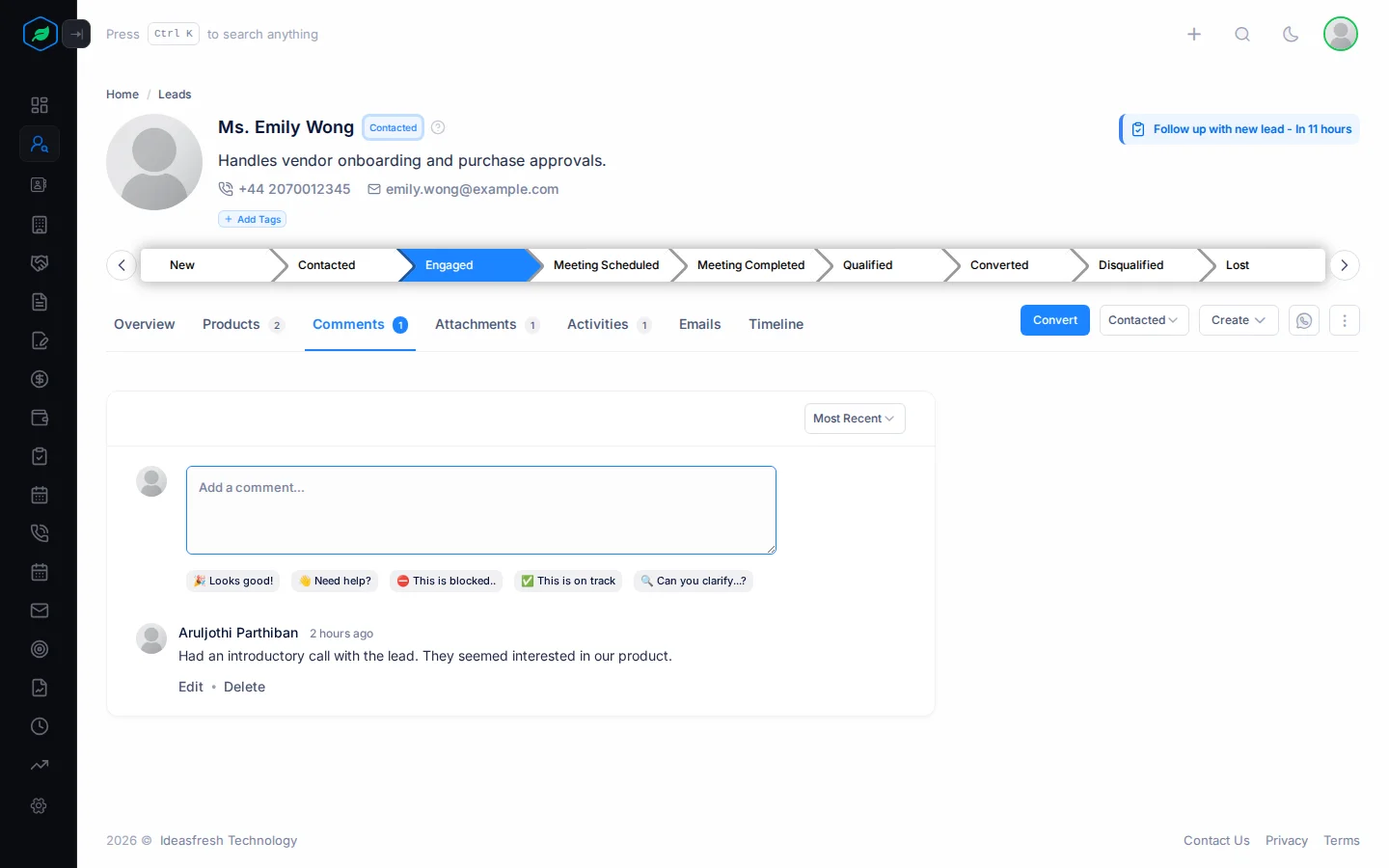
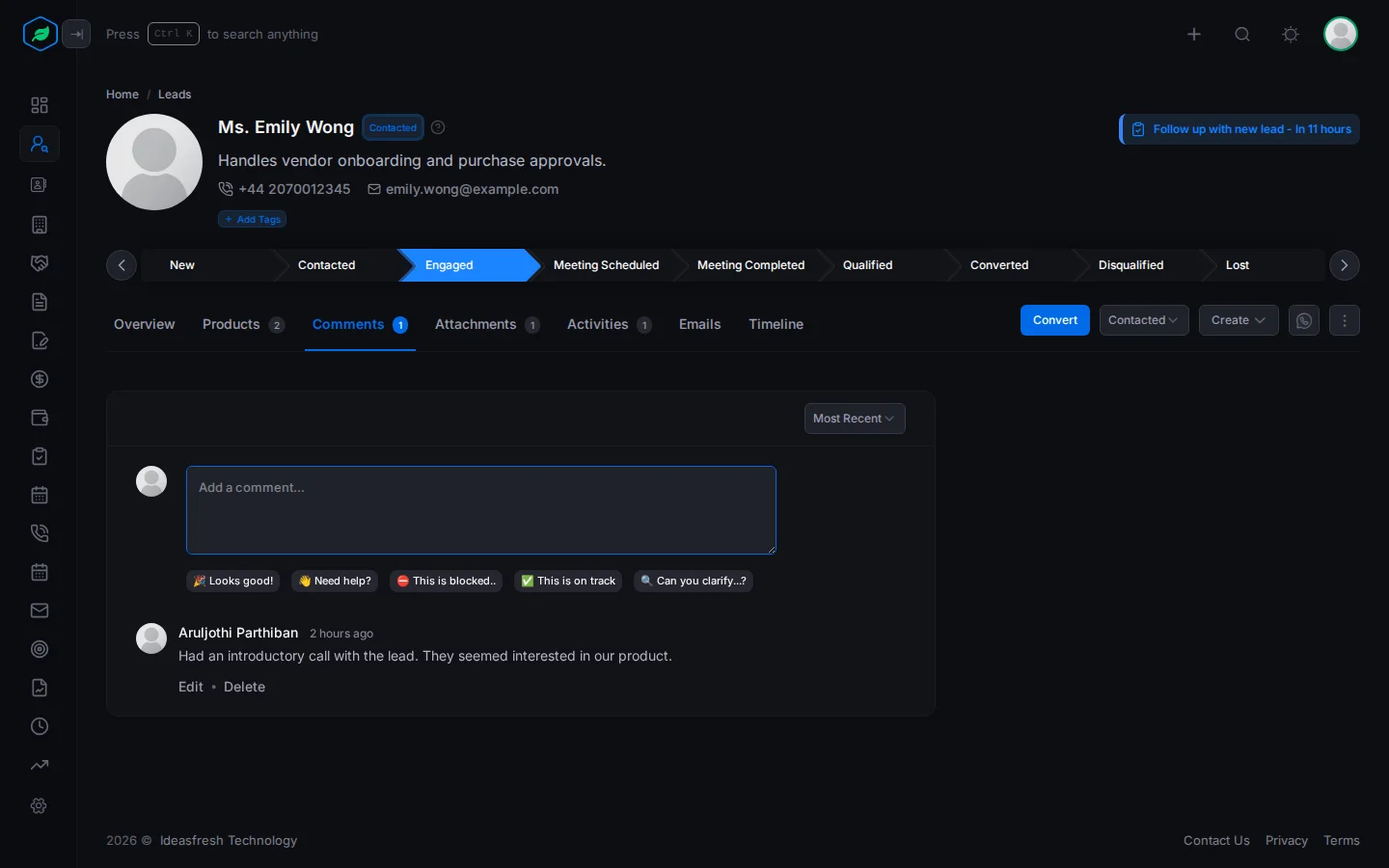
The newest comments show first. To see the oldest first, pick Oldest at the top right.
Change or delete a comment
Under your comment, click Edit or Delete. When you edit, change the text and click Save.
Typing @ and a name doesn't send that person a message. If you need someone to read a comment, tell them yourself.
Troubleshooting
| You see | Why | What to do |
|---|---|---|
| Edit and Delete are missing on a comment | It isn't your comment | Ask the person who wrote it |
Related
Still stuck?
Tell us what you were trying to do and we will help.