Keep files on a record
Keep files such as price lists and signed contracts on leads, contacts, accounts, deals, quotes, contracts, subscriptions and assets.
Updated 10 October 2026 · 2 min read
The Attachments tab keeps files next to the customer they belong to, such as a price list, a signed contract or a photo.
For example, a customer signs your booking form and sends it back by email. You upload it to their deal. Later, a teammate needs the signed form. They open the deal and find it under Attachments, instead of searching through emails.
Leads, contacts, accounts, deals, quotes, contracts, subscriptions and assets all have an Attachments tab.
Before you start
- You don't need a special permission. If you can open the record, you can see and add files.
- You can add files even when the record is locked.
- Each file can be up to 10 MB.
Upload a file
- Open the record and click Attachments.
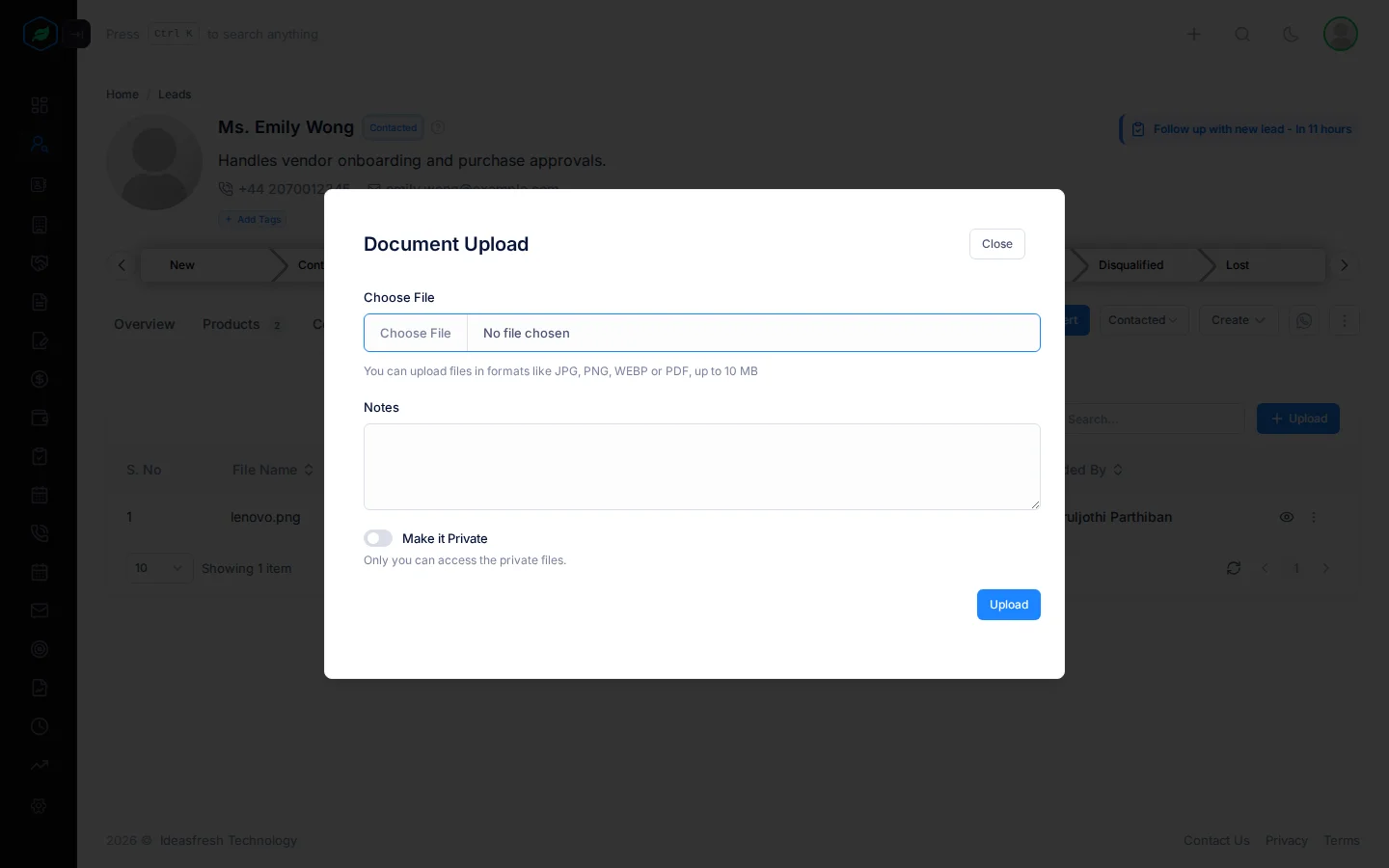
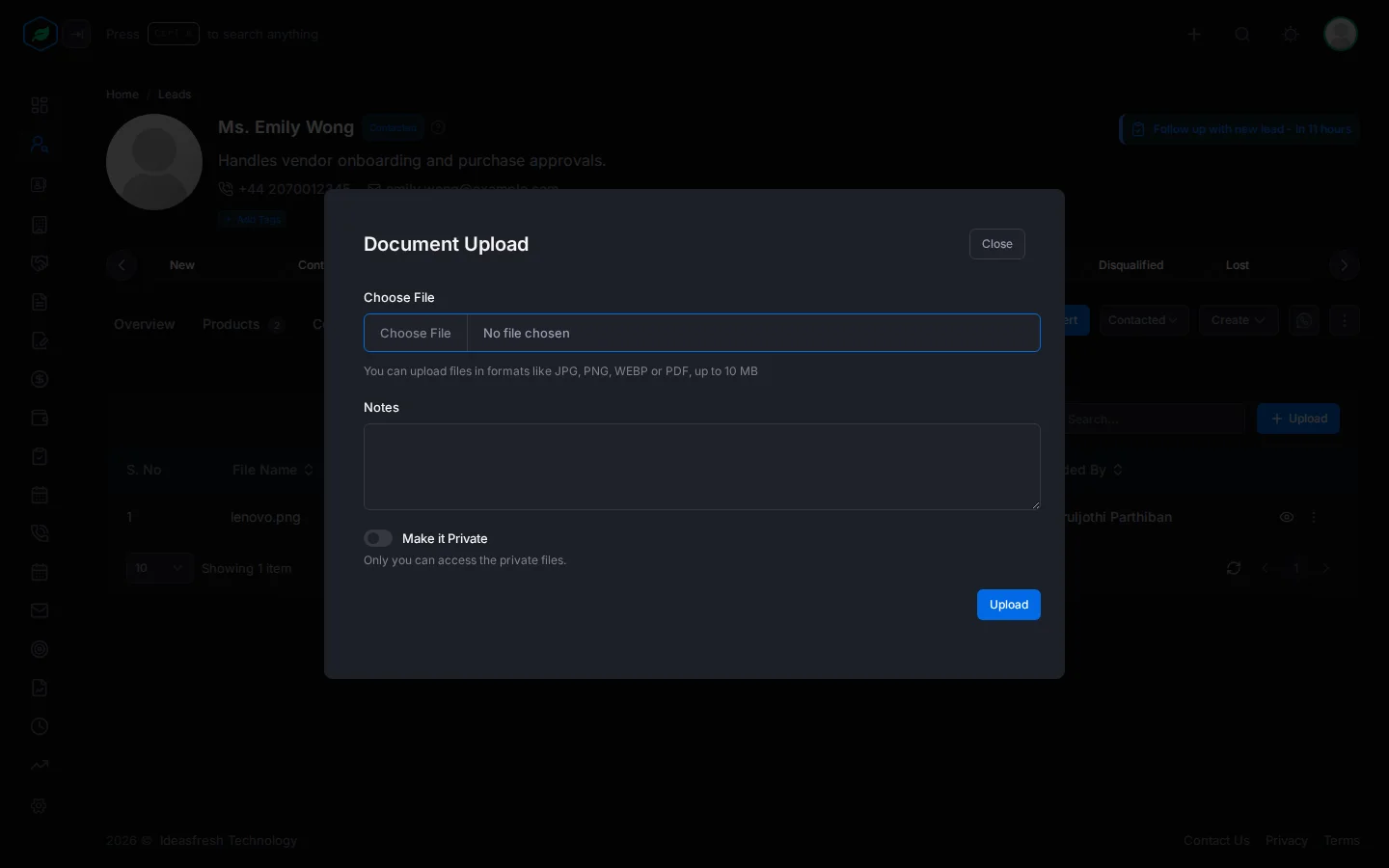
- Click Upload. The Document Upload window opens.
- Fill in the fields.
- Click Upload.
| Field | What to enter |
|---|---|
| Choose File | The file to upload, such as a PDF or a photo, up to 10 MB |
| Notes | What the file is, such as "Signed booking form" |
| Make it Private | Turn on to mark the file as yours. Others still see it in the list, but it's marked private |
Find and open files
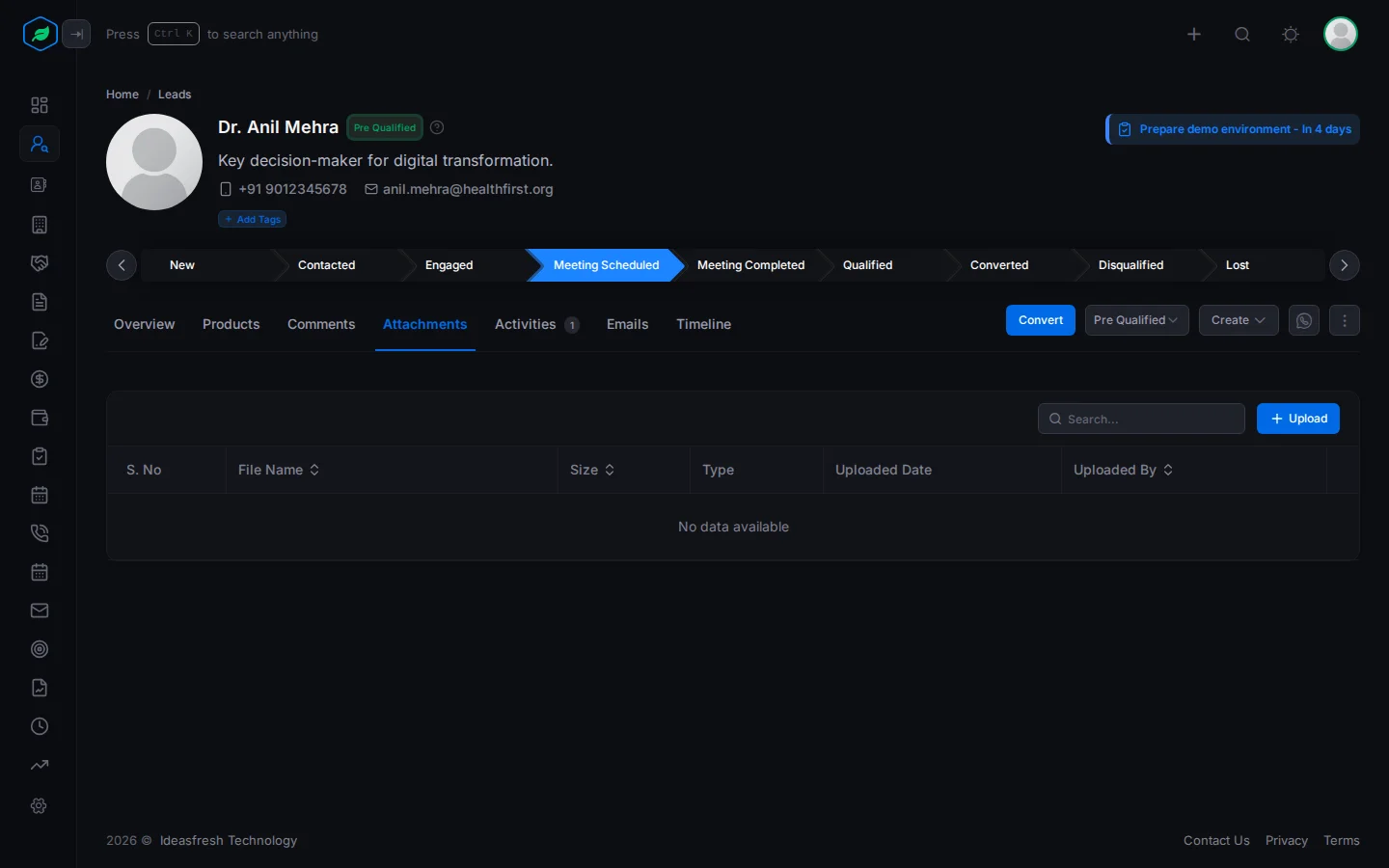
The tab lists each file with its name, size, type, when it was uploaded and who uploaded it. To find a file, type in the search box.
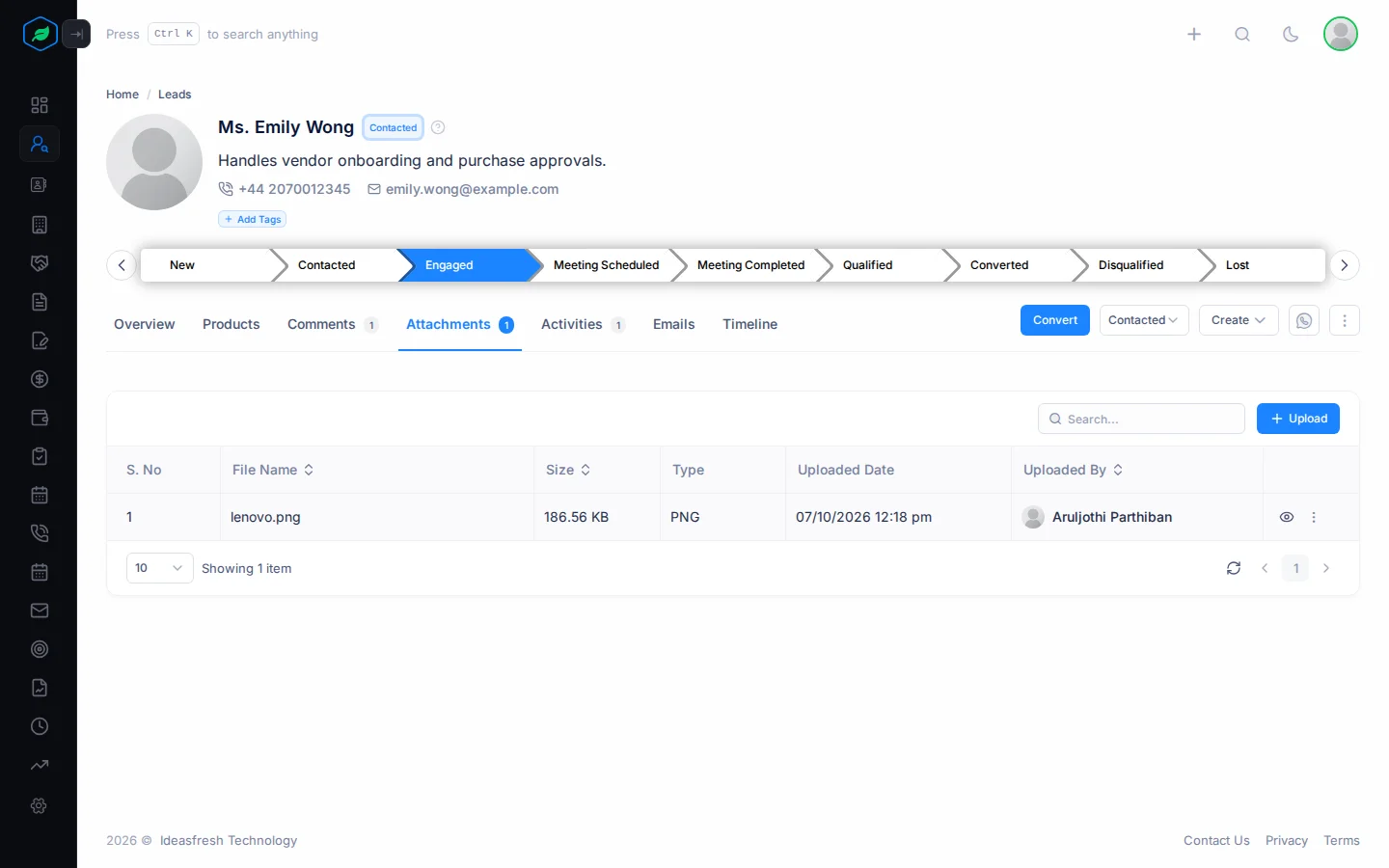
- To look at a file, click the eye button.
- To save a copy, click ⋮, then Download.
- To read a file's notes, point at the notes icon.
Delete a file, or make it private
You can only do this for files you uploaded. Click ⋮, then:
- Delete removes the file.
- Make it Private or Make it Public changes who it's marked for.
Make it Private doesn't fully hide a file. Other people still see it in the list. Don't rely on it for secret documents.
Troubleshooting
| You see | Why | What to do |
|---|---|---|
| "File size must not exceed 10MB" | The file is bigger than 10 MB | Make it smaller, or split it into parts |
| "This file is private. Please contact …" | The person who uploaded it made it private | Ask them for it |
Related
Still stuck?
Tell us what you were trying to do and we will help.