Find and read email in the CRM
Find and read your emails inside the CRM, see each email next to the lead or contact it belongs to, and link emails to records.
Updated 10 October 2026 · 4 min read
Emails in the sidebar is your work inbox inside Salesfresh. Next to each email, you see who the person is in Salesfresh: their record, what happened with them lately, and their open deals.
For example, a customer emails to ask for a call about a bigger order. You open the email in Salesfresh. On the right, you see they are a contact with an open deal, and a teammate met them last week. You know the whole story before you reply. Without the email client, you would read the email in Gmail, then look the customer up in Salesfresh.
To write or reply to emails, see Write and reply to emails.
Before you start
- Connect your Gmail or Outlook first, so your emails show here. See Connect Gmail or Outlook.
- To open the Emails page, you need the View Email Client permission.
- To move emails to the trash, or bring them back, you also need the Delete Emails permission.
If you don't have a permission you need, ask your admin. You only see your own emails. Your teammates see theirs.
The Emails page
Click Emails in the sidebar. The number next to it shows how many emails in your inbox you haven't read.
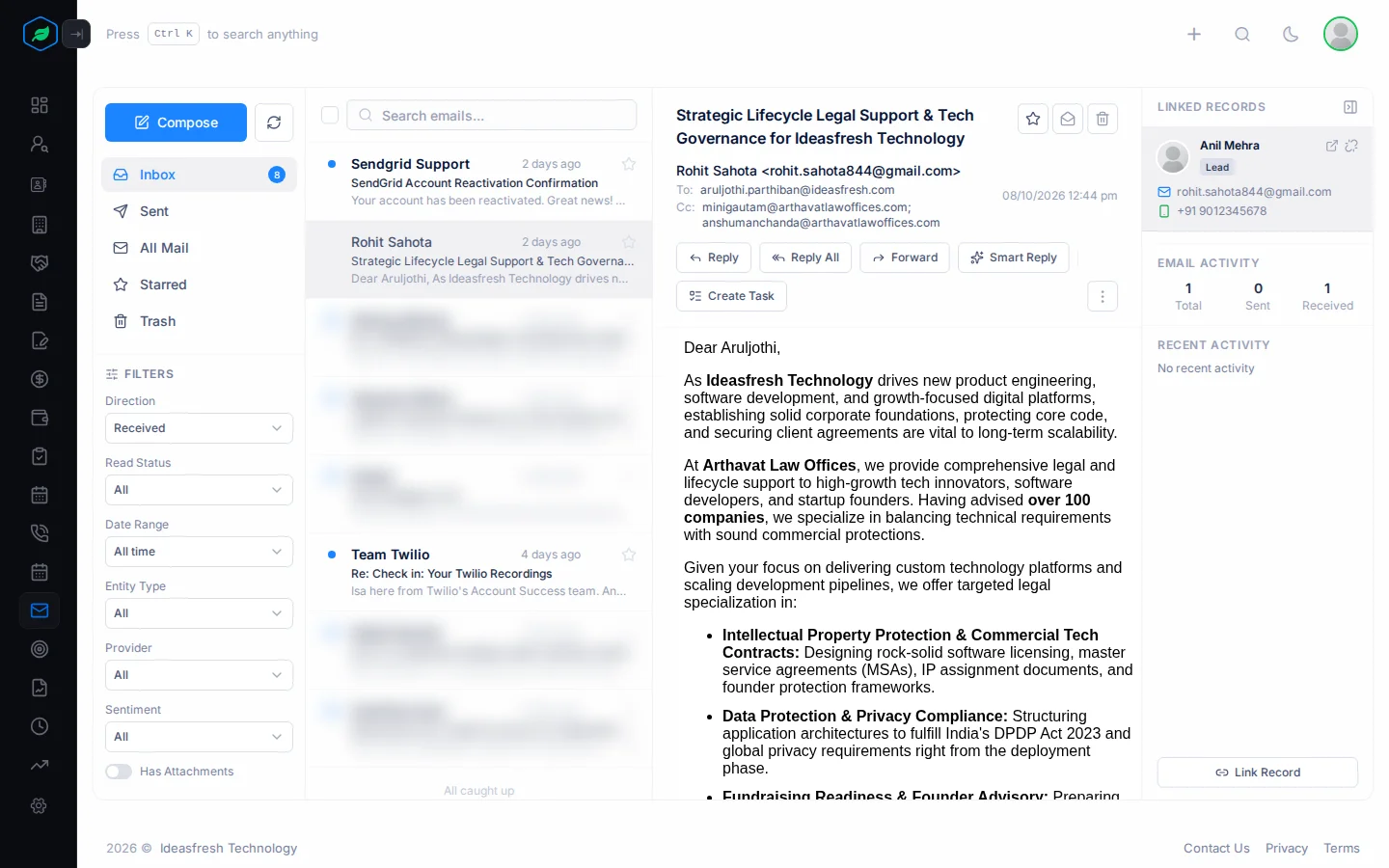
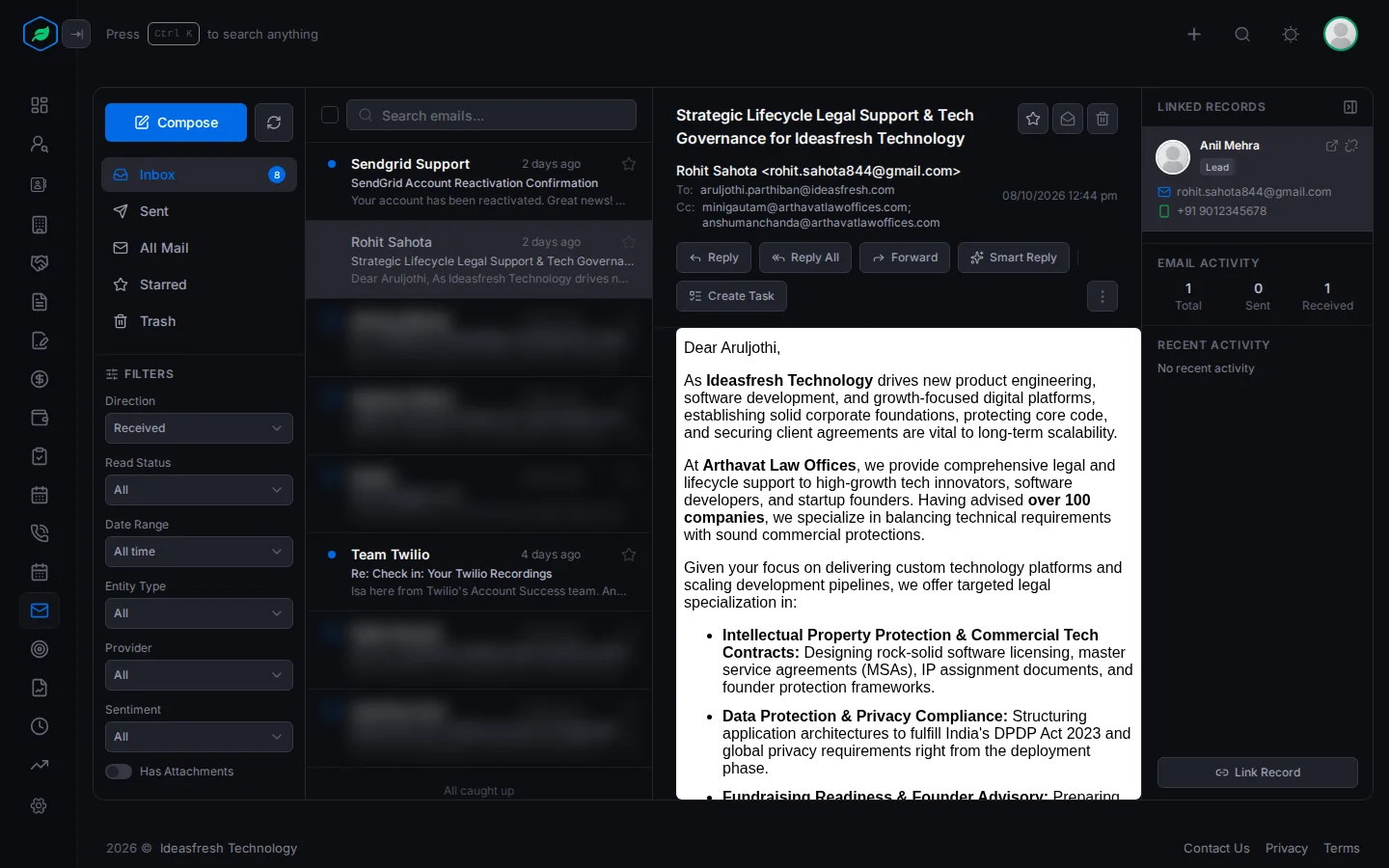
The page has four parts, from left to right.
Folders and filters
Pick a folder: Inbox, Sent, All Mail, Starred or Trash.
Under Filters, you can show only some emails:
- emails you received or sent,
- read or unread emails,
- emails from a date range, such as this week,
- emails with leads, or with contacts,
- emails from Gmail or Outlook,
- emails by mood: positive, neutral or negative. See Smart Reply and email sentiment,
- emails with attachments.
The email list
Emails in the same conversation are grouped together. To find an email, type in the search box. It looks at the subject, the sender, who it was sent to, and the first lines of the email.
The open email
Click an email to read it. Its attachments and the buttons to reply are here too.
The record panel
The right side shows the lead or contact the email belongs to:
- their name and details,
- how many emails you sent and received,
- what happened with them lately,
- up to 3 of their open deals,
- the mood of their emails.
To hide this panel, click the button at its top right.
Link an email to a lead or contact
When your emails are copied in, Salesfresh links each one to the leads and contacts whose email address is on it.
If an email isn't linked, the right side says "Not linked to any record". It has three buttons:
- Create Lead or Create Contact opens the form with the sender's name and email filled in.
- Link Record links the email to a lead or contact you already have. It also links your other emails to and from that address.
After you create a lead or contact from an email, click Link Record to link the emails you already have. New emails from that person are linked for you.
Every lead and contact also has an Emails tab with your emails with them. It also shows how many were sent and received, the open rate, the last reply, and the usual mood of their emails.
Star, read and trash
Use the buttons at the top of an email to:
- star it,
- mark it read or unread,
- move it to Trash.
To do this for several emails at once, tick them in the list. To bring an email back from Trash, open it and click Restore.
This only changes the copy in Salesfresh. Your Gmail or Outlook stays as it is.
Troubleshooting
| You see | Why | What to do |
|---|---|---|
| "Your inbox is not connected yet" | You haven't connected a mailbox | Click Connect Email |
| Emails isn't in the sidebar | You don't have the View Email Client permission | Ask your admin for the permission |
| A new email hasn't shown up | Emails are copied in every 5 minutes, from 8 am to 6 pm | Click the sync button next to Compose |
| An email isn't on a lead's page | The email isn't linked to that lead | Open the email and click Link Record |
Related
Still stuck?
Tell us what you were trying to do and we will help.