Organise people into teams
Group people into teams, choose who leads and manages each one, and use teams to share records and follow your team's work.
Updated 12 October 2026 · 4 min read
A team is a group of people who work together, such as "North Region Sales". Teams decide who can see whose records, and let managers follow their team's work.
For example, a car dealership has two branches. The owner creates a "City Branch" and a "Highway Branch" team, adds each branch's salespeople as Member and its manager as Manager, and sets Leads to Owner and Team in data share policies. Each branch now sees its own leads, not the other's. Each manager sees the team's calls and meetings on the Calendar.
Before you start
- To see teams, you need the View Teams permission.
- To create a team or add members, you need Create Teams. To change a team, you need Edit Teams. To delete a team or remove members, you need Delete Teams.
- Your plan sets how many teams you can have: 2 on Free, 10 on Starter, and no limit on Professional and Enterprise.
If you don't have a permission you need, ask your admin.
The Teams page
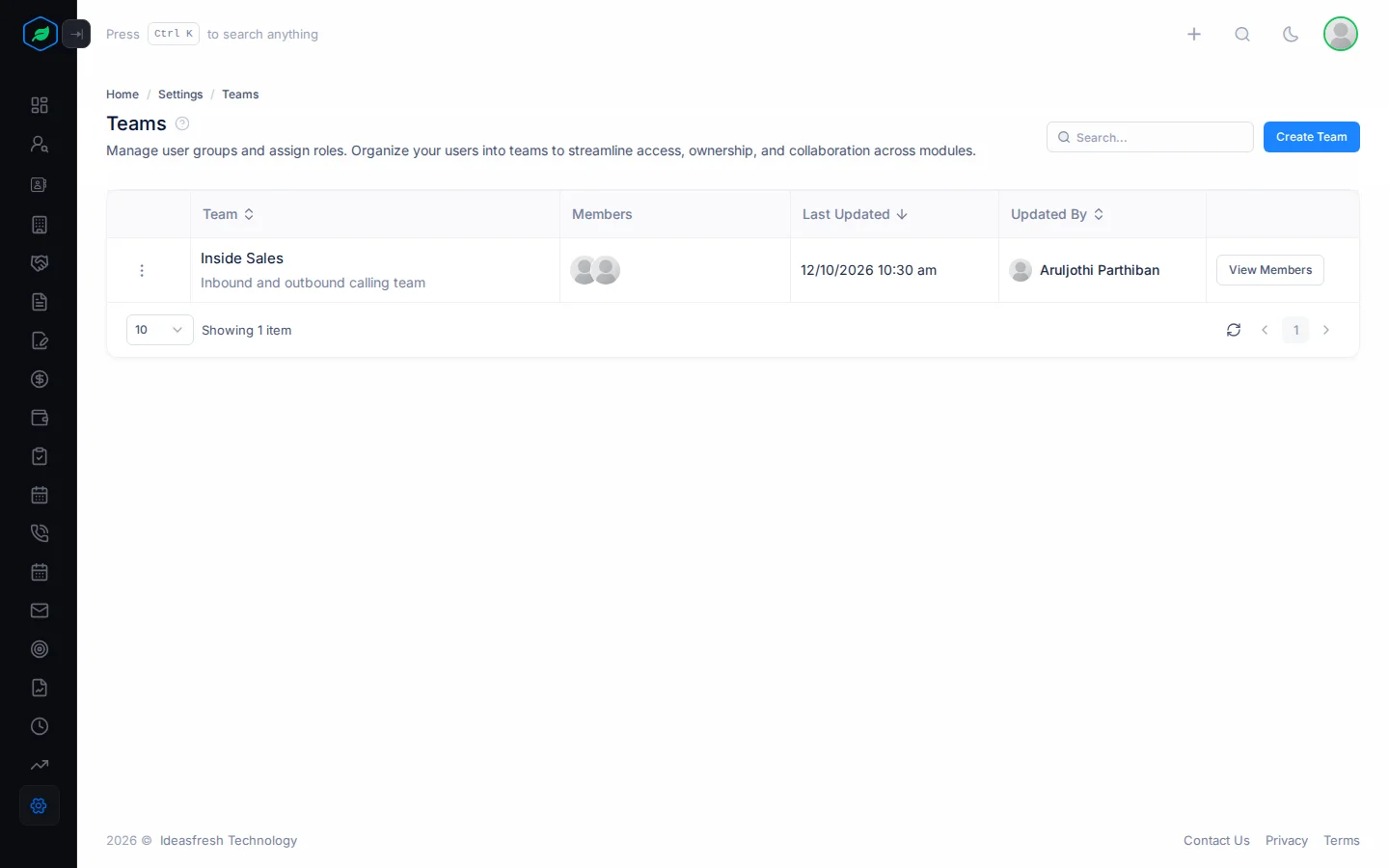
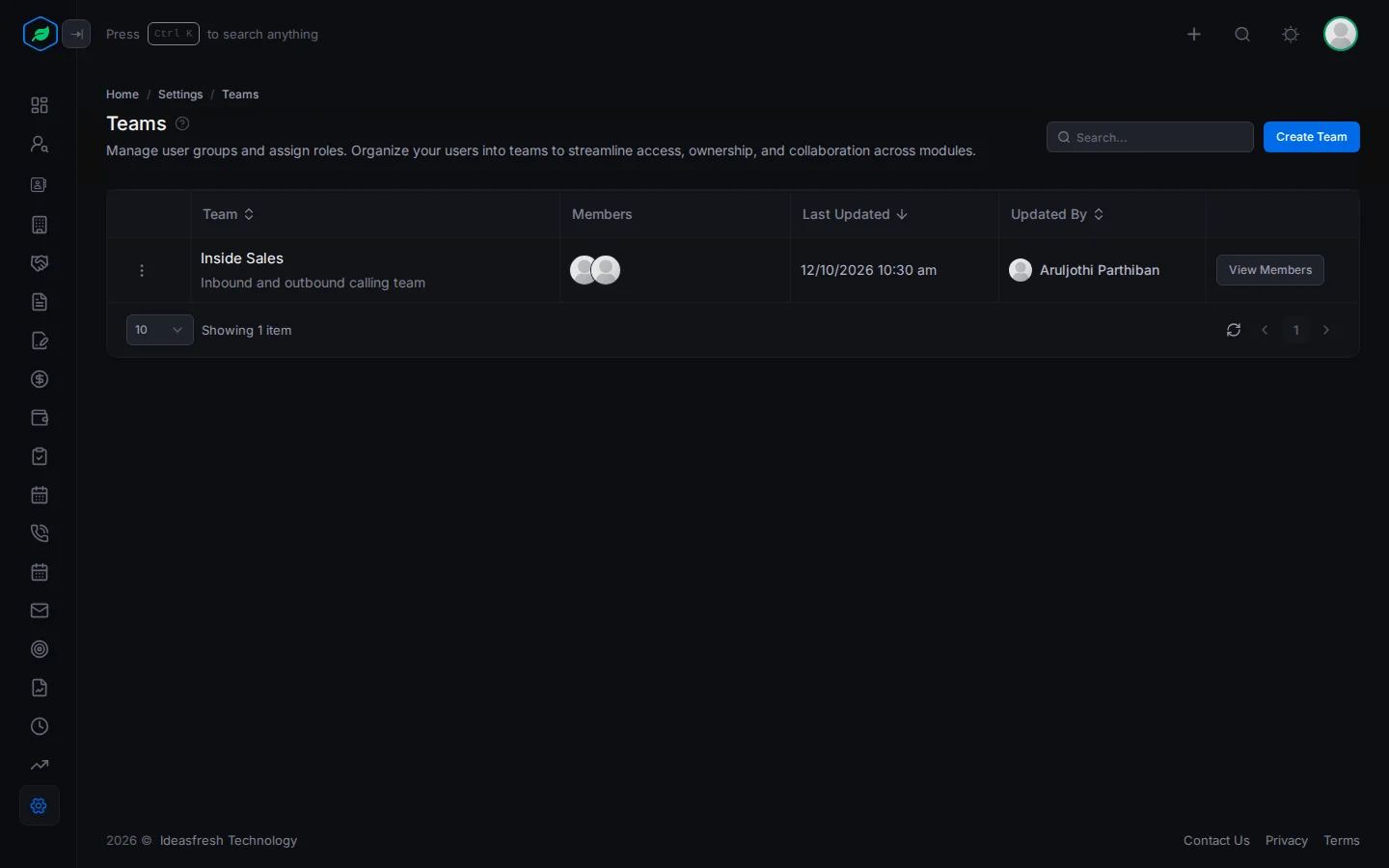
Go to Settings > Teams. Each row shows the team, its members, and who changed it last.
Create a team
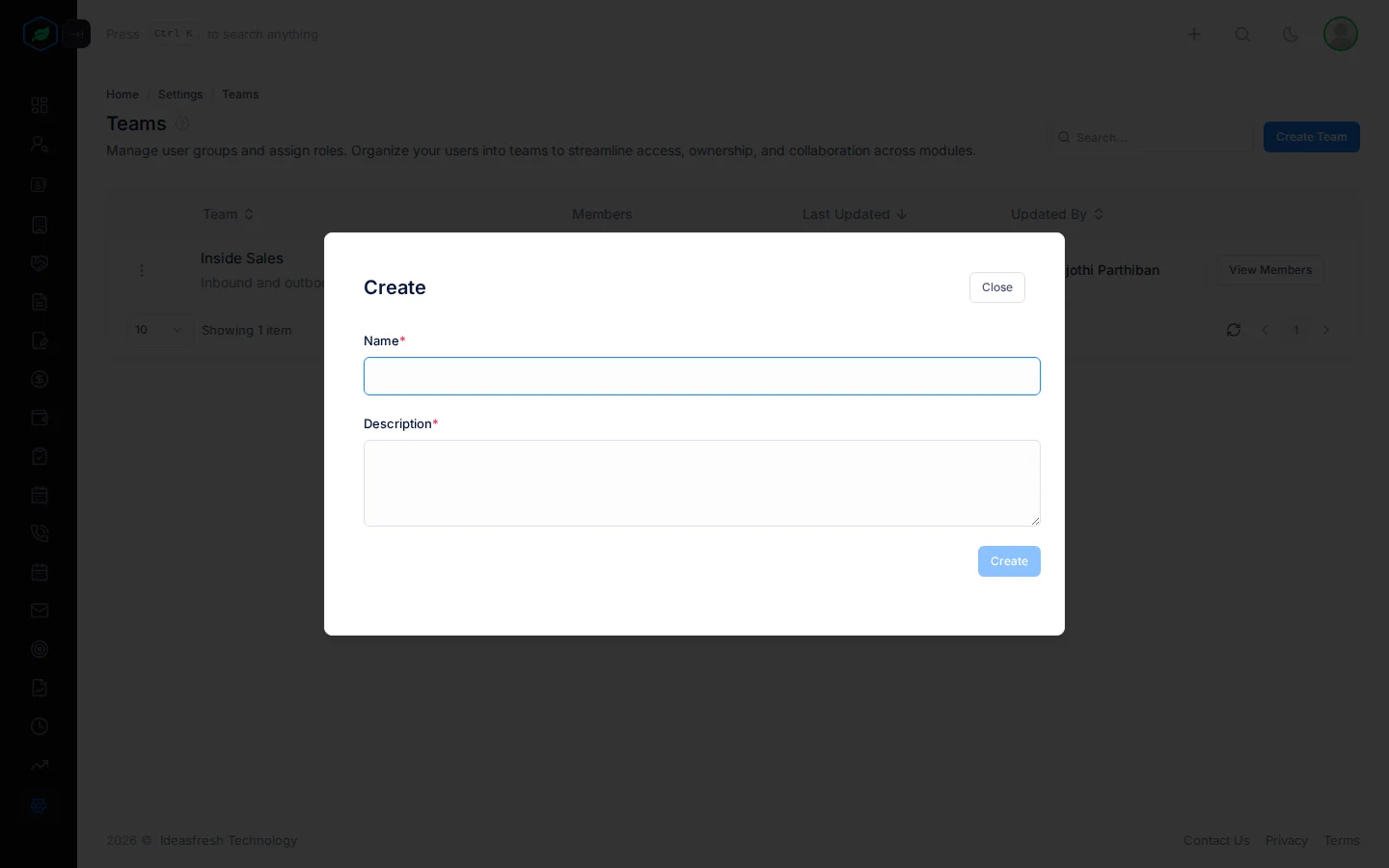
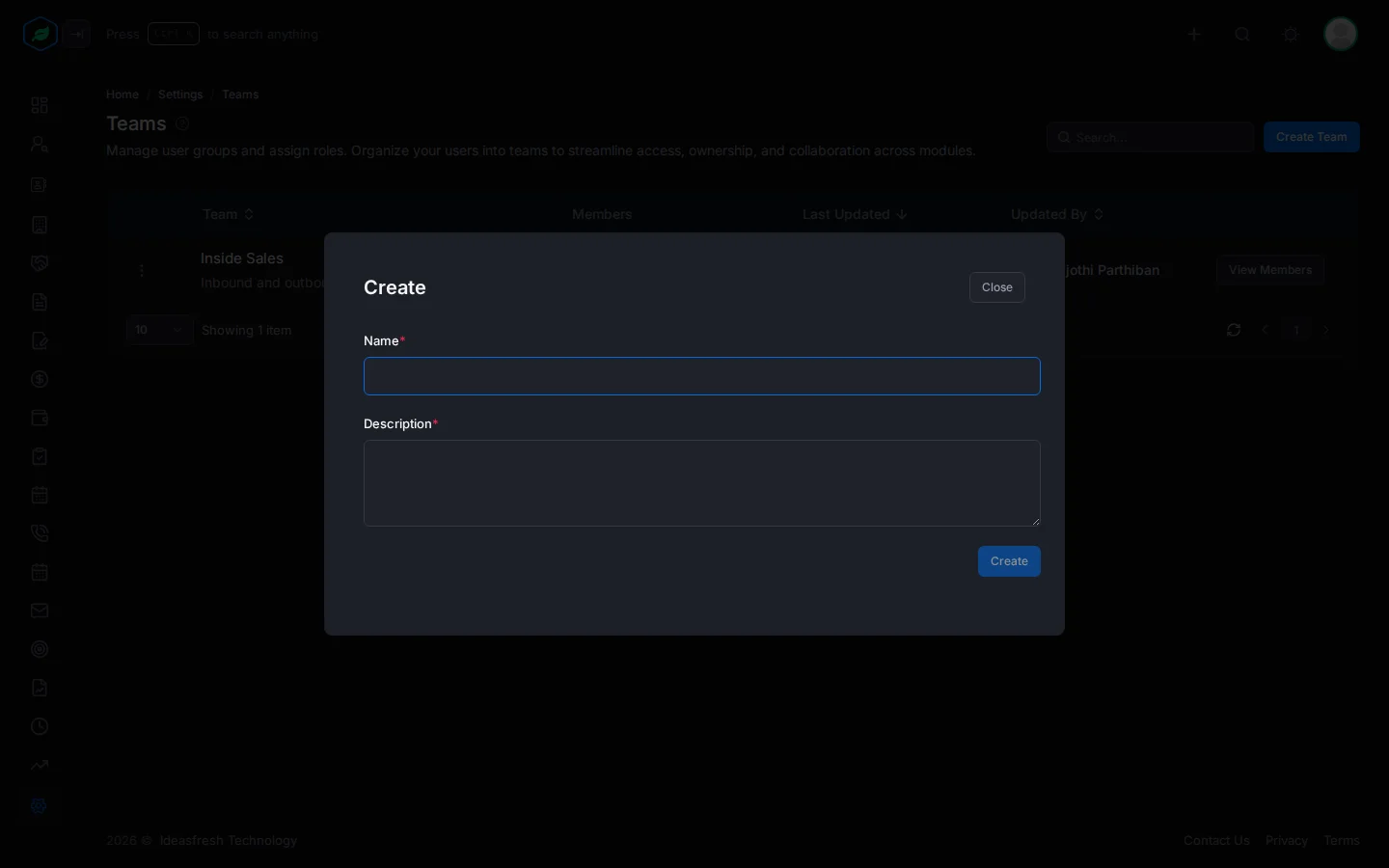
- Click Create Team. The Create window opens.
- Fill in the fields. Both must be filled in.
- Click Create.
| Field | What to enter |
|---|---|
| Name * | The team's name, up to 30 characters, such as "City Branch" |
| Description * | What the team does, up to 255 characters |
Add members
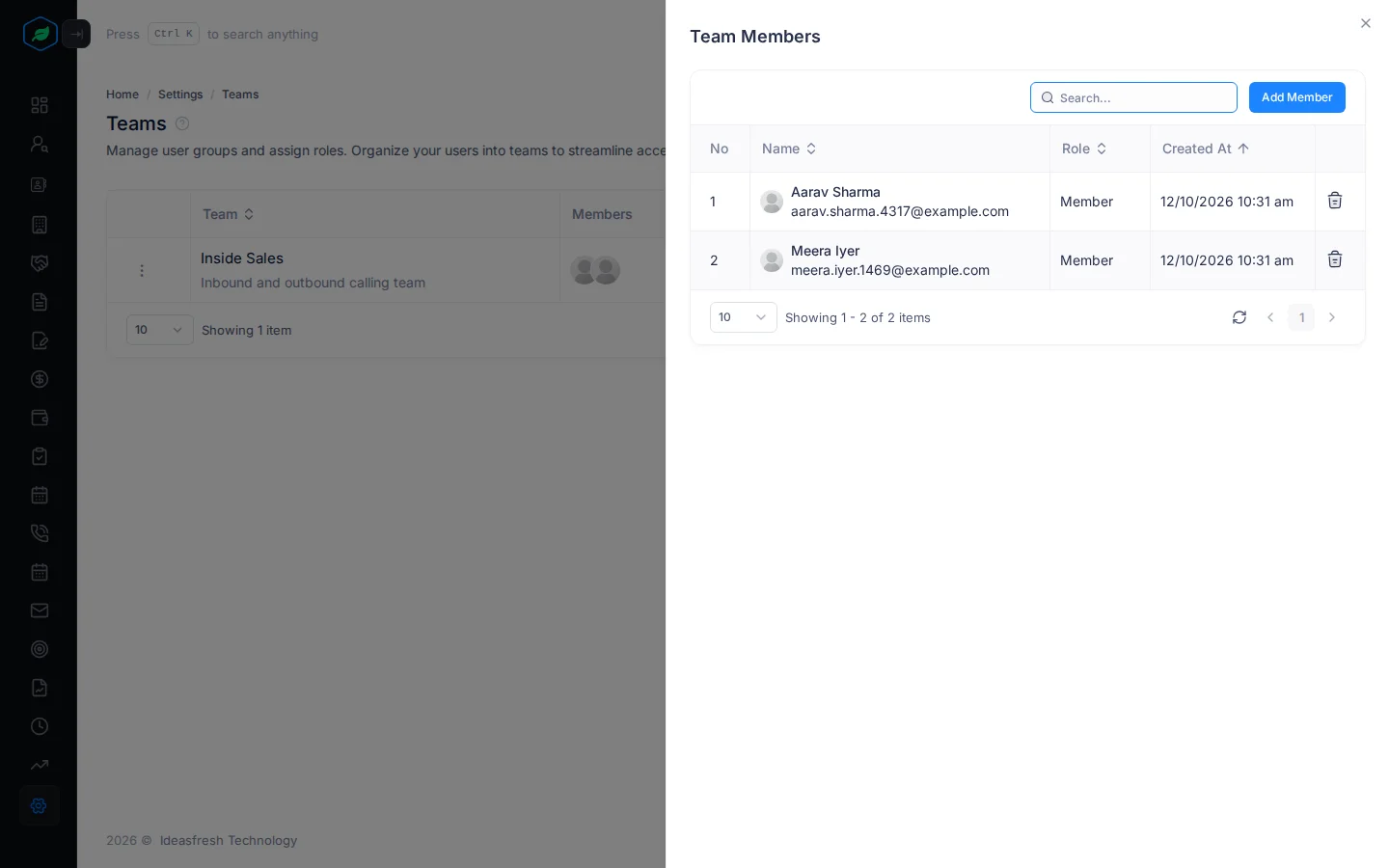
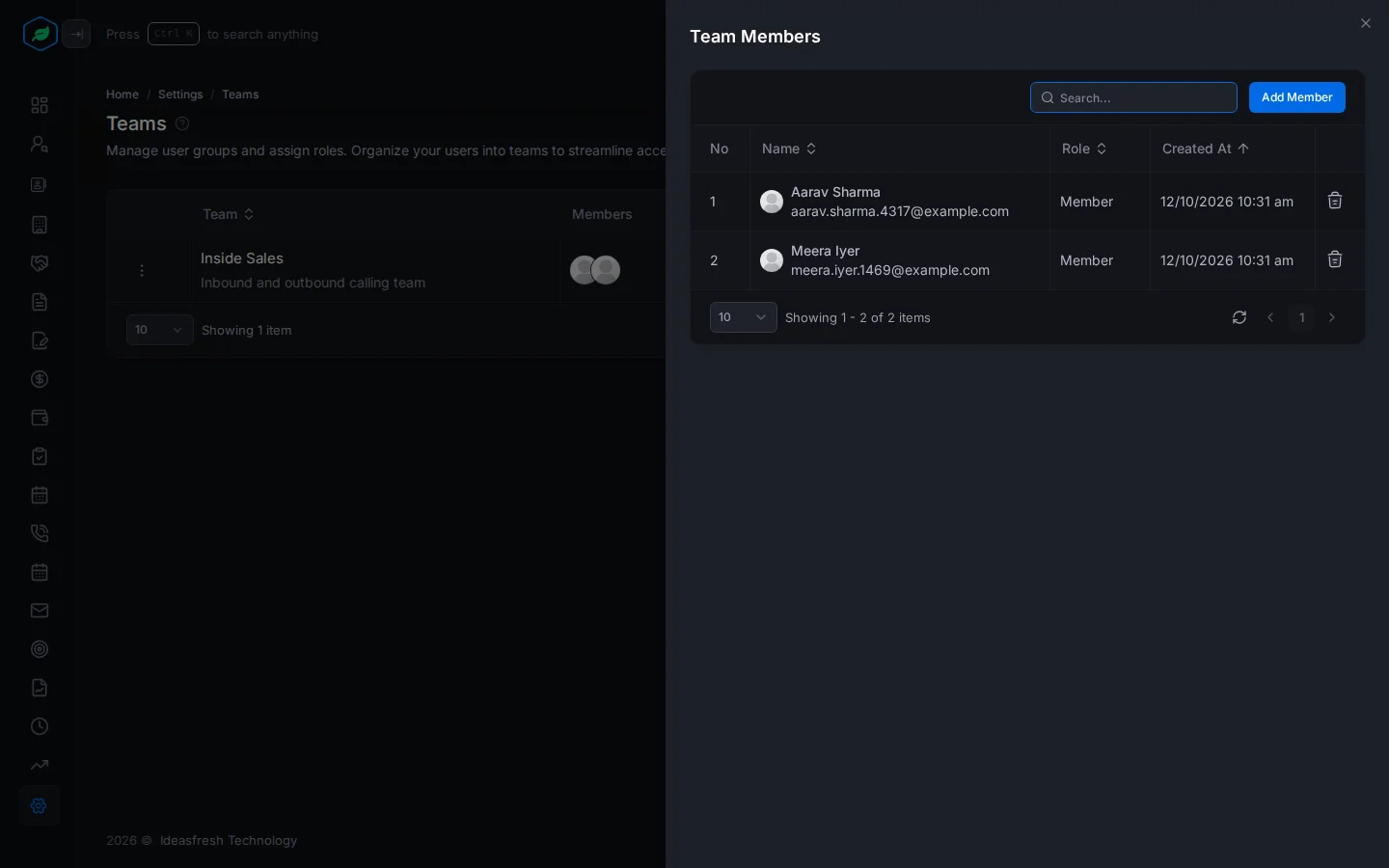
- Click View Members on the team. The Team Members panel opens.
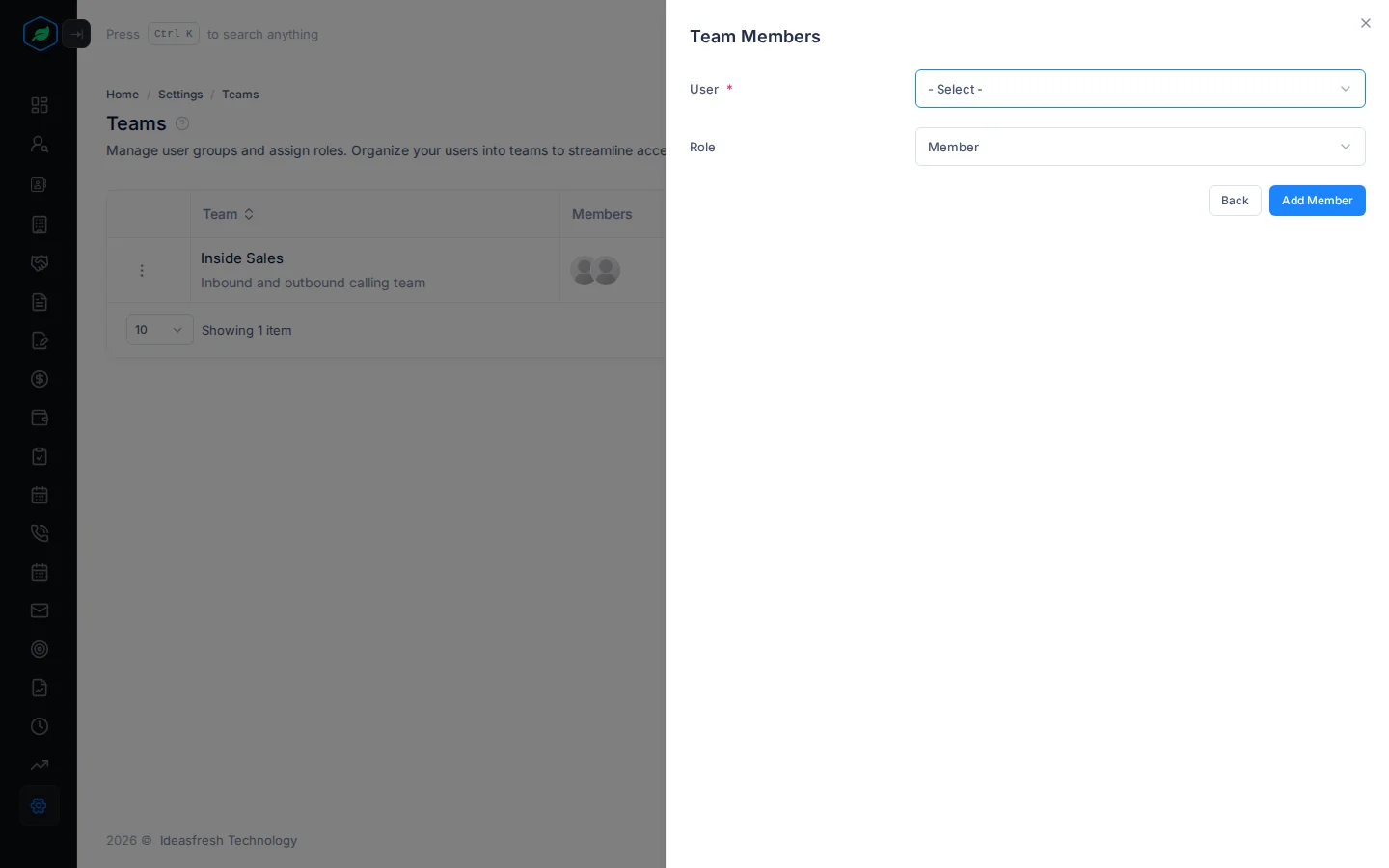
- Click Add Member.
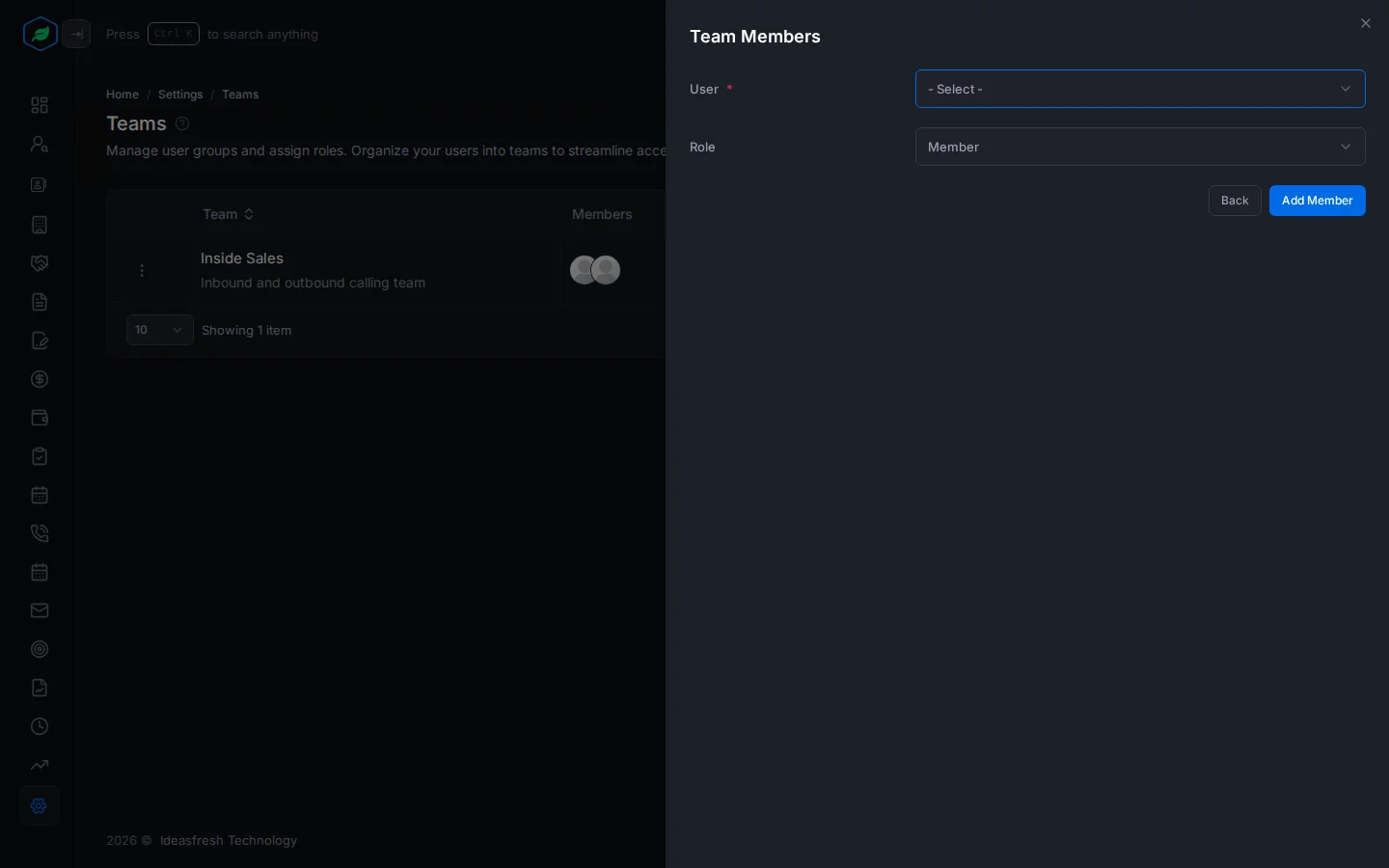
- Fill in the fields, and click Add Member.
| Field | What to enter |
|---|---|
| User * | The person to add |
| Role | Their role in the team: Member, Lead or Manager. Set to Member at first |
To remove someone, click the bin icon on their row and click Delete.
If you add yourself to a team, you're logged out after 5 seconds so your new access applies.
Team roles
| Role | What it adds |
|---|---|
| Member | Belongs to the team, and sees records shared with the team |
| Lead | Like Member, and sees the team's activities on the Calendar |
| Manager | Like Lead, and sees the targets of the team's members and leads. See Assign targets to users and teams |
You can't change someone's team role after adding them. Removing them and adding them again brings back their old role.
Delete a team
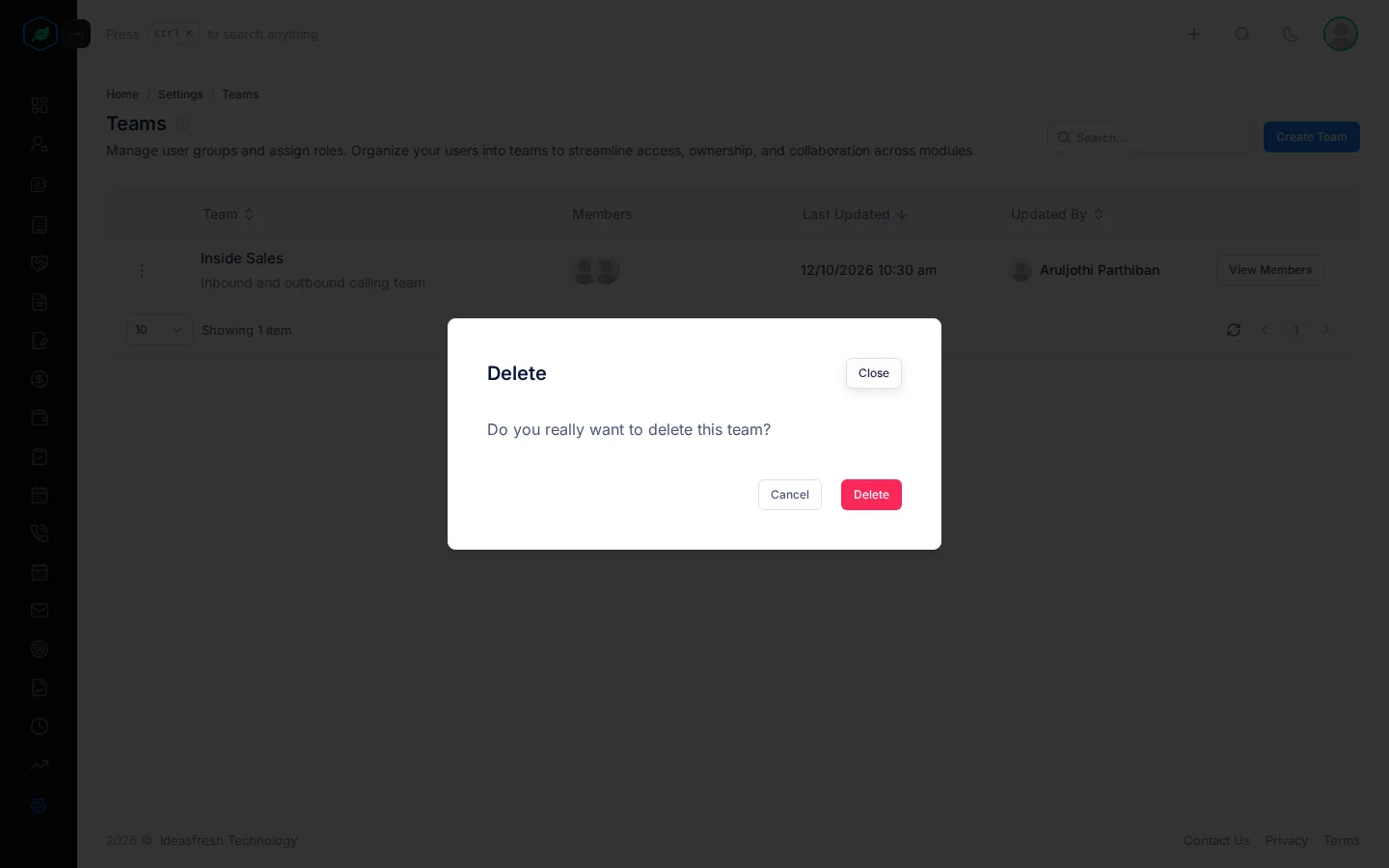
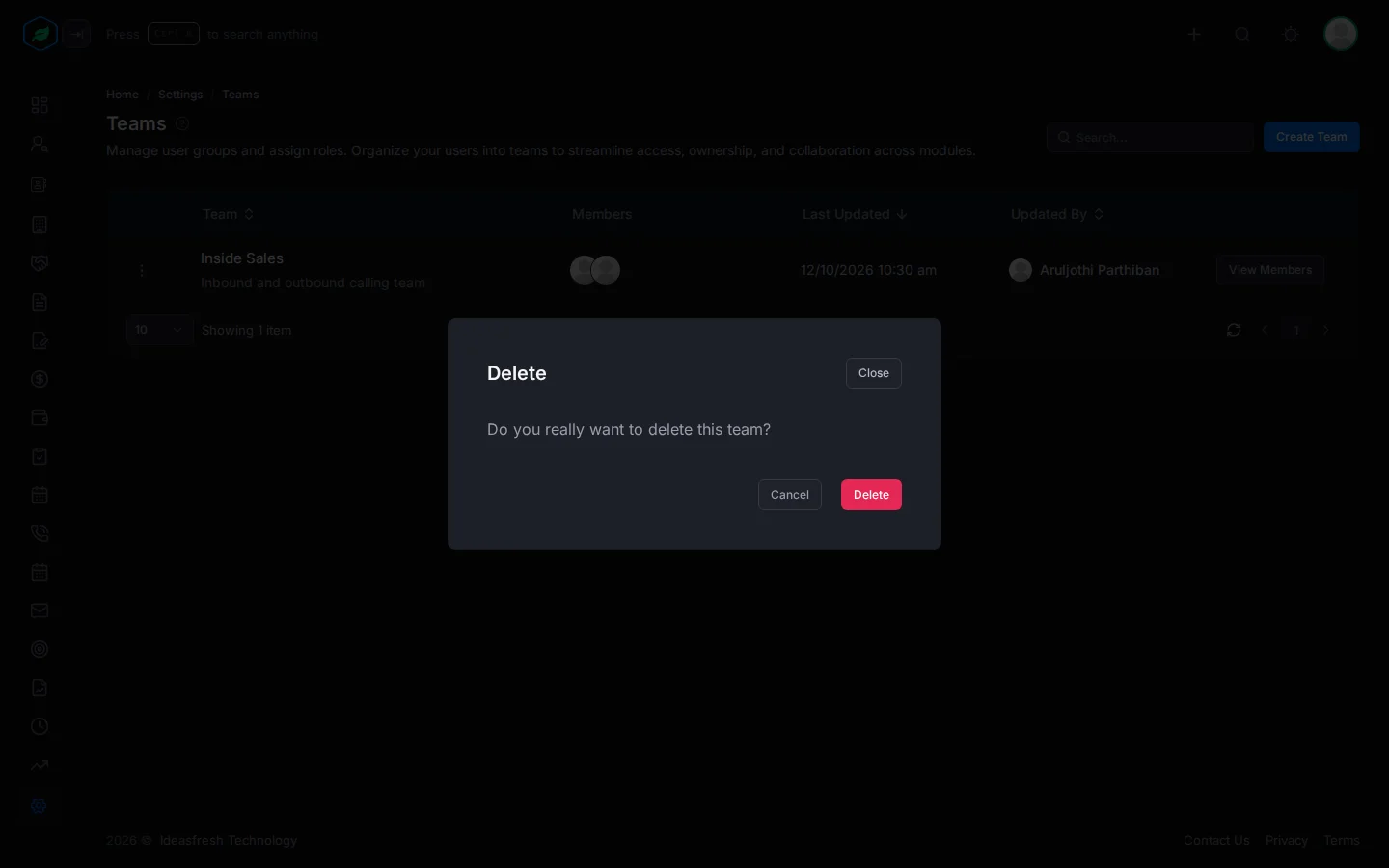
Click ⋮ on the team, then Delete. A window asks "Do you really want to delete this team?". Click Delete.
How teams share records
With a Team Based or Owner and Team policy, people see records whose Team field is one of their teams. Set the team on records, for example on the lead form. See Data share policies.
My Teams
Everyone can see the teams they're in, and who else is in them, under My Teams in the menu under their photo.
Troubleshooting
| You see | Why | What to do |
|---|---|---|
| "Team already exists" | Another team has that name | Pick another name |
| "User is not an active member of this company" | The person is deactivated | Activate them first |
| "Team member already exists" | They're already in the team | Nothing to do |
| "You have reached the maximum of … team(s) on your current plan. Please upgrade for more." | Your plan's team limit is reached | Delete a team you don't use, or upgrade |
| "Access denied" when adding or removing a member | You don't have Create Teams or Delete Teams | Ask your admin |
Related
Still stuck?
Tell us what you were trying to do and we will help.