Give targets to people and teams
Give a target to people or to whole teams, follow everyone's progress, and see what each team member contributed.
Updated 12 October 2026 · 4 min read
Once a target exists, give it to people or to teams. A person's target counts only their own work. A team target counts the whole team's work together.
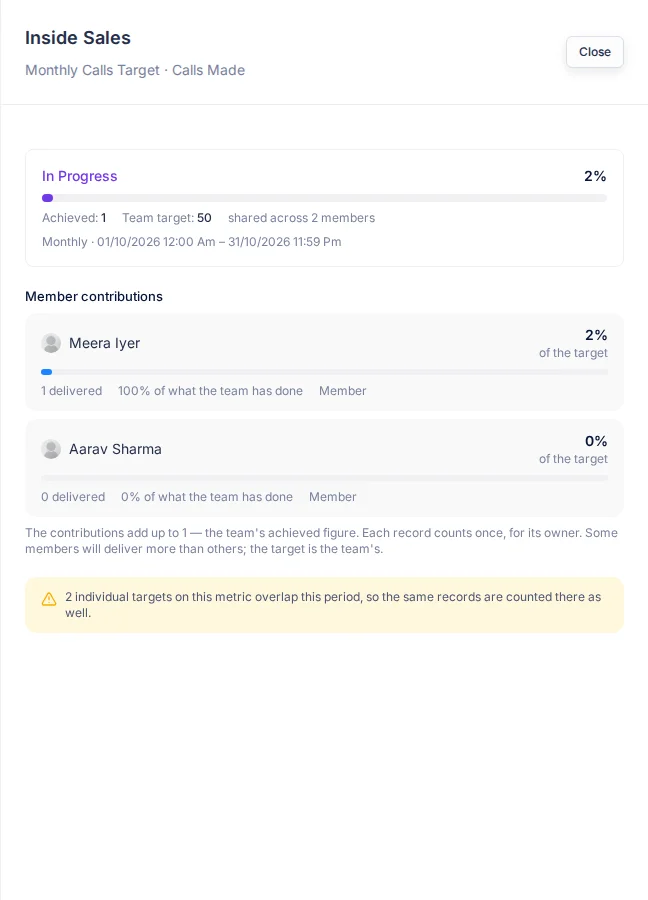
For example, a corporate sales manager has a team of four. They create a target of 10 lakh Revenue Closed each quarter and give it to the team, not to each person. The team's total grows whenever any member wins a deal. In Teams View, the manager clicks View contributions and sees who brought in the most. The team works towards one number, and the manager still sees each person's part.
You can also give each salesperson their own number, such as 40 calls each, or pause a target while someone is on leave.
Before you start
- To assign a target, you need the Create Targets permission. To pause or resume one, you need Edit Targets. To remove one, you need Delete Targets.
- With View All Targets, you see and assign everyone's targets. With View Team Targets, only the members of teams you manage.
If you don't have a permission you need, ask your admin.
Assign a target
- Go to Settings > Targets > User Targets.
- Click Assign Target. The Assign Target panel opens.
- Fill in the fields. Fields marked * must be filled in.
- Click Assign.
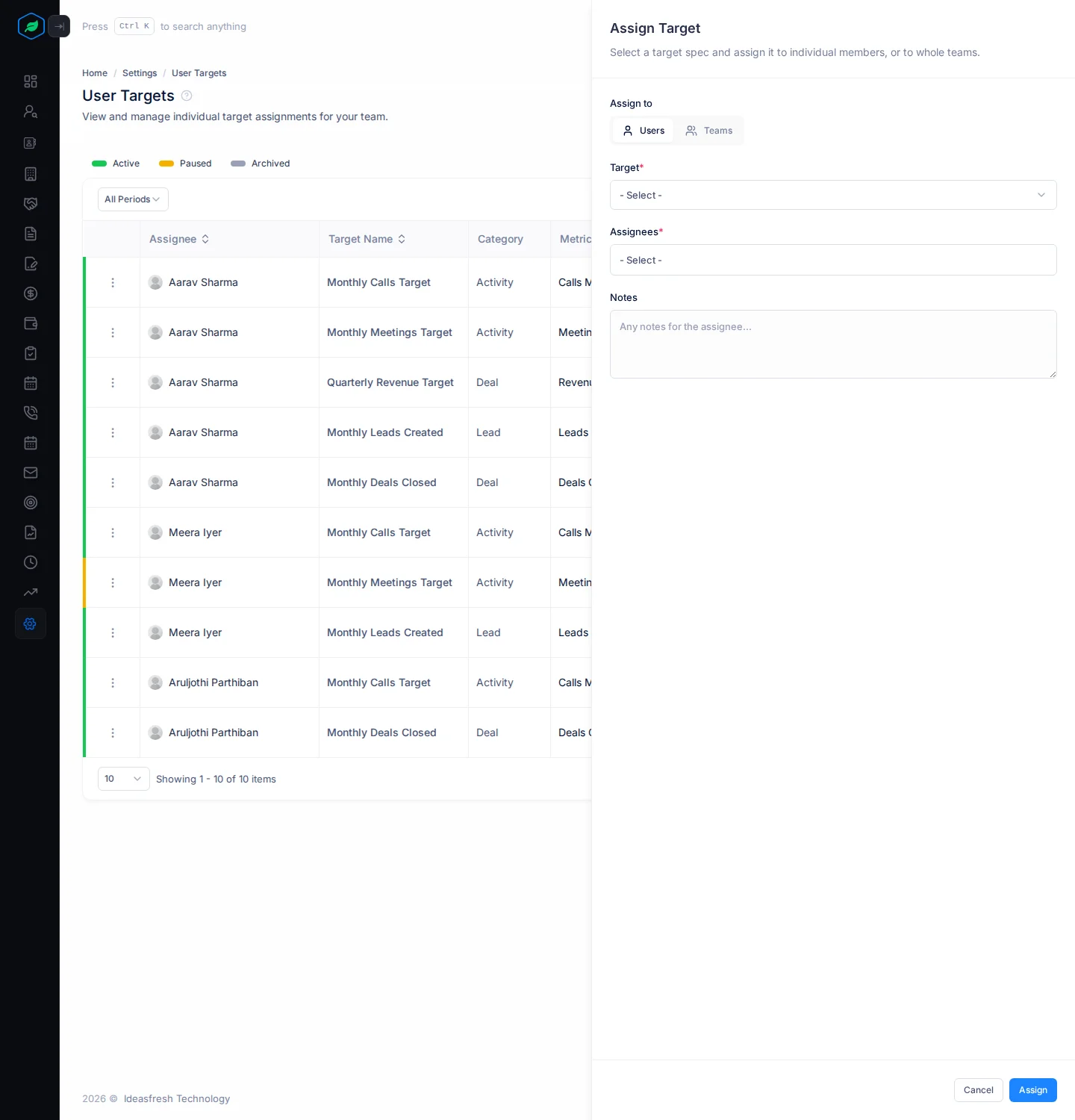
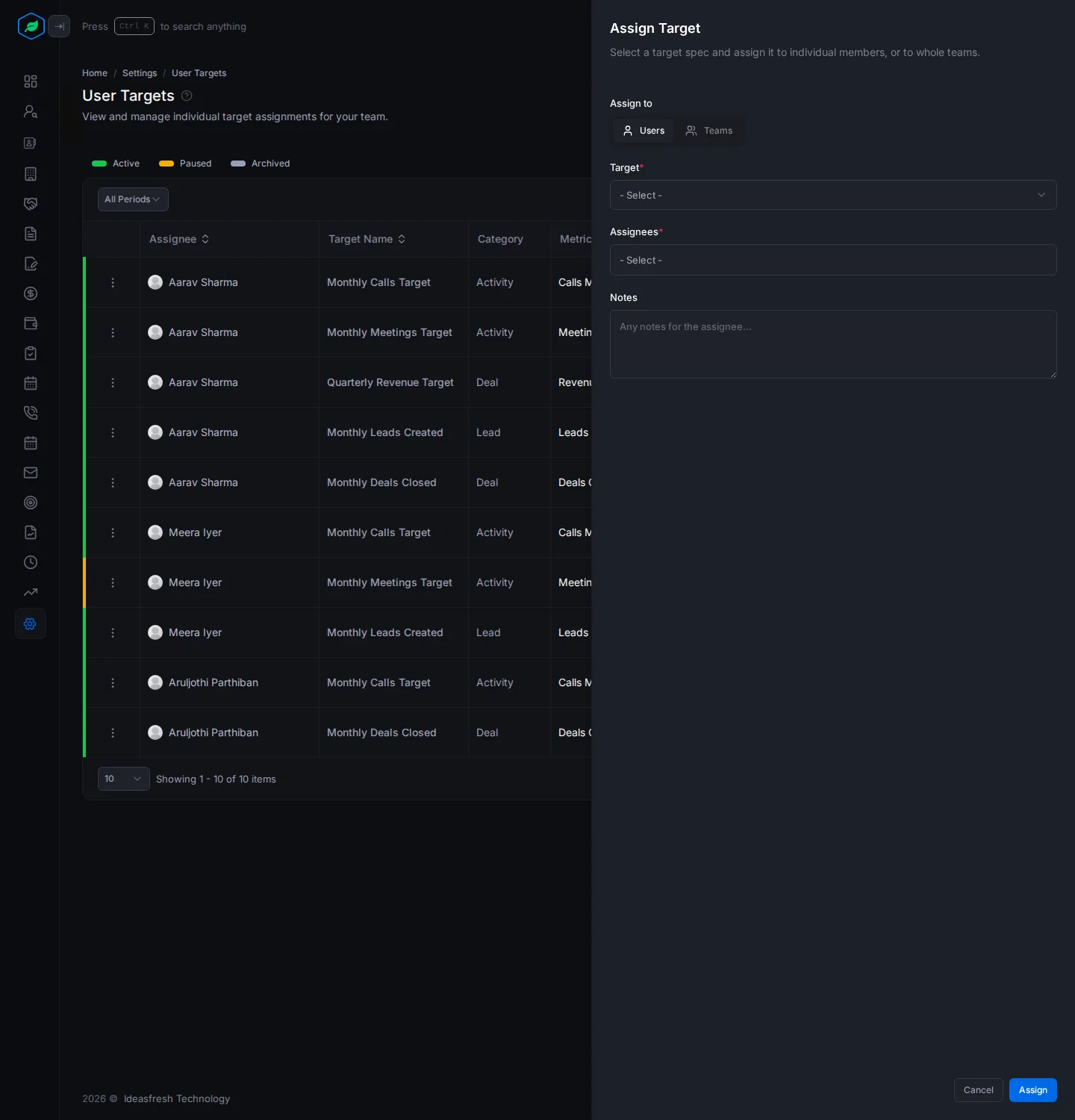
| Field | What to enter |
|---|---|
| Assign to | Users or Teams. Set to Users at first |
| Target * | The target to give |
| Assignees * or Teams * | The people or teams who get it, up to 50 at a time. Only people who don't have this target yet are listed |
| Notes | A note for the people who get it |
You can also click ⋮ on a target in Settings > Targets > Targets, then Assign. That panel has the target already picked and no Notes.
A person or team can't have two targets on the same metric and filters for periods that overlap.
How team targets work
- The target is the team's total. A team of 3 and a team of 30 with a target of 100 both need 100. It doesn't grow when someone joins.
- Each record counts once, for its owner, so nothing counts twice when work moves between members.
- Work by inactive or removed members doesn't count.
- An empty team keeps its target and says No Members, because nobody can work on it.
Follow progress
The User Targets page shows each person's target, its progress, such as "24 of 40", and its state. Click Teams View to see team targets, and Users View to go back.
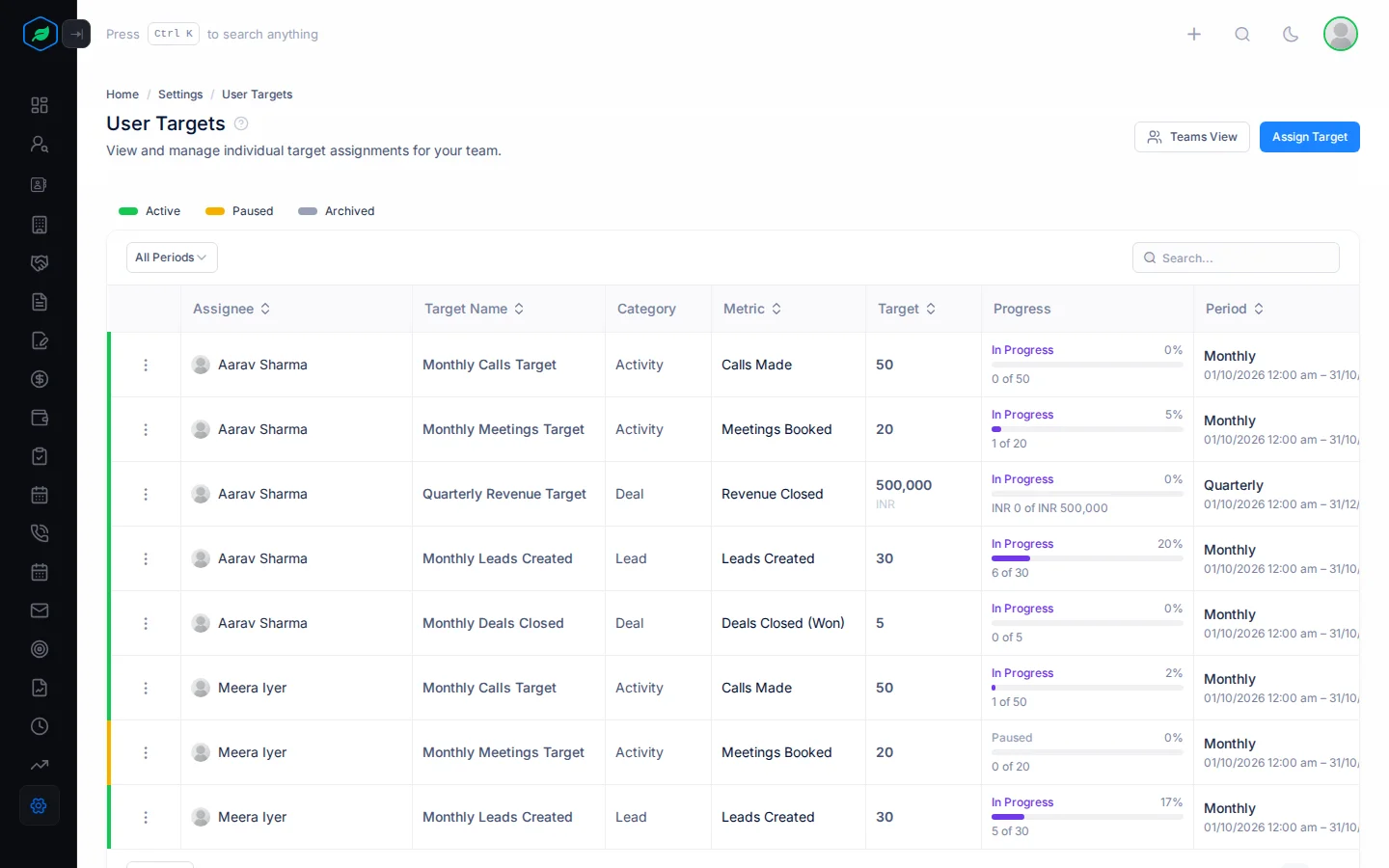
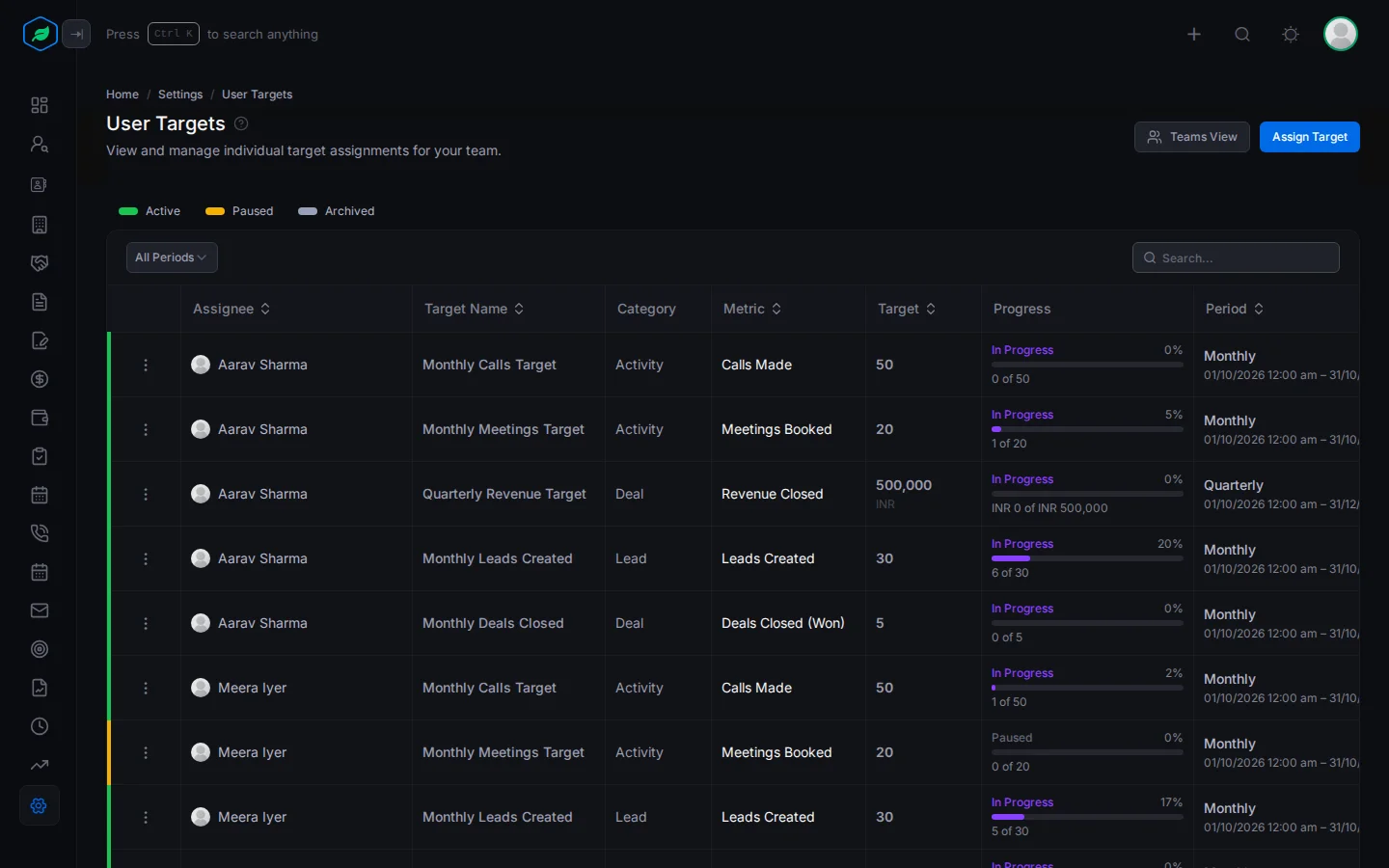
In Teams View, each row shows the team, how many members it has, and the team's total.
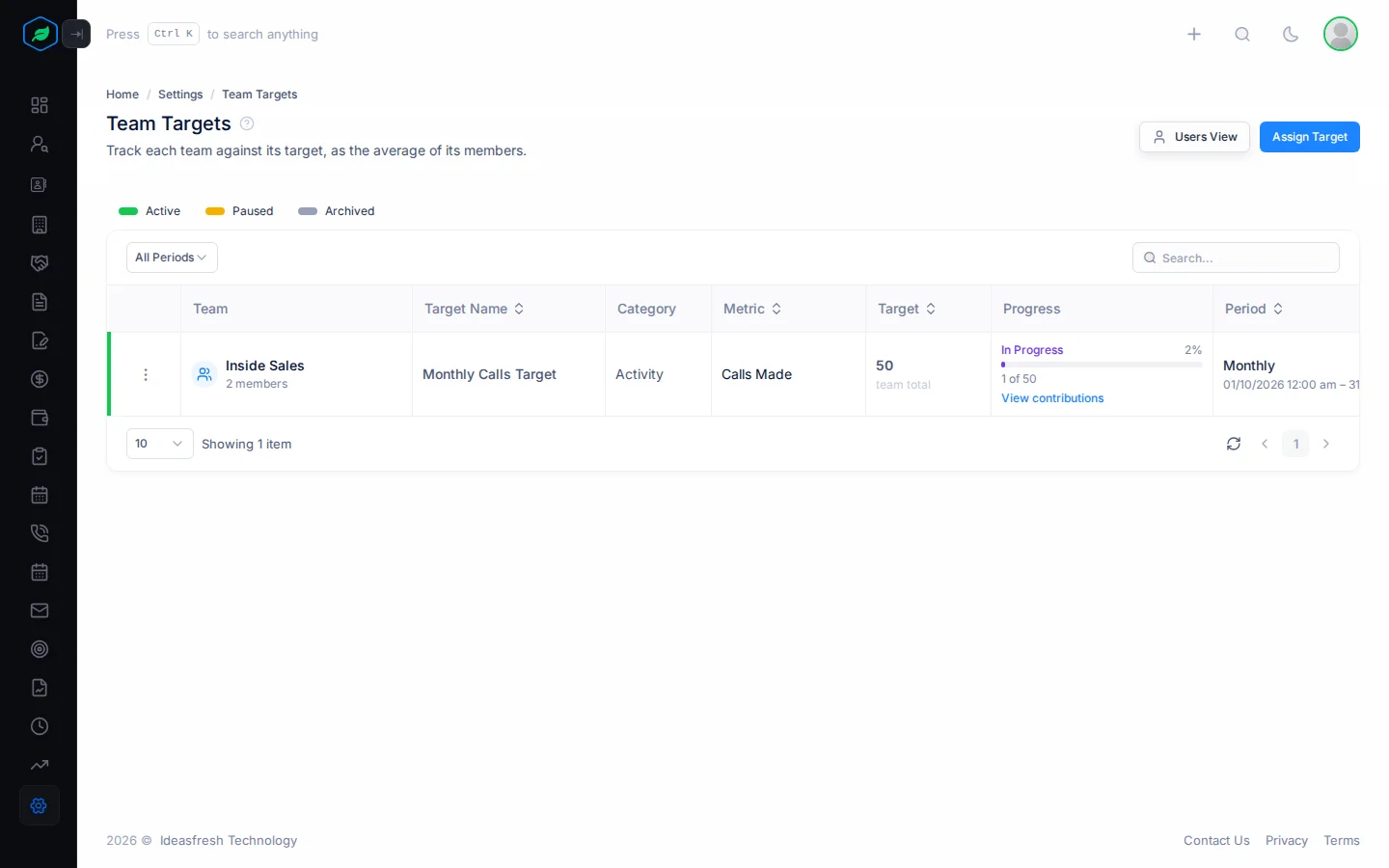
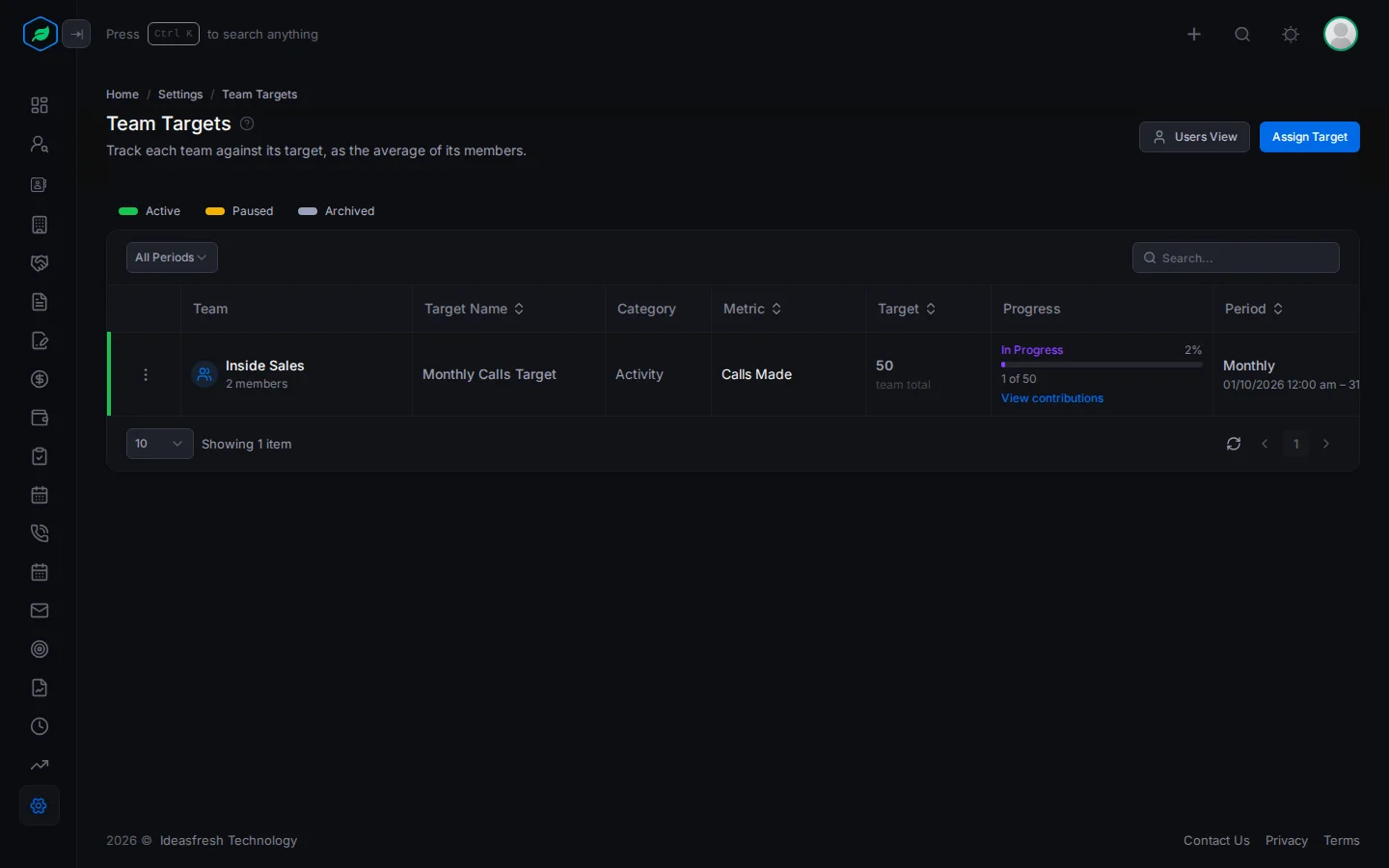
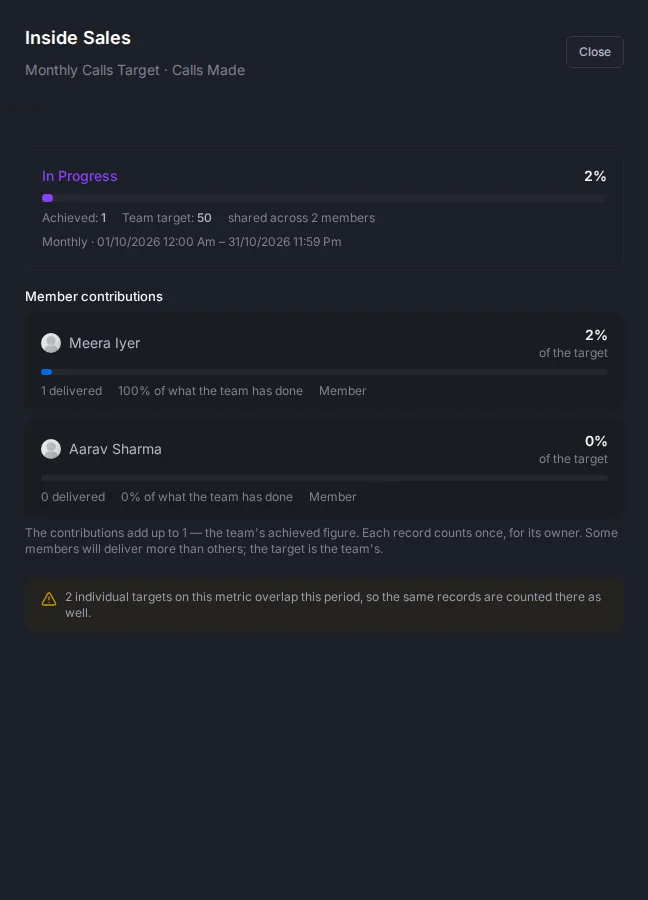
Click View contributions to see how much each member delivered, and what share of the team's total that is. Members who aren't counted are listed with the reason.
Click ⋮ on a row:
- Pause pauses the target, and its card says Paused. Progress keeps adding up. Resume starts it again.
- Delete removes the target from that person or team. Past results are kept.
Troubleshooting
| You see | Why | What to do |
|---|---|---|
| "A target with the same metric and filters already exists for this assignee in this period" | That person already has a target like this | Change the one they have |
| "This target is already assigned to this user" | They already have it | Nothing to do |
| "You can only assign targets to members of your team" or "You can only assign targets to teams you manage" | You can only assign to teams you manage | Ask someone with View All Targets |
| "Target spec is required" or "Select at least one team" | A field is empty | Pick a target and who gets it |
Related
Still stuck?
Tell us what you were trying to do and we will help.