Create targets for your team
Create a target once, such as 40 calls a month or 5 lakh revenue a quarter, and it starts again every period.
Updated 12 October 2026 · 3 min read
A target is a goal, such as "40 calls made every month". You create it once, then give it to people or teams. Weekly, monthly, quarterly and yearly targets start again by themselves each period.
For example, a travel agency owner keeps telling six agents to "make more calls", but nobody knows what "more" means. The owner creates one target, Calls Made, 40, Monthly, and gives it to all six. Each agent now sees their progress on My Targets every day. Next month, the target starts again by itself, and the owner sees who is on track without counting anything.
Before you start
- To open Settings > Targets, you need the View Team Targets or View All Targets permission.
- To create a target, you need Create Targets. To change one, you need Edit Targets. To delete one, you need Delete Targets.
- Pick the metric first. See Target metrics.
If you don't have a permission you need, ask your admin.
Create a target
- Go to Settings > Targets > Targets.
- Click Create Target. The Create Target panel opens.
- Fill in the fields. Fields marked * must be filled in.
- Click Create.
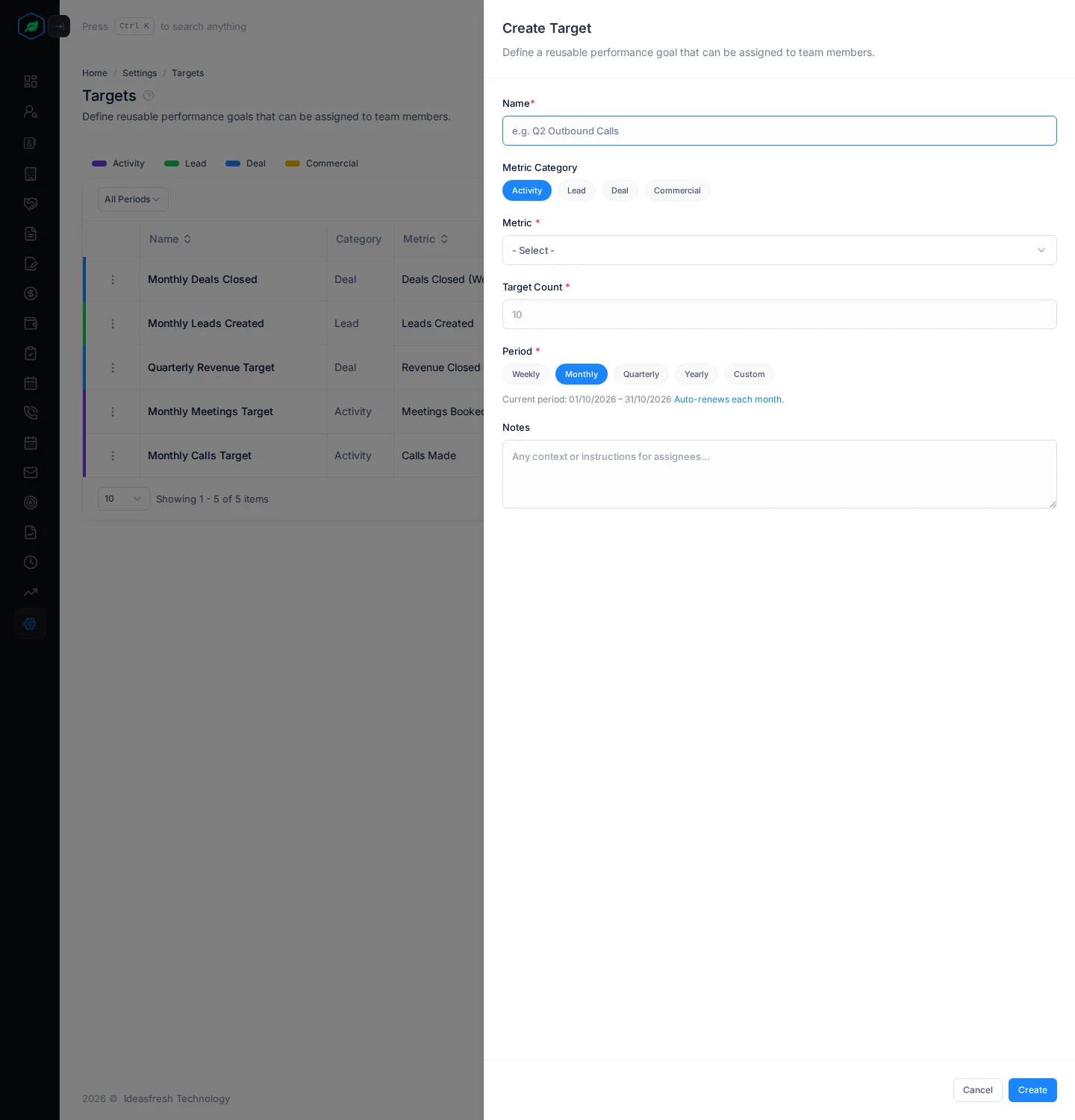
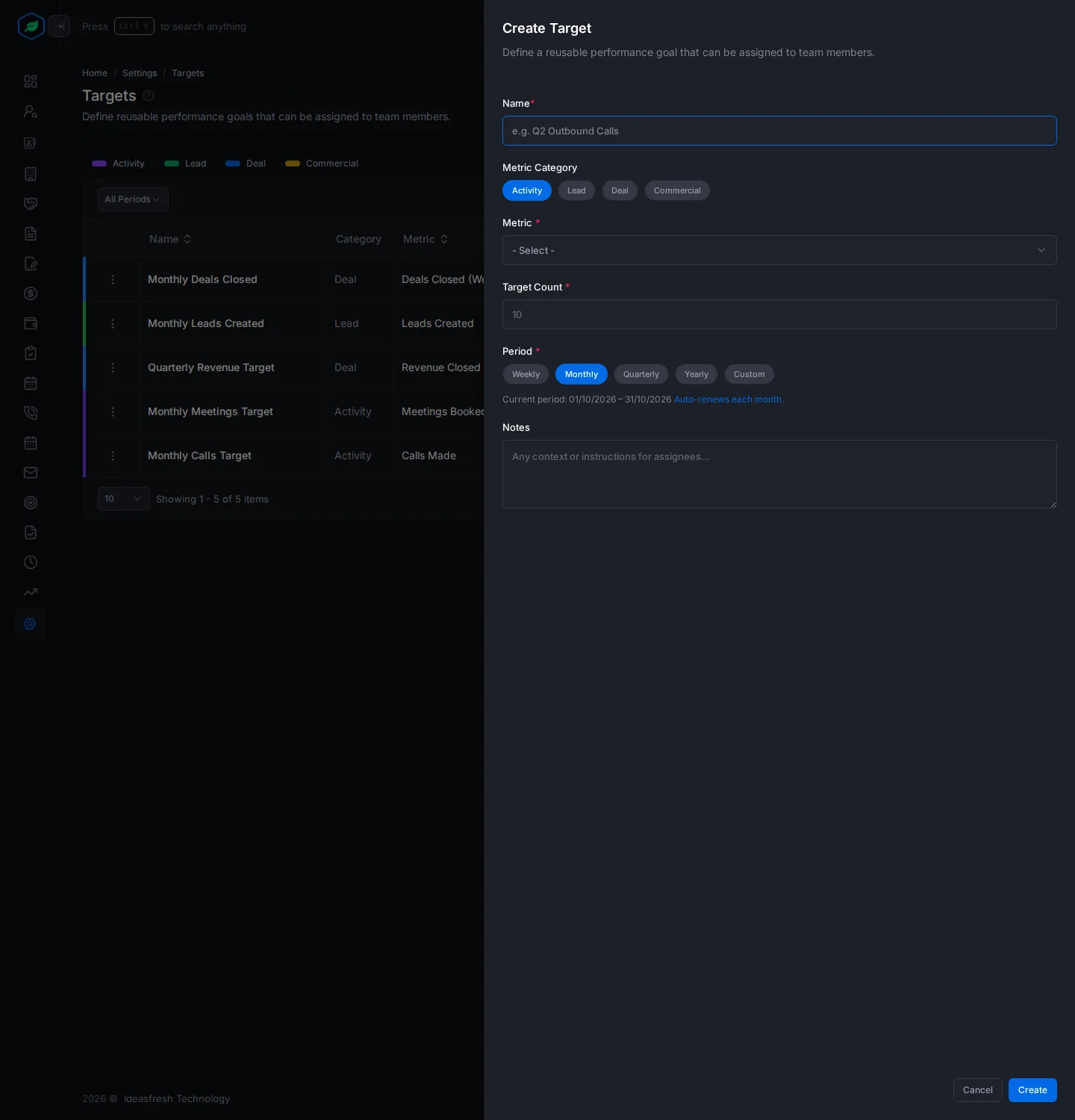
| Field | What to enter |
|---|---|
| Name * | Up to 150 characters, such as "Q2 Outbound Calls" |
| Metric Category | Activity, Lead, Deal or Commercial. Set to Activity at first |
| Metric * | What the target measures, such as Calls Made |
| Filter by Purpose | For activity metrics. Count only activities with this purpose. Set to Any purpose at first |
| Filter by Outcome | For calls and tasks. Count only those with this Specific Outcome, Nature or Min Rating. Picking an outcome fills in the other two |
| Minimum Lead Score * | For Leads with Score ≥ X only. A score from 1 to 100, such as 70 |
| Target Count * | The number to reach, such as 40. For revenue metrics, this is Target Revenue *, with the currency in the box next to it |
| Period * | Weekly, Monthly, Quarterly, Yearly or Custom. Set to Monthly at first |
| Start Date *, End Date * | For Custom only. When the target starts and ends |
| Notes | Instructions for the people who get it, up to 1000 characters |
Under Period, the panel shows the current period, such as "Current period: 01/10/2026 – 31/10/2026 Auto-renews each month."
Only Custom targets end and get a final result: Achieved, Exceeded or Missed. Repeating targets always show the current period.
The Targets page
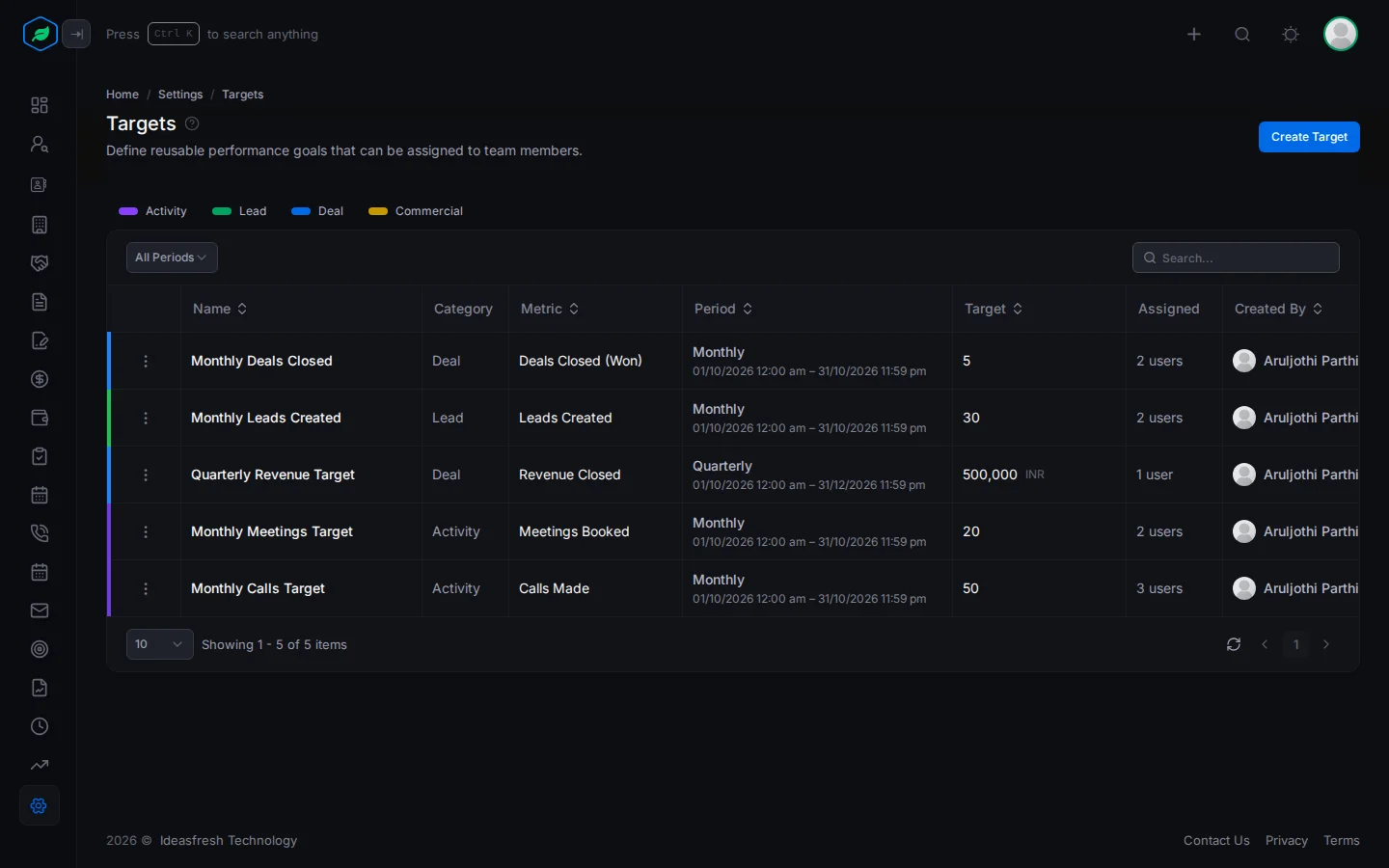
Each row shows the target's name, category, metric, period, number, and how many people it's given to.
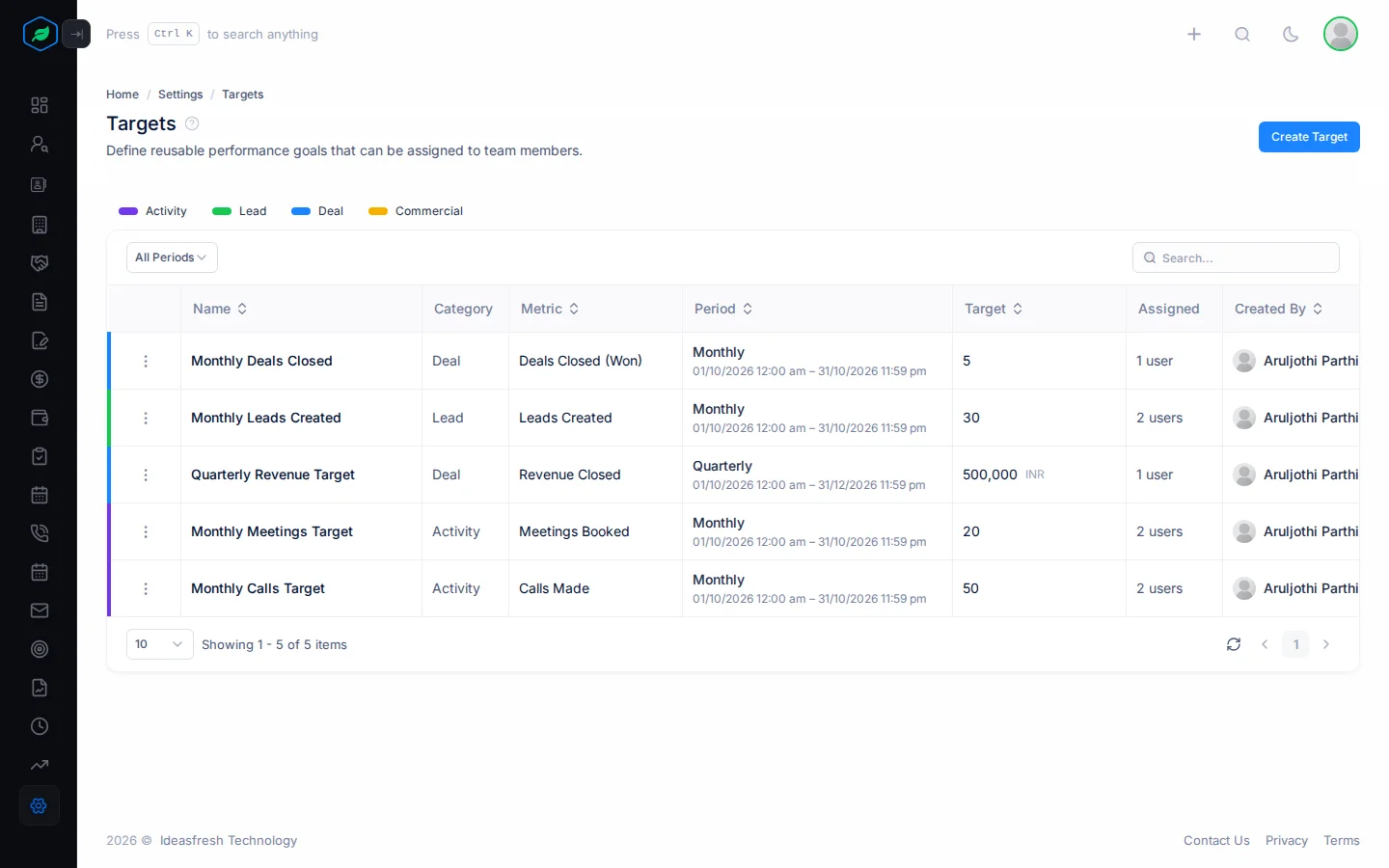
Click ⋮ on a target:
- Edit changes it for everyone who has it.
- Clone copies it as "Name (Copy)", for example to make a similar target with a different number.
- Assign gives it to people or teams. See Assign targets to users and teams.
- Delete removes it.
Troubleshooting
| You see | Why | What to do |
|---|---|---|
| "Name is required" or "Metric is required" | The field is empty | Fill it in |
| "Target value must be positive" | The number is 0 or less | Enter a number above 0 |
| "End date must be greater than start date" | The custom dates are the wrong way round | Fix the dates |
| "Lead scoring must be configured before using this metric" | Leads with Score ≥ X needs lead scoring | Configure lead scoring |
| "A target with the name "… (Copy)" already exists" | You already copied this target | Rename the first copy, then copy again |
Related
Still stuck?
Tell us what you were trying to do and we will help.